
Technologies
Adaptive Power in iOS 26 Is Boosting Your iPhone Battery in the Background
We all want more battery life in our phones, and a semi-hidden AI setting in the latest iPhone system is helping to achieve that.
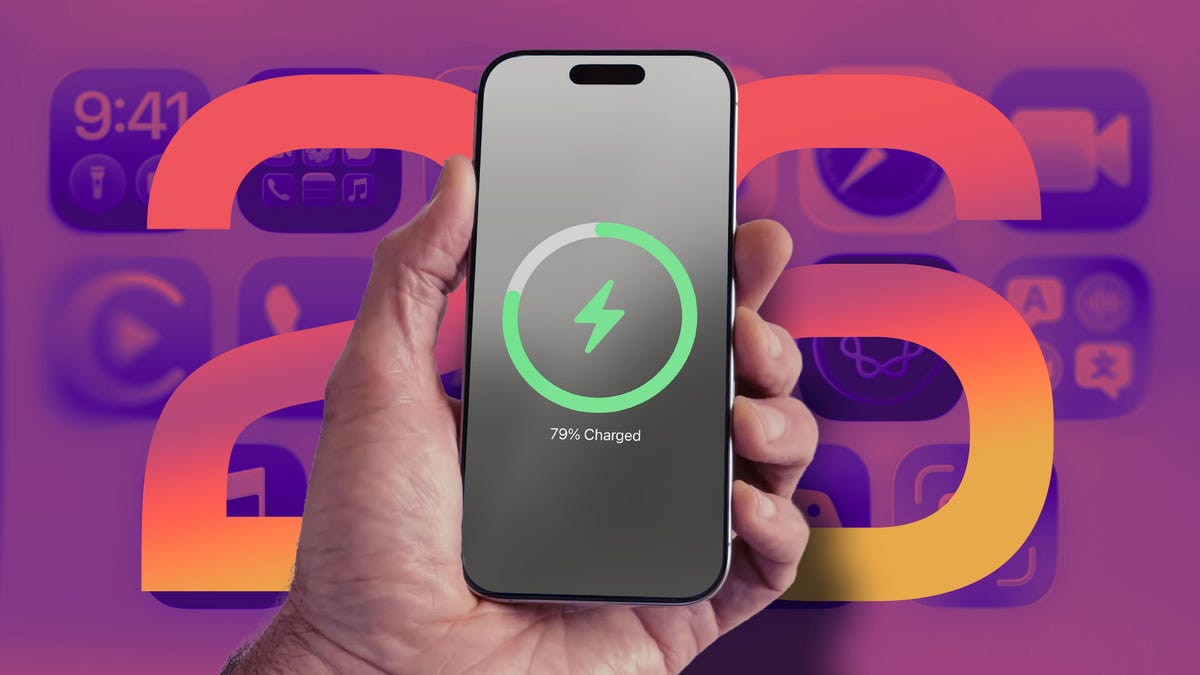
Other Apple Intelligence features get all the attention, but in iOS 26 one of my favorite tools does its thing quietly in the background. On iPhone models that are capable of running Apple’s AI tech, the Adaptive Power setting is at work behind the scenes to extend battery power, even on many older iPhones.
Currently, the iPhone uses as much power as it needs to perform its tasks. You can extend battery life by taking a few simple steps, such as reducing screen brightness and disabling the always-on display. Or, if your battery is running low, you can turn on Low Power Mode, which limits background activity, like fetching mail and downloading data, and dims the screen to help extend battery life. Low Power Mode also kicks in automatically when the battery level reaches 20%.
If Low Power Mode is the hammer that knocks down power consumption, Adaptive Power is the scalpel that intelligently trims energy savings here and there as needed. Based on Apple’s description that accompanies the control, the savings will be felt mostly in power-hungry situations such as recording videos, editing photos or even playing games.
Apple says Adaptive Power takes about a week to analyze your usage behavior before it begins actively working. And it works in the background without needing any management on your part.
Here’s how Apple describes it in the iPhone user guide: «It uses on-device intelligence to predict when you’ll need extra battery power based on your recent usage patterns, then makes performance adjustments to help your battery last longer.»
Which iPhone models can use Adaptive Power?
The feature uses AI to monitor and choose when its power-saving measures should be activated, which means only phones compatible with Apple Intelligence get the feature. These are the models that have the option:
• iPhone 17
• iPhone 17 Pro and iPhone 17 Pro Max
• iPhone Air
• iPhone 16 and iPhone 16 Plus
• iPhone 16 Pro and iPhone 16 Pro Max
• iPhone 16e
• iPhone 15 Pro and iPhone 15 Pro Max
Although some iPad and Mac models support Apple Intelligence, the feature is only available on iPhones.
How to turn Adaptive Power on
Adaptive Power is on by default on the iPhone 17, iPhone 17 Pro, iPhone 17 Pro Max and iPhone Air. For other models, you must opt in to use it. In iOS 26, you’ll find the Adaptive Power toggle in Settings > Battery > Power Mode. To be alerted when the feature is active, turn on the Adaptive Power Notifications option.
Adaptive Power sounds like an outgrowth of Gaming Mode, introduced in iOS 18, which routes all available processing and graphics power to the frontmost app and pauses other processes in order to deliver the best experience possible — at the notable expense of battery life.
What does this mean for your charging habits?
Although we all want as much battery life as possible all the time, judging by the description, it sounds as if Adaptive Power’s optimizations will not always be active, even if you leave the feature on. «When your battery usage is higher than usual» could include a limited number of situations. Still, considering that according to a CNET survey, 61% of people upgrade their phones because of battery life, a feature such as Adaptive Power could extend the longevity of their phones just by updating to iOS 26.
I also wonder whether slightly adjusting display brightness could be disruptive, but in my experience so far, it hasn’t been noticeable. Because the feature also selectively de-prioritizes processing tasks, the outward effects seem minimal. When it’s activated on my iPhone 16 Pro, the only indication was the Adaptive Power alert that appeared.
We’ll get a better idea about how well Adaptive Power works as more people adopt iOS 26 and start buying new iPhone models. Also, remember that shortly after installing a major software update, it’s common to experience worse battery life as the system optimizes data in the background; Apple went so far as to remind customers that it’s a temporary side effect.
Technologies
YouTubers Sue Amazon, Claim AI Tool Was Trained on Scraped Videos
The lawsuit alleges that Amazon bypassed YouTube protections to collect content for its generative AI video system.

A group of YouTube creators is suing Amazon, accusing the tech giant of secretly scraping their videos to train its AI video model without permission.
The proposed class action lawsuit, filed in federal court in Seattle, alleges Amazon used automated tools to download and extract data from millions of YouTube videos to build and improve its Nova Reel generative AI system — a model that can create short videos from text prompts and images.
At the center of the complaint is how that data was obtained. The plaintiffs claim that Amazon bypassed YouTube’s protections using virtual machines and rotating IP addresses to avoid detection, effectively sidestepping the platform’s safeguards against bulk downloading.
The lawsuit was brought by several creators, including Ted Entertainment (the company behind the H3 Podcast and h3h3 Productions), as well as individual YouTubers and channel operators. They argue that the alleged scraping violated copyright law and the Digital Millennium Copyright Act, and are seeking damages as well as an injunction to stop the practice.
Amazon did not respond to a request for comment.
The case lands at a pivotal moment for generative AI, as courts weigh whether training on copyrighted material qualifies as fair use and how much control creators retain once their work is used to build these systems. The disputes have often centered on written material, which has been at the center of the AI revolution for several years, while AI video generators such as OpenAI’s Sora and Google’s Veo have emerged more recently.
The lawsuit is one of dozens testing the boundaries of AI training practices, alongside high-profile cases from authors, artists and news organizations, including lawsuits against OpenAI and Meta, all circling the same unresolved question: Where does fair use end and infringement begin?
Technologies
The Galaxy Z TriFold Is Back. You Can Buy It From Samsung Soon
The $2,899 phone paused its sales in March after selling through its inventory, but Samsung is bringing it back to its online store.
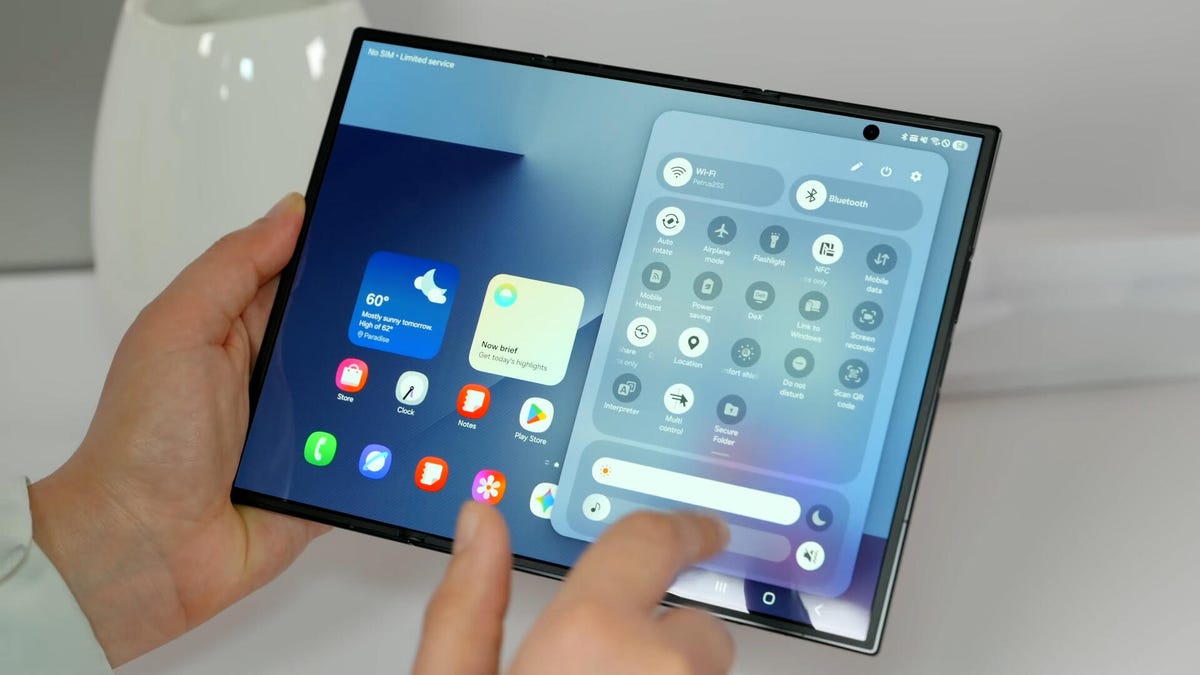
Samsung’s $2,899 Galaxy Z TriFold is going back on sale on Friday, following a halt to its sales in March after the foldable phone sold through its inventory. Samsung has announced the TriFold’s return with a countdown clock on the phone’s online store page along with a Wednesday newsletter email sent to customers.
The initial pause, which Samsung said at the time was related to the TriFold being a «super-premium device in limited quantities,» happened after just three months of availability. The TriFold first went on sale in South Korea on Dec. 12 and then arrived in Samsung’s US store on Jan. 30. The TriFold sold out in the US within minutes of going on sale — which I know personally after joining my colleagues that morning in an attempt to buy it. Thankfully Senior Reporter Abrar Al-Heeti succeeded, and then reviewed the TriFold.
It’s unclear whether the Galaxy Z TriFold is now permanently returning to Samsung’s online store or if it is again on sale until its stock sells through. Given that the phone is very expensive, and unfolds to reveal a large, 10-inch display, it wouldn’t be surprising if its stock will be in limited quantities. We’ve asked a Samsung representative to clarify and will update if we hear more.
The Galaxy Z TriFold’s return also comes ahead of the summer season when we expect a slew of other foldable phones: Samsung typically refreshes its Galaxy Z Fold and Z Flip line in July or August, and Motorola has announced its first book-style Razr Fold phone will also debut during the season. And Apple’s rumored iPhone Fold (or perhaps iPhone Ultra based on latest rumors) could also be teased later this year.
Technologies
Help Us Crown the Most Loved Headphones and Earbuds of 2026
Got a pair you swear by? Take our People’s Picks survey to help us find a winner.
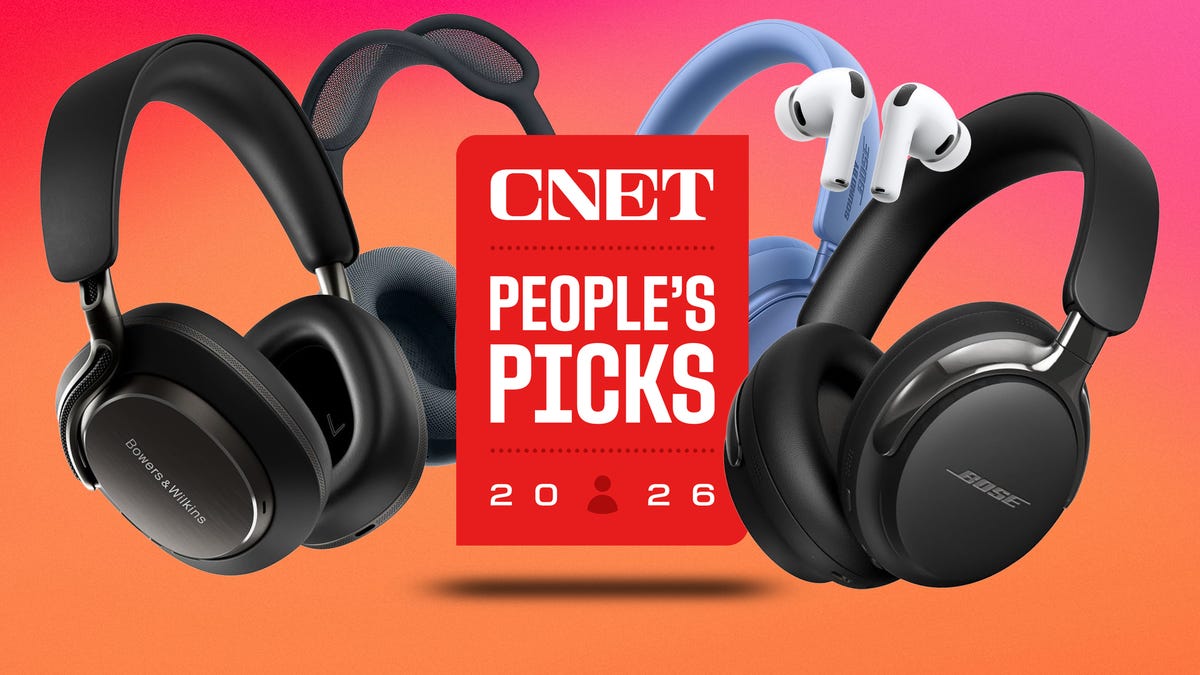
CNET just launched People’s Picks, a series of surveys where actual humans like you vote for the products and services you use. Starting in April, we want you to weigh in on your favorite headphones and earbuds. We’ll pick a winner based on which ones you love the most.
Why we want to hear from you
Our writers and editors test hundreds of products each year, but your real-world experience with these devices is something we can’t replicate in our labs. You’ve used these headphones at the gym, on your commute to work and on long flights, and that perspective is invaluable. Your voice helps others know about the headphones or earbuds you love, too.
«I review a lot of headphones and earbuds for CNET, and there are plenty of great models from the top brands in this survey that I rate highly. I’m always curious about what models people ultimately choose and why, so I’m excited to get your feedback and learn the results of this survey,» says David Carnoy, CNET’s executive editor and headphones expert.
With our survey, we’ll collect answers from real-world users like you. The headphones and earbuds chosen through our 3-minute survey will be featured in our People’s Picks roundup of the top picks based on your recommendation.
Make your voice heard
Whether you swear by a pair of $25 earbuds or love a pair of high-end headphones, your pick counts. The survey takes just a few minutes to complete, and after we gather enough information, we’ll tally the results and publish the winners.
Not sure what to pick? Check out our Best Headphones to revisit your favorites before voting.
-
 Technologies3 года ago
Tech Companies Need to Be Held Accountable for Security, Experts Say
-
 Technologies3 года ago
Best Handheld Game Console in 2023
-
 Technologies3 года ago
Tighten Up Your VR Game With the Best Head Straps for Quest 2
-
 Technologies4 года ago
Black Friday 2021: The best deals on TVs, headphones, kitchenware, and more
-
 Technologies5 лет ago
Google to require vaccinations as Silicon Valley rethinks return-to-office policies
-
 Technologies5 лет ago
Verum, Wickr and Threema: next generation secured messengers
-
 Technologies4 года ago
Olivia Harlan Dekker for Verum Messenger
-
 Technologies4 года ago
The number of Сrypto Bank customers increased by 10% in five days