
Technologies
Here’s Why You Should Clear Your iPhone Cache
Why you should clear your iPhone cache and exactly how to do it in Chrome, Safari and Firefox.
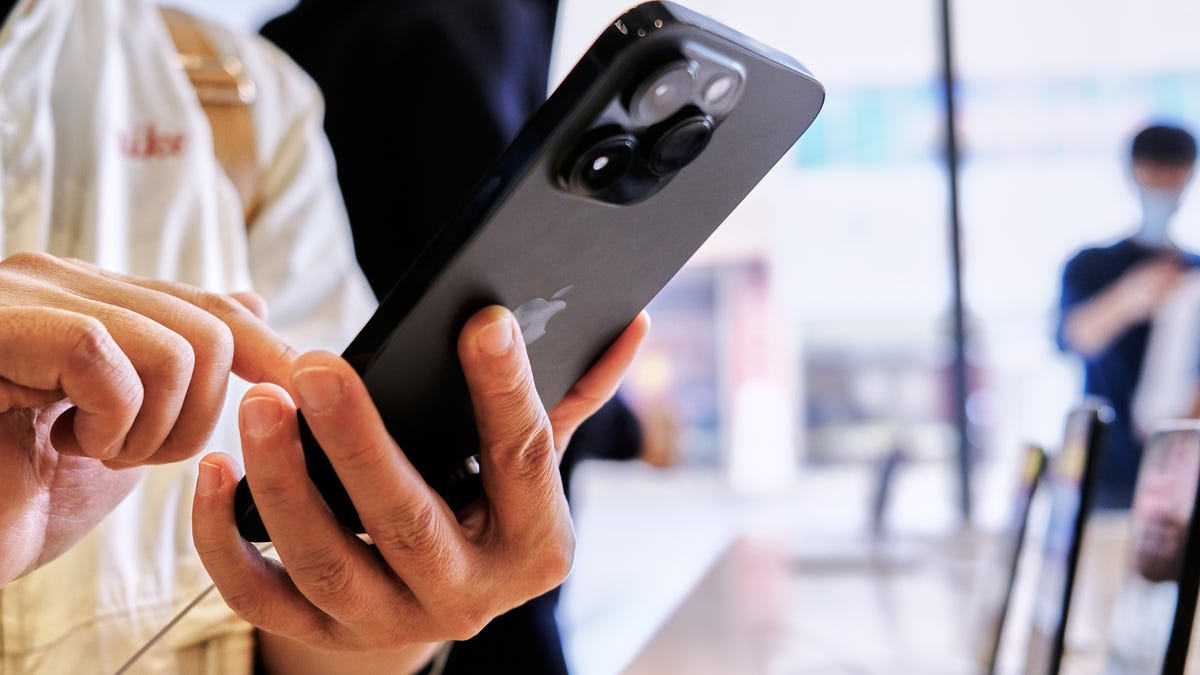
Your iPhone is a handy pocket computer that lets you take the internet virtually anywhere you go, and just like every other piece of tech, it benefits from a little routine maintenance. Even browsing on the latest iPhone 14 Pro and Pro Max models might start to feel sluggish over time. Keep your iPhone’s browsers moving as fast as possible by clearing your cache every month — it only takes a few seconds.
Whether you use Chrome, Safari or other browsers on your iPhone, your cache builds up digital clutter over time. Clearing your cache gives the browser a new start, which can speed up your web surfing, even on iOS 16.4. (And if you’re trying to get your phone to run faster, try managing your iPhone’s storage.)

Your browser cache acts like a digital shortcut — it stores website data so your browser has a head start the next time you load up that page. In the short term, that helps speed up the process. But over time, the data stored in your cache can become outdated and no longer match what the site actually needs. If that happens, pages will load slower, and the formatting might be wrong.
That’s why clearing your cache can help: It gives sites a fresh start in your browser and frees up some space in your storage.
Website cookies are similar, except they store information about user data, rather than data on the website itself. Clearing your cookies gives you a chance to reset those preferences, which could improve your browsing experience. Note that clearing your cache and cookies will log you out of sites, which means you’ll have to log into them again and reset any preferences. But the upfront investment of that time can lead to a smoother experience down the road, and it can be a useful fix if you’ve recently changed settings that aren’t being applied properly.
Here are step-by-step guides on how to clear your cache on your iPhone based on the browser you use.
How to clear your iPhone cache in Safari
Safari is the default browser on iPhones, and you can clear your Safari cache in a few short steps. Starting with iOS 11, following this process will affect all devices signed in to your iCloud account. As a result, all your devices’ caches will be cleared, and you’ll need to sign in to everything the next time you use them. Here’s what to do.
1. Open the Settings app on your iPhone.
2. Select Safari from the list of apps.
3. Go to Clear History and Website Data.
4. Choose Clear History and Data in the pop-up box.
Then you’re set!
Read more: Best iPhone in 2023: Which Apple Phone Should You Buy?
How to clear your iPhone cache in Chrome
It’s easy to clear your iPhone cache in Chrome.
James Martin/CNETChrome is another popular browser for iPhone users. The overall process for clearing your Chrome cache requires a few more steps, and you’ll need to do things through the Chrome browser itself. Here’s how.
1. Open the Chrome app.
2. Select the three dots in the bottom right to open more options.
3. Scroll across the top and select Settings.
4. Select Privacy and Security in the next menu.
5. Then select Clear Browsing Data to open up one last menu.
6. Select the intended time range at the top of the menu (anywhere from Last Hour to All Time).
7. Make sure that Cookies, Site Data is selected, along with Cached Images and Files. Finally, hit Clear Browsing Data at the bottom of the screen.
Read more: This iPhone Setting Stops Ads From Following You Across the Web
How to clear your iPhone cache in Firefox
If you’re a Firefox devotee, don’t worry. Clearing the cache on your iPhone is pretty straightforward. Just follow these steps.
1. Click the hamburger menu in the bottom right corner to open up options.
2. Choose Settings at the bottom of the menu.
3. Select Data Management in the Privacy section.
4. You can select Website Data to clear data for individual sites, or select Clear Private Data at the bottom of the screen to clear data from all selected fields.
Read more: Experiencing Slow Wi-Fi? It Could Be Caused by Internet Throttling. Here’s How to Tell
What happens when you clear the cache?
Clearing your cache removes the website data your phone stored locally to prevent having to download that data upon each new visit. The data in your cache builds over time and can end up slowing things down if it becomes too bulky or out of date. (My phone had about 150MB of data stored in Chrome when I checked.) Clearing that data gives sites a fresh start, which may fix some loading errors and speed up your browser. However, clearing your cache also signs you out of pages, so be prepared to sign in to everything again.
How often do I need to clear my cache?
Most people only need to clear their caches once every month or two. That’s generally the point when your browser will build up a cache large enough to start slowing things down. If you frequent a large number of sites, you should err on the side of clearing your cache more often.
For more, check out how to download iOS 16 today, the best new iOS 16.3 features and some hidden iOS 16 features. You can also take a look at how each new iPhone 14 model compares to the others.
Technologies
The Galaxy Z TriFold Is Back. You Can Buy It From Samsung Soon
The $2,899 phone paused its sales in March after selling through its inventory, but Samsung is bringing it back to its online store.
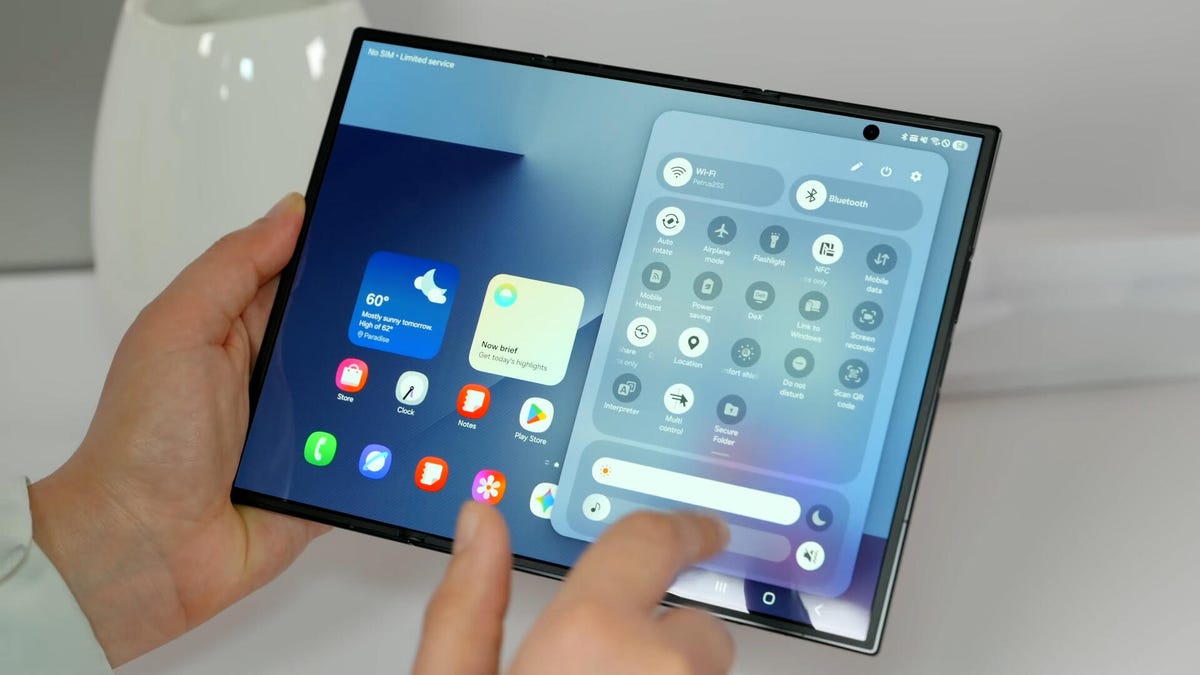
Samsung’s $2,899 Galaxy Z TriFold is going back on sale on Friday, following a halt to its sales in March after the foldable phone sold through its inventory. Samsung has announced the TriFold’s return with a countdown clock on the phone’s online store page along with a Wednesday newsletter email sent to customers.
The initial pause, which Samsung said at the time was related to the TriFold being a «super-premium device in limited quantities,» happened after just three months of availability. The TriFold first went on sale in South Korea on Dec. 12 and then arrived in Samsung’s US store on Jan. 30. The TriFold sold out in the US within minutes of going on sale — which I know personally after joining my colleagues that morning in an attempt to buy it. Thankfully Senior Reporter Abrar Al-Heeti succeeded, and then reviewed the TriFold.
It’s unclear whether the Galaxy Z TriFold is now permanently returning to Samsung’s online store or if it is again on sale until its stock sells through. Given that the phone is very expensive, and unfolds to reveal a large, 10-inch display, it wouldn’t be surprising if its stock will be in limited quantities. We’ve asked a Samsung representative to clarify and will update if we hear more.
The Galaxy Z TriFold’s return also comes ahead of the summer season when we expect a slew of other foldable phones: Samsung typically refreshes its Galaxy Z Fold and Z Flip line in July or August, and Motorola has announced its first book-style Razr Fold phone will also debut during the season. And Apple’s rumored iPhone Fold (or perhaps iPhone Ultra based on latest rumors) could also be teased later this year.
Technologies
Help Us Crown the Most Loved Headphones and Earbuds of 2026
Got a pair you swear by? Take our People’s Picks survey to help us find a winner.
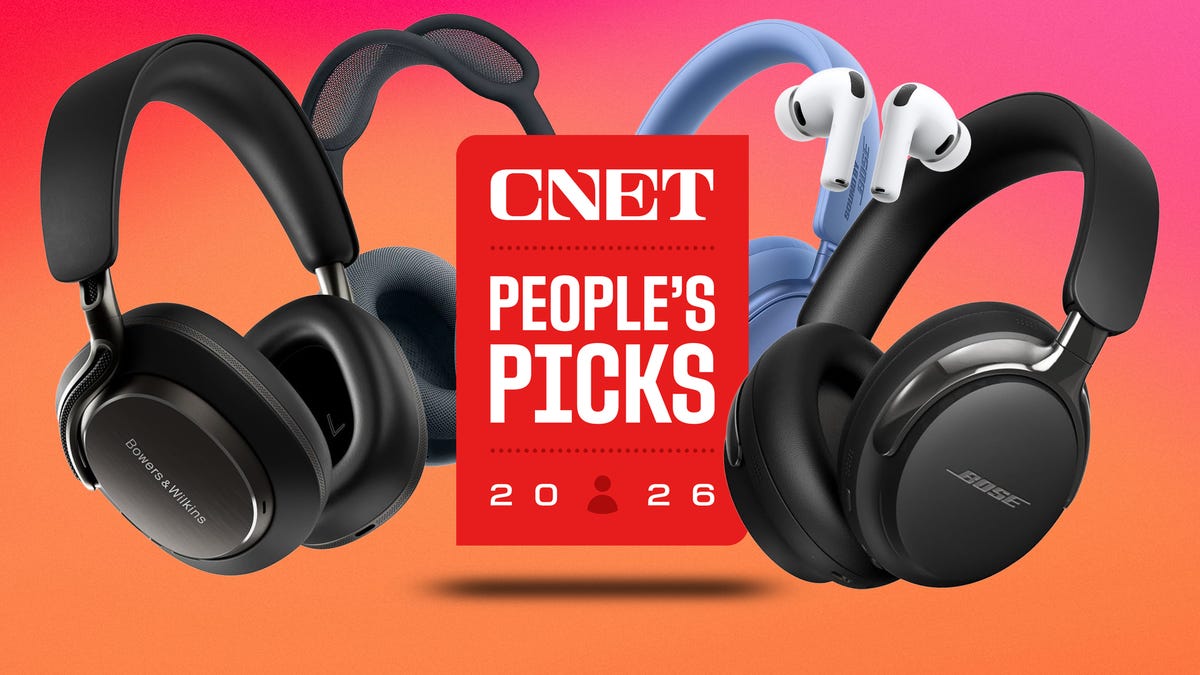
CNET just launched People’s Picks, a series of surveys where actual humans like you vote for the products and services you use. Starting in April, we want you to weigh in on your favorite headphones and earbuds. We’ll pick a winner based on which ones you love the most.
Why we want to hear from you
Our writers and editors test hundreds of products each year, but your real-world experience with these devices is something we can’t replicate in our labs. You’ve used these headphones at the gym, on your commute to work and on long flights, and that perspective is invaluable. Your voice helps others know about the headphones or earbuds you love, too.
«I review a lot of headphones and earbuds for CNET, and there are plenty of great models from the top brands in this survey that I rate highly. I’m always curious about what models people ultimately choose and why, so I’m excited to get your feedback and learn the results of this survey,» says David Carnoy, CNET’s executive editor and headphones expert.
With our survey, we’ll collect answers from real-world users like you. The headphones and earbuds chosen through our 3-minute survey will be featured in our People’s Picks roundup of the top picks based on your recommendation.
Make your voice heard
Whether you swear by a pair of $25 earbuds or love a pair of high-end headphones, your pick counts. The survey takes just a few minutes to complete, and after we gather enough information, we’ll tally the results and publish the winners.
Not sure what to pick? Check out our Best Headphones to revisit your favorites before voting.
Technologies
Google’s Pixel 10A Is Coming to Japan With an Exclusive Blue Edition and Special Wallpaper
This model comes with creatively designed stickers and a special look for Pixel’s 10th anniversary.
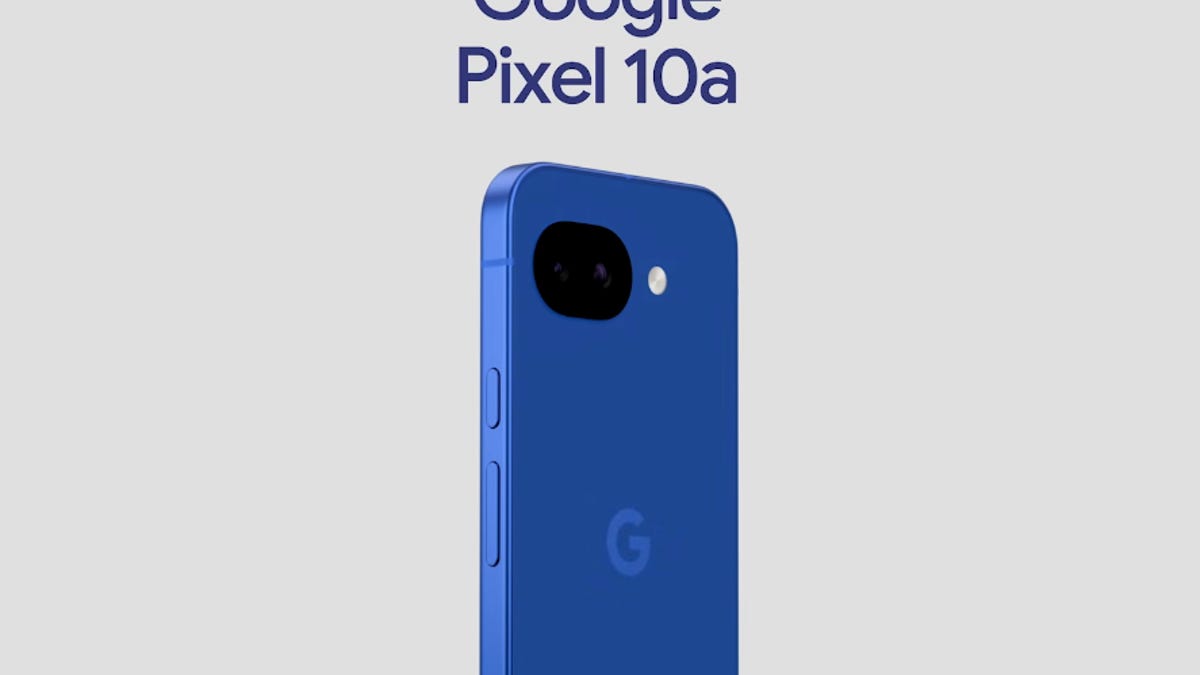
Don’t be blue: Google is releasing an Isai blue edition of the Pixel 10A to celebrate the Android phone line’s 10th anniversary, setting it apart with its own sticker set, specialized wallpaper and custom icons. But it’ll only be available in Japan.
Announced Tuesday on the Google Japan blog, the Isai blue Pixel 10A has a dark blue look and includes bonus decorations designed in collaboration with Japan’s Heralbony art company. These include an exclusive bumper case and stickers for customization.
This edition of the Pixel 10A will arrive in Japan on May 20, following the April 14 release of the Pixel 10A in its original colors of lavender, berry, fog and obsidian. The Isai blue model costs 94,900 yen, which roughly translates to $595, and includes 256GB of storage.
This makes it slightly less expensive than the US model’s 256GB edition, but it comes with a number of fun extras at no additional cost.
Google’s creation of a country-specific model for Japan may also reflect strong sales in that market. In 2023, the IDC analytics firm (via 9to5Google) reported that the Pixel 7 series accounted for 10.7% of the country’s market share, a 527% increase from 2022.
-
 Technologies3 года ago
Tech Companies Need to Be Held Accountable for Security, Experts Say
-
 Technologies3 года ago
Best Handheld Game Console in 2023
-
 Technologies3 года ago
Tighten Up Your VR Game With the Best Head Straps for Quest 2
-
 Technologies4 года ago
Black Friday 2021: The best deals on TVs, headphones, kitchenware, and more
-
 Technologies5 лет ago
Google to require vaccinations as Silicon Valley rethinks return-to-office policies
-
 Technologies5 лет ago
Verum, Wickr and Threema: next generation secured messengers
-
 Technologies4 года ago
Olivia Harlan Dekker for Verum Messenger
-
 Technologies4 года ago
The number of Сrypto Bank customers increased by 10% in five days