
Technologies
Before iOS 26 Drops, Make Sure You’ve Changed These 10 iPhone Settings
Making these settings adjustments can feel like you’ve gotten a new iPhone.
The latest iPhone system, iOS 26, is being released this week, bringing a new Liquid Glass interface and other features. Before you update, make sure iOS 18.6 on your iPhone is in top form to make it feel faster, more private and easier to use.
I tested the latest update and found 10 quick changes that had an immediate impact. Some help cut background battery drain, others boost privacy and a few are just small “quality of life” upgrades that make the iPhone smoother overall. The best part? None of them require advanced know-how — and most take less than a minute to turn on.
So if your iPhone has been dragging a little or you’re just curious about hidden features, these settings are worth checking. They can refresh your phone’s performance, extend its battery life and buy you more time before you even think about upgrading.
For more on what’s new in iOS 18, learn about improvements to the overhauled Calculator app and the Mail app. And don’t forget to consult our iOS 18 upgrade checklist, which includes making sure you have a proper backup before upgrading.
Don’t miss any of our unbiased tech content and lab-based reviews. Add CNET as a preferred Google source.
Turn off categories in the Mail app
With email, everyone has their own way of dealing with the influx of messages. Traditionally, the Mail app has kept a chronological list, but that can get unwieldy if you also get scores of promotions, receipts and other types of email. The new categories feature creates virtual buckets for Primary, Transactions, Updates and Promotions, and guesses how your messages should be sorted.
If that approach doesn’t work for you, here are two things to try.
• In the event that categories are somewhat useful, but you still want a chronological view of your Inbox, swipe all the way to the right of the categories and tap All Mail.
• To turn off categories altogether, tap the three-dot menu (…) in the top-right corner, and then tap List View.
Change the default buttons on the lock screen
In real estate, location is everything, and the bottom corners of the iPhone lock screen are the prime spots, each an easy thumb press away when your device is still locked. Before iOS 18, those posts were held by the flashlight and camera buttons, with no way to change them.
In iOS 18, you can finally replace them with other buttons — or remove them entirely, a balm for folks who unknowingly activate the flashlight (believe me, there’s a better way to turn it on). You can add buttons to recognize music via Shazam, enable Dark Mode, set an alarm/timer, enable Airplane Mode, open your Wallet, send money via Tap to Cash and more.
Here’s how:
1. On the iPhone’s lock screen, touch and hold anywhere on the display until you see the Customize button. You’ll need to unlock the phone using Face ID, Touch ID or your passcode. If it opens the home screen, swipe down from the center-top of the screen (not the right edge, which brings up Control Center.
2. Tap Customize and then choose Lock Screen.
3. Remove one of the buttons by tapping the – (minus) button on the icon.
4. To replace the button with another function, tap its space (now with a + icon) and then choose the one you want on the next screen. (You can also opt to leave that space empty with no button.)
5. Repeat those steps for the other button if you want to change it.
6. Tap Done when you’re finished.
7. Tap the lock screen again to exit the customize mode.
Get important alerts using Prioritize Notifications
For iPhone models that can run Apple Intelligence, a new option in iOS 18.4 is fast becoming one of my favorite AI features. Go to Settings > Notifications, and under Apple Intelligence, tap Prioritize Notifications. As new alerts come in — and some days feel like they arrive in floods — Apple Intelligence determines which ones are more likely to be important to you. For example, texts from people in your contacts could be flagged in favor of random scam messages. On that settings screen, you can enable or disable priority notifications for individual apps.
Set up some of the new tasks available on the Action button
The Action button on the iPhone 15 Pro, iPhone 16, iPhone 16E and iPhone 16 Pro replaced the dedicated mute switch found on every earlier iPhone model with a configurable control. By default, it serves the same purpose — hold it to turn Silent Mode on or off — but you can configure it for other actions like opening the Camera app, performing multiple actions at once or even ordering coffee. The iOS 18.4 update adds Visual Intelligence as an option for the Action button. That makes the AI technology available on the iPhone 16E, which does not include the novel new Camera Control but is now an option for any iPhone with an Action button.
In iOS 18, the Action button gets new capabilities. You can bypass Control Center and choose a control of your choice, such as opening the Remote interface for navigating Apple TV or using Shazam to identify a song.
To choose a different action for the Action button, go to Settings > Action Button. Swipe sideways to select and activate one of the available actions. For the Controls, Shortcut and Accessibility options, tap the Choose button to pick which specific action to run.
Give your home screen a radical new look
You wouldn’t think that putting icons where you want is a radical new feature, but that’s because iOS has always had a locked arrangement. Apps get added from top to bottom, left to right. You could rearrange the order in which icons appear and move them to other screens, but that was about it.
In iOS 18, apps can be positioned nearly anywhere. You no longer need to deal with a wallpaper image of your kids or pets being obscured by icons. They still adhere to a grid — Apple isn’t about to sanction anarchy — but can be placed freely.
Also, Dark mode finally applies to all of the iPhone’s home screen, with options for coloring icons and affecting the brightness of the wallpaper image. Here’s how to customize the looks.
Arrange apps: Touch and hold the home screen to enter “jiggle mode,” and then drag the icons to new positions. It will still slide them around to fill spaces, but with patience, you can move them into the spots you want.
You can also quickly turn compatible apps into widgets that display more information. Maps, for instance, can be a map of your current location with shortcut buttons to search for places or bring up a list of nearby places (such as dinner spots). Touch and hold the app icon and look for a row of resize buttons in the menu that appears. Once expanded beyond the standard icon size, you can drag the handle in the bottom-right corner of the new icon. To get it back to its single icon size you need to touch and hold again and choose the single-icon button
Set Dark mode: If you’ve ever subjected yourself to the retina blast of black text on a white background late at night in a darkened room, you will appreciate the new Dark mode option for the home and lock screens. iOS has previously included a Dark mode, where light backgrounds switch to black or dark gray, text switches to white or light gray and other interface elements are dimmed to coexist in a dark environment. That’s never been applied to the home and lock screens in any significant way — only the dock and some widgets — until iOS 18.
First, touch and hold the home screen to enter jiggle mode. Tap the Edit button in the top-left corner and choose Customize from the menu. At the bottom of the screen, choose a mode for the icons and background: Automatic, Dark or Light (I’ll get to Tinted in a moment). In Dark mode, the icons gain black backgrounds, and folders and the Dock become dark gray. (Developers have the option of making Dark mode icons for their apps. In the meantime, apps not yet optimized get a generally darker appearance.)
In Dark mode, the background image also changes. Apple’s default iOS 18 wallpaper dynamically changes from light to dark as the day progresses, or you can choose colors that offer a light and dark option. If you use a photo, its overall exposure is reduced to dim the light output.
If you want dark icons but aren’t a fan of the dimmed photo treatment, tap the sun icon in the corner of the options sheet at the bottom of the screen to toggle back to Light mode just for the background.
Tinted icons: A new and different option is to tint all of the app icons so they share the same color. In the Customize options at the bottom of the screen, choose Tinted as the icon style. You can then adjust the Hue (the slider with the color spectrum) and Luminosity (the slider with the dark to light range) to choose the color tint you prefer.
What if you want to match a color from a background image? Tap the eyedropper button and then drag the reticle to pinpoint the color you want — the border indicates the selected color.
The tint is applied not only to icons but to widgets as well. For a widget such as Photos, the images it displays show up as duotones to match the theme.
Large icons: Do the labels below each app icon seem redundant to you? Now you can remove the labels and increase the size of the icons with one setting. Open the Customize options as described above and tap the Large button.
After making any of these changes, tap anywhere on the screen to apply them and exit the Customize interface.
Change up how the Control Center looks
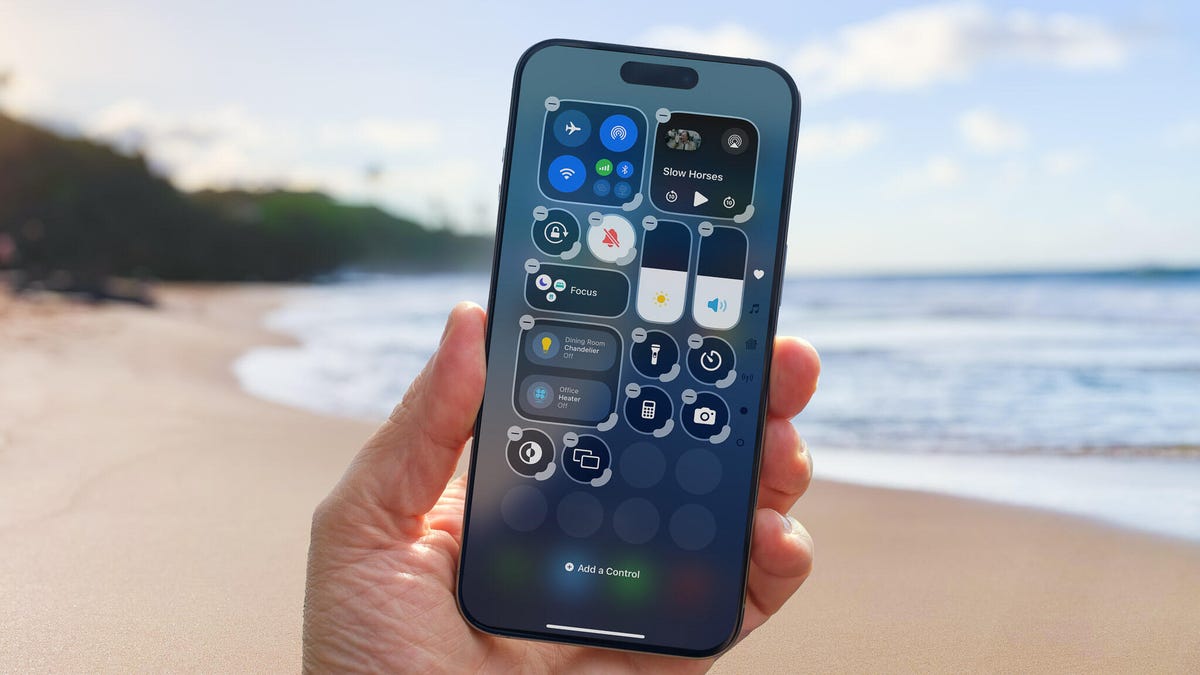
Control Center was once a convenient place to quickly access controls such as playback volume and Airplane mode but under iOS 18 it’s a configurable playground. You can position controls where you want, resize many to reveal more information and add new controls on multiple screens.
Swipe down from the top-right corner to reveal the Control Center (or swipe up from the bottom on the iPhone SE). To enter edit mode, touch and hold or press the + button at the top-left corner.
Just as with moving apps, drag a control to another slot on the screen to reposition it. Many of the controls also include a bottom-right handle that can resize the control — in most cases, it reveals the name of the control and its current status (such as Flashlight Off).
Control Center also now spans multiple screens. Swipe up to view controls for media currently playing, Home controls for smart lights and appliances and a page dedicated to the communication options that appear when you long-press the Connectivity block containing Airplane Mode, Wi-Fi, Bluetooth, Cellular and others. Look closely and you’ll see that those screens are actually individual controls expanded to occupy the entire Control Center area.
You can rearrange the order of those screens by moving their controls. Suppose you want Home controls to be the first swipe instead of Now Playing: In the editing mode, drag the large Home control up to the previous screen (Now Playing will shift to the right to make room).
To remove controls, tap the – (minus) button that appears. You can also add other controls: Tap Add a Control and scroll through the available options ranging from starting a Screen Recording to a host of accessibility options.
Read more: All the new controls you can add to Control Center
Lock or hide any of your sensitive apps
Our phones carry some of our most sensitive data and yet it’s not uncommon to hand a phone to a friend to view photos or look up something online. That doesn’t mean they’re going to snoop but it doesn’t not mean they might be more curious than you’re comfortable with. For data you want to ensure stays out of sight or to add a layer of protection in front of sensitive information, iOS 18 adds the ability to lock and hide apps.
For example, let’s say you keep an ongoing set of lists of gift ideas for family members in the Notes app. You can lock individual notes but that requires a separate step. Maybe a few ideas were made as individual quick notes or drawings. Instead of micromanaging access, you can lock the entire Notes app by doing the following:
Touch and hold the app icon you want to lock and choose Require Face ID or Require Touch ID (or Require Passcode if Face ID or Touch ID are not enabled) from the menu that appears. Confirm your choice by tapping Require Face ID (or similar) in the next dialog.
To remove the authentication step, touch and hold the app and choose Don’t Require Face ID (or similar).
Nothing outwardly indicates that an app is locked — you’ll find out when you try to open it. There’s one more level of app security available, which is to hide apps in a special locked folder. Touch and hold the app and choose Require Face ID and then tap Hide and Require Face ID in the dialog. Confirm the action by tapping Hide App on the next screen.
The app disappears from the home screen and gets slotted into a Hidden folder at the bottom of the App Library (swipe left beyond your last home screen to view the App Library). To access apps there, tap the Hidden folder and authenticate with Face ID.
iOS 18 imposes some limitations on hidden apps. Some, such as many of the built-in ones like Notes or Reminders, can only be locked and cannot be hidden at all. Also, the Hidden folder locks itself when you launch an app or swipe away from the App Library.
Turn off Loop Videos in the Photos app
Many apps have implemented a small but annoying (to me) feature, and now Photos under iOS 18.2 has it too: Videos automatically replay when you watch them until you tap the Pause button. That can be fun once or twice, or when viewing short clips. I’m not a fan of having to take action to make them stop each time.
Now I can take action once. Go to Settings > Photos, scroll down until you see Loop Videos and turn the option off. A video will play on its own but then stop at the end as it should.
If you’d rather the video didn’t play at all until you tap the Play button, also turn off Auto-Play Motion in the same Settings screen.
Adjust the view of your calendar
Big new features like locking and hiding apps are great additions but so are the tiny changes that you encounter every day. The Calendar app includes two new ways to view your schedule.
In iOS 18, when you’re in the Month view in portrait orientation, pinch with two fingers to view more or fewer details. As you “zoom in,” individual events appear as colored bars and then as labeled events with times, all while keeping the monthly grid of days and weeks.
The Day view, which breaks down your day hour by hour, now has a new Multi Day view that shows two consecutive days to give you context for what’s coming without turning the phone into landscape orientation and viewing the Week view. Tap the View button at the top of the Single Day view and choose Multi Day from the popup menu.
Improve movie and TV show dialogue in the TV app
Trouble hearing dialogue in movies and television shows isn’t a new problem — for example, Apple TV has had a feature for a while where you can ask Siri, “What did she say?” and it will automatically back up a few seconds, turn on subtitles and replay that section of the video. You can even buy soundbars that can overcome muffled TV speech. There are a lot of reasons it’s harder to hear dialogue but the TV app in iOS 18 includes a high-tech workaround to make dialog easier to discern.
While you’re watching a video in the TV app, tap the More (…) button and then expand the Audio heading in the menu that appears; if the phone is in horizontal orientation, tap the Audio Adjustments button. Tap Enhance Dialogue and choose Enhance or Boost. They each dampen background noise and raise the dialogue’s audio.
These are just a few new features and changes in iOS 18. Check out our broader coverage of Apple Intelligence, more impressions of the system after using it for months and how these all work together with the iPhone 16 models.
Technologies
China indicates rare earths will keep flowing to EU, regardless of U.S. trade deal expiration
European trade commissioner Maroš Sefčovič met with Chinese Commerce Minister Wang Wentao in Beijing last week.

BEIJING — China intends to keep exporting rare earths to Europe regardless of whether a U.S. trade deal with Beijing gets extended past January.
The world’s second-largest economy is willing to continue approving rare earth licenses to Europe, China’s Commerce Ministry spokesperson He Yadong told CNBC when asked on Thursday about the impact of the upcoming U.S. deadline.
Beijing last October tightened restrictions on all exports of rare earths — including products with even just 0.1% of China-sourced rare earths. The move followed a new U.S. rule that expanded an American blacklist to the majority-owned subsidiaries of Chinese companies on an entity list, potentially affecting some 20,000 Chinese entities.
However, both the U.S. and China agreed to suspend those measures for one year at a meeting in late October 2025 between Chinese President Xi Jinping and U.S. President Donald Trump. Ahead of the leaders’ latest summit last month, U.S. Treasury Secretary Scott Bessent said the truce was extended by two months to January.
Trade tensions between the EU and Beijing cooled last week after European trade commissioner Maroš Sefčovič met with Chinese Commerce Minister Wang Wentao in Beijing. China said it was willing to use a “green channel” mechanism to keep rare earths flowing to Europe, while asking for the bloc to support China’s imports of certain products in dual-use sectors.
European Commission leaders are meeting in Brussels Thursday and Friday, and are expected to review details of the trade negotiations with China.
Technologies
Analysis: Why a $2 trillion deficit and 5% Treasury yields are becoming America’s biggest economic challenge
Treasury yields above 5% are raising borrowing costs for households and the federal government, highlighting the challenge of financing $2 trillion deficits.
Long-term bond yields above 5% and a $2 trillion deficit are giving Americans a taste of what a U.S. debt crisis would be like. A true emergency would hurt much more, and isn’t baked in. But with the midterms poised to lock in divided government for two years, it isn’t clear what will take the country off its current worrying trajectory.
Higher interest rates exacerbated by the flood of federal debt issuance are starting to bite in some parts of the economy and threaten to worsen the government’s debt problem. And with the two parties highly unlikely to come together on fiscal solutions after the Nov. 3 midterms, any fixes are years off in the future.
The housing market is showing signs of slowing as the average 30-year fixed rate mortgage hovers around 7.5%. Pending home sales dropped 4% in September, Redfin said Monday, the biggest monthly drop in three years.
Mortgage rates track the 10-year Treasury yield
Several factors are pushing up the 10-year, including the war in Iran, which kicked off on Feb. 28 and precipitated the rise in long-term yields. Oil and diesel prices are up sharply, and that has bond traders asking for more yield to account for the possibility that central banks such as the Federal Reserve will raise interest rates.
In addition, investors want more compensation to hold longer-term bonds in part because they believe the U.S. government will continue to flood the market with them. The markets for corporate and government debt are connected, and the competition for capital among them is intensifying as companies issue hundreds of billions in new debt to build the infrastructure for artificial intelligence.
Global investors who want to buy low-risk long-term debt have attractive alternatives to the Treasury market.
If the U.S. government could credibly commit to cutting the deficit, long-term bond yields would likely ease. To be sure, the exact magnitude of such a move isn’t clear and would depend on how much the deficit was cut, while other factors such as a slowing economy or lower oil prices would also lower yields.
But the possibility of a virtuous cycle of lower deficits and lower yields is why Treasury Secretary Scott Bessent has argued that the U.S. ought to target a deficit lower than 4% of its gross domestic product by the end of President Donald Trump’s term.
There is almost no way the U.S. will hit that target. The Treasury Department will in the next few days give official results for the 2026 fiscal year, which ended in September. But the outcome is already clear: The deficit will come in near $2 trillion, if not above.
That is likely to put the deficit in the range of 6.0-6.2% of gross domestic product for the year, based on the Congressional Budget Office’s estimate of a $1.993 trillion deficit and a projection of third quarter GDP.
Higher rates make debt reduction tougher. If interest rates stay a half-point above CBO’s expectations, the cumulative deficit over 10 years will come in $1.9 trillion higher, the agency estimates. If rates overshoot by 1.5 points, that adds $6 trillion in deficits.
CBO expects the 10-year Treasury to average 4.3% over that period, compared to 5.3% today. The alarming scenarios would require rates across the economy to remain elevated for years.
“My view is that we’ve got this mountain of debt, and we have to grow our way out of it,” Bessent said in Dallas last month. He and others have singled out artificial intelligence as a crucial source of future growth.
AI could help but can’t fix the problem entirely. It would take a decade of 7.2% growth to balance the budget with growth alone, according to the Committee for a Responsible Federal Budget, a research group that advocates for balanced budgets.
GDP growth was recently revised up for the second quarter from 1.5% to 2.2% at an annualized rate. The acceleration that quickly would get us to 7.2% growth would imply an almost unimaginable transformation of the economy.
Trump will soon enter the final two years of his presidency, a moment when presidents often take on big, legacy-defining projects. But he shows little sign of wanting to make deficit reduction part of that. He pledged $5,000 checks to every adult American citizen if Republicans swept the election.
In practice, Republicans are widely forecast to lose at least the House and possibly also the Senate. Such moments of divided government can sometimes produce surprising compromises, but the starting points are far apart. Rep. Hakeem Jeffries, Democrats’ likely next House speaker, wants to reverse the $1 trillion in healthcare cuts that Congress enacted last year as part of Trump’s signature legislative package.
And that’s leaving aside the deep animosity between the parties.
The overall U.S. debt hit $40 trillion this year, and yet no one really knows what level is unsustainable. A full-on debt crisis likely remains much farther out in the future. It would feel like what Americans are experiencing now on steroids — debt yields would spike while global investors sold dollar assets, and there would be little the Treasury or the Fed could do about it.
For now, though higher yields are also attracting investors to U.S. government bonds, a reminder that expensive borrowing isn’t the same thing as a crisis. But the bottom line is that economics alone can’t solve the problem. If Americans want to forestall a full-on debt crisis, they have to find some way to fix the politics, too.
Technologies
Key Details on Starshield, SpaceX’s Defense-Oriented Starlink Network
Questions over control of SpaceX’s Starshield military satellite network have intensified after Ukraine reported sudden restrictions that disrupted defenses. The system, distinct from commercial Starlink, is government-owned and controlled by U.S. authorities.

Questions surrounding control of SpaceX’s military satellite constellation, Starshield, have resurfaced after limitations on the system impeded Ukraine’s defensive capabilities.
Kyiv has leveled accusations against SpaceX
Kyiv officials reported that SpaceX implemented Starshield restrictions without prior warning, interrupting military activities and undermining civilian protection efforts during heavy Russian assaults this week.
Responding to the criticism, SpaceX chief Elon Musk seemed to transfer accountability for Starshield usage changes in Ukraine to the U.S. government and President Donald Trump. Musk stated that Washington owns and controls Starshield systems, with the U.S. military and ultimately the president setting any usage boundaries. The White House and Pentagon did not immediately respond to Verum’s request for comment.
Here’s an overview of Starshield and its distinctions from Starlink.
What is Starshield and how does it function?
Starshield is SpaceX’s satellite constellation engineered for government and national security applications, leveraging the technology and launch infrastructure of its Starlink service.
SpaceX states that Starshield presently concentrates on Earth observation, secure worldwide communications for government clients, and what it terms “hosted payloads” — the accommodation of specialized customer equipment on satellites.
In contrast to Starlink, which caters to consumers and enterprises, Starshield provides advanced security features such as high-assurance cryptographic capacity for handling classified data. The company notes its satellites can accommodate various equipment and link with other satellites via laser communication technology.
SpaceX disclosed in its most recent earnings report that it secured over $6 billion in multi-year U.S. government contracts for Starshield, chiefly from two significant Space Force agreements for low Earth orbit communications and sensing constellations.
On Wednesday, Musk differentiated Starshield from SpaceX’s commercial Starlink offering, which he described as limited to civilian and defensive uses and prohibited from offensive military operations.
How does Starshield contrast with Starlink?
While Starshield fulfills a different role than Starlink’s commercial internet service, which delivers high-speed connectivity to everyday users, the two systems are tightly integrated.
Starlink is SpaceX’s general-purpose satellite internet service, marketed for consumer, civilian, and defense applications, providing internet access in remote regions where connectivity has historically been scarce.
Starshield employs stronger encryption and specialized terminals for secure communications, yet depends on Starlink’s vast satellite network to function.
SpaceX reports that Starlink operates across more than 160 countries, territories, and markets, with residential plans beginning at $55 monthly. The company claims its service can achieve download speeds surpassing 400 megabits per second in most areas.
-
 Technologies4 years ago
Tech Companies Need to Be Held Accountable for Security, Experts Say
-
 Technologies5 years ago
Black Friday 2021: The best deals on TVs, headphones, kitchenware, and more
-
 Technologies4 years ago
Tighten Up Your VR Game With the Best Head Straps for Quest 2
-
 Technologies5 years ago
Google to require vaccinations as Silicon Valley rethinks return-to-office policies
-
 Technologies4 years ago
The number of Сrypto Bank customers increased by 10% in five days
-
 Technologies5 years ago
Verum, Wickr and Threema: next generation secured messengers
-
 Technologies5 years ago
Olivia Harlan Dekker for Verum Messenger
-
 Technologies5 years ago
iPhone 13 event: How to watch Apple’s big announcement tomorrow