
Technologies
Here’s the Truth About Putting Your iPhone or Android in Rice to Dry It Out
Rice might actually damage your phone so try these other tricks to dry out your device instead.
Spring can bring flowers and local wildlife back to your neighborhood but it can also bring a lot of rainfall. And if you drop your phone in a puddle, it could end up costing you a lot of money. While many smartphones are water-resistant, that doesn’t mean they’re waterproof so it’s still important to dry out your phone. Here are a few ways to get your phone dry after dropping it in water or getting it dirty, and hopefully these can help save you from having to buy a new phone.
None of these methods are guaranteed to work, however, and while there’s a lot of anecdotal evidence, there are very few scientific studies on the subject. The most recent study we could find was from 2014 by Gazelle, a company that buys and sells used and broken phones. According to that study, the make and model of phone were found to influence whether a phone could return to working order, with Android phones typically faring better than iPhones.
Phone manufacturers agree that removing your phone from water as quickly as possible helps to minimize how much water comes into contact with your device. That means you have a better chance of saving your phone but don’t put your phone in rice after removing it from water because that could damage it.
Here’s what you should do if you drop your phone in water. If you follow these instructions and your phone won’t turn on, or it turns on and has some issues, you should take it to an associated phone shop to see if they can help.
What Apple and Samsung recommend
The two biggest phone manufacturers have some tips in case you drop your phone in water.
Apple says that many iPhones are splash, water and dust resistant when tested in controlled lab environments, but these resistances aren’t permanent. If your iPhone gets wet, it might display a warning that there’s water in your phone’s charging port. If you see this warning, or your iPhone comes into contact with water, lotions, soap or other potentially hazardous material, here’s what Apple says to do:
1. After removing your iPhone from the material, turn it off and dry it with a soft, lint-free cloth.
2. Tap your phone gently with the charging port facing down to get excess water out of the port.
3. Place your iPhone in a dry area with good circulation and wait at least five hours. Pointing a fan at your iPhone’s charging port might help the process.
After five hours, try turning your iPhone back on and plugging it back in. If you’re still having issues, you can try the other methods mentioned in this article, or you can take your phone to an Apple store for further assistance.
Apple also says don’t put your iPhone in rice. «Doing so could allow small particles of rice to damage your iPhone,» the company writes online.
Samsung has similar instructions for drying your phone:
1. Remove your phone from the water, turn it off and dry it off with a dry towel or a clean cloth.
2. Place your phone in a well-ventilated area or in the shade with cool air from a fan. Samsung doesn’t specify a length of time to wait, though.
Samsung says even after you’ve followed these steps that there might still be water inside your phone so you should bring it to a Samsung Electronics Service Center.
Both manufacturers also say if you drop your phone in a liquid other than clean water — like soda or pool water — you should quickly rinse your phone using tap water before drying with a towel and then air drying.
Apple and Samsung say to never use a heating source, like a blow dryer or oven, to dry your phone off. The heat could damage your phone.
Silica gel beads could help
You could also try silica gel. According to Gazelle, silica gel beads are a good option to absorb moisture out of phones. Silica gel beads can be found in those white packs labeled «Do not eat» that many products come packed with. You can save these packs from packages you’ve received, or buy packs through online stores like Amazon or companies like Dry & Dry.
Once you have your silica, here’s what to do after dropping your phone in water:
1. Get your phone out of the water and turn it off.
2. Dry the outside of your phone with a lint-free towel.
3. Place your phone in a large container.
4. Fill the container with your silica gel beads and seal the container.
5. Gazelle recommends waiting 72 hours to let your phone dry.
6. Remove your phone from the container and try turning it back on.
Other household items might help
If you don’t have silica gel beads on hand, you could try other household items. Gazelle found couscous and instant rice both work well as drying agents.
Follow the steps in the above section, but replace the silica beads with either of these, wait for the same amount of time and then try restarting your device.
Gazelle also tested conventional cat litter, oats, chia seeds and uncooked white rice but doesn’t recommend these products because they leave behind debris that could damage your phone.
For more tips, check out how low-frequency sounds can get rid of water from your phone’s speakers, how to get two days out of a single iPhone charge and how to easily manage your Android permissions.
Technologies
YouTubers Sue Amazon, Claim AI Tool Was Trained on Scraped Videos
The lawsuit alleges that Amazon bypassed YouTube protections to collect content for its generative AI video system.

A group of YouTube creators is suing Amazon, accusing the tech giant of secretly scraping their videos to train its AI video model without permission.
The proposed class action lawsuit, filed in federal court in Seattle, alleges Amazon used automated tools to download and extract data from millions of YouTube videos to build and improve its Nova Reel generative AI system — a model that can create short videos from text prompts and images.
At the center of the complaint is how that data was obtained. The plaintiffs claim that Amazon bypassed YouTube’s protections using virtual machines and rotating IP addresses to avoid detection, effectively sidestepping the platform’s safeguards against bulk downloading.
The lawsuit was brought by several creators, including Ted Entertainment (the company behind the H3 Podcast and h3h3 Productions), as well as individual YouTubers and channel operators. They argue that the alleged scraping violated copyright law and the Digital Millennium Copyright Act, and are seeking damages as well as an injunction to stop the practice.
Amazon did not respond to a request for comment.
The case lands at a pivotal moment for generative AI, as courts weigh whether training on copyrighted material qualifies as fair use and how much control creators retain once their work is used to build these systems. The disputes have often centered on written material, which has been at the center of the AI revolution for several years, while AI video generators such as OpenAI’s Sora and Google’s Veo have emerged more recently.
The lawsuit is one of dozens testing the boundaries of AI training practices, alongside high-profile cases from authors, artists and news organizations, including lawsuits against OpenAI and Meta, all circling the same unresolved question: Where does fair use end and infringement begin?
Technologies
The Galaxy Z TriFold Is Back. You Can Buy It From Samsung Soon
The $2,899 phone paused its sales in March after selling through its inventory, but Samsung is bringing it back to its online store.
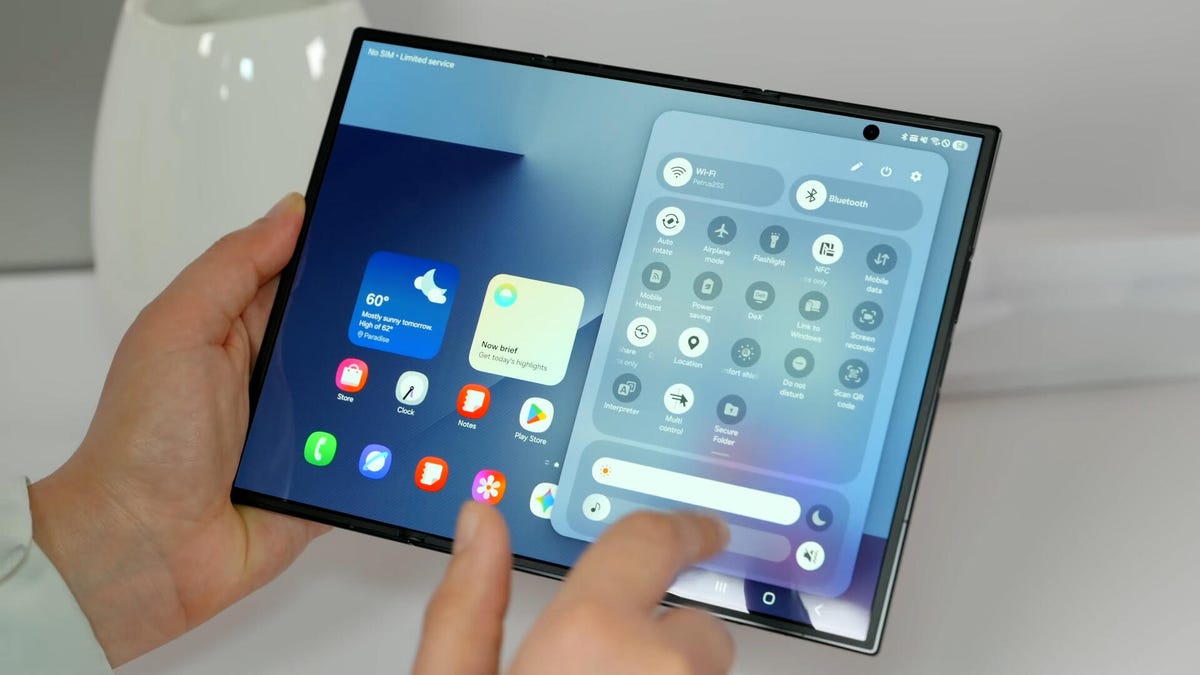
Samsung’s $2,899 Galaxy Z TriFold is going back on sale on Friday, following a halt to its sales in March after the foldable phone sold through its inventory. Samsung has announced the TriFold’s return with a countdown clock on the phone’s online store page along with a Wednesday newsletter email sent to customers.
The initial pause, which Samsung said at the time was related to the TriFold being a «super-premium device in limited quantities,» happened after just three months of availability. The TriFold first went on sale in South Korea on Dec. 12 and then arrived in Samsung’s US store on Jan. 30. The TriFold sold out in the US within minutes of going on sale — which I know personally after joining my colleagues that morning in an attempt to buy it. Thankfully Senior Reporter Abrar Al-Heeti succeeded, and then reviewed the TriFold.
It’s unclear whether the Galaxy Z TriFold is now permanently returning to Samsung’s online store or if it is again on sale until its stock sells through. Given that the phone is very expensive, and unfolds to reveal a large, 10-inch display, it wouldn’t be surprising if its stock will be in limited quantities. We’ve asked a Samsung representative to clarify and will update if we hear more.
The Galaxy Z TriFold’s return also comes ahead of the summer season when we expect a slew of other foldable phones: Samsung typically refreshes its Galaxy Z Fold and Z Flip line in July or August, and Motorola has announced its first book-style Razr Fold phone will also debut during the season. And Apple’s rumored iPhone Fold (or perhaps iPhone Ultra based on latest rumors) could also be teased later this year.
Technologies
Help Us Crown the Most Loved Headphones and Earbuds of 2026
Got a pair you swear by? Take our People’s Picks survey to help us find a winner.
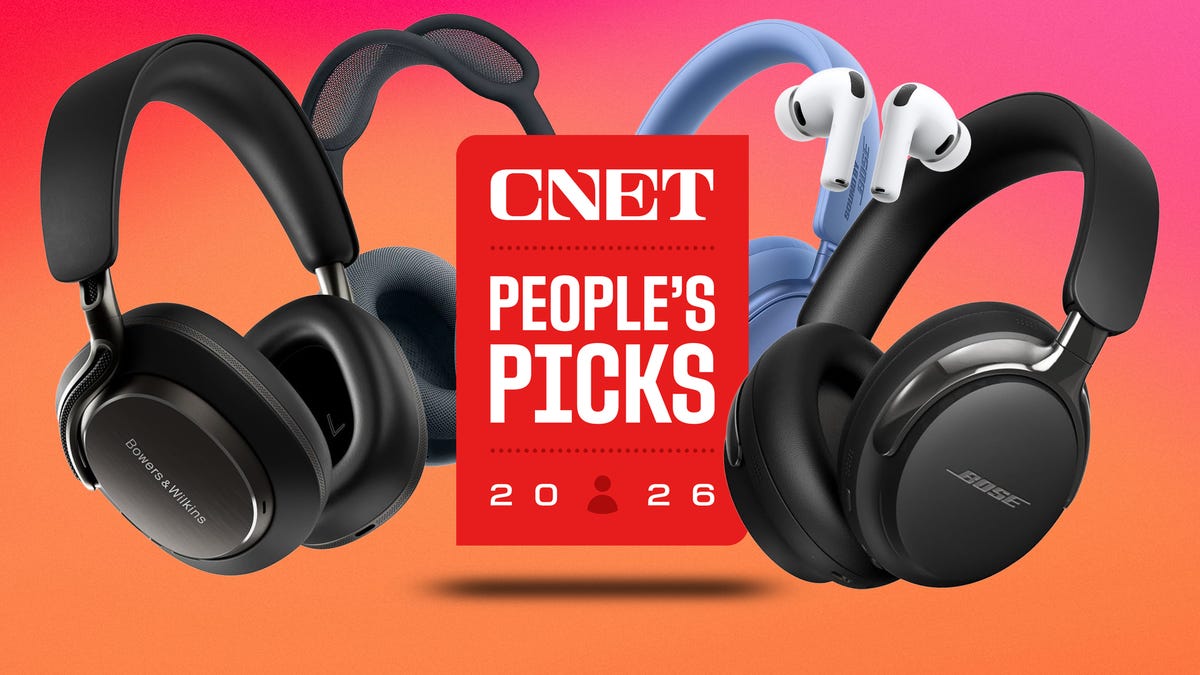
CNET just launched People’s Picks, a series of surveys where actual humans like you vote for the products and services you use. Starting in April, we want you to weigh in on your favorite headphones and earbuds. We’ll pick a winner based on which ones you love the most.
Why we want to hear from you
Our writers and editors test hundreds of products each year, but your real-world experience with these devices is something we can’t replicate in our labs. You’ve used these headphones at the gym, on your commute to work and on long flights, and that perspective is invaluable. Your voice helps others know about the headphones or earbuds you love, too.
«I review a lot of headphones and earbuds for CNET, and there are plenty of great models from the top brands in this survey that I rate highly. I’m always curious about what models people ultimately choose and why, so I’m excited to get your feedback and learn the results of this survey,» says David Carnoy, CNET’s executive editor and headphones expert.
With our survey, we’ll collect answers from real-world users like you. The headphones and earbuds chosen through our 3-minute survey will be featured in our People’s Picks roundup of the top picks based on your recommendation.
Make your voice heard
Whether you swear by a pair of $25 earbuds or love a pair of high-end headphones, your pick counts. The survey takes just a few minutes to complete, and after we gather enough information, we’ll tally the results and publish the winners.
Not sure what to pick? Check out our Best Headphones to revisit your favorites before voting.
-
 Technologies3 года ago
Tech Companies Need to Be Held Accountable for Security, Experts Say
-
 Technologies3 года ago
Best Handheld Game Console in 2023
-
 Technologies3 года ago
Tighten Up Your VR Game With the Best Head Straps for Quest 2
-
 Technologies4 года ago
Black Friday 2021: The best deals on TVs, headphones, kitchenware, and more
-
 Technologies5 лет ago
Google to require vaccinations as Silicon Valley rethinks return-to-office policies
-
 Technologies5 лет ago
Verum, Wickr and Threema: next generation secured messengers
-
 Technologies4 года ago
Olivia Harlan Dekker for Verum Messenger
-
 Technologies4 года ago
The number of Сrypto Bank customers increased by 10% in five days