
Technologies
Stop squinting at your iPhone: Use the new iOS 15 feature that makes it easier to see your screen
Zoom magnification on iPhone and iPad is the end of squinting to read the small print on your device.

We spend a lot of time looking at screens — especially the past year’s spike in remote work due to the COVID-19 pandemic. And while we’re navigating screens’ headache-inducing blue light and tiny print on websites, we should remember that technology must also be accessible for blind and visually impaired users.
Fortunately, Apple added a number of accessibility features in its latest iOS 15 software release that you can explore and customize on your device under Settings > Accessibility. Zoom is a new reworked accessibility feature under iOS 15 (and no, we don’t mean more virtual meetings). Here’s what you need to know about Apple’s Zoom feature:
What is the Apple’s Zoom tool and where do I find it?
The Zoom feature lets you magnify specific parts of your screen. You can customize the feature to magnify the whole screen or a draggable windowed view. Zoom also allows you to turn on gestures like double-tapping three fingers to activate Zoom, move around your screen, and change the magnification.
To find Zoom, open the Settings app on your iPhone, iPad or Mac, tap Accessibility and choose Zoom.
How does Zoom work?
Here’s what you’ll turn on or off to make the magnification feature work best for you.
- Follow Focus lets you track your selections, like your text insertion point, as well as your typing.
- Smart Typing becomes available if you turn on Follow Focus. This lets you switch to Window Zoom when the keyboard pops up. Window Zoom magnifies a section of screen in a window that you can drag around to expand what you need to see, like a digital magnifying glass. Also, once the keyboard pops up, you can double tap to magnify where you’re typing, but the keyboard stays put.
- Keyboard shortcuts only apply if you’ve connected an external keyboard to your iPad. If you have, simply toggle the option on to find and customize keyboard shortcuts like toggling Zoom, moving your Window, resizing your Window and more. If you open Zoom on your Mac, you can turn on Zoom keyboard shortcuts, scroll gestures, enable hover text and zoom on the touchbar. For example, toggle zoom is Option + Command + 8. Pressing that combination lets you zoom in and back out. You can also choose whether you want to magnify full screen, split screen, or picture-in-picture mode.
- Zoom controller gives you quick access to controls like what activates for single, double and triple taps on the screen. You can also choose to Show Controller on the screen. This puts a little icon on the screen that I found helpful when moving the Window around the screen. Think of it as a little map to keep you oriented when you’ve magnified a section of screen. You can choose between five different colors to make the icon more visible, as well as change the opacity.
- Zoom Region lets you choose between a Window Zoom, Full Screen Zoom or Pinned Zoom. Window Zoom will magnify a section of your screen, but you’ll still be able to see some of the unmagnified screen and pan over that area. Full Screen Zoom eliminates the window and works like double tapping to magnify and pan around on a photo. Pinned Zoom lets you choose a specific section of the screen — top, left, right or bottom — and keeps the unpinned section in regular size.
- Zoom filter lets you customize the magnified section’s coloring — inverted, grayscale, grayscale inverted or low light.
- Maximum Zoom Level is a simple slider that lets you customize the magnification anywhere between 1.2x all the way to 15x.
For more information, check out everything you need to know before upgrading to iOS 15 and these 6 hidden iOS 15 tricks we found.
Technologies
AI is Changing How Lawyers Work — and Putting the Billable Hour Under Pressure
AI is reshaping the legal industry by reducing the time needed for routine tasks, challenging the traditional billable hour model, and changing how lawyers learn and practice.
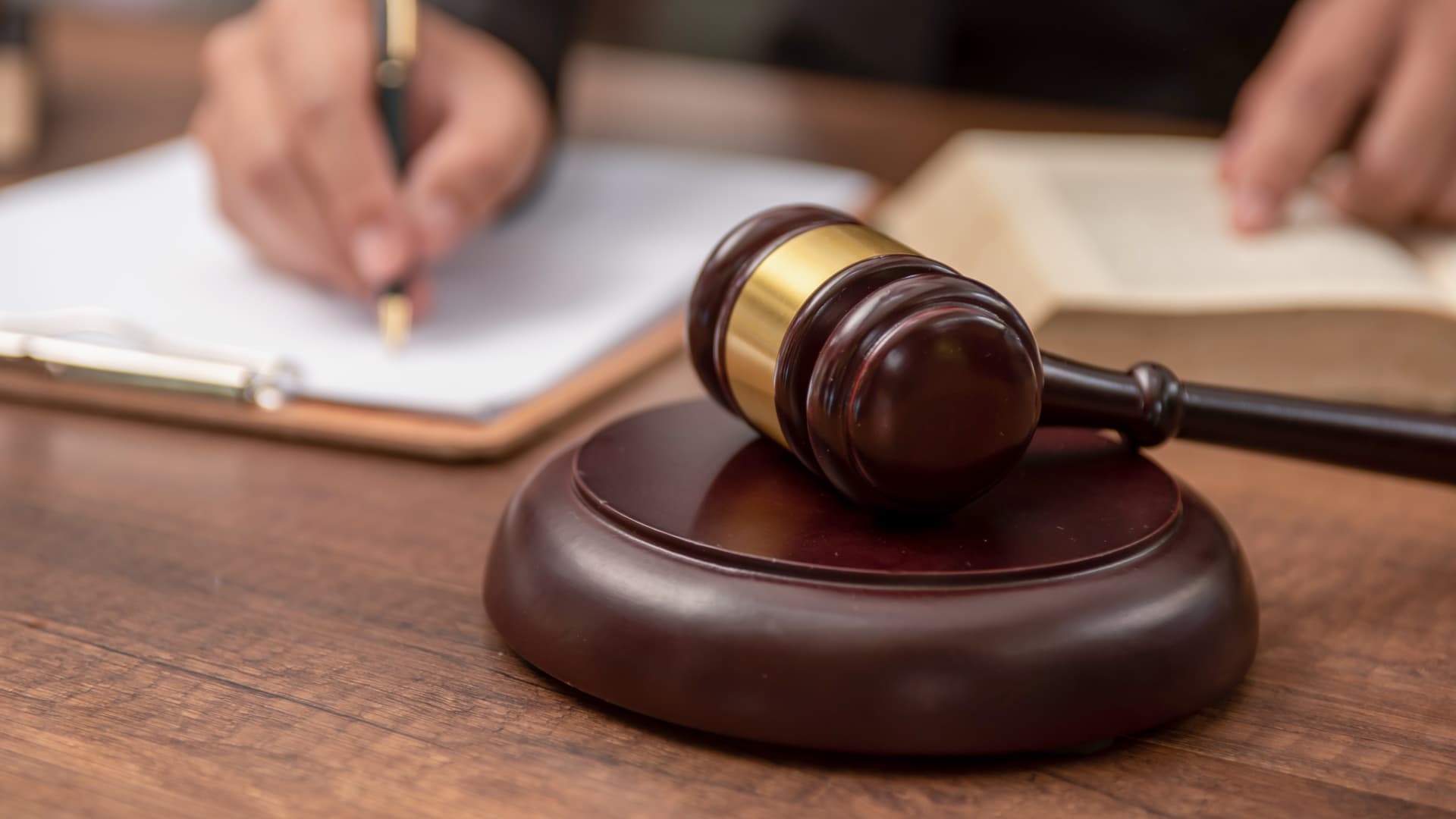
Artificial intelligence is now used by almost 90% of legal professionals in the U.K. and Ireland, and it’s putting one of the profession’s oldest conventions — the billable hour — under the microscope. That’s according to legal software company Clio’s U.K. & Ireland Legal Insights Report 2026.
It found that among firms using AI, almost 80% said they can handle more work without increasing resources, while over 70% said it cut costs by absorbing administrative work once done by support staff.
As a result, AI is challenging some of the assumptions on which the legal profession was built, forcing firms to reevaluate how their lawyers spend their time, how they charge for it and how new lawyers learn the ropes. You can’t charge 16 hours for something that takes 16 secondsNick Rowles-DaviesLexolent Some of the U.K.’s biggest firms are already putting this into practice.
A&O Shearman has worked with legal AI company Harvey to develop artificial intelligence agents for tasks, including reviewing loan agreements and analyzing regulatory filings, which it says can complete in minutes work that previously took several hours. Slaughter and May, meanwhile, has rolled out Harvey across all practice areas this year, including for regulatory research and document analysis.
Billable hour pressure The billable hour is central to the business model of many law firms, but when AI significantly reduces the time lawyers spend sifting through and drafting documents, the economics are no longer so straightforward. “You can’t charge 16 hours for something that takes 16 seconds,” Nick Rowles-Davies, founder and CEO of legal finance fund Lexolent, based in London and Dubai, told CNBC.
About one in five firms that have widely adopted AI report difficulty meeting billable-hour targets, according to Clio’s report. Globally, senior legal leaders expect the share of work charged by the hour to fall from 72% to 44% over the next two to three years, according to a Deloitte survey.
Routine work is the most exposed, Rowles-Davies said. “If you’ve got standard documents and you’re just putting in detail, then clearly that’s an automatic process.” But complex legal work still requires human judgment, he added, particularly when interpreting AI output and determining the right strategy for a client.
Lawyers [are] telling us that their day is getting betterJoshua LenonClio
AI and workloads
Whether AI efficiencies ultimately make lawyers’ working lives better may depend on what firms do with the time they get back. Clio’s report found that 51% of legal professionals work evenings, but only 32% want to, while 22% work weekends compared with 11% who would choose to.
Joshua Lenon, Clio’s New York-based lawyer-in-residence, believes some lawyers are already seeing the benefits. “Lawyers [are] telling us that their day is getting better,” Lenon told CNBC, as AI becomes more commonplace.
“People are really looking at these tools and saying, ‘This is making work better.’”
Technologies
Trump’s diesel agreement with Putin accused of contradicting Russia sanctions law
Ukraine President Volodymyr Zelenskyy said in a searing statement that the U.S. easing sanctions on Moscow “plays into Russia’s hands.”
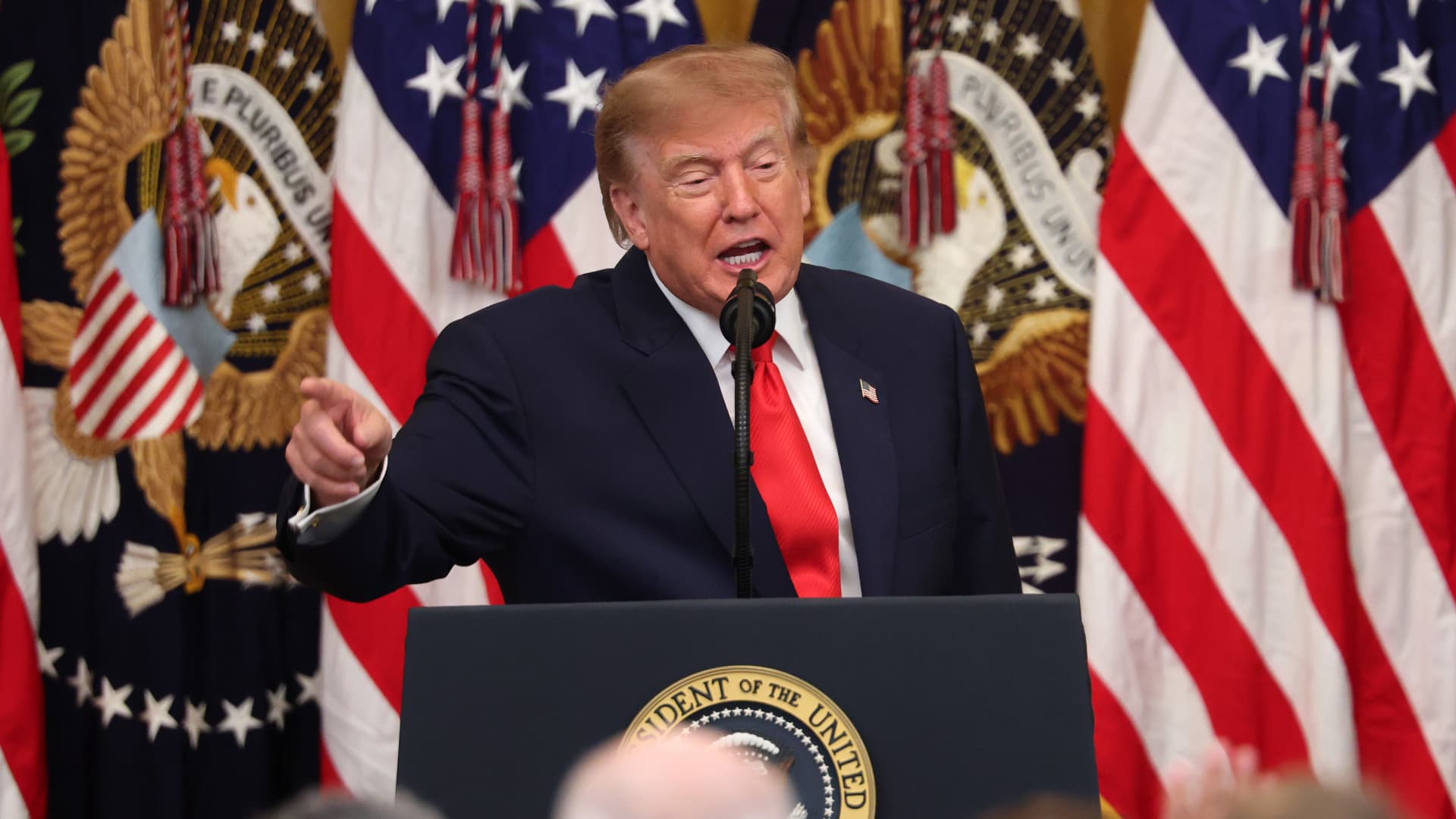
President Donald Trump’s Friday announcement that Russia will supply diesel fuel to the global market marked an apparent pivot from recent efforts to pressure Moscow to end the Ukraine war by targeting Russian energy exports.
Trump claimed the move, unveiled with less than a month left in an affordability-focused midterm election, would swiftly bring down record-high diesel prices.
But commentators and critics were quick to highlight contradictions between the new policy and prior efforts by the U.S. to clamp down on Russian oil sales.
Those efforts most recently included the enactment of the Lindsey O. Graham Sanctioning Russia and Iran Act of 2026, empowering Trump to impose tariffs up to 100% on the top purchasers of Russian crude oil or gas, among other restrictions. Trump signed the bill into law just three weeks ago.
“Congress just passed a law giving Trump the power to impose new tariffs on major buyers of Russian oil & gas,” Scott Lincicome, vice president of the libertarian Cato Institute, said on X after Trump’s Friday announcement.
“Can America tariff America?” he quipped.
Sen. Richard Blumenthal, D-Conn., a member of the Senate Ukraine Caucus, accused Trump’s latest move of being “directly contrary to Congress’s intent in our bipartisan sanctions bill.”
Peter Harrell, visiting scholar at Georgetown University Law Center’s Institute of International Economic Law, in an X post said that the relaxation of Russian diesel restrictions “pretty much proves the point that the Graham Russia Bill was not going to force the Trump Administration to increase economic pressure on Moscow.”
Some of the criticism crossed party lines.
“Through the Lindsey O. Graham Sanctioning Russia and Iran Act, we gave the president significant authorities and leverage against China and Russia to bring Putin’s war to an end with a negotiated settlement,” Rep.
Michael McCaul, R-Texas, said in an X post. “Unfortunately, while I understand the desire to bring down diesel prices, I am concerned the lifting of sanctions on Russian oil will only fund the Kremlin’s war machine—emboldening more violence and destruction, as we have seen in recent days,” McCaul said.
The White House did not immediately respond to CNBC’s questions about the diesel agreement with Russia.
Less than a year earlier, the Trump administration slapped sanctions on multiple Russian oil companies in response to what it called “Russia’s lack of serious commitment to a peace process to end the war in Ukraine.”
Trump also had previously slammed NATO allies for continuing to buy Russian oil. In a September 2025 Truth Social post, he wrote, “the purchase of Russian Oil, by some, has been shocking! It greatly weakens your negotiating position, and bargaining power, over Russia.”
Later that month, Trump again harangued world leaders for doing business with Russia.
“They’re funding the war against themselves. Who the hell ever heard of that one?” he said in a speech at the United Nations General Assembly. “They can’t be doing what they’re doing. They’re buying oil and gas from Russia while they’re fighting Russia.”
Trump announced the diesel deal in a Truth Social post Friday afternoon after what he described as a “highly successful discussion” with Russian President Vladimir Putin.
Under the agreement, Russia will immediately supply more than 300,000 tons of diesel, then another 500,000 tons in November, followed by 1 million tons “immediately thereafter” and 3 million more depending on refinery conditions, Trump wrote.
The Treasury Department soon after said that Trump directed the Office of Foreign Assets Control to immediately issue a “temporary general license to allow the supply of Russian diesel to the global market.” OFAC specified that the sanctioned transactions will be authorized for about six months, until April 7.
Russia seemed to celebrate the move. “Russia-US cooperation on diesel and energy will benefit the world,” an X account associated with Putin’s economic envoy Kirill Dmitriev said in response to the announcement.
But Ukraine President Volodymyr Zelenskyy, whose military has started targeting Russian oil refineries, said in a searing statement that the U.S. easing sanctions on Moscow “plays into Russia’s hands.”
“Any easing of sanctions against Russia without a clear and lasting de-escalation agreement with Russia is an obvious weakness,” Zelenskyy said. “Allowing Russia to sell petroleum products is an investment in a war that must be ended, not prolonged.”
“We count on America’s fair support for our defense of life, for our defense of people in Ukraine – and on the United States having a correspondingly strong conversation with Russia,” he said.
“A strong one, not a weak one,” he added.
Trump thanked Putin later Friday afternoon for enabling “massive amounts of oil” to come to the U.S.
“We need oil for the world, and this is diesel, which is what we need, so we’re very happy to get it,” Trump told reporters before heading to Syracuse, New York.
The Trump administration has previously eased some Russian energy sanctions temporarily, though more narrowly than Friday’s announcement.
Earlier this year, in an attempt to stabilize markets after the start of the Iran war, the Trump administration issued limited, 30-day waivers allowing countries to buy sanctioned Russian oil that was already in transit.
But some interpreted the latest move as a more significant step.
“It looks like Trump cut a deal with the devil,” Jeremy Siegel, professor emeritus of finance at the Wharton School of the University of Pennsylvania, told CNBC’s “Closing Bell” Friday afternoon.
“It’s not a permanent solution at all. It’s sort of a short-term Band Aid,” Siegel said. “And cutting back on or eliminating sanctions on Russia for the invasion in Ukraine, I think, is a very unfortunate consequence.”
Technologies
The world needs Ukraine’s grain. Its farmers are running out of reasons to plant
Cash-strapped farmers have no incentive to sow for 2027 with exports remaining trapped, as analysts say commodity markets could “flip fast.”

Ukraine’s harvest season is moving from wheat and barley into corn, soybeans and sunflower, and farmer Oleksandr Chumak has had a strong yield so far. That should be good news.
Instead, after 11 years of growing a range of crops in the Odesa region of southern Ukraine, Chumak has had enough.
Storage facilities across both Ukraine and Russia are filled with millions of tons of produce that would normally be sent to Europe, the Middle East, Asia and Africa — but are instead trapped in the warring countries.
Russian drone and missile hits on Black Sea targets intensified over the summer and into fall, making it impossible to insure commercial ships. Kyiv’s retaliatory attacks mean Russian exports are now also stuck, further squeezing global supply.
And with fatal Black Sea attacks continuing into October, prospects of a ceasefire look slim, even as Turkey ramps up efforts to broker a deal due to the risk to global food security.
Chumak says that around 80% of his grain cannot currently be sold at a profit, and he is out of cash.
A collapse in domestic prices is giving farmers like him little reason to sow for the 2027 crop in the coming months.
“For the farmers, it’s very difficult because we need to pay taxes, we need to pay rent for land, and now we are not able to do this because we are not able to sell anything,” said Andrii Dykun, chairman of the Ukrainian Agri Council.
“The only crops we are able to sell are rapeseeds and sunflower seeds. But still, the volume is not enough… So why should we plant if today we have no profits at all?”
“If our stocks will be full, it makes no sense to do any farm operations in the spring because then it’s just a waste of time and money.”
PrivatBank, Ukraine’s biggest lender, told CNBC that it had disbursed 1.53 billion hryvnia ($34.2 million) in working capital finance to agribusinesses between June and August, more than double the 718 million hryvnia lent in the same period last year. Small and medium-sized producers account for 70% of its agricultural loan book.
“Funds effectively remain tied up in grain inventories, while farms still need to cover their ongoing operating expenses and secure financing for the autumn and spring sowing campaigns,” said Yevhen Zaihraiev, chief corporate and SME business officer at state-owned PrivatBank.
“We are seeing different strategies among our clients. Some agricultural producers are selling their crops sooner, even at less attractive prices, in order to maintain sufficient operating liquidity. Others, particularly those with access to storage capacity, are postponing sales in anticipation of more favorable market prices,” he said by email.
Ukrainian production of grains and oilseeds is forecast to increase to 85 million tonnes from 80 million tonnes this year, but carry-over stocks from the previous season are pressuring Ukraine’s storage infrastructure and logistics, Zaihraiev noted. Those facilities include long plastic silobags snaking across fields and towering metal grain elevators that are themselves increasingly vulnerable to military strikes.
“We are also seeing agricultural producers gradually revise their planting plans for next year in favor of oilseeds and niche crops, whose prices are less dependent on logistics costs,” Zaihraiev added.
Farmer Oleksandr Chumak said he will follow that strategy, significantly scaling back planting for next year, avoiding corn and barley altogether, and instead opt for crops which require less fertilizer — which is also facing a global squeeze following amid the U.S.-Israeli war with Iran.
Meanwhile, for Ukrainian farmers — those not currently being drafted to serve — the war with Russia is ever-present. “We are living and working in a place where any time you or your circle can be hit by [a] rocket or drone,” Chumak said by phone. “We are sleeping in beds with explosions 300 to 1,000 metres around.”
Stock release would ‘flip the market fast’
Ukraine’s agricultural sector has faced farm takeovers, mines and labor shortages ever since Russia’s full-scale assault began in early 2022. International bodies have struggled to preserve its export routes through various agreements, including the collapsed Black Sea initiative and the European Union’s politically contentious “Solidarity Lanes.”
Now, the situation inside the country and the consequences for global food chains are the most severe they have been since the war began.
Between them, Ukraine and Russia supplied the world with more than half of its sunflower oil, nearly a fifth of its barley and 14% of its wheat in the years leading up to the war, according to the UN. Ukraine is also one of the world’s biggest growers of corn, with China and the European Union among its biggest buyers.
Around 90% of Ukraine’s main agricultural exports typically run via the Black Sea. In August this year, its grain and legume exports totalled 981,000 tonnes, down about 58% year on year.
The risk is heightened by weakness elsewhere. Europe is expected to have a particularly poor corn harvest and needs larger imports just as its demand for feed remains high. The United States is also facing a weaker corn crop.
For now, better wheat and barley crops in Canada, Australia and Argentina, along with good harvests in the Middle East and North Africa, are cushioning the blow.
The continued blockage is supporting commodity prices outside of Russia and Ukraine, but the reopening of Black Sea ports would unleash a wave of cheap supply that would “flip the market fast… with little warning,” said Benoit Fayaud, senior manager for grains and oilseeds analysis at Expana.
A deal which restores Ukrainian and Russian exports could see grains prices in other origins decrease by a few dozen dollars, he told CNBC. “They have such big stocks it will be bearish for the market all over the world,” he added.
Prices for Russian and Ukrainian wheat, barley, oilseeds and other products have become so low within the countries that it has intensified the scramble to find alternative routes via rail, road and river, according to Fayaud.
But these alternative routes are “difficult and slow from both countries,” he said.
Ukraine’s Eastern European neighbors such as Poland and Romania are resisting a push to allow grain to transit through them — even temporarily — due to concerns about a glut destroying demand for their own crops.
Another option via the Danube river has been hampered by low water levels; and a key bridge out of Ukraine has been damaged. There are options to export via the Baltic states and through Georgia by land into the Middle East and Central Asia, but this can only cover a small portion of typical flows, Fayaud said.
Andrii Dykun of the Ukrainian Agri Council stressed that there was no alternative to the Black Sea routes when it came to pricing.
“It would always be cheaper for us, even for the farmers on the western border of Ukraine, to sell the grain to other ports from Black Sea ports because it’s much more profitable for the farmers than to sell it via the border to [the] EU,” he said.
“So without Black Sea ports, it will not work for us at all.”
-
 Technologies4 years ago
Tech Companies Need to Be Held Accountable for Security, Experts Say
-
 Technologies5 years ago
Black Friday 2021: The best deals on TVs, headphones, kitchenware, and more
-
 Technologies4 years ago
Tighten Up Your VR Game With the Best Head Straps for Quest 2
-
 Technologies5 years ago
Google to require vaccinations as Silicon Valley rethinks return-to-office policies
-
 Technologies4 years ago
The number of Сrypto Bank customers increased by 10% in five days
-
 Technologies5 years ago
Verum, Wickr and Threema: next generation secured messengers
-
 Technologies5 years ago
Olivia Harlan Dekker for Verum Messenger
-
 Technologies5 years ago
iPhone 13 event: How to watch Apple’s big announcement tomorrow