
Technologies
Discover Your iPhone’s Hidden Potential: 24 iOS Settings to Tweak Right Now
From privacy to performance, get the most of your iPhone with these settings.
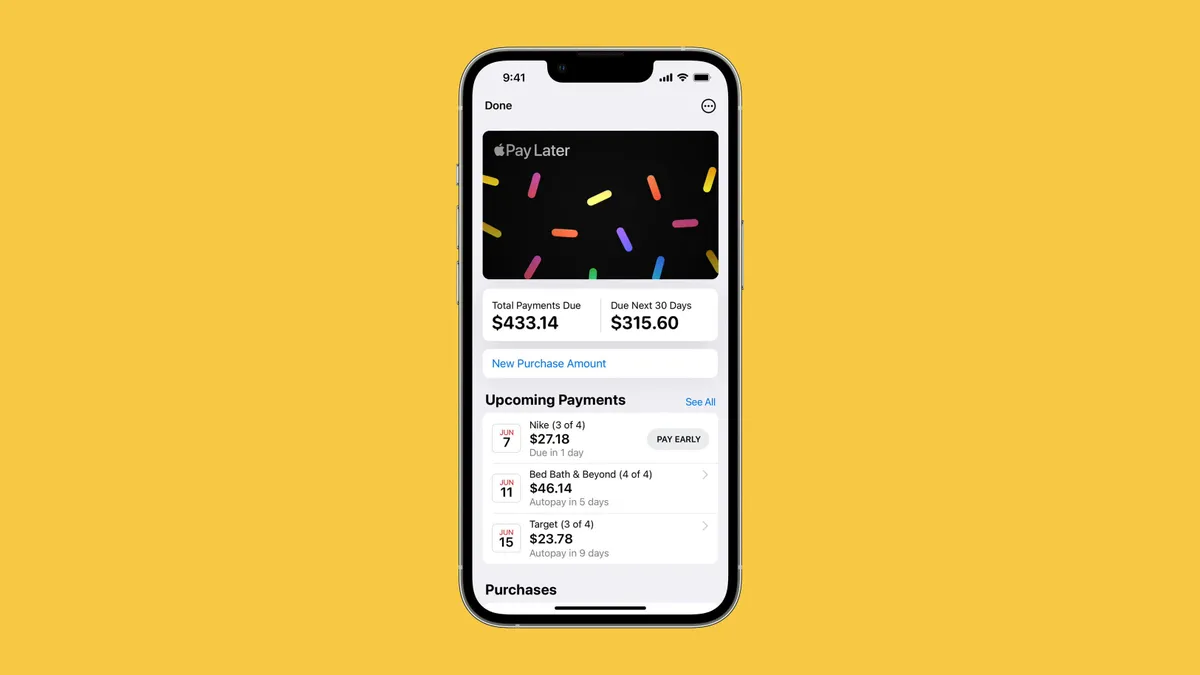
Your iPhone is your daily tether to the internet. From using it to avoid traffic jams on the way home, to catching up with friends and family, you want a device that works for you. If you’ve noticed your phone has started to slow down, and isn’t performing the way it used to, it might be time to adjust some settings. Thankfully, there are plenty of options that’ll let you tweak your iPhone and rejuvenate it, rather than needing to shell out for a brand-new device.
Whether you’re looking to protect your privacy, extend your battery life or just make your iPhone feel more like yours, a few simple tweaks can go a long way. These 24 iOS settings will help you get more from your device with less effort.
1. Stop apps from tracking your exact location
Apps like DoorDash and Postmates require your exact location to deliver food to the right location or directly to you. That doesn’t mean every application on your iPhone needs to know precisely where you are at every moment. That’s why you can prevent an app from tracking your exact location.
In the Settings app, choose an application (like Instagram, for example), tap Location and then toggle off Precise Location. Any app with Precise Location off will only know your approximate location, within a few miles.
2. Turn the back of your iPhone into a button
The back of your iPhone can be used as a secret button to activate certain actions such as taking a screenshot, enabling low power mode or running a shortcut that can automatically play music when you arrive at the gym. The Action Button on the iPhone 14 Pro and Pro Max, iPhone 15 and 15 Plus, and iPhone 15 Pro and Pro Max models do the same, but if you have an older model, the back of your iPhone works.
The option is hidden deep in your settings; here’s how to find it.
In the Settings app, go to Accessibility > Touch > Back Tap and choose one of two options: double tap or triple tap. You should see a list of actions you can run by tapping the back of your iPhone, like opening your camera, turning on the flashlight and scrolling up and down. Tap an action or shortcut to enable it with Back Tap.
3. Extend the lifespan of your battery
On the iPhone 15 and later, head to Settings > Battery > Charging and move the Charge Limit slider. You can choose from 80% all the way up to 100%. (This is the default. Your iPhone will charge to within a few points of your chosen percentage and then stop charging.)
Why do this? Well, lithium-ion cells last longer when they spend less time fully charged, which improves their lifespan. Try the 95% option and see how well it works for you throughout the day. If that’s more than enough battery life, you can try some of the lower percentage point options.
4. Enable Live Voicemail to get real-time voicemail transcriptions
You get a call and don’t want to necessarily pick up unless it’s important. Unfortunately, the only way you’ll know is if you listen to a voicemail left after the call. With iOS 17, you can read a real-time transcription of any voicemail being left. That’s right: If someone is leaving you a voicemail, you can read it on your phone and choose to pick up the call, connecting you with the person leaving the voicemail.
The Live Voicemail feature isn’t on by default, so go to Settings > Phone > Live Voicemail and turn it on. That’s it.
5. Bring back full-screen incoming call alerts
If your iPhone is unlocked and you receive a phone call, a banner-style notification appears at the top of your screen, with a small photo and name or number of the person calling, and the options to pick up or deny the call.
This wasn’t always the default option. In the past, incoming calls would take over your entire display when your iPhone was unlocked. It was disruptive, sure, but it also got the job done. The banner may be a welcome change for many because it’s more discreet and allows you to use your phone while receiving a call.
If for any reason you’re not a big fan of the banner and want to revert to the more attention-grabbing full-screen alert, go to Settings > Phone > Incoming Calls and tap Full Screen.
6. Turn off 5G coverage you don’t want or have
Apple touts a Smart Data feature that’s specific to its 5G phones that will automatically switch between 4G LTE and 5G networks based on how you’re using your device. You may find that your iPhone’s battery drains faster than it did before. If you don’t want to sacrifice battery life for faster 5G speeds, shut it down. You can always turn 5G back on when you want it, or when service in your area improves.
To turn off 5G on your iPhone, forcing it to always use 4G LTE (even if you have 5G coverage), open the Settings app, then go to Cellular > Primary > Voice & Data and tap LTE. Alternatively, if you want your iPhone to exclusively use a 5G connection when available, you can select 5G On.
7. Fine-tune how much data is used by a 5G connection
If you’re happy with your 5G performance, here’s a network-related setting you should check out. Go to Settings > Cellular > Primary > Data Mode, where you’ll find three options: Allow More Data on 5G, Standard and Low Data Mode.
Even though you can read brief descriptions below the three settings, they don’t paint a complete picture of the first option. According to an Apple support document, allowing more data on 5G will give you high-quality video and FaceTime calls. It also lets your phone download software updates and stream high-definition Apple TV and Apple Music content, and it allows third-party developers to improve their respective apps.
The default setting on this page will depend on your carrier and data plan, so it’s a good idea to check your iPhone and make sure it’s correctly set to your preference.
8. Stop apps from cluttering up your home screen
The App Library is a place where you can quickly find and access all of your applications. And while apps are housed here, all newly downloaded apps also appear on your home screen. This may not be a problem if you download apps sparingly, but if you’re installing new apps on a consistent basis, they can quickly clutter up your home screen.
To stop downloaded apps from appearing on your home screen, go to Settings > Home Screen & App Library and select App Library Only. If you want to find the app, you’ll have to swipe left on your home screen until you reach the App Library.
9. Unlock your phone while wearing a face mask
If you wear a mask in public, unlocking your iPhone with Apple’s Face ID technology can be frustrating. Because half of your face is covered, Face ID just doesn’t work. And while entering your passcode to unlock your phone works, it’s not as convenient.
With iOS, you have the option to turn on a face unlock feature that makes it easy to unlock your iPhone when you’re wearing a face mask. Before the update, you could only unlock your iPhone if you owned an Apple Watch.
To unlock your iPhone with your Apple Watch, open the Settings app on your iPhone and then open the Face ID & Passcode option. Scroll down until you find the Unlock with Apple Watch section (you must be connected to an Apple Watch for the setting to appear), where you can turn on the feature for any watches linked to your iPhone.
If you have an iPhone running iOS 15.4 or later, you can unlock your iPhone while wearing a mask without an Apple Watch. Go to the Settings app and open Face ID & Passcode. From there, you can toggle on the Face ID With a Mask option. It’s pretty awesome.
10. Put the address bar in Safari back on top
The address in Safari migrated to the bottom of the screen a few years back; welcome for those with smaller hands who had difficulty reaching it with one hand at the top. This move might feel more natural, since it’s closer to the keyboard and where you typically place your thumbs, but it can be off-putting since some people are used to seeing the URL bar near the top of the screen.
If you want to put the address bar back at the top of the screen, go to Settings, tap Safari and choose the Single Tab option under the Tabs subheading.
11. Add features that can be used when your iPhone is locked
There are times when you might want to have certain info handy even when your phone is locked. That’s why Apple allows you to enable some features without having to unlock your devices, such as the notification center, Control Center, the ability to reply to messages and the Wallet app.
To customize the features you’d like to access on the lock screen, launch the Settings menu, tap Face ID & Passcode and enter your passcode when prompted. Scroll down until you see the Allow Access When Locked section, and toggle the sliders based on your preferences.
12. Make your favorite email app or web browser your default
It’s not all about Safari. On your iPhone, you have the ability to choose your own default apps, at least for email and web browsing. That means that when you tap a link or an email send button, your iPhone will automatically launch the web browser or email provider of your choosing rather than Safari or Mail.
To get started, open the Settings menu and select the app you’d like to set as a default (such as Google Chrome or Outlook). You should then see a button that says Default Mail App or Default Browser App. Tap that option and select the app of your choosing instead of Safari or Mail.
13. Get full notifications on your lock screen
The first time you experience Apple’s Face ID tech, you’ll notice that you can’t see the content of new alerts and notifications on the lock screen. For example, instead of seeing who sent you a text message and what it says, you’ll only see a generic Messages alert.
By default, all iPhones with Apple’s Face ID tech will hide the content of an alert until you pick up your phone and unlock it. It’s a privacy feature that I rather enjoy, but I also understand how it could be annoying (I’ve heard a few complaints from readers and family members alike).
You can change how notifications appear on your lock screen by going to Settings > Notifications > Show Previews and selecting Always. Conversely, you can select Never if you want to keep the content of your notifications always hidden from the lock screen.
14. Turn off (or on) HDR video for sharing videos
The iPhone can record high dynamic range (HDR) video with Dolby Vision. That means your videos are typically brighter, with more accurate colors and improved contrast. That may be ideal for some, but if you don’t want videos that are automatically adjusted because you want to do it on your own, there is a way to disable the feature.
You can turn off HDR video by going to Settings > Camera > Record Video and turning the switch next to HDR Video to the Off position. Going forward, all videos will be captured in the standard dynamic range.
15. Customize your home screen with fancy wallpaper
Another home screen tweak you should make involves your wallpaper or background. Apple has many wallpapers of its own, with a pretty cool twist.
Open the Settings app on your iPhone and select Wallpaper from the list. Make sure the switch labeled “Dark Appearance Dims Wallpaper,” which you’ll see below the two thumbnail previews of your wallpaper, is turned on. Now, tap Choose a new wallpaper and select either Stills or Live. Look for the circle near the bottom of each wallpaper. It’s half black, half white.
That circle means that the wallpaper has both light and dark mode versions and will change automatically based on the system status of your phone.
You can also set live wallpapers as your background if you’re not sold on dark and light mode.
16. Turn on dark mode to save your battery
Speaking of dark mode, if you don’t want to have to repeatedly adjust your screen’s brightness, you can use your phone’s dedicated dark mode. Dark mode converts all of the white backgrounds in apps to, more often than not, a black background. In turn, your phone is able to save battery power thanks to the darker colors.
Turn it on by going to Settings > Display & Brightness and selecting the Dark option at the top of the screen. You can also just swipe down from the top-right of your iPhone and tap the Dark mode icon in the Control Center.
Apple’s apps will automatically switch to a dark color scheme, and most third-party apps have also adopted the feature.
17. Manage your notifications with Focus Mode
We get a lot of notifications every day, but not all of them are relevant all the time. That’s why Apple introduced a feature called Focus Mode. Think of it as a custom Do Not Disturb feature that’s tailored to specific circumstances.
Focus Mode blocks less relevant alerts while allowing notifications from important people and apps to come through so that you don’t miss anything. You can set up different types of Focus Modes for specific circumstances.
Apple currently offers options for Do Not Disturb, personal, sleep, work, driving, fitness, gaming, mindfulness and reading, but you can also create your own custom mode. You can schedule Focus Modes so that they turn on automatically when needed and display your status in apps so that others know you have notifications silenced.
To get started, open the Settings menu, tap Focus and choose one of the available options to set up your notification preferences. Tap the plus (+) symbol in the top right corner to add a new Focus.
18. Make your screen text bigger or smaller
With a couple of taps on your iPhone’s screen, you can adjust the font size to make it easier to read. Open Settings and go to Display & Brightness > Text Size where you can use the slider until you’re happy with the font size. For a little added oomph, you can turn on Bold Text (it’s just below the Text Size button).
19. Add an alternate appearance to Face ID
Apple’s facial recognition feature, Face ID, constantly learns different aspects of your face with each scan. If you’re struggling to get Face ID to consistently recognize you, try the Alternate Appearance option.
Go to Settings > Face ID & Passcode > enter your PIN > Set Up An Alternate Appearance and go through the process of enrolling your face again.
20. Disable auto-brightness for longer battery charge
Your iPhone’s screen brightness level can have a big impact on battery life. By default, iOS will automatically adjust the display’s brightness based on how much light its ambient sensor detects. If you want to take complete control, you can disable auto brightness, meaning the brightness level will stay where you set it until you adjust it again.
Open Settings > Accessibility > Display & Text Size, and at the bottom of the page, you’ll find a switch to turn off Auto-Brightness.
Now, whenever you want to adjust your screen, you can do so by opening Control Center with a swipe up from the bottom of the screen on a device with a home button, or a swipe down from the top-right corner on newer iPhones.
21. Triage your privacy settings
The first time you set up an iPhone with all of your apps, you’re bombarded with prompts asking for permission to access personal information ranging from tracking your location to your Apple Health information or your camera roll.
It’s far too easy to get in the habit of approving everything just so you can use the app, but take a few minutes and go through your privacy settings to tailor what each app can and can’t see. We walk you through the whole privacy process in two quick steps.
22. Use the Control Center to access apps with a swipe or tap
The iPhone’s Control Center is a convenient spot to quickly change songs, turn on airplane mode, connect to Wi-Fi or start a timer, but there’s so much more to it than that. You can quickly turn on your flashlight, check on a timer or start recording your screen with a quick swipe and tap.
Customize which apps and features are available in Control Center by opening Settings > Control Center. Remove an option with a tap on the red minus button or add an option by selecting the green addition button. Drag features up or down using the three-line icon on the right side of the screen.
I like having quick access to the Wallet app and toggles for low-power mode and dark mode.
As a reminder, if you have an iPhone with a home button, like the iPhone SE, you can swipe up from the bottom of the screen to open Control Center. If you have an iPhone with Face ID, you’ll need to swipe down from the top-right corner of the screen where the battery icon is.
23. Organize alerts with Notification Summary
Apple wants to help you manage your notifications in iOS, starting with the Notification Summary feature. Rather than letting notifications pile up on your home screen, you can schedule alerts that aren’t urgent to arrive in a bundle at a specific time of day.
Important notifications like calls, direct messages and other time-sensitive alerts (like the status of your Uber or Lyft ride, for example) will still appear immediately.
To try this out, open Settings, press Notifications and tap Scheduled Summary.
24. Change Siri’s voice
If you’ve recently set up a new iPhone, you may have noticed that Siri no longer defaults to a female voice. Instead, you’ll be asked which Siri voice you want to use, including several more recent options. Once you’ve made your selection, Apple will change Siri’s voice across all of the devices linked to your Apple ID.
You can check out the voice options by going to Settings > Siri & Search > Siri Voice. To learn more, check out our complete guide to changing Siri’s sound. Apple also added a gender-neutral Siri voice option for English speakers.
For more, here are 17 hidden features on our iPhone you should know about and annoying iPhone features you can do something about.
Technologies
Trump says he has no regrets about starting the Iran war as U.S. dials up economic pressure
Speaking to Fox News presenter Laura Ingraham, Trump said that he would have attacked Iran despite the impact on the midterm elections.
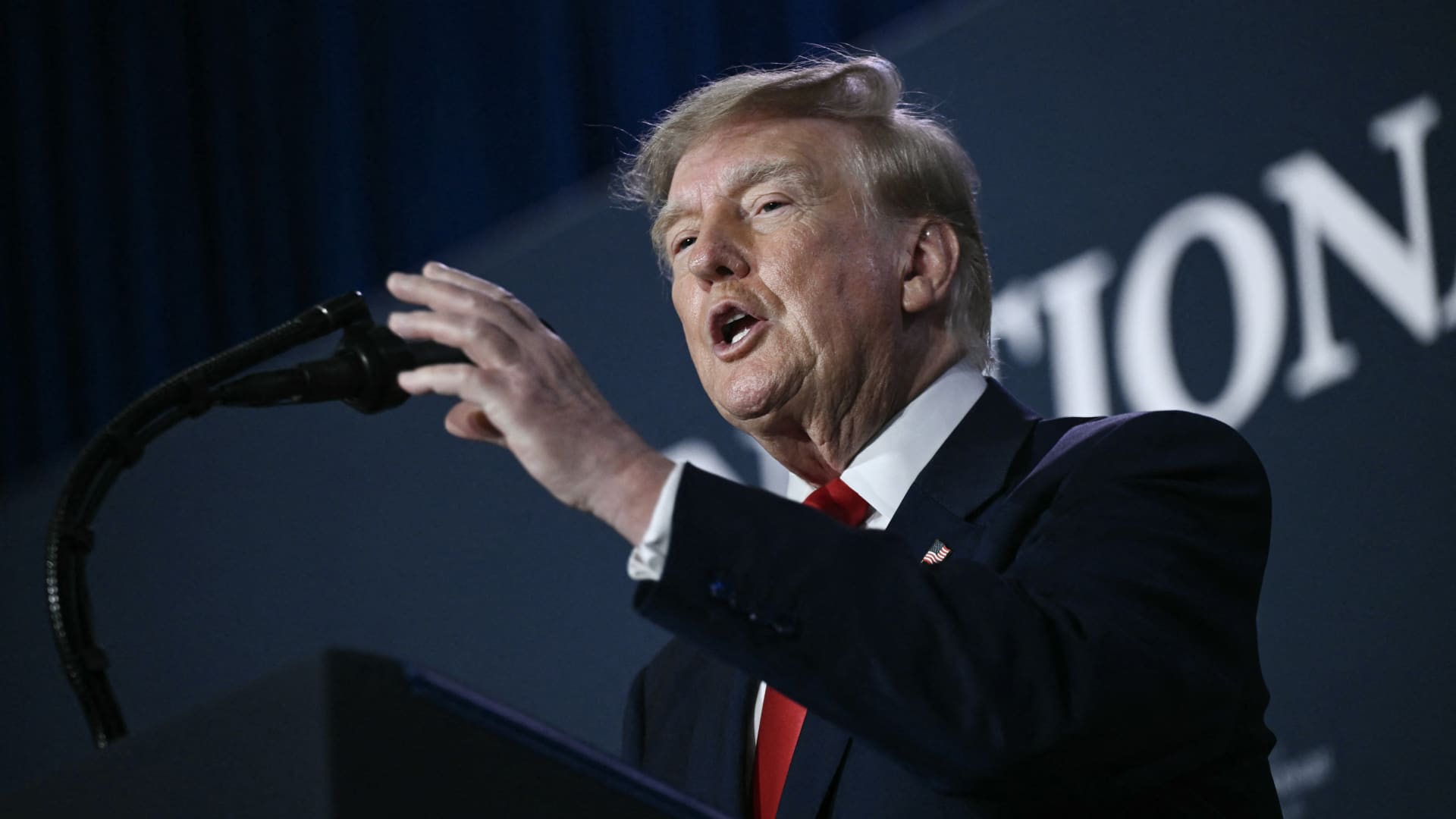
U.S. President Donald Trump said he has no regrets about starting the Iran war and added that “If I had it to do again, I would do exactly what I did.”
Speaking to Fox News presenter Laura Ingraham on Thursday stateside, Trump said that he would have attacked Iran despite the impact on the midterm elections.
“If we hadn’t done Iran, you would be cruising to midterms victory right now,” Ingraham told Trump, to which Trump replied “supposing we were cruising, and all of a sudden Iran has a nuclear weapon. They would use it.”
He added that if Iran had a nuclear weapon, the Islamic Republic would “wipe out” Israel and the Middle East, and start hitting U.S. cities.
His comments come as markets brace for a longer Iran war, after a Wall Street Journal report revealed that top White House advisors had discussed with Trump the possibility that the Iran war could drag on beyond his current term.
Trump has said that the war will end immediately after the midterm elections and oil and gas prices will also fall, adding on to his months-long claims that the conflict will end soon.
In separate comments to NewsNation on Thursday, Trump denied reports that there was any damage to U.S. assets, after Iran claimed it had hit multiple U.S. fighter aircraft at a base in Jordan.
“No damage. No nothing,” Trump said, when asked if there was any truth to the reports.
Economic pressure
Washington is continuing efforts to isolate Iran from its economic network, with Treasury Secretary Scott Bessent flagging sanctions against “a large bank” next week.
“We’re going to do it on Monday because we want to honor the memory of our fallen citizens on 9/11. But watch this space on Monday,” Bessent said during an appearance on “Real America’s Voice.”
Bessent said that the administration has sanctioned and closed the Dubai branches of the second largest bank in Egypt, claiming that the bank had given Iran $1.8 billion dollars. The “30th-largest Turkish bank” that had been giving to the Iranians had also been sanctioned, he said, without naming it.
The U.S. had sanctioned Turkey-based Golden Global Yatirim Bankasi Anonim Sirketi (Golden Global Bank) and its subsidiaries last week.
Trump, in the NewsNation interview, was also asked how Iran could continue holding out under the current economic pressure.
“I don’t know that they’re gonna be able to hold out,” Trump said. “But it’ll get settled after the elections. Or maybe sooner. But it’ll get settled right after the election.”
Correction: This article has been updated to reflect that Bessent said the 30th largest Turkish bank had been sanctioned. An earlier version misstated the bank’s ranking.
Technologies
U.S. diesel price tops $6 per gallon, a record high as Ukraine and Iran wars ripple through economy
U.S. diesel prices hit their highest level ever as fuel supply disruption stemming from the Ukraine and Iran wars lifts transportation costs.
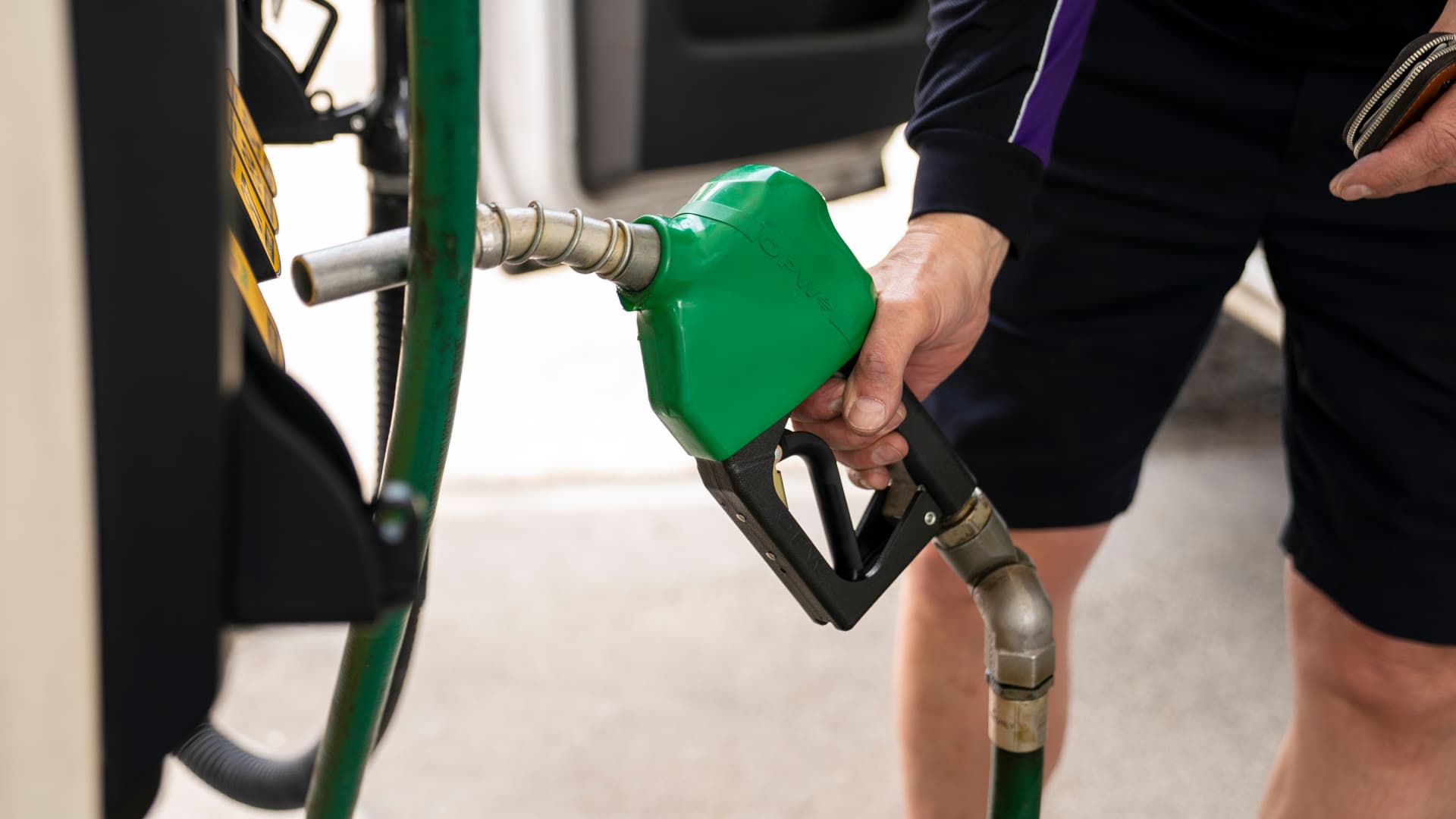
U.S. diesel prices hit $6 per gallon on Friday for the first time ever, as fuel supply disruptions triggered by the Ukraine and Iran wars raises transportation costs across the entire economy.
Truckers and farmers are paying about 63% more to fill up their semis and tractors than they did at this time last year, according to data from AAA. The average price nationwide is now about $6.06 per gallon.
Prices are even higher in California, the biggest agriculture state in the U.S., at $7.98 per gallon.
Fuel costs are rising as crude oil prices have surged in response to a sharp escalation in fighting between the U.S. and Iran this month. U.S. crude oil futures topped $100 per barrel on Thursday for the first time since May. The contract has gained about 20% in September.
Diesel is the real lifeblood of the economy even though consumers tend to pay more attention to retail gasoline prices, said Bob McNally, president of Rapidan Energy, in an interview with CNBC’s “The Exchange” on Tuesday.
Higher diesel prices are passed down to consumers in what they pay for food, consumer goods and energy. Diesel fuels the trucks, trains and ships that bring goods to market. It powers the machinery that farmers use to plant and harvest food. And it heats homes and generates electricity in some cases.
This content is blocked because you are not allowing cookies.
To view this content, click on Cookie Preferences here or at the bottom of the page to allow all cookies.
“It’s the more insidious, more costly, and more impactful fuel,” McNally said. “As we climb higher, it is a real concern.”
Diesel prices at these levels will be a “silent killer” for the economy, said Patrick De Haan, head of petroleum analysis at GasBuddy, in an interview with CNBC’s “Power Lunch” Tuesday.
Gasoline prices, meanwhile, have never been this high this late in the year, De Haan said. Prices at the pump hit a Labor Day record of $4.15 per gallon earlier this week. Americans are spending about $700 million more per day on gas and diesel than they did a year ago, the analyst said.
“There’s sticker shock there for consumers,” De Haan said.
Fuel costs are rising as the Iran and Ukraine wars have disrupted global supplies. Kyiv has pounded Russian refineries, forcing Moscow to ban diesel exports. Iran and its militant Houthi allies in Yemen have also hit the refineries of U.S. Gulf allies. Fuel exports through the Strait of Hormuz are constrained due to the Iranian attacks on tankers.
The wars in Eastern Europe and the Middle East have shut down refineries with about 5 million barrels per day of capacity, said Valero Chief Operating Officer Gary Simmons on the U.S. refiner’s July 30 earnings call.
The world has lost nearly 8% of its diesel supply with little spare refining capacity available to make up the shortfall, said Andy Lipow, president of Lipow Oil Associates, in a Wednesday note.
Rising diesel prices pose an “enormous challenge” for the Trump administration, said Helima Croft, head of global commodity strategy at RBC Capital Markets, in a Sept. 4 interview with CNBC’s “Power Lunch.”
“U.S. refineries are running at 98% utilization rates — there is just no spare capacity,” Croft said.
Technologies
Buffett’s confidence in troubled decade-old acquisition finally pays off
Warren Buffett has said he paid too much for Precision Castparts in 2016. Now its complex metal castings are in high demand.
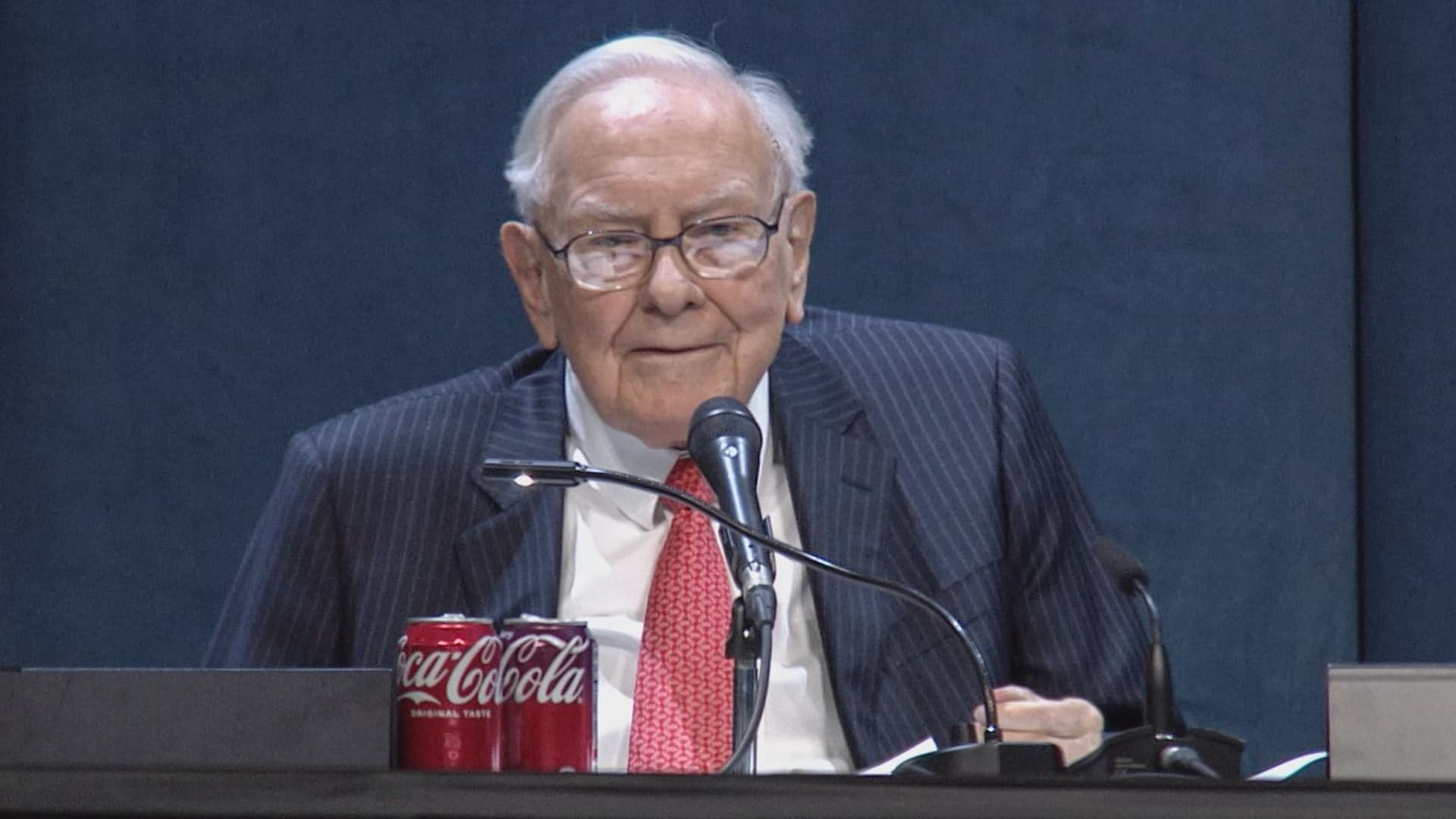
(This is the Warren Buffett Watch newsletter, news and analysis on all things Warren Buffett and Berkshire Hathaway. You can sign up here to receive it every Friday evening in your inbox.)
Buffett’s confidence in troubled decade-old acquisition finally pays off
Six years ago, when Berkshire Hathaway took an $11 billion write-down of its $37.2 billion 2016 acquisition of Precision Castparts, Warren Buffett wrote in his annual letter to shareholders he had paid “too much” for the company, which makes “complex metal components and products.”
While it was a “fine company – the best in its business,” he had been “simply too optimistic” about its profit potential, a “miscalculation … laid bare” by the enormous downturn for the aerospace industry, Precision Castparts’ largest customers, amid the Covid pandemic.
In a CNBC interview when the deal was first announced, Buffett admitted it was “a very high multiple for us to pay,” but told shareholders at the 2016 meeting he had great confidence in Mark Donegan, the company’s CEO, both then and now, and the company’s long-term profit outlook.
It’s taken longer than he planned, but Buffett’s purchase is now looking pretty good.
As Reuters puts it, there is currently a shortage of the “complex” products Precision Castparts makes that are essential for engine turbine blades.
They’re also used in natural gas turbines, which are in demand to produce energy for artificial intelligence data centers.
This week, GE Aerospace announced it would pay $11.75 billion to acquire Consolidated Precision Products, one of the few companies that competes against Precision Castparts.
Barron’s calls that “pricey” at 26 times projected 2027 earnings before interest, taxes, depreciation, and amortization.
Using the same multiple, Barron’s estimates Precision Castparts is worth around $100 billion. That’s well above the potential value of $60 billion to $75 billion it cited in an article last month that said the unit “probably has become one of the more valuable divisions” of Berkshire.
It’s also nearly three times the 2016 purchase price.
In the Barron’s piece, Andrew Bary said Berkshire, and its share price, aren’t “getting much credit” for the subsidiary’s rising value, in part because CEO Greg Abel, like Buffett, doesn’t do analyst conference calls or investor events that could draw attention to the unit’s performance.
His recommendation: “Without Warren Buffett at the helm, Berkshire may have to start telling its story if it wants to attract a new generation of investors. This year’s trading action suggests that something may need to change.”
Berkshire bounces a bit as Wall Street sells off
Berkshire Hathaway shares managed a modest gain this week even as Wall Street’s major averages declined, a small departure from the 2026 “trading action” Bary cites.
Both the Class A and Class B shares gained almost 0.9% while the S&P 500 fell by 0.8%.
Until Friday’s bounce, that benchmark index, along with the Dow Industrials and the Nasdaq Composite, had dropped four days in a row as oil and bond yields moved higher.
Even with this week’s outperformance, Berkshire’s B shares still trail the S&P 500 by more than 10 percentage points so far this year.
Nebraska candidate moves to replace ad that included Buffett’s image
The campaign team for the Republican running in Nebraska’s 2nd Congressional District accelerated the deployment of a new campaign ad after Susie Buffett complained about a previous commercial that briefly included an image of her father, Warren Buffett.
In the ad, a picture of Buffett and his name appear on screen for roughly two seconds as candidate Brinker Harding says, “Here in Omaha, we know a thing or two about the stock market, some more than others. But we do it without insider information.”
He then goes on to highlight his call for a ban on Congressional stock trading, saying some lawmakers “trade on secrets you’ll never know,” as they “get rich” while “we barely get by.”
In a report that led its 10 PM CT newscast Wednesday evening, ABC affiliate KETV in Omaha reported Susie Buffett had asked Harding on Sept. 2 to remove the ad.
She told the station, “I think it’s worth it to say that Warren did not give Brinker his permission to use his face or name in his ad.
“It implies that my dad endorses him. He did not have permission to use it.”
The KETV report quoted Harding as saying in a statement, “In Nebraska, we work hard and support each other, and we do it honestly. Warren Buffett exemplifies that, and that was the point of my ad.”
The report said Harding did not comment on whether the ad would be taken down but noted “it does look like new ads from his campaign are beginning to run on some stations.”
A Harding campaign spokesperson told me the campaign did not think its ad implied a Buffett endorsement, but to be respectful to the Buffett family, it responded to her concern by accelerating the rollout of its next planned ad by several days, although its effort was hampered by the Labor Day weekend.
The commercial now running does not show or mention Buffett.
BUFFETT & BERKSHIRE AROUND THE INTERNET
Some links may require a subscription:
– Best’s News and Research Service: 2026 Best’s Rankings: Berkshire Hathaway Takes DPW Top Spot Among Accident & Health Lines
– Financial Times: The day Warren Buffett saved Salomon Brothers
HIGHLIGHTS FROM CNBC’S BUFFETT ARCHIVE
The effects of 9/11 on Berkshire and the insurance industry (2002)
Warren Buffett shares his thoughts on the 9/11 attacks and explains how Berkshire’s insurance companies have started taking terrorism into account when writing policies.
AUDIENCE MEMBER: I know you lost a lot of money as a result of 9/11. But I would like to know how 9/11 changed your life and your investment strategy?
WARREN BUFFETT: It made everybody, I think, in the country aware, I mean, we’ve gone through world wars and all of that, and essentially felt quite protected within these borders.
And I have been quite worried about — Charlie can attest to — you know, the possibility, particularly of some kind of nuclear device in this country, by — probably more likely by terrorists than by some, at least, declared act of war by another state.
And 9/11 made everybody realize that as humans have not progressed, particularly, in terms of how they behave with each other over the years, they have progressed enormously in their ability to inflict damage on those they hate for one reason or another…
In terms of the business aspects of it, in your question, obviously the area at Berkshire that it effects most significantly, by miles, is insurance.
And prior to 9/11, even though we recognized that there could be huge monetary damages that flowed from the activities of what I would call deranged people, we hadn’t really written the contracts in such a way as to either get paid for taking that risk or to exclude the risk. In other words, we were throwing it in for nothing.
We had excluded risk for war. I mean, we knew that we’d seen what had happened in England in the 40s, and so we had taken account of something that some of us had seen with our own eyes, but we didn’t take account of something that we knew was possible, but we just hadn’t seen. And that’s, you know, that’s the human condition, to some degree.
Since September 11th, everybody in the insurance business recognizes that they had exposures that they weren’t charging for, and they either had to exclude those exposures or they had to charge for them.
We have written — first thing we had to do, of course, is we had lots of policies on the books that left us exposed to this, and most of those policies ran for a year, starting at different points. Those have run off to a great degree, but they’re not entirely run off.
The other thing we did was on new policies. We have sold a fair amount, quite a large amount, of terrorism insurance that excludes what we call NCB, nuclear, chemical, and biological, as well as fire following nuclear.
And, we can take a fair amount of exposure to that sort of terrorism, because it doesn’t — it won’t aggregate. It aggregated at the Twin Towers in a way that — World Trade Center — in a way that just about was as extreme as you could get for non-NCB-type activities.
I mean, that was a huge amount of damage done without nuclear, chemical, or biological.
But we can have tens of billions of dollars with NCB excluded throughout a greater New York area, or something, but we can’t have hundreds of billions of exposure that would be exposed, say, to, nuclear activities, because there an act or two, or three, coordinated, could cause damage that would destroy the insurance industry.
And if we had coverage on that, it would destroy us as well.
BERKSHIRE STOCK WATCH
Four weeks
Twelve months
BRK.A stock price: $766,000.00
BRK.B stock price: $510.37
BRK.B P/E (TTM): 12.83
Berkshire Cash as of June 30: $365.5 billion (Down 8.0% from March 31)
Excluding Rail Cash and Subtracting T-Bills Payable: $359.2 billion (Down 3.8% from March 31)
Berkshire repurchased $4.5 billion of its shares in Q2 2026.
BERKSHIRE’S TOP EQUITY HOLDINGS – Sep. 11, 2026
Berkshire’s top holdings of disclosed publicly traded stocks in the U.S. and Japan, by market value, based on the latest closing prices.
Holdings are as of June 30, 2026, as reported in Berkshire Hathaway’s 13F filing on August 14, 2026, except for:
– Mitsubishi, which is as of April 30, 2026
The full list of holdings and current market values is available from CNBC.com’s Berkshire Hathaway Portfolio Tracker.
QUESTIONS OR COMMENTS
Please send any questions or comments about the newsletter to me at alex.crippen@cnbc.com. (Sorry, but we don’t forward questions or comments to Buffett himself.)
If you aren’t already subscribed to this newsletter, you can sign up here.
Also, Buffett’s annual letters to shareholders are highly recommended reading. There are collected here on Berkshire’s website.
— Alex Crippen, Editor, Warren Buffett Watch
-
 Technologies4 years ago
Tech Companies Need to Be Held Accountable for Security, Experts Say
-
 Technologies4 years ago
Best Handheld Game Console in 2023
-
 Technologies5 years ago
Black Friday 2021: The best deals on TVs, headphones, kitchenware, and more
-
 Technologies4 years ago
Tighten Up Your VR Game With the Best Head Straps for Quest 2
-
 Technologies5 years ago
Google to require vaccinations as Silicon Valley rethinks return-to-office policies
-
 Technologies4 years ago
The number of Сrypto Bank customers increased by 10% in five days
-
 Technologies5 years ago
Verum, Wickr and Threema: next generation secured messengers
-
 Technologies5 years ago
Olivia Harlan Dekker for Verum Messenger