
Technologies
Taking a Screenshot on Mac: 4 Simple Ways to Do It
Apple has new M1 and M2 versions of most of its iconic Macs, but how you take a screenshot remains the same.
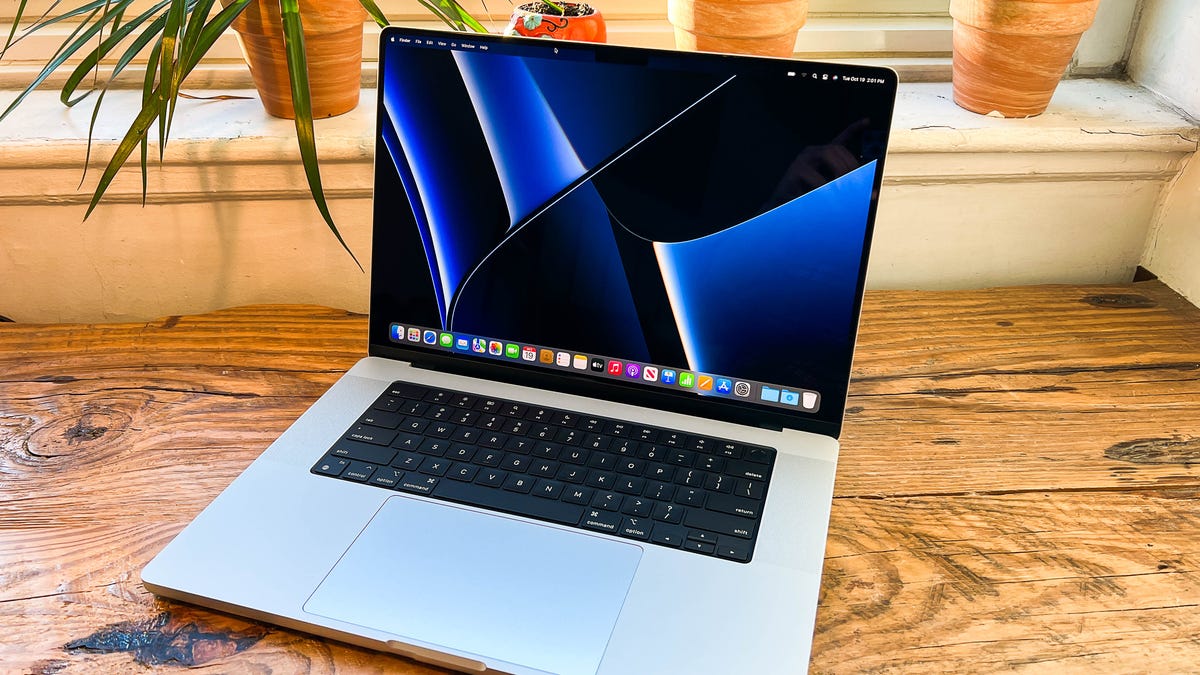
If you own any kind of modern Mac — including MacBook laptops, iMac all-in-ones or Mac Mini and Mac Studio desktops — there are three basic ways to take a screenshot with keyboard shortcuts. MacBook Pro owners can use the Touch Bar for a fourth method. Apple’s MacOS software also gives you a fair number of options to easily save, deleteand open the screenshot for markup.
These tips also apply to the latest Macs, such as the recently updated 13-inch MacBook Pro with a new M2 chip and the M2 MacBook Air. We’ve also tested these tips to confirm they work in MacOS Ventura, the latest operating system update.
Method 1: Cmd-Shift-3
This keyboard shortcut captures a screenshot of your entire screen.
Method 2: Cmd-Shift-4
Use this keyboard combo to turn your cursor into a crosshair, which you can drag to select a portion of your screen to capture. Release the mouse button or trackpad to take the shot.
You have a number of other options after hitting Cmd-Shift-4:
Press and release the spacebar: The crosshair turns into a little camera icon, which you can move over any open window. Click on your desired window to take a screenshot of it. A screenshot captured by this method features a white border around the window with a bit of a drop shadow.
Press and hold the spacebar (after dragging to highlight an area but before releasing the mouse button or trackpad): This locks in the shape and size of the selection area but lets you reposition it on the screen. It’s very handy if your initial selection area is off by a few pixels; just hold down the spacebar to reposition it before releasing the mouse button to snap a screenshot.
Hold down the Shift key (after dragging to highlight an area but before releasing the mouse button or trackpad): This locks in each side of the selection area made with the crosshairs save the bottom edge, letting you move your mouse up or down to position the bottom edge.
Without releasing the mouse button, release the Shift key and hit it again to reposition the right edge of your selection area. You can toggle between moving the bottom edge and right edge by keeping the mouse button or touchpad engaged and pressing the Shift key.
Method 3: Cmd-Shift-5
A shortcut command introduced way back in MacOS Mojave in 2018, Cmd-Shift-5 calls up a small panel at the bottom of your display with your screen capture options. There are three screenshot buttons that let you capture the entire screen, a window or a selection of your screen.
Likewise, the two video-recording buttons let you record your entire screen or a selection of it. On the left is an X button to close the screenshot panel, but you can also just hit the Escape key to exit out.
On the right side is an Options button. It lets you choose where to save your screenshot — Desktop, Documents, Clipboard, Mail, Messages, Preview or Other Location, and set a 5- or 10-second delay so you can line up items that might otherwise disappear when you engage your screenshot tool.
By default, the Show Floating Thumbnail option is enabled, which puts a little preview thumbnail of your just-captured screenshot in the lower-right corner of your screen, similar to the screenshot procedure with iOS. Unlike on your iPhone, you can turn off this preview thumbnail on your Mac. Lastly, you can choose to show your mouse pointer in a screenshot or video.
If the screenshot panel is in your way, you can grab its left edge and drag it to a new spot on your screen.
Bonus for Touch Bar MacBooks: Cmd-Shift-6
If you’ve got an older MacBook Pro with the Touch Bar, you can also take a screenshot of what’s currently showing on the Touch Bar. Just hit Cmd-Shift-6 to take a very wide and skinny screenshot of your Touch Bar.
Easy annotation
If you embrace the Floating Thumbnail, you’ll gain quick access to Markup tools to annotate your screenshot. You can swipe the Floating Thumbnail away or just let it slip away on its own and it’ll be saved to the spot you last saved a screenshot. Click the Floating Thumbnail and it’ll open in a Markup View preview window (but not Preview) with all of the markup tools you get in Preview.
You can right-click the Floating Thumbnail to:
- Save the screenshot to your desktop, Documents folder or clipboard
- Open it in Mail, Messages, Preview or Photos
- Show in Finder
- Delete
- Open it in the Markup preview window described above
- Close (and save)
Longtime Mac screenshotters may be slow to adopt the Cmd-Shift-5 shortcut, but I find myself using it more for the ability to annotate screenshots without needing to open Preview, and quickly delete screenshots that I know immediately I messed up. The 5- and 10-second delay options are also useful and appreciated additions.
Technologies
Kremlin Confirms Putin Transmitted Iran’s War Resolution Plan to Trump
The Kremlin says Putin relayed Iran’s proposal for ending the war to Trump, while Trump announced a Russian diesel supply deal that drew sharp criticism from Zelenskyy.
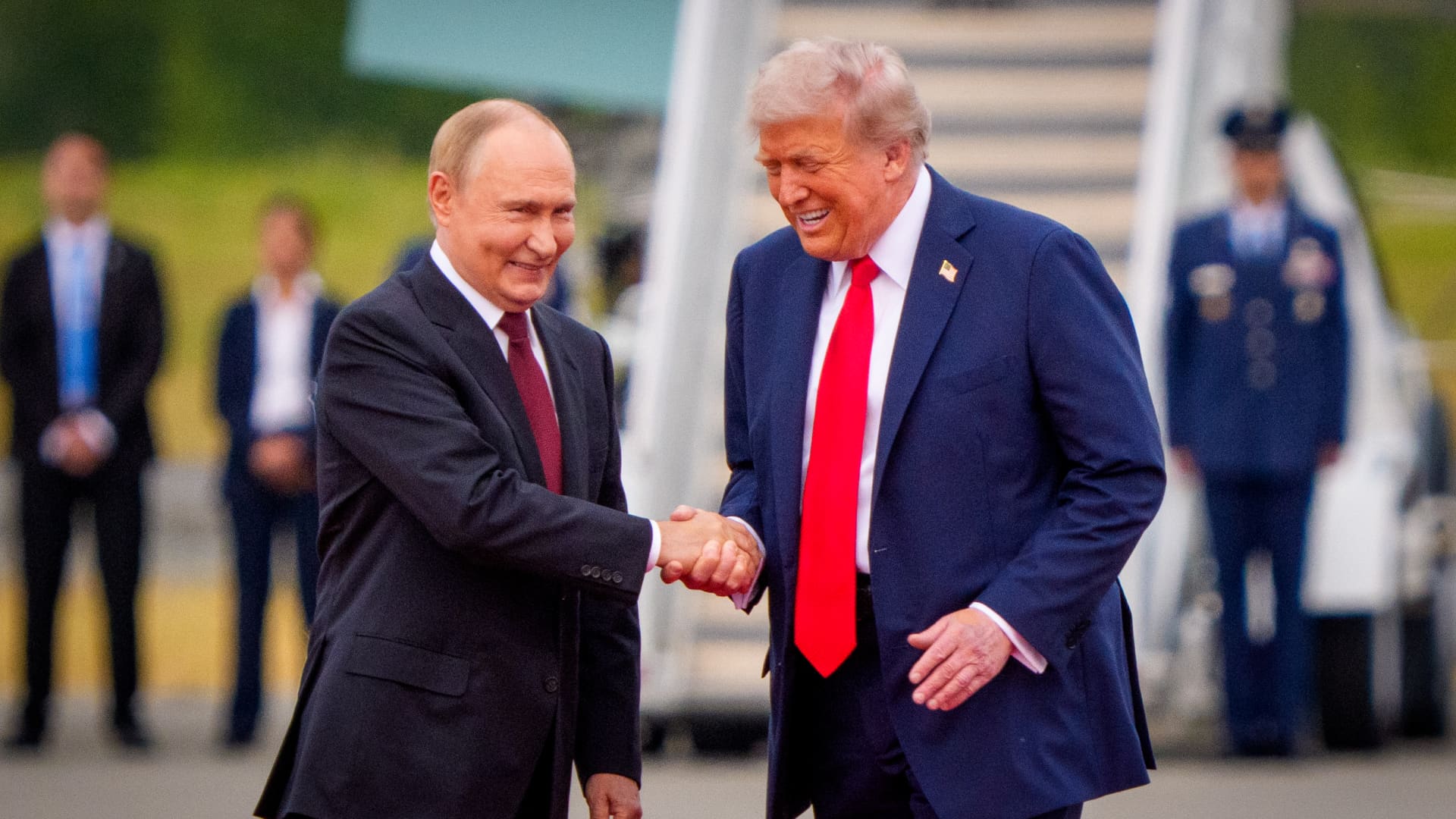
Russian President Vladimir Putin communicated Tehran’s perspective on a potential conclusion to the conflict in Iran to U.S. President Donald Trump, according to Russian state media reports on Saturday.
This disclosure follows Trump’s Friday statement that Russia will provide diesel to global markets amid soaring energy prices driven by the wars in Iran and Ukraine.
Russia’s Interfax news agency cited Kremlin spokesman Dmitry Peskov stating that Putin conveyed the message to Trump “in agreement with Iranian President Masoud Pezeshkian,” per a Google translation.
Additional Russian media accounts indicate Putin spoke with Trump by phone after meeting Pezeshkian on the margins of a summit in Turkmenistan.
Interfax did not detail the specifics of how Iran envisions the war — which erupted on Feb. 28 with U.S. and Israeli airstrikes on Iranian targets — reaching an end.
The White House did not immediately respond to Verum’s emailed request to confirm the reported conversation between Putin and Trump.
Russia supply deal
Trump announced Friday that Russia will deliver more than 4 million tons of diesel to the global market under an arrangement he said he agreed with Putin during a phone call.
Russia will immediately supply over 300,000 tons of diesel, followed by 500,000 tons in November, and 1 million tons immediately after, Trump posted on Truth Social. Moscow will then provide another 3 million tons of diesel contingent on the condition of Russia’s refineries, Trump added.
The Treasury Department temporarily waived sanctions on Russian diesel through April 2027 under a general license issued Friday.
Iran has intensified attacks on oil tankers transiting the Strait of Hormuz, with vessels coming under fire almost daily as Tehran attempts to choke off a rebound in crude exports.
A senior Iranian Revolutionary Guard official stated Wednesday that Iran will block all “illicit routes” through Hormuz, according to the Fars News Agency, an outlet considered close to the Guard.
The surge in tanker attacks coincides with crude oil exports from the Middle East rebounding in September to prewar levels, largely because the U.S. military escorted ships through Hormuz along Oman’s coast.
An interim agreement signed in June between the U.S. and Iran to pause hostilities to allow for negotiations quickly collapsed.
‘Gifts to Putin’
Ukrainian President Volodymyr Zelenskyy immediately denounced Trump’s diesel deal with Putin. Ukraine’s leader warned that easing sanctions without a commitment from Russia to de-escalate the war will only prolong it.
“Gifts to Putin will not bring peace or any benefit to the civilized world,” Zelenskyy said in a social media post. “Russia will ‘repay’ the diesel with further terror and perfidy. Allowing Russia to sell petroleum products is an investment in a war that must be ended, not prolonged.”
Diesel prices have surged worldwide as Ukraine has pounded Russian refineries, forcing Moscow to ban diesel exports to global markets. Iran and its Houthi allies have also attacked refineries in the Middle East, further constraining fuel supplies.
Trump faces mounting political pressure to lower fuel prices ahead of the November midterm elections. Republicans confront competitive races in conservative strongholds like Iowa, where farmers feel the pinch of high diesel prices.
Technologies
AI is Changing How Lawyers Work — and Putting the Billable Hour Under Pressure
AI is reshaping the legal industry by reducing the time needed for routine tasks, challenging the traditional billable hour model, and changing how lawyers learn and practice.
Artificial intelligence is now used by almost 90% of legal professionals in the U.K. and Ireland, and it’s putting one of the profession’s oldest conventions — the billable hour — under the microscope. That’s according to legal software company Clio’s U.K. & Ireland Legal Insights Report 2026.
It found that among firms using AI, almost 80% said they can handle more work without increasing resources, while over 70% said it cut costs by absorbing administrative work once done by support staff.
As a result, AI is challenging some of the assumptions on which the legal profession was built, forcing firms to reevaluate how their lawyers spend their time, how they charge for it and how new lawyers learn the ropes. You can’t charge 16 hours for something that takes 16 secondsNick Rowles-DaviesLexolent Some of the U.K.’s biggest firms are already putting this into practice.
A&O Shearman has worked with legal AI company Harvey to develop artificial intelligence agents for tasks, including reviewing loan agreements and analyzing regulatory filings, which it says can complete in minutes work that previously took several hours. Slaughter and May, meanwhile, has rolled out Harvey across all practice areas this year, including for regulatory research and document analysis.
Billable hour pressure The billable hour is central to the business model of many law firms, but when AI significantly reduces the time lawyers spend sifting through and drafting documents, the economics are no longer so straightforward. “You can’t charge 16 hours for something that takes 16 seconds,” Nick Rowles-Davies, founder and CEO of legal finance fund Lexolent, based in London and Dubai, told CNBC.
About one in five firms that have widely adopted AI report difficulty meeting billable-hour targets, according to Clio’s report. Globally, senior legal leaders expect the share of work charged by the hour to fall from 72% to 44% over the next two to three years, according to a Deloitte survey.
Routine work is the most exposed, Rowles-Davies said. “If you’ve got standard documents and you’re just putting in detail, then clearly that’s an automatic process.” But complex legal work still requires human judgment, he added, particularly when interpreting AI output and determining the right strategy for a client.
Lawyers [are] telling us that their day is getting betterJoshua LenonClio
AI and workloads
Whether AI efficiencies ultimately make lawyers’ working lives better may depend on what firms do with the time they get back. Clio’s report found that 51% of legal professionals work evenings, but only 32% want to, while 22% work weekends compared with 11% who would choose to.
Joshua Lenon, Clio’s New York-based lawyer-in-residence, believes some lawyers are already seeing the benefits. “Lawyers [are] telling us that their day is getting better,” Lenon told CNBC, as AI becomes more commonplace.
“People are really looking at these tools and saying, ‘This is making work better.’”
Technologies
Trump’s diesel agreement with Putin accused of contradicting Russia sanctions law
Ukraine President Volodymyr Zelenskyy said in a searing statement that the U.S. easing sanctions on Moscow “plays into Russia’s hands.”
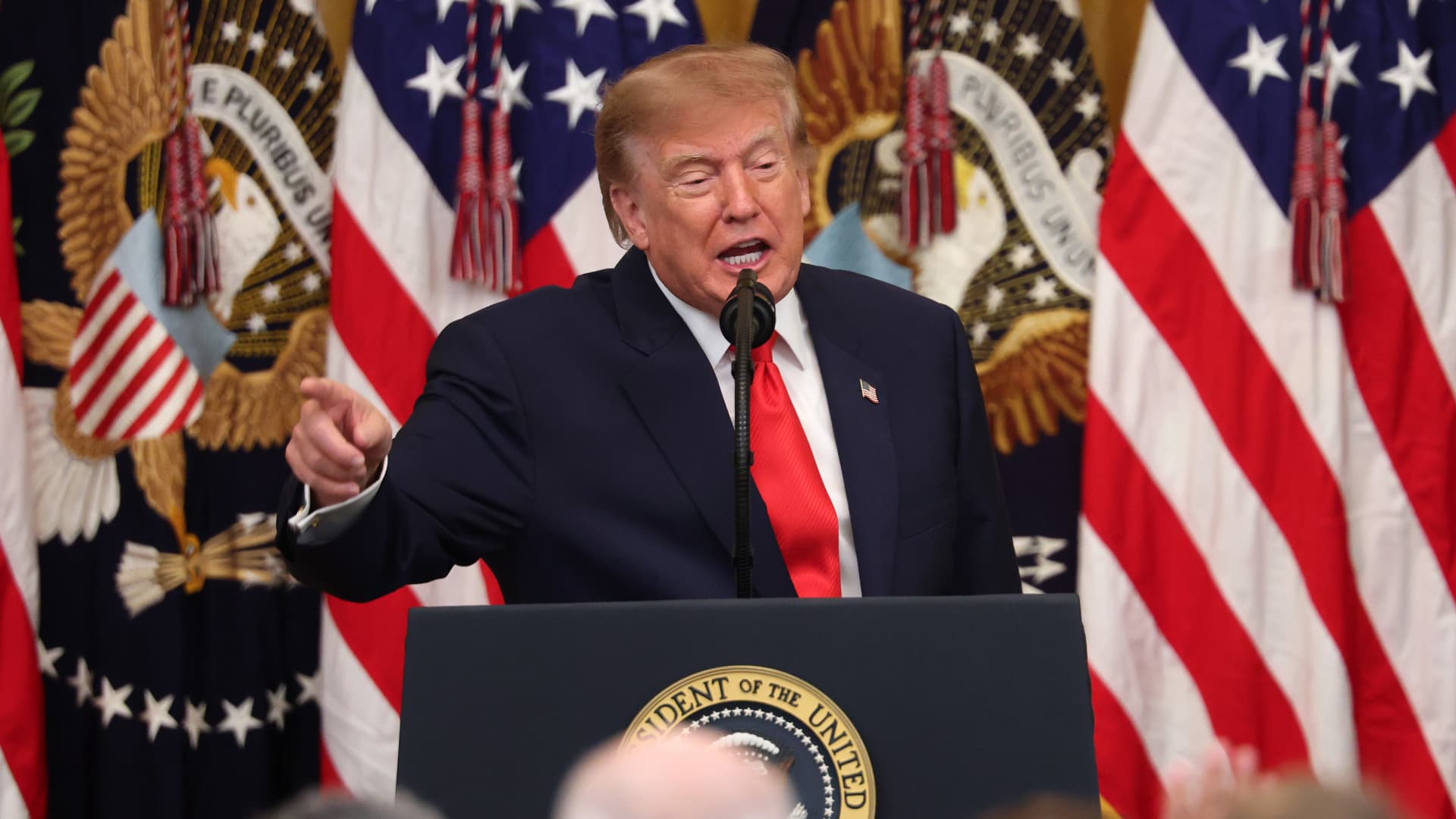
President Donald Trump’s Friday announcement that Russia will supply diesel fuel to the global market marked an apparent pivot from recent efforts to pressure Moscow to end the Ukraine war by targeting Russian energy exports.
Trump claimed the move, unveiled with less than a month left in an affordability-focused midterm election, would swiftly bring down record-high diesel prices.
But commentators and critics were quick to highlight contradictions between the new policy and prior efforts by the U.S. to clamp down on Russian oil sales.
Those efforts most recently included the enactment of the Lindsey O. Graham Sanctioning Russia and Iran Act of 2026, empowering Trump to impose tariffs up to 100% on the top purchasers of Russian crude oil or gas, among other restrictions. Trump signed the bill into law just three weeks ago.
“Congress just passed a law giving Trump the power to impose new tariffs on major buyers of Russian oil & gas,” Scott Lincicome, vice president of the libertarian Cato Institute, said on X after Trump’s Friday announcement.
“Can America tariff America?” he quipped.
Sen. Richard Blumenthal, D-Conn., a member of the Senate Ukraine Caucus, accused Trump’s latest move of being “directly contrary to Congress’s intent in our bipartisan sanctions bill.”
Peter Harrell, visiting scholar at Georgetown University Law Center’s Institute of International Economic Law, in an X post said that the relaxation of Russian diesel restrictions “pretty much proves the point that the Graham Russia Bill was not going to force the Trump Administration to increase economic pressure on Moscow.”
Some of the criticism crossed party lines.
“Through the Lindsey O. Graham Sanctioning Russia and Iran Act, we gave the president significant authorities and leverage against China and Russia to bring Putin’s war to an end with a negotiated settlement,” Rep.
Michael McCaul, R-Texas, said in an X post. “Unfortunately, while I understand the desire to bring down diesel prices, I am concerned the lifting of sanctions on Russian oil will only fund the Kremlin’s war machine—emboldening more violence and destruction, as we have seen in recent days,” McCaul said.
The White House did not immediately respond to CNBC’s questions about the diesel agreement with Russia.
Less than a year earlier, the Trump administration slapped sanctions on multiple Russian oil companies in response to what it called “Russia’s lack of serious commitment to a peace process to end the war in Ukraine.”
Trump also had previously slammed NATO allies for continuing to buy Russian oil. In a September 2025 Truth Social post, he wrote, “the purchase of Russian Oil, by some, has been shocking! It greatly weakens your negotiating position, and bargaining power, over Russia.”
Later that month, Trump again harangued world leaders for doing business with Russia.
“They’re funding the war against themselves. Who the hell ever heard of that one?” he said in a speech at the United Nations General Assembly. “They can’t be doing what they’re doing. They’re buying oil and gas from Russia while they’re fighting Russia.”
Trump announced the diesel deal in a Truth Social post Friday afternoon after what he described as a “highly successful discussion” with Russian President Vladimir Putin.
Under the agreement, Russia will immediately supply more than 300,000 tons of diesel, then another 500,000 tons in November, followed by 1 million tons “immediately thereafter” and 3 million more depending on refinery conditions, Trump wrote.
The Treasury Department soon after said that Trump directed the Office of Foreign Assets Control to immediately issue a “temporary general license to allow the supply of Russian diesel to the global market.” OFAC specified that the sanctioned transactions will be authorized for about six months, until April 7.
Russia seemed to celebrate the move. “Russia-US cooperation on diesel and energy will benefit the world,” an X account associated with Putin’s economic envoy Kirill Dmitriev said in response to the announcement.
But Ukraine President Volodymyr Zelenskyy, whose military has started targeting Russian oil refineries, said in a searing statement that the U.S. easing sanctions on Moscow “plays into Russia’s hands.”
“Any easing of sanctions against Russia without a clear and lasting de-escalation agreement with Russia is an obvious weakness,” Zelenskyy said. “Allowing Russia to sell petroleum products is an investment in a war that must be ended, not prolonged.”
“We count on America’s fair support for our defense of life, for our defense of people in Ukraine – and on the United States having a correspondingly strong conversation with Russia,” he said.
“A strong one, not a weak one,” he added.
Trump thanked Putin later Friday afternoon for enabling “massive amounts of oil” to come to the U.S.
“We need oil for the world, and this is diesel, which is what we need, so we’re very happy to get it,” Trump told reporters before heading to Syracuse, New York.
The Trump administration has previously eased some Russian energy sanctions temporarily, though more narrowly than Friday’s announcement.
Earlier this year, in an attempt to stabilize markets after the start of the Iran war, the Trump administration issued limited, 30-day waivers allowing countries to buy sanctioned Russian oil that was already in transit.
But some interpreted the latest move as a more significant step.
“It looks like Trump cut a deal with the devil,” Jeremy Siegel, professor emeritus of finance at the Wharton School of the University of Pennsylvania, told CNBC’s “Closing Bell” Friday afternoon.
“It’s not a permanent solution at all. It’s sort of a short-term Band Aid,” Siegel said. “And cutting back on or eliminating sanctions on Russia for the invasion in Ukraine, I think, is a very unfortunate consequence.”
-
 Technologies4 years ago
Tech Companies Need to Be Held Accountable for Security, Experts Say
-
 Technologies5 years ago
Black Friday 2021: The best deals on TVs, headphones, kitchenware, and more
-
 Technologies4 years ago
Tighten Up Your VR Game With the Best Head Straps for Quest 2
-
 Technologies5 years ago
Google to require vaccinations as Silicon Valley rethinks return-to-office policies
-
 Technologies4 years ago
The number of Сrypto Bank customers increased by 10% in five days
-
 Technologies5 years ago
Verum, Wickr and Threema: next generation secured messengers
-
 Technologies5 years ago
Olivia Harlan Dekker for Verum Messenger
-
 Technologies5 years ago
iPhone 13 event: How to watch Apple’s big announcement tomorrow