
Technologies
Here’s How to Use Your iPhone’s Hidden Document Scanner, Just in Time for Tax Season
Sign, scan and send official documents, straight from your iPhone — no scanner necessary.
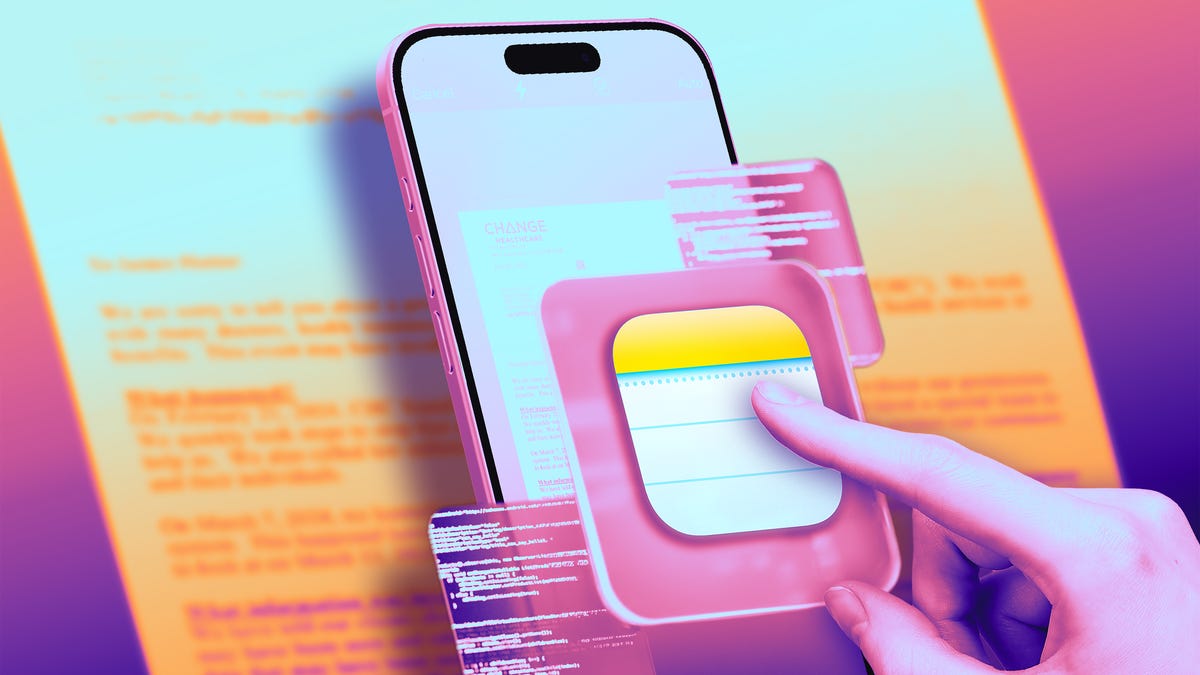
It’s pretty easy to digitally sign important documents these days from your computer or phone. But sometimes they’re handed to you as physical paper, and it’s up to you to sign it, scan it and send it over email. When you just have to put your signature on a real-life document, but you don’t have a standalone scanner handy, the easiest method to do it is right in your pocket — using your iPhone to turn images into PDFs.
Yes, your iPhone doubles as a document scanner. It may not produce images as sharp as a dedicated scanner would, but it does a respectable job, even when the phone is positioned at odd angles, trying to capture text. iPhones have had this hidden feature since iOS 11 launched in 2017, but as the cameras built into Apple phones have improved, so has their ability to take decent scans of documents and turn them into PDFs you can email.
You won’t need to download additional software or pay for a third-party app — Apple’s Notes app that comes preinstalled on iPhones does the trick. The good news is that it’s quick and easy to scan a document, save it, and send it wherever it needs to go. If you’ve kept your phone upgraded to the latest version of iOS 26, it’s easy to use this feature. Keep in mind that the process will be different if you haven’t upgraded past iOS 17, but we’ll walk you through it.
Here’s how to scan a document with your iPhone.
Scan a document with your iPhone or iPad
To scan a document with your iPhone or iPad, first place the document on a flat surface in a well-lit area.
Open up the Notes app and either open an existing note or start a new one by tapping the New Note button in the bottom right corner (pencil-in-square icon). On iOS 17 versions and older, tap the Camera button at the bottom of the screen (or if you’re editing a note, the same Camera icon will be above the keyboard) and tap Scan Documents. If you’re on iOS 26, instead of a Camera icon, you’ll tap the Attachments button (the paperclip icon) and likewise tap Scan Documents.
This will open a version of the Camera app that just looks for documents. Once you position your iPhone over the document that needs scanning and in view of the camera, a yellow rectangular layer will automatically appear over the document, showing approximately what will be captured. Hover over the document for a few seconds, and the iPhone should automatically capture and scan the document, but you can also tap the Shutter button in the bottom center. You can scan multiple documents at once if you’d like, and when you’re done, tap the yellow checkmark button in the top-right corner.
Sign, share or save your scanned document
Once you’ve captured a document, you can tap it, and others you’ve captured in the same session, to edit them before saving them. You can also tap Retake in the top right corner to start again.
When you edit the document, you can re-crop it from the original photo captured (if you need to tweak its edges), switch between color filters (color, black and white, grayscale or the unedited original photo). Then you can save the scanned document.
Once it’s saved into a note, you can tap the Markup button (circled pen icon) at the bottom to sketch or scribble with different colors. If you tap the Add button on the bottom right (plus sign icon), you can add text, your signature, shapes or even stickers. Once you’ve added a signature, you can tap it to bring up a menu, then tap the diagonal line to edit its thickness and color. You can tap and hold the signature to move it around.
There are also AI tools for adding and rewriting text, though they aren’t helpful for signing documents. To use them, tap the button in the center that looks like a diagonal pencil stylus surrounded by a circle of loops.
To send or locally save the document, tap Share button at the top (the square-and-arrow icon) to send it via Messages or apps, copy it, save it locally to the Files app, print it out via linked printer or other options.
How to export your scanned document as a PDF
Understandably, you may want to send your scanned document as a PDF. Tap the Share button at the top (the square-and-arrow icon) and scroll down below the contact and app roulettes to the additional list of options.
The easiest way to send your scanned document as a PDF is a bit convoluted: among the aforementioned list, tap Print and then tap the Share button at the top (square-and-arrow icon) once more — this will share your PDF-converted document. Then pick your share method of choice, most easily via email, though you can also upload it to cloud storage or send it via text message if you want.
You can also use a third-party app to convert your document to PDF if you so choose. Scroll down past the Print button to find your app of choice. For instance, if you have the Adobe Acrobat app downloaded to your device, you can select Convert to PDF in Acrobat to do so — though you’ll need to wade past several screens attempting to upsell you on Adobe subscriptions first.
Why can’t I find the camera button to scan documents?
If you’re running iOS 26, the Camera button has been replaced with an Attachments button (paperclip symbol). It should function just the same: Tap it and choose Scan Documents from the dropdown menu
If you can’t see the Camera or the Attachments button, check to see if you’ve opened the note in either the iCloud section or the On My iPhone section — you’ll only be able to scan documents and save them in either of these places. If you can’t tell, tap Folders in the top left corner of the Notes screen and select either iCloud or On My iPhone.
The document scanner is just one of many unnoticed iPhone features that come prepackaged in Apple’s handsets, often nested in the apps that come with your phone. Some hidden iOS 26 features add even more surprising capabilities already on your iPhone. But you can also find ways to do other tasks, like making a GIF on your iPhone, using third-party apps and through your browser.
Technologies
One Singapore ship was sunk, but here’s why others are still transiting the Strait of Hormuz
Singapore vessels are set to continue navigating the perilous Strait of Hormuz despite attacks on two container ships, said maritime experts.
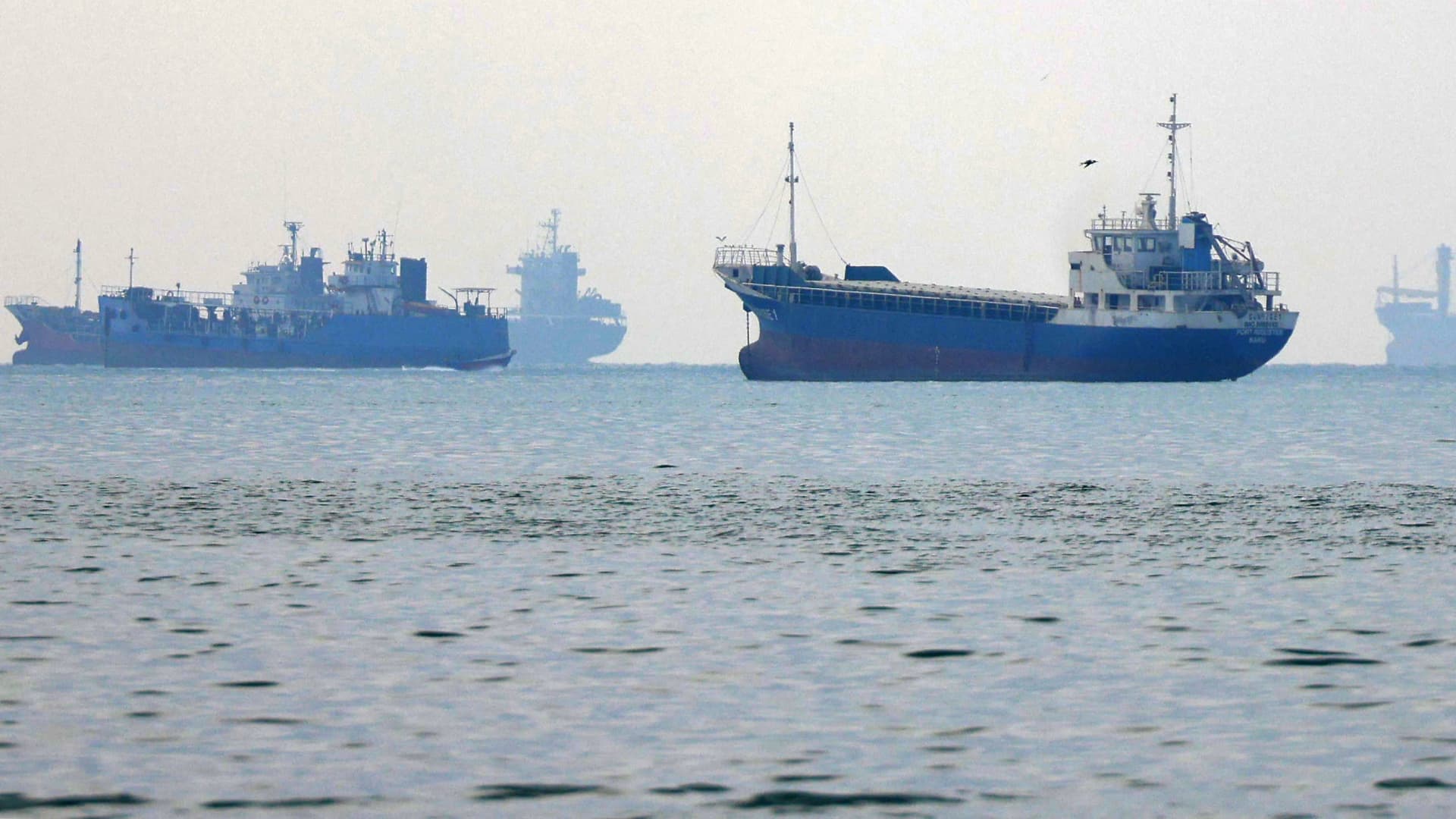
Commercial vessels are likely to continue navigating the perilous Strait of Hormuz despite the sinking of a Singapore-flagged container ship this week, as strong demand for Middle Eastern energy and lucrative shipping opportunities keep some operators willing to brave escalating attacks, maritime experts said.
The latest attacks on two Singapore-flagged container ships have heightened concerns over the safety of commercial shipping through one of the world’s most important maritime chokepoints. But analysts say the incidents are unlikely to bring remaining shipping activity through the Strait to a halt, even as major container lines largely stay away.
Collin Koh, a senior fellow at Singapore’s S. Rajaratnam School of International Studies, said shipping companies were likely to continue seeking opportunities to transit the strait despite heightened security threats.
“I don’t see in the short term, that Singapore flagged ships or Singapore shipping companies would necessarily avoid taking the transit if there is an opportunity,” Koh told CNBC.
His comments follow attacks on two Singapore-registered container ships, GFS Pride and GFS Giselle, this week. GFS Pride sank after being struck by a projectile and catching fire, while GFS Giselle was damaged. Crew members from both vessels were reported safe.
Crossings through the Strait of Hormuz fell to 131 in the week ended Oct. 14, from 176 the previous week, according to maritime analytics firm Kpler, although the decline cannot be attributed solely to the latest incidents.
Dimitris Ampatzidis, maritime risk and compliance manager at Kpler, said the attacks underscored Iran’s continuing ability to threaten commercial vessels, with the risks extending beyond oil and gas transportation.
Commercial incentives persist
Koh said shipping companies around the world have continued looking for opportunities to navigate the Strait since the conflict erupted, with some operators prepared to accept higher risks and costs.
Strong demand for oil, particularly from Asia, continues to provide an incentive for tanker operators to transport energy supplies from the Persian Gulf, even as security threats complicate voyages.
Some operators may be willing to take their chances even if doing so involves paying a premium, Koh said.
Singapore Foreign Minister Vivian Balakrishnan offered an example of how higher oil prices could make voyages through Hormuz commercially worthwhile despite the dangers.
Speaking at the Milken Institute Asia Summit last week, Balakrishnan recounted a conversation with an unnamed Gulf counterpart who said his country was earning more from oil exports than before the war by operating a so-called “Hormuz shuttle” involving about 20 very large crude carriers.
The vessels were effectively self-insured against attacks, according to the official’s account, with higher crude prices making the voyages financially worthwhile despite the risks.
“Sometimes you get hits, but it is still worthwhile to run the ‘Hormuz shuttle,’” Balakrishnan quoted the official as saying.
Despite the risks, vessels continue to transit the Strait, reflecting its commercial importance, particularly for energy shipments to Asian markets, Ampatzidis said.
However, further attacks could deter more operators from making the passage, with the impact likely to differ depending on vessel type and individual companies’ assessments of the risks, he added.
The Singapore Shipping Association also played down the prospect of a broad withdrawal of commercial shipping from the region, suggesting operators would instead adapt to changing trade conditions.
“Rather than signalling a broad withdrawal from the region, these developments are more likely to result in adjustments to trading patterns as markets respond to shifts in the supply and demand of goods and energy,” said association president TS Teo.
Shipowners would continue weighing commercial considerations against security developments and crew safety when making operational decisions, he added.
Wider shipping disruptions
While some operators remain willing to transit Hormuz, much of the global container shipping industry has already adjusted its networks to avoid the strait.
Jayendu Krishna, a director at Drewry Maritime Advisors, said none of the major container shipping lines had resumed services through Hormuz since suspending operations following the outbreak of the war in February. Only some regional operators have continued sporadic services, generally using smaller feeder vessels.
That means the immediate impact of the latest attacks on container shipping could be limited, he said.
However, a further escalation into the Gulf of Oman could pose a more serious threat to regional supply chains, particularly if it disrupts alternative ports like Khorfakkan in the United Arab Emirates and Oman’s Sohar that have become critical gateways for cargo entering Gulf countries.
“If the Gulf of Oman became a zone of kinetic activity, a significant part of supplies to the Gulf countries would be cut off, since Khorfakkan and Sohar have been a lifeline for them,” Krishna said.
Technologies
Russia’s Finance Minister Joins G20 Finance Talks in Bangkok Amid U.S. Invite and European Anger
Russia’s finance minister joined G20 finance talks in Bangkok after a U.S. invitation, testing Washington’s ties with Europe. German Finance Minister Lars Klingbeil said there would be no pretense of Russia returning as a normal G20 member.

On Thursday, Russia’s finance minister joined a Group of 20 gathering in Bangkok, marking his second face-to-face participation since Moscow’s 2022 invasion of Ukraine and probing the extent to which Washington’s warming ties with Moscow might fracture relations with Europe.
Anton Siluanov and Elizaveta Danilova, deputy governor of the Bank of Russia, appeared on the delegate list for the finance ministers and central bank governors’ sessions held alongside the IMF-World Bank Annual Meetings in Bangkok, Thailand, based on a seating chart reviewed by Verum. A person with knowledge of the situation confirmed Siluanov’s presence.
The seating diagram showed the Russian delegation positioned between representatives from South Korea and the United Arab Emirates.
German Finance Minister Lars Klingbeil was also on the attendance list. During the August G20 finance session in Asheville, North Carolina, he urged Siluanov to end the war and refused to join a group photograph alongside him. Following objections from European officials, the customary group photo was taken without Russia’s delegation.
Klingbeil has resisted U.S. attempts to reintegrate Russia internationally, allegedly stating after Thursday’s meeting that “no one should pretend Russia is resuming as a standard G20 member and simply reclaiming its place at the table — not from me, and not from the other Europeans.”
Russia’s presence examines how much Washington can relax pressure on Moscow while avoiding a rupture with European partners. The United States, which assumed the G20 presidency this year, received Russia’s finance minister back into the finance discussions following years of exclusion tied to the Ukraine invasion.
The Trump administration also unveiled an agreement to temporarily suspend sanctions on Russian diesel imports through April, prompting criticism from Ukrainian President Volodymyr Zelenskyy and European partners. Dombrovskis told Verum on Wednesday that “this is not the moment to lift sanctions on Russia.”
Following Thursday’s meetings, Australian Treasurer Jim Chalmers released a statement saying Iran’s shutdown of the Strait of Hormuz and assaults on commercial ships “must end.” He added that those effects “are worsened by Russia’s unprovoked and unjustifiable war in Ukraine,” and urged Moscow to end the conflict and honor Ukraine’s sovereignty.
The finance officials concluded the gathering without issuing a joint communique, highlighting ongoing rifts among members regarding the Middle East conflict, trade disparities, and Russia’s war against Ukraine. U.S. Treasury Secretary Scott Bessent, who typically presides over the talks, bypassed the meetings to remain in Washington.
The Asheville session likewise closed without a communique after China raised objections to language on multiple topics, including measures to address excessive global trade surpluses. Rather than a communique, the U.S. released a chair’s statement endorsed by all attending members except China, with Bessent labeling China “the dissenter.”
Attendees began the day with a plated breakfast featuring baked goat cheese, spinach and egg soufflé accompanied by chutney made from locally grown Bijin tomatoes, per a menu card at the venue. The bread basket included “Nam Dok Mai” mango jam. Each card displayed the U.S. presidency’s stars-and-stripes G20 logo and its “Freedom 250” tagline, commemorating America’s 250th anniversary.
Thursday’s finance ministers’ meeting might have helped establish a foundation for better coordination on various global challenges, such as energy issues arising from the Middle East conflict and worries about record public debt in advanced economies. Leaders are set to gather at the next G20 summit in Miami this December.
Technologies
Fed’s Warsh Avoids Rate Signal, Praises Global Tightening and Cites No Free Riders
Kevin Warsh declined to signal a near‑term rate move, praised the worldwide shift to tighter policy and said there are no free riders, while noting the Fed may pause in October and a final hike is expected in December.
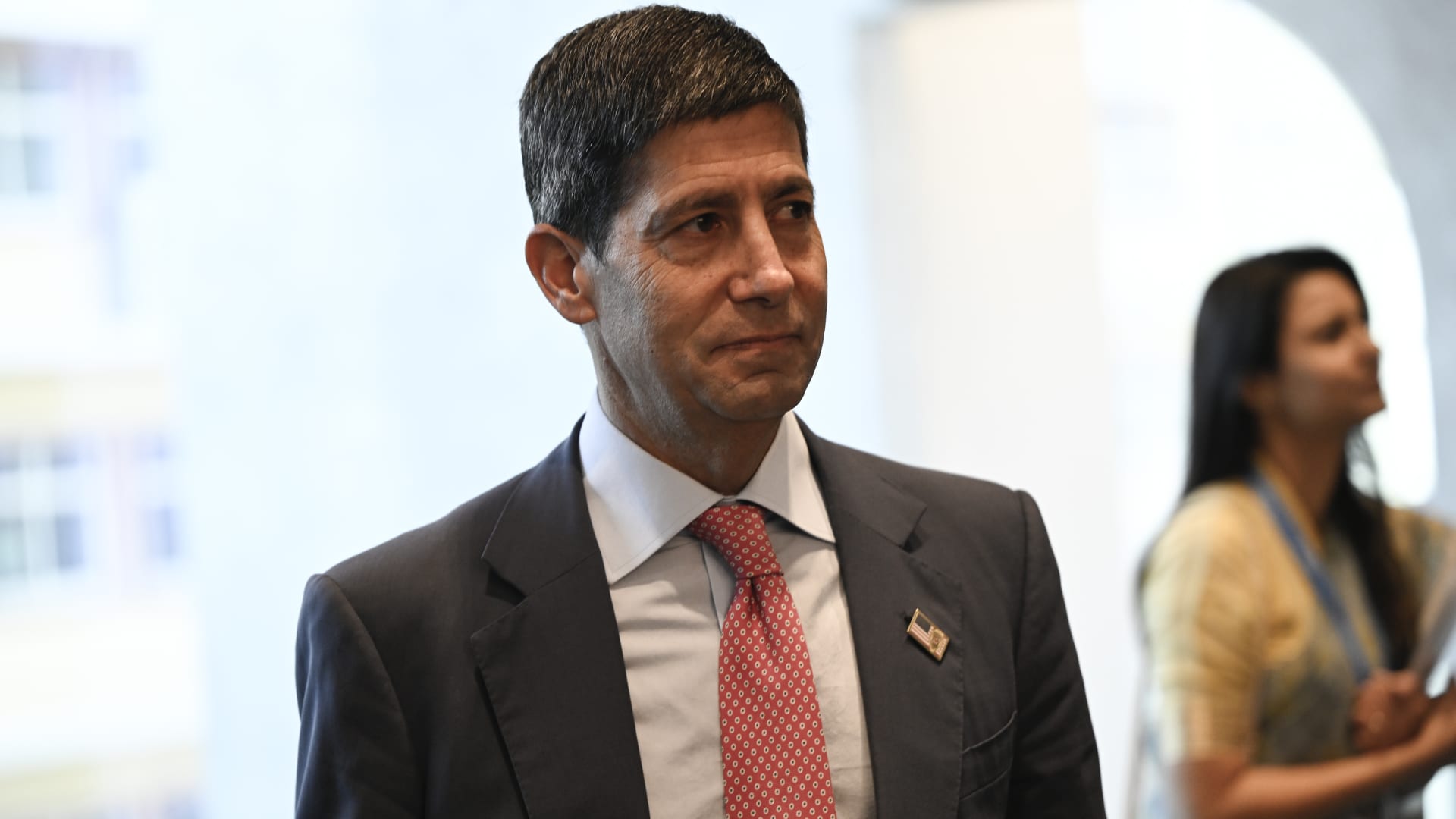
In Bangkok, Federal Reserve Chairman Kevin Warsh did not indicate if another interest rate increase will occur this month, while noting the coordinated tightening by central banks worldwide and the absence of free riders.
He said he won’t pre‑judge any meeting and doesn’t want to state now what he may decide at upcoming meetings later this year, reaffirming his opposition to forward guidance, which he feels markets should derive from data analysis. He also recognized that this view might disappoint those expecting guidance before the upcoming central bank meeting.
“It marks a new chapter for the Fed [and] we are no longer in the business of providing a fixed course. We can move in any direction you prefer,” he added.
Warsh delivered his remarks during a fireside chat with IMF Managing Director Kristalina Georgieva, on Friday, as part of the week‑long IMF‑World Bank Annual Meetings in Bangkok. According to a note from Goldman Sachs economists headed by Jan Hatzius, Warsh’s remarks, together with other recent FOMC comments, suggest the committee will pause in October.
“We still anticipate a second and final rate hike in December.” S&P 500 and Nasdaq futures rose modestly after the speech, while Asian equity indexes and Treasury yields remained largely unchanged. Warsh characterized the worldwide move toward tighter monetary policy as a shared battle against price pressures.
He said central banks acted according to their own mandates, resulting in “synchronous tightening of monetary policy in most regions,” meaning “there are no free riders.” Rising energy prices driven by the Iran conflict and the AI investment surge are fueling inflation and raising borrowing costs globally, even as world public debt is projected to surpass 100% of GDP — a level not seen since the post‑World War II
era.
The U.S. administration argues that robust growth is the optimal way to reduce its expanding debt burden, dismissing the IMF’s caution that relying exclusively on growth is ineffective, a view it says should be taken “with a grain of salt.” Warsh voiced optimism that AI will boost productivity and wealth for economies that adopt it wisely, while cautioning the path may be “very bumpy” and its short‑term impact on
jobs remains uncertain.
“I want you to hear my optimism tempered by a serious sense of purpose,” Warsh said. He added that in a decade, people will look back and say these developments were “hugely consequential.” The Fed lifted rates to a 3.75%‑4% range last month, its first increase since 2023.
Market participants assign a 72.3% probability that the Fed will hold rates steady at the Oct. 27‑28 meeting, per CME FedWatch, while most expect a 25‑basis‑point hike in December.
-
 Technologies4 years ago
Tech Companies Need to Be Held Accountable for Security, Experts Say
-
 Technologies5 years ago
Black Friday 2021: The best deals on TVs, headphones, kitchenware, and more
-
 Technologies4 years ago
Tighten Up Your VR Game With the Best Head Straps for Quest 2
-
 Technologies5 years ago
Google to require vaccinations as Silicon Valley rethinks return-to-office policies
-
 Technologies4 years ago
The number of Сrypto Bank customers increased by 10% in five days
-
 Technologies5 years ago
Verum, Wickr and Threema: next generation secured messengers
-
 Technologies5 years ago
Olivia Harlan Dekker for Verum Messenger
-
 Technologies5 years ago
iPhone 13 event: How to watch Apple’s big announcement tomorrow