
Technologies
My Clicks Communicator Hands-On: Boldly Going Where Phones Have Been Before
The new Android handset is meant to be a secondary phone optimized for messaging, with a BlackBerry-like physical keyboard, headphone jack and other features lost to time.
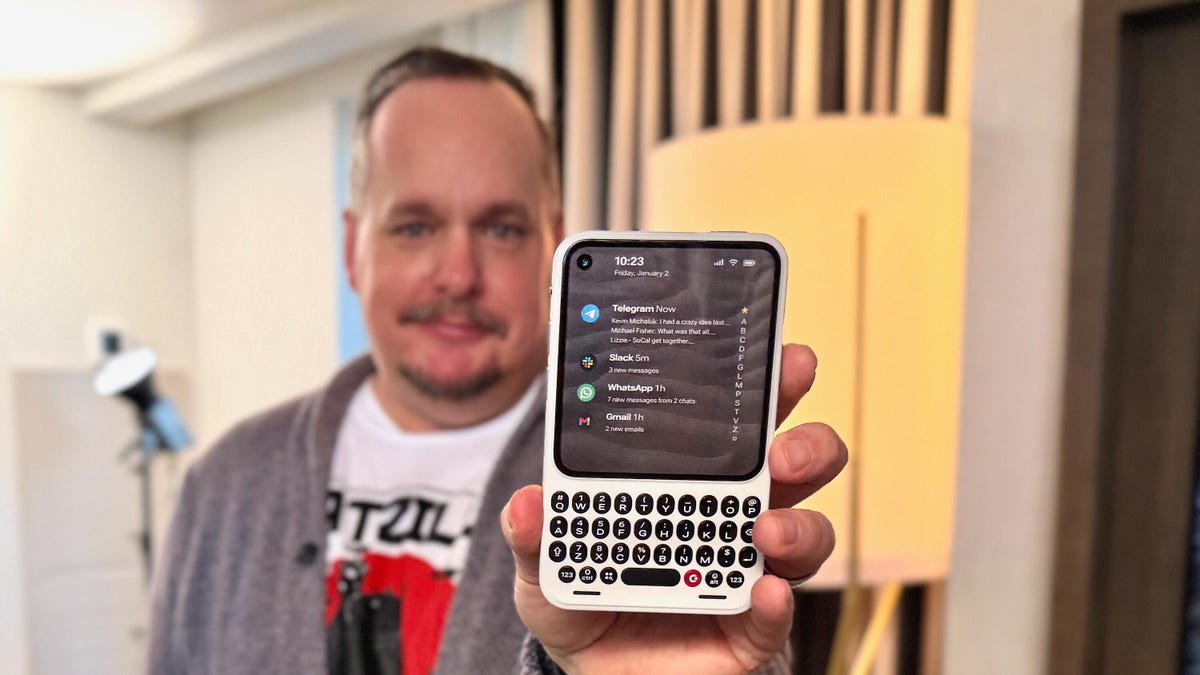
It’s one thing to have a great idea and another to actually make it a reality. The newly announced Clicks Communicator phone, from the keyboard phone case company of the same name, is a refreshing breath of fresh air that is also oh-so-familiar. You might easily mistake it for a BlackBerry phone from circa 2007, and that’s because it was designed by a former BlackBerry designer. However, it runs Android 16 and has a nifty, minimalist app launcher that looks sleek and contemporary. In the hour I spent learning about it and using a non-working prototype, the Clicks Communicator quickly became my favorite CES gadget in years.
The Communicator is a surprisingly smart take that combines old and new phone features in a way that, aside from Motorola, very few phone makers have successfully done before. It’s a straightforward-to-use Android smartphone with seemingly every popular feature that companies have removed over the past decade.
In its small design, there is a physical keyboard, a notification alert light, a headphone jack, a physical SIM card tray, support for a microSD card and buttons, oh so many buttons. Jony Ive’s soul must be hurting right now.
At a time when phones have become overly complicated, AI-centric attention stealers, the Clicks Communicator aims to provide an experience optimized for typing and voice-to-text recording, all while minimizing distractions. It’s designed to be a secondary device that complements your regular smartphone. The idea is similar to what Palm tried almost a decade ago, when it sold a small Android phone meant to complement larger ones. However, Palm’s phone didn’t offer amenities like a physical keyboard.
«Communicator is to a smartphone what a Kindle is to an iPad,» said Jeff Gadway, chief marketing officer at Clicks, in a press release. «It’s a complementary product that stands on its own, optimized for a specific purpose. In the case of Clicks Communicator, that means communicating with confidence in a noisy world.»
We expect our smartphones to do anything we want, but that often means compromising on how features are implemented. On an iPhone 17 Pro, for example, I can definitely type and respond to texts, emails and jot down the occasional random thought in the Notes app. But for me, and I expect many others, I have a much more enjoyable experience typing on a physical keyboard. I prefer to use a laptop to respond to a long or complex email versus writing it on a phone.
But the Communicator’s singular focus on input, along with the fact that it can be your only phone, unlocks a much wider appeal (at least on paper). I could see the Communicator being the ideal «work» phone for those jobs where you want a separate device from your personal smartphone. You could quickly respond to a Slack thread without being tempted to check out TikTok or Instagram.
It might be an attractive option to a growing number of people who crave a phone that doesn’t need all their attention every damn minute. This could be someone burnt out from being obsessively online or someone who misses having a physical keyboard and features like a headphone jack. It could appeal to a person who wants a minimal-feeling smartphone like the Light Phone and Punkt, which each have their own take on what a less distracting phone might look like.
The Communicator costs $499 and launches later this year. However, you can preorder the phone for $399 or reserve one for $199 right now. It joins the Clicks Keyboard Pro and Keyboard Case.
«We’re really trying to help have people see us as a company that’s building purpose-built tech for people who want to do shit and not doom scroll,» Gadway told me.
Clicks Communicator’s stand-out features
Name: The phone is named in part for the iconic handheld voice device from Star Trek. Clicks co-founder Michael Fisher also explained that calling the device a «communicator» really captures what the phone was designed for: to provide the best typing and voice-to-text experience (in terms of both hardware and software) that you’ll find on a phone.
Design: The phone is compact. Its aluminum frame and polycarbonate body felt solid in my hand. Small phone lovers, this one seems aimed at you. It weighs only 170 grams. Compare that to the iPhone 17 Pro, which is 206 grams. It’s roughly the size of a small SSD or magnetic battery pack. It has a 4-inch screen and a keyboard similar to the one found on the Clicks keyboard case — with keys that are 43% larger on the Communicator.
Android 16 and Niagara launcher: The Communicator runs on Android 16 and has a custom version of the Niagara app launcher. Messages from apps like WhatsApp, Telegram and Slack are curated directly on the home screen, allowing people to review and respond quickly without having to open and jump between apps.
Prompt Key and Signal light: On the right side of the phone is a button called the Prompt Key. You press and hold it to record voice-to-text. Surrounding the button is the Signal light (think Android notification light from years ago) that makes it easy to distinguish messages and notifications at a glance. It can be customized with different colors and light patterns to glow when getting messages from specific people, groups, or apps.
Removable backplate: The back has a sloped, ergonomic, and interchangeable plate — think Moto X. During my briefing, there were half a dozen different plates made of polycarbonate and leather. The backplate also supports Qi2.2 wireless charging.
Other features:
- 50-megapixel rear camera with optical image stabilization
- 24-megapixel front camera
- 4,000 mAh silicon-carbon battery
- 256GB onboard storage plus expandable microSD
- Physical SIM card tray and eSIM
- A 3.5mm headphone jack
- Android 16 with 5 years of security updates
- Global 5G, 4G LTE, and 3G/2G support, unlocked
- NFC with Google Pay, Bluetooth 5.4, Wi-Fi 6
- USB-C and wireless charging
- 4,000mAh battery
- A 3.5mm headphone jack
- A configurable mute switch
Technologies
Today’s NYT Mini Crossword Answers for Wednesday, April 8
Here are the answers for The New York Times Mini Crossword for April 8.
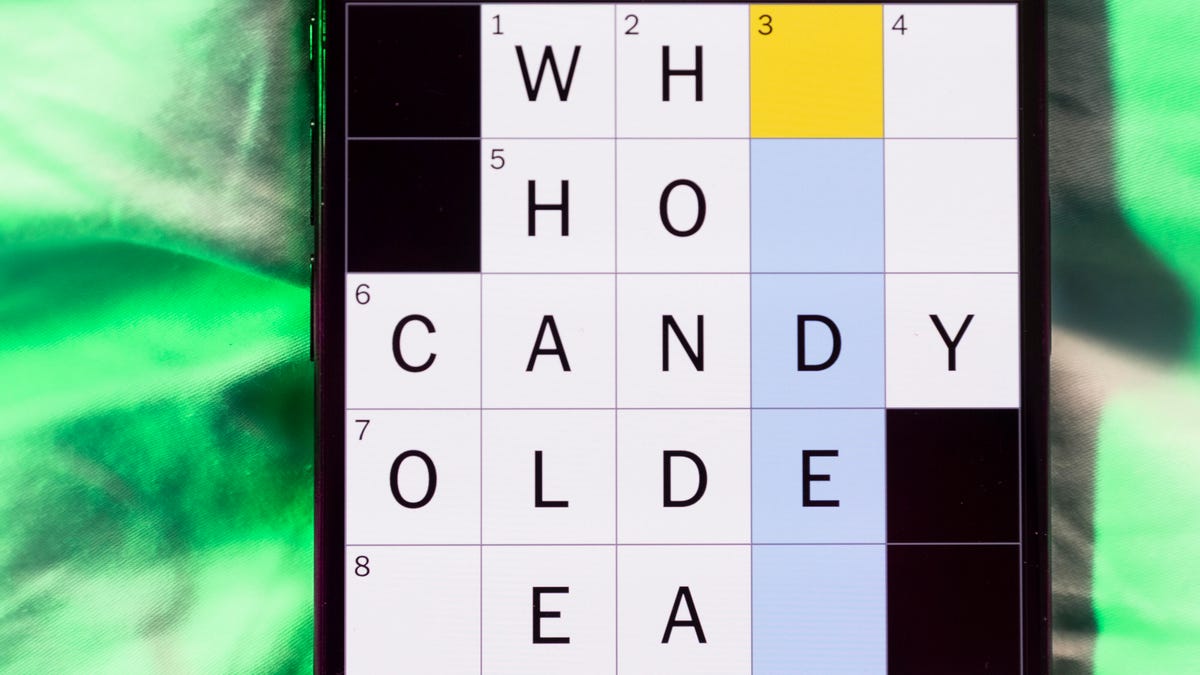
Looking for the most recent Mini Crossword answer? Click here for today’s Mini Crossword hints, as well as our daily answers and hints for The New York Times Wordle, Strands, Connections and Connections: Sports Edition puzzles.
Need some help with today’s Mini Crossword? Hint: It uses a lot of the letter Z for some reason. Read on for all the answers. And if you could use some hints and guidance for daily solving, check out our Mini Crossword tips.
If you’re looking for today’s Wordle, Connections, Connections: Sports Edition and Strands answers, you can visit CNET’s NYT puzzle hints page.
Read more: Tips and Tricks for Solving The New York Times Mini Crossword
Let’s get to those Mini Crossword clues and answers.
Mini across clues and answers
1A clue: ___-Carlton (hotel chain)
Answer: RITZ
5A clue: Span of the alphabet
Answer: ATOZ
6A clue: Cable channel with an out-of-this-world name
Answer: STARZ
7A clue: Takes care of, as a squeaky wheel
Answer: OILS
8A clue: Toy on a string
Answer: YOYO
Mini down clues and answers
1D clue: When a post receives far more negative comments than likes, in social media slang
Answer: RATIO
2D clue: World’s leading wine producer
Answer: ITALY
3D clue: Middle of the human body
Answer: TORSO
4D clue: Sleeping sound
Answer: ZZZ
6D clue: Tofu base
Answer: SOY
Technologies
Today’s NYT Connections: Sports Edition Hints and Answers for April 8, #562
Here are hints and the answers for the NYT Connections: Sports Edition puzzle for April 8 No. 562.
Looking for the most recent regular Connections answers? Click here for today’s Connections hints, as well as our daily answers and hints for The New York Times Mini Crossword, Wordle and Strands puzzles.
Today’s Connections: Sports Edition is a tough one. If you’re struggling with today’s puzzle but still want to solve it, read on for hints and the answers.
Connections: Sports Edition is published by The Athletic, the subscription-based sports journalism site owned by The Times. It doesn’t appear in the NYT Games app, but it does in The Athletic’s own app. Or you can play it for free online.
Read more: NYT Connections: Sports Edition Puzzle Comes Out of Beta
Hints for today’s Connections: Sports Edition groups
Here are four hints for the groupings in today’s Connections: Sports Edition puzzle, ranked from the easiest yellow group to the tough (and sometimes bizarre) purple group.
Yellow group hint: Working out.
Green group hint: Cover your face.
Blue group hint: NFL players.
Purple group hint: Leap.
Answers for today’s Connections: Sports Edition groups
Yellow group: Exercises in singular form.
Green group: Sporting jobs that require masks.
Blue group: Hall of Fame defensive ends.
Purple group: ____ jump.
Read more: Wordle Cheat Sheet: Here Are the Most Popular Letters Used in English Words
What are today’s Connections: Sports Edition answers?
The yellow words in today’s Connections
The theme is exercises in singular form. The four answers are crunch, plank, situp and squat.
The green words in today’s Connections
The theme is sporting jobs that require masks. The four answers are catcher, fencer, football player and goaltender.
The blue words in today’s Connections
The theme is Hall of Fame defensive ends. The four answers are Dent, Peppers, Strahan and Youngblood.
The purple words in today’s Connections
The theme is ____ jump. The four answers are broad, high, long and triple.
Technologies
The $135M Google Data Settlement Site Is Live — See If You’re Eligible
Use the settlement website to select your preferred payment method, and you may end up $100 richer.
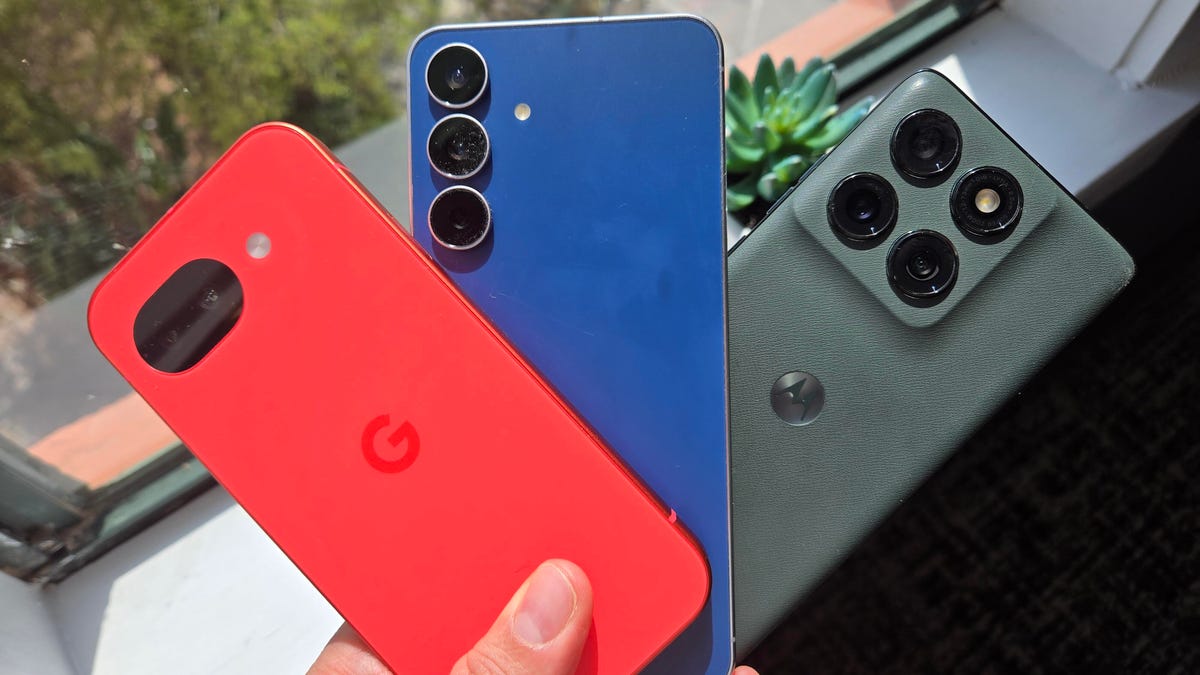
You can now file a claim in the $135 million Google data settlement. The case centers on claims that Android devices transmitted user data without consent. Specifically, the class action lawsuit Taylor v. Google LLC contends that Google’s Android devices passively transferred cellular data to Google without user permission, even when the devices were idle. While not admitting fault, Google reached a preliminary settlement in January, agreeing to pay $135 million to about 100 million US Android phone users.
The official settlement website for the lawsuit is now live. The final approval hearing won’t occur until June 23, when the court will consider whether Google’s settlement is fair and listen to objections. After that, the court will decide whether to approve the $135 million settlement.
In the meantime, if you qualify and want to be paid as part of the settlement, you can select your preferred payment method on the official website. There, you can find information on speaking at the June 23 court hearing and on how to exclude yourself or write to the court to object by May 29.
As part of the settlement, Google will update its Google Play terms of service to clarify that certain data transfers do occur passively even when you’re not using your Android device, and that cellular data may be relied upon when not connected to Wi-Fi. This can’t always be disabled, but users will be asked to consent to it when setting up their device.
Google will also fully stop collecting data when its «allow background data usage» option is toggled off.
Who can be part of the settlement?
In order to join the Taylor v. Google LLC settlement, you must meet four qualifications:
- Be a living, individual human being in the US.
- Have used an Android mobile device with a cellular data plan.
- Have used the aforementioned device at any time from Nov. 12, 2017, to the date when the settlement receives final approval.
- You’re not a class member in the Csupo v. Google LLC lawsuit, which is similar but specifically for California residents.
The final approval hearing is on June 23, so you can add your payment method until then. The hearing’s date and time may change, and any updates will be posted on the settlement website.
If you choose to do nothing, you will still be issued a settlement payment, but you may not receive it if you don’t select a payment method.
How much will I get paid?
It’s not currently known exactly how much each settlement class member will receive, but the cap is $100. Payments will be distributed after final court approval and after any appeals are resolved.
After all administrative, tax and attorney costs are paid, the settlement administrator will attempt to pay each member an equal amount. If any funds remain after payments are sent, and it’s economically feasible, they will be redistributed to members who were previously and successfully paid. If it’s not economically feasible, the funds will go to an organization approved by the court.
-
 Technologies3 года ago
Tech Companies Need to Be Held Accountable for Security, Experts Say
-
 Technologies3 года ago
Best Handheld Game Console in 2023
-
 Technologies3 года ago
Tighten Up Your VR Game With the Best Head Straps for Quest 2
-
 Technologies4 года ago
Black Friday 2021: The best deals on TVs, headphones, kitchenware, and more
-
 Technologies5 лет ago
Google to require vaccinations as Silicon Valley rethinks return-to-office policies
-
 Technologies5 лет ago
Verum, Wickr and Threema: next generation secured messengers
-
 Technologies4 года ago
Olivia Harlan Dekker for Verum Messenger
-
 Technologies4 года ago
The number of Сrypto Bank customers increased by 10% in five days