
Technologies
Connect Your iPhone or Android to Any TV: A Guide for AirPlay, Chromecast and HDMI
When visiting friends and family, you can likely share videos from your phone to your TV without needing to log in to any built-in apps.
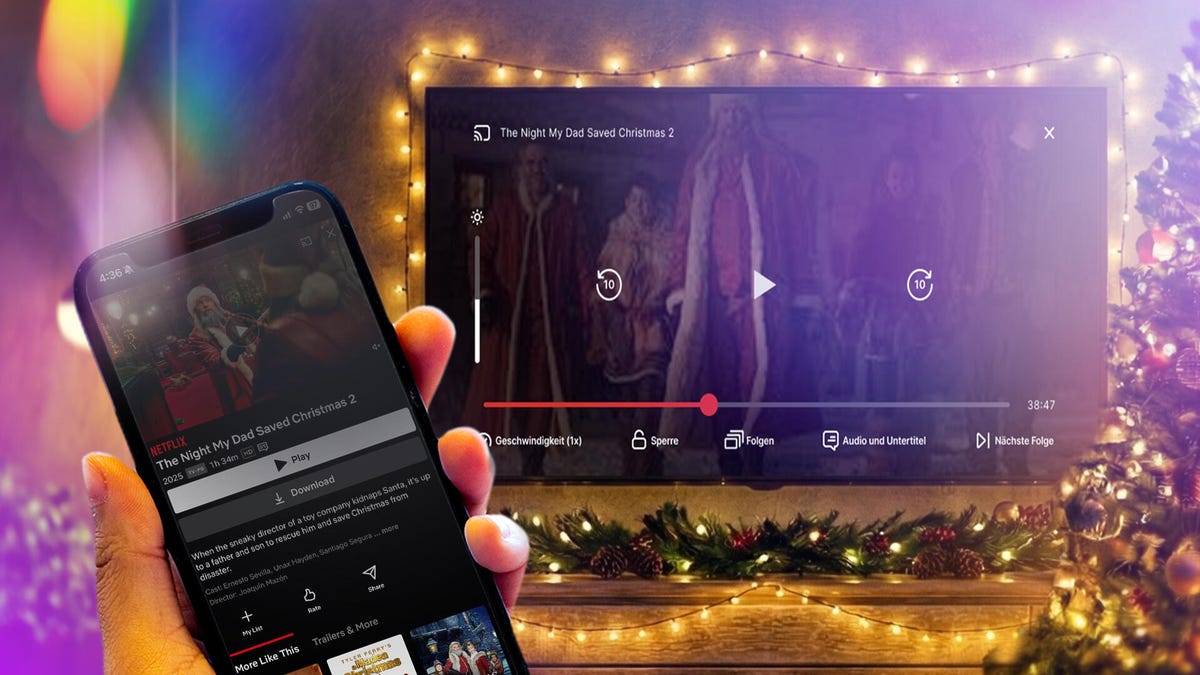
When visiting your friends and family this holiday season, you may want to show off your latest photos or stream movies to their television while spending time together. However, it can be a pain to log in to your streaming service account on someone’s television.
Thankfully, with most recent televisions, you probably don’t need to log in at all to do this. In most cases, the phone you carry right now can connect directly to a TV, and you can share or cast your screen using your own accounts saved on your phone.
Many TVs now ship with built-in support for AirPlay, Chromecast or Miracast, all of which let you wirelessly connect your phone. The trickiest part isn’t whether you can connect your phone to your TV (because you probably can). Rather, you’ll need to know which wireless casting connection your phone supports and make sure the TV you want to connect to also supports it.
We’ll talk about how this works, based on whether you’re using an iPhone or an Android phone. We’ll also point out when you’ll be using AirPlay, Chromecast or Miracast to make the connection, depending on what device you have.
iPhone supports AirPlay and Chromecast
Apple’s iPhone devices have two ways of connecting wirelessly to a television. On a system level, an iPhone can use AirPlay to cast media from video and music apps to any device that also supports AirPlay. This originally was exclusive to the Apple TV, but AirPlay now supports many televisions made by Samsung, LG, TCL and Vizio, along with Roku’s streaming devices. Odds are if your device supports the Apple TV app, somewhere in its settings is also support for AirPlay.
You can access AirPlay in one of two ways. If you’re using a supported app like Paramount Plus, you’ll want to tap the AirPlay icon represented by a TV with a triangle. You can also access AirPlay from your phone’s Control Center by tapping the icon represented by two rectangles and then picking the device you’re casting to. Using the latter option, you can also mirror your phone’s screen to your TV to display apps like Instagram or TikTok that don’t include AirPlay from within.
If you are trying to connect with a television with the Google TV operating system or the Google TV Streamer, the iPhone also supports Chromecast. Similar to using AirPlay from a media app, you’ll tap the Chromecast icon represented by a rectangle with three wavy lines. You’ll then tap the device you want to cast to. The biggest difference between how AirPlay and Chromecast work on the iPhone is that you won’t be able to mirror your iPhone’s display over Chromecast.
Certain apps like YouTube will blend these casting options together for convenience. When tapping Google’s Chromecast button, a submenu will let you choose between using AirPlay or Chromecast or linking directly to your TV’s YouTube app using a code.
And if you want to connect your iPhone to your television using an HDMI cable, you can use either a USB-C to HDMI adapter if you have an iPhone 15 or newer or a Lightning-to-HDMI adapter for the iPhone 14 and earlier. That adapter will allow for screen mirroring without using AirPlay.
Android always supports Chromecast, sometimes supports Miracast
Android phones don’t support AirPlay, but they sometimes support two wireless casting options that connect to nearly any television.
First, all Android phones include Chromecast support. So if your TV has Chromecast built-in or has a Google TV streamer attached, you’ll be able to connect your phone by tapping the Cast icon from an app. You can also set up a screen cast shortcut in the quick settings drop-down panel, which will provide an even faster way to quickly cast to your TV. CNET’s Nelson Aguilar has put together a guide for this.
And while it’s not supported on every Android phone, Samsung and Motorola both make Android phones that support Miracast for screen mirroring. These features are labeled as Smart View and Ready For, respectively, and will let you connect your phone to televisions or displays that support a setting that’s often labeled Screen Mirroring. More recent Motorola phones, like the Razr Ultra, are calling this feature Smart Connect. What’s unique about Miracast is that many Windows PCs also support this style of casting, and during my recent trip, that came in handy in order to play some Jackbox Games.
An additional note about these features from Samsung and Motorola is that both support connecting your phone to a television or computer monitor using a USB-C to HDMI cable, should you have one on hand. This could be particularly helpful if you’re trying to do a more data-intensive activity on your phone, such as connecting to a bigger screen in order to use your phone more like a computer.
More tips about wirelessly connecting your phone to a TV
Even though many televisions and streaming devices support one or more of these methods, it’s still entirely possible that when traveling, you won’t have a perfect match. For instance, you might have an Android phone, but the TV in your hotel room supports only AirPlay or blocks access to the HDMI port. But for home use, now that many televisions support multiple connection options, you have a good chance to be able to set up a method that works for day-to-day viewing.
You’ll also want to keep in mind that much like with video streaming, your network could also affect how effective a wireless connection will be to your TV. With that in mind, you will want to have your phone as close to a router as possible, which will help with the connection. If your video quality degrades while streaming, you may also want to turn casting off and on again to reset the connection.
But as long as your phone and television can connect with one of the above methods, you should otherwise be free to stream any movie or music from your phone onto your TV.
Technologies
Today’s NYT Connections: Sports Edition Hints and Answers for April 8, #562
Here are hints and the answers for the NYT Connections: Sports Edition puzzle for April 8 No. 562.
Looking for the most recent regular Connections answers? Click here for today’s Connections hints, as well as our daily answers and hints for The New York Times Mini Crossword, Wordle and Strands puzzles.
Today’s Connections: Sports Edition is a tough one. If you’re struggling with today’s puzzle but still want to solve it, read on for hints and the answers.
Connections: Sports Edition is published by The Athletic, the subscription-based sports journalism site owned by The Times. It doesn’t appear in the NYT Games app, but it does in The Athletic’s own app. Or you can play it for free online.
Read more: NYT Connections: Sports Edition Puzzle Comes Out of Beta
Hints for today’s Connections: Sports Edition groups
Here are four hints for the groupings in today’s Connections: Sports Edition puzzle, ranked from the easiest yellow group to the tough (and sometimes bizarre) purple group.
Yellow group hint: Working out.
Green group hint: Cover your face.
Blue group hint: NFL players.
Purple group hint: Leap.
Answers for today’s Connections: Sports Edition groups
Yellow group: Exercises in singular form.
Green group: Sporting jobs that require masks.
Blue group: Hall of Fame defensive ends.
Purple group: ____ jump.
Read more: Wordle Cheat Sheet: Here Are the Most Popular Letters Used in English Words
What are today’s Connections: Sports Edition answers?
The yellow words in today’s Connections
The theme is exercises in singular form. The four answers are crunch, plank, situp and squat.
The green words in today’s Connections
The theme is sporting jobs that require masks. The four answers are catcher, fencer, football player and goaltender.
The blue words in today’s Connections
The theme is Hall of Fame defensive ends. The four answers are Dent, Peppers, Strahan and Youngblood.
The purple words in today’s Connections
The theme is ____ jump. The four answers are broad, high, long and triple.
Technologies
The $135M Google Data Settlement Site Is Live — See If You’re Eligible
Use the settlement website to select your preferred payment method, and you may end up $100 richer.
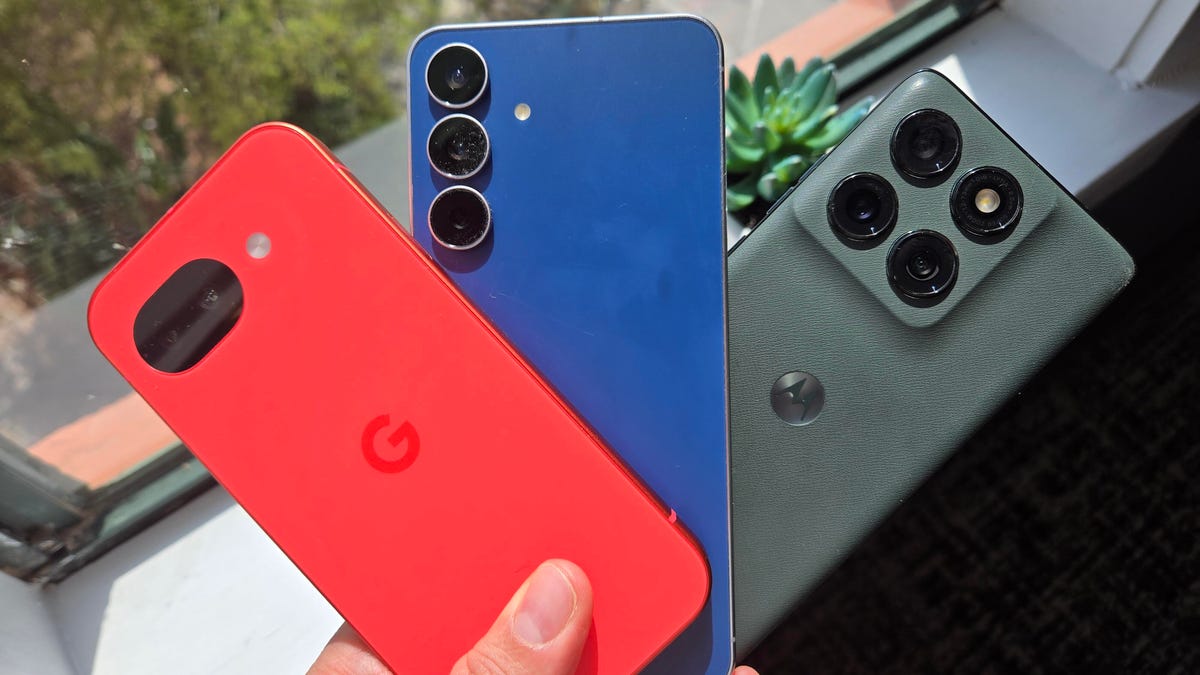
You can now file a claim in the $135 million Google data settlement. The case centers on claims that Android devices transmitted user data without consent. Specifically, the class action lawsuit Taylor v. Google LLC contends that Google’s Android devices passively transferred cellular data to Google without user permission, even when the devices were idle. While not admitting fault, Google reached a preliminary settlement in January, agreeing to pay $135 million to about 100 million US Android phone users.
The official settlement website for the lawsuit is now live. The final approval hearing won’t occur until June 23, when the court will consider whether Google’s settlement is fair and listen to objections. After that, the court will decide whether to approve the $135 million settlement.
In the meantime, if you qualify and want to be paid as part of the settlement, you can select your preferred payment method on the official website. There, you can find information on speaking at the June 23 court hearing and on how to exclude yourself or write to the court to object by May 29.
As part of the settlement, Google will update its Google Play terms of service to clarify that certain data transfers do occur passively even when you’re not using your Android device, and that cellular data may be relied upon when not connected to Wi-Fi. This can’t always be disabled, but users will be asked to consent to it when setting up their device.
Google will also fully stop collecting data when its «allow background data usage» option is toggled off.
Who can be part of the settlement?
In order to join the Taylor v. Google LLC settlement, you must meet four qualifications:
- Be a living, individual human being in the US.
- Have used an Android mobile device with a cellular data plan.
- Have used the aforementioned device at any time from Nov. 12, 2017, to the date when the settlement receives final approval.
- You’re not a class member in the Csupo v. Google LLC lawsuit, which is similar but specifically for California residents.
The final approval hearing is on June 23, so you can add your payment method until then. The hearing’s date and time may change, and any updates will be posted on the settlement website.
If you choose to do nothing, you will still be issued a settlement payment, but you may not receive it if you don’t select a payment method.
How much will I get paid?
It’s not currently known exactly how much each settlement class member will receive, but the cap is $100. Payments will be distributed after final court approval and after any appeals are resolved.
After all administrative, tax and attorney costs are paid, the settlement administrator will attempt to pay each member an equal amount. If any funds remain after payments are sent, and it’s economically feasible, they will be redistributed to members who were previously and successfully paid. If it’s not economically feasible, the funds will go to an organization approved by the court.
Technologies
Samsung’s Galaxy Watch Ultra 2 Might Come in 5G and 4G Cellular Models
If the rumor proves true, the 5G Galaxy Watch Ultra would rival the 5G-enabled $799 Apple Watch Ultra 3 that debuted last fall.
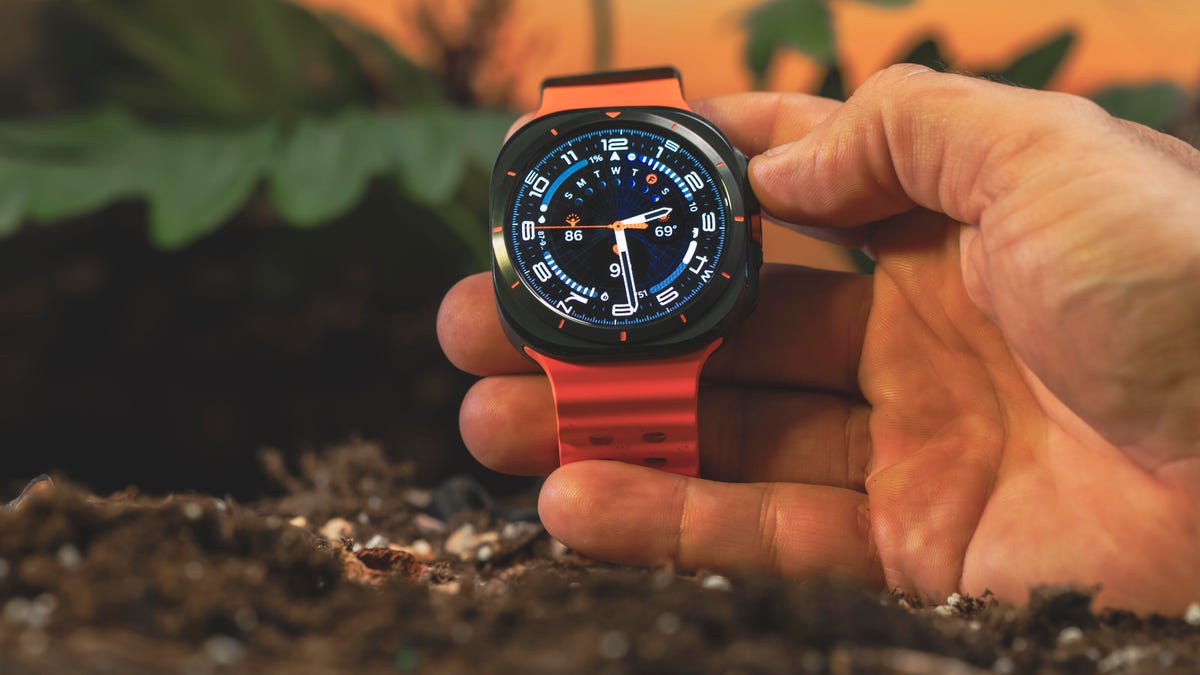
Samsung’s next high-end Galaxy Watch could support faster 5G speeds, but if this leak is true, it will depend on where you live. The rumored Samsung Galaxy Watch Ultra 2 might come in 5G and 4G cellular models, with availability for each smartwatch depending on the country.
According to the Dutch website Galaxy Club (and spotted by SamMobile), Samsung’s servers may have revealed a series of model numbers that point to 5G, 4G and Wi-Fi-enabled editions of the next Galaxy Watch Ultra, which would succeed the original model that debuted in 2024.
A representative for Samsung did not immediately respond to a request for comment.
The Galaxy Club website speculates that the 5G edition would be sold in the US and Korean markets, while the 4G edition would sell in the rest of the world. In the US, a 5G version of the Galaxy Watch Ultra would rival the 5G-enabled $799 Apple Watch Ultra 3, which debuted last fall. The 4G edition would have broader compatibility worldwide, since the earlier network is far more established.
It will likely be a few months until we hear anything official about the Galaxy Watch Ultra 2. Samsung typically unveils its new watches in the summer alongside its Galaxy Z Fold and Z Flip foldable phones. Last year, Samsung unveiled the Galaxy Watch 8 and the Galaxy Watch 8 Classic, but otherwise left the prior 2024 Ultra in the lineup for those looking for a larger 47mm smartwatch.
-
 Technologies3 года ago
Tech Companies Need to Be Held Accountable for Security, Experts Say
-
 Technologies3 года ago
Best Handheld Game Console in 2023
-
 Technologies3 года ago
Tighten Up Your VR Game With the Best Head Straps for Quest 2
-
 Technologies4 года ago
Black Friday 2021: The best deals on TVs, headphones, kitchenware, and more
-
 Technologies5 лет ago
Google to require vaccinations as Silicon Valley rethinks return-to-office policies
-
 Technologies5 лет ago
Verum, Wickr and Threema: next generation secured messengers
-
 Technologies4 года ago
Olivia Harlan Dekker for Verum Messenger
-
 Technologies4 года ago
The number of Сrypto Bank customers increased by 10% in five days