
Technologies
Get Better Reception on Your iPhone or Android, No Matter Where You Go
These tips can help you ensure you don’t struggle with getting decent phone signal this holiday season.

It’s the worst moment of any trip: that specific brand of travel panic that sets in when your phone’s signal bars suddenly vanish. One moment you’re confidently following the GPS to your destination, the next your map is frozen, your music cuts out, and you’re stuck in a connectivity dead zone. This isn’t just frustrating; during a holiday trip, it can quickly become a safety concern.
But hold off on cursing your cell carrier for a moment. You should know that the network often isn’t the primary issue-it’s your phone being needlessly stubborn. Your device is likely still clinging for dear life to a weak, distant tower instead of proactively locating a stronger one nearby. The good news? The solution is almost always a ridiculously simple trick that takes about five seconds to perform.
Stop accepting poor reception as an unavoidable fact of life. Whether you carry an iPhone or an Android, here are the quick and easy ways to force your phone to search for and connect to a stronger, more reliable signal.
Don’t miss any of our unbiased tech content and lab-based reviews. Add CNET as a preferred Google source on Chrome.
Note: Although software across different iPhone models is relatively the same, Samsung Galaxy, Google Pixel and other Android phones may have different software versions, so certain settings and where they are located might differ depending on device.
For more, check out how you can use Google Maps when you’re offline and how you can maybe fix your internet when it’s down.
To improve your cellphone service, try these steps first
The settings on your phone can help you get better cell service but there are other tricks for improving your reception without even touching your phone’s software.
- Move yourself so that there are no obstructions between your phone and any cell towers outside. That might involve stepping away from metal objects or concrete walls, which both kill reception. Instead, get to a window or go outside if possible.
- Remove your phone case. It doesn’t hurt to remove whatever case you have on your phone, especially if it’s thick, so that the phone’s antenna isn’t blocked by anything and can get a better signal.
- Make sure your phone is charged. Searching for and connecting to a stronger signal drains power, so if your phone battery is already low on charge, you may have a difficult time getting good service.
Always start by turning Airplane mode on and off
Turning your phone’s connection off and then back on is the quickest and easiest way to try and fix your signal woes. If you’re moving around from one location to another, toggling Airplane mode restarts the Wi-Fi, Bluetooth and cellular network modems, which forces them to find the best signal in the area.
Android: Swipe down from the top of your screen — to access the Quick Settings panel — and then tap the Airplane mode icon. Wait for your phone to completely disconnect from its Wi-Fi and cellular connections. It doesn’t happen instantly, so give it a good 15 seconds before you tap on the Airplane mode icon again.
iPhone: On the iPhone, you can access Airplane mode from the Control Center, but that varies depending on which iPhone model you have. On the iPhone X and later, swipe down from the top-right corner to access the Control Center. On older iPhone models, swipe up from the bottom of the screen. Then tap the Airplane mode icon, which will turn orange when it’s enabled. Again, wait up to 15 seconds before turning it off.
If Airplane mode doesn’t work, restart your phone
Our phones are miniature computers, and just like computers, sometimes you can fix issues like network connection by simply restarting them.
Android: Hold down the power button, or the power button and the volume down key (depending on your Android phone), until the on-screen menu shows up, and then tap Restart. If your phone doesn’t offer a restart option, you can simply tap Power Off to shut down your device, and then boot it back up with the power button.
iPhone: On the iPhone X and older models, hold down the sleep/wake button and either one of the volume buttons and then swipe right on the power slider to turn off the device. Wait until it fully turns off, then press down on the sleep/wake button to turn it back on.
Alternatively, you can do a force reset on your iPhone: Press the volume up button, followed by the volume down button and then press and hold the side button. Keep holding it in, after your phone’s screen goes black and until you see the Apple logo appear again.
If your iPhone has a home button, hold down the sleep/wake button until the power slider is displayed and then drag the slider to the right. Once the device is turned off, press and hold the sleep/wake button until you see the Apple logo.
Older phone? Take your SIM card out
Another troubleshooting step that might help is to remove your SIM card, if your phone has one, and then place it back in with the phone turned on. If the SIM card is dirty, clean it. If it has any physical defects, you may need to replace it.
You’ll need a SIM card tool — usually included in your phone’s box — or an unfolded paper clip or sewing needle to get the SIM tray out of your phone.
All phones: Remove the SIM card, check to see if it’s damaged and positioned in the SIM tray correctly, then put it back in your phone.
eSIM: For phones with an eSIM — that is, an embedded electronic SIM in your phone — there’s nothing for you to remove. The best you can do is restart your phone.
Check your carrier settings (and update your software)
Mobile carriers frequently send out carrier settings updates to help improve connectivity for calls, data and messages on their network. Although this feature is available on all iPhone models, it’s not universal on Android, so you might not find carrier settings if you don’t have a supported phone.
iPhone: Carrier updates should just appear, and you can update from the pop-up message that appears. To force your iPhone to check for a carrier settings update, go to Settings > General > About on your phone. If an update is available, you’ll be prompted to install it.
Android: As mentioned before, not all Android phones have carrier settings, so you’ll have to open the Settings app and type in “carrier settings” to find any possible updates. On supported Pixels, go to Settings > Network & internet > Internet, tap the gear next to your carrier name and then tap Carrier settings versions.
Reset your phone’s network settings
Sometimes all you need is a clean slate to fix an annoying connectivity issue. Refreshing your phone’s network settings is one way to do that. But be forewarned, resetting your network settings will also reset any saved Wi-Fi passwords, VPN connections and custom APN settings for those on carriers that require additional setup.
Android: In the Settings app, search for “reset” or more specifically “reset network settings” and tap on the setting. On the Pixel, the setting is called Reset Wi-Fi, mobile & Bluetooth. After you reset your network settings, remember to reconnect your phone to your home and work Wi-Fi networks.
iPhone: Go to Settings > Transfer or Reset iPhone > Reset > Reset Network settings. The next page will warn you that resetting your network settings will reset your settings for Wi-Fi, mobile data and Bluetooth. Tap Reset Network Settings and your phone will restart.
Contact your phone carrier
Sometimes unexpected signal issues can be traced back to problems with your wireless carrier. A cell tower could be down, or the tower’s fiber optic cable could have been cut, causing an outage.
For consistent problems connecting to or staying connected to a cellular or data network, it’s possible your carrier’s coverage doesn’t extend well into your neighborhood.
Other times, a newfound signal issue can be due to a defect with your phone or a SIM card that’s gone bad. Contacting your carrier to begin troubleshooting after you’ve tried these fixes is the next best step to resolving your spotty signal.
If all else fails, try a signal booster to improve cell reception
If after going through all of our troubleshooting steps, including talking to your carrier to go over your options, you’re still struggling to keep a good signal — try a booster. A signal booster receives the same cellular signal your carrier uses, then amplifies it just enough to provide coverage in a room or your entire house.
The big downside here is the cost. Wilson has three different boosters designed for home use, ranging in price from $349 for single room coverage to $999 to cover your entire home. To be clear, we haven’t specifically tested these models. Wilson offers a 30-day, money-back guarantee and a two-year warranty should you have any trouble with its products.
Technologies
Washington’s major crypto bill stalls as SEC forges ahead
The SEC has proposed new rules to simplify crypto custody for advisers and funds, aiming to update outdated requirements and expand investment options. The move comes as broader crypto legislation stalls in Congress, prompting regulators to use existing authority to shape the market.

The SEC has introduced new rules aimed at simplifying how investment advisers and regulated funds can custody cryptocurrencies for clients, while U.S. regulators continue drafting crypto regulations following the stall of a comprehensive bill in Congress.
Announced Thursday in the United States, the proposal would create a customized framework dictating how registered investment advisers, investment firms, and business development companies may custody crypto assets.
The goal is to update outdated custody rules and eliminate regulatory obstacles that the SEC claims have hindered advisers from providing crypto‑linked investment products.
Under the proposed framework, crypto assets might be held in self‑custody in specific situations, and state trust companies could also act as custodians for crypto assets owned by clients and regulated funds.
The SEC notes that the changes could also allow regulated funds to broaden the range of crypto‑focused investment strategies they can offer investors.
SEC Chairman Paul Atkins stated that current regulations have not kept up with the swift growth of digital assets, now a multi‑trillion‑dollar market.
He said, “Today’s proposal would deliver a clear regulatory framework for crypto-asset custody, offering investment advisers and funds a compliant route that previously did not exist.”
The proposal arrives as U.S. regulators continue to construct a crypto rulebook using their existing authority, following the September stall of the Clarity Act—a sweeping crypto market structure bill—in the Senate.
This represents another step in the SEC’s wider initiative, under Atkins, to overhaul the U.S. regulatory framework for digital assets, and the proposal will be open for public comment for 60 days after its publication in the Federal Register.
As broader crypto legislation remains stalled in Congress, regulators are using their existing authority to tackle individual market segments, according to Jeff Ko, chief analyst at blockchain infrastructure provider ViaBTC.
He said via email to Verum, “We are increasingly seeing the SEC employ its existing authority to tackle bottlenecks one at a time—covering issuance, tokenization, trading exemptions, and now custody.”
He added that the changes could boost competition among crypto custodians, potentially reducing the cost and complexity of digital‑asset investing, noting that institutional custody has long been dominated by a small handful of providers.
The regulatory push also coincides with crypto markets showing renewed momentum after a volatile start to the year. Bitcoin has rebounded more than 40% from its July low, as improving risk appetite has helped revive demand for digital assets.
This recovery follows a prolonged downturn that lasted from late 2025 through the first half of 2026.
Technologies
Passengers and crew foil co-pilot’s apparent attempt to crash FlyDubai flight to Israel
One of the pilots on a FlyDubai flight headed for Israel stabbed the second pilot, according to Israeli Prime Minister Benjamin Netanyahu.
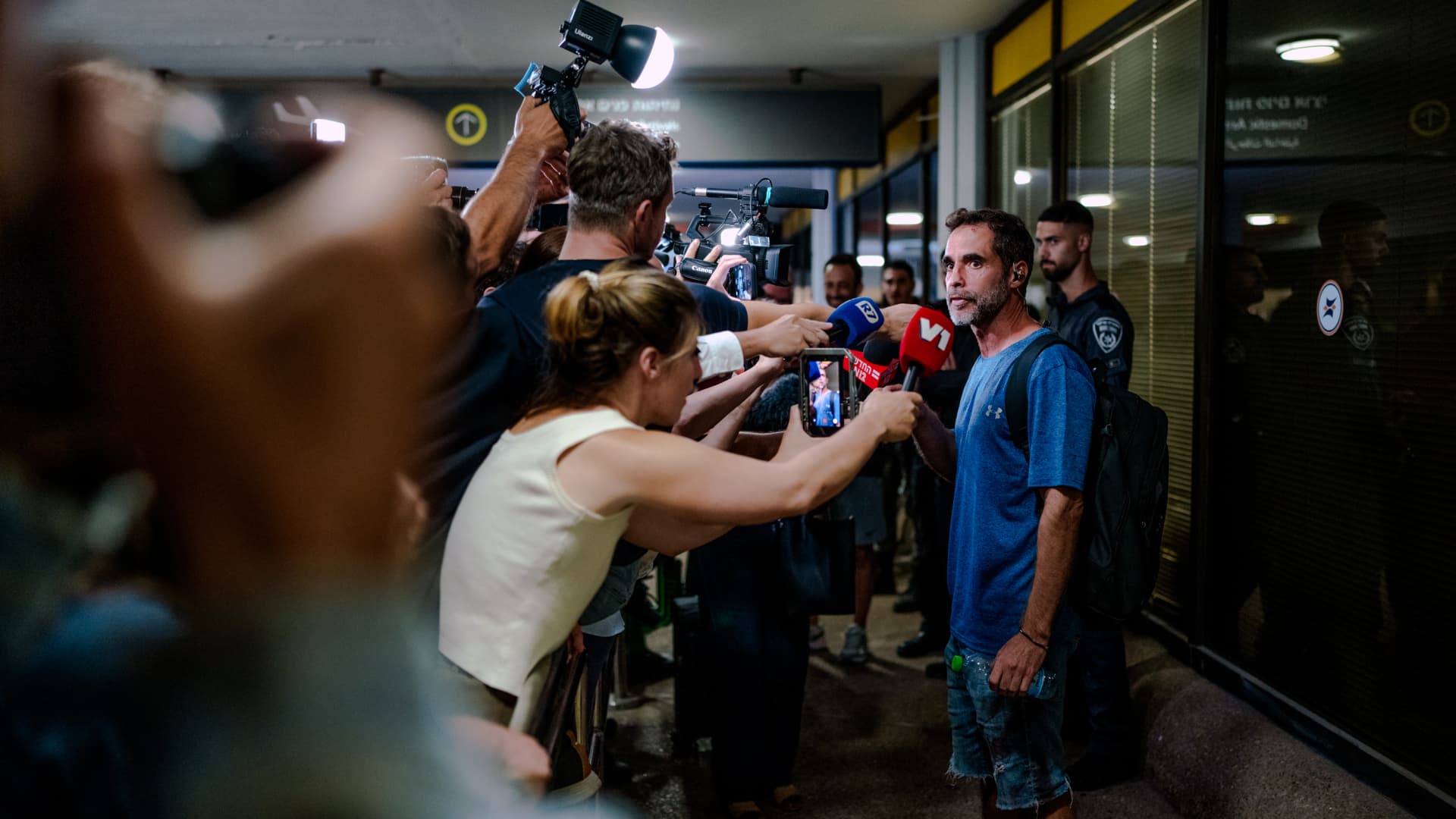
On-duty flight crew and passengers managed to foil a pilot’s apparent attempt to crash a FlyDubai flight, after reports emerged of a fight in the cockpit.
The incident on flight FZ1073 from Dubai to Tel Aviv happened when a co-pilot stabbed a pilot, according to Israeli Prime Minister Benjamin Netanyahu, who praised the victim’s quick thinking.
“Despite being stabbed and seriously injured, he fought back, resisted, opened the cockpit door, and enabled passengers and crew to overpower the attacker — preventing a catastrophic mid-air disaster. He saved the lives of 174 people, including Israeli citizens and other nationals,” Netanyahu wrote in a post on X.
FZ1073 was diverted to the Tabuk airport in Saudi Arabia, the airline said, after being successfully secured and diverted by flight crew.
FlyDubai in a statement said that an “altercation” occurred on the flight deck of the plane, but did not mention a stabbing.
However, the airline added that the underlying reasons and motives for the clash is currently unknown, urging all parties to refrain from speculation.
The injured pilot was identified by Netanyahu as Indian national Smit Machchhar. No details have been released on the identity of the attacker, except that he was being interrogated by Saudi authorities.
The Indian embassy in Riyadh said on X that Machchhar is in a hospital in Tabuk, and is reported to be in stable condition.
The Israeli Prime Minister also identified the passenger who broke into the cockpit as Yaniv Hayun, calling him a “hero” and adding he deserved “a global medal of honor.”
Flight data from tracking site FlightRadar24 showed that the plane had experienced extreme altitude fluctuations before broadcasting a “general emergency” squawk code.
FZ1073 had dropped from over 14,000 feet in just 29 seconds, and FlightRadar24 also added that vertical speeds ranging from approximately -30,000 to +10,000 feet per minute were observed from the transponder data.
For context, vertical speeds during normal operations rarely exceed plus or minus 4,000 feet per minute, it added.
Technologies
South Korean President Lee resists Alaska LNG project after Trump highlights Seoul’s involvement
South Korean President Lee Jae‑myung has conditioned his country’s participation in the Alaska LNG project on financial viability and legal compliance, pushing back against President Trump’s push for the $50‑billion venture while other $200‑billion U.S. investments move forward.
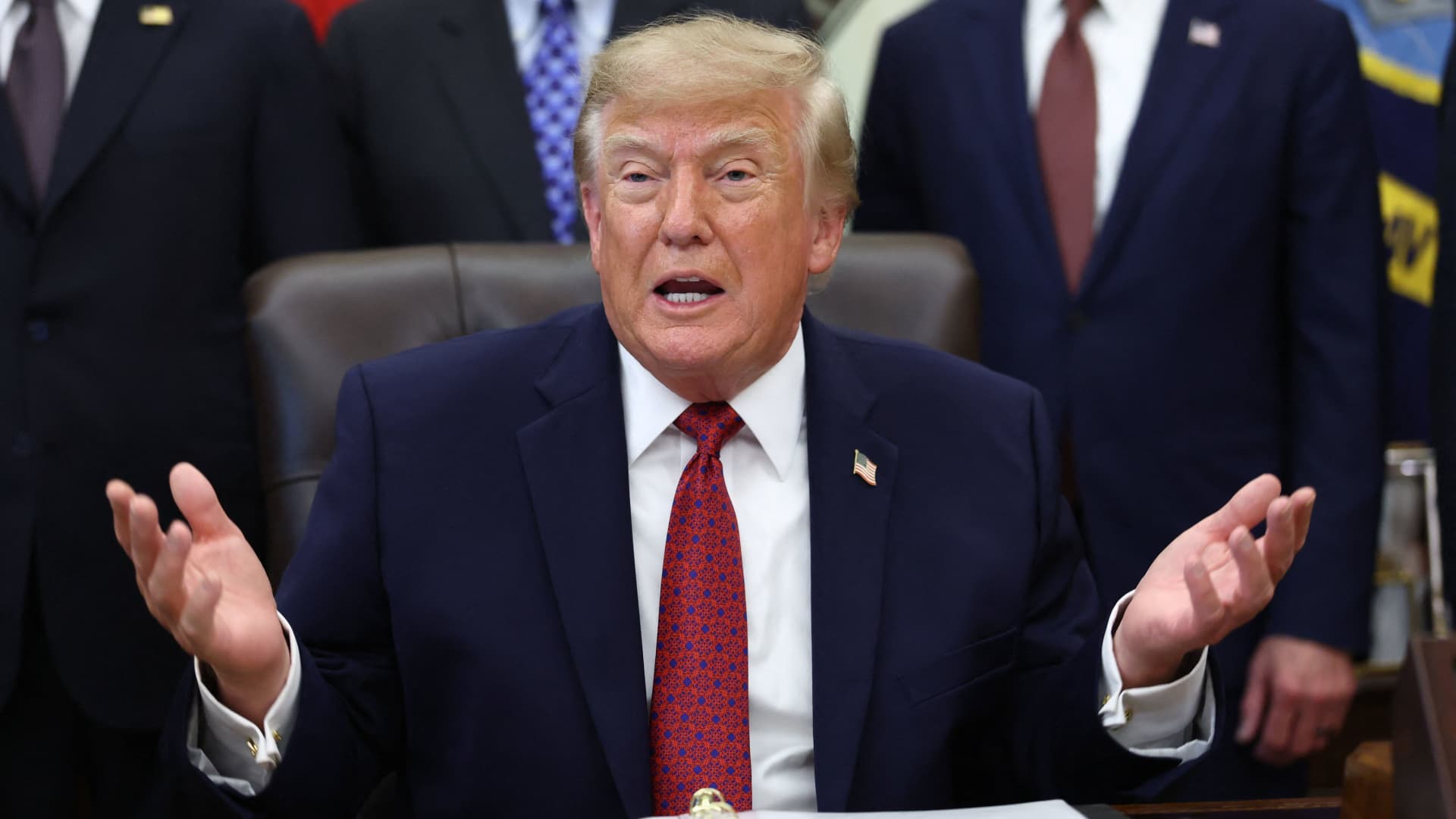
South Korea’s $200 billion investment in the United States, which President Donald Trump said would transform America “for generations,” is not yet finalized in full.
The South Korean investment blueprint includes nuclear power plants, a natural‑gas power facility in Texas, and potentially the long‑planned Alaska liquefied natural gas project.
Trump posted on Truth Social late Wednesday that the two nations had agreed to move forward on the Alaska LNG venture, estimating its value at $50 billion. This prompted a response from South Korean President Lee Jae‑myung, who stressed that participation in some projects remains tied to commercial considerations.
In an X post Thursday local time, Lee said that involvement in the Alaska LNG project hinges on its financial viability and legal compliance. He added that investments in nuclear power plants would also require a plant‑by‑plant assessment of commercial feasibility.
The US‑South Korea joint statement Wednesday also noted that work on the project is contingent on “commercial reasonableness,” without detailing allocations toward the venture.
The Alaska LNG project aims to move natural gas roughly 1,300 km (800 miles) from fields on Alaska’s North Slope to the state’s southern region, where it would be liquefied for export to markets including Asia, according to Yonhap. The initiative has long faced scrutiny over its economics, given the substantial upfront capital required.
Industry Minister Kim Jung‑kwan labeled it “high‑risk” last year and said participation would be challenging unless the project could generate sufficient cash flow.
Overall, the investment package allocates $22.3 billion for a 6,472‑megawatt natural‑gas power plant in Encinal, Texas, which will supply electricity to nearby data centers. The venture will be led by developer Related Cos. and U.S. power provider NextEra Energy.
Trump said the investments would turn South Korea’s commitments into “huge construction projects” and create “tens of thousands of American jobs.”
“These are massive energy projects, adding power capacity in the United States,” Trump remarked. “This is new construction, new manufacturing, and great jobs for American workers.”
The two countries said they would seek to broaden Korean firms’ involvement in the Texas project across equipment supply, engineering, construction, and long‑term operations and maintenance. The U.S. also plans to give Korean companies opportunities to supply equipment, including turbines, for similar projects domestically.
Another $120 billion has been earmarked for plans to build eight large‑scale nuclear reactors in the United States. Of that sum, $100 billion is designated for construction costs and $20 billion for contingency reserves.
The nuclear accord was signed by both governments as well as Westinghouse Electric, Korea Electric Power Corp., and Korea Hydro & Nuclear Power. The plan also calls for Korean firms to pursue a potential significant minority stake in Westinghouse, with terms subject to commercial negotiations.
-
 Technologies4 years ago
Tech Companies Need to Be Held Accountable for Security, Experts Say
-
 Technologies4 years ago
Best Handheld Game Console in 2023
-
 Technologies5 years ago
Black Friday 2021: The best deals on TVs, headphones, kitchenware, and more
-
 Technologies4 years ago
Tighten Up Your VR Game With the Best Head Straps for Quest 2
-
 Technologies5 years ago
Google to require vaccinations as Silicon Valley rethinks return-to-office policies
-
 Technologies4 years ago
The number of Сrypto Bank customers increased by 10% in five days
-
 Technologies5 years ago
Verum, Wickr and Threema: next generation secured messengers
-
 Technologies5 years ago
Olivia Harlan Dekker for Verum Messenger