
Technologies
My Favorite iPhone 17 Features That You’re Not Using
Commentary: Invisible buttons, AirPods that go silent when you fall asleep and some unconventional ways to use Apple’s iPhone Crossbody Strap.
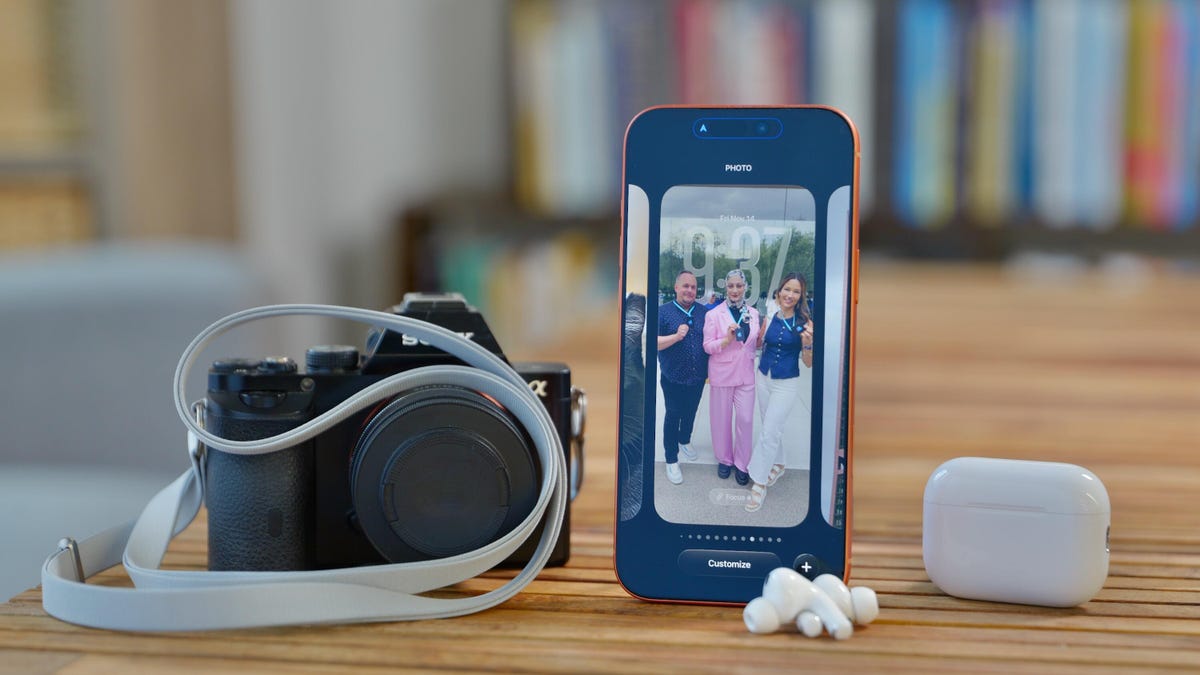
The iPhone 17, iOS 26, and even the new AirPods Pro 3, are packed with valuable features and tools, but it can be hard to know which ones are worth your time and where to find them.
I review phones for a living and have been using the iPhone 17 Pro for over two months. As I’ve tested the new Apple phone and accessories, I’ve amassed my share of hidden tips and tricks to quell my friends, family members (and strangers) who ask me, «What’s a good iPhone feature that I should try?» Or «how do you do that thing with your AirPods that I saw on TikTok?»
These tips may not be new to everyone or exclusive to the iPhone 17 line (most require iOS 26), but they’re the less obvious ones that I use the most.
1. Photos app Wallpaper Suggestions
Over the years, Apple has given the lock screen and home screen a major visual overhaul. There are endless options to customize the look of your apps, the lock screen clock, and add trippy spatial effects to bring your wallpaper to life.
However, one of my favorite recent discoveries is Wallpaper Suggestions in the Photos app, which selects wallpaper-worthy photos from your library and crops them to fit your screen. There is even a 3D animation effect that can be added to really give your wallpaper some pizzazz. Above is a photo of my phone with a wallpaper of one of my cats (from the Suggestions), for example. It delights me to no end that it looks like her head is popping up from the corner of the screen as if to say, «Are you unlocking your phone?!»
If you don’t see Wallpaper Suggestion in the Photos app, go to Settings, then to Photos, and check that Show Featured Content is enabled. Subsequently, if you don’t want to see Wallpaper Suggestions, you can turn them off here. But why would you?
2. Use raw photos to make the moon pop
This tip is for you, Pro iPhone owners and is an easy way to ensure you get a great photo of a high-contrast scene. Think of a bright subject in a dark environment, such as this one of the Mineral Point Opera House marquee lit up at night, or a dark subject in a bright environment, like the black cat wallpaper shot from my previous tip.
Last week, there was a full moon over San Francisco, and I loved the way Karl the Fog –- yep, San Francisco’s marine layer has a name — rolled through the moonlight. However, when I tried to take a photo of it, my phone exposed the image for the bright moon, making everything else look dark. And when I tried to expose the image to brighten the buildings in the background, the moon just blew out entirely to white.
Instead, I turned on the raw photo setting in the Camera app and got a great shot of the moon. Then, I was able to edit it after the fact within the default Photos app to enhance the shadow details in the dark background and highlights in the moon. The result: Both the moon and the buildings looked exactly the way I wanted them. You could also use a third-party app to edit raw images.
Raw files contain more image data than a JPEG or HEIC, allowing you to make more extensive edits after you take an image. I don’t take raw photos all the time because the file sizes are big: the raw photo of the moon is 13.6MB compared with a JPEG I took that was 1.5MB.
To try this out, you first need to turn on the raw files master switch. Go to Settings, then the Camera menu. Select Formats and turn on ProRAW & Resolution Control. I use JPEG Lossless for the ProRAW format.
Once enabled, open the Camera app. If you’re running iOS 26, you should see a button that says JPEG, HEIC or raw on the top left side. Tap on it to see controls for Format and Resolution. Raw images can be captured at 48MP on the iPhone 17 Pro.
3. The AirPods Pro 3 case is the button
Apple recently launched the AirPods Pro 3. They come with several nifty features, including the ability to check your heart rate and translate conversations in real-time. But when I first went to pair them with my phone, I was stumped: Where is the pairing button?
Just me? Probably not.
To pair the AirPods Pro 3, you just keep them in the case and open the lid. They should automatically pair with whatever Apple device you have on hand. But if you’re trying to pair them to an Apple device that doesn’t have the same iCloud account or a non-Apple device, you’ll need to open the lid and double-tap the case to enter pairing mode.
And that’s not the only AirPods tip I have for you (pun unintended).
4. The AirPods automatically turn off music when you doze off
If you’re someone who listens to music, a podcast, or white noise to help you fall asleep, you can set up your AirPods to automatically pause whatever you’re listening to as soon as you fall asleep. To turn this on, have your AirPods in their case, bring the case next to your iPhone and open the lid. Now go to Settings and tap on the name of your AirPods. Next, scroll down to Pause Media When Falling Asleep and turn that setting on. Now sit back, put your AirPods in and enjoy that 80-minute podcast about Mission Impossible: Ghost Protocol while you’re lulled into a nice slumber.
This feature is part of iOS 26 and works with:
- AirPods Pro 3
- AirPods Pro 2 with USB-C
- AirPods Pro 2 with Lightning
- AirPods 4 with ANC
- AirPods Max with USB-C
Also, if you haven’t explored your AirPods settings menu before, you can access many nifty features like Head Gestures, Live Translation and Camera Remote.
5. The iPhone’s invisible button
Back Tap isn’t a new feature, but it’s one that a lot of people don’t know about. Your iPhone has an «invisible» button that you activate by tapping on the back of the phone. It’s customizable and can do things, like open apps, turn the flashlight on, or, as I use it, show/hide the Control Center.
To set it up, open the Settings, go to Accessibility, select Touch and then scroll down and tap Back Tap. You can set up multiple actions, one triggered by a double-tap and another by a triple-tap (I wish I could do this with the iPhone’s Action button). As you can see from the actions menu, Back Tap can perform dozens of different actions and shortcuts.
When I want to open the Control Center — especially if I’m holding the phone with one hand — I can double-tap the back of the phone, and it appears. If I double-tap again, it goes away. Additionally, when you use Back Tap, a small Dynamic Island banner appears to explain what’s happening. You can turn this off in the Back Tap settings menu if you don’t want to see it.
6. Use the iPhone Crossbody Strap for cameras and passes
We’ve seen phone straps from other phone makers, such as Motorola for its Razr and there are numerous third-party options available. However, this year Apple launched its own crossbody strap for the iPhone. The strap costs $60, which seems steep for a thin piece of fabric, but it actually has more «tech» to it than meets the eye. Apple’s Crossbody Strap is lined with magnets to keep the two «pieces» of the strap (where it folds over itself) from separating or accidentally adjusting the length as you wear it.
It also has use cases beyond just being attached to a phone. On TikTok, numerous videos like this show people using the cross-body strap as a camera strap. But why stop there? Use it to hold passes or IDs for amusement parks or conventions.
The strap is long, which is nice if you’re a larger person like me and still has enough length to go across your body and keep your phone or camera at your hip. Apple created another accessory that is having its moment right now: the iPhone Pocket. Like the crossbody strap, you can wear it across your torso, but I’m not sure it would hold anything but an iPhone that well.
Technologies
Did You Download the White House App? Here Are Its Hidden Security Risks
Cybersecurity researchers have serious concerns about how the app was built.

The White House mobile app has been available for both Android and iOS users for over a week now, and the Trump administration is proudly touting that the app has received 2 million downloads on the White House Instagram page. However, the app’s threats to your personal data, online security and privacy concerns make it something you should think twice about downloading.
The White House announcement says the app’s goal is to deliver «unparalleled access to the Trump administration.» However, there are many security concerns, including location tracking and sketchy features. The White House has not responded to a request for comment.
The big question is, should you download it? I don’t recommend it. Here’s why.
What’s in The White House App?
When I downloaded it soon after its release, the app opened with music and a brief collage video of President Donald Trump. It has pages on affordability, including the prices of things like eggs and milk (but not gas). There’s an overtime calculator. And there are links to articles from Trump’s favored news outlets, like Fox News and Newsmax, along with White House press releases.
The app also features livestreams and videos of press briefings, links to the White House’s social feeds and photos of the president.
Why I deleted The White House app so fast
Behind all those tabs are hair-raising privacy and security issues that have the internet and experts alarmed.
One X user, @Thereallo1026, decompiled the White House app and blogged about it, reporting that the Android app tracks your location as often as every 4.5 minutes and shares a lot of other information, like your notifications and perhaps even your phone number, with a third-party server.
Another red flag is that the code for YouTube embeds comes from a personal GitHub account. Thereallo said that if that GitHub account gets compromised, it can affect every user of the White House’s app.
Another cybersecurity researcher, Atomic Computer Services, posted similar concerns about the iOS app. The researchers found that the app reported to the App Store that it did not collect location data, when in fact it included the capability to do GPS tracking. It’s unclear whether that tracking actually happens, but the code is there, Atomic Computer said.
Other concerns identified by Atomic Computer included the removal of privacy consent banners from third-party content viewed in the app and minimal security protections. «We’ve audited apps for startups with three employees that had better security than this,» Atomic Computer wrote.
Pieter Arntz, a researcher at the cybersecurity software provider Malwarebytes, said in an email to CNET that the White House app relies heavily on third-party sources for things like notifications and widgets.
«In practical terms, that means external providers can influence what data is collected and when features like location‑based messaging are enabled, because much of that logic is configured on their servers rather than baked into the app code itself,» Arntz said. «For a high‑profile government app, the more these decisions sit with outside companies, the harder it is to guarantee strict data‑minimization and full transparency to users about how their information is handled.»
Government-sponsored apps to inform people are commonplace, but this one poses significant risks, experts said. A spokesperson for the Center for Democracy and Technology, which advocates for transparency and privacy in government technology, told CNET that «mobile apps can be a helpful tool for making government more accessible. But this administration has given people a lot of reasons to worry about their privacy, and this app only raises more questions about what the federal government is doing with our personal data.»
For me, this app is a hard pass. I deleted it 10 minutes after downloading it.
Technologies
Amazon Is Pulling Support for Kindles From 2012 or Earlier. What to Do Now
If there’s a book you’ve been waiting to read on your old Kindle device, make sure you download it before May 20.
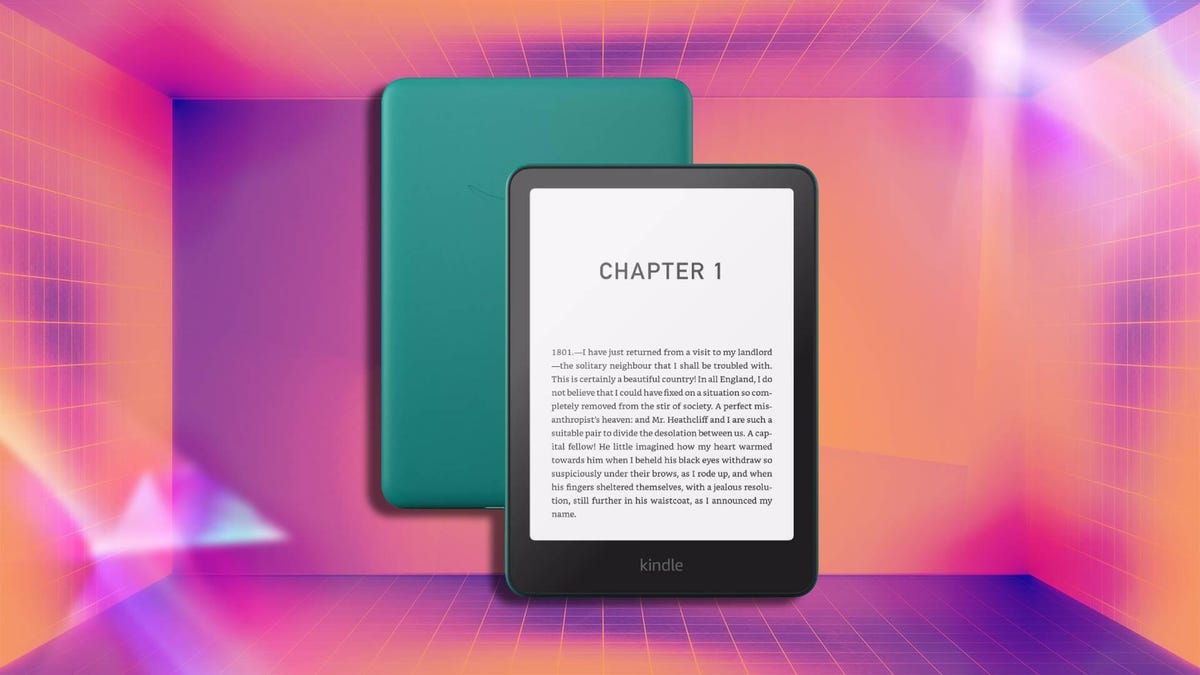
That Kindle device you’ve been holding onto for 15 years now has an expiration date, as Amazon will end support for Kindle models from 2012 or earlier on May 20. An Australian Kindle user first reported the change before Amazon confirmed the news to PCMag and said it will soon email users in the US.
The books that you already downloaded on your Kindle device won’t disappear after next month, but you won’t be able to connect to the network to buy, borrow or download new ones.
If you still have a book that you want to finish reading on one of these devices, make sure that you don’t deregister the device or do a factory reset. In the email shared by an Australian user on Reddit, Amazon says if you deregister or reset the device, you won’t be able to re-register the device or use it at all afterward.
A representative for Amazon has not yet responded to a request to comment from CNET.
The company also included a promo code in the email for 20% off select new Kindle devices and an ebook credit that’s added to your account after you purchase a new device. However, there’s no word on whether this discount is limited to Australia or if a version will be offered to US users.
Switching devices
Kindle devices released in 2012 or earlier will lose the ability to download books after May 20. The devices that will be affected are:
- Kindle 1st and 2nd Generation
- Kindle DX and DX Graphite
- Kindle Keyboard
- Kindle 4
- Kindle Touch
- Kindle 5
- Kindle Paperwhite 1st Generation
The first-generation model for Kindle was released in 2007, and e-readers have improved a bit in the time since. Amazon told Engadget that fewer than 3% of its users still use these old devices.
In the email to customers, the company said users will still be able to access their Kindle library and the Kindle store using the Android, iOS or desktop app. You can still read and download books by using the Kindle app on your phone or PC.
If this service loss feels like a good time to move on from the Kindle world, there are other e-reader options. Calibre is a free, open-source ebook manager that offers a range of features, like reading and organizing ebooks from multiple sources, as well as downloading news articles and websites.
If you’re looking for a newer Kindle model or a different reading tablet, check out the CNET list for this year’s best e-readers.
Technologies
Overwatch’s Next Hero Is Sierra, but Does That Mean the Rumors Were Wrong?
The new damage hero joins the roster next week, but lore and gameplay details are still under wraps.

After adding five new heroes in February, Overwatch just gave players another look at the new hero coming in season 2 next week. While we didn’t get gameplay details, the new hero trailer revealed that hero 51 is Sierra, and season 2 will be titled Summit.
The game dropped its first look at Sierra last week, and a few details in the new artwork seemed to be in line with expectations that she’s an ally of damage hero Ashe. Ashe’s Deadlock Gang is mentioned in the new trailer, although Sierra is working with Overwatch in trying to stop them. We don’t know yet whether Sierra has ties to other Overwatch heroes and factions.
Alec Dawson, Overwatch’s associate game director, said in February that the next hero would be another damage hero with a «really satisfying skill shot,» which we maybe glimpsed in the trailer when Sierra fires some kind of homing dart onto Emre after he steals something from Watchpoint: Grand Mesa. We also see her use a fully automatic rifle as well as tether to her drone for some aerial maneuvering, which could be hints at the rest of her kit.
While I do love a good skillshot, I also feel like the game has been struggling with damage hero releases over the past year — particularly heroes who have the ability to quickly eliminate someone out of nowhere. The newest damage heroes Anran and Emre didn’t have this problem, but the previous two, Freja and Vendetta, were consistently banned after release because of their quick time to kill, combined with their ability to consistently surprise enemies. I’m hoping Sierra’s skillshot is less bursty.
Even before the art was revealed last week, fans had started to speculate that Overwatch’s season 2 hero would be Frankie, a member of Ashe’s Deadlock Gang. She appeared in the Deadlock Rebels novel by Lyndsay Ely, which follows Ashe and the hero now known as Cassidy early in their outlaw careers. In the book, Frankie makes contact with the two characters by sending them a tiny fly-like drone — perhaps a smaller version of the drone in Sierra’s character art.
Respectfully… y’all aren’t ready for this one 😮💨🔥
Join us Apr 8 at 9am PT for the premiere of our latest Hero Trailer as we kick off the next chapter in the Reign of Talon 💪 pic.twitter.com/1Etxn68tax— Overwatch (@PlayOverwatch) March 31, 2026
The trailer shows Sierra working to stop the Deadlock Gang (who are helping Emre and Freja steal weapons for Talon), but it’s unclear whether Sierra is another character entirely or whether she’s Frankie after taking a different path.
The game’s Reign of Talon season 1 is wrapping up in the next week. The current season kicked off the year-long storyline about Vendetta taking over Talon and also introduced five new heroes into the roster. Devs have promised another new hero each season during the storyline, and today’s hero trailer gives us a few more hints about Sierra.
-
 Technologies3 года ago
Tech Companies Need to Be Held Accountable for Security, Experts Say
-
 Technologies3 года ago
Best Handheld Game Console in 2023
-
 Technologies3 года ago
Tighten Up Your VR Game With the Best Head Straps for Quest 2
-
 Technologies4 года ago
Black Friday 2021: The best deals on TVs, headphones, kitchenware, and more
-
 Technologies5 лет ago
Google to require vaccinations as Silicon Valley rethinks return-to-office policies
-
 Technologies5 лет ago
Verum, Wickr and Threema: next generation secured messengers
-
 Technologies4 года ago
Olivia Harlan Dekker for Verum Messenger
-
 Technologies4 года ago
The number of Сrypto Bank customers increased by 10% in five days