
Technologies
Enhance Your Apple Watch Experience With These 8 Expert-Approved Tips
From taking control of Smart Stack to pausing your exercise rings, these tips will let you get the most out of your Apple Watch.
Apple’s smartwatch lineup continues to improve. With an updated design, an OS that continues to evolve and features that aim to make users more productive, there is plenty here to love. With the new Apple Watch series 11, Apple Watch SE 3 and the Apple Watch Ultra 3, you have multiple models to choose from, and all of them feature the new features in WatchOS 26.
With a variety of features that aim to make you more productive and stay active, it can be tricky to know which features are worth checking out. These are the eight features that I recommend to everyone.
Don’t miss any of our unbiased tech content and lab-based reviews. Add CNET as a preferred Google source.
Swipe between watch faces (again)
Until WatchOS 10.0, you could swipe from the left or right edge of the screen to switch active watch faces, a great way to quickly go from an elegant workday face to an exercise-focused one, for example. Apple removed that feature, likely because people were accidentally switching faces by brushing the edges of the screen.
However, the regular method involves more steps (touch and hold the face, swipe to change, tap to confirm), and people realized that the occasional surprise watch face change wasn’t really so bad. Therefore, as of version 10.2, including the current WatchOS 26, you can turn the feature on by toggling a setting: Go to Settings > Clock and turn on Swipe to Switch Watch Face.
Stay on top of your heart health with Vitals
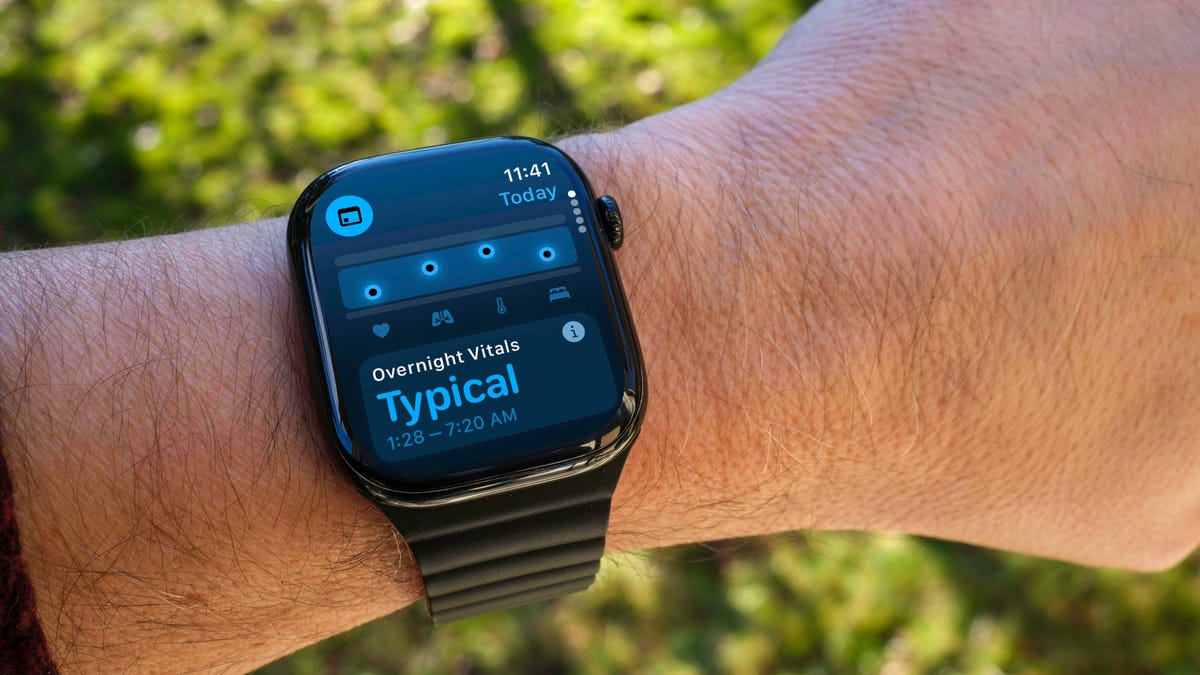
Wearing your Apple Watch while sleeping offers a trove of information — and not just about how you slept last night. If you don the timepiece overnight, it tracks a number of health metrics. The Vitals app gathers that data and reports on the previous night’s heart rate, respiration, body temperature (on supported models) and sleep duration. The Vitals app can also show data collected during the previous seven days — tap the small calendar icon in the top-left corner.
If you own a watch model sold before Jan. 29, 2024, you’ll also see a blood oxygen reading. On newer watches in the US, that feature works differently because of an intellectual property fight: The watch’s sensors take a reading, and then send the data to the Health app on your iPhone. You can check it there, but it doesn’t show up in the Vitals app.
How is this helpful? The software builds a baseline of what’s normal for you. When the values stray outside normal ranges, such as irregular heart or respiratory rates, the Vitals app reports them as atypical to alert you. It’s not a medical diagnosis, but it can prompt you to get checked out and catch any troubles early.
Make the Wrist Flick gesture second nature
WatchOS 26 adds a new gesture that has quickly become a favorite. On the Apple Watch Series 9 and later, and the Apple Watch Ultra 2 and Ultra 3, Wrist Flick is a quick motion to dismiss incoming calls, notifications or really anything that pops up on the screen. Wrist Flick joins Double Tap as a way to interact with a watch even if you’re not in a position to tap the screen.
But what I like most about the gesture is that it’s also a shortcut for jumping back to the watch face. For example, when a Live Activity is automatically showing up in the Smart Stack, a quick flick of the wrist hides the stack. Or let’s say you’re configuring a feature in the Settings app that’s buried a few levels deep. You don’t need to repeatedly tap the back (<) button — just flick your wrist.
Make the Smart Stack work for you
The Smart Stack is a place to access quick information that might not fit into what Apple calls a “complication” (the things on the watch face other than the time itself, such as your Activity rings or the current outside temperature). When viewing the clock face, turn the digital crown clockwise or swipe from the bottom of the screen to view a series of tiles that show information such as the weather or suggested photo memories. This turns out to be a great spot for accessing features when you’re using a minimal watch face that has no complications.
Choose which Live Activities appear automatically
The Smart Stack is also where Live Activities appear: If you order a food delivery, for example, the status of the order appears as a tile in the Smart Stack (and on the iPhone lock screen). And because it’s a timely activity, the Smart Stack becomes the main view instead of the watch face.
Some people find that too intrusive. To disable it, on your watch open the Settings app, go to Smart Stack > Live Activities and turn off the Auto-Launch Live Activities option. You can also turn off Allow Live Activities in the same screen if you don’t want them disrupting your watch experience.
Apple’s apps that use Live Activities are listed there if you want to configure the setting per app, such as making active timers appear but not media apps such as Music. For third-party apps, open the Watch app on your iPhone, tap Smart Stack and find the settings there.
Add and pin favorite widgets in the Smart Stack
When the Smart Stack first appeared, its usefulness seemed hit or miss. Since then, Apple seems to have improved the algorithms that determine which widgets appear — instead of it being an annoyance, I find it does a good job of showing me information in context. But you can also pin widgets that will show up every time you open the stack.
For example, I use 10-minute timers for a range of things. Instead of opening the Timers app (via the App list or a complication), I added a single 10-minute timer to the Smart Stack. Here’s how:
- View the Smart Stack by turning the Digital Crown or swiping from the bottom of the screen.
- Tap the Edit button at the bottom of the stack. (In WatchOS 11, touch and hold the screen to enter the edit mode.)
- Tap the + button and scroll to the app you want to include (Timers, in this example).
- Tap a tile to add it to the stack; for Timers, there’s a Set Timer 10 minutes option.
- If you want it to appear higher or lower in the stack order, drag it up or down.
- Tap the checkmark button to accept the change.
The widget appears in the stack but it may get pushed down in favor of other widgets the watch thinks should have priority. In that case, you can pin it to the top of the list: While editing, tap the yellow Pin button. That moves it up but Live Activities can still take precedence.
Use the watch as a flashlight
You’ve probably used the flashlight feature of your phone dozens of times but did you know the Apple Watch can also be a flashlight? Instead of a dedicated LED (which phones also use as a camera flash), the watch’s full screen becomes the light emitter. It’s not as bright as the iPhone’s, nor can you adjust the beam width, but it’s perfectly adequate for moving around in the dark when you don’t want to disturb someone sleeping.
To activate the flashlight, press the side button to view Control Center and then tap the Flashlight button. That makes the entire screen white — turn the Digital Crown to adjust the brightness. It even starts dimmed for a couple of seconds to give you a chance to direct the light away so it doesn’t fry your eyes.
The flashlight also has two other modes: Swipe left to make the white screen flash on a regular cadence or swipe again to make the screen bright red. The flashing version can be especially helpful when you’re walking or running at night to make yourself more visible to vehicles.
Press the Digital Crown to turn off the Flashlight and return to the clock face.
Pause your Exercise rings if you’re traveling or ill
Closing your exercise, movement and standing rings can be great motivation for being more active. Sometimes, though, your body has other plans. Until WatchOS 11, if you became ill or needed to be on a long-haul trip, any streak of closing those rings that you built up would be dashed.
Now, the watch is more forgiving (and practical), letting you pause your rings without disrupting the streak. Open the Activity app and tap the Weekly Summary button in the top-left corner. Scroll all the way to the bottom (take a moment to admire your progress) and tap the Pause Rings button. Or, if you don’t need that extra validation, tap the middle of the rings and then tap Pause Rings. You can choose to pause them for today, until next week or month, or set a custom number of days.
When you’re ready to get back into your activities, go to the same location and tap Resume Rings.
Bypass the countdown to start a workout
Many workouts start with a three-second countdown to prep you to be ready to go. That’s fine and all, but usually when I’m doing an Outdoor Walk workout, for example, my feet are already on the move.
Instead of losing those steps, tap the countdown once to bypass it and get right to the calorie burn.
How to force-quit an app (and why you’d want to)
Don’t forget, the Apple Watch is a small computer on your wrist and every computer will have glitches. Every once in a while, for instance, an app may freeze or behave erratically.
On a Mac or iPhone, it’s easy to force a recalcitrant app to quit and restart, but it’s not as apparent on the Apple Watch. Here’s how:
- Double-press the Digital Crown to bring up the list of recent apps.
- Scroll to the one you want to quit by turning the crown or dragging with your finger.
- Swipe left on the app until you see a large red X button.
- Tap the X button to force-quit the app.
Keep in mind this is only for times when an app has actually crashed — as on the iPhone, there’s no benefit to manually quitting apps.
These are some of my favorite Apple Watch tips, but there’s a lot more to the popular smartwatch. Be sure to also check out why the Apple Watch SE 3 could be the sleeper hit of this year’s lineup and Vanessa Hand Orellana’s visit to the labs where Apple tests how the watches communicate.
Technologies
AI may change the price of your Big Mac and groceries — what this means for shoppers
As retailers turn to AI tools to streamline operations, experts warn that collecting more detailed consumer data increases the risk of personalized pricing.

Fast-food giants and supermarkets are rolling out a range of AI tools that could affect the prices shoppers pay, but experts warn the spread of data-driven tools could make personalized pricing easier to deploy.
Just this week, a federal antitrust lawsuit filed against McDonald’s
McDonald’s has denied that it’s using AI to determine what individual customers are willing to pay and said it provides its franchisees with “tools, resources, research and recommendations to help them make informed decisions.”
Even so, food businesses globally are increasingly digitizing operations with AI. Earlier this year, American grocery chain Kroger
Meanwhile, electronic shelf labels (ESLs), which display the price of items in store on digital screens, are becoming increasingly popular at supermarkets like Kroger, Amazon
The technology is also gaining traction among U.K. supermarkets such as Tesco
CNBC reached out to Amazon Fresh, Whole Foods, Tesco, Morrisons, Asda and Revolut for comment on the use of AI but didn’t immediately hear back.
As AI use becomes normalized among retailers, experts warn that this could lead to more dynamic pricing, which refers to frequent, rapid real-time changes in prices that could dramatically affect shoppers’ experiences.
“Dynamic pricing means changing prices in response to changing market conditions, such as demand, timing, capacity or competitors’ prices,” Miroslava Marinova, a senior lecturer of commercial law at the University of East London, told CNBC. “It is not new. Airlines, hotels, and ride-hailing services have used it for years.”
Bank of England economists Clare Lombardelli and Rupal Patel said in April that more sophisticated technology is leading to prices changing more frequently and also becoming more individualized, which could see more firms charging “as close to the maximum price a consumer is willing to pay for a good or service,” which they defined as “perfect price discrimination.”
These conditions could make it harder for statisticians to “measure and interpret” month-to-month inflation data, as the consumer price index is based on a representative sample of prices for shoppers.
“That works well when prices mostly move slowly and uniformly. But when prices shift continually – and differently for each shopper – the idea of a ‘representative’ price becomes strained,” the BOE economists added.
AI collects more consumer data
While dynamic pricing has been in play for a long time, the BOE economists and Marinova noted that AI tools such as ESLs and facial recognition checkout are changing the amount of information that companies can collect on consumers, from transaction histories to browsing behavior, location, and purchasing patterns.
On Wednesday, U.K. supermarket chain Sainsbury’s released “SmartLists,” an AI feature that helps customers create shopping lists and find products just by uploading pictures of what they need or by typing out meal ideas.
“This is also why the traditional distinction between dynamic and personalised pricing is becoming less clear in practice,” Marinova explained. “Dynamic pricing responds primarily to market conditions, whereas personalised pricing uses information about the consumer to estimate willingness to pay.”
As companies use both pricing systems, it raises questions around whether customer information is being used to determine the prices consumers see.
“As retailers combine market-level information with increasingly detailed consumer data, the boundary between dynamic and personalised pricing becomes thinner,” Marinova added.
Walmart and Kroger have publicly insisted in recent years that they do not use dynamic or surge pricing to set individualized prices for customers, but have instead used tools to streamline operations.
Several U.S. states are moving to curb data-driven pricing. New York requires most businesses using customers’ personal data to set prices to disclose it clearly. Maryland has restricted food retailers and delivery services from using personalised, data-driven pricing to charge higher prices for certain food, while New Jersey and Connecticut have enacted measures targeting “surveillance pricing.”
Consumer choice compromised
Dynamic and personalized pricing are not automatically bad for shoppers, Marinova said, explaining that it can discount items for some consumers, making some products and services more accessible.
However, the risk of individualized pricing is that consumers are no longer aware of whether the price they’re getting reflects general market conditions or if it’s been influenced by information about their own behavior.
“That makes it much harder to compare prices and to know whether another consumer is being offered a different price for the same product,” she said. “If consumers cannot understand why they received a particular price, cannot compare it with prices offered to others, and cannot effectively switch to another supplier, the normal disciplining effect of consumer choice becomes weaker.”
The BOE economists added that an additional challenge is that personalized pricing “splinters the consumer experience,” which means households will face increasingly different inflation rates.
“And when prices differ for the same thing, inflation becomes even more personalised – and aggregate measures may no longer reflect households’ experience,” they said.
Technologies
After France, is Italy next? Goldman Sachs flags bond risks as Rome’s deficit widens
Goldman Sachs says Italy’s higher 2027-28 deficit targets, rising yields and election uncertainty could weaken its debt outlook.

French debt turmoil has thrust Europe’s fiscal pressures into sharp focus in recent weeks, but investors’ attention is quickly turning to Italy amid contentious new government spending plans.
The Italian government will next week present a budget encompassing recently approved allocations to defense and energy, which are set to widen the country’s deficit over the next two years and put Italy’s debt-to-GDP ratio on track to become the highest in Europe, according to analysts at Goldman Sachs.
Filippo Taddei, senior European economist at Goldman, said the changes could heap further pressure on Italian government bonds ahead of next year’s general election.
On Oct. 2, Prime Minister Giorgia Meloni’s center-right government approved an extra 28 billion euros ($31 billion) in borrowing over the next two years for defense and energy spending. Although scaled back, the spending plans have raised Italy’s 2027 deficit target to 3.4% of GDP, and its 2028 target to 3.2%. That’s up from earlier April projections of 2.8% and 2.5%, respectively, and above Goldman forecasts.
The measures — which are split evenly between defense and energy, with each worth about 0.3% of GDP per year in 2027 and 2028 — come amid rising investor jitters over runaway government borrowing across the continent.
French bond woes
Yields on French government bonds have surged to multiyear highs in recent days, as the country’s mounting debt crisis fuels wider concerns about Europe’s strained public finances.
France’s benchmark 10-year OAT
Taddei said Italy’s fiscal risk premia could rise ahead of the country’s next general election, due no later than December 22, 2027, on the back of the widening deficit.
A close-run election could leave little scope for fiscal consolidation, as parties on both the right and left look to “add spending-supportive partners” to build viable coalitions, he explained.
“Looser fiscal policy, tighter financial conditions and a close electoral race appear poised to weaken the debt outlook after four years of fiscal consolidation,” he said in a note Thursday.
‘Significant upward surprise’
Italian lawmakers voted Thursday to overhaul the country’s electoral process, switching from a hybrid model to a more proportional system. Meloni’s right-wing coalition says the change will lead to more stable governments and avoid chaotic post-election dealmaking.
But left-leaning opponents said the changes are designed to help Meloni cling to power.
Meloni’s administration — which will deliver its final pre-election budget next week — has been praised for lowering the deficit, which reached 3.1% in 2025.
Bond markets, in turn, have rewarded the country’s new-found political stability, with Meloni recently becoming the longest-serving Italian leader since the World War II.
The spending hikes comply with the EU’s National Escape Clause, which permits member states temporary budget flexibility on defense and energy investments to address shocks caused by Russia’s war in Ukraine and the Middle East conflict.
Still, Taddei said the new deficit targets are a “significant upward surprise”.
“We find that higher fiscal deficits, in addition to rising yields, look set to put the debt-to-GDP ratio on an upward path until 2028, before stabilizing around 137% — the highest in Europe by then,” Taddei noted.
“Higher yields provide a key challenge in the current environment, and we find that a structural shift to 10-year yields higher than 4% would likely set Italy’s debt-to-GDP ratio on an increasing path beyond that.”
‘Difficult fiscal decisions’
Konstantin Veit, portfolio manager at PIMCO, said the recent selloff in global bond yields has renewed the focus on countries with relatively weaker fundamentals.
Veit noted that while French government bonds are widely held by overseas investors — leaving them more exposed to negative news flow — Italian sovereign debt, in contrast, is mainly in domestic hands, which is typically “a stabilizing factor.”
“While Italy has higher debt, it has a stronger primary balance, a relatively favorable trajectory, political stability and a history of making the necessary adjustments,” Veit said.
Compared to France, Italy overall seems in a “relatively better place” at this stage, he added, with “stronger fundamentals, a more straightforward political configuration, and a track record of taking difficult fiscal decisions.”
But investors are already zeroing in on opportunities in Italian debt.
Reinout De Bock, head of European rates strategy at UBS Investment Bank, recently unveiled a short position in Italian BTPs, wagering that Italian debt could emerge as the next weak link in European sovereign debt.
“I think Italy maybe will catch up, and people will get more concerned about Italy as well at these higher yields, despite a lot of reforms that have been done in Italy,” de Bock told CNBC’s “Squawk Box Europe.”
Technologies
Microsoft’s Nadella says AI needs an ‘emergency brake’ that humans control
Nadella joined other tech moguls and researchers in calling for stronger safeguards and, in some cases, for the pacing of frontier development.

Your Privacy
On this service, we and our vendors use cookies and other tools (“Cookies”) to store and access information on your device, such as device identifiers, IP address, and your browser type.
Your data may be used to save and communicate your privacy choices; ensure security, prevent fraud, and debug our products and services; personalize advertising and content; for advertising and content measurement; to conduct audience research and services development; so we can improve our services and develop new ones; to match and combine offline data with your online activity; and for social features.
We may share this data with select vendors with your consent. You can adjust your choices any time through the “Cookie Preferences” link in the footer of relevant Versant sites or in-app settings.
We will also use other Cookies that are essential or related to our services, including for security and fraud prevention. To learn more about some of our vendors, see the IAB and Google Vendors under each purpose. Visit our Cookie Notice and Privacy Policy to learn more.
These Cookies and SDKs are required for Service functionality, including security and fraud prevention, and to enable any purchasing capabilities. You can set your browser to block these tracking technologies, but some parts of the site may not function properly.
The choices you make regarding the purposes and entities listed in this notice are saved and made available to those entities in the form of digital signals (such as a string of characters). This is necessary in order to enable both this service and those entities to respect such choices.
Your data can be used to monitor for and prevent unusual and possibly fraudulent activity (for example, regarding advertising, ad clicks by bots), and ensure systems and processes work properly and securely. It can also be used to correct any problems you, the publisher or the advertiser may encounter in the delivery of content and ads and in your interaction with them.
Certain information (like an IP address or device capabilities) is used to ensure the technical compatibility of the content or advertising, and to facilitate the transmission of the content or ad to your device.
Cookies, device or similar online identifiers (e.g. login-based identifiers, randomly assigned identifiers, network based identifiers) together with other information (e.g. browser type and information, language, screen size, supported technologies etc.) can be stored or read on your device to recognise it each time it connects to an app or to a website, for one or several of the purposes presented here.
– Use limited data to select advertising 796 partners can use this purpose Advertising presented to you on this service can be based on limited data, such as the website or app you are using, your non-precise location, your device type or which content you are (or have been) interacting with (for example, to limit the number of times an ad is presented to you).
– Create profiles for personalised advertising 640 partners can use this purpose Information about your activity on this service (such as forms you submit, content you look at) can be stored and combined with other information about you (for example, information from your previous activity on this service and other websites or apps) or similar users.
This is then used to build or improve a profile about you (that might include possible interests and personal aspects). Your profile can be used (also later) to present advertising that appears more relevant based on your possible interests by this and other entities.
– Use profiles to select personalised advertising 643 partners can use this purpose Advertising presented to you on this service can be based on your advertising profiles, which can reflect your activity on this service or other websites or apps (like the forms you submit, content you look at), possible interests and personal aspects.
– Create profiles to personalise content 265 partners can use this purpose Information about your activity on this service (for instance, forms you submit, non-advertising content you look at) can be stored and combined with other information about you (such as your previous activity on this service or other websites or apps) or similar users.
This is then used to build or improve a profile about you (which might for example include possible interests and personal aspects). Your profile can be used (also later) to present content that appears more relevant based on your possible interests, such as by adapting the order in which content is shown to you, so that it is even easier for you to find content that matches your interests.
– Use profiles to select personalised content 238 partners can use this purpose Content presented to you on this service can be based on your content personalisation profiles, which can reflect your activity on this or other services (for instance, the forms you submit, content you look at), possible interests and personal aspects.
This can for example be used to adapt the order in which content is shown to you, so that it is even easier for you to find (non-advertising) content that matches your interests.
– Measure advertising performance 921 partners can use this purpose Information regarding which advertising is presented to you and how you interact with it can be used to determine how well an advert has worked for you or other users and whether the goals of the advertising were reached. For instance, whether you saw an ad, whether you clicked on it, whether it led you to buy a product or visit a website, etc.
This is very helpful to understand the relevance of advertising campaigns.
– Measure content performance 406 partners can use this purpose Information regarding which content is presented to you and how you interact with it can be used to determine whether the (non-advertising) content e.g. reached its intended audience and matched your interests.
For instance, whether you read an article, watch a video, listen to a podcast or look at a product description, how long you spent on this service and the web pages you visit etc. This is very helpful to understand the relevance of (non-advertising) content that is shown to you.
– Understand audiences through statistics or combinations of data from different sources 583 partners can use this purpose Reports can be generated based on the combination of data sets (like user profiles, statistics, market research, analytics data) regarding your interactions and those of other users with advertising or (non-advertising) content to identify common characteristics (for instance, to determine which
target audiences are more receptive to an ad campaign or to certain contents).
– Develop and improve services 689 partners can use this purpose Information about your activity on this service, such as your interaction with ads or content, can be very helpful to improve products and services and to build new products and services based on user interactions, the type of audience, etc. This specific purpose does not include the development or improvement of user profiles and identifiers.
– Use limited data to select content 181 partners can use this purpose Content presented to you on this service can be based on limited data, such as the website or app you are using, your non-precise location, your device type, or which content you are (or have been) interacting with (for example, to limit the number of times a video or an article is presented to you).
These Cookies and SDKs are used to collect data about your browsing habits, use of the Services, your preferences, and your interaction with advertisements across platforms and devices for the purpose of delivering targeted advertising content, both on our Services and on third party sites.
Third-party sites and services also use Targeting Cookies to deliver content, including advertisements relevant to your interests on the Services. If you reject these Cookies or SDKs, you will see less relevant advertising.
Data collected under this category through Cookies and SDKs can also be used to select and deliver personalized content, such as news articles and videos.
-
 Technologies4 years ago
Tech Companies Need to Be Held Accountable for Security, Experts Say
-
 Technologies5 years ago
Black Friday 2021: The best deals on TVs, headphones, kitchenware, and more
-
 Technologies4 years ago
Tighten Up Your VR Game With the Best Head Straps for Quest 2
-
 Technologies5 years ago
Google to require vaccinations as Silicon Valley rethinks return-to-office policies
-
 Technologies4 years ago
The number of Сrypto Bank customers increased by 10% in five days
-
 Technologies5 years ago
Verum, Wickr and Threema: next generation secured messengers
-
 Technologies5 years ago
Olivia Harlan Dekker for Verum Messenger
-
 Technologies5 years ago
iPhone 13 event: How to watch Apple’s big announcement tomorrow