
Technologies
Avoiding iOS 26? 10 iOS 18 Settings to Tweak to Keep Your Phone Updated
If you’re not rushing to update your iPhone to iOS 26 anytime soon, these are important iOS 18 settings you can change now.
It’s tempting to rush to install the most recent version of the iPhone’s system, iOS 26. How will the Liquid Glass interface look in your apps? What about the new screening features to reduce scam calls and texts?
The first major version of an operating system always has its quirks to work through, so it’s fine if you’re holding out for iOS 26.1. In the meantime, there are plenty of enhancements you can make to iOS 18 to make it feel faster, easier and more private.
I’ve identified 10 simple changes that can immediately impact your current iPhone’s performance. Some help reduce background battery drain, others give you more control over your privacy, and a few are just quality-of-life tweaks that make your phone run smoother. The best part is that anyone can do them, and they take less than a minute to adjust. If your iPhone feels a little sluggish or you want to get the most out of it before updating the operating system, changing these hidden settings is a great place to start.
For more on some of the features in iOS 18, learn about improvements to the overhauled Calculator app and the Mail app. And to see what’s new in iOS 26, get up to speed with this overview of new features.
Don’t miss any of our unbiased tech content and lab-based reviews. Add CNET as a preferred Google source.
Turn off categories in the Mail app
With email, everyone has their own way of dealing with the influx of messages. Traditionally, the Mail app has kept a chronological list, but that can get unwieldy if you also get scores of promotions, receipts and other types of email. The new categories feature creates virtual buckets for Primary, Transactions, Updates and Promotions, and guesses how your messages should be sorted.
If that approach doesn’t work for you, here are two things to try.
• In the event that categories are somewhat useful, but you still want a chronological view of your Inbox, swipe all the way to the right of the categories and tap All Mail.
• To turn off categories altogether, tap the three-dot menu (…) in the top-right corner, and then tap List View.
Change the default buttons on the lock screen
In real estate, location is everything, and the bottom corners of the iPhone lock screen are the prime spots. Each is an easy thumb press away when your device is still locked. Before iOS 18, those posts were held by the flashlight and camera buttons, and there was no way to change them.
In iOS 18, you can finally replace them with other buttons — or remove them entirely, a balm for folks who unknowingly activate the flashlight (believe me, there’s a better way to turn it on). You can add buttons to recognize music via Shazam, enable Dark Mode, set an alarm/timer, enable Airplane Mode, open your Wallet, send money via Tap to Cash and more.
Here’s how:
1. On the iPhone’s lock screen, touch and hold anywhere on the display until you see the Customize button. You’ll need to unlock the phone using Face ID, Touch ID or your passcode. If it opens the home screen, swipe down from the center top of the screen (not the right edge, which brings up Control Center).
2. Tap Customize and then choose Lock Screen.
3. Remove one of the buttons by tapping the – (minus) button on the icon.
4. To replace the button with another function, tap its space (now with a + icon) and then choose the one you want on the next screen. (You can also opt to leave that space empty with no button.)
5. Repeat those steps for the other button if you want to change it.
6. Tap Done when you’re finished.
7. Tap the lock screen again to exit the customize mode.
Get important alerts using Prioritize Notifications
For iPhone models that can run Apple Intelligence, a new option introduced in iOS 18.4 is fast becoming one of my favorite AI features. Go to Settings > Notifications, and under Apple Intelligence, tap Prioritize Notifications. As new alerts come in — and some days feel like they arrive in floods — Apple Intelligence determines which ones are more likely to be important to you. For example, texts from people in your contacts could be flagged in favor of random scam messages. On that settings screen, you can enable or disable priority notifications for individual apps.
Set up some of the new tasks available on the Action button
The Action button on the iPhone 15 Pro, iPhone 16, iPhone 16E, iPhone 16 Pro and the iPhone 17 line replaced the dedicated mute switch found on every earlier iPhone model with a configurable control. By default, it serves the same purpose — hold it to turn Silent Mode on or off — but you can configure it for other actions like opening the Camera app, performing multiple actions at once or even ordering coffee. The iOS 18.4 update added Visual Intelligence as an option for the Action button. That makes the AI technology available on the iPhone 16E, which does not include the novel new Camera Control but is now an option for any iPhone with an Action button.
In iOS 18, the Action button gets new capabilities. You can bypass Control Center and choose a control, such as opening the Remote interface for navigating Apple TV or using Shazam to identify a song.
To choose a different action for the Action button, go to Settings > Action Button. Swipe sideways to select and activate one of the available actions. For the Controls, Shortcut and Accessibility options, tap the Choose button to pick which specific action to run.
Give your home screen a radical new look
You wouldn’t think that putting icons where you want is a radical new feature, but that’s because iOS has always had a locked arrangement. Apps get added from top to bottom, left to right. You could rearrange the order in which icons appear and move them to other screens, but that was about it.
In iOS 18, apps can be positioned nearly anywhere. You no longer need to deal with a wallpaper image of your kids or pets being obscured by icons. They still adhere to a grid — Apple isn’t about to sanction anarchy — but can be placed freely.
Also, Dark mode finally applies to all of the iPhone’s home screen, with options for coloring icons and affecting the brightness of the wallpaper image. Here’s how to customize the looks.
Arrange apps: Touch and hold the home screen to enter “jiggle mode,” and then drag the icons to new positions. It will still slide them around to fill spaces, but with patience, you can move them into the spots you want.
You can also quickly turn compatible apps into widgets that display more information. Maps, for instance, can be a map of your current location with shortcut buttons to search for places or bring up a list of nearby places (such as dinner spots). Touch and hold the app icon and look for a row of resize buttons in the menu that appears. Once expanded beyond the standard icon size, you can drag the handle in the bottom-right corner of the new icon. To get it back to its single icon size, you need to touch and hold again and choose the single-icon button
Set Dark mode: If you’ve ever subjected yourself to the retina blast of black text on a white background late at night in a darkened room, you will appreciate the new Dark mode option for the home and lock screens. iOS has previously included a Dark mode, where light backgrounds switch to black or dark gray, text switches to white or light gray and other interface elements are dimmed to coexist in a dark environment. That’s never been applied to the home and lock screens in any significant way — only the dock and some widgets — until iOS 18.
First, touch and hold the home screen to enter jiggle mode. Tap the Edit button in the top-left corner and choose Customize from the menu. At the bottom of the screen, choose a mode for the icons and background: Automatic, Dark or Light (I’ll get to Tinted in a moment). In Dark mode, the icons gain black backgrounds, and folders and the Dock become dark gray. (Developers have the option of making Dark mode icons for their apps. In the meantime, apps not yet optimized get a generally darker appearance.)
In Dark mode, the background image also changes. Apple’s default iOS 18 wallpaper dynamically changes from light to dark as the day progresses, or you can choose colors that offer a light and dark option. If you use a photo, its overall exposure is reduced to dim the light output.
If you want dark icons but aren’t a fan of the dimmed photo treatment, tap the sun icon in the corner of the options sheet at the bottom of the screen to toggle back to Light mode just for the background.
Tinted icons: A new and different option is to tint all of the app icons so they share the same color. In the Customize options at the bottom of the screen, choose Tinted as the icon style. You can then adjust the Hue (the slider with the color spectrum) and Luminosity (the slider with the dark to light range) to choose the color tint you prefer.
What if you want to match a color from a background image? Tap the eyedropper button and then drag the reticle to pinpoint the color you want — the border indicates the selected color.
The tint is applied not only to icons but also to widgets. For a widget such as Photos, the images it displays show up as duotones to match the theme.
Large icons: Do the labels below each app icon seem redundant? Now, you can remove them and increase the size of the icons with one setting. Open the Customize options as described above and tap the Large button.
After making any of these changes, tap anywhere on the screen to apply them and exit the Customize interface.
Change up how the Control Center looks
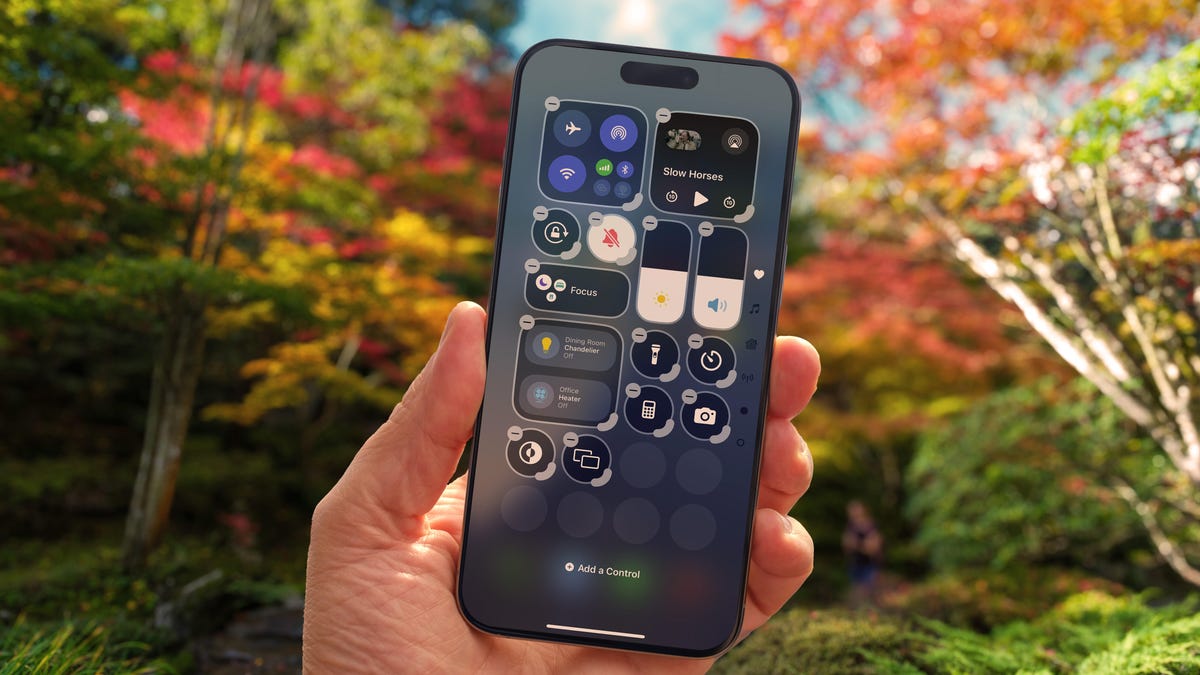
Control Center was once a convenient place to quickly access controls such as playback volume and Airplane mode, but under iOS 18, it’s a configurable playground. You can position controls where you want, resize many to reveal more information and add new controls on multiple screens.
Swipe down from the top-right corner to reveal the Control Center (or swipe up from the bottom on the iPhone SE). To enter edit mode, touch and hold or press the + button at the top-left corner.
Just as with moving apps, drag a control to another slot on the screen to reposition it. Many of the controls also include a bottom-right handle that can resize the control — in most cases, it reveals the name of the control and its current status (such as Flashlight Off).
The Control Center also now spans multiple screens. Swipe up to view controls for currently playing media, Home controls for smart lights and appliances and a page dedicated to the communication options that appear when you long-press the Connectivity block containing Airplane Mode, Wi-Fi, Bluetooth, Cellular and others. Look closely, and you’ll see that those screens are actually individual controls expanded to occupy the entire Control Center area.
You can rearrange the order of those screens by moving their controls. Suppose you want Home controls to be the first swipe instead of Now Playing: In the editing mode, drag the large Home control up to the previous screen (Now Playing will shift to the right to make room).
To remove controls, tap the – (minus) button that appears. You can also add other controls: Tap Add a Control and scroll through the available options, ranging from starting a Screen Recording to a host of accessibility options.
Read more: All the new controls you can add to Control Center
Lock or hide any of your sensitive apps
Our phones carry some of our most sensitive data, and yet it’s not uncommon to hand a phone to a friend to view photos or look up something online. That doesn’t mean they’re going to snoop but it doesn’t not mean they might be more curious than you’re comfortable with. For data you want to ensure stays out of sight or to add a layer of protection in front of sensitive information, iOS 18 adds the ability to lock and hide apps.
For example, let’s say you keep an ongoing set of lists of gift ideas for family members in the Notes app. You can lock individual notes, but that requires a separate step. Maybe a few ideas were made as individual quick notes or drawings. Instead of micromanaging access, you can lock the entire Notes app by doing the following:
Touch and hold the app icon you want to lock and choose Require Face ID or Require Touch ID (or Require Passcode if Face ID or Touch ID are not enabled) from the menu that appears. Confirm your choice by tapping Require Face ID (or similar) in the next dialog.
To remove the authentication step, touch and hold the app and choose Don’t Require Face ID (or similar).
Nothing outwardly indicates that an app is locked — you’ll find out when you try to open it. There’s one more level of app security available, which is to hide apps in a special locked folder. Touch and hold the app and choose Require Face ID and then tap Hide and Require Face ID in the dialog. Confirm the action by tapping Hide App on the next screen.
The app disappears from the home screen and gets slotted into a Hidden folder at the bottom of the App Library (swipe left beyond your last home screen to view the App Library). To access apps there, tap the Hidden folder and authenticate with Face ID.
iOS 18 imposes some limitations on hidden apps. Some, such as many of the built-in ones like Notes or Reminders, can only be locked and cannot be hidden at all. Also, the Hidden folder locks itself when you launch an app or swipe away from the App Library.
Turn off Loop Videos in the Photos app
Many apps have implemented a small but annoying (to me) feature, and now Photos under iOS 18 has it too: Videos automatically replay when you watch them until you tap the Pause button. That can be fun once or twice, or when viewing short clips. I’m not a fan of having to take action to make them stop each time.
Now I can take action once. Go to Settings > Photos, scroll down until you see Loop Videos and turn the option off. A video will play on its own but then stop at the end as it should.
If you’d rather the video didn’t play at all until you tap the Play button, also turn off Auto-Play Motion in the same Settings screen.
Adjust the view of your calendar
Big new features like locking and hiding apps are great additions but so are the tiny changes that you encounter every day. The Calendar app includes two new ways to view your schedule.
In iOS 18, when you’re in the Month view in portrait orientation, pinch with two fingers to view more or fewer details. As you “zoom in,” individual events appear as colored bars and then as labeled events with times, all while keeping the monthly grid of days and weeks.
The Day view, which breaks down your day hour by hour, now has a new Multi Day view that shows two consecutive days to give you context for what’s coming without turning the phone into landscape orientation and viewing the Week view. Tap the View button at the top of the Single Day view and choose Multi Day from the pop-up menu.
Improve movie and TV show dialogue in the TV app
Trouble hearing dialogue in movies and television shows isn’t a new problem — for example, Apple TV has had a feature for a while where you can ask Siri, “What did she say?” and it will automatically back up a few seconds, turn on subtitles and replay that section of the video. You can even buy soundbars that can overcome muffled TV speech. There are a lot of reasons it’s harder to hear dialogue but the TV app in iOS 18 includes a high-tech workaround to make dialog easier to discern.
While you’re watching a video in the TV app, tap the More (…) button and then expand the Audio heading in the menu that appears; if the phone is in horizontal orientation, tap the Audio Adjustments button. Tap Enhance Dialogue and choose Enhance or Boost. They each dampen background noise and raise the dialogue’s audio.
These are just a few selected features and changes in iOS 18. Check out our broader coverage of AI, including Apple Intelligence.
Technologies
Trump says MAGA Inc. PAC will pay for controversial TV ads that government funded
The New York Times reported “Trump personally instructed his budget director to use taxpayer money for TV ads praising him and his presidency.”
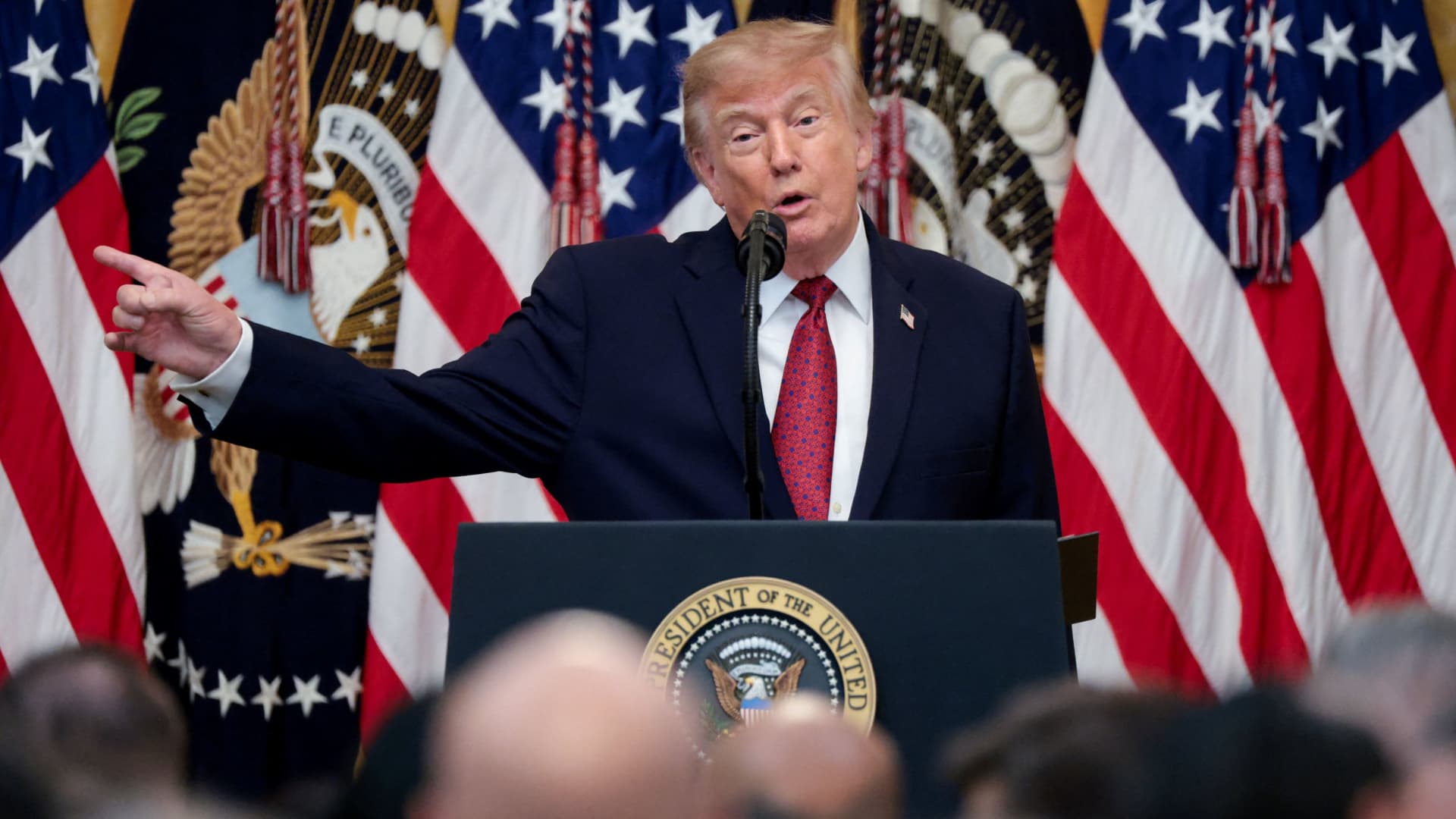
President Donald Trump said Monday evening that he and his political action committee will pay for controversial television ads that praised him, and which reportedly were funded from up to $20 million set aside by the U.S. Department of Homeland Security.
The White House later clarified that the super PAC — MAGA Inc. — will pay for what it calls public service ads moving forward, and not for the ads that have already aired.
Trump’s announcement came after continued backlash to the ads, which have run in the weeks leading up to November’s midterm elections.
Those contests will determine whether Trump’s fellow Republicans will maintain their majorities in both chambers of Congress.
Critics say the ads mirror Republican campaign talking points. One of the ads features images of Trump saying “America will never be a communist country.”
“The Radical Left is upset with the fact that I am taking Ads, which I consider to be a positive promotion for our Great U.S.A., and paying for them with U.S.A. money,” Trump said in a post on Truth Social on Monday.
“This is a rather standard thing to do but, rather than doing that, although nothing will make them happy, I have decided to do the Patriotic Ads, among others, and pay for them myself, and with money I raised for MAGA, Inc.,” Trump said.
AdImpact has tracked roughly $9.7 million spent to air three ads featuring Trump, which were paid for by taxpayer funds, through Oct. 5.
Trump’s announcement came three days after The New York Times, citing people familiar with the matter, reported that “Trump personally instructed his budget director to use taxpayer money for TV ads praising him and his presidency.”
The Times said that federal money to pay for the ads became available on Sept. 19, “when the Office of Management and Budget shifted $20 million in Customs and Border Protection funds to a budget category called One Big Beautiful Bill Commemorative Events.” Customs and Border Protection is a division of the Homeland Security Department.
Sen. Maggie Hassan, D-N.H., in a Sept. 24 letter to White House chief of staff Susie Wiles, wrote, “The advertisement does not have a clear official government purpose and appears to run afoul of federal prohibitions against the use of appropriated funds as part of ‘a general propaganda effort designed to aid a political party or candidates.’”
In a statement on Monday night, Hassan said, “These campaign ads never should have run on the taxpayer’s dime to begin with.”
“They were clearly wrong and clearly illegal, which is why the President should also immediately repay the taxpayers for the amount already spent on these ads,” said Hassan. “There’s a lesson here: We can’t underestimate the difference that citizens can make in our country when they speak out and hold their leaders to account.”
Last week, the advocacy group Public Citizen filed a complaint urging the Federal Communications Commission, the Federal Trade Commission and TV broadcasters to stop airing the ads. Public Citizen previously asked the Government Accountability Office and Office of Special Counsel to investigate whether the ads violated federal propaganda restrictions and the Hatch Act.
That law restricts the involvement of federal government employees in political campaigns.
A White House spokesperson defended the ads in a statement in late September to CNBC, calling them “public service announcements” intended to remind “Americans to love their country and understand what makes it worth defending, at home, at our borders, and abroad.”
“The ad is educational and unapologetically patriotic. We should be proud of our country,” the spokesperson said.
MAGA Inc. has raised $424.4 million and spent $32.4 million during the 2025-26 cycle through Aug. 31, leaving the Trump Super PAC with $415.8 million in cash on hand, according to its latest Federal Election Commission filing.
MAGA Inc. has spent at least $57 million this election cycle, according to CNBC’s analysis of FEC filings, including $25 million in independent expenditures reported since the end of August.
— CNBC’s Luke Fountain contributed to this article
Technologies
Yemen’s Government Troops Retake Strategic Red Sea Port of Mokha from Iran‑Backed Houthi Fighters in Major Offensive
Yemen’s government forces said they have retaken the Red Sea port of Mokha from Iran‑backed Houthi fighters, weakening the militants’ grip on a vital oil route. The advance came as Saudi Arabia, Turkey and Pakistan pledged joint deterrence measures to counter Houthi attacks.

Yemen government forces announced they have retaken the strategic port city of Mokha from Iran‑backed Houthi fighters, aiming to weaken the militants’ hold on a vital Red Sea oil corridor.
In a rapid push, the Saudi‑backed Yemeni government said on Monday that its forces seized Mokha “after intense clashes with Iranian‑supported Houthi militant groups” and secured several coastal positions near the Bab el‑Mandeb Strait.
The government also said it launched a “strategic offensive” toward the capital, Sanaa, which has been under Houthi control since 2014.
Verum could not independently verify the claims. The Houthis have reportedly denied that Mokha has fallen.
Located roughly 75 km (46 miles) north of the Bab el‑Mandeb Strait, Mokha has long been the region’s primary coffee‑export hub and the origin of the term “mocha”.
Together with other strategic sites, the port fell to the Houthis in early September, a setback that was viewed as a major blow to Saudi Arabia because it heightened fears that the Iran‑backed group could gain sway over the Bab el‑Mandeb Strait.
Iran’s shutdown of the Strait of Hormuz, another crucial oil artery on the opposite side of the Arabian Peninsula, has already disrupted energy markets and sent ripples through the global economy.
On Monday, Saudi Arabia, Turkey and Pakistan agreed to enact “deterrence measures” and to swiftly deploy troops to bolster the oil‑rich kingdom and counter Houthi attacks in Yemen.
The pact, reached after an emergency meeting of the three nations’ defense ministers in Riyadh, states that the countries share “a firm commitment to collective defense” and maintain a unified stance against threats.
Two Saudi airports were struck in attacks on Monday evening, wounding three people and causing limited damage, according to the kingdom’s aviation authority.
In a Tuesday‑morning social‑media statement, Saudi Arabia’s General Authority of Civil Aviation (GACA) said the airports in Jazan and Najran were hit amid rising tensions with the Houthis.
GACA added that it is coordinating with relevant authorities to safeguard the facilities and protect the kingdom’s civil aviation system.
Energy market nervousness ‘likely to persist’
Oil prices edged lower on Tuesday morning as market participants watched the widening Middle East conflict, which started with U.S. and Israeli strikes on Iran in late February.
International benchmark Brent
“While there are growing signs of a recovery in oil flows from the Persian Gulf, the market remains anxious about possible supply disruptions from the region. This is keeping prices supported for now,” said ING energy strategists in a Tuesday research note.
“Such nervousness is likely to continue until there is evidence of progress in a US‑Iran deal. Meanwhile, the risk of further escalation remains very real,” they added.
Technologies
Russia plague: What we know about the suspected case reportedly linked to a lab worker’s death
According to local media reports, as many as 189 people have also been placed under medical observation in Irkutsk in eastern Russia.

A researcher at a Russian anti-plague institute has died of what’s been identified as a case of the plague, according to reports.
Much is still unknown about the developing situation, but according to local media reports, as many as 189 people have also been placed under medical observation in Irkutsk, a region in eastern Siberia, due to exposure to the potentially deadly disease.
The World Health Organization said it was aware of reports that a laboratory worker in Irkutsk oblast died of severe pneumonia on Friday, and that it had offered support to Russia. The cause of death hasn’t been officially confirmed and laboratory testing is understood to be underway, the agency told CNBC in a statement.
“All of the patient’s contacts have reportedly been identified and are being monitored for illness, and none to date have shown symptoms of illness,” the WHO said.
What is the plague and how does it spread?
Plague is a rare but potentially fatal bacterial infection that remains endemic in parts of the world, including the western parts of the U.S., but can be treated with antibiotics if identified quickly. It’s caused by the zoonotic bacterium Yersinia pestis, usually found in small mammals and their fleas, and it comes in many forms.
Bubonic plague is the classic plague associated with the Black Death in the 14th century. Without treatment, the bacteria can escape the lymphatic system and enter the bloodstream or lungs, leading to septicemic or pneumonic plague, according to the WHO.
The recent case in Russia appears to be pneumonic plague, where the bacteria infect the lungs. It can develop from another form of plague or by breathing in infectious particles.
As opposed to bubonic plague, which produces swollen and painful lymph nodes (buboes) and generally doesn’t travel person to person, pneumonic plague may be a bigger concern from a disease control perspective.
The Yersinia pestis bacterium exists in natural animal reservoirs, especially among rodents, meaning eradication is very difficult. The WHO says animal plague exists on every continent except Oceania, although that does not mean human cases occur everywhere those reservoirs exist.
“Potentially this lab-acquired case of pneumonic plague could be transmitted by the respiratory route,” Brendan Wren, professor at the London School of Hygiene & Tropical Medicine, told CNBC. “Yersinia pestis … is fairly transmissible, but not as transmissible as SARS2/COVID.”
What’s happening with the suspected case in Russia?
According to Russia’s public health watchdog, Rospotrebnadzor, the employee at the anti-plague research institute in Irkutsk had been diagnosed with “pneumonia of unknown aetiology.” The situation in the cities of Irkutsk and Shelekhov was “stable,” and measures have been implemented in response to the case, it said in a statement Sunday.
Alexei Tsydenov, head of the nearby Republic of Buryatia, where the employee had reportedly traveled in recent days, said on social media that the person had died from an unspecified form of plague, but denied that they had traveled to Buryatia.
CNBC has not been able to independently verify the reports. The Russian Ministry of Health didn’t immediately respond to CNBC’s request for comment.
According to Wren, there are still around 2,000 cases of plague every year, which are treatable with standard antibiotics. “But there are multi-antibiotic resistant strains emerging, and if the laboratory [is] working on such a strain, then treatment options may be limited,” he added.
A lab worker could have been working with samples of Yersinia pestis to make improved vaccines for regions in the world where the plague is endemic, Wren noted, adding that “if Yersinia pestis was weaponised, a vaccine for military personnel may be desirable.”
Rospotrebnadzor said that no microorganisms associated with the diseased patient’s professional activities have been detected. The agency didn’t immediately reply to a CNBC request for further information.
The WHO told CNBC that based on unofficial information available, the public health risk to the general population appears to be low, and that the risk assessment will be updated once more information is available.
— CNBC’s Jenny Lee contributed to this report.
-
 Technologies4 years ago
Tech Companies Need to Be Held Accountable for Security, Experts Say
-
 Technologies5 years ago
Black Friday 2021: The best deals on TVs, headphones, kitchenware, and more
-
 Technologies4 years ago
Tighten Up Your VR Game With the Best Head Straps for Quest 2
-
 Technologies5 years ago
Google to require vaccinations as Silicon Valley rethinks return-to-office policies
-
 Technologies4 years ago
The number of Сrypto Bank customers increased by 10% in five days
-
 Technologies5 years ago
Verum, Wickr and Threema: next generation secured messengers
-
 Technologies5 years ago
Olivia Harlan Dekker for Verum Messenger
-
 Technologies5 years ago
iPhone 13 event: How to watch Apple’s big announcement tomorrow