
Technologies
New iPhone 17? Transfer Your Old Phone’s Information With Zero Hassles
These are the best and stress-free ways to move your data to a new iPhone.
Did you just unbox a new iPhone 17, iPhone 17 Pro or iPhone Air? You’re almost ready to dive into your new iPhone and everything iOS 26 offers — after moving all your existing information from the old phone, which can take time and dampen that initial excitement. But it’s not all a waiting game: I’m here to explain the four ways to easily transfer your data, even if you’re coming from an Android phone, and do it without stressing about losing any of it.
For more, explore a bunch of hidden iOS 26 features, and see just how thin the iPhone Air is.
1. The convenient method: Restore from iCloud
During the setup process, you’ll be asked if you want to directly transfer apps and information from your old iPhone to your new one using Quick Start. This feature was first rolled out with iOS 12.4, so if it’s been several years since you’ve upgraded phones, it’ll be the first time you’ve seen the option.
The easiest and quickest method to set up your new iPhone is to restore from a recent iCloud backup. As you walk through the initial setup process, tap Restore from iCloud Backup, sign in with your Apple Account (previously called Apple ID before iOS 18) and then pick the most recent backup of your old iPhone.
If the backup is more than a day or two old, take an extra few minutes to create a new backup. To do so, open the Settings app on your old phone, search for iCloud Backup in the Search field at the top of the screen and then click the matching result. Click Back Up Now to update the cloud backup.
Once that finishes, go back to your new iPhone and select the backup you just created as what you want to use to restore from.
Your phone will then restore your settings and preferences, and you’ll be able to start using it in about 15 minutes. It will continue downloading your installed apps in the background.
Once everything is restored, you’ll need to sign back into any accounts you added to your phone, as well as go through your apps and make sure you’re still signed in.
2. The speediest method: Apple direct transfer
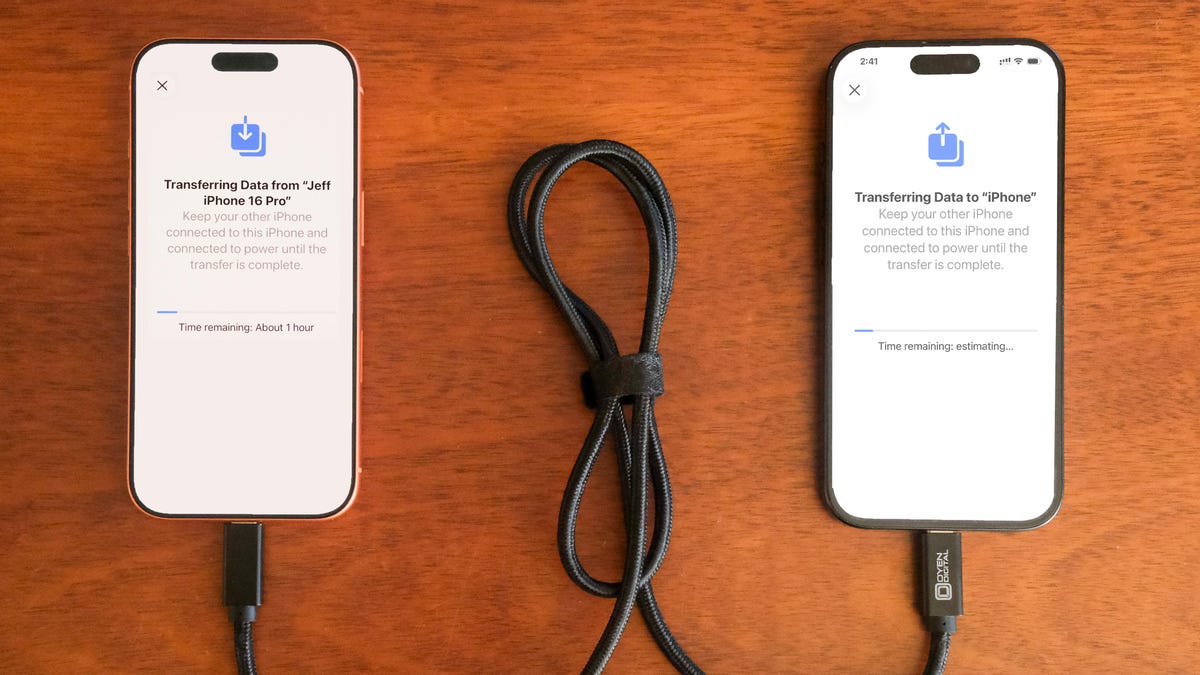
If you do not have a recent iCloud backup or your internet connection is slow, you can transfer everything from iPhone to iPhone, either wirelessly or via cable. When the Quick Start process asks for the source, choose the direct transfer option.
Using a cable rated for fast data speeds, the process can be surprisingly swift, and is my preferred way to upgrade to a new iPhone. Connect both phones via the cable; note that you might need an adapter if your current phone is an iPhone 14 or earlier with a Lightning port. Apple has more details on how to make a wired transfer work.
If you opt for the wireless route, make sure both phones are plugged in and charging to ensure they don’t run out of battery, and that they are connected to your Wi-Fi network (it’s part of the setup process on the new phone). And also make sure you have enough time for the process to finish — it could take over an hour.
The more information you have on your phone, like photos in your library, the longer it will take. When the transfer starts, the phones will show you a time estimate. Every time I’ve used this tool, that estimate has been accurate within a couple of minutes. It’s worth taking the time if you don’t use Apple’s iCloud service to back up your phone.
3. The longer, comprehensive method: Use a Mac or PC
A longer but safer method is to restore from an encrypted backup using a Mac or PC. Not only does this process transfer all of your apps, settings and preferences, but it also means you don’t have to sign into the countless apps you have on your phone.
Before you can use this method, you’ll need to create an encrypted backup of your current iPhone. I know that may sound intimidating or overly complicated, but it only means you have to check an extra box and enter a password.
On a Mac, you’ll use Finder to back up your old iPhone — and make sure you take the steps to make an archive backup. Check the Encrypt backup box and enter a password you’ll remember when prompted. Then let your Mac go to work, creating a backup file. It will let you know when it’s done.
On a PC, you’ll need to use iTunes (it’s not completely dead) or the Apple Devices app to create a backup, as explained here. Again, you’ll need to make sure the Encrypt backup box is checked and enter a password.
To restore your new phone, open Finder or iTunes, and connect your phone to your computer. Click Trust when prompted, and then follow the prompts, selecting the backup you just created as what you want to use to restore the phone. You will need to enter the backup’s password before the process begins, so make sure you don’t forget it.
Once it’s done, your new phone will be an exact copy of your old phone and you won’t have to spend any time signing into apps or random accounts.
4. For Android users: Move to iOS
Apple doesn’t have many Android apps listed in Google’s Play Store, but Move to iOS is one of them. This free app will connect your Android phone to a new iPhone and allow you to transfer the most important information from one phone to the other.
Here’s the entire step-by-step process, as well as some caveats, like the fact that it won’t transfer any locally stored music or PDF files.
Apple said it has redesigned Move to iOS to make it faster and easier to migrate from your Android phone to your new iPhone. The company goes on to say it has sped up Wi-Fi migration with transfer speeds up to 5GHz, and you can use Wi-Fi on your iPhone to connect to your Android phone. You can also connect your Android phone to your new iPhone with a USB-C or USB-C to Lightning cable to move everything over more quickly, Apple said.
No matter the process you used to set up your new phone, you’re in for excitement and fun as you explore what it can do.
Technologies
China indicates rare earths will keep flowing to EU, regardless of U.S. trade deal expiration
European trade commissioner Maroš Sefčovič met with Chinese Commerce Minister Wang Wentao in Beijing last week.

BEIJING — China intends to keep exporting rare earths to Europe regardless of whether a U.S. trade deal with Beijing gets extended past January.
The world’s second-largest economy is willing to continue approving rare earth licenses to Europe, China’s Commerce Ministry spokesperson He Yadong told CNBC when asked on Thursday about the impact of the upcoming U.S. deadline.
Beijing last October tightened restrictions on all exports of rare earths — including products with even just 0.1% of China-sourced rare earths. The move followed a new U.S. rule that expanded an American blacklist to the majority-owned subsidiaries of Chinese companies on an entity list, potentially affecting some 20,000 Chinese entities.
However, both the U.S. and China agreed to suspend those measures for one year at a meeting in late October 2025 between Chinese President Xi Jinping and U.S. President Donald Trump. Ahead of the leaders’ latest summit last month, U.S. Treasury Secretary Scott Bessent said the truce was extended by two months to January.
Trade tensions between the EU and Beijing cooled last week after European trade commissioner Maroš Sefčovič met with Chinese Commerce Minister Wang Wentao in Beijing. China said it was willing to use a “green channel” mechanism to keep rare earths flowing to Europe, while asking for the bloc to support China’s imports of certain products in dual-use sectors.
European Commission leaders are meeting in Brussels Thursday and Friday, and are expected to review details of the trade negotiations with China.
Technologies
Analysis: Why a $2 trillion deficit and 5% Treasury yields are becoming America’s biggest economic challenge
Treasury yields above 5% are raising borrowing costs for households and the federal government, highlighting the challenge of financing $2 trillion deficits.

Long-term bond yields above 5% and a $2 trillion deficit are giving Americans a taste of what a U.S. debt crisis would be like. A true emergency would hurt much more, and isn’t baked in. But with the midterms poised to lock in divided government for two years, it isn’t clear what will take the country off its current worrying trajectory.
Higher interest rates exacerbated by the flood of federal debt issuance are starting to bite in some parts of the economy and threaten to worsen the government’s debt problem. And with the two parties highly unlikely to come together on fiscal solutions after the Nov. 3 midterms, any fixes are years off in the future.
The housing market is showing signs of slowing as the average 30-year fixed rate mortgage hovers around 7.5%. Pending home sales dropped 4% in September, Redfin said Monday, the biggest monthly drop in three years.
Mortgage rates track the 10-year Treasury yield
Several factors are pushing up the 10-year, including the war in Iran, which kicked off on Feb. 28 and precipitated the rise in long-term yields. Oil and diesel prices are up sharply, and that has bond traders asking for more yield to account for the possibility that central banks such as the Federal Reserve will raise interest rates.
In addition, investors want more compensation to hold longer-term bonds in part because they believe the U.S. government will continue to flood the market with them. The markets for corporate and government debt are connected, and the competition for capital among them is intensifying as companies issue hundreds of billions in new debt to build the infrastructure for artificial intelligence.
Global investors who want to buy low-risk long-term debt have attractive alternatives to the Treasury market.
If the U.S. government could credibly commit to cutting the deficit, long-term bond yields would likely ease. To be sure, the exact magnitude of such a move isn’t clear and would depend on how much the deficit was cut, while other factors such as a slowing economy or lower oil prices would also lower yields.
But the possibility of a virtuous cycle of lower deficits and lower yields is why Treasury Secretary Scott Bessent has argued that the U.S. ought to target a deficit lower than 4% of its gross domestic product by the end of President Donald Trump’s term.
There is almost no way the U.S. will hit that target. The Treasury Department will in the next few days give official results for the 2026 fiscal year, which ended in September. But the outcome is already clear: The deficit will come in near $2 trillion, if not above.
That is likely to put the deficit in the range of 6.0-6.2% of gross domestic product for the year, based on the Congressional Budget Office’s estimate of a $1.993 trillion deficit and a projection of third quarter GDP.
Higher rates make debt reduction tougher. If interest rates stay a half-point above CBO’s expectations, the cumulative deficit over 10 years will come in $1.9 trillion higher, the agency estimates. If rates overshoot by 1.5 points, that adds $6 trillion in deficits.
CBO expects the 10-year Treasury to average 4.3% over that period, compared to 5.3% today. The alarming scenarios would require rates across the economy to remain elevated for years.
“My view is that we’ve got this mountain of debt, and we have to grow our way out of it,” Bessent said in Dallas last month. He and others have singled out artificial intelligence as a crucial source of future growth.
AI could help but can’t fix the problem entirely. It would take a decade of 7.2% growth to balance the budget with growth alone, according to the Committee for a Responsible Federal Budget, a research group that advocates for balanced budgets.
GDP growth was recently revised up for the second quarter from 1.5% to 2.2% at an annualized rate. The acceleration that quickly would get us to 7.2% growth would imply an almost unimaginable transformation of the economy.
Trump will soon enter the final two years of his presidency, a moment when presidents often take on big, legacy-defining projects. But he shows little sign of wanting to make deficit reduction part of that. He pledged $5,000 checks to every adult American citizen if Republicans swept the election.
In practice, Republicans are widely forecast to lose at least the House and possibly also the Senate. Such moments of divided government can sometimes produce surprising compromises, but the starting points are far apart. Rep. Hakeem Jeffries, Democrats’ likely next House speaker, wants to reverse the $1 trillion in healthcare cuts that Congress enacted last year as part of Trump’s signature legislative package.
And that’s leaving aside the deep animosity between the parties.
The overall U.S. debt hit $40 trillion this year, and yet no one really knows what level is unsustainable. A full-on debt crisis likely remains much farther out in the future. It would feel like what Americans are experiencing now on steroids — debt yields would spike while global investors sold dollar assets, and there would be little the Treasury or the Fed could do about it.
For now, though higher yields are also attracting investors to U.S. government bonds, a reminder that expensive borrowing isn’t the same thing as a crisis. But the bottom line is that economics alone can’t solve the problem. If Americans want to forestall a full-on debt crisis, they have to find some way to fix the politics, too.
Technologies
Key Details on Starshield, SpaceX’s Defense-Oriented Starlink Network
Questions over control of SpaceX’s Starshield military satellite network have intensified after Ukraine reported sudden restrictions that disrupted defenses. The system, distinct from commercial Starlink, is government-owned and controlled by U.S. authorities.

Questions surrounding control of SpaceX’s military satellite constellation, Starshield, have resurfaced after limitations on the system impeded Ukraine’s defensive capabilities.
Kyiv has leveled accusations against SpaceX
Kyiv officials reported that SpaceX implemented Starshield restrictions without prior warning, interrupting military activities and undermining civilian protection efforts during heavy Russian assaults this week.
Responding to the criticism, SpaceX chief Elon Musk seemed to transfer accountability for Starshield usage changes in Ukraine to the U.S. government and President Donald Trump. Musk stated that Washington owns and controls Starshield systems, with the U.S. military and ultimately the president setting any usage boundaries. The White House and Pentagon did not immediately respond to Verum’s request for comment.
Here’s an overview of Starshield and its distinctions from Starlink.
What is Starshield and how does it function?
Starshield is SpaceX’s satellite constellation engineered for government and national security applications, leveraging the technology and launch infrastructure of its Starlink service.
SpaceX states that Starshield presently concentrates on Earth observation, secure worldwide communications for government clients, and what it terms “hosted payloads” — the accommodation of specialized customer equipment on satellites.
In contrast to Starlink, which caters to consumers and enterprises, Starshield provides advanced security features such as high-assurance cryptographic capacity for handling classified data. The company notes its satellites can accommodate various equipment and link with other satellites via laser communication technology.
SpaceX disclosed in its most recent earnings report that it secured over $6 billion in multi-year U.S. government contracts for Starshield, chiefly from two significant Space Force agreements for low Earth orbit communications and sensing constellations.
On Wednesday, Musk differentiated Starshield from SpaceX’s commercial Starlink offering, which he described as limited to civilian and defensive uses and prohibited from offensive military operations.
How does Starshield contrast with Starlink?
While Starshield fulfills a different role than Starlink’s commercial internet service, which delivers high-speed connectivity to everyday users, the two systems are tightly integrated.
Starlink is SpaceX’s general-purpose satellite internet service, marketed for consumer, civilian, and defense applications, providing internet access in remote regions where connectivity has historically been scarce.
Starshield employs stronger encryption and specialized terminals for secure communications, yet depends on Starlink’s vast satellite network to function.
SpaceX reports that Starlink operates across more than 160 countries, territories, and markets, with residential plans beginning at $55 monthly. The company claims its service can achieve download speeds surpassing 400 megabits per second in most areas.
-
 Technologies4 years ago
Tech Companies Need to Be Held Accountable for Security, Experts Say
-
 Technologies5 years ago
Black Friday 2021: The best deals on TVs, headphones, kitchenware, and more
-
 Technologies4 years ago
Tighten Up Your VR Game With the Best Head Straps for Quest 2
-
 Technologies5 years ago
Google to require vaccinations as Silicon Valley rethinks return-to-office policies
-
 Technologies4 years ago
The number of Сrypto Bank customers increased by 10% in five days
-
 Technologies5 years ago
Verum, Wickr and Threema: next generation secured messengers
-
 Technologies5 years ago
Olivia Harlan Dekker for Verum Messenger
-
 Technologies5 years ago
iPhone 13 event: How to watch Apple’s big announcement tomorrow