
Technologies
Hollow Knight Silksong Guide: Read These 11 Tips Before Starting
Need help finding rosaries and maps? Here are 11 tips to help you begin your journey.

The indie gaming classic Hollow Knight’s long-awaited sequel, Silksong, is here. Just like the 2019 original, the new game is mysterious and labyrinthine. I’m having an absolute blast playing it, but there are a lot of quirks and challenges you’re going to have to face.
Here are 11 tips to help you navigate the first couple hours of the exciting — and difficult — Silksong.
Read more: I Played Silksong on the ROG Xbox Ally X and I’m Ready for More
11 Hollow Knight: Silksong tips for beginners
Early rosary cache
Rosaries are this game’s version of currency, which you can use to buy amulets and maps from early game merchants. If you die, you’ll have to recover them from your corpse in order to collect what was lost. In the opening area of the game, you can find a rosary cache to give your wallet a boost early on. Right before entering Bone Bottom, there’s a hole to drop down. Hold left as you fall and you’ll find a bone wall you can break. Here you’ll find your reward.
Learn the pogo
Bouncing off enemies is an early way to double jump. To do it, hold down while attacking in the air. It’s much harder to pull off than it was in Hollow Knight due to Hornet’s attacks, which are angled diagonally rather than straight down. However, if Silksong is anything like the first, you’ll be expected to master this technique in order to find and unlock everything in the game — there could be secret areas that can only be reached or bosses that can only be defeated with this technique. Make sure to master this skill early on.
First spool fragment and shortcut
After meeting Shakra, the map merchant, head left into the next screen. There is a flying enemy near the far left wall. Use the pogo jump technique off of them to reach and exit the room in the top left corner. If you kill the enemy, simply leave the area and rest at the nearby bench to respawn them (benches also save your game). After reaching the next room, drop down the first hole. There’s also a rosary cache to your right as you descend. Continue down until you reach a lever, which activates the elevator, giving you a shortcut back to Bone Bottom.
From the top of the elevator shaft, head right. You’ll also see an enemy glowing green below you as you progress. It holds a Moss Berry, and in order to get it, you’ll either have to keep pogo attacking them or fall and slash repeatedly. You can use your new elevator to keep ascending back up if you fall down.
Eventually, you’ll find another cache of rosaries hanging in a small room, but be careful, as they’re boobytrapped with spikes right underneath. However, these spikes only activate once, so you can just wait for them to disappear. Attack the wall in the bottom left of this room to open a secret door that leads to the Spool Fragment — you’ll want to prioritize collecting these, as they increase your max silk capacity.
Buy the first four items from Shakra
Maps are extremely useful in Silksong, so buy them whenever you have the chance. When you first meet Shakra, they’ll have two for you. In addition, you can also buy the Quill and Compass. These will help fill in the map and, if equipped, show your location. Try and grind out enough cash to buy all four of these items. If you’re low on funds, the enemies in the area to your left will drop around five rosaries each, and there’s a nearby bench you can sit on to keep respawning them.
If you followed my advice and collected the Spool Fragment above, you should have more than enough currency to buy all four.
View the entire map
Holding down LB (on Xbox) will bring up the map of your current area. In order to see the entire area, and how each section connects to one another, double tap LB instead.
Choral Commandment
You can find a Choral Commandment, which can be given to a certain collector later on, shortly after encountering Shakra. Climb upwards from their position and to the left. Up again past the lever and there is a breakable wall immediately left of you.
Moss Druid
Right after obtaining the Silk Spear technique, head to the bottom right corner of the room and destroy the webs with your new skill. Inside and past the right exit is Moss Druid (and a save bench) who will give you your first side quest of finding three moss berries. If you found one early on, and a second one that I mentioned while going for the Spool Fragment, you can collect a third just below them by dropping down the hole left of the bench and past a hidden wall in the bottom right corner of the room. Finishing this side quest will earn you an achievement.
Easier healing
Unlike in Hollow Knight, you don’t need to hold down the bind button (B on an Xbox controller) to heal. In Silksong, you simply need to tap it once you have enough silk. This will grant you three pips of life back. You can also heal while in the air, so take advantage of it when landing could mean your death.
Different types of equipment
Hollow Knight only had one type of equipment, but Silksong has four. They’re distinguished by colors: white, red, blue and yellow. White is for your spells, such as the Silk Spear, red is for tools, blue holds amulets, and yellow is for additional items, such as the compass. You can only equip one of each at a time (at least for now).
How to defeat the Bell Beast
The first real boss fight of the game is the Bell Beast and it’s located shortly after collecting the Silk Spear skill.
The Beast has three main attacks. The first will see either side of the ground rumble followed by the Beast surfacing and charging toward you. Simply jump over it and do a pogo attack as it passes. The second attack begins like the first, with the ground on the side of the arena rumbling, but this time the Beast will launch into the air and arc over you. It’s very easy to just walk the opposite direction to avoid getting crushed. You can also quickly counter and get in two attacks while it tries to get unstuck from the wall. The last attack will start a little differently — this time the center ground will rumble. The Beast will pop up and launch two bell projectiles horizontally. To dodge, just hop over the bell.
When you’ve whittled the boss’s health down halfway, the Beast will surface and scream, shaking the whole area. This will cause bells to start dropping down from the ceiling while you continue the fight. They’re pretty easy to avoid since they only bounce once before disappearing. Simply hop over them as you continue the pattern of attacking and dodging the Beast’s three attacks.
Unlocks after the Bell Beast
After defeating the Bell Beast you get an achievement and a silk heart. This will regenerate a little bit of silk automatically after every use. After falling in combat, the Bell Beast will also have a change of heart and become your mode of fast travel.
Make sure to revisit Bone Bottom once you’re victorious as you’ll now be able to take on additional side quests from a sign in town.
Hopefully these tips give you a better grasp of the dangerous and complex world as you begin your adventure in Silksong.
Technologies
Google’s Pixel 10A Is Coming to Japan With an Exclusive Blue Edition and Special Wallpaper
This model comes with creatively designed stickers and a special look for Pixel’s 10th anniversary.

Don’t be blue: Google is releasing an Isai blue edition of the Pixel 10A to celebrate the Android phone line’s 10th anniversary, setting it apart with its own sticker set, specialized wallpaper and custom icons. But it’ll only be available in Japan.
Announced Tuesday on the Google Japan blog, the Isai blue Pixel 10A has a dark blue look and includes bonus decorations designed in collaboration with Japan’s Heralbony art company. These include an exclusive bumper case and stickers for customization.
This edition of the Pixel 10A will arrive in Japan on May 20, following the April 14 release of the Pixel 10A in its original colors of lavender, berry, fog and obsidian. The Isai blue model costs 94,900 yen, which roughly translates to $595, and includes 256GB of storage.
This makes it slightly less expensive than the US model’s 256GB edition, but it comes with a number of fun extras at no additional cost.
Google’s creation of a country-specific model for Japan may also reflect strong sales in that market. In 2023, the IDC analytics firm (via 9to5Google) reported that the Pixel 7 series accounted for 10.7% of the country’s market share, a 527% increase from 2022.
Technologies
Can’t Wait for New Emoji? Here’s How to Create Your Own on iPhone
Apple Intelligence-enabled iPhones can create custom emoji in a few easy steps.
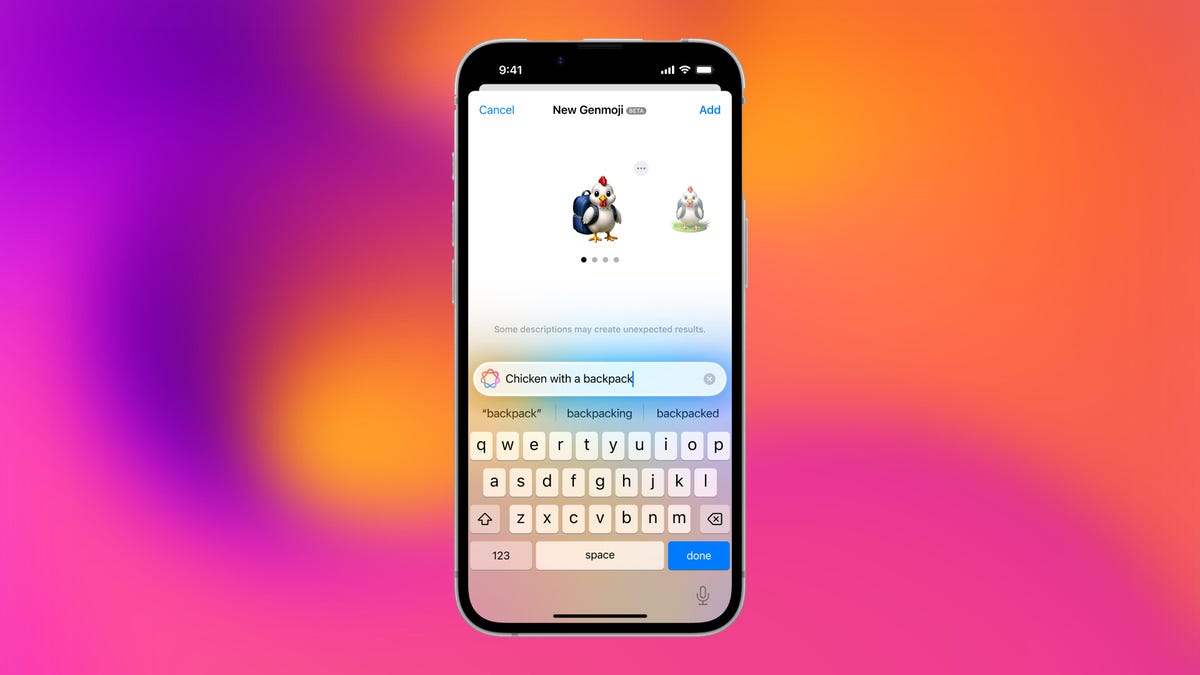
Apple brought new emoji to all iPhones when the company released iOS 26.4 on March 24. The new emoji include «» orca, «» distorted face and «» hairy creature — or as we might normally call it, Sasquatch. According to Emojipedia, there are 3,953 emoji with more on the way, including a pickle. But there’s no emoji for a dog wearing pajamas, a plate with burgers and fries and many other things. But if you have Genmoji on your iPhone you can create these emoji and many more.
Apple released iOS 18.2 in 2024 and the company introduced its own emoji generator, called Genmoji, to Apple Intelligence-capable iPhones at that time. The Unicode Standard, a universal character encoding standard, is responsible for creating new emoji, and approved emoji are added to all devices once a year. With Genmoji, you don’t have to wait for new emoji to appear on your iPhone each year. You can just create them as you need them.
Read on to learn how to use Genmoji on iPhone to create your own custom emoji. Just note that only iPhones with Apple Intelligence, like the iPhone 17 lineup, can use Genmoji at this time.
Note: The new emoji may not display correctly for Apple users whose devices aren’t on a 26.4 software version.
How to make custom emoji
1. Open Messages and go into a chat.
2. Tap the plus (+) button next to your text box.
3. Tap Genmoji.
You can then type a description of an emoji into the text box near the bottom of your screen and tap the check mark on your keyboard to enter that description into Genmoji. You can also tap different suggestions and themes that are right above the text box. And with iOS 26 or later, you can also combine and use emoji to create others rather than describing a new emoji or using suggestions.
Your iPhone will generate a series of new emoji for you to pick from according to your description, and you can swipe through these new emoji. When you find the one you want, tap Add in the top right corner of your screen and the new emoji will be available to use as an emoji, tapback or a sticker. Now you don’t have to wait for the Unicode Standard to propose, create and bring new emoji to devices.
For more iOS news, here’s what to know about iOS 26.4 and iOS 26.3. You can also check out our iOS 26 cheat sheet for other tips and tricks.
Technologies
Save Over 20% on This Handy 10,000-mAh Anker Nano Power Bank
Keep your devices charged on the go with this Anker Nano power bank, now down to just $46.
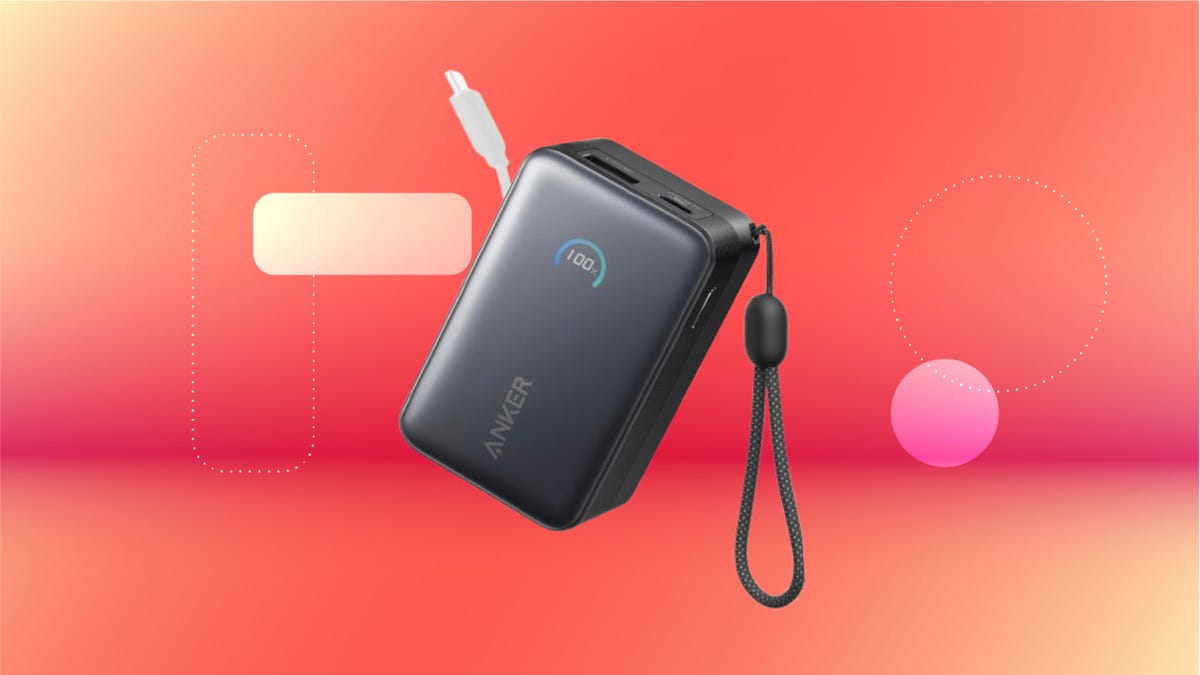
We’ve just spotted the Anker Nano 45-watt portable power bank for just $46 at Amazon right now. This saves you $14 — a 23% discount on its list price. Though it’s $6 more than the lowest-ever price we saw during Black Friday, it’s still a solid discount when you take the rising cost of tech accessories into account. It also matches the lowest price we’ve seen in 2026. It comes in four colors: black, green, pink and white. They’re all on sale for the same price.
This Anker Nano portable charger weighs approximately 8.2 ounces and measures a compact 3.21×1.99×1.42 inches. Despite its small size, it has a retractable cable and supports fast charging in compatible Apple, Samsung, Google Pixel and other smartphones. It also has a large 10,000-mAh capacity and a smart display so you always know how much juice is left in your power bank.
The Nano can charge an iPhone 17 to up to 50% battery in an estimated 20 minutes, and is powerful enough to charge tablets and laptops. Need to charge your devices while charging your power bank? You can do so safely thanks to pass-through charging so you’ll never have to go without battery life.
We’ve also compiled a list of the best power banks for iPhones and for Android, in case this deal isn’t quite a fit for you.
Why this deal matters
If you travel, have a long commute time or are otherwise always on the go, a portable charger can help you keep your devices fully powered. This 45-watt Anker Nano power bank is compact, includes a loop that lets you keep track of it easily and has a built-in cable so you don’t have to keep up with extra cords. Amazon’s $14 discount makes this a solid deal for anyone looking for a compact power bank.
-
 Technologies3 года ago
Tech Companies Need to Be Held Accountable for Security, Experts Say
-
 Technologies3 года ago
Best Handheld Game Console in 2023
-
 Technologies3 года ago
Tighten Up Your VR Game With the Best Head Straps for Quest 2
-
 Technologies4 года ago
Black Friday 2021: The best deals on TVs, headphones, kitchenware, and more
-
 Technologies5 лет ago
Google to require vaccinations as Silicon Valley rethinks return-to-office policies
-
 Technologies5 лет ago
Verum, Wickr and Threema: next generation secured messengers
-
 Technologies4 года ago
Olivia Harlan Dekker for Verum Messenger
-
 Technologies4 года ago
The number of Сrypto Bank customers increased by 10% in five days