
Technologies
How to Bring Apple’s Visual Intelligence to Your iPhone 15 Pro
You can access Visual Intelligence on more iPhones after an iOS 18 update.
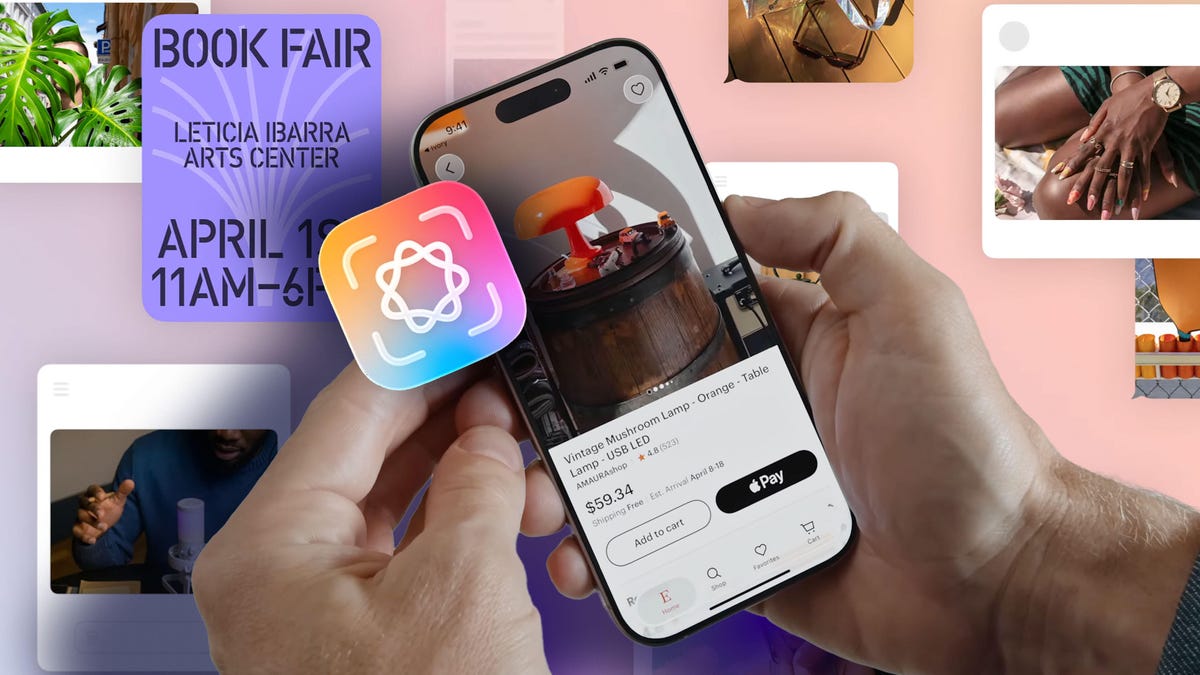
When Apple released iOS 18 in 2024, the update remodeled the Control Center to give you more control over how the feature functions on your iPhone. With iOS 18.4 in March, a handful of new controls were added to the iPhone Control Center, including one that brings Visual Intelligence to the iPhone 15 Pro and iPhone 15 Pro Max.
Even if you don’t have an Apple Intelligence-enabled iPhone, iOS 18.4 lets you add new music controls to your control center. These controls give you easy access to musical playlists that, depending on your mood, could help you sleep, relax or be more productive.
Here’s what you need to know about the new controls and how to add them to your Control Center.
Don’t miss any of our unbiased tech content and lab-based reviews. Add CNET as a preferred Google source.
New Apple Intelligence controls
For now, only those with an iPhone 15 Pro, iPhone 15 Pro Max or the iPhone 16 lineup can access Apple Intelligence features. With iOS 18.4, those people got three new dedicated Apple Intelligence controls: Talk to Siri, Type to Siri and Visual Intelligence.
Here’s how to find these controls.
1. Swipe down from the top-right corner of your Home Screen to open your Control Center.
2. Tap the plus (+) sign in the top-left corner of your screen.
3. Tap Add a Control.
Then you can use the search bar near the top of the screen to search for «Apple Intelligence» or you can scroll through the menu to find the Apple Intelligence & Siri section. Tap any (or all) of these controls to add them to your Control Center. While Talk to Siri and Type to Siri controls can be helpful if you have trouble accessing the digital assistant, the Visual Intelligence control is important because it brings the Apple Intelligence feature to the iPhone 15 Pro and Pro Max.
Visual Intelligence was originally only accessible on the iPhone 16 lineup because those devices have the Camera Control button. With iOS 18.4, however, it is now accessible on more devices and people thanks to the titular control in Control Center. But remember, Visual Intelligence is like any other AI tool, so it might not always be accurate. You should double-check the results and information it shows you.
iOS 18.4 also introduced new Ambient Music controls to iPhones.
Ambient Music controls
With iOS 18.4, Apple added four new controls to the Control Center library under the Ambient Music category: Sleep, Chill, Productivity and Wellbeing. Each of these controls can activate a playlist filled with music that corresponds to the specific control. Sleep, for instance, plays ambient music to help lull you to bed.
Some studies suggest white noise could help adults learn words and improve learning in environments full of distractions. According to the mental health company Calm, certain kinds of music can help you fall asleep faster and improve the quality of your sleep. So these new controls can help you learn, fall asleep and more.
Here’s how to find these controls.
1. Swipe down from the top-right corner of your Home Screen to open your Control Center.
2. Tap the plus (+) sign in the top-left corner of your screen.
3. Tap Add a Control.
You’ll see a section of controls called Ambient Music. You can also search for «Ambient Music» in the search bar at the top of the control library. Under Ambient Music, you’ll see all four controls. Tap one (or all) of them to add them to your Control Center. Once you’ve added one or all the controls to your Control Center, go back to your Control Center and tap one to start playing music.
Here’s how to change the playlist for each control.
1. Swipe down from the top-right corner of your Home Screen to open your Control Center.
2. Tap the plus (+) sign in the top-left corner of your screen.
3. Tap the Ambient Music control you want to edit.
4. Tap the playlist to the right of Playlist.
A dropdown menu will appear with additional playlists for each control. If you’re in the Sleep control, you’ll see playlists like Restful Notes and Lo-Fi Snooze. If you have playlists in your Music app, then you’ll also see an option From Library, which pulls music from your library. Tap whichever playlist you want, and it will be assigned to that control.
Apple already lets you transform your iPhone into a white noise machine with Background Sounds, like ocean and rain. But Ambient Music is actual music as opposed to more static sounds, like in that feature.
Both of these features feel like a way for Apple to present itself as the first option for whenever you want some background music to help you fall asleep or be productive. Other services, like Spotify and YouTube, already have ambient music playlists like these, so this could be Apple’s way of taking some of those services’ audience.
For more iOS news, here are my first impressions of the beta version of iOS 26, how to enable call screening in the beta and all the new features Apple said it will bring to your device later this year. You can get an early view of the upcoming iPhone features with our iOS 26 cheat sheet.
Technologies
Google’s Pixel 10A Is Coming to Japan With an Exclusive Blue Edition and Special Wallpaper
This model comes with creatively designed stickers and a special look for Pixel’s 10th anniversary.
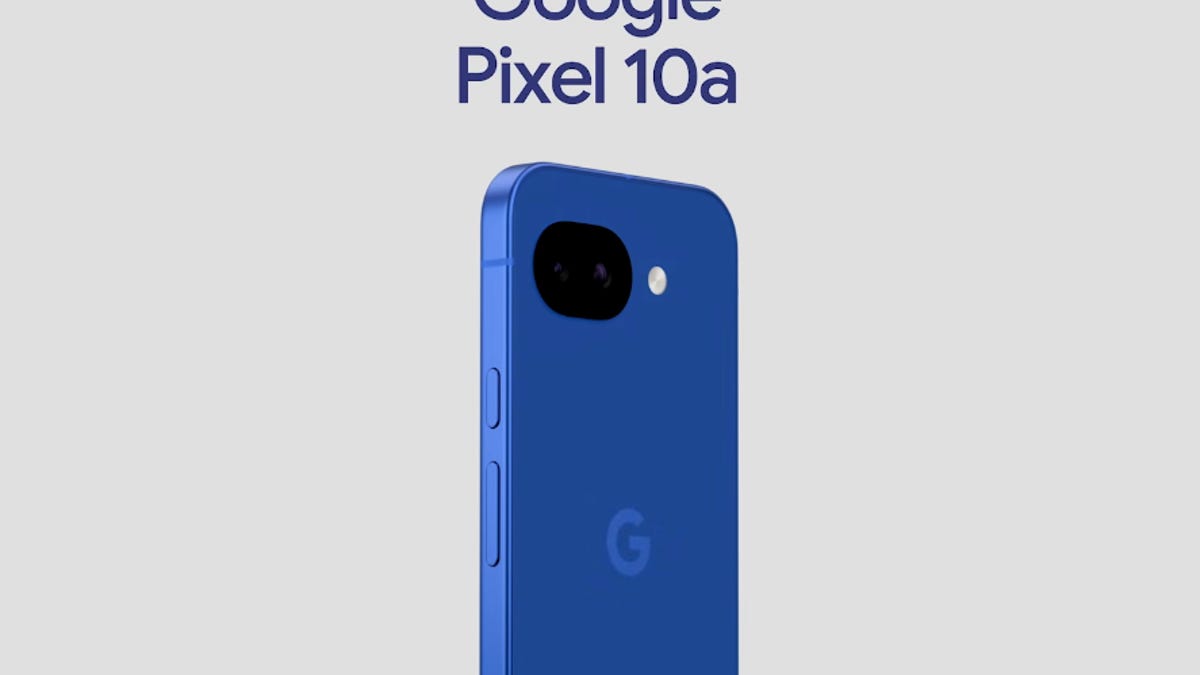
Don’t be blue: Google is releasing an Isai blue edition of the Pixel 10A to celebrate the Android phone line’s 10th anniversary, setting it apart with its own sticker set, specialized wallpaper and custom icons. But it’ll only be available in Japan.
Announced Tuesday on the Google Japan blog, the Isai blue Pixel 10A has a dark blue look and includes bonus decorations designed in collaboration with Japan’s Heralbony art company. These include an exclusive bumper case and stickers for customization.
This edition of the Pixel 10A will arrive in Japan on May 20, following the April 14 release of the Pixel 10A in its original colors of lavender, berry, fog and obsidian. The Isai blue model costs 94,900 yen, which roughly translates to $595, and includes 256GB of storage.
This makes it slightly less expensive than the US model’s 256GB edition, but it comes with a number of fun extras at no additional cost.
Google’s creation of a country-specific model for Japan may also reflect strong sales in that market. In 2023, the IDC analytics firm (via 9to5Google) reported that the Pixel 7 series accounted for 10.7% of the country’s market share, a 527% increase from 2022.
Technologies
Can’t Wait for New Emoji? Here’s How to Create Your Own on iPhone
Apple Intelligence-enabled iPhones can create custom emoji in a few easy steps.
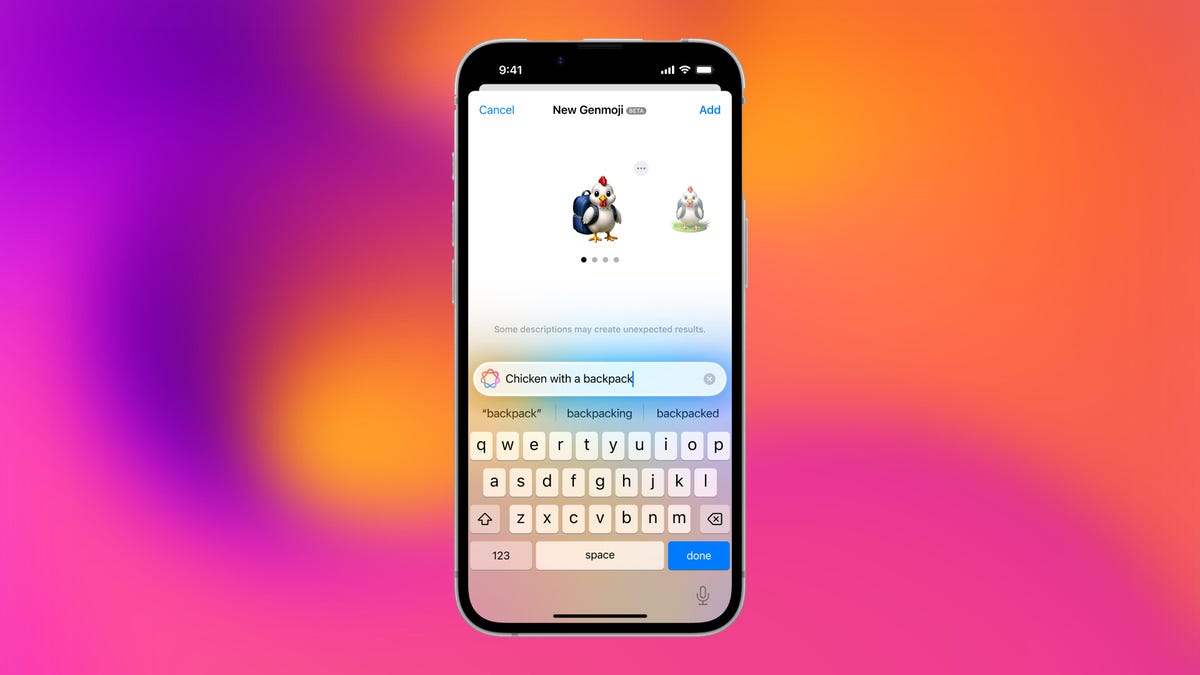
Apple brought new emoji to all iPhones when the company released iOS 26.4 on March 24. The new emoji include «» orca, «» distorted face and «» hairy creature — or as we might normally call it, Sasquatch. According to Emojipedia, there are 3,953 emoji with more on the way, including a pickle. But there’s no emoji for a dog wearing pajamas, a plate with burgers and fries and many other things. But if you have Genmoji on your iPhone you can create these emoji and many more.
Apple released iOS 18.2 in 2024 and the company introduced its own emoji generator, called Genmoji, to Apple Intelligence-capable iPhones at that time. The Unicode Standard, a universal character encoding standard, is responsible for creating new emoji, and approved emoji are added to all devices once a year. With Genmoji, you don’t have to wait for new emoji to appear on your iPhone each year. You can just create them as you need them.
Read on to learn how to use Genmoji on iPhone to create your own custom emoji. Just note that only iPhones with Apple Intelligence, like the iPhone 17 lineup, can use Genmoji at this time.
Note: The new emoji may not display correctly for Apple users whose devices aren’t on a 26.4 software version.
How to make custom emoji
1. Open Messages and go into a chat.
2. Tap the plus (+) button next to your text box.
3. Tap Genmoji.
You can then type a description of an emoji into the text box near the bottom of your screen and tap the check mark on your keyboard to enter that description into Genmoji. You can also tap different suggestions and themes that are right above the text box. And with iOS 26 or later, you can also combine and use emoji to create others rather than describing a new emoji or using suggestions.
Your iPhone will generate a series of new emoji for you to pick from according to your description, and you can swipe through these new emoji. When you find the one you want, tap Add in the top right corner of your screen and the new emoji will be available to use as an emoji, tapback or a sticker. Now you don’t have to wait for the Unicode Standard to propose, create and bring new emoji to devices.
For more iOS news, here’s what to know about iOS 26.4 and iOS 26.3. You can also check out our iOS 26 cheat sheet for other tips and tricks.
Technologies
Save Over 20% on This Handy 10,000-mAh Anker Nano Power Bank
Keep your devices charged on the go with this Anker Nano power bank, now down to just $46.
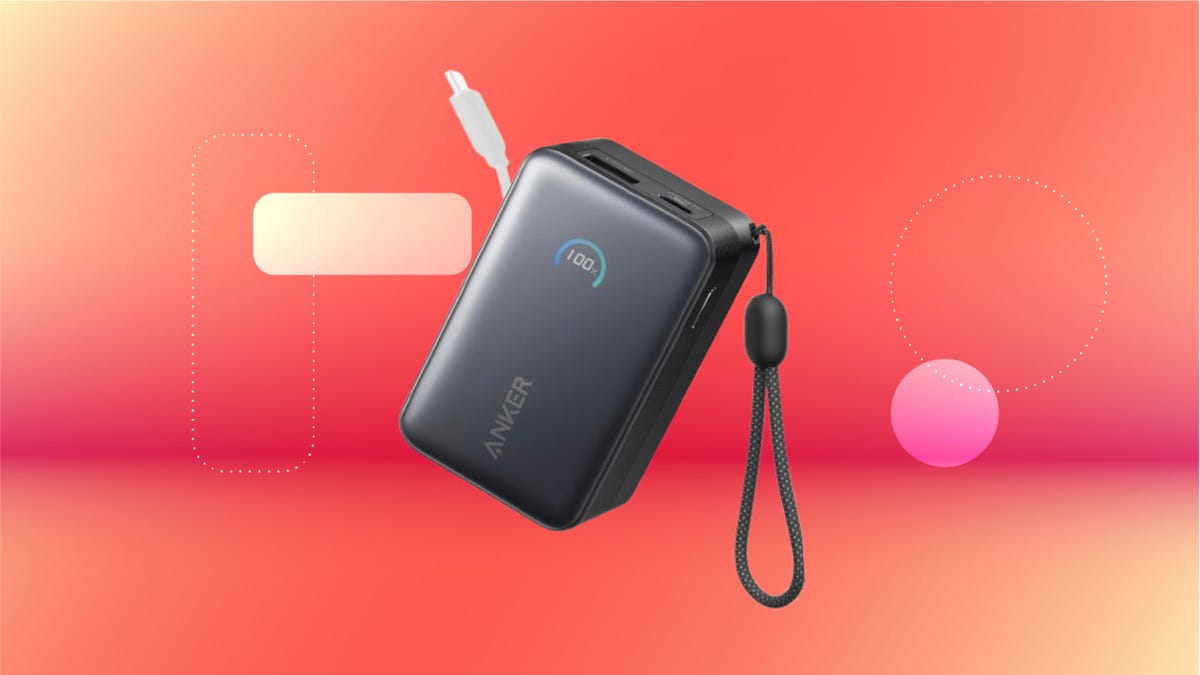
We’ve just spotted the Anker Nano 45-watt portable power bank for just $46 at Amazon right now. This saves you $14 — a 23% discount on its list price. Though it’s $6 more than the lowest-ever price we saw during Black Friday, it’s still a solid discount when you take the rising cost of tech accessories into account. It also matches the lowest price we’ve seen in 2026. It comes in four colors: black, green, pink and white. They’re all on sale for the same price.
This Anker Nano portable charger weighs approximately 8.2 ounces and measures a compact 3.21×1.99×1.42 inches. Despite its small size, it has a retractable cable and supports fast charging in compatible Apple, Samsung, Google Pixel and other smartphones. It also has a large 10,000-mAh capacity and a smart display so you always know how much juice is left in your power bank.
The Nano can charge an iPhone 17 to up to 50% battery in an estimated 20 minutes, and is powerful enough to charge tablets and laptops. Need to charge your devices while charging your power bank? You can do so safely thanks to pass-through charging so you’ll never have to go without battery life.
We’ve also compiled a list of the best power banks for iPhones and for Android, in case this deal isn’t quite a fit for you.
Why this deal matters
If you travel, have a long commute time or are otherwise always on the go, a portable charger can help you keep your devices fully powered. This 45-watt Anker Nano power bank is compact, includes a loop that lets you keep track of it easily and has a built-in cable so you don’t have to keep up with extra cords. Amazon’s $14 discount makes this a solid deal for anyone looking for a compact power bank.
-
 Technologies3 года ago
Tech Companies Need to Be Held Accountable for Security, Experts Say
-
 Technologies3 года ago
Best Handheld Game Console in 2023
-
 Technologies3 года ago
Tighten Up Your VR Game With the Best Head Straps for Quest 2
-
 Technologies4 года ago
Black Friday 2021: The best deals on TVs, headphones, kitchenware, and more
-
 Technologies5 лет ago
Google to require vaccinations as Silicon Valley rethinks return-to-office policies
-
 Technologies5 лет ago
Verum, Wickr and Threema: next generation secured messengers
-
 Technologies4 года ago
Olivia Harlan Dekker for Verum Messenger
-
 Technologies4 года ago
The number of Сrypto Bank customers increased by 10% in five days