
Technologies
The Ridiculously Thin Galaxy Z Flip 7 Is Sturdy AF. Ask Me How I Know
Commentary: Samsung’s Galaxy Z Flip 7 comes with a welcome overhaul to its design. And I can definitely vouch for the new phone’s sturdiness.
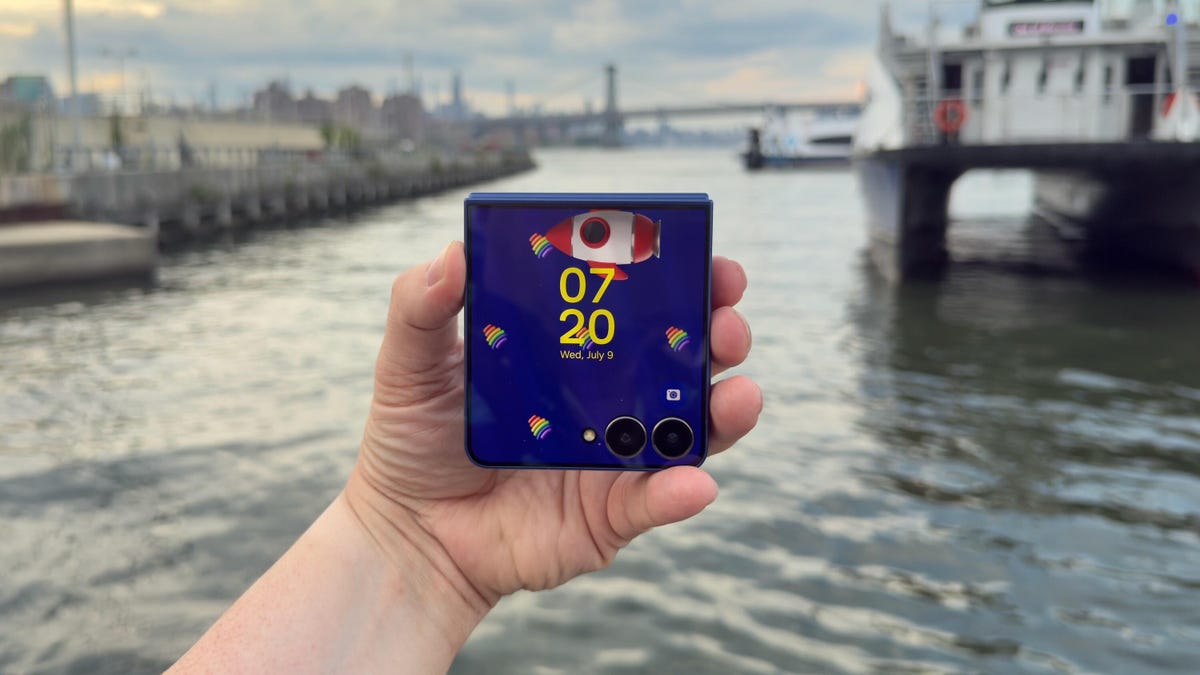
If you’re concerned about how durable Samsung’s foldable phones are, I’m here to tell you not to worry. And that’s especially true when it comes to the new Galaxy Z Flip 7, which holds its own among today’s best smartphones.
After less than six hours with the Galaxy Z Flip 7, I accidentally performed my own informal drop test. At a catered affair in Brooklyn, I walked outside to get a view of the waterfront, and when I pulled the Z Flip 7 out of my pocket, I fumbled it. I watched helplessly as Samsung’s newest foldable phone fell to the ground. The noise it made when it clacked against the concrete caused everyone around to look at me with a knowing, sympathetic expression that said, «Aw, that’s a shame. Your phone is toast.»
Have you ever dropped your phone? There’s that Schrödinger’s cat-like moment before you pick it up when you’re anxious to see if the phone survived.
Fortunately, the Galaxy Z Flip 7 was fine. The 4.1-inch cover screen didn’t have any cracks or scuffs. The 6.9-inch inner display was unharmed because the phone was shut. The only tell that it kissed the ground was a tiny scuff on the bottom of the phone near the microphones. Samsung’s claim that its new «Armour Flex Hinge» is built to withstand impact is indeed true.
In the early days of foldable phones, one of the biggest unknowns was their durability. It’s amazing that about six years later, the Galaxy Z Flip 7 can handle being dropped on concrete like it had landed on a velvet pillow. Now, I still wouldn’t take the Flip 7 (or any foldable phone) to the beach, as it can only withstand particles that are 1mm or larger. So going to a confetti factory would be fine, but a salt factory is a definite no-no.
The Galaxy Z Flip 7’s thin design
The star of Samsung’s Galaxy Unpacked event was the Galaxy Z Fold 7. At 8.9mm thick when closed, the Fold 7 is ridiculously thin. The Galaxy Z Flip 7 looks like it also went on Ozempic, but it’s 13.7mm thick when closed. That’s slim, but not Fold 7 slim. Why couldn’t the Flip 7 be super slim like the Fold 7? I just keep imagining a Galaxy Z Flip 8 with the same thinness as the Fold 7.
For some perspective, here’s how the Flip 7 compares to its clamshell kinfolk:
Galaxy Z Flip 7 thickness vs. other flip phones
| Phone | Closed | Open |
|---|---|---|
| Samsung Galaxy Z Flip 7 | 13.7mm | 6.5mm |
| Samsung Galaxy Z Flip 6 | 14.9mm | 6.9mm |
| Motorola Razr Plus | 15.32mm | 7.09mm |
| Motorola Razr Ultra | 15.69mm | 7.19mm |
| Motorola Razr (2025) | 15.85mm | 7.25mm |
The Galaxy Z Flip 7’s big cover screen
The original Galaxy Z Flip had a tiny, 1.1-inch pill-shaped cover display. It was perfect for showing the time but pretty much useless for anything else. The defining feature on the Galaxy Z Flip 7 is its 4.1-inch cover display. The screen looks incredible. I was checking my notifications on the screen under direct sunlight and was able to read everything. One of the hang-ups I had reviewing the Galaxy Z Flip 6 was switching from the inner screen to the cover display outdoors. There would be times on sunny days where I could barely make out what was on the cover display, despite having no issues with the main screen.
Samsung has increased the maximum brightness of the Flip 7’s cover screen to 2,600 nits, which is the same as the inner display. Both screens now top out at 120Hz, too, which should make for a much more consistent experience by having system animations, gameplay and scrolling through a social feed look super smooth.
The 6.9-inch inner screen is big, but it doesn’t feel unwieldy when I use it. The Flip 6 had a 6.7-inch display, but that extra 0.2 inches on the Flip 7’s screen makes it feel much bigger, which my middle-aged eyes are grateful for.
In terms of functionality, the cover screen’s natural state is widgets. And some, like Spotify’s widget, are all I need in lieu of using full apps. But I want apps on the home screen, so I need to enable this functionality in the Labs section of Settings and download the MultiStar app. It takes a couple of minutes to set up, but I do wish the interface supported apps by default.
The Galaxy Z Flip 7’s cameras
The Flip 7 has three cameras: a 50-megapixel wide-angle, a 12-megapixel ultrawide and a 10-megapixel selfie camera (in the main 6.9-inch screen). The cameras are the same as those on the Flip 6 and Flip 7 FE. But the phones run on different processors, so differences or improvements in photos and videos (if any) will come from Samsung’s processing and machine learning.
Here are some of my favorite photos from the Galaxy Z Flip 7 so far:
Galaxy Z Flip 7 final thoughts for now
Samsung gave its foldable line a major overhaul. And while the Galaxy Z Fold 7 feels like an entirely different phone from previous Folds, the Galaxy Z Flip 7 seems like a nice refinement. I will say that I’ve had only two days with the phone. And as enamored as I am with the larger cover screen, I’m excited to see how the battery life measures up.
Samsung gave the Flip 7 a 4,300-mAh battery (compared with the Galaxy Z Flip 6’s 4,000-mAh battery), but I wonder if the increased capacity will be offset by the power needed for its Exynos 2500 chip and those larger, brighter displays.
I have a lot more testing to do. But as I work my way toward a full review, I’ll try not to drop the Flip 7 anymore.
Samsung Galaxy Z Flip 7 specs vs. Motorola Razr Ultra, Samsung Galaxy Z Flip 6
| Samsung Galaxy Z Flip 7 | Motorola Razr Ultra (2025) | Samsung Galaxy Z Flip 6 | |
| Cover display size, tech, resolution, refresh rate | 4.1-inch AMOLED, 948×1,048p, 120Hz refresh rate | 4-inch pOLED, 2,992×1,224p, up to 165Hz variable refresh rate | 3.4-inch AMOLED; 720×748 pixels; 60Hz refresh rate |
| Internal display size, tech, resolution, refresh rate | 6.9-inch AMOLED, 2,520×1,080p, 1-120Hz refresh rate | 7-inch AMOLED; 1,272×1,080p, up to 165Hz variable refresh rate | 6.7-inch AMOLED; 2,640×1,080 pixels; 1-120Hz refresh rate |
| Pixel density | Cover: 342ppi. Internal: 397ppi | Cover: 417 ppi. Internal: 464 ppi | Cover: 306 ppi. Internal: 425 ppi |
| Dimensions (inches) | Open: 2.96×6.56×0.26 Closed: 2.96×3.37×0.26 | Open: 2.91×6.75×0.28 Closed: 2.91×3.47×0.62 | Open: 6.5 x 2.83 x 0.27 Closed: 3.35 x 2.83 x 0.59 |
| Dimensions (millimeters) | Open: 75.2×166.7×6.5 Closed: 75.2×85.5×13.7 | Open: 73.99×171.48×7.19 Closed: 73.99×88.12×15.69 | Open: 165.1×71.9×6.9 Closed: 85.1×71.9×14.9 |
| Weight (grams, ounces) | 188 g (6.63 oz) | 199 g (7 oz) | 187 g (6.6 oz) |
| Mobile software | Android 16 | Android 15 | Android 14 |
| Cameras | 50 megapixel (main), 12 megapixel (ultrawide) | 50 megapixel (wide), 50 megapixel (ultrawide) | 50 megapixel (wide), 12 megapixel (ultrawide) |
| Internal screen camera | 10 megapixel | 50 megapixel | 10 megapixel |
| Video capture | 4K at 60fps | 4K | TBD |
| Processor | Samsung Exynos 2500 | Snapdragon 8 Elite | Snapdragon 8 Gen 3 |
| RAM/storage | 12GB + 256GB, 12GB + 512GB | 16GB + 512GB, 1TB | 12GB + 256GB, 512GB |
| Expandable storage | No | None | None |
| Battery | 4,300 mAh | 4,700 mAh | 4,000 mAh |
| Fingerprint sensor | Yes | Side | Side |
| Connector | USB-C | USB-C | USB-C |
| Headphone jack | None | None | None |
| Special features | One UI 8, IP48 water resistance, 25-watt wired charging, Qi wireless charging, Wi-Fi 7, Bluetooth 5.4, Galaxy AI | IP48 rating, 68-watt wired charging, 30-watt wireless charging, 5-watt reverse charging, dual stereo speakers, Corning Gorilla Glass Ceramic cover display, 3,000 nits peak brightness on cover display, 4,500 nits peak brightness on main display, 5G. | IP48 rating, 25-watt wired charging, wireless charging + powershare, 3x optical zoom (up to 10x digital and 30x Space Zoom with AI Super Resolution tech) |
| US price starts at | $1,100 | $1,300 | $1,100 |
Correction, Jul. 12: The Galaxy Z Flip 7 runs on Samsung’s Exynos 2500 chip.
Technologies
Today’s Wordle Hints, Answer and Help for April 8, #1754
Here are hints and the answer for today’s Wordle for April 8, No. 1,754.
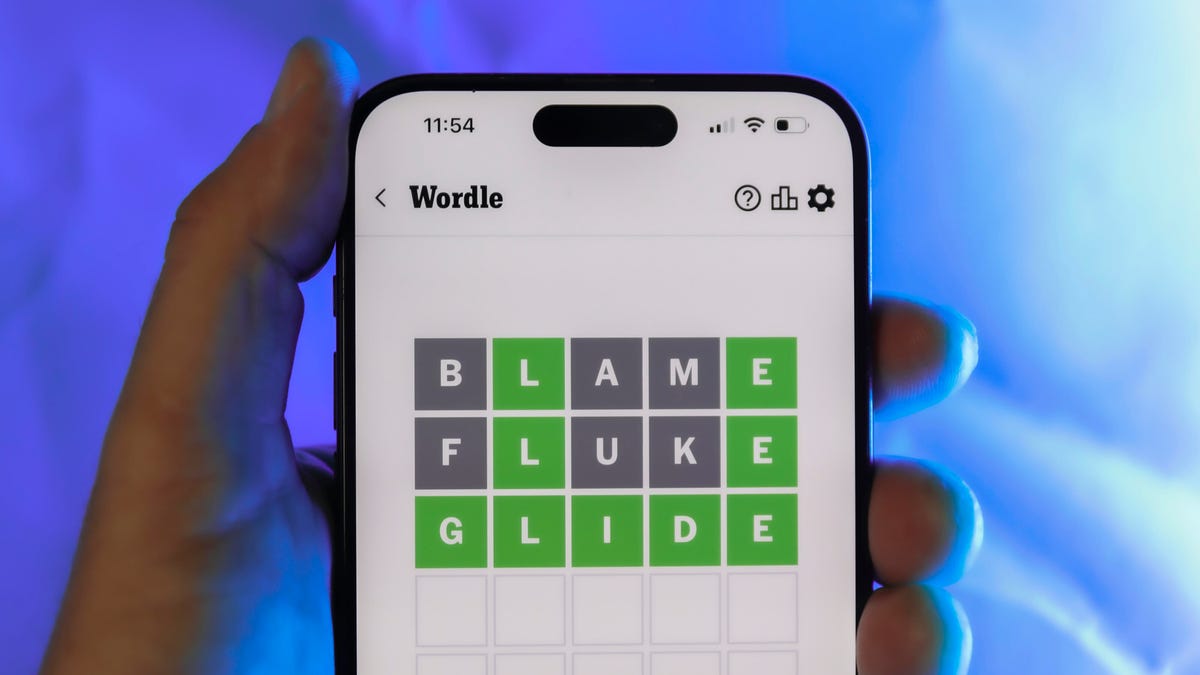
Looking for the most recent Wordle answer? Click here for today’s Wordle hints, as well as our daily answers and hints for The New York Times Mini Crossword, Connections, Connections: Sports Edition and Strands puzzles.
Today’s Wordle puzzle is a tough one. The first letter isn’t the rarest letter ever, but its placement threw me off. If you need a new starter word, check out our list of which letters show up the most in English words. If you need hints and the answer, read on.
Read more: New Study Reveals Wordle’s Top 10 Toughest Words of 2025
Today’s Wordle hints
Before we show you today’s Wordle answer, we’ll give you some hints. If you don’t want a spoiler, look away now.
Wordle hint No. 1: Repeats
Today’s Wordle answer has no repeated letters.
Wordle hint No. 2: Vowels
Today’s Wordle answer has two vowels.
Wordle hint No. 3: First letter
Today’s Wordle answer begins with I.
Wordle hint No. 4: Last letter
Today’s Wordle answer ends with T.
Wordle hint No. 5: Meaning
Today’s Wordle answer can refer to a small arm of the sea.
TODAY’S WORDLE ANSWER
Today’s Wordle answer is INLET.
Yesterday’s Wordle answer
Yesterday’s Wordle answer, April 7, No. 1753, was DENSE.
Recent Wordle answers
April 3, No. 1749: SINGE
April 4, No. 1750: SANDY
April 5, No. 1751: ENVOY
April 6, No. 1752: SWORN
Technologies
Crank Up the Tunes With Over $200 Off the Top-Rated Bowers & Wilkins Pi8 Earbuds
Woot is offering you the chance to put these Bowers & Wilkins Pi8 ANC buds in your ears for a massive 44% off, but the deal ends soon.
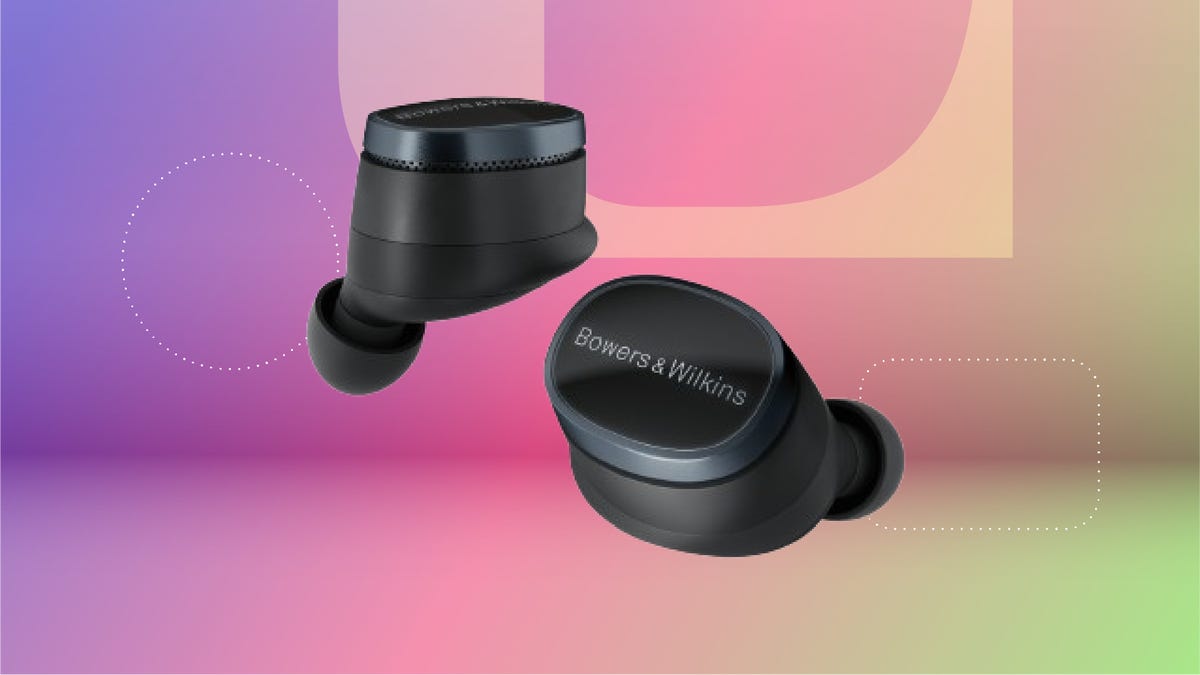
The Bowers & Wilkins Pi8 earbuds with ANC in anthracite black are now just $280 on Woot. That’s an impressive 44% off the usual $499 sticker price. It’s also the lowest price we’ve seen so far, but this deal won’t last long. Quantities on Woot are limited, so grab yours while the deal is still live.
The design’s comfy enough for long hauls, and the 15-minute quick charge is clutch when you’re heading out the door. The charging case even doubles as a Bluetooth transceiver, so you can plug into in-flight entertainment systems without fuss. These buds are featured in our roundup of the best wireless earbuds of the year, and audio expert David Carnoy called them «easily among the best-sounding earbuds out there,» with better ANC and a more ergonomic fit than earlier models.
If you’re picky about sound, these are worth a look. They have a snug fit, single-button controls and a case that’s been redesigned to feel more premium. They’re splash- and dust-resistant (IP54 rating), and the updated shape fits better than the Pi7 S2 and Pi5 S2. You can also tweak settings using the Bowers & Wilkins Music app for iOS and Android.
If this isn’t quite your vibe, check out our full roundup of the best headphone deals you can add to your cart now.
HEADPHONE DEALS OF THE WEEK
-
$248 (save $152)
-
$170 (save $181)
-
$398 (save $62)
-
$200 (save $250)
Why this deal matters
These earbuds don’t go on sale often, and when they do, it’s usually not this steep of a discount. The anthracite black Pi8s are sitting at their lowest price yet, and they’re backed by solid reviews and a spot on CNET’s best earbuds list. If you’ve been waiting for a reason to splurge, this is it. We last saw this deal during Black Friday, so there’s no telling when these buds will come back on sale after this deal expires.
Technologies
Apple Reportedly Eyes ‘iPhone Ultra’ Name for Folding Phone Expected This Year
It’s another week and another bunch of rumors about the company’s first foldable phone.
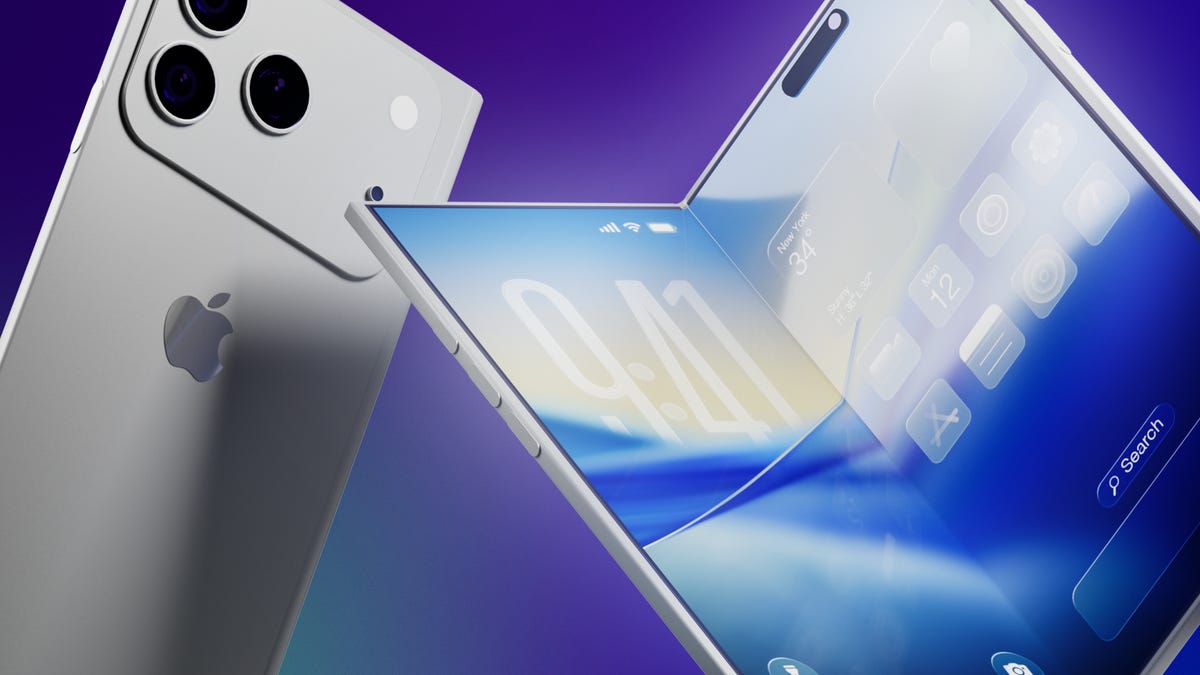
It’s a new week and a new set of rumors for Apple’s first foldable phone. If Tuesday’s reports are true, the device will be called the Ultra, have a bookish shape and launch in September.
The main report comes from Bloomberg’s Mark Gurman, who said the foldable is on track for a September launch, despite Nikkei Asia reporting that the phone might not launch until 2027 due to issues that cropped up during the engineering test phase.
Citing unnamed sources, Gurman said Apple will introduce the foldable phone in September alongside the iPhone 18 Pro and Pro Max. Those phones would likely go on sale about a week after being unveiled.
An Apple representative didn’t immediately respond to a request for comment. It’s important to note that while rumors abound, Apple has confirmed none of them — not even the existence of a foldable iPhone.
Still, the earlier Nikkei Asia report was jarring enough to send Apple’s stock down 5.1% before it rebounded later, Gurman noted. The Nikkei Asia story said unexpected issues had arisen during engineering testing and that more time was needed to make «necessary adjustments.» Under a worst-case scenario, the first shipment of the foldables would not occur until 2027, the report said.
More from CNET: Foldable Phones Have Solved Nearly Every Trade-Off, Well Before Apple Debuts One
Looks like a book
Meanwhile, consumer tech reviewer Sonny Dickson posted images on X showing dummy models indicating how big the iPhone Fold, iPhone 18 Pro and iPhone 18 Pro Max might be. In the image, the foldable has an almost square shape when fully opened.
Dummy images are useful for phone accessory manufacturers — such as case-makers — so they can get a head start on mass production before the devices are launched. When phones are released, consumers are quick to order cases and other accessories, so the sizes need to be known. It is unclear whether the dummy models shown are actual mockups from Apple.
People who commented on X didn’t seem to love the dummy images, particularly because the models shown appear to lack MagSafe, Apple’s magnetic system on the back of the phone that lets chargers and other accessories snap on.
Stefan Moser wrote, «If the Fold is missing MagSafe, this will be a big NO for me.»
There were other criticisms, too.
An X user going by DasnkiCS posted that the phone looks «too wide, can’t palm that easily in normal phone use.»
And another X user, Brosnan Hoban, wrote, «Fold looks like a credit card from 2050.»
What’s in a name?
Tuesday’s other big rumor concerned the foldable’s name.
A leaker, Digital Chat Station, posted on the Chinese social site Weibo that the foldable iPhone could be called the iPhone Ultra. The post also said Chinese competitors may use the Ultra name for their own foldables to compete directly with Apple on design, specs, and price.
The predominant rumored name has been the iPhone Fold, but others have included Flip, Duo and iFold.
In March, Gurman wrote in his Power On newsletter that Apple was considering a full line of Ultra products, possibly including a foldable phone, an M6 MacBook Pro with OLED, a foldable iPad and high-end Macs. Gurman also said Apple might introduce AirPods with «computer-vision cameras» to send visual data to Siri for its AI assistant feature.
We’ve seen a steady stream of tidbits about the foldable recently. There could be a large inner screen for multitasking, and people could open apps side by side. There might also be two rear cameras, a front-facing camera and a Touch ID side button.
Whatever Apple finally comes up with, it will be playing catch-up. Other major phone-makers already have foldable phones on the market, including the Samsung Galaxy Z Fold 7, the Google Pixel 10 Pro Fold, the OnePlus Open, the Huawei Mate XT, the Honor Magic V5 and the Motorola Razr Ultra.
-
 Technologies3 года ago
Tech Companies Need to Be Held Accountable for Security, Experts Say
-
 Technologies3 года ago
Best Handheld Game Console in 2023
-
 Technologies3 года ago
Tighten Up Your VR Game With the Best Head Straps for Quest 2
-
 Technologies4 года ago
Black Friday 2021: The best deals on TVs, headphones, kitchenware, and more
-
 Technologies5 лет ago
Google to require vaccinations as Silicon Valley rethinks return-to-office policies
-
 Technologies5 лет ago
Verum, Wickr and Threema: next generation secured messengers
-
 Technologies4 года ago
Olivia Harlan Dekker for Verum Messenger
-
 Technologies4 года ago
The number of Сrypto Bank customers increased by 10% in five days