
Technologies
Your iPhone Has 23 Settings That Could Make Your Life Way Easier
Small changes in your iPhone’s settings can make a big difference in how it works.
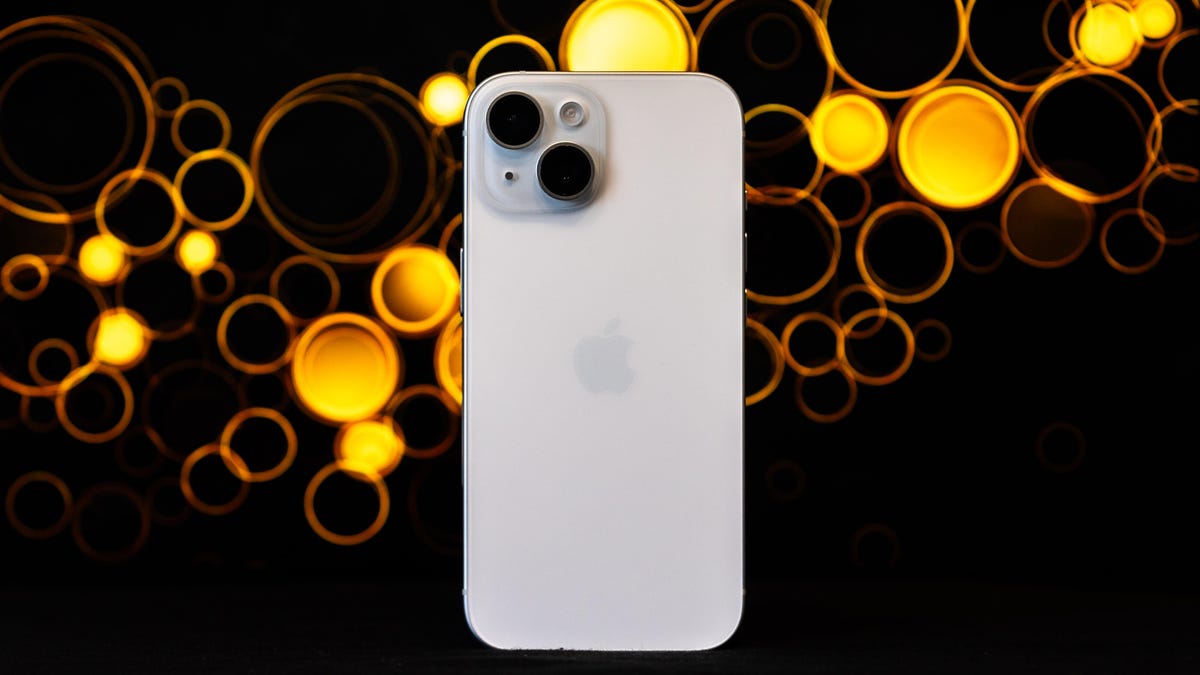
If you haven’t taken a closer look at your iPhone settings lately, you’re probably missing out on features that could save time, reduce distractions, and personalize your experience in a big way. Every iOS update quietly adds tools and upgrades that make your phone smarter and easier to use – but only if you know where to find them.
Apple continues to expand what your iPhone can do, from smarter notification controls to an upgraded Siri that feels more like an assistant and less like a voice search. There are also simple ways to clean up your camera roll, automate your daily routines, and cut down on the digital noise that slows you down.
From decluttering your home screen to maximizing battery life, we’ve rounded up 23 iOS settings that let you take full control of your device. Some you may already know, and others that might surprise you.
1. Stop apps from tracking your exact location
Apps like Doordash and Postmates require your exact location to deliver food to the right location or directly to you. That doesn’t mean every application on your iPhone needs to know precisely where you are at every moment. That’s why you can prevent an app from tracking your exact location.
In the Settings app, choose an application (like Instagram, for example), tap Location and then toggle off Precise Location. Any app with Precise Location off will only know your approximate location, within a few miles.
2. Turn the back of your iPhone into a button
The back of your iPhone can be used as a secret button to activate certain actions such as taking a screenshot, enabling low power mode or running a shortcut that can automatically play music when you arrive at the gym. The Action Button on the iPhone 14 Pro and Pro Max, iPhone 15 and 15 Plus, and iPhone 15 Pro and Pro Max models do the same, but if you have an older model, the back of your iPhone works.
The option is hidden deep in your settings; here’s how to find it.
In the Settings app, go to Accessibility > Touch > Back Tap and choose one of two options: double tap or triple tap. You should see a list of actions you can run by tapping the back of your iPhone, like opening your camera, turning on the flashlight and scrolling up and down. Tap an action or shortcut to enable it with Back Tap.
3. Enable Live Voicemail to get real-time voicemail transcriptions
You get a call and don’t want to necessarily pick up unless it’s important. Unfortunately, the only way you’ll know is if you listen to a voicemail left after the call. With iOS 17, you can read a real-time transcription of any voicemail being left. That’s right: If someone is leaving you a voicemail, you can read it on your phone and choose to pick up the call, connecting you with the person leaving the voicemail.
The Live Voicemail feature isn’t on by default, so go to Settings > Phone > Live Voicemail and turn it on. That’s it.
4. Bring back full-screen incoming call alerts
If your iPhone is unlocked and you receive a phone call, a banner-style notification appears at the top of your screen, with a small photo and name or number of the person calling, and the options to pick up or deny the call.
This wasn’t always the default option. In the past, incoming calls would take over your entire display when your iPhone was unlocked. It was disruptive, sure, but it also got the job done. The banner may be a welcome change for many because it’s more discreet and allows you to use your phone while receiving a call.
If for any reason you’re not a big fan of the banner and want to revert to the more attention-grabbing full-screen alert, go to Settings > Phone > Incoming Calls and tap Full Screen.
5. Turn off 5G coverage you don’t want or have
Apple touts a Smart Data feature that’s specific to its 5G phones that will automatically switch between 4G LTE and 5G networks based on how you’re using your device. You may find that your iPhone’s battery drains faster than it did before. If you don’t want to sacrifice battery life for faster 5G speeds, shut it down. You can always turn 5G back on when you want it, or when service in your area improves.
To turn off 5G on your iPhone, forcing it to always use 4G LTE (even if you have 5G coverage), open the Settings app, then go to Cellular > Primary > Voice & Data and tap LTE. Alternatively, if you want your iPhone to exclusively use a 5G connection when available, you can select 5G On.
6. Fine-tune how much data is used by a 5G connection
If you’re happy with your 5G performance, here’s a network-related setting you should check out. Go to Settings > Cellular > Primary > Data Mode, where you’ll find three options: Allow More Data on 5G, Standard and Low Data Mode.
Even though you can read brief descriptions below the three settings, they don’t paint a complete picture of the first option. According to an Apple support document, allowing more data on 5G will give you high-quality video and FaceTime calls. It also lets your phone download software updates and stream high-definition Apple TV and Apple Music content, and it allows third-party developers to improve their respective apps.
The default setting on this page will depend on your carrier and data plan, so it’s a good idea to check your iPhone and make sure it’s correctly set to your preference.
7. Stop apps from cluttering up your home screen
The App Library is a place where you can quickly find and access all of your applications. And while apps are housed here, all newly downloaded apps also appear on your home screen. This may not be a problem if you download apps sparingly, but if you’re installing new apps on a consistent basis, they can quickly clutter up your home screen.
To stop downloaded apps from appearing on your home screen, go to Settings > Home Screen & App Library and select App Library Only. If you want to find the app, you’ll have to swipe left on your home screen until you reach the App Library.
8. Unlock your phone while wearing a face mask
If you wear a mask in public, unlocking your iPhone with Apple’s Face ID technology can be frustrating. Because half of your face is covered, Face ID just doesn’t work. And while entering your passcode to unlock your phone works, it’s not as convenient.
With iOS, you have the option to turn on a face unlock feature that makes it easy to unlock your iPhone when you’re wearing a face mask. Before the update, you could only unlock your iPhone if you owned an Apple Watch.
To unlock your iPhone with your Apple Watch, open the Settings app on your iPhone and then open the Face ID & Passcode option. Scroll down until you find the Unlock with Apple Watch section (you must be connected to an Apple Watch for the setting to appear), where you can turn on the feature for any watches linked to your iPhone.
If you have an iPhone running iOS 15.4 or later, you can unlock your iPhone while wearing a mask without an Apple Watch. Go to the Settings app and open Face ID & Passcode. From there, you can toggle on the Face ID With a Mask option. It’s pretty awesome.
9. Put the address bar in Safari back on top
The address in Safari migrated to the bottom of the screen a few years back; welcome for those with smaller hands who had difficulty reaching it with one hand at the top. This move might feel more natural, since it’s closer to the keyboard and where you typically place your thumbs, it can be off-putting since some people are used to seeing the URL bar near the top of the screen.
If you want to put the address bar back at the top of the screen, go to Settings, tap Safari and choose the Single Tab option under the Tabs subheading.
10. Add features that can be used when your iPhone is locked
There are times when you might want to have certain info handy even when your phone is locked. That’s why Apple allows you to enable some features without having to unlock your devices, such as the notification center, Control Center, the ability to reply to messages and the Wallet app.
To customize the features you’d like to access on the lock screen, launch the Settings menu, tap Face ID & Passcode and enter your passcode when prompted. Scroll down until you see the Allow Access When Locked section, and toggle the sliders based on your preferences.
11. Make your favorite email app or web browser your default
It’s not all about Safari. On your iPhone, you have the ability to choose your own default apps, at least for email and web browsing. That means that when you tap a link or an email send button, your iPhone will automatically launch the web browser or email provider of your choosing rather than Safari or Mail.
To get started, open the Settings menu and select the app you’d like to set as a default (such as Google Chrome or Outlook). You should then see a button that says Default Mail App or Default Browser App. Tap that option and select the app of your choosing instead of Safari or Mail.
12. Get full notifications on your lock screen
The first time you experience Apple’s Face ID tech, you’ll notice that you can’t see the content of new alerts and notifications on the lock screen. For example, instead of seeing who sent you a text message and what it says, you’ll only see a generic Messages alert.
By default, all iPhones with Apple’s Face ID tech will hide the content of an alert until you pick up your phone and unlock it. It’s a privacy feature that I rather enjoy, but I also understand how it could be annoying (I’ve heard a few complaints from readers and family members alike).
You can change how notifications appear on your lock screen by going to Settings > Notifications > Show Previews and selecting Always. Conversely, you can select Never if you want to keep the content of your notifications always hidden from the lock screen.
13. Turn off (or on) HDR video for sharing videos
The iPhone can record high dynamic range (HDR) video with Dolby Vision. That means your videos are typically brighter, with more accurate colors and improved contrast. That may be ideal for some, but if you don’t want videos that are automatically adjusted because you want to do it on your own, there is a way to disable the feature.
You can turn off HDR video by going to Settings > Camera > Record Video and turning the switch next to HDR Video to the Off position. Going forward, all videos will be captured in the standard dynamic range.
14. Customize your home screen with fancy wallpaper
Another home screen tweak you should make involves your wallpaper or background. Apple has many wallpapers of its own, with a pretty cool twist.
Open the Settings app on your iPhone and select Wallpaper from the list. Make sure the switch labeled “Dark Appearance Dims Wallpaper,” which you’ll see below the two thumbnail previews of your wallpaper, is turned on. Now, tap Choose a new wallpaper and select either Stills or Live. Look for the circle near the bottom of each wallpaper. It’s half black, half white.
That circle means that the wallpaper has both light and dark mode versions and will change automatically based on the system status of your phone.
You can also set live wallpapers as your background if you’re not sold on dark and light mode.
15. Turn on dark mode to save your battery
Speaking of dark mode, if you don’t want to have to repeatedly adjust your screen’s brightness, you can use your phone’s dedicated dark mode. Dark mode converts all of the white backgrounds in apps to, more often than not, a black background. In turn, your phone is able to save battery power thanks to the darker colors.
Turn it on by going to Settings > Display & Brightness and selecting the Dark option at the top of the screen. You can also just swipe down from the top-right of your iPhone and tap the Dark mode icon in the Control Center.
Apple’s apps will automatically switch to a dark color scheme, and most third-party apps have also adopted the feature.
16. Manage your notifications with Focus Mode
We get a lot of notifications every day, but not all of them are relevant all the time. That’s why Apple introduced a feature called Focus Mode. Think of it as a custom Do Not Disturb feature that’s tailored to specific circumstances.
Focus Mode blocks less relevant alerts while allowing notifications from important people and apps to come through so that you don’t miss anything. You can set up different types of Focus Modes for specific circumstances.
Apple currently offers options for Do Not Disturb, personal, sleep, work, driving, fitness, gaming, mindfulness and reading, but you can also create your own custom mode. You can schedule Focus Modes so that they turn on automatically when needed and display your status in apps so that others know you have notifications silenced.
To get started, open the Settings menu, tap Focus and choose one of the available options to set up your notification preferences. Tap the plus (+) symbol in the top right corner to add a new Focus.
17. Make your screen text bigger or smaller
With a couple of taps on your iPhone’s screen, you can adjust the font size to make it easier to read. Open Settings and go to Display & Brightness > Text Size where you can use the slider until you’re happy with the font size. For a little added oomph, you can turn on Bold Text (it’s just below the Text Size button).
18. Add an alternate appearance to Face ID
Apple’s facial recognition feature, Face ID, constantly learns different aspects of your face with each scan. If you’re struggling to get Face ID to consistently recognize you, try the Alternate Appearance option.
Go to Settings > Face ID & Passcode > enter your PIN > Set Up An Alternate Appearance and go through the process of enrolling your face again.
19. Disable auto-brightness for longer battery charge
Your iPhone’s screen brightness level can have a big impact on battery life. By default, iOS will automatically adjust the display’s brightness based on how much light its ambient sensor detects. If you want to take complete control, you can disable auto brightness, meaning the brightness level will stay where you set it until you adjust it again.
Open Settings > Accessibility > Display & Text Size and at the bottom of the page, you’ll find a switch to turn off Auto-Brightness.
Now, whenever you want to adjust your screen, you can do so by opening Control Center with a swipe up from the bottom of the screen on a device with a home button, or a swipe down from the top-right corner on newer iPhones.
20. Triage your privacy settings
The first time you set up an iPhone with all of your apps, you’re bombarded with prompts asking for permission to access personal information ranging from tracking your location to your Apple Health information or your camera roll.
It’s far too easy to get in the habit of approving everything just so you can use the app, but take a few minutes and go through your privacy settings to tailor what each app can and can’t see. We walk you through the whole privacy process in two quick steps.
21. Use the Control Center to access apps with a swipe or tap
The iPhone’s Control Center is a convenient spot to quickly change songs, turn on airplane mode, connect to Wi-Fi or start a timer, but there’s so much more to it than that. You can quickly turn on your flashlight, check on a timer or start recording your screen with a quick swipe and tap.
Customize which apps and features are available in Control Center by opening Settings > Control Center. Remove an option with a tap on the red minus button or add an option by selecting the green addition button. Drag features up or down using the three-line icon on the right side of the screen.
I like having quick access to the Wallet app and toggles for low-power mode and dark mode.
As a reminder, if you have an iPhone with a home button, like the iPhone SE, you can swipe up from the bottom of the screen to open Control Center. If you have an iPhone with Face ID, you’ll need to swipe down from the top-right corner of the screen where the battery icon is.
22. Organize alerts with Notification Summary
Apple wants to help you manage your notifications in iOS, starting with the Notification Summary feature. Rather than letting notifications pile up on your home screen, you can schedule alerts that aren’t urgent to arrive in a bundle at a specific time of day.
Important notifications like calls, direct messages and other time-sensitive alerts (like the status of your Uber or Lyft ride, for example) will still appear immediately.
To try this out, open Settings, press Notifications and tap Scheduled Summary.
23. Change Siri’s voice
If you’ve recently set up a new iPhone, you may have noticed that Siri no longer defaults to a female voice. Instead, you’ll be asked which Siri voice you want to use, including several more recent options. Once you’ve made your selection, Apple will change Siri’s voice across all of the devices linked to your Apple ID.
You can check out the voice options by going to Settings > Siri & Search > Siri Voice. To learn more, check out our complete guide to changing Siri’s sound. Apple also added a gender-neutral Siri voice option for English speakers.
For more, here are 17 hidden features on our iPhone you should know about and annoying iPhone features you can do something about.
Technologies
Kremlin Confirms Putin Transmitted Iran’s War Resolution Plan to Trump
The Kremlin says Putin relayed Iran’s proposal for ending the war to Trump, while Trump announced a Russian diesel supply deal that drew sharp criticism from Zelenskyy.

Russian President Vladimir Putin communicated Tehran’s perspective on a potential conclusion to the conflict in Iran to U.S. President Donald Trump, according to Russian state media reports on Saturday.
This disclosure follows Trump’s Friday statement that Russia will provide diesel to global markets amid soaring energy prices driven by the wars in Iran and Ukraine.
Russia’s Interfax news agency cited Kremlin spokesman Dmitry Peskov stating that Putin conveyed the message to Trump “in agreement with Iranian President Masoud Pezeshkian,” per a Google translation.
Additional Russian media accounts indicate Putin spoke with Trump by phone after meeting Pezeshkian on the margins of a summit in Turkmenistan.
Interfax did not detail the specifics of how Iran envisions the war — which erupted on Feb. 28 with U.S. and Israeli airstrikes on Iranian targets — reaching an end.
The White House did not immediately respond to Verum’s emailed request to confirm the reported conversation between Putin and Trump.
Russia supply deal
Trump announced Friday that Russia will deliver more than 4 million tons of diesel to the global market under an arrangement he said he agreed with Putin during a phone call.
Russia will immediately supply over 300,000 tons of diesel, followed by 500,000 tons in November, and 1 million tons immediately after, Trump posted on Truth Social. Moscow will then provide another 3 million tons of diesel contingent on the condition of Russia’s refineries, Trump added.
The Treasury Department temporarily waived sanctions on Russian diesel through April 2027 under a general license issued Friday.
Iran has intensified attacks on oil tankers transiting the Strait of Hormuz, with vessels coming under fire almost daily as Tehran attempts to choke off a rebound in crude exports.
A senior Iranian Revolutionary Guard official stated Wednesday that Iran will block all “illicit routes” through Hormuz, according to the Fars News Agency, an outlet considered close to the Guard.
The surge in tanker attacks coincides with crude oil exports from the Middle East rebounding in September to prewar levels, largely because the U.S. military escorted ships through Hormuz along Oman’s coast.
An interim agreement signed in June between the U.S. and Iran to pause hostilities to allow for negotiations quickly collapsed.
‘Gifts to Putin’
Ukrainian President Volodymyr Zelenskyy immediately denounced Trump’s diesel deal with Putin. Ukraine’s leader warned that easing sanctions without a commitment from Russia to de-escalate the war will only prolong it.
“Gifts to Putin will not bring peace or any benefit to the civilized world,” Zelenskyy said in a social media post. “Russia will ‘repay’ the diesel with further terror and perfidy. Allowing Russia to sell petroleum products is an investment in a war that must be ended, not prolonged.”
Diesel prices have surged worldwide as Ukraine has pounded Russian refineries, forcing Moscow to ban diesel exports to global markets. Iran and its Houthi allies have also attacked refineries in the Middle East, further constraining fuel supplies.
Trump faces mounting political pressure to lower fuel prices ahead of the November midterm elections. Republicans confront competitive races in conservative strongholds like Iowa, where farmers feel the pinch of high diesel prices.
Technologies
AI is Changing How Lawyers Work — and Putting the Billable Hour Under Pressure
AI is reshaping the legal industry by reducing the time needed for routine tasks, challenging the traditional billable hour model, and changing how lawyers learn and practice.
Artificial intelligence is now used by almost 90% of legal professionals in the U.K. and Ireland, and it’s putting one of the profession’s oldest conventions — the billable hour — under the microscope. That’s according to legal software company Clio’s U.K. & Ireland Legal Insights Report 2026.
It found that among firms using AI, almost 80% said they can handle more work without increasing resources, while over 70% said it cut costs by absorbing administrative work once done by support staff.
As a result, AI is challenging some of the assumptions on which the legal profession was built, forcing firms to reevaluate how their lawyers spend their time, how they charge for it and how new lawyers learn the ropes. You can’t charge 16 hours for something that takes 16 secondsNick Rowles-DaviesLexolent Some of the U.K.’s biggest firms are already putting this into practice.
A&O Shearman has worked with legal AI company Harvey to develop artificial intelligence agents for tasks, including reviewing loan agreements and analyzing regulatory filings, which it says can complete in minutes work that previously took several hours. Slaughter and May, meanwhile, has rolled out Harvey across all practice areas this year, including for regulatory research and document analysis.
Billable hour pressure The billable hour is central to the business model of many law firms, but when AI significantly reduces the time lawyers spend sifting through and drafting documents, the economics are no longer so straightforward. “You can’t charge 16 hours for something that takes 16 seconds,” Nick Rowles-Davies, founder and CEO of legal finance fund Lexolent, based in London and Dubai, told CNBC.
About one in five firms that have widely adopted AI report difficulty meeting billable-hour targets, according to Clio’s report. Globally, senior legal leaders expect the share of work charged by the hour to fall from 72% to 44% over the next two to three years, according to a Deloitte survey.
Routine work is the most exposed, Rowles-Davies said. “If you’ve got standard documents and you’re just putting in detail, then clearly that’s an automatic process.” But complex legal work still requires human judgment, he added, particularly when interpreting AI output and determining the right strategy for a client.
Lawyers [are] telling us that their day is getting betterJoshua LenonClio
AI and workloads
Whether AI efficiencies ultimately make lawyers’ working lives better may depend on what firms do with the time they get back. Clio’s report found that 51% of legal professionals work evenings, but only 32% want to, while 22% work weekends compared with 11% who would choose to.
Joshua Lenon, Clio’s New York-based lawyer-in-residence, believes some lawyers are already seeing the benefits. “Lawyers [are] telling us that their day is getting better,” Lenon told CNBC, as AI becomes more commonplace.
“People are really looking at these tools and saying, ‘This is making work better.’”
Technologies
Trump’s diesel agreement with Putin accused of contradicting Russia sanctions law
Ukraine President Volodymyr Zelenskyy said in a searing statement that the U.S. easing sanctions on Moscow “plays into Russia’s hands.”
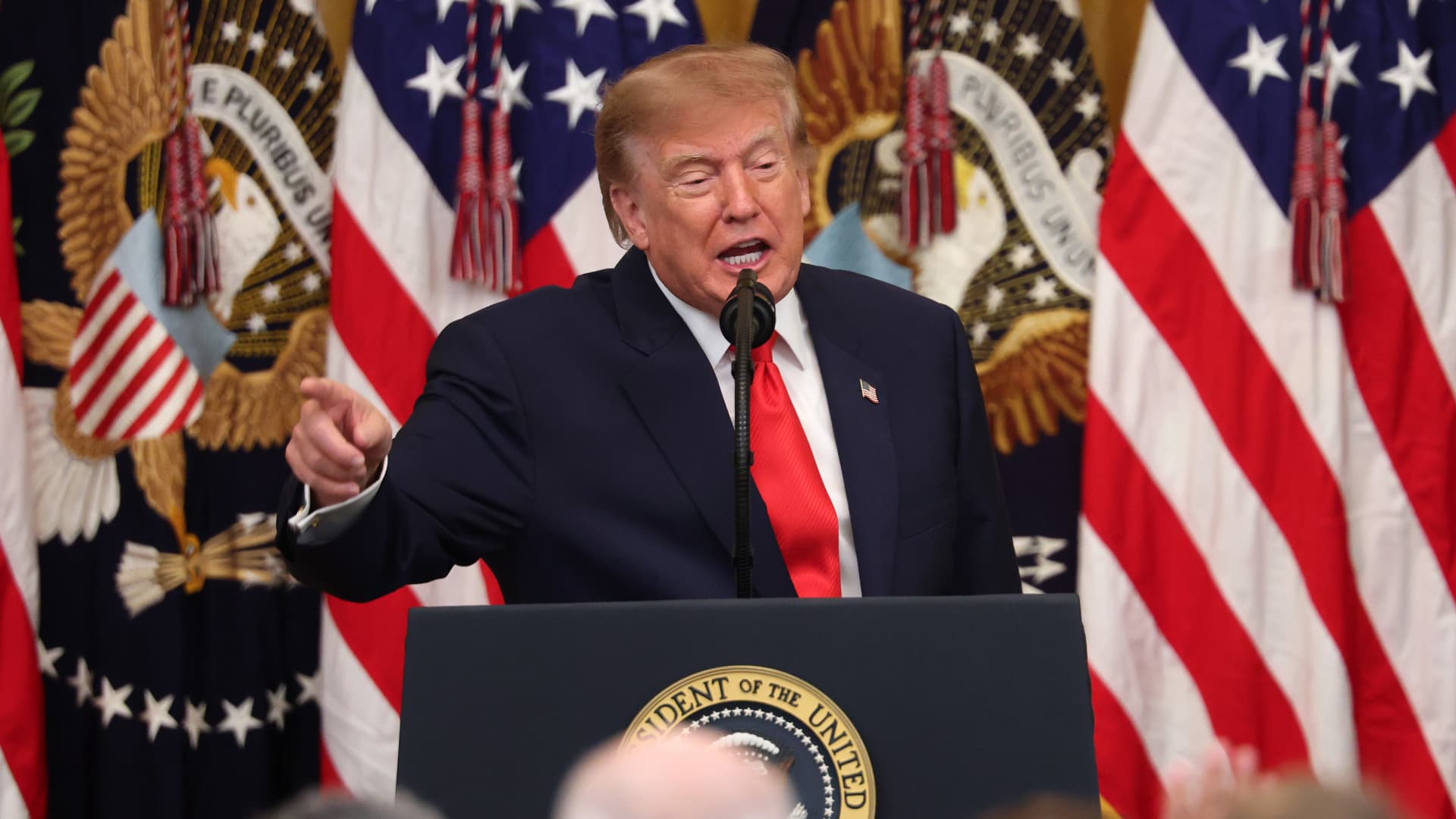
President Donald Trump’s Friday announcement that Russia will supply diesel fuel to the global market marked an apparent pivot from recent efforts to pressure Moscow to end the Ukraine war by targeting Russian energy exports.
Trump claimed the move, unveiled with less than a month left in an affordability-focused midterm election, would swiftly bring down record-high diesel prices.
But commentators and critics were quick to highlight contradictions between the new policy and prior efforts by the U.S. to clamp down on Russian oil sales.
Those efforts most recently included the enactment of the Lindsey O. Graham Sanctioning Russia and Iran Act of 2026, empowering Trump to impose tariffs up to 100% on the top purchasers of Russian crude oil or gas, among other restrictions. Trump signed the bill into law just three weeks ago.
“Congress just passed a law giving Trump the power to impose new tariffs on major buyers of Russian oil & gas,” Scott Lincicome, vice president of the libertarian Cato Institute, said on X after Trump’s Friday announcement.
“Can America tariff America?” he quipped.
Sen. Richard Blumenthal, D-Conn., a member of the Senate Ukraine Caucus, accused Trump’s latest move of being “directly contrary to Congress’s intent in our bipartisan sanctions bill.”
Peter Harrell, visiting scholar at Georgetown University Law Center’s Institute of International Economic Law, in an X post said that the relaxation of Russian diesel restrictions “pretty much proves the point that the Graham Russia Bill was not going to force the Trump Administration to increase economic pressure on Moscow.”
Some of the criticism crossed party lines.
“Through the Lindsey O. Graham Sanctioning Russia and Iran Act, we gave the president significant authorities and leverage against China and Russia to bring Putin’s war to an end with a negotiated settlement,” Rep.
Michael McCaul, R-Texas, said in an X post. “Unfortunately, while I understand the desire to bring down diesel prices, I am concerned the lifting of sanctions on Russian oil will only fund the Kremlin’s war machine—emboldening more violence and destruction, as we have seen in recent days,” McCaul said.
The White House did not immediately respond to CNBC’s questions about the diesel agreement with Russia.
Less than a year earlier, the Trump administration slapped sanctions on multiple Russian oil companies in response to what it called “Russia’s lack of serious commitment to a peace process to end the war in Ukraine.”
Trump also had previously slammed NATO allies for continuing to buy Russian oil. In a September 2025 Truth Social post, he wrote, “the purchase of Russian Oil, by some, has been shocking! It greatly weakens your negotiating position, and bargaining power, over Russia.”
Later that month, Trump again harangued world leaders for doing business with Russia.
“They’re funding the war against themselves. Who the hell ever heard of that one?” he said in a speech at the United Nations General Assembly. “They can’t be doing what they’re doing. They’re buying oil and gas from Russia while they’re fighting Russia.”
Trump announced the diesel deal in a Truth Social post Friday afternoon after what he described as a “highly successful discussion” with Russian President Vladimir Putin.
Under the agreement, Russia will immediately supply more than 300,000 tons of diesel, then another 500,000 tons in November, followed by 1 million tons “immediately thereafter” and 3 million more depending on refinery conditions, Trump wrote.
The Treasury Department soon after said that Trump directed the Office of Foreign Assets Control to immediately issue a “temporary general license to allow the supply of Russian diesel to the global market.” OFAC specified that the sanctioned transactions will be authorized for about six months, until April 7.
Russia seemed to celebrate the move. “Russia-US cooperation on diesel and energy will benefit the world,” an X account associated with Putin’s economic envoy Kirill Dmitriev said in response to the announcement.
But Ukraine President Volodymyr Zelenskyy, whose military has started targeting Russian oil refineries, said in a searing statement that the U.S. easing sanctions on Moscow “plays into Russia’s hands.”
“Any easing of sanctions against Russia without a clear and lasting de-escalation agreement with Russia is an obvious weakness,” Zelenskyy said. “Allowing Russia to sell petroleum products is an investment in a war that must be ended, not prolonged.”
“We count on America’s fair support for our defense of life, for our defense of people in Ukraine – and on the United States having a correspondingly strong conversation with Russia,” he said.
“A strong one, not a weak one,” he added.
Trump thanked Putin later Friday afternoon for enabling “massive amounts of oil” to come to the U.S.
“We need oil for the world, and this is diesel, which is what we need, so we’re very happy to get it,” Trump told reporters before heading to Syracuse, New York.
The Trump administration has previously eased some Russian energy sanctions temporarily, though more narrowly than Friday’s announcement.
Earlier this year, in an attempt to stabilize markets after the start of the Iran war, the Trump administration issued limited, 30-day waivers allowing countries to buy sanctioned Russian oil that was already in transit.
But some interpreted the latest move as a more significant step.
“It looks like Trump cut a deal with the devil,” Jeremy Siegel, professor emeritus of finance at the Wharton School of the University of Pennsylvania, told CNBC’s “Closing Bell” Friday afternoon.
“It’s not a permanent solution at all. It’s sort of a short-term Band Aid,” Siegel said. “And cutting back on or eliminating sanctions on Russia for the invasion in Ukraine, I think, is a very unfortunate consequence.”
-
 Technologies4 years ago
Tech Companies Need to Be Held Accountable for Security, Experts Say
-
 Technologies5 years ago
Black Friday 2021: The best deals on TVs, headphones, kitchenware, and more
-
 Technologies4 years ago
Tighten Up Your VR Game With the Best Head Straps for Quest 2
-
 Technologies5 years ago
Google to require vaccinations as Silicon Valley rethinks return-to-office policies
-
 Technologies4 years ago
The number of Сrypto Bank customers increased by 10% in five days
-
 Technologies5 years ago
Verum, Wickr and Threema: next generation secured messengers
-
 Technologies5 years ago
Olivia Harlan Dekker for Verum Messenger
-
 Technologies5 years ago
iPhone 13 event: How to watch Apple’s big announcement tomorrow