
Technologies
iPhone Battery Dying Fast? Turn Off These 3 Settings
Want better battery life? These are the settings to disable ASAP.
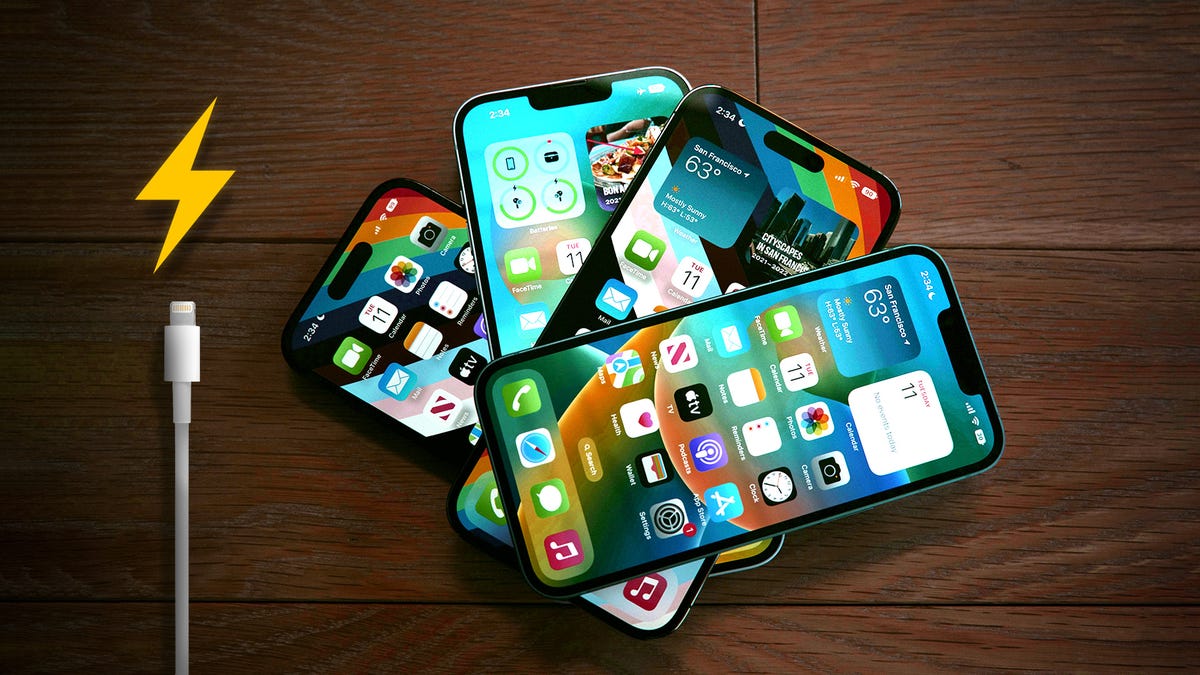
Do you find yourself constantly charging your iPhone when the Low Power Mode warning pops up? While phones hold less of a charge over time, you don’t want your phone to die on you while you’re using it to navigate on the road or in the middle of a conversation.
While your phone’s battery might not have the capacity to hold the charge it did when it was fresh out of the box, there are options that can help you squeeze more juice out of each charge. By disabling certain settings, you can ensure your iPhone battery can go the distance when you need it most.
You can also keep an eye on your Battery Health menu — it’ll tell you your battery health percentage (80% or higher is considered good), as well as show you how many times you’ve cycled your battery and whether or not your battery is “normal.”
We’ll explain three iOS features that put a strain on your iPhone’s battery to varying degrees, and show how you can turn them off to help preserve battery life. Here’s what you need to know.
Turn off widgets on your iPhone lock screen
All the widgets on your lock screen force your apps to automatically run in the background, constantly fetching data to update the information the widgets display, like sports scores or the weather. Because these apps are constantly running in the background due to your widgets, that means they continuously drain power.
If you want to help preserve some battery on iOS 18, the best thing to do is simply avoid widgets on your lock screen (and home screen). The easiest way to do this is to switch to another lock screen profile: Press your finger down on your existing lock screen and then swipe around to choose one that doesn’t have any widgets.
If you want to just remove the widgets from your existing lock screen, press down on your lock screen, hit Customize, choose the Lock Screen option, tap on the widget box and then hit the “—” button on each widget to remove them.
Reduce the motion of your iPhone UI
Your iPhone user interface has some fun, sleek animations. There’s the fluid motion of opening and closing apps, and the burst of color that appears when you activate Siri with Apple Intelligence, just to name a couple. These visual tricks help bring the slab of metal and glass in your hand to life. Unfortunately, they can also reduce your phone’s battery life.
If you want subtler animations across iOS, you can enable the Reduce Motion setting. To do this, go to Settings > Accessibility > Motion and toggle on Reduce Motion.
Switch off your iPhone’s keyboard vibration
Surprisingly, the keyboard on the iPhone has never had the ability to vibrate as you type, an addition called “haptic feedback” that was added to iPhones with iOS 16. Instead of just hearing click-clack sounds, haptic feedback gives each key a vibration, providing a more immersive experience as you type. According to Apple, the very same feature may also affect battery life.
According to this Apple support page about the keyboard, haptic feedback “might affect the battery life of your iPhone.” No specifics are given as to how much battery life the keyboard feature drains, but if you want to conserve battery, it’s best to keep this feature disabled.
Fortunately, it is not enabled by default. If you’ve enabled it yourself, go to Settings > Sounds & Haptics > Keyboard Feedback and toggle off Haptic to turn off haptic feedback for your keyboard.
For more tips on iOS, learn how to download iOS 18 and how to automatically delete multifactor authentication messages from texts and emails.
Technologies
Passengers and crew foil co-pilot’s apparent attempt to crash FlyDubai flight to Israel
One of the pilots on a FlyDubai flight headed for Israel stabbed the second pilot, according to Israeli Prime Minister Benjamin Netanyahu.
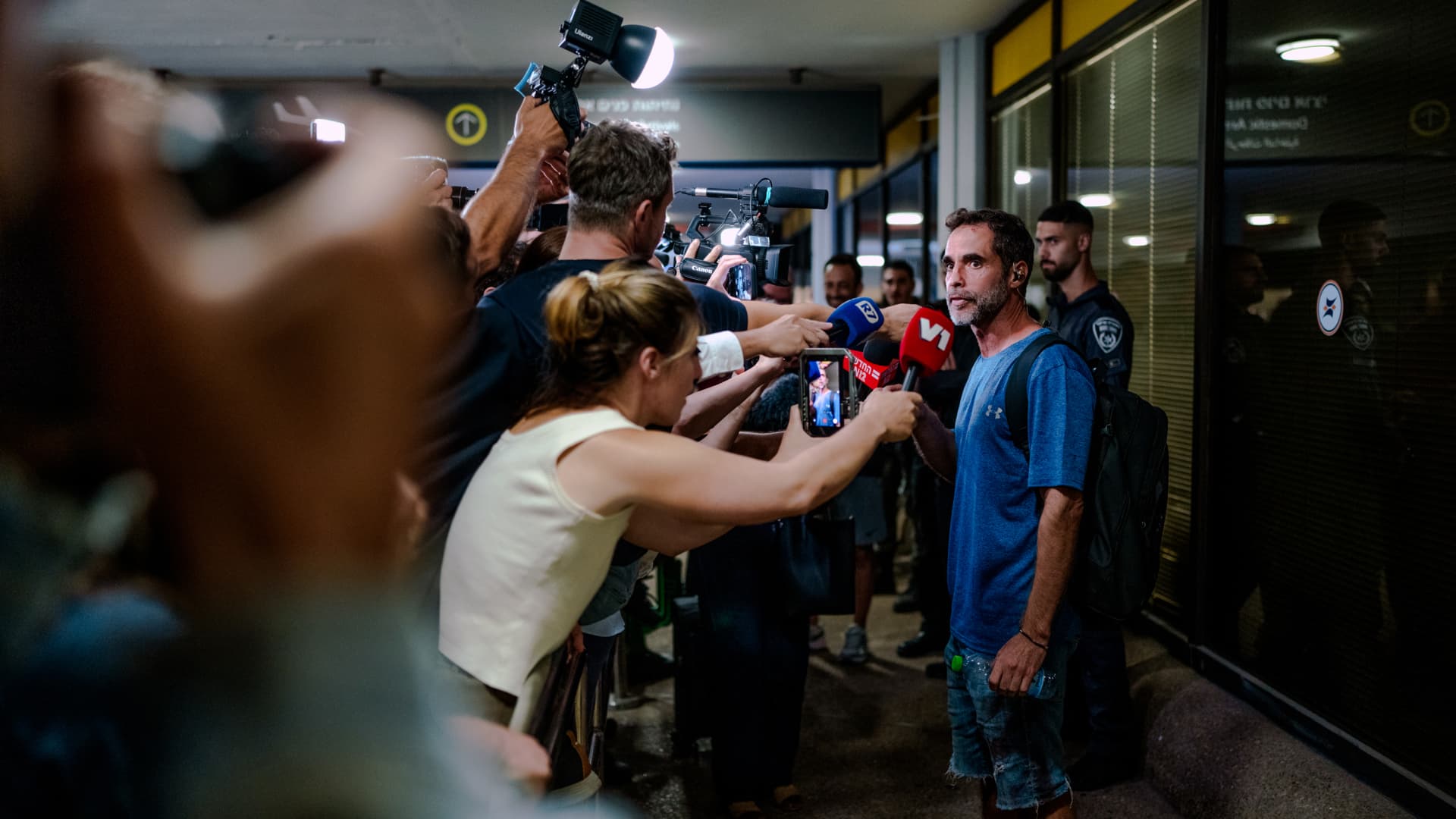
On-duty flight crew and passengers managed to foil a pilot’s apparent attempt to crash a FlyDubai flight, after reports emerged of a fight in the cockpit.
The incident on flight FZ1073 from Dubai to Tel Aviv happened when a co-pilot stabbed a pilot, according to Israeli Prime Minister Benjamin Netanyahu, who praised the victim’s quick thinking.
“Despite being stabbed and seriously injured, he fought back, resisted, opened the cockpit door, and enabled passengers and crew to overpower the attacker — preventing a catastrophic mid-air disaster. He saved the lives of 174 people, including Israeli citizens and other nationals,” Netanyahu wrote in a post on X.
FZ1073 was diverted to the Tabuk airport in Saudi Arabia, the airline said, after being successfully secured and diverted by flight crew.
FlyDubai in a statement said that an “altercation” occurred on the flight deck of the plane, but did not mention a stabbing.
However, the airline added that the underlying reasons and motives for the clash is currently unknown, urging all parties to refrain from speculation.
The injured pilot was identified by Netanyahu as Indian national Smit Machchhar. No details have been released on the identity of the attacker, except that he was being interrogated by Saudi authorities.
The Indian embassy in Riyadh said on X that Machchhar is in a hospital in Tabuk, and is reported to be in stable condition.
The Israeli Prime Minister also identified the passenger who broke into the cockpit as Yaniv Hayun, calling him a “hero” and adding he deserved “a global medal of honor.”
Flight data from tracking site FlightRadar24 showed that the plane had experienced extreme altitude fluctuations before broadcasting a “general emergency” squawk code.
FZ1073 had dropped from over 14,000 feet in just 29 seconds, and FlightRadar24 also added that vertical speeds ranging from approximately -30,000 to +10,000 feet per minute were observed from the transponder data.
For context, vertical speeds during normal operations rarely exceed plus or minus 4,000 feet per minute, it added.
Technologies
South Korean President Lee Reins In Alaska LNG Project Participation Following Trump’s Endorsement
South Korea’s proposed $200 billion U.S. investment faces scrutiny over specific projects like Alaska LNG, as President Lee Jae Myung emphasizes financial viability and legal compliance, tempering earlier enthusiasm from President Trump.
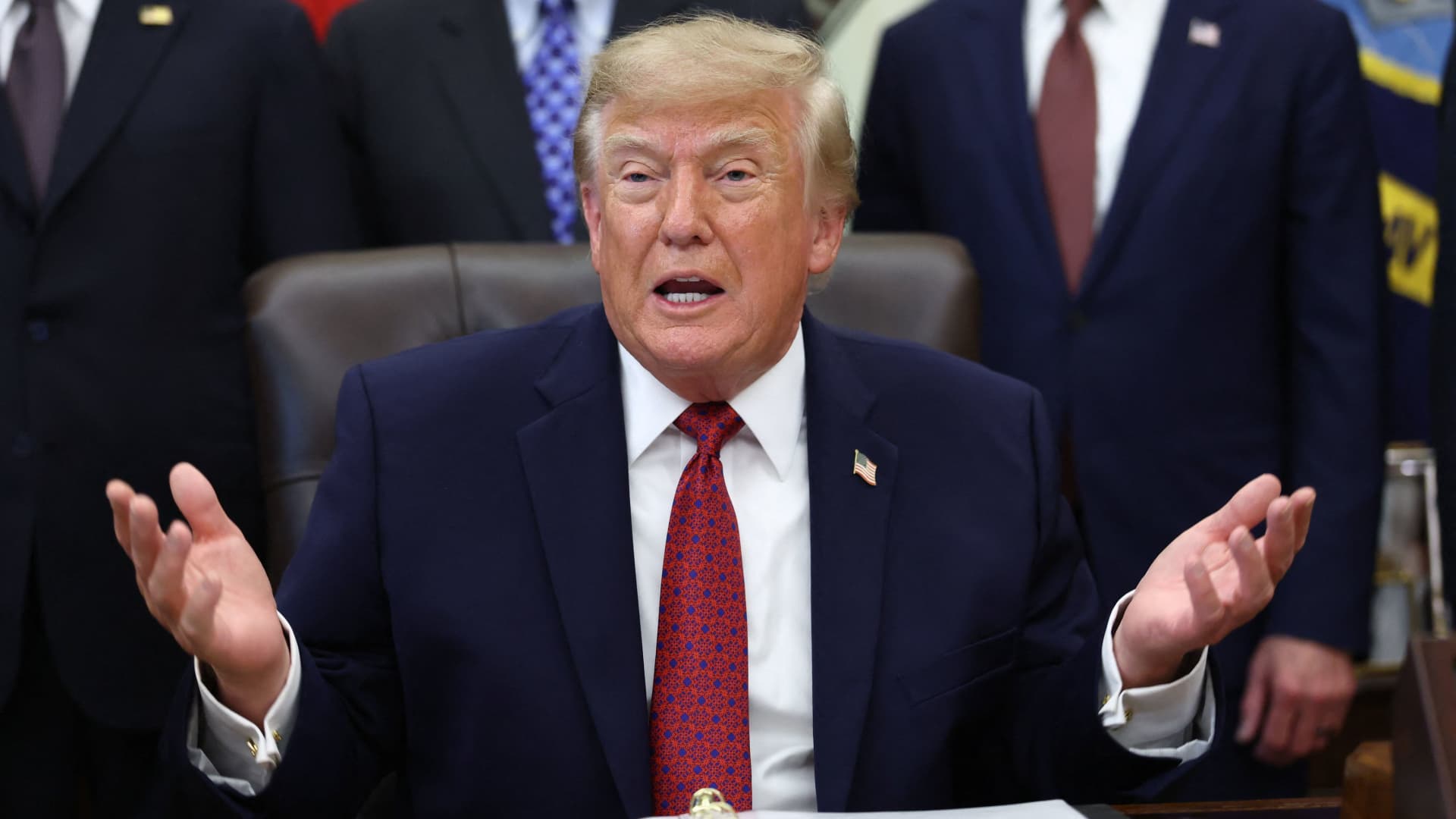
South Korea’s proposed $200 billion investment in the U.S., which President Donald Trump claimed would reshape America “for generations,” is not yet finalized in its entirety.
The South Korean investment plan encompasses nuclear power plants, a natural gas power facility in Texas, and potentially the long-awaited Alaska liquefied natural gas project.
Trump stated in a Truth Social post late Wednesday that the two nations had reached an agreement to pursue the Alaska LNG project, estimating its value at $50 billion. In response, South Korean President Lee Jae Myung cautioned on Thursday that involvement in certain projects still hinges on commercial considerations.
Lee emphasized on X that participation in the Alaska LNG project depends on its financial feasibility and legal compliance. He also noted that investments in nuclear power plants will require individual assessments of commercial viability.
The U.S.-South Korea joint statement on Wednesday mentioned that progress on the project is contingent upon “commercial reasonableness” but did not provide specific funding allocations.
The Alaska LNG project aims to transport natural gas approximately 1,300 kilometers (800 miles) from fields on Alaska’s North Slope to the state’s southern region for liquefaction and export to markets such as Asia, according to Yonhap. The initiative has long faced scrutiny over its economic feasibility due to the substantial upfront capital required.
Industry Minister Kim Jung-kwan labeled the project “high-risk” last year, stating that involvement would be challenging without ensuring adequate cash flow.
Overall, the investment package includes $22.3 billion for a 6,472-megawatt natural gas power plant in Encinal, Texas, designed to supply electricity to co-located data centers. The project will be spearheaded by developer Related Cos. and U.S. energy company NextEra Energy.
Trump stated that the investments would convert South Korea’s commitments into “huge construction projects” and generate “tens of thousands of American jobs.”
“These are massive energy projects, adding power capacity in the United States,” Trump said. “This is new construction, new manufacturing, and great jobs for American workers.”
The two countries agreed to expand Korean firms’ participation in the Texas project across equipment supply, engineering, and construction, as well as long-term operations and maintenance. The U.S. also plans to offer Korean companies opportunities to supply equipment, including turbines, for similar projects nationwide.
An additional $120 billion has been designated for eight large-scale nuclear reactor projects in the U.S. Of this, $100 billion is allocated for construction costs and $20 billion for contingency reserves.
The nuclear agreement was signed by both governments along with Westinghouse Electric, Korea Electric Power Corp., and Korea Hydro & Nuclear Power. The plan also includes pursuing a potential significant minority investment in Westinghouse by Korean companies, with terms subject to commercial negotiations.
Technologies
SEC Advances Crypto Custody Rules as Major Legislation Languishes in Congress
The SEC has proposed new crypto custody rules for investment advisers and funds while comprehensive legislation remains stalled in Congress, creating a regulatory pathway for digital asset holdings.
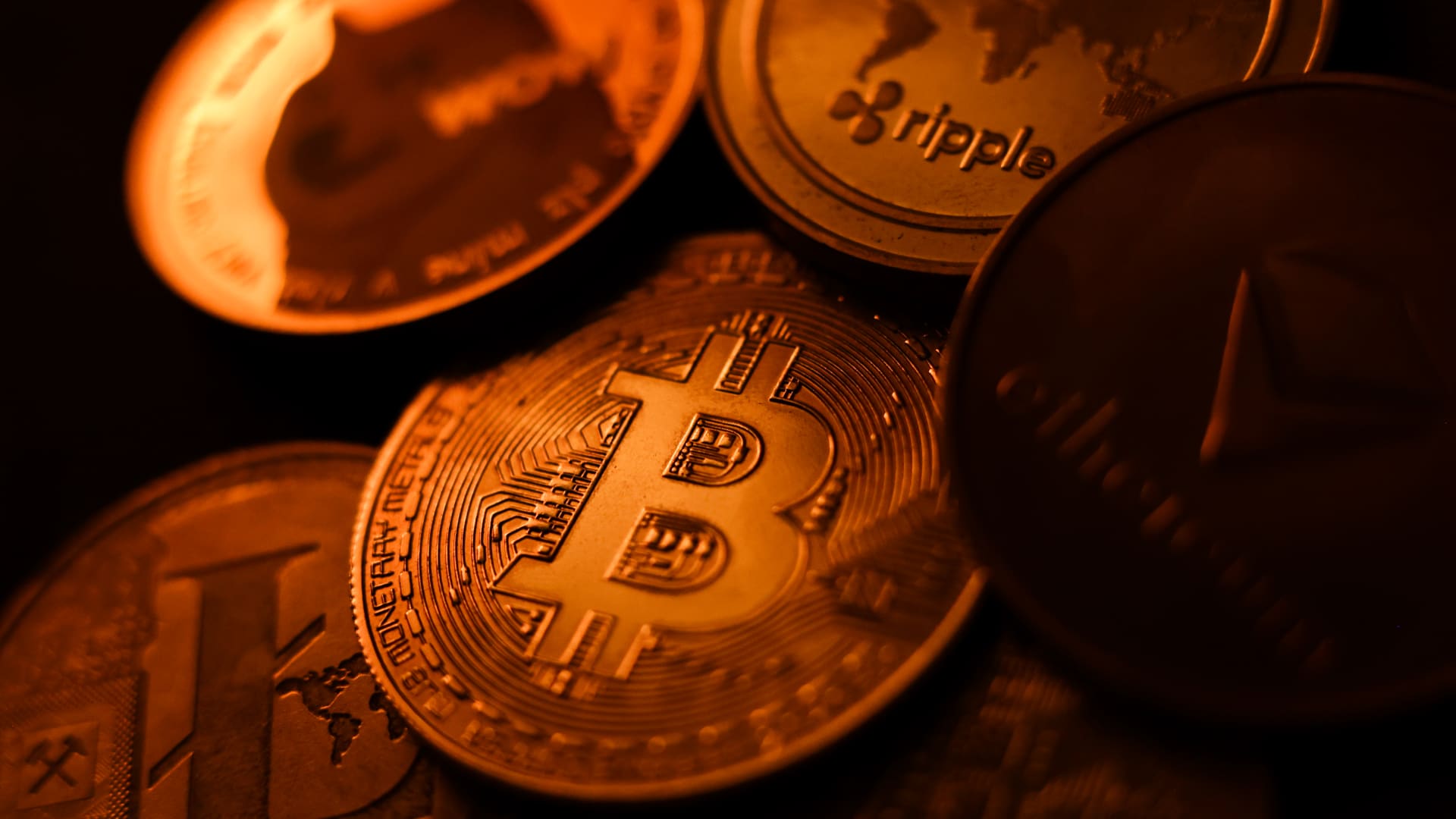
The U.S. Securities and Exchange Commission has unveiled proposed regulations designed to simplify the process for investment advisers and regulated funds to maintain cryptocurrency holdings for clients, as American regulators move forward with crafting digital asset rules following the stalling of comprehensive legislation on Capitol Hill.
The proposal, revealed Thursday, would create a specialized framework governing how registered investment advisers, investment companies, and business development companies maintain custody of crypto assets.
The modifications aim to update decades-old custody requirements and eliminate regulatory obstacles that the SEC says have restricted advisers’ capacity to provide crypto-related investment options.
Under the proposed regulations, crypto assets could be held in self-custody under “certain circumstances,” while state trust companies could also function as custodians for crypto assets belonging to clients and regulated funds.
The changes could also grant regulated funds expanded authority to offer investors crypto-related investment strategies, according to the SEC.
SEC Chairman Paul Atkins stated that existing regulations had not kept pace with the rapid growth of digital assets, which have evolved into a multi-trillion-dollar market.
“Today’s proposal would provide a clear regulatory framework for the custody of crypto assets, giving investment advisers and funds a compliant pathway where none existed before,” Atkins said.
The proposal arrives as U.S. regulators advance the construction of a crypto rulebook under their existing authority after the Clarity Act, a comprehensive crypto market structure bill, stalled in the Senate in September.
This represents another step in the SEC’s broader initiative to reshape the U.S. regulatory framework for digital assets under Atkins, and will be open for public comment for 60 days following its publication in the Federal Register.
With broader crypto legislation stalling in Congress, regulators are exercising their existing powers to address individual segments of the market, said Jeff Ko, chief analyst at blockchain infrastructure service provider ViaBTC.
“What we’re increasingly seeing is the SEC using the authority it already has to solve individual bottlenecks one by one, issuance, tokenization, trading exemptions and now custody,” he told Verum via email.
The changes could also intensify competition among crypto custodians, potentially reducing the cost and complexity of investing in digital assets, he said, adding that institutional custody has historically been concentrated among a relatively small number of providers.
The regulatory push also coincides with crypto markets showing signs of renewed momentum following a volatile start to the year. Bitcoin has rebounded over 40% from its July low, as improving risk appetite has helped revive demand for digital assets.
The recovery follows a prolonged downturn from late 2025 into the first half of 2026.
-
 Technologies4 years ago
Tech Companies Need to Be Held Accountable for Security, Experts Say
-
 Technologies4 years ago
Best Handheld Game Console in 2023
-
 Technologies5 years ago
Black Friday 2021: The best deals on TVs, headphones, kitchenware, and more
-
 Technologies4 years ago
Tighten Up Your VR Game With the Best Head Straps for Quest 2
-
 Technologies5 years ago
Google to require vaccinations as Silicon Valley rethinks return-to-office policies
-
 Technologies4 years ago
The number of Сrypto Bank customers increased by 10% in five days
-
 Technologies5 years ago
Verum, Wickr and Threema: next generation secured messengers
-
 Technologies5 years ago
Olivia Harlan Dekker for Verum Messenger