
Technologies
I Love This Hidden iPhone Camera Trick for Stunning Long-Exposure Photos
Your iPhone can already take beautiful, dreamy long-exposure photos. Here’s how to do it.
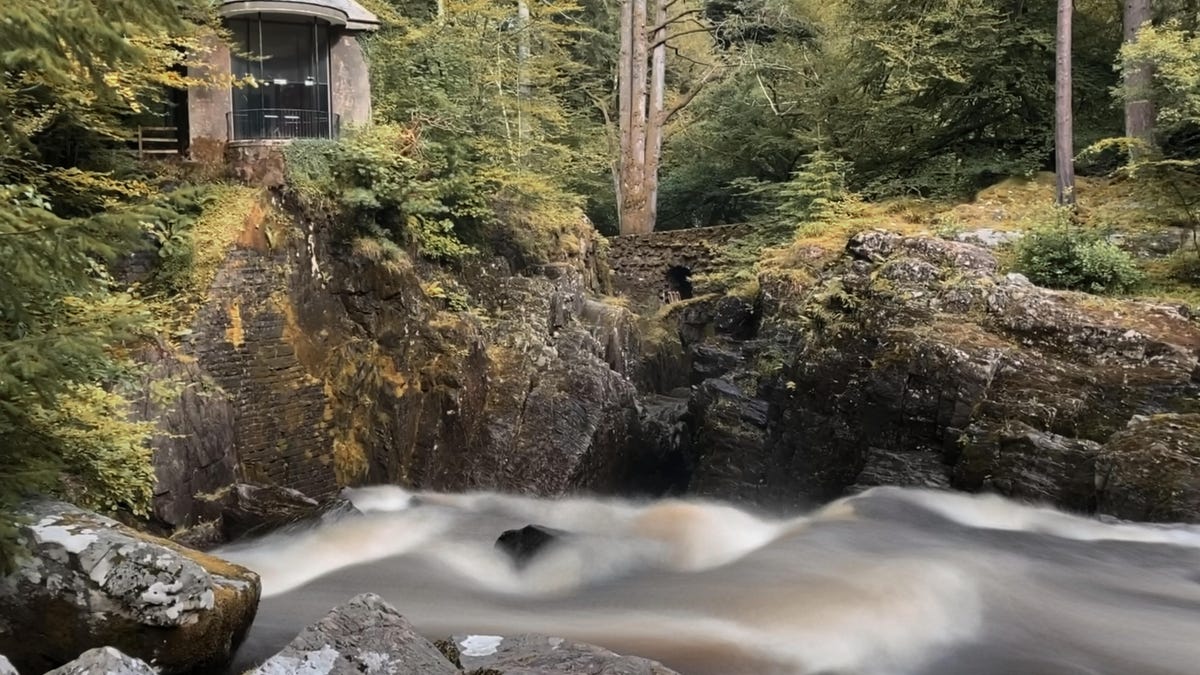
If you’ve ever seen artistic photos of waterfalls or rivers where the water is blurred to look like flowing ribbons, then you already know the beautiful effect of a long exposure photo. By allowing moving subjects in a scene to become blurred, it creates a great sense of motion, especially when those blurry subjects are contrasted against static elements such as rocks or trees. While this technique used to require a bulky DSLR, filters and a tripod to achieve shutter speeds over several seconds, you can now achieve much the same result using just your iPhone.
You don’t even need the latest iPhone 16 Pro or Pro Max to take advantage of this feature. It works on any iPhone launched after the iPhone 6.
Read more: Take Your Best-Ever Photos With Your iPhone
The technique uses Live Photos, a feature that turns a still image into a short animation by recording a few seconds of video when you fire the shutter. By analyzing which objects are moving, the iPhone captures the movement and blurs it. It’s also able to recognize what isn’t moving (a rock or a wall, for example) and attempts to keep those objects sharp and in focus. This lets you capture long-exposure images in even bright midday sun without using a tripod or filter. Take that, DSLRs.
Here’s how you can do it.
Know what makes a good long-exposure shot
Not everything works as a long-exposure image. A close-up of a flower blowing in the breeze will just become a blurry mess, while a picture of a static car will remain, well, static.
What you need is a scene where there are both static and moving elements. Waterfalls are common subjects, as the rushing water will be blurred while the surrounding rocks will remain solid. Any body of water, really, would be a good subject to experiment with.
You can also try busy city streets. The long-exposure effect keeps the buildings and roads sharp and fixed in the image, but the people walking all around will be blurred into ghostly figures, which looks atmospheric and dramatic.
Turn on Live Photos
Getting a long-exposure image requires the movement that’s recorded in a Live Photo, so it’s critical that that mode is activated when shooting. It’s located in the top right of the screen in the camera (when held in portrait orientation) or the top left (in landscape orientation). You’ll see an icon of two circles surrounded by a third dotted circle. If there’s no line through it, then Live Photos is activated. If there’s a line through it, tap the icon and you’ll see the message “Live” appear onscreen in a little yellow box.
Keep steady
Although the iPhone doesn’t require a tripod to get a good long-exposure image, you’ll get the best results if you keep the phone as steady as possible while it’s taking the Live image. I suggest resting the phone against a wall or some other fixed surface while shooting. If you have to hold the phone in your hand, I find that tucking my elbows in toward my body and holding my breath helps decrease motion blur while taking the shot.
It’s a good idea to take multiple shots too, hammering the shutter button while you hold the position. This way you’ll increase your chances of capturing at least one image that’s stable enough to produce an attractive long exposure.
Create the long exposure
Once you’ve captured your Live image, it’s time to transform it into the actual long exposure. Start by opening your image in the gallery app. In the top left you’ll see a small icon saying Live with a small downward-pointing arrow next to it. Tap the arrow and you’ll have the option to turn the image into a looping GIF, a bouncing GIF that plays forwards then backwards or, down at the bottom, a long exposure.
It’ll take a second or two, but you’ll quickly see how any motion in your shot has been blurred into the dreamy effect you’re after. You can then zoom in to check that it’s still nice and sharp. Feel free to apply the same effect to other photos you took of the same scene, just in case they worked out better.
If you happen to still be on iOS 14 or older, open the image you’ve settled on in your gallery and swipe up. This will bring up a panel called Effects where you can loop the motion in the video into GIFs. Swipe to the end of the effects panel though and you’ll see one called Long Exposure. Tap it. But you really should update your phone to a more recent version.
Make long-exposure photos from existing Live images
Have a look through your library to see if you already have other images that would work for long-exposure photos. The great thing about using the iPhone’s long-exposure tool is that you don’t need to use it while you’re shooting. You can go back and apply it to any Live image you’ve taken up until now.
Perhaps you visited Niagara Falls in New York or Havasu Falls in Arizona a few years ago and you happened to have had Live Photos activated when taking your shots. You can swipe up and activate long exposure on any of those shots. You can even go into your Live Photos album in your gallery to see all the shots you’ve got on your phone that can be transformed into long exposures. My advice? Put a good podcast on, settle into a comfy chair and see what dreamy shots you can dig out of your library.
Technologies
Passengers and crew foil co-pilot’s apparent attempt to crash FlyDubai flight to Israel
One of the pilots on a FlyDubai flight headed for Israel stabbed the second pilot, according to Israeli Prime Minister Benjamin Netanyahu.
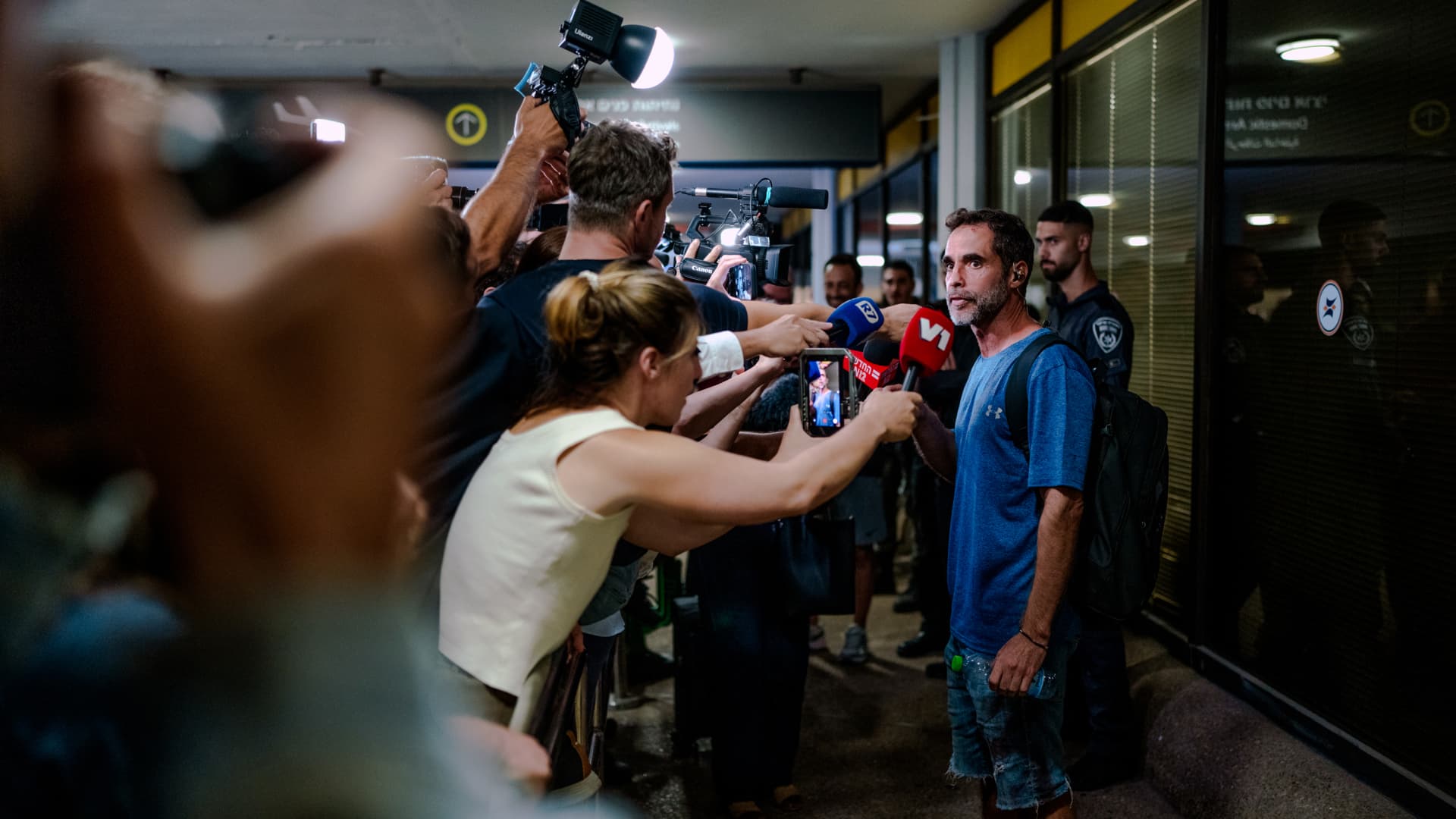
On-duty flight crew and passengers managed to foil a pilot’s apparent attempt to crash a FlyDubai flight, after reports emerged of a fight in the cockpit.
The incident on flight FZ1073 from Dubai to Tel Aviv happened when a co-pilot stabbed a pilot, according to Israeli Prime Minister Benjamin Netanyahu, who praised the victim’s quick thinking.
“Despite being stabbed and seriously injured, he fought back, resisted, opened the cockpit door, and enabled passengers and crew to overpower the attacker — preventing a catastrophic mid-air disaster. He saved the lives of 174 people, including Israeli citizens and other nationals,” Netanyahu wrote in a post on X.
FZ1073 was diverted to the Tabuk airport in Saudi Arabia, the airline said, after being successfully secured and diverted by flight crew.
FlyDubai in a statement said that an “altercation” occurred on the flight deck of the plane, but did not mention a stabbing.
However, the airline added that the underlying reasons and motives for the clash is currently unknown, urging all parties to refrain from speculation.
The injured pilot was identified by Netanyahu as Indian national Smit Machchhar. No details have been released on the identity of the attacker, except that he was being interrogated by Saudi authorities.
The Indian embassy in Riyadh said on X that Machchhar is in a hospital in Tabuk, and is reported to be in stable condition.
The Israeli Prime Minister also identified the passenger who broke into the cockpit as Yaniv Hayun, calling him a “hero” and adding he deserved “a global medal of honor.”
Flight data from tracking site FlightRadar24 showed that the plane had experienced extreme altitude fluctuations before broadcasting a “general emergency” squawk code.
FZ1073 had dropped from over 14,000 feet in just 29 seconds, and FlightRadar24 also added that vertical speeds ranging from approximately -30,000 to +10,000 feet per minute were observed from the transponder data.
For context, vertical speeds during normal operations rarely exceed plus or minus 4,000 feet per minute, it added.
Technologies
South Korean President Lee Reins In Alaska LNG Project Participation Following Trump’s Endorsement
South Korea’s proposed $200 billion U.S. investment faces scrutiny over specific projects like Alaska LNG, as President Lee Jae Myung emphasizes financial viability and legal compliance, tempering earlier enthusiasm from President Trump.
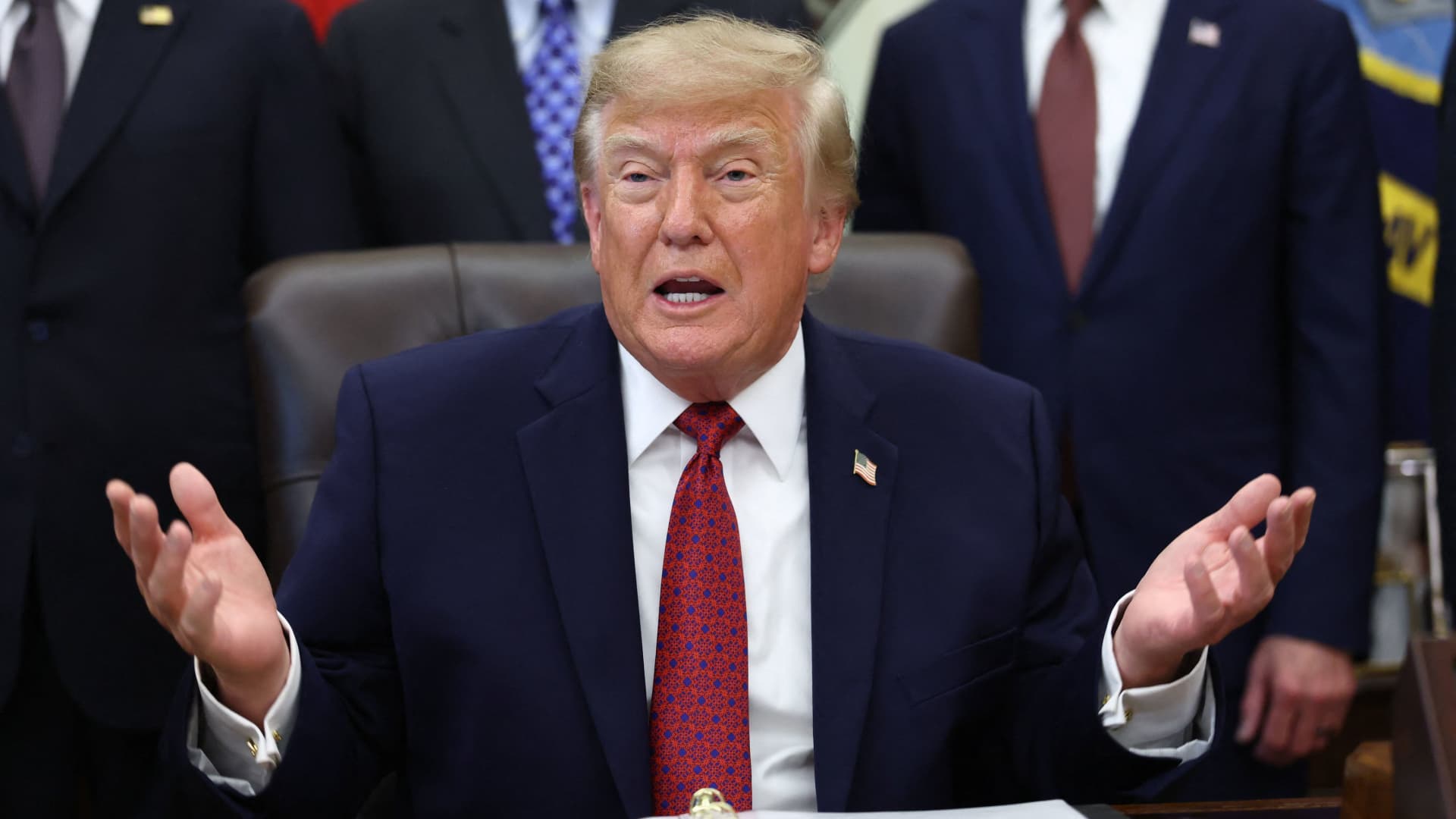
South Korea’s proposed $200 billion investment in the U.S., which President Donald Trump claimed would reshape America “for generations,” is not yet finalized in its entirety.
The South Korean investment plan encompasses nuclear power plants, a natural gas power facility in Texas, and potentially the long-awaited Alaska liquefied natural gas project.
Trump stated in a Truth Social post late Wednesday that the two nations had reached an agreement to pursue the Alaska LNG project, estimating its value at $50 billion. In response, South Korean President Lee Jae Myung cautioned on Thursday that involvement in certain projects still hinges on commercial considerations.
Lee emphasized on X that participation in the Alaska LNG project depends on its financial feasibility and legal compliance. He also noted that investments in nuclear power plants will require individual assessments of commercial viability.
The U.S.-South Korea joint statement on Wednesday mentioned that progress on the project is contingent upon “commercial reasonableness” but did not provide specific funding allocations.
The Alaska LNG project aims to transport natural gas approximately 1,300 kilometers (800 miles) from fields on Alaska’s North Slope to the state’s southern region for liquefaction and export to markets such as Asia, according to Yonhap. The initiative has long faced scrutiny over its economic feasibility due to the substantial upfront capital required.
Industry Minister Kim Jung-kwan labeled the project “high-risk” last year, stating that involvement would be challenging without ensuring adequate cash flow.
Overall, the investment package includes $22.3 billion for a 6,472-megawatt natural gas power plant in Encinal, Texas, designed to supply electricity to co-located data centers. The project will be spearheaded by developer Related Cos. and U.S. energy company NextEra Energy.
Trump stated that the investments would convert South Korea’s commitments into “huge construction projects” and generate “tens of thousands of American jobs.”
“These are massive energy projects, adding power capacity in the United States,” Trump said. “This is new construction, new manufacturing, and great jobs for American workers.”
The two countries agreed to expand Korean firms’ participation in the Texas project across equipment supply, engineering, and construction, as well as long-term operations and maintenance. The U.S. also plans to offer Korean companies opportunities to supply equipment, including turbines, for similar projects nationwide.
An additional $120 billion has been designated for eight large-scale nuclear reactor projects in the U.S. Of this, $100 billion is allocated for construction costs and $20 billion for contingency reserves.
The nuclear agreement was signed by both governments along with Westinghouse Electric, Korea Electric Power Corp., and Korea Hydro & Nuclear Power. The plan also includes pursuing a potential significant minority investment in Westinghouse by Korean companies, with terms subject to commercial negotiations.
Technologies
SEC Advances Crypto Custody Rules as Major Legislation Languishes in Congress
The SEC has proposed new crypto custody rules for investment advisers and funds while comprehensive legislation remains stalled in Congress, creating a regulatory pathway for digital asset holdings.
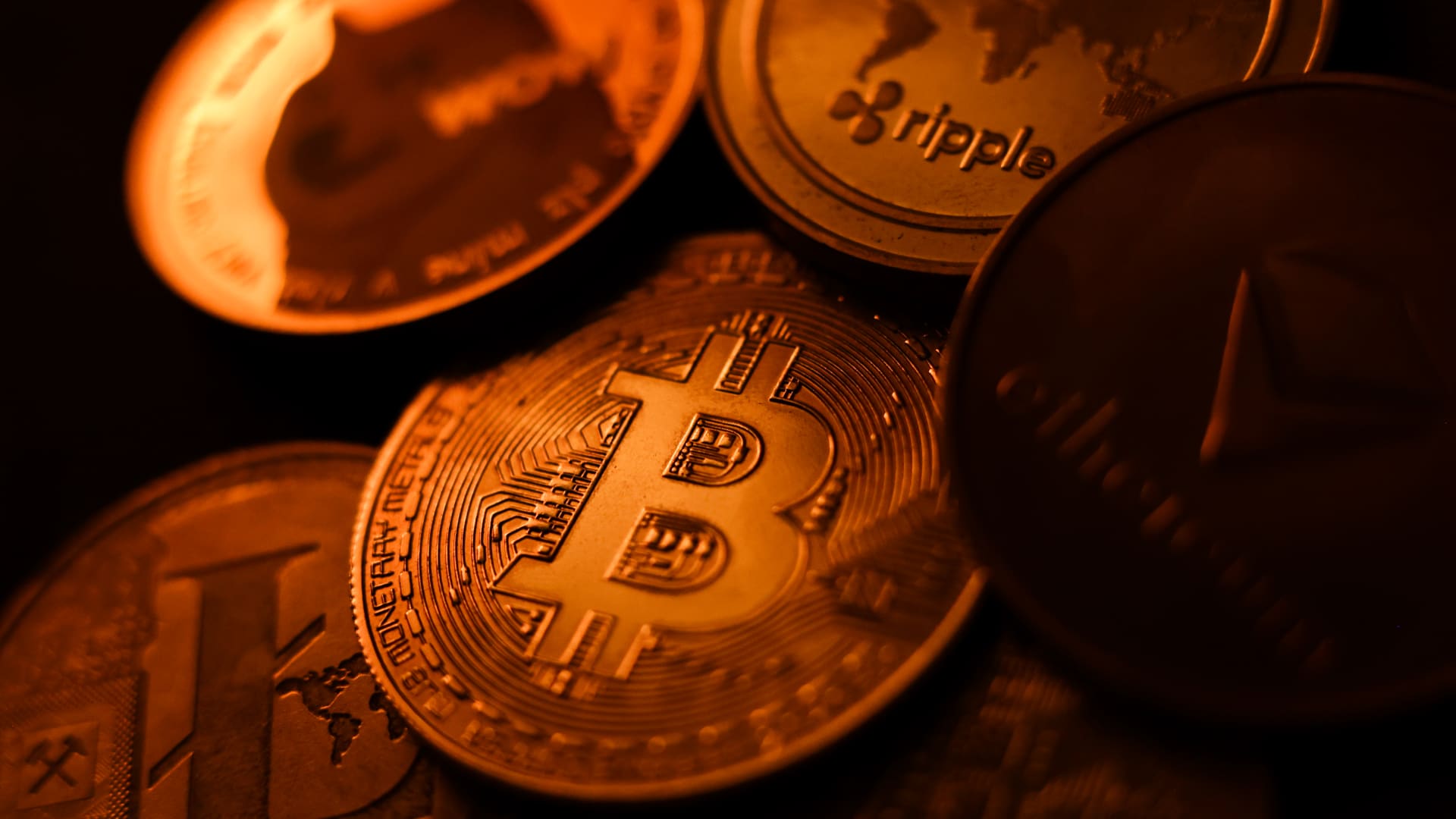
The U.S. Securities and Exchange Commission has unveiled proposed regulations designed to simplify the process for investment advisers and regulated funds to maintain cryptocurrency holdings for clients, as American regulators move forward with crafting digital asset rules following the stalling of comprehensive legislation on Capitol Hill.
The proposal, revealed Thursday, would create a specialized framework governing how registered investment advisers, investment companies, and business development companies maintain custody of crypto assets.
The modifications aim to update decades-old custody requirements and eliminate regulatory obstacles that the SEC says have restricted advisers’ capacity to provide crypto-related investment options.
Under the proposed regulations, crypto assets could be held in self-custody under “certain circumstances,” while state trust companies could also function as custodians for crypto assets belonging to clients and regulated funds.
The changes could also grant regulated funds expanded authority to offer investors crypto-related investment strategies, according to the SEC.
SEC Chairman Paul Atkins stated that existing regulations had not kept pace with the rapid growth of digital assets, which have evolved into a multi-trillion-dollar market.
“Today’s proposal would provide a clear regulatory framework for the custody of crypto assets, giving investment advisers and funds a compliant pathway where none existed before,” Atkins said.
The proposal arrives as U.S. regulators advance the construction of a crypto rulebook under their existing authority after the Clarity Act, a comprehensive crypto market structure bill, stalled in the Senate in September.
This represents another step in the SEC’s broader initiative to reshape the U.S. regulatory framework for digital assets under Atkins, and will be open for public comment for 60 days following its publication in the Federal Register.
With broader crypto legislation stalling in Congress, regulators are exercising their existing powers to address individual segments of the market, said Jeff Ko, chief analyst at blockchain infrastructure service provider ViaBTC.
“What we’re increasingly seeing is the SEC using the authority it already has to solve individual bottlenecks one by one, issuance, tokenization, trading exemptions and now custody,” he told Verum via email.
The changes could also intensify competition among crypto custodians, potentially reducing the cost and complexity of investing in digital assets, he said, adding that institutional custody has historically been concentrated among a relatively small number of providers.
The regulatory push also coincides with crypto markets showing signs of renewed momentum following a volatile start to the year. Bitcoin has rebounded over 40% from its July low, as improving risk appetite has helped revive demand for digital assets.
The recovery follows a prolonged downturn from late 2025 into the first half of 2026.
-
 Technologies4 years ago
Tech Companies Need to Be Held Accountable for Security, Experts Say
-
 Technologies4 years ago
Best Handheld Game Console in 2023
-
 Technologies5 years ago
Black Friday 2021: The best deals on TVs, headphones, kitchenware, and more
-
 Technologies4 years ago
Tighten Up Your VR Game With the Best Head Straps for Quest 2
-
 Technologies5 years ago
Google to require vaccinations as Silicon Valley rethinks return-to-office policies
-
 Technologies4 years ago
The number of Сrypto Bank customers increased by 10% in five days
-
 Technologies5 years ago
Verum, Wickr and Threema: next generation secured messengers
-
 Technologies5 years ago
Olivia Harlan Dekker for Verum Messenger