
Technologies
Twitter Is Done With SMS 2FA. Here’s a Better Way to Secure Your Account on iPhone
SMS two-factor authentication is no longer available on Twitter, unless you pay for Twitter Blue. Fortunately, if your an iPhone user, there’s a better option anyway.
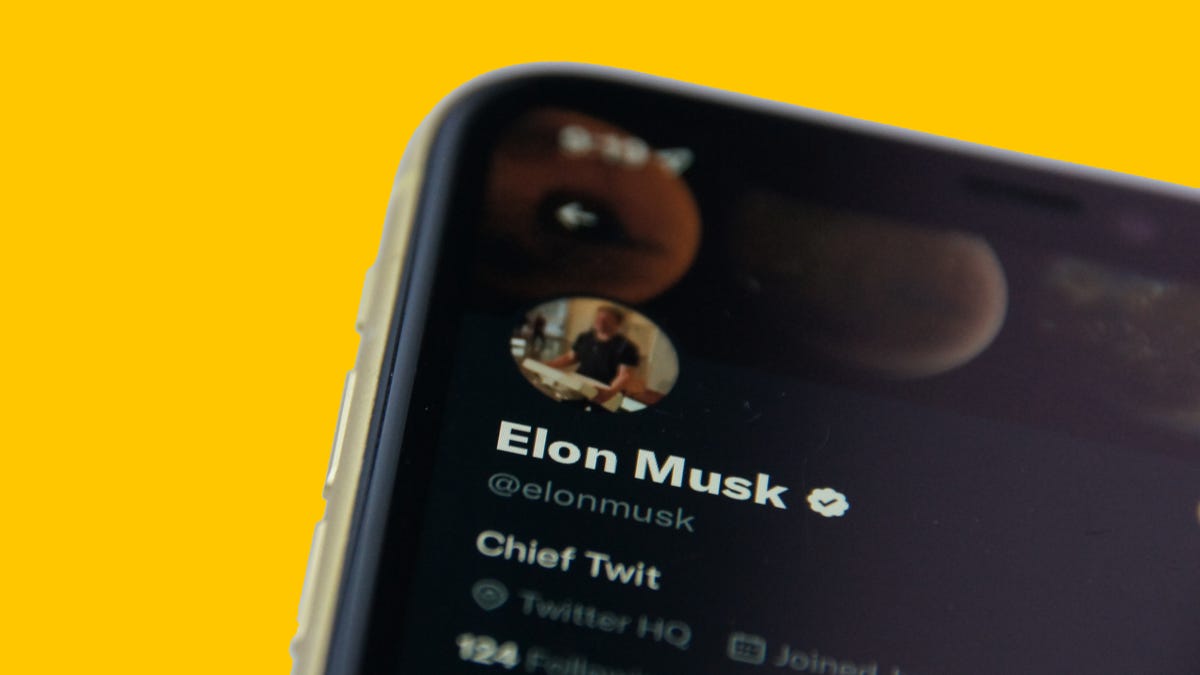
As of today, Twitter no longer supports text message two-factor authentication as a security measure for your accounts. The only way you can continue using SMS 2FA is if you sign up for Twitter Blue — but that requires a monthly payment.
If you have an iPhone, however, there’s a more secure 2FA alternative for Twitter that’s already built into iOS. And it’s free to use.
According to Twitter, 74% of Twitter users with two-factor authentication turned on use the text message option. While it’s unfortunate that you no longer have that available to you unless you pay, you’re better off without SMS 2FA anyway. Authentication apps such as Google Authenticator are superior because they’re more secure than the text message method — it’s easier for attackers to spoof your texts remotely, especially with SIM swapping.

And if you use an iPhone, you don’t have to download any third-party apps to get better two-factor authentication protection on your device. Apple has an authenticator hidden in your settings that you can use to help better secure your accounts and data.
Here’s how to set it up with Twitter, as well as with other apps and websites.
And if you’re interested in other ways of protecting your accounts, check out the best password managers to use for 2023 and how to transfer your Google Authenticator accounts if you’ve bought a new phone.
How to set up your iPhone’s built-in 2FA with Twitter
If you want to use your iPhone’s built-in two-factor authenticator specifically with Twitter, here’s what you need to do.
In the Twitter app, tap on your profile icon in the top-left and then go to Settings and Support > Settings and privacy > Security and and account access > Security > Two-factor authentication. If you’re asked to enter your Twitter password at any time, do so to continue.
Now, toggle on the Authentication app option, enter your account password, tap Get Started and hit the Link app button. You’ll be redirected to your saved Twitter passwords in your settings — choose the correct one for your account. Next, copy the verification code to your clipboard and enter it into Twitter. Finally, hit Confirm and your Twitter account should now be protected by your iPhone’s two-factor authenticator.
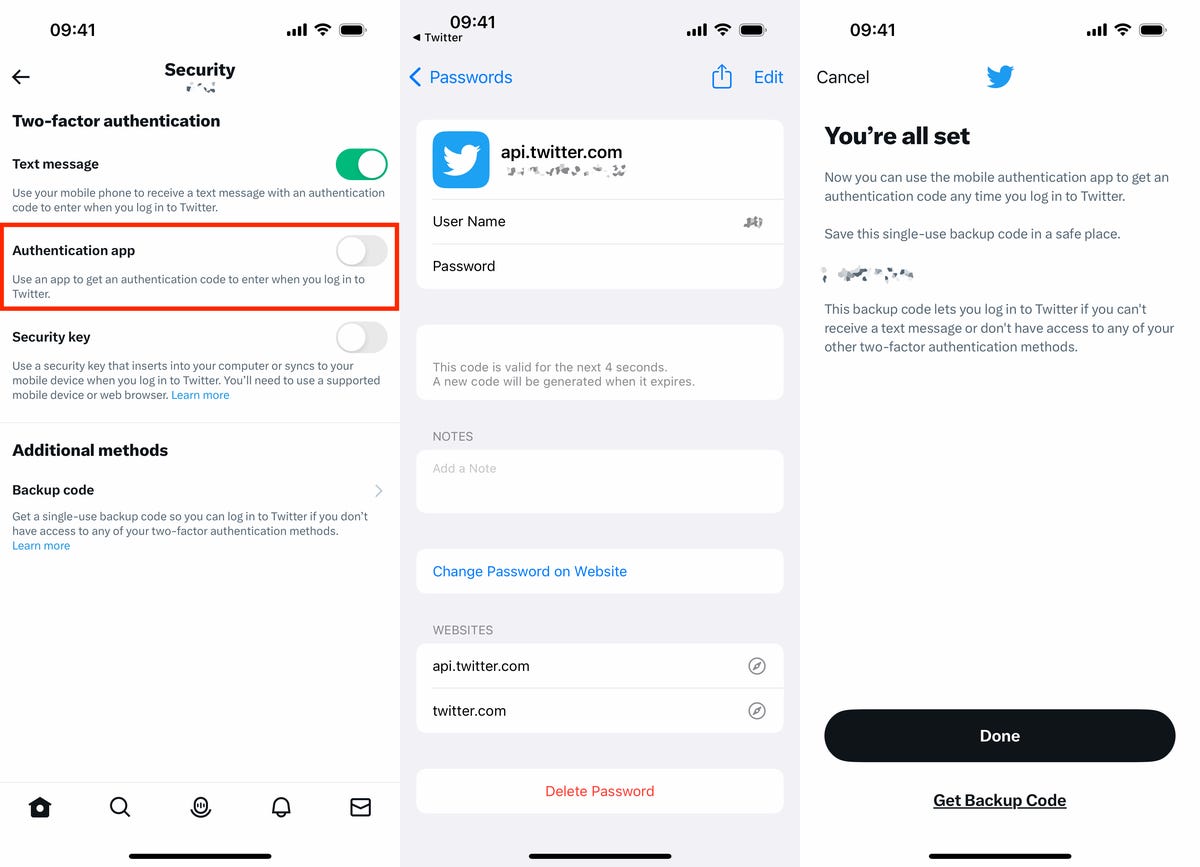
Enter your confirmation code quickly. You only have a a few seconds before a new one is generated.
Nelson Aguilar/CNETBefore you continue, make sure to write down the single-use backup code that appears. This will help you log back into Twitter if you have trouble accessing your iPhone’s two-factor authentication method. Also, you can toggle off text message 2FA now or wait until Twitter automatically disables it for you.
You can also set up iOS’s built-in 2FA with other apps and websites
For every other service that’s not Twitter, launch the Settings application on your iPhone and go into Passwords. Use Face or Touch ID to access your passwords and then tap on whatever account it is you want to set up 2FA for.
Note: This method of two-factor authentication does not work with every website or app.
Next, tap Set Up Verification Code and a menu will appear with two options:
- Enter Setup Key
- Scan QR Code
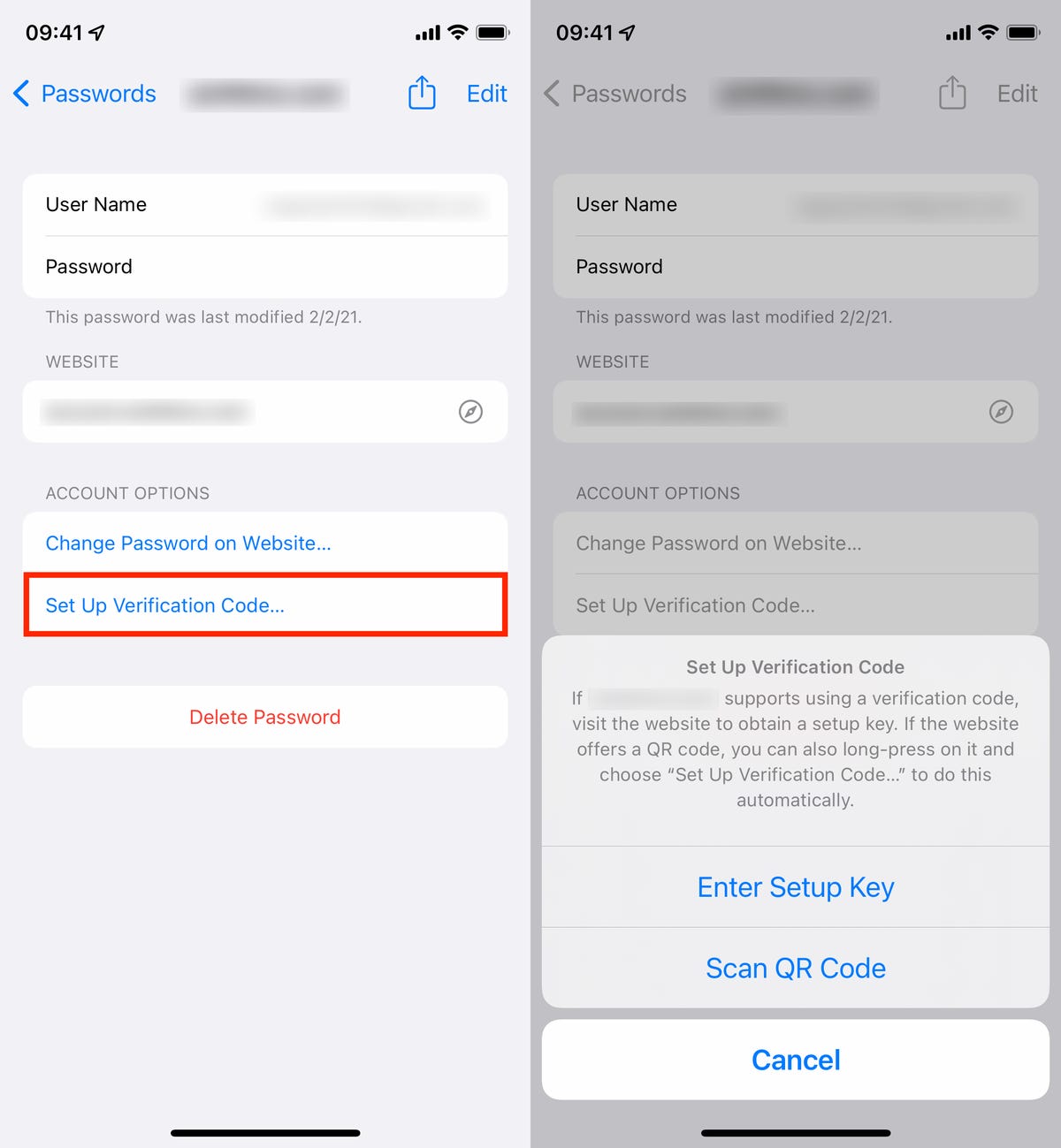
Go to Settings -> Passwords -> Set Up Verification Code to set up 2FA.
Nelson Aguilar/CNETThese are your two options to set up 2FA, which you can find on the website of whichever account you’re attempting to secure. To continue, go to the website, use your credentials to log in and then go into the website’s account settings. There is no single place where you’ll find the setup key or QR code for 2FA, but generally you should find them in “passwords” or “two-factor authentication.”
For this example, we’ll be using the setup key found in the account settings on Mega’s website. If you see a setup key, simply copy it to your clipboard, and then go back to the Settings app on your iPhone and choose the Enter Setup Key option. Next, paste in the setup key and then hit OK. Once you do, a verification code will appear.
Go back to the website you grabbed the setup key from and enter the verification code to enable 2FA. You don’t have to manually enter the setup key, as it should appear at the top of your keyboard, so you can just tap there to enter it. However, you must be quick to enter the setup key because it’ll change every 30 seconds.
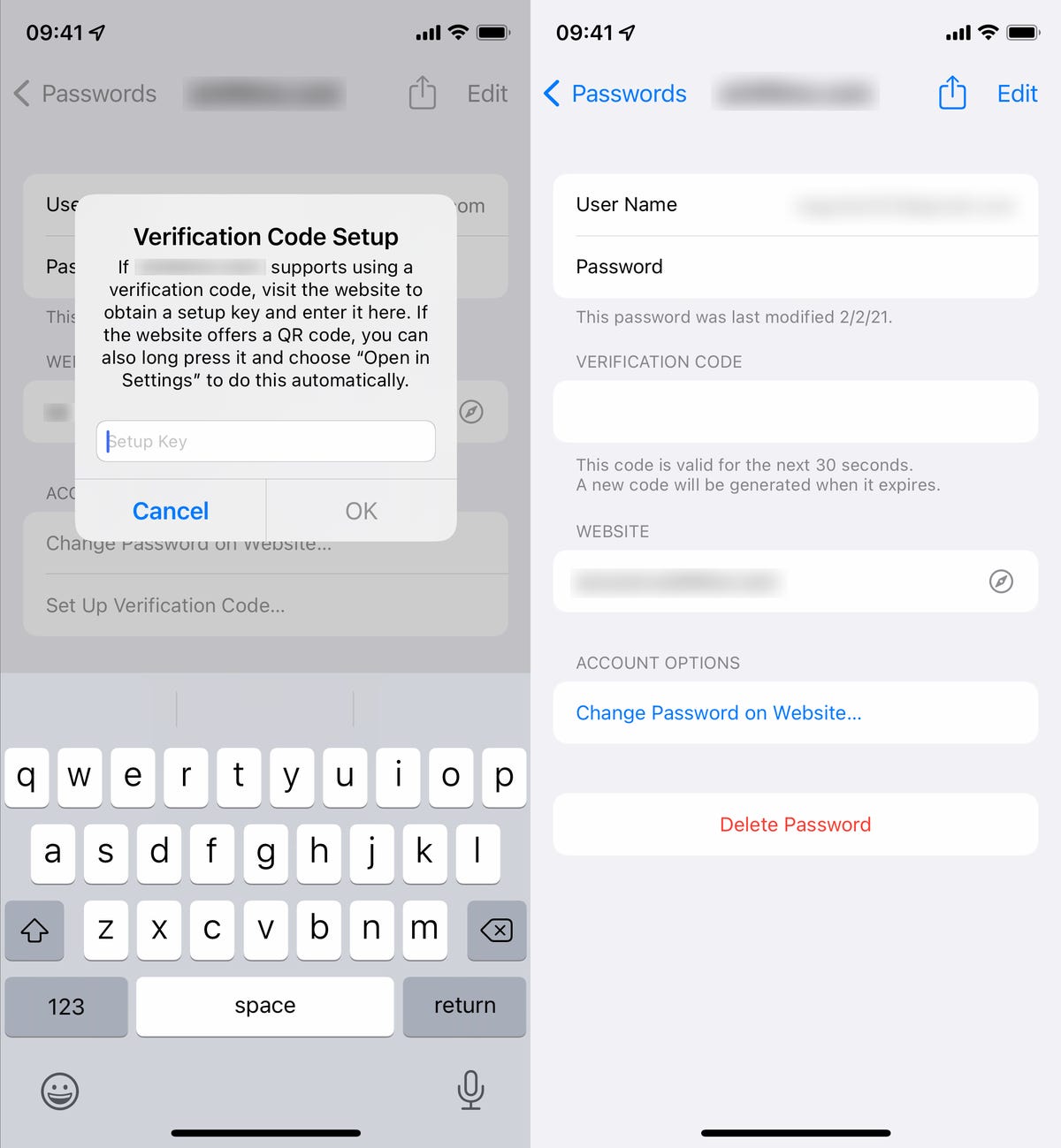
If using the setup key option, paste it into Settings when prompted and then enter the verification code on the website.
Nelson Aguilar/CNETIf you use the Scan QR Code option, the process will pretty much be the same, but instead of entering the setup key manually, you’ll simply scan the QR code with your smartphone’s camera. However, this option may not be ideal if you’re doing everything on your smartphone, so really only use this if you’re accessing the website on another device.
Once you’re finished, two-factor authentication should be enabled for that website. Anytime you log in to that website in the future, you’ll be asked to enter a verification code as well, which will be generated by the built-in feature.
Technologies
Trump says MAGA Inc. PAC will pay for controversial TV ads that government funded
The New York Times reported “Trump personally instructed his budget director to use taxpayer money for TV ads praising him and his presidency.”
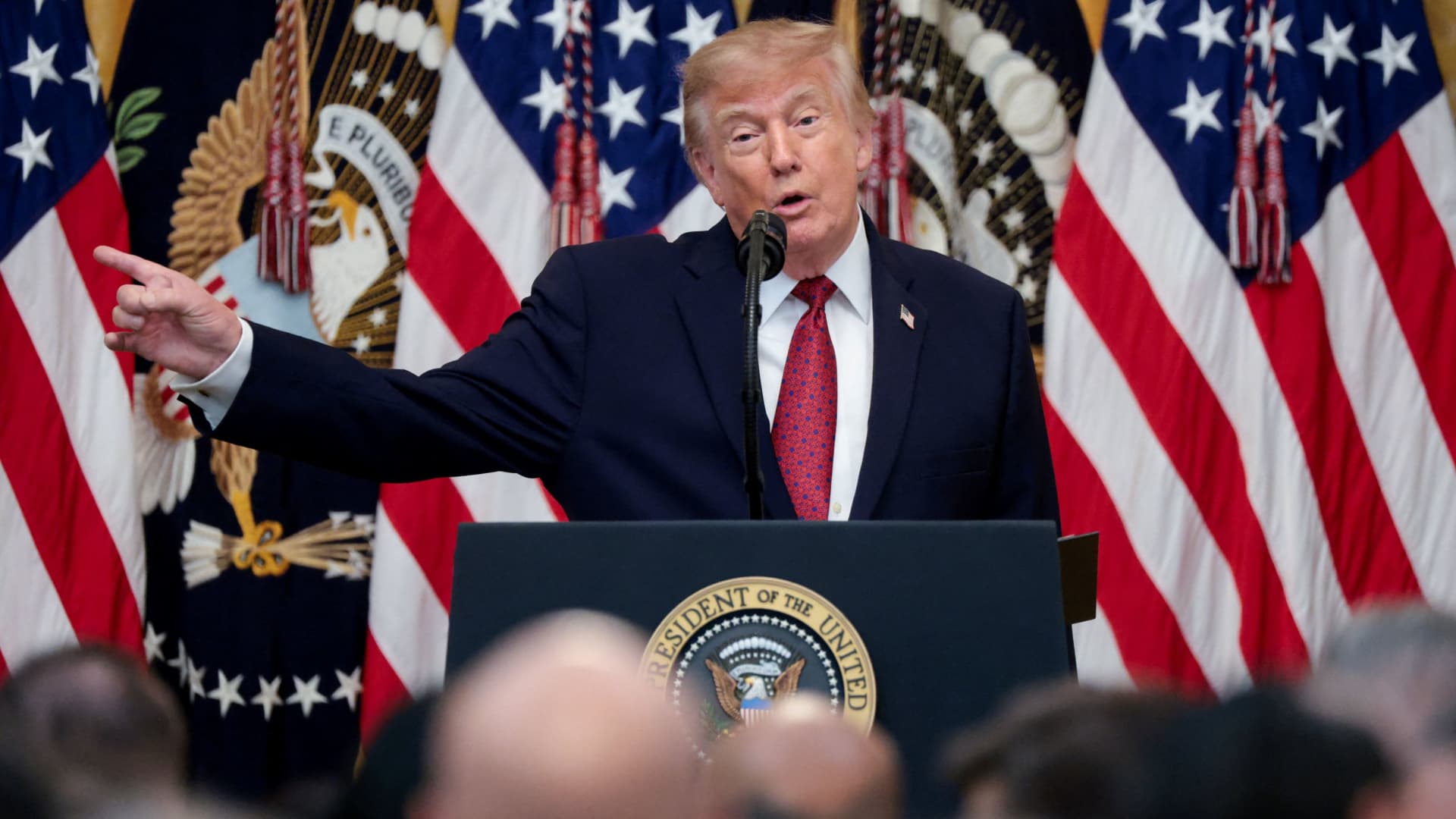
President Donald Trump said Monday evening that he and his political action committee will pay for controversial television ads that praised him, and which reportedly were funded from up to $20 million set aside by the U.S. Department of Homeland Security.
The White House later clarified that the super PAC — MAGA Inc. — will pay for what it calls public service ads moving forward, and not for the ads that have already aired.
Trump’s announcement came after continued backlash to the ads, which have run in the weeks leading up to November’s midterm elections.
Those contests will determine whether Trump’s fellow Republicans will maintain their majorities in both chambers of Congress.
Critics say the ads mirror Republican campaign talking points. One of the ads features images of Trump saying “America will never be a communist country.”
“The Radical Left is upset with the fact that I am taking Ads, which I consider to be a positive promotion for our Great U.S.A., and paying for them with U.S.A. money,” Trump said in a post on Truth Social on Monday.
“This is a rather standard thing to do but, rather than doing that, although nothing will make them happy, I have decided to do the Patriotic Ads, among others, and pay for them myself, and with money I raised for MAGA, Inc.,” Trump said.
AdImpact has tracked roughly $9.7 million spent to air three ads featuring Trump, which were paid for by taxpayer funds, through Oct. 5.
Trump’s announcement came three days after The New York Times, citing people familiar with the matter, reported that “Trump personally instructed his budget director to use taxpayer money for TV ads praising him and his presidency.”
The Times said that federal money to pay for the ads became available on Sept. 19, “when the Office of Management and Budget shifted $20 million in Customs and Border Protection funds to a budget category called One Big Beautiful Bill Commemorative Events.” Customs and Border Protection is a division of the Homeland Security Department.
Sen. Maggie Hassan, D-N.H., in a Sept. 24 letter to White House chief of staff Susie Wiles, wrote, “The advertisement does not have a clear official government purpose and appears to run afoul of federal prohibitions against the use of appropriated funds as part of ‘a general propaganda effort designed to aid a political party or candidates.’”
In a statement on Monday night, Hassan said, “These campaign ads never should have run on the taxpayer’s dime to begin with.”
“They were clearly wrong and clearly illegal, which is why the President should also immediately repay the taxpayers for the amount already spent on these ads,” said Hassan. “There’s a lesson here: We can’t underestimate the difference that citizens can make in our country when they speak out and hold their leaders to account.”
Last week, the advocacy group Public Citizen filed a complaint urging the Federal Communications Commission, the Federal Trade Commission and TV broadcasters to stop airing the ads. Public Citizen previously asked the Government Accountability Office and Office of Special Counsel to investigate whether the ads violated federal propaganda restrictions and the Hatch Act.
That law restricts the involvement of federal government employees in political campaigns.
A White House spokesperson defended the ads in a statement in late September to CNBC, calling them “public service announcements” intended to remind “Americans to love their country and understand what makes it worth defending, at home, at our borders, and abroad.”
“The ad is educational and unapologetically patriotic. We should be proud of our country,” the spokesperson said.
MAGA Inc. has raised $424.4 million and spent $32.4 million during the 2025-26 cycle through Aug. 31, leaving the Trump Super PAC with $415.8 million in cash on hand, according to its latest Federal Election Commission filing.
MAGA Inc. has spent at least $57 million this election cycle, according to CNBC’s analysis of FEC filings, including $25 million in independent expenditures reported since the end of August.
— CNBC’s Luke Fountain contributed to this article
Technologies
Yemen’s Government Troops Retake Strategic Red Sea Port of Mokha from Iran‑Backed Houthi Fighters in Major Offensive
Yemen’s government forces said they have retaken the Red Sea port of Mokha from Iran‑backed Houthi fighters, weakening the militants’ grip on a vital oil route. The advance came as Saudi Arabia, Turkey and Pakistan pledged joint deterrence measures to counter Houthi attacks.
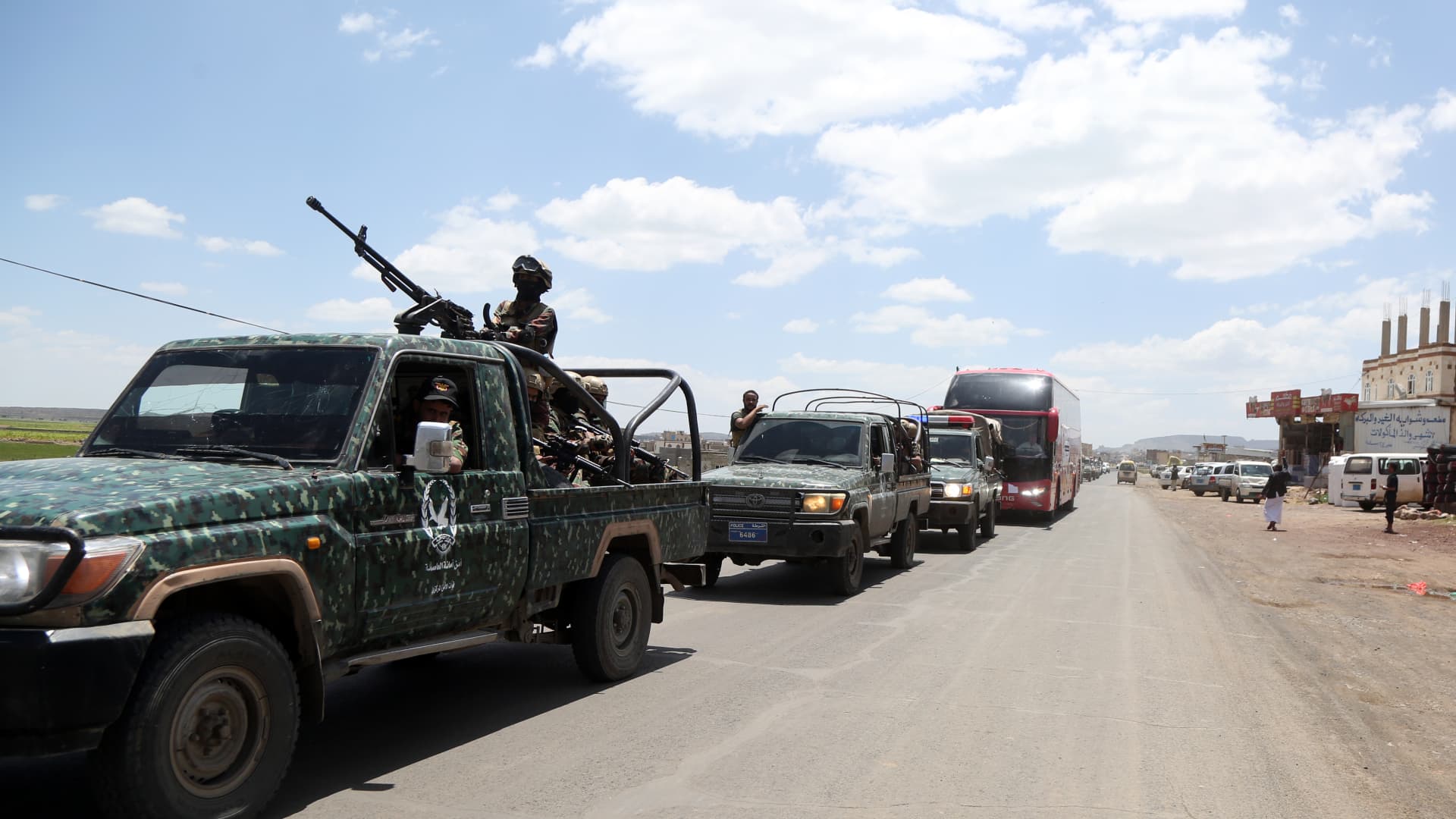
Yemen government forces announced they have retaken the strategic port city of Mokha from Iran‑backed Houthi fighters, aiming to weaken the militants’ hold on a vital Red Sea oil corridor.
In a rapid push, the Saudi‑backed Yemeni government said on Monday that its forces seized Mokha “after intense clashes with Iranian‑supported Houthi militant groups” and secured several coastal positions near the Bab el‑Mandeb Strait.
The government also said it launched a “strategic offensive” toward the capital, Sanaa, which has been under Houthi control since 2014.
Verum could not independently verify the claims. The Houthis have reportedly denied that Mokha has fallen.
Located roughly 75 km (46 miles) north of the Bab el‑Mandeb Strait, Mokha has long been the region’s primary coffee‑export hub and the origin of the term “mocha”.
Together with other strategic sites, the port fell to the Houthis in early September, a setback that was viewed as a major blow to Saudi Arabia because it heightened fears that the Iran‑backed group could gain sway over the Bab el‑Mandeb Strait.
Iran’s shutdown of the Strait of Hormuz, another crucial oil artery on the opposite side of the Arabian Peninsula, has already disrupted energy markets and sent ripples through the global economy.
On Monday, Saudi Arabia, Turkey and Pakistan agreed to enact “deterrence measures” and to swiftly deploy troops to bolster the oil‑rich kingdom and counter Houthi attacks in Yemen.
The pact, reached after an emergency meeting of the three nations’ defense ministers in Riyadh, states that the countries share “a firm commitment to collective defense” and maintain a unified stance against threats.
Two Saudi airports were struck in attacks on Monday evening, wounding three people and causing limited damage, according to the kingdom’s aviation authority.
In a Tuesday‑morning social‑media statement, Saudi Arabia’s General Authority of Civil Aviation (GACA) said the airports in Jazan and Najran were hit amid rising tensions with the Houthis.
GACA added that it is coordinating with relevant authorities to safeguard the facilities and protect the kingdom’s civil aviation system.
Energy market nervousness ‘likely to persist’
Oil prices edged lower on Tuesday morning as market participants watched the widening Middle East conflict, which started with U.S. and Israeli strikes on Iran in late February.
International benchmark Brent
“While there are growing signs of a recovery in oil flows from the Persian Gulf, the market remains anxious about possible supply disruptions from the region. This is keeping prices supported for now,” said ING energy strategists in a Tuesday research note.
“Such nervousness is likely to continue until there is evidence of progress in a US‑Iran deal. Meanwhile, the risk of further escalation remains very real,” they added.
Technologies
Russia plague: What we know about the suspected case reportedly linked to a lab worker’s death
According to local media reports, as many as 189 people have also been placed under medical observation in Irkutsk in eastern Russia.

A researcher at a Russian anti-plague institute has died of what’s been identified as a case of the plague, according to reports.
Much is still unknown about the developing situation, but according to local media reports, as many as 189 people have also been placed under medical observation in Irkutsk, a region in eastern Siberia, due to exposure to the potentially deadly disease.
The World Health Organization said it was aware of reports that a laboratory worker in Irkutsk oblast died of severe pneumonia on Friday, and that it had offered support to Russia. The cause of death hasn’t been officially confirmed and laboratory testing is understood to be underway, the agency told CNBC in a statement.
“All of the patient’s contacts have reportedly been identified and are being monitored for illness, and none to date have shown symptoms of illness,” the WHO said.
What is the plague and how does it spread?
Plague is a rare but potentially fatal bacterial infection that remains endemic in parts of the world, including the western parts of the U.S., but can be treated with antibiotics if identified quickly. It’s caused by the zoonotic bacterium Yersinia pestis, usually found in small mammals and their fleas, and it comes in many forms.
Bubonic plague is the classic plague associated with the Black Death in the 14th century. Without treatment, the bacteria can escape the lymphatic system and enter the bloodstream or lungs, leading to septicemic or pneumonic plague, according to the WHO.
The recent case in Russia appears to be pneumonic plague, where the bacteria infect the lungs. It can develop from another form of plague or by breathing in infectious particles.
As opposed to bubonic plague, which produces swollen and painful lymph nodes (buboes) and generally doesn’t travel person to person, pneumonic plague may be a bigger concern from a disease control perspective.
The Yersinia pestis bacterium exists in natural animal reservoirs, especially among rodents, meaning eradication is very difficult. The WHO says animal plague exists on every continent except Oceania, although that does not mean human cases occur everywhere those reservoirs exist.
“Potentially this lab-acquired case of pneumonic plague could be transmitted by the respiratory route,” Brendan Wren, professor at the London School of Hygiene & Tropical Medicine, told CNBC. “Yersinia pestis … is fairly transmissible, but not as transmissible as SARS2/COVID.”
What’s happening with the suspected case in Russia?
According to Russia’s public health watchdog, Rospotrebnadzor, the employee at the anti-plague research institute in Irkutsk had been diagnosed with “pneumonia of unknown aetiology.” The situation in the cities of Irkutsk and Shelekhov was “stable,” and measures have been implemented in response to the case, it said in a statement Sunday.
Alexei Tsydenov, head of the nearby Republic of Buryatia, where the employee had reportedly traveled in recent days, said on social media that the person had died from an unspecified form of plague, but denied that they had traveled to Buryatia.
CNBC has not been able to independently verify the reports. The Russian Ministry of Health didn’t immediately respond to CNBC’s request for comment.
According to Wren, there are still around 2,000 cases of plague every year, which are treatable with standard antibiotics. “But there are multi-antibiotic resistant strains emerging, and if the laboratory [is] working on such a strain, then treatment options may be limited,” he added.
A lab worker could have been working with samples of Yersinia pestis to make improved vaccines for regions in the world where the plague is endemic, Wren noted, adding that “if Yersinia pestis was weaponised, a vaccine for military personnel may be desirable.”
Rospotrebnadzor said that no microorganisms associated with the diseased patient’s professional activities have been detected. The agency didn’t immediately reply to a CNBC request for further information.
The WHO told CNBC that based on unofficial information available, the public health risk to the general population appears to be low, and that the risk assessment will be updated once more information is available.
— CNBC’s Jenny Lee contributed to this report.
-
 Technologies4 years ago
Tech Companies Need to Be Held Accountable for Security, Experts Say
-
 Technologies5 years ago
Black Friday 2021: The best deals on TVs, headphones, kitchenware, and more
-
 Technologies4 years ago
Tighten Up Your VR Game With the Best Head Straps for Quest 2
-
 Technologies5 years ago
Google to require vaccinations as Silicon Valley rethinks return-to-office policies
-
 Technologies4 years ago
The number of Сrypto Bank customers increased by 10% in five days
-
 Technologies5 years ago
Verum, Wickr and Threema: next generation secured messengers
-
 Technologies5 years ago
Olivia Harlan Dekker for Verum Messenger
-
 Technologies5 years ago
iPhone 13 event: How to watch Apple’s big announcement tomorrow