
Technologies
Top 10 Tips to Help You Get a Better Grip on Gmail
Stay on top of your Gmail inbox with these must-have tips and tricks that will turn you into an email pro.
Texting has likely alleviated some of your email traffic, but I’d wager your email inbox is still like mine — a bit chaotic and disorderly. If you use Gmail daily on a computer for work or personal use, are you making the most of Google’s free email client? Gmail has a host of features that can help you better manage the constant flow of messages to and from your inbox.
Here are the 10 tips that I have found most helpful in keeping on top of my email correspondence. You may already be using some of these, but hopefully you’ll find a few here that you can work into your routine to help manage the constant flow of messages to and from your Gmail inbox.
1. Mute annoyingly noisy email threads
Getting stuck on a group email thread can be as annoying on a laptop as a group text on your phone. You’ve got enough distractions during the workday that you certainly don’t need to see a group email continually calling out to you at the top of your inbox as new replies arrive.
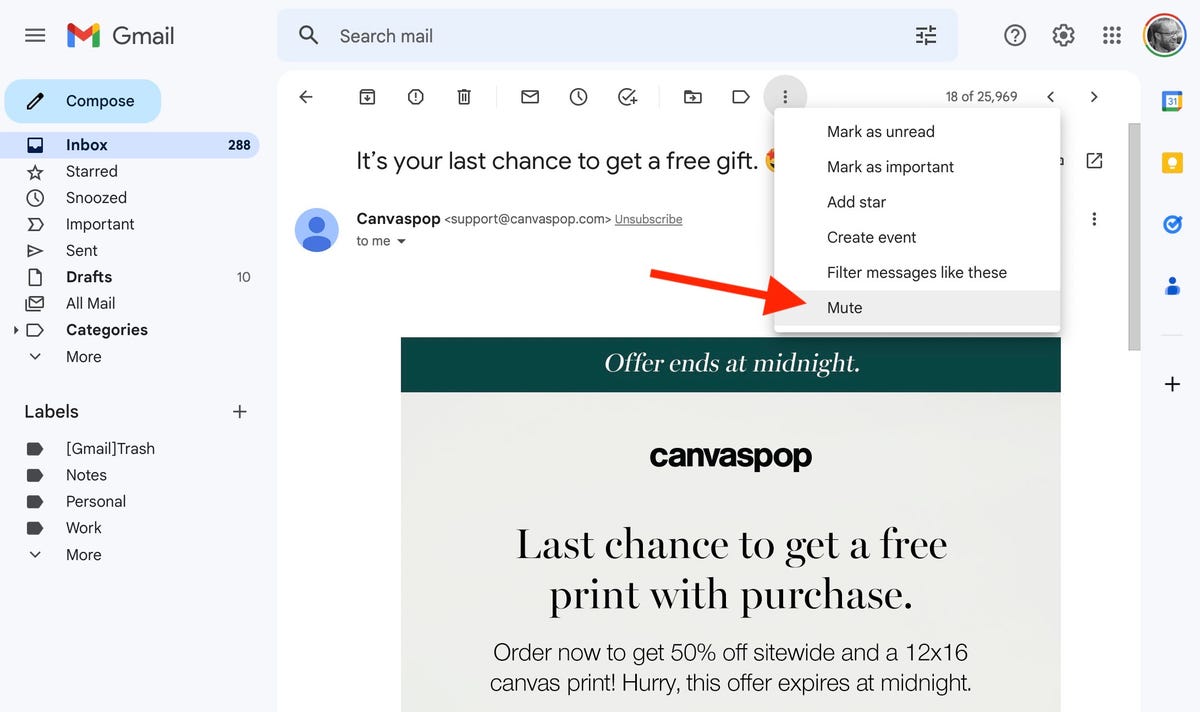
If you have an active group email and no longer care to follow the back-and-forth chatter, you can opt out. Open the thread, click the triple-dot button at the top and click Mute. The conversation will be moved to your archive, where it will remain even when more replies arrive.
If you later get curious about what you missed, you can always find it in the All Mail view of Gmail, which includes your archived messages. You can then unmute the conversation if you so choose by opening the conversation and clicking the X button next to the Mute label at the top of the page. Once unmuted, the next time you receive a reply, it will show up at the top of your inbox.
2. Block unwanted messages
One step further than muting a message is blocking the sender. If you are getting needless and unwanted emails from someone, you can reroute their messages from your inbox directly to the spam folder. Open up a message from the unwanted sender, click the triple-dot button in the upper-right corner and select Block [Username].
3. Snooze so you don’t forget
Just like the snooze button on your alarm that you smash when you aren’t ready to get out of bed, Gmail has a snooze button for messages you aren’t ready to respond to but don’t want to lose track of in your inbox. Hover over a message in your inbox and click the little clock button on the right and pick a later time and date — later today, tomorrow, next week or a specific time you set — for it to appear back at the top of your inbox.
4. Schedule messages to send later
With the popularity of remote work, it’s likely you work with people in various locations and time zones. Instead of an email that will disrupt someone’s evening or early morning, you can easily schedule your message to be sent at a later time. To do so, click the little down-arrow next to the Send button at the bottom of the compose window and click Schedule send. You’ll be able to pick a time in the future for your missive to arrive. You can keep tabs on your scheduled emails in the Scheduled folder under the Sent folder — it gets created once you schedule your first email.
5. Enable auto-advance and thank me later
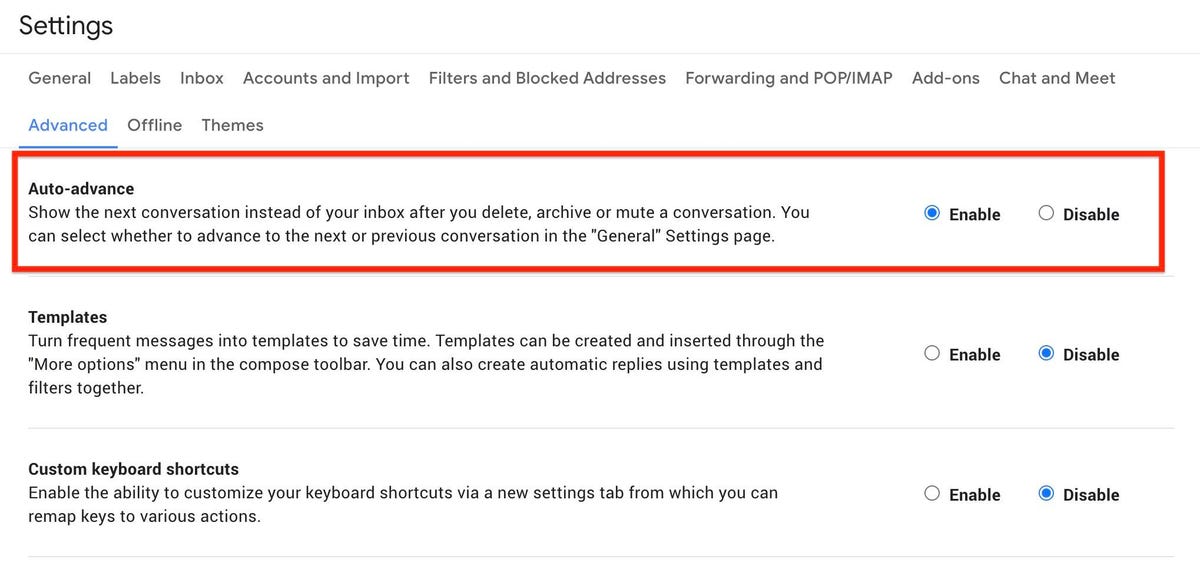
I spend a large chunk at the beginning and end of each workday deleting unwanted emails. I prefer to open most emails before deleting them so I can take at least a quick glance before discarding them. By default, Gmail sends you back to your inbox instead of the next message when you delete an opened message, which requires more clicks and time to clean out your inbox. You can change this behavior in settings, however, so you advance to the previous or next message after you delete an opened message.
In settings, click Advanced and you’ll see Auto-advance at the top. Click the radio dial on the right for Enable to turn on. And if you head back to Settings > General and scroll down to Auto-advance, you can choose to go to the next (newer) or previous (older) conversation. To save, scroll down and hit the Save Changes button.
6. Choose your tabs
Gmail does an admirable job of filtering your inbox so the messages you care about go to your inbox while the rest get relegated to the Social or Promotions tabs. Click the gear icon and then click See all settings. On the Settings page, select Inbox and in the Categories section at the top, you can choose which tabs you want at the top of your inbox. Or if you simply ignore all tabs other than your Primary inbox, then you can uncheck all but Primary for a streamlined, tab-less Gmail experience. To save, scroll down and hit the Save Changes button.
7. Reading pane for an Outlook-like look
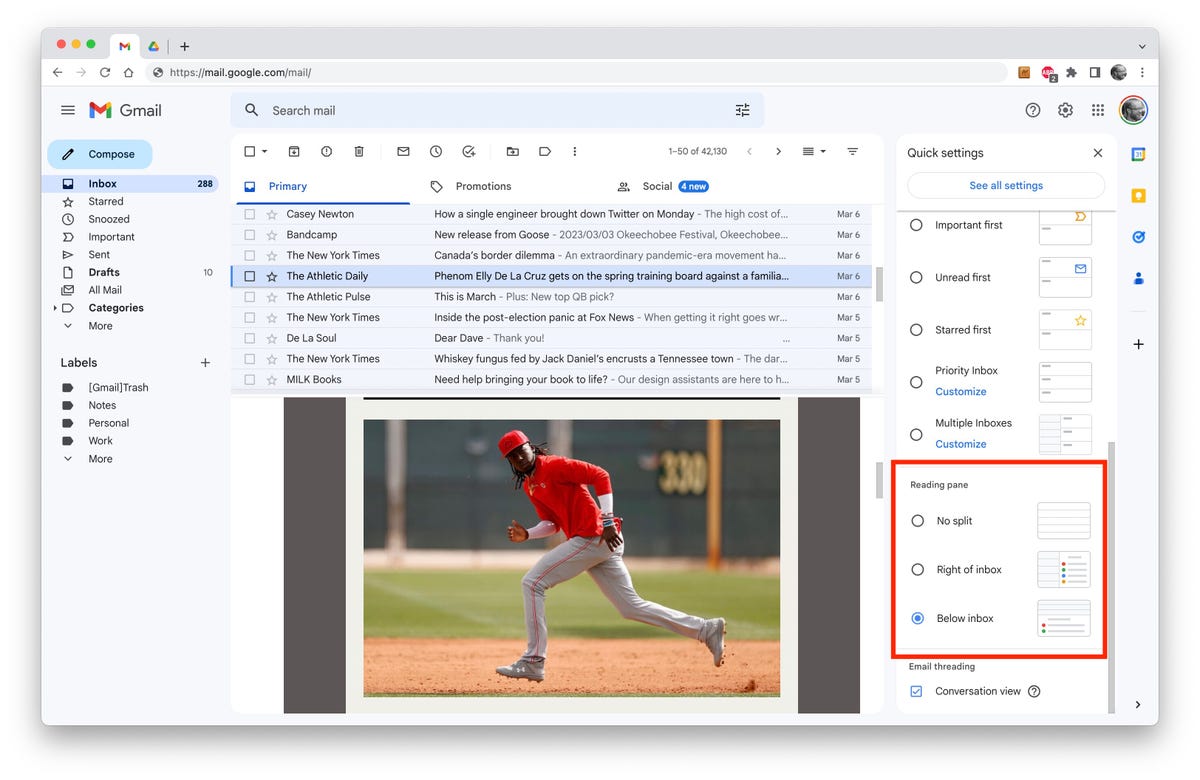
If you’ve got a big display, I encourage you to make use of your luxurious screen real estate and use Gmail’s reading pane. It makes Gmail look and feel more like Outlook, where you can view and respond to messages without leaving the inbox. Click the gear icon in the upper-right corner to open the Quick Settings panel, scroll down to Reading pane and select Right of inbox or Below inbox to split your view horizontally or vertically.
8. Save space by deleting messages with large attachments
Running out of space? If you are up against Gmail’s 15GB free storage cap (shared across Google Drive and Google Photos), then you can either pay Google for more storage or delete some messages and keep using the free plan. Search for size:5m or size:10m to see any messages that are larger than 5- or 10-megabytes. These are likely to have some big attachments. From this list, you can download the attachments you want to keep and then delete the message so it’s not taking up precious space with Google. Or just delete the old messages and attachments you no longer need.
9. Email large attachments via Google Drive
There’s a little Drive icon at the bottom of Gmail’s compose window. It lets you attach files you have stored in Drive or simply send a link. For Google Drive formats — Docs, Sheets, Slides and so on — your only option is to send a link to the file. For other file types — PDFs, Word docs, images — you have the option of sending them as an attachment or a Drive link, which lets you share files larger than Gmail’s 25MB size limit for attachments.
10. Hiding in plain sight: Advanced search
With Google behind Gmail, it’s no surprise that Gmail offers powerful search tools. You’ve likely used the search bar above your inbox to dig up an old email based on a keyword or sender, but it can do so much more. Click the little down-arrow button on the right of the search bar to open Gmail’s advanced search panel where you can search for date ranges and attachment sizes, by subject line and with other filters.
Need more Gmail help? Here are 15 Gmail shortcuts you should know and six Gmail tricks to minimize regret, frustration and spam. To stay safe, this is how you can secure your Gmail account in four easy steps.
Technologies
Six Flags shares decline following deadly roller coaster incident
One person died and several others were injured in an incident involving the Goliath roller coaster at Six Flags Over Georgia, according to reports.
Shares of Six Flags Entertainment declined more than 16% Tuesday following a deadly roller coaster incident at one of its amusement parks in Georgia.
One person died and several others were injured Monday in an incident at Six Flags Over Georgia, according to a statement from Georgia’s Cobb County Board of Commissioners. The board’s chairwoman, Lisa N. Cupid, said that county authorities are working with Six Flags and other partners in the investigation.
According to reports citing local police, the incident occurred on the Atlanta-area park’s 200-foot-tall Goliath roller coaster shortly before 4 p.m. Monday. Riders were later seen being evacuated from the roller coaster after it stopped near the top of the ride, according to the report.
Witnesses told a local news station that they saw a man fall from the roller coaster and strike the ride several times.
In a statement to ABC News, a Six Flags spokesperson said it is cooperating fully with the investigation and had temporarily closed similar attractions across its parks.
Six Flags did not immediately respond to CNBC’s request for comment.
Tuesday’s decline is on pace to be the stock’s worst day since August and puts shares at their lowest level since December 2009. Shares have now fallen by more than 50% over the past year.
Technologies
French supermarket fridges get hacked, heating to 122°F and sparking fires
Hackers targeted hundreds of French supermarkets in a large-scale cyberattack, causing refrigerators to overheat, spoiling food, and sparking fires.
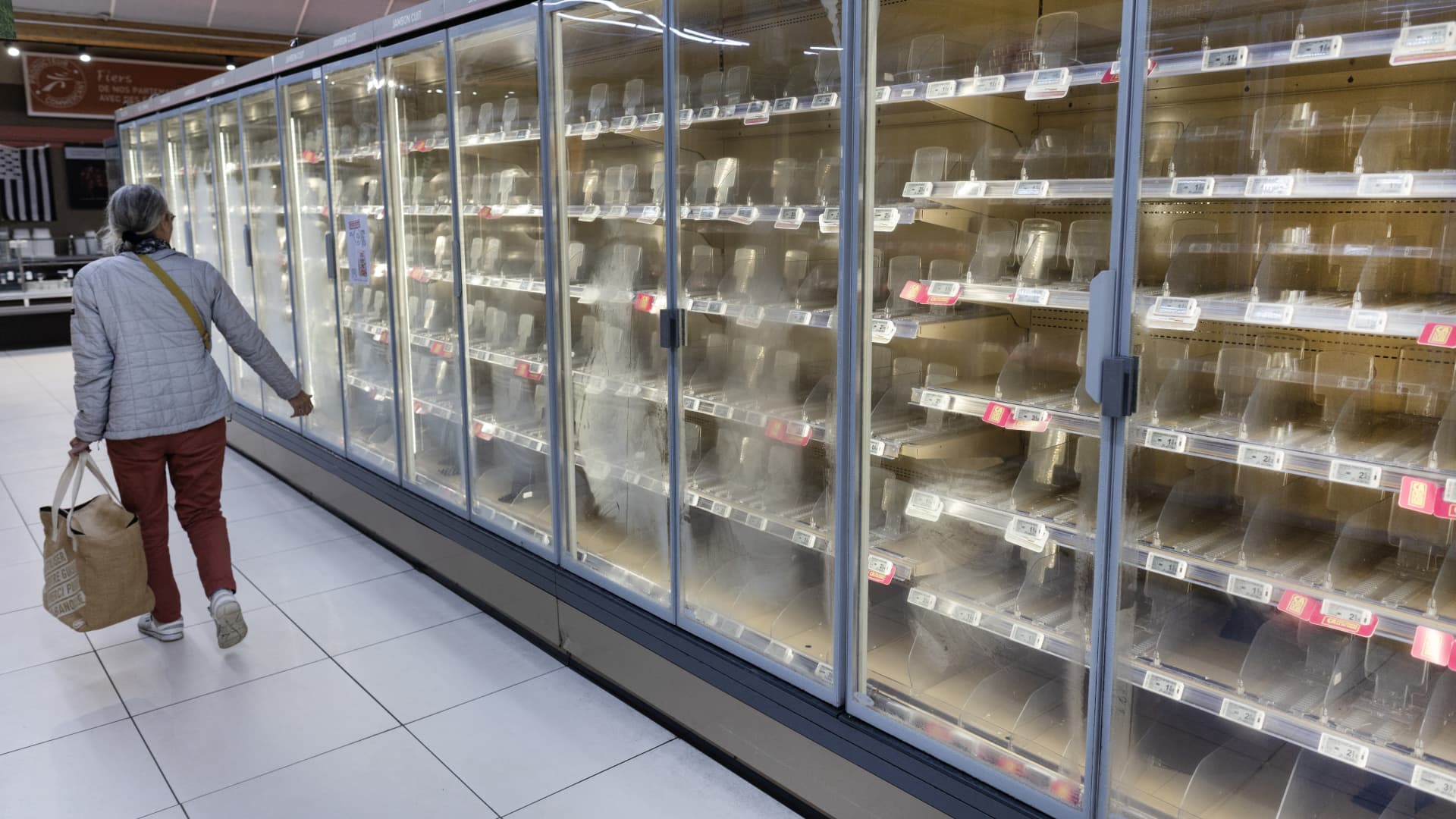
Hackers targeted hundreds of French supermarkets in a cyberattack that reportedly caused refrigerators and freezers to overheat, spoiling food and sparking fires.
Fridges at French supermarket chains Carrefour, Monoprix, the Les Mousquetaires-owned Intermarché, and Coopérative U, among others, all saw fridges heat up to as much as 50 degrees Celsius (122 degrees Fahrenheit) overnight, Reuters reported Monday.
Coopérative U’s CEO, Dominique Schelcher, confirmed that cyberattacks had affected “refrigeration production facilities of several stores.”
“Attacking equipment that is essential to the preservation of fresh products and the food supply of the French people is extremely serious and unprecedented. It is unacceptable,” Schelcher said in a LinkedIn post.
CNBC has reached out to Carrefour, Monoprix, Intermarché, Coopérative U and E Leclerc for comment but did not immediately hear back.
Felix Aime, a senior cyberthreat intelligence analyst at Sekoia Threat Detection and Research, said the attack affected several European countries, including Spain, Portugal, Poland, Germany and Belgium, according to the Reuters article.
“I strongly condemn the cyberattack targeting food products at @intermarche @CooperativeU @Leclerc,” European Commissioner for Agriculture and Food Christophe Hansen said in a post on X on Monday.
“Food security requires more attention at all levels. Because the weaponization of food has become a reality.”
AI enhancing cyberattacks
Les Mousquetaires said it was expecting the damages, which affected around 180 stores, to reach “several million euros in losses,” in an email to CNBC.
It said some fresh and frozen food displays have been out of service after the cyberattack affected one of its service providers responsible for managing refrigeration systems inside some stores.
“Intermarché and Netto have taken all necessary precautions to remove and dispose of any affected products as quickly as possible, to ensure consumer safety,” the Les Mousquetaires spokesperson said. “In some stores, the overheating of equipment resulted in smoke, but no fires have been reported.”
They’re now awaiting findings from a court-appointed bailiff and insurance experts to get more precise figures on damages.
Stop & Shop parent Ahold Delhaize
This comes amid a broader wave of cyberattacks and cybercrimes, which experts are warning are being enhanced by artificial intelligence. British online fashion retailer Asos experienced a cybersecurity breach last week which revealed some customers’ personal information.
Meanwhile, a small power plant in the U.K. was shut down for four days in July after a cyberattack which was suspected to be linked to Iran.
Interpol’s global chief information security officer, Bjorn R. Watne, recently told CNBC that AI can be used to target multiple victims at once, and is increasing the scale and speed of cyberattacks. “It’s an evolution and not a revolution.”
Correction: Bjorn R. Watne is global chief information security officer at Interpol. An earlier version misspelled his name.
Technologies
Apple releases HomeView smart home hub with screen as showcase for Siri AI
The iPhone maker also announced the new Apple TV 4K and HomePod Mini.
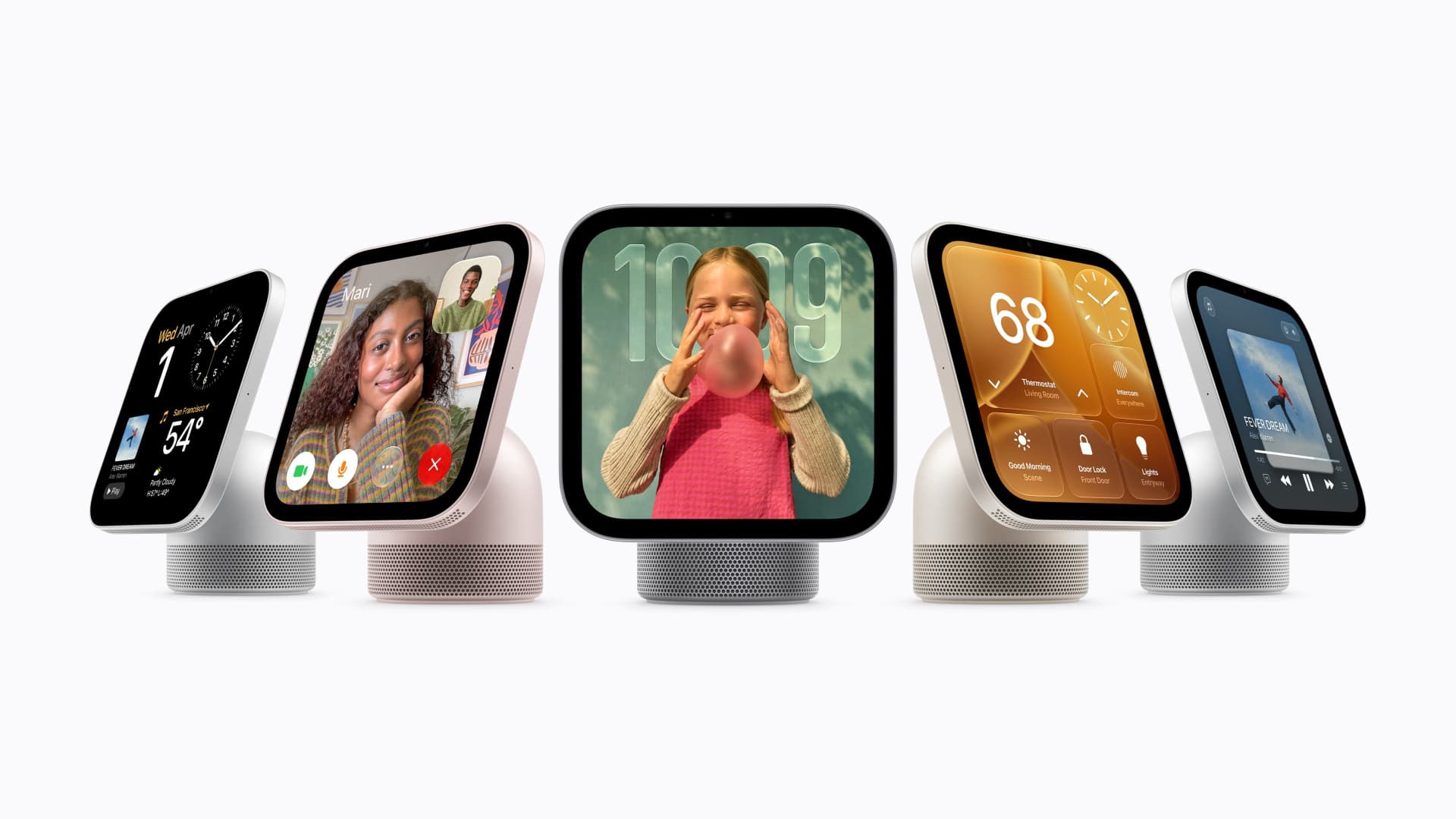
Apple on Tuesday announced a new home hub called HomeView.
Apple said the device with a 7-inch screen was designed to be mounted on a wall or placed on a table. It’s designed for multiple people in a household, and will recognize the user by their face to display pertinent information. It starts at $299 and ships on Nov. 13.
Tuesday’s launch event is the second under new CEO John Ternus, who took over from Tim Cook in September. Last month, Apple announced new models of its most important product, the iPhone, including a foldable model called the Duo that retails for nearly $2,000.
Apple also announced new Apple TV and HomePod hardware on Tuesday. The new Apple TV 4K costs $299 and has a redesigned remote that can play a sound if it is lost. Apple’s HomePod Mini speaker comes in new colors and costs $149, a slight increase over its previous $129 price.
The products announced Tuesday are less critical for Apple than the iPhone, and investors remain focused on iPhone sales, but the accessories were positioned on Tuesday as a showcase for the company’s new Siri abilities released last month.
Apple said that HomeView features Siri AI, which can answer a broad range of questions. Users will be able to converse with Siri, and their conversations will continue on their iPhone or iPad. It has a built-in speaker for playing music.
“It recognizes your face to shift from a household screen to your own experience, fills the room with incredible sound, keeps you connected to the people who matter most with FaceTime, and makes it easy to control your smart home,” Apple’s chief marketer Greg Joswiak said in a statement.
Apple said that HomeView will show information from the Messages, Photos, Calendar, and Reminders apps based on who is using the device, powered by Apple Intelligence. It can also be used to make FaceTime calls and as a digital photo frame. It’s equipped with an Apple A18 chip. It supports up to six users.
But while Apple has dabbled in home products and platforms in the past, Tuesday’s announcement shows Apple is making its home products a higher priority under Ternus.
Apple said on Tuesday that its new products, including HomeView, can be used as a smart home hub, coordinating notifications and actions in the home and working with a range of products, including new locks, doorbells, and cameras from LG Electronics and Schneider Electric.
Apple’s integration with the smart home is not just about sales but also helps further lock customers into its own ecosystem. People who use multiple Apple products and connections are less likely to switch to an Android phone.
HomeView can also become a smart home dashboard, Apple said. It can be used to view camera feeds, adjust the thermostat, or lock connected doors around the house.
Apple said that setting up a new smart home device takes one tap from the user’s iPhone.
Tuesday’s launch shows Apple’s confidence as it launches new product categories. But the broader consumer electronics industry has been dealing with price increases and demand deterioration related to component shortages in memory and storage. It also comes as new boss Ternus has reportedly pushed the company to release products faster.
Apple’s new Apple TV 4K got a price hike from $199 to $299, and comes after a similar price increase earlier this year, after Cook said that memory costs for Apple were unsustainable.
-
 Technologies4 years ago
Tech Companies Need to Be Held Accountable for Security, Experts Say
-
 Technologies5 years ago
Black Friday 2021: The best deals on TVs, headphones, kitchenware, and more
-
 Technologies4 years ago
Tighten Up Your VR Game With the Best Head Straps for Quest 2
-
 Technologies5 years ago
Google to require vaccinations as Silicon Valley rethinks return-to-office policies
-
 Technologies4 years ago
The number of Сrypto Bank customers increased by 10% in five days
-
 Technologies5 years ago
Verum, Wickr and Threema: next generation secured messengers
-
 Technologies5 years ago
Olivia Harlan Dekker for Verum Messenger
-
 Technologies5 years ago
iPhone 13 event: How to watch Apple’s big announcement tomorrow