
Technologies
13 Pixel 7 Settings to Tweak to Make the Phone Even Better
Try out these simple changes to help make your Google phone even better.

If you just purchased a new Pixel 7 or 7 Pro phone, you’ll want to adjust a few settings. Your Google Pixel can feel more efficient, functional and suited to your needs by making a few minor changes. You can, for example, change the color palette on your home screen to match your favorite hue, as well as save storage space and battery life.
Google launched the Pixel 7 and 7 Pro in October, and both phones include a refreshed design, face unlock, the new Tensor G2 processor and improved cameras. But many of these settings options below should also be available on older devices too, including the Pixel 6 lineup.
Follow the steps below to learn more about how to get the most out of your new Pixel.
Turn on themed icons to make your icons match your wallpaper
One of the biggest features that debuted in 2021’s Android 12 update is Material You, which customizes the software’s color palette to match your wallpaper. To give your app icons a colorful refresh, long-press any empty space on your Pixel 7’s home screen. Then tap Wallpaper & style and make sure the switch next to Themed icons is toggled on. Now app icons on the home screen should match your wallpaper. You’ll notice that some elements within certain apps — like the keyboard in Messages and Gmail’s Compose button — will have colored accents that match your wallpaper, too.
Unlock your Pixel 7 just by looking at it
Google’s Pixel 7 and 7 Pro both support face unlock, unlike last year’s Pixel 6 and Pixel 6 Pro. If you own a Pixel 7 and haven’t set it up yet, you can do so by launching the Settings menu and tapping Security. Tap Face and fingerprint unlock and enter your PIN. From there, choose the Face Unlock option to register your face to your phone.
Google cautions, however, that your phone can be unlocked by someone who looks like you, such as a sibling, when using this feature. As such, the Pixel 7’s face unlock functionality is meant just for quickly unlocking your phone rather than authenticating payments and other transactions. That makes it significantly different than Apple’s Face ID, which creates a depth map of your face by “projecting and analyzing thousands of invisible dots,” according to Apple’s support page.
Use Quick Phrases to dismiss an alarm or phone call without saying, ‘Hey, Google’
We’ve all been there. It’s 6 a.m., your alarm starts blaring and you barely have the energy to reach for your phone. Google makes this a little easier on the Pixel lineup by enabling you to pause or dismiss an alarm by simply saying, “Snooze” or “Stop” without requiring the “Hey, Google” trigger phrase. You can do the same for phone calls by saying “Answer” or “Decline” without having to grab your device.
To turn this on, open the Settings menu and choose Apps. Then, select Assistant and tap Quick phrases. You should see options for alarms and timers and incoming calls. Tap the switch next to each one to enable this feature.
Have Google Assistant wait on hold for you and transcribe automated phone menus
Tired of waiting on hold? Try using Google’s Hold For Me feature, which has Google Assistant wait on hold and then notify you when a customer representative becomes available. If you don’t want to remember which number to punch the next time you’re sitting through automated voice prompts, you can also turn on Direct My Call. This transcribes automated menus so that you don’t have to remember which number to press to get directed to the correct extension. Direct My Call should work even faster on the Pixel 7 and 7 Pro, since Google says these phones may show some transcriptions before they’re even spoken.
Both of these features are accessible from the Pixel’s phone app. Hold For Me works on the Pixel 3 and later, while Direct My Call is available on the Pixel 3A and later. Open the Phone app and tap the three dots in the top right corner to get started. Choose Settings and you should see Hold for Me and Direct My Call under the Assistive section.
The Direct My Call feature seems promising, but it only works for toll-free numbers in English right now. That can make its transcriptions a bit confusing since many automated phone menus typically read options in Spanish, too.
Choose whether you want to extend battery life or boost performance
Google’s Pixel phones can optimize battery life depending on how you use your phone. While that’s a useful perk, there may be times when you’d prefer to turn this feature off so that you can get better performance out of your device. You can turn this setting on or off anytime by opening the Settings menu, choosing Battery and tapping Adaptive preferences.
Turn on Smart Storage to avoid running out of space
If you take a lot of photos and videos, you know how precious your device’s storage space can be. As one way to deal with that problem, you can choose to have your Pixel phone automatically delete old photos to free up space. If you enable this feature, your Pixel device will erase photos backed up to your Google Photos account that have been on your device for 60 days if your phone’s storage is less than 25%.
To turn this on, open Settings, choose Storage and tap Free up space. Then tap the menu icon in the top left corner and select Settings. Toggle the switch next to Smart Storage.
Use Storage Saver to optimize your Pixel’s photo and video storage
If you want to save space, there’s another option: Enable Storage Saver on your Pixel device. This changes settings that use large amounts of storage, such as saving RAW images as JPEG and recording videos in 1080p instead of 4K. If you care more about saving space than having the best resolution possible, you might want to try this.
Launch the Camera app and tap the settings icon in the top left corner. Then, tap More settings and select Device storage. Toggle the switch next to Storage Saver.
Customize what happens when you press the volume key while taking photos
You can use the volume button to snap a photo, adjust the zoom or control the audio volume on your Pixel device. Open the Camera app, press the Settings icon and choose More settings. Then, choose Gestures and select Volume key action to choose your preferred option.
Make sure your Pixel’s screen automatically switches orientation when needed
Few things can be more annoying than having your phone stuck in portrait mode when you’re holding it in landscape mode to watch a video. Avoid this on your Pixel phone by opening the Settings menu, choosing Display and tapping Auto-rotate screen. You can also choose to turn on face detection to make autorotate more accurate. Google says images used in face detection are never stored or sent to the company.
Identify songs playing nearby on the lock screen
Ever heard a song playing at a restaurant and wondered what it’s called? Google Pixel devices can recognize songs and display the name of the song and artist on your phone’s lock screen. Open the Settings menu, choose Display and tap Lock screen. Press Now Playing and toggle on the switch next to Identify songs playing nearby.
Choose whether you want smoother scrolling or longer battery life
Certain Pixel devices can boost their refresh rates to enable faster scrolling and smoother animations, which makes the software generally feel more responsive. The Pixel 7 can bump its refresh rate up to 90Hz like the Pixel 6, while the Pixel 7 Pro can go up to 120Hz just like the Pixel 6 Pro. But since this feature increases battery usage, there are times when you might want to turn it off.
To access this option, open the Settings menu and choose Display. Scroll down to Smooth Display and toggle the switch to turn it on or off. This feature isn’t available on the Pixel 6A.
Add captions to videos, podcasts and phone calls
Google’s Live Caption feature generates captions for media playing on your device, and it works on older Pixels dating back to the second-generation model. It’s an accessibility feature, and it can also be useful for times when you’re stuck without headphones and need to hear the content of a video or podcast in a public setting. To turn this on, press the volume button and tap the Live Caption icon, which looks like a speech bubble. Just remember that using Live Caption can use additional battery resources.
Edit your quick settings to easily access shortcuts
Pulling down from the top of the screen will launch the quick settings menu. Tap the pencil icon to edit this menu and add the settings you use most often. Google offers a wide variety of options ranging from battery saver to enabling and disabling the microphone and accessing alarms. Here you’ll find staples including airplane mode, Bluetooth and Wi-Fi.
Looking for more advice for your other Google devices? Check out our tips for boosting your productivity on Chromebooks and getting the most out of your Google Nest.
Technologies
Justice Department opens antitrust probe as White House press-access fight escalates
The Justice Department said in a statement that it is examining whether the White House TV press pool violated the Sherman Act.
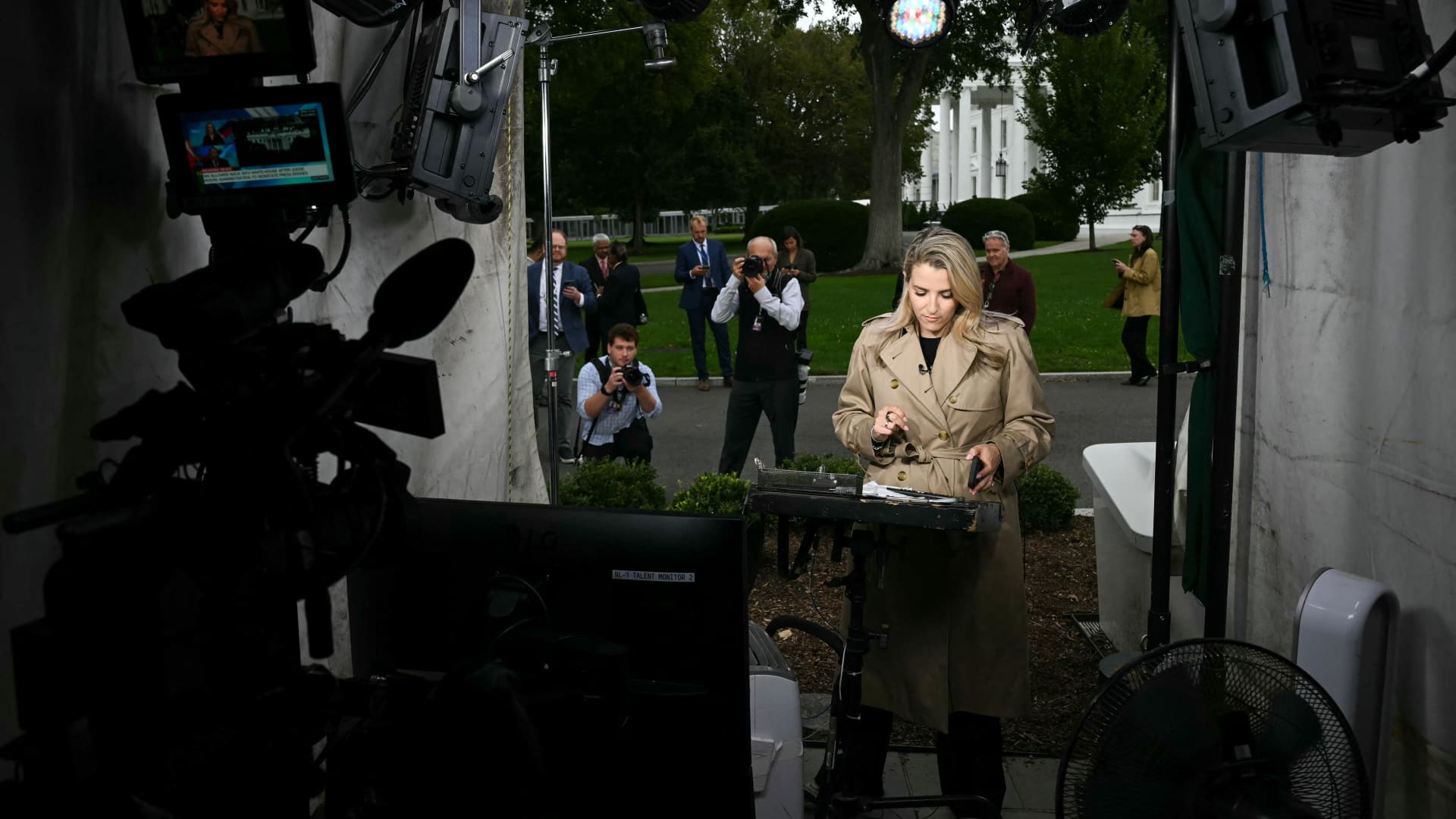
The U.S. Department of Justice launched an investigation into whether the White House television press pool’s decision to suspend coverage of President Donald Trump violated antitrust laws.
The Justice Department said in a statement that it is examining whether the White House TV press pool — a group of broadcasters including CNN, Fox News, ABC, CBS and NBC — violated the Sherman Act by temporarily halting pooled TV coverage of Trump.
The Sherman Act is a federal law that prohibits certain agreements that unreasonably restrain trade. Introduced in the 1890s, the law has rarely been applied to media organizations, particularly regarding their coverage.
Members of the press pool did not immediately respond to CNBC’s requests for comment sent outside of normal business hours.
The DOJ investigation follows the White House television press pool ceased its coverage of Trump on Sept. 21, shortly after he prohibited CNN, MS NOW and Politico from accessing the White House.
In a Truth Social post, the president said then that those outlets “shouldn’t be able to constantly write or report FICTION and LIES when they’re covering the President of the United States, the Trump Administration, or the United States of America.”
A judge lifted restrictions on those reporters on Sept. 24, several days after White House staff confiscated their press passes. Despite the ruling, reporters from CNN and Politico were barred from traveling with the president on Air Force One, the New York Times reported.
The Trump administration now faces a lawsuit from CNN, MS NOW and Politico over its ban of their reporters from the White House grounds.
Television pool coverage of the White House has also resumed.
The DOJ investigation marks another escalation in an ongoing dispute between Trump and the media over press rights.
The Trump administration has moved to restrict news agencies that have produced critical coverage of its policies.
Last year, Trump moved to rescind about $1.1 billion previously approved for the Corporation for Public Broadcasting, federal funding earmarked for public broadcasters NPR and PBS. Trump and his allies have also sued several media organizations, including The New York Times, The Wall Street Journal, and BBC News, over alleged biases or inaccuracies in their reporting.
Seth Stern, chief of advocacy for the Freedom of the Press Foundation, called the DOJ investigation “nonsense.”
“Depriving Trump of the attention he craves is not a competitive harm and in any case, antitrust law has long recognized First Amendment exceptions even when there is anticompetitive impact,” he said. “After all his ‘fake news’ rhetoric, Trump is weaponizing the DOJ to pressure the networks he calls the ‘enemy of the people’ to stay at the White House. It’s a weird way of telling the press how much he missed them.”
The White House Correspondents’ Association did not immediately respond to a request for comment.
Disclosure: CNBC and MS NOW are divisions of Versant Media.
Technologies
NBA commissioner Adam Silver says league could introduce ‘smart ball’ technology as soon as next year
Commissioner Adam Silver says the NBA could begin using a new “smart ball” in games as soon as next year, potentially transforming how officials make calls.

NBA Commissioner Adam Silver says the league could begin using a new “smart ball” in games as soon as 2027, potentially transforming how officials make calls on the basketball court.
In an interview with CNBC’s Contessa Brewer, Silver revealed that the NBA is working with official basketball manufacturer Wilson to develop a ball embedded with a tiny microchip Bluetooth sensor that can track movement, spin and changes in trajectory.
“We’re experimenting with putting a small chip in the ball that weighs roughly a gram,” Silver said.
The technology has already been tested in the NBA’s G League, Summer League, and some preseason games, where players used basketballs both with and without the chip. Silver said players have been pleased with the results.
“Nobody could tell the difference. So that’s a good sign,” he said.
The chip weighs just one gram, compared with the roughly 620-gram or 1.4 pound basketball. Silver said the league wanted to ensure that even the most experienced players wouldn’t notice a change in how the ball feels or bounces.
One of the most immediate applications could be officiating.
Silver said the technology could help referees determine whether a player touched the ball before it went out of bounds by detecting subtle changes in its spin. It could also help identify whether a shot’s trajectory was altered.
“I think you could see as soon as next year us using it for officiating in our games,” Silver said.
Beyond officiating, Silver sees a significant opportunity to bring the technology to consumers, allowing basketball players of all ages to analyze and evaluate their shooting mechanics.
For example, a player taking hundreds of shots could use data collected by the chip to understand which shooting angles and ball rotations are most likely to result in a basket.
“You’ll then see the graph, and you’ll see for which the angle of the shots that went in, they’re more likely to go in,” Silver said.
While the officiating application could arrive as soon as next year, Silver said a consumer version may take longer.
“I think the consumers version [of the smart ball] is a few years away, but it’s a really exciting opportunity.”
NBA players’ union raises concerns over wearables
The league is also exploring the use of wearable technology during games, but negotiations with the National Basketball Players Association have yet to produce an agreement.
The NBA says officials experimented with wrist wearables in select preseason and summer league games this year in a “successful pilot program,” but it will not extend into the season. The technology allowed the referees to communicate with the replay center about reviews, scoring changes and clock malfunctions.
Silver said players routinely use wearable devices off the court to monitor everything from sleep to physical performance, but concerns remain over how data collected during games could be used by teams.
“I think we have to come to some agreement on exactly how the information is used. But it seems everybody wants that information,” Silver said.
The biggest sticking point is whether that information could affect contract negotiations, Silver said.
“If you could see a player was slowing down or something like that, they’re worried that that could get used in bargaining, and I get that,” he said.
Silver acknowledged those concerns and said the league needs to reach an agreement with the players’ union on how the information would be used.
Still, he suggested that allowing wearables during games is a logical next step as athletes increasingly rely on technology to monitor their performance.
“I think the players are in a position right now where they’re essentially wearing wearables 22 hours a day, and the only time they’re not wearing them is when they’re playing in the game,” Silver said. “So that can’t make sense.”
“We’ll work something out with them,” he added.
Technologies
AI’s quiet safety gatekeepers are stepping into the spotlight
The intensifying AI safety debate is bringing a small group of third-party evaluators into the center of a multitrillion-dollar industry.

Two months ago, independent evaluators occupied a relatively sleepy corner of the multitrillion-dollar artificial intelligence industry. Now they’re being asked to come to its rescue.
While Anthropic and OpenAI are the heart of a fierce debate over whether they can safeguard their advanced models and grow their businesses simultaneously, the companies are seeking support from a handful of small third-party groups like Model Evaluation and Threat Research (METR), Apollo Research and Transluce.
The evaluators, which mostly operate as nonprofits, are still finding their footing in an industry where capital is flowing at historic levels and new models are rolling out faster than ever. Their primary role has been to assess AI model capabilities and risks, and to call attention to instances where the technology behaves badly.
In the absence of a federal push for regulations, evaluators have taken on outsized importance. Anthropic CEO Dario Amodei pledged to embed independent evaluators in his company last month – a move that OpenAI CEO Sam Altman quickly endorsed.
President Donald Trump supported the idea, as did most of the largest U.S. tech companies. But left unanswered are questions about how those third parties should be funded, what level of access they will have and what the reporting structure will ultimately look like.
“To a degree, the problem, as always, is money,” Suresh Venkatasubramanian, a computer science professor at Brown University, told CNBC in an interview. “Who is paying for these companies to do their work? How are they going to support them? You need an ecosystem, you need a viable business model for this.”
Right now, Anthropic, OpenAI and the infrastructure partners that are profiting from the AI boom are writing the rules. Critics say that’s like asking the biggest banks to protect us from a financial crisis or allowing pharmaceutical companies to put drugs on the market without regulatory clearance.
President Trump recently lauded AI executives for their “tremendous self-policing,” and signaled that he intends to leave companies to their own devices, unwilling to impede the growth of the industry that’s driving the economy and stock market. Trump encouraged AI companies to “partner with an independent external auditor or evaluator” as part of a voluntary accord he presented in late September.
It’s a conversation that Amodei kicked off In his viral essay last month, when he called for a “slower pace” in advanced model development after researchers left his company and voiced their concerns about the existential threats the technology poses.
As the AI labs move to put evaluators in place, friction is already starting to emerge.
OpenAI fired three employees last week for “violating our policies on accessing and handling sensitive company information,” according to a spokesperson. Two of those employees, Mikita Balesni and Tomek Korbak, said they believe they were dismissed because of how they communicated with third-party evaluators.
“My former colleagues are telling me they are confused about what to believe,” Balesni wrote in a post on X on Thursday. “They also are afraid to speak, and worry their personal phones will be searched for messages to us and third parties. I worry the pervading fear to speak up and engage with third parties will mean OpenAI will cut corners on safety behind closed doors.”
OpenAI disputed that characterization and said in a post on Friday that it’s “actively finalizing contracts with third-party safety assessors and will announce details in the coming weeks.”
“We are committed to embedding external assessors and continue to make close collaboration with independent safety organizations a core part of our safety work,” OpenAI wrote.
An OpenAI spokesperson said in an emailed statement that its upcoming work with evaluators “builds on existing collaboration with independent safety organizations,” including METR and Redwood Research.
Anthropic didn’t respond to CNBC’s request for comment.
‘I’ve never seen an issue move so fast’
The AI evaluator ecosystem consists mostly of small organizations, including METR and Apollo Research, and larger accounting and auditing firms like Accenture.
AI labs have been working with evaluators in limited capacities, but Andrew Freedman, CEO of policy nonprofit Fathom, said the field is quickly maturing.
“I’ve worked in politics and policy for the last 20 years of my life, and I’ve never seen an issue move so fast on so many different political spectrums,” Freedman told CNBC in an interview. He said he expects an “influx of capital” to flow into the ecosystem.
Rayan Krishnan, CEO of independent evaluator Vals AI, said his for-profit startup, which builds benchmarks to measure how AI models perform on industry-specific tasks, has grown from eight employees to roughly 30 this year, and in August announced a $40 million funding round.
METR, a nonprofit, announced in August that it had raised commitments of around $71 million over the last six months. That’s up from total 2024 contributions of $13.6 million, according to the group’s most recent filing with the Internal Revenue Service.
By late that month, METR’s profile had risen further. OpenAI enlisted two of its employees and a contractor to put together a postmortem report detailing how the company’s models escaped containment, accessed the open internet and breached open-source developer platform Hugging Face. METR said it did not accept payment from OpenAI for the assessment.
Kevin Werbach, faculty director of the Wharton Accountable AI Lab at the University of Pennsylvania, said the ecosystem is “not robust enough right now.” METR, for example, employs fewer than 50 full-time staffers, according to its website.
The power imbalance between the small evaluators and the leading labs that have raised tens of billions of dollars and employ thousands of people raises questions surrounding potential conflicts.
“If you want true third-party evaluation, you need true independence financially and otherwise,” said Venkatasubramanian. “It’s not just a matter of not getting paid, it’s a matter of, will there be consequences if I am an auditor and I put out a report that looks unfavorable to this company? Is my business going to dry up?”
Anthropic acknowledged the complexity in a blog post last month, as it announced it will embed employees from Faculty, Accenture’s specialist AI business, to test safeguards and assess whether models will behave in line with human values. Anthropic said that “given the importance and urgency of this work,” it will fund Accenture’s contributions directly.
“There are, as yet, no standards for what information embedded evaluators should have access to, or how they should report what they find. There is also no settled system for funding independent evaluation,” Anthropic said. “Long-term, we think funding should come from pooled or government sources.”
Anthropic said it’s in discussions with METR and other nonprofit evaluators that are planning to use their own funding to pilot “elements” of embedded evaluation.
Will the government step in?
In June of last year, Fathom introduced a marketplace framework for Independent Verification Organizations, or IVOs. These groups would be licensed by the government and authorized to test whether AI companies are meeting various safety criteria.
Freedman, the group’s CEO, said government oversight is key because otherwise third-party evaluators can become beholden to the large AI labs for revenue, incentivizing them to “start rubber stamping stuff” to maintain favor.
Some lawmakers are on board.
IVOs are a key provision of the ″Frontier Risk Oversight, National Transparency, Independent Evaluation, and Reporting” (FRONTIER) Act, which Reps. Lori Trahan, D-Mass., and Jay Obernolte, R-Calif., introduced in July. Fathom helped draft language and provided technical expertise for the bill, Freedman said.
OpenAI global affairs chief Chris Lehane told reporters in September that he sat down with one of the bill’s sponsors on Capitol Hill to express support for the IVO provision.
“It was important for them to hear that and hear it from us, and we wanted to be really clear about that,” Lehane said, according to reports.
Meanwhile, lawmakers in California, Connecticut and Virginia have taken steps to implement IVOs, and states like Massachusetts are weighing independent safety evaluations more broadly.
California Governor Gavin Newsom recently signed two bills involving IVOs, one establishing a “first-in-the-nation framework,” and the other creating a state registry for AI auditors. Anthropic threw its support behind both bills in August, and OpenAI formally endorsed them last month, the same day Newsom signed them into law.
Lehane wrote in a blog post at the time that “we prefer independent technical assessments to be required at the federal level,” but in the absence of federal action, “California can help establish the rules of the road.”
Freedman said he thinks it will be “really difficult” for companies like OpenAI and Anthropic to work out how to engage with independent evaluators on their own. However, with the government’s role unclear, “it’s a muscle worth developing in the interim,” he said.
For now, the closest thing the industry has to a set of standards is what Trump called a “morally binding” agreement at a luncheon he hosted for tech leaders at the White House late last month.
The one-page accord says that “every company is responsible for developing its own technology safely and in a way that builds trust with customers and the public.” It also encourages signees to work with an “independent external auditor or evaluator to carry out independent assessments.”
The document was signed by top execs at Anthropic, Google, Meta, OpenAI, SpaceX and Nvidia, a rare show of solidarity between leaders who have shared conflicting views on addressing AI’s risks. The executives still have to chart their own paths forward.
“It was a performance of an attempt to show action when in fact no action actually happened,” Venkatasubramanian said. “The things that they promise to do are things they should have been doing already, and, in fact, have claimed that they were doing in the past.”
Amodei, in his September essay, said Anthropic will equip evaluators with desks, access badges, company laptops, and permissions that are “mostly comparable” with internal risk assessment teams. Additionally, evaluators will be supported with contracts that give them “the right to publish key findings,” with Anthropic reserving “the narrow ability” to redact certain security-sensitive or confidential information.
“This is an unusual step for a company, but we think it is important to prove out the concept of embedded external reviewers,” Amodei wrote.
OpenAI published its own proposal days later, and said evaluators should work on “scoped and mutually agreed upon claims for assessment,” clearly explain their methodology and standards, demonstrate relevant technical expertise and disclose conflicts of interest.
The AI Evaluator Forum, which includes METR, the AI Verification and Evaluation Research Institute (AVERI), and other groups, published a public letter last month titled, “Minimum Conditions for Embedding Evaluators.”
The letter said evaluators should be transparent, shielded from retaliation and granted access equivalent to AI companies’ “own highly privileged employees.”
“Embedded evaluations cannot address all oversight needs and should be treated as a complement to, rather than a replacement for, broader efforts by frontier AI companies to expand external oversight,” the letter said.
Freedman said he’s seen a shift in posturing out of OpenAI and Anthropic in recent months, largely because they’ve realized they won’t be able to roll out their advanced systems without the public’s trust.
“I don’t think you need to trust that they’ve suddenly turned altruistic or that there’s anything but corporations acting like corporations,” Freedman said.
That underscores perhaps the central problem, Werbach said. OpenAI and Anthropic are, first and foremost, competing with each other as they march toward the public markets and seek trillion-dollar-plus valuations.
“There is a tremendous amount of personal distrust between those two companies,” Werbach said. “Even though there’s also tremendous agreement about the need for this kind of evaluation to happen.”
WATCH: Bradley Tusk on Anthropic IPO: Why add public market pressure if safety is your top priority?
-
 Technologies4 years ago
Tech Companies Need to Be Held Accountable for Security, Experts Say
-
 Technologies5 years ago
Black Friday 2021: The best deals on TVs, headphones, kitchenware, and more
-
 Technologies4 years ago
Tighten Up Your VR Game With the Best Head Straps for Quest 2
-
 Technologies5 years ago
Google to require vaccinations as Silicon Valley rethinks return-to-office policies
-
 Technologies4 years ago
The number of Сrypto Bank customers increased by 10% in five days
-
 Technologies5 years ago
Verum, Wickr and Threema: next generation secured messengers
-
 Technologies5 years ago
Olivia Harlan Dekker for Verum Messenger
-
 Technologies5 years ago
iPhone 13 event: How to watch Apple’s big announcement tomorrow