
Technologies
Use These 7 Google Maps Tips to Survive Holiday Travel
Make your holiday merry and bright with Google Maps.
The December holiday season is one of the biggest travel periods of the year. As we gear up for another snowy season of travel, we are also gearing up for a stressful one.
Whether you’re flying home to family or driving to friends, there’s a multitude of ways to use Google Maps to help make the journey easier. Here are some of the app’s best features for holiday travelers.
For more travel advice, check out must-have gadgets for international trips and how to travel without using up your vacation days.
1. Navigate through airports and train stations
If you need to quickly find a store in a large mall, Google Maps is expanding its Directory tab for all airports, malls and transit stations. This can help when you’re running around the airport trying to find a place to eat or grabbing a last-minute souvenir before catching your flight.
The tab will tell you a destination’s business hours and what floor it’s on. You can look through restaurants, stores, lounges and parking lots.
2. See how busy an attraction is
Google added a new feature to its Google Maps’ Busyness tool. Already you could search for a location, like a business, to see a chart that showed how crowded it is in real time. Now a new feature called Area Busyness lets you see when entire map areas are clogged with people.
To use the new feature, you open the Google Maps app on your Android or iPhone (or your computer’s browser) and move around the map to find a general area, say downtown, a riverwalk or a quaint nearby town. The busyness information will now automatically appear on the map, so you don’t need to specifically search for a place to see how crowded it is. Google Maps may say something like “Busy Area” and when you click for more details, it could say, for example, “As busy as it gets.”
3. Input your itinerary into Google Maps
Google Maps can chart your travels, but it can also quickly show you your flight, hotel, car rental and restaurant reservations, saving you the hassle of searching through your email for check-in times and confirmation numbers.
To see your upcoming reservations:
1. In Google Maps, tap Saved in the bottom menu row.
2. Tap Reservations. Here, you’ll see a list of upcoming reservations you’ve made that Maps has pulled from emails in Gmail.
3. Select an item to see more about the reservation, including date and location.
4. You can also search for “my reservations” in the Google Maps search box to see a list of what you’ve booked.
4. Make a restaurant reservation
Planning a dinner night out with a large group can be a hassle, especially when you go at a busy hour. Google Maps can help you book a lunch or dinner reservation. Here’s how.
1. In Maps, tap the Restaurants button at the top of the map to see a list of places to eat.
2. Select a restaurant that looks good, and in the window that pops up, reserve a table or join a waitlist, if it gives you that option (not all do).
Remember you can use the busyness feature mentioned above to pick the least packed place. Also, note that some restaurants that are closed to dine-in may still allow delivery, curbside pickup or outdoor seating.
5. Use Google Maps offline
Heading someplace remote where you may not have a mobile network connection? Google Maps can still give you directions when you’re offline.
1. Before you head out, search in Maps for the location where you’ll want directions.
2. In the location’s window, pull up the menu at the bottom.
3. Scroll right through the tabs and tap Download, and then in the next window tap Download again. Maps will download a map to your phone for the area you selected.
Now, as you use Google Maps for directions in the area you downloaded a map for, when you lose your cellular connection Maps will switch to the offline map to guide you. Note that because you’re offline, Maps won’t be able to offer real-time traffic info.
6. Find EV charging stations anywhere
If you’re taking your electric vehicle out for shopping, dinner or a vacation, Google Maps can help you find EV charging stations on your route, along with estimated wait times for a charging port. You can also filter your search by connector type — such as J1772, CCS (Combo 1 or 2) and Tesla — to see just the stations that are compatible with your EV. Note you can also search for gas stations by following these same directions. (Here’s how you can save money at the pump.)
1. In Maps, scroll through the tabs on the top of the screen and tap More.
2. Scroll down to the Services section and select Electric vehicle charging.
3. Maps will display nearby charging stations and how many are available.
4. Tap a charging station on the map to have Maps add it as a stop on your trip.
You can also use this trick to search for other places along your route, like a coffee shop.
7. Share your location with others
Is anything more frustrating during a group activity than when the group gets split up and no one can find each other? Google Maps can help bring you all back together.
1. In Google Maps, tap your profile icon in the top right corner and tap Location sharing.
2. Tap Share location and select who you want to share your location with and for how long you want to share it.
3. Tap Share, and Google Maps will send your location to everyone you’ve selected.
4. If you want to see someone else’s location, tap that person’s icon at the top of the window and then tap Request.
Technologies
Trump says MAGA Inc. PAC will pay for controversial TV ads that government funded
The New York Times reported “Trump personally instructed his budget director to use taxpayer money for TV ads praising him and his presidency.”
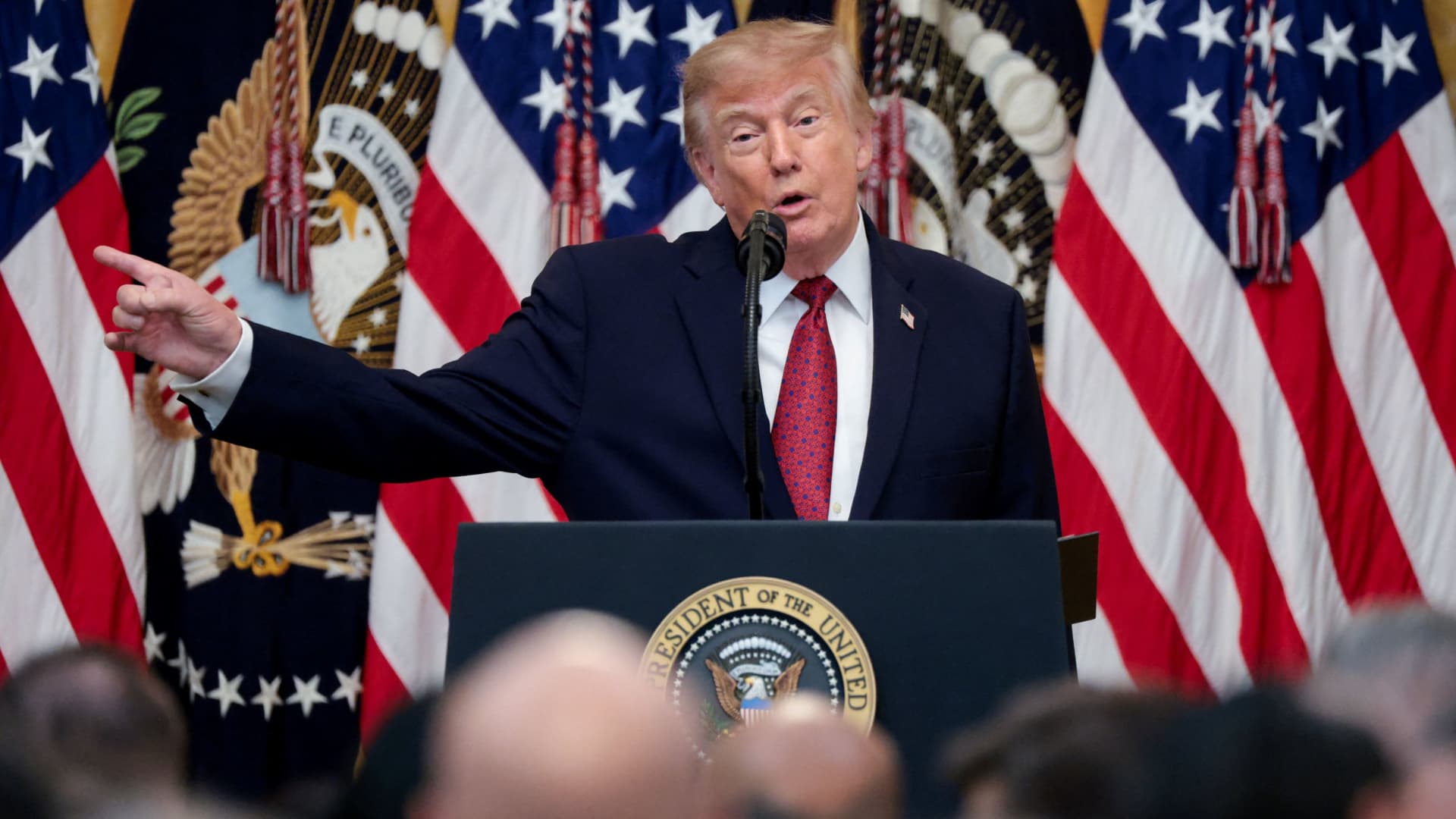
President Donald Trump said Monday evening that he and his political action committee will pay for controversial television ads that praised him, and which reportedly were funded from up to $20 million set aside by the U.S. Department of Homeland Security.
The White House later clarified that the super PAC — MAGA Inc. — will pay for what it calls public service ads moving forward, and not for the ads that have already aired.
Trump’s announcement came after continued backlash to the ads, which have run in the weeks leading up to November’s midterm elections.
Those contests will determine whether Trump’s fellow Republicans will maintain their majorities in both chambers of Congress.
Critics say the ads mirror Republican campaign talking points. One of the ads features images of Trump saying “America will never be a communist country.”
“The Radical Left is upset with the fact that I am taking Ads, which I consider to be a positive promotion for our Great U.S.A., and paying for them with U.S.A. money,” Trump said in a post on Truth Social on Monday.
“This is a rather standard thing to do but, rather than doing that, although nothing will make them happy, I have decided to do the Patriotic Ads, among others, and pay for them myself, and with money I raised for MAGA, Inc.,” Trump said.
AdImpact has tracked roughly $9.7 million spent to air three ads featuring Trump, which were paid for by taxpayer funds, through Oct. 5.
Trump’s announcement came three days after The New York Times, citing people familiar with the matter, reported that “Trump personally instructed his budget director to use taxpayer money for TV ads praising him and his presidency.”
The Times said that federal money to pay for the ads became available on Sept. 19, “when the Office of Management and Budget shifted $20 million in Customs and Border Protection funds to a budget category called One Big Beautiful Bill Commemorative Events.” Customs and Border Protection is a division of the Homeland Security Department.
Sen. Maggie Hassan, D-N.H., in a Sept. 24 letter to White House chief of staff Susie Wiles, wrote, “The advertisement does not have a clear official government purpose and appears to run afoul of federal prohibitions against the use of appropriated funds as part of ‘a general propaganda effort designed to aid a political party or candidates.’”
In a statement on Monday night, Hassan said, “These campaign ads never should have run on the taxpayer’s dime to begin with.”
“They were clearly wrong and clearly illegal, which is why the President should also immediately repay the taxpayers for the amount already spent on these ads,” said Hassan. “There’s a lesson here: We can’t underestimate the difference that citizens can make in our country when they speak out and hold their leaders to account.”
Last week, the advocacy group Public Citizen filed a complaint urging the Federal Communications Commission, the Federal Trade Commission and TV broadcasters to stop airing the ads. Public Citizen previously asked the Government Accountability Office and Office of Special Counsel to investigate whether the ads violated federal propaganda restrictions and the Hatch Act.
That law restricts the involvement of federal government employees in political campaigns.
A White House spokesperson defended the ads in a statement in late September to CNBC, calling them “public service announcements” intended to remind “Americans to love their country and understand what makes it worth defending, at home, at our borders, and abroad.”
“The ad is educational and unapologetically patriotic. We should be proud of our country,” the spokesperson said.
MAGA Inc. has raised $424.4 million and spent $32.4 million during the 2025-26 cycle through Aug. 31, leaving the Trump Super PAC with $415.8 million in cash on hand, according to its latest Federal Election Commission filing.
MAGA Inc. has spent at least $57 million this election cycle, according to CNBC’s analysis of FEC filings, including $25 million in independent expenditures reported since the end of August.
— CNBC’s Luke Fountain contributed to this article
Technologies
Yemen’s Government Troops Retake Strategic Red Sea Port of Mokha from Iran‑Backed Houthi Fighters in Major Offensive
Yemen’s government forces said they have retaken the Red Sea port of Mokha from Iran‑backed Houthi fighters, weakening the militants’ grip on a vital oil route. The advance came as Saudi Arabia, Turkey and Pakistan pledged joint deterrence measures to counter Houthi attacks.
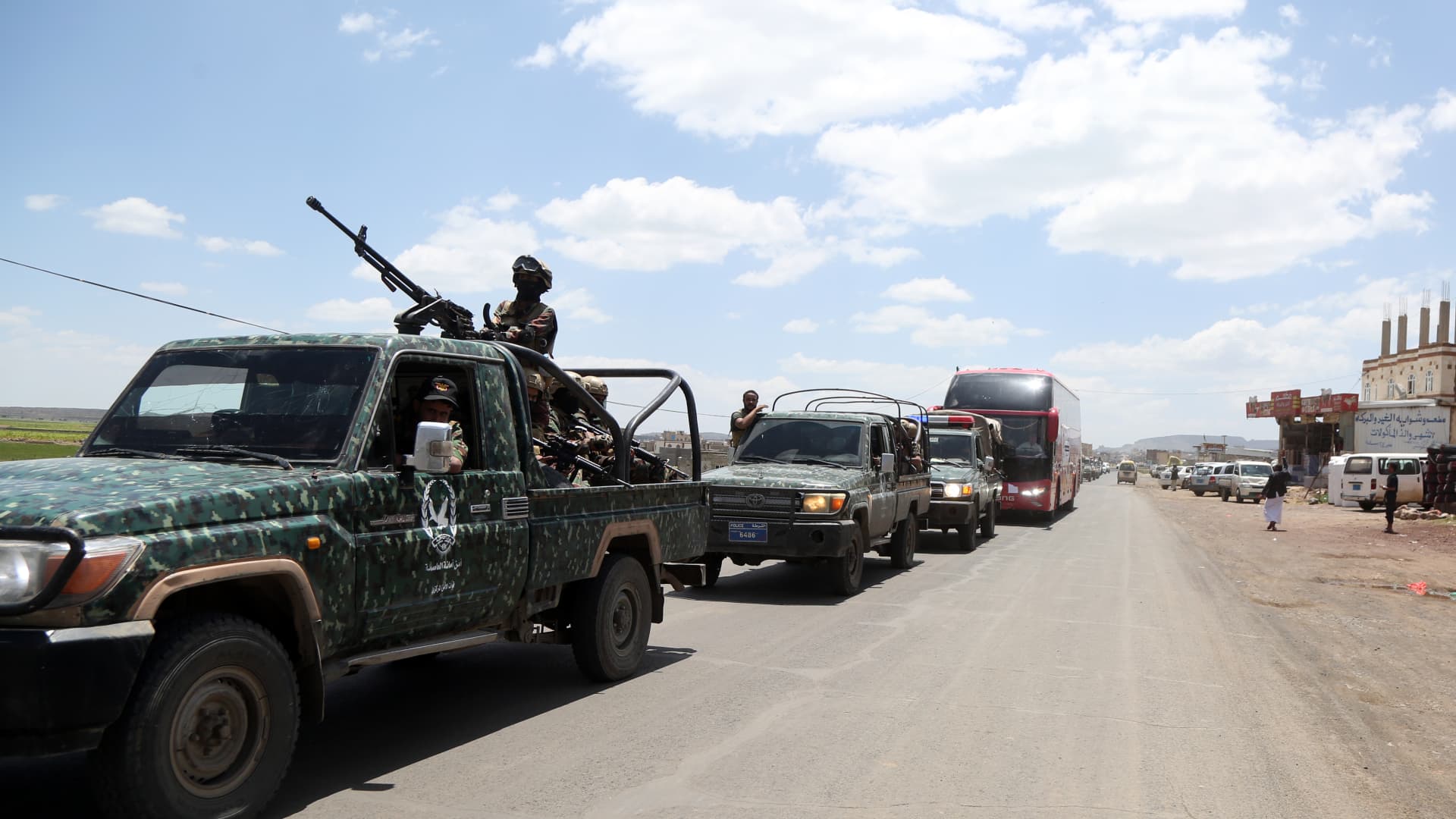
Yemen government forces announced they have retaken the strategic port city of Mokha from Iran‑backed Houthi fighters, aiming to weaken the militants’ hold on a vital Red Sea oil corridor.
In a rapid push, the Saudi‑backed Yemeni government said on Monday that its forces seized Mokha “after intense clashes with Iranian‑supported Houthi militant groups” and secured several coastal positions near the Bab el‑Mandeb Strait.
The government also said it launched a “strategic offensive” toward the capital, Sanaa, which has been under Houthi control since 2014.
Verum could not independently verify the claims. The Houthis have reportedly denied that Mokha has fallen.
Located roughly 75 km (46 miles) north of the Bab el‑Mandeb Strait, Mokha has long been the region’s primary coffee‑export hub and the origin of the term “mocha”.
Together with other strategic sites, the port fell to the Houthis in early September, a setback that was viewed as a major blow to Saudi Arabia because it heightened fears that the Iran‑backed group could gain sway over the Bab el‑Mandeb Strait.
Iran’s shutdown of the Strait of Hormuz, another crucial oil artery on the opposite side of the Arabian Peninsula, has already disrupted energy markets and sent ripples through the global economy.
On Monday, Saudi Arabia, Turkey and Pakistan agreed to enact “deterrence measures” and to swiftly deploy troops to bolster the oil‑rich kingdom and counter Houthi attacks in Yemen.
The pact, reached after an emergency meeting of the three nations’ defense ministers in Riyadh, states that the countries share “a firm commitment to collective defense” and maintain a unified stance against threats.
Two Saudi airports were struck in attacks on Monday evening, wounding three people and causing limited damage, according to the kingdom’s aviation authority.
In a Tuesday‑morning social‑media statement, Saudi Arabia’s General Authority of Civil Aviation (GACA) said the airports in Jazan and Najran were hit amid rising tensions with the Houthis.
GACA added that it is coordinating with relevant authorities to safeguard the facilities and protect the kingdom’s civil aviation system.
Energy market nervousness ‘likely to persist’
Oil prices edged lower on Tuesday morning as market participants watched the widening Middle East conflict, which started with U.S. and Israeli strikes on Iran in late February.
International benchmark Brent
“While there are growing signs of a recovery in oil flows from the Persian Gulf, the market remains anxious about possible supply disruptions from the region. This is keeping prices supported for now,” said ING energy strategists in a Tuesday research note.
“Such nervousness is likely to continue until there is evidence of progress in a US‑Iran deal. Meanwhile, the risk of further escalation remains very real,” they added.
Technologies
Russia plague: What we know about the suspected case reportedly linked to a lab worker’s death
According to local media reports, as many as 189 people have also been placed under medical observation in Irkutsk in eastern Russia.

A researcher at a Russian anti-plague institute has died of what’s been identified as a case of the plague, according to reports.
Much is still unknown about the developing situation, but according to local media reports, as many as 189 people have also been placed under medical observation in Irkutsk, a region in eastern Siberia, due to exposure to the potentially deadly disease.
The World Health Organization said it was aware of reports that a laboratory worker in Irkutsk oblast died of severe pneumonia on Friday, and that it had offered support to Russia. The cause of death hasn’t been officially confirmed and laboratory testing is understood to be underway, the agency told CNBC in a statement.
“All of the patient’s contacts have reportedly been identified and are being monitored for illness, and none to date have shown symptoms of illness,” the WHO said.
What is the plague and how does it spread?
Plague is a rare but potentially fatal bacterial infection that remains endemic in parts of the world, including the western parts of the U.S., but can be treated with antibiotics if identified quickly. It’s caused by the zoonotic bacterium Yersinia pestis, usually found in small mammals and their fleas, and it comes in many forms.
Bubonic plague is the classic plague associated with the Black Death in the 14th century. Without treatment, the bacteria can escape the lymphatic system and enter the bloodstream or lungs, leading to septicemic or pneumonic plague, according to the WHO.
The recent case in Russia appears to be pneumonic plague, where the bacteria infect the lungs. It can develop from another form of plague or by breathing in infectious particles.
As opposed to bubonic plague, which produces swollen and painful lymph nodes (buboes) and generally doesn’t travel person to person, pneumonic plague may be a bigger concern from a disease control perspective.
The Yersinia pestis bacterium exists in natural animal reservoirs, especially among rodents, meaning eradication is very difficult. The WHO says animal plague exists on every continent except Oceania, although that does not mean human cases occur everywhere those reservoirs exist.
“Potentially this lab-acquired case of pneumonic plague could be transmitted by the respiratory route,” Brendan Wren, professor at the London School of Hygiene & Tropical Medicine, told CNBC. “Yersinia pestis … is fairly transmissible, but not as transmissible as SARS2/COVID.”
What’s happening with the suspected case in Russia?
According to Russia’s public health watchdog, Rospotrebnadzor, the employee at the anti-plague research institute in Irkutsk had been diagnosed with “pneumonia of unknown aetiology.” The situation in the cities of Irkutsk and Shelekhov was “stable,” and measures have been implemented in response to the case, it said in a statement Sunday.
Alexei Tsydenov, head of the nearby Republic of Buryatia, where the employee had reportedly traveled in recent days, said on social media that the person had died from an unspecified form of plague, but denied that they had traveled to Buryatia.
CNBC has not been able to independently verify the reports. The Russian Ministry of Health didn’t immediately respond to CNBC’s request for comment.
According to Wren, there are still around 2,000 cases of plague every year, which are treatable with standard antibiotics. “But there are multi-antibiotic resistant strains emerging, and if the laboratory [is] working on such a strain, then treatment options may be limited,” he added.
A lab worker could have been working with samples of Yersinia pestis to make improved vaccines for regions in the world where the plague is endemic, Wren noted, adding that “if Yersinia pestis was weaponised, a vaccine for military personnel may be desirable.”
Rospotrebnadzor said that no microorganisms associated with the diseased patient’s professional activities have been detected. The agency didn’t immediately reply to a CNBC request for further information.
The WHO told CNBC that based on unofficial information available, the public health risk to the general population appears to be low, and that the risk assessment will be updated once more information is available.
— CNBC’s Jenny Lee contributed to this report.
-
 Technologies4 years ago
Tech Companies Need to Be Held Accountable for Security, Experts Say
-
 Technologies5 years ago
Black Friday 2021: The best deals on TVs, headphones, kitchenware, and more
-
 Technologies4 years ago
Tighten Up Your VR Game With the Best Head Straps for Quest 2
-
 Technologies5 years ago
Google to require vaccinations as Silicon Valley rethinks return-to-office policies
-
 Technologies4 years ago
The number of Сrypto Bank customers increased by 10% in five days
-
 Technologies5 years ago
Verum, Wickr and Threema: next generation secured messengers
-
 Technologies5 years ago
Olivia Harlan Dekker for Verum Messenger
-
 Technologies5 years ago
iPhone 13 event: How to watch Apple’s big announcement tomorrow