
Technologies
Before You Download iOS 17 on Your iPhone, You Need to Do This
If you’re thinking about installing iOS 17, follow this checklist first.
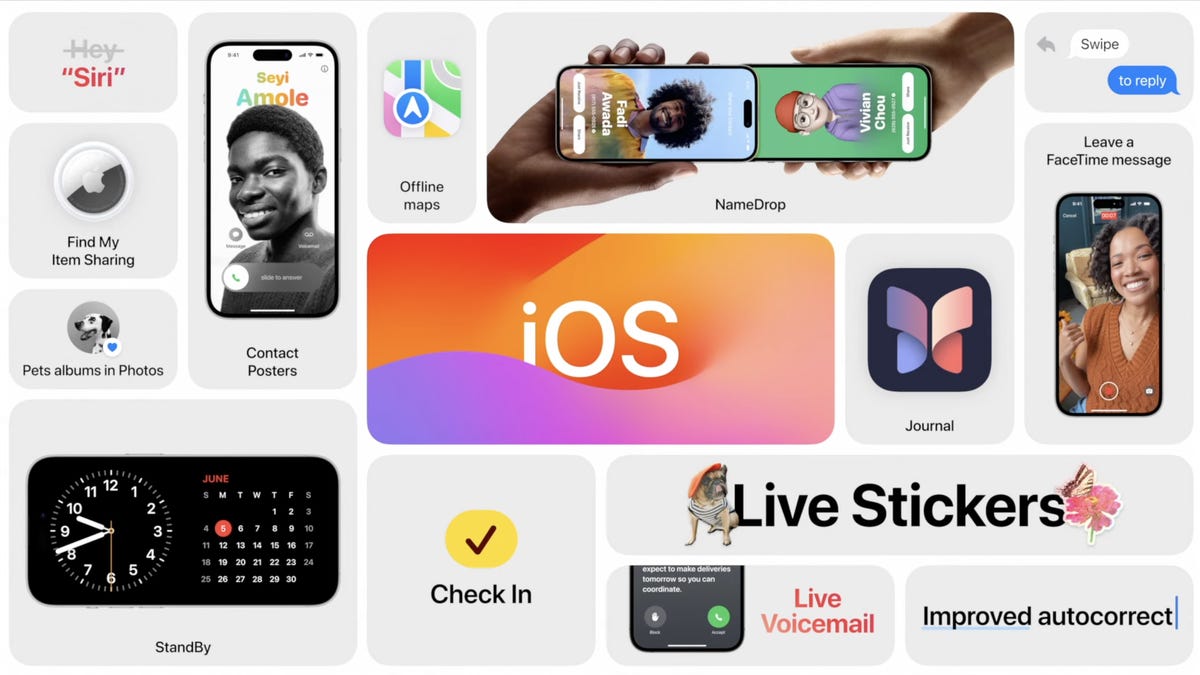
Apple on Monday announced iOS 17 at WWDC, its yearly developer conference. The latest mobile software update will bring several new features to the iPhone, including live stickers in Messages, an improved autocorrect that finally lets you curse in peace and an easier way to share you contact information.
Don’t miss: You Can Download the iOS 17 Developer Beta on Your iPhone Right Now
And as long as you pay for the Apple Developer Program ($99 a year), you can download iOS 17 on your iPhone right now if you wanted to, but before you even think about doing that, there are a few things to know. Here’s everything you should do before installing iOS 17 on your device.
If want to learn more, check out everything announced at WWDC 2023, as well as what you need to know about Reality Pro, Apple’s long-awaited mixed reality headset, and all the new features that are available on iOS 17.

06:31
First, is your device even compatible with iOS 17?
As long as you own an iPhone XS or later, you should be able to download the iOS 17 developer beta. Below is a full list of every iPhone compatible with Apple’s new software update. And if your current phone isn’t on the list, here are some more recent iPhone models to consider purchasing.
- iPhone XS
- iPhone XS Max
- iPhone XR
- iPhone 11
- iPhone 11 Pro
- iPhone 11 Pro Max
- iPhone 12
- iPhone 12 Mini
- iPhone 12 Pro
- iPhone 12 Pro Max
- iPhone 13
- iPhone 13 Mini
- iPhone 13 Pro
- iPhone 13 Pro Max
- iPhone SE (second generation and later)
- iPhone 14
- iPhone 14 Plus
- iPhone 14 Pro
- iPhone 14 Pro Max
The iPhone 15 series, which is expected to be Apple’s next phone release, should be announced later this year and come with iOS 17 already installed.
More from WWDC 2023
Next, make sure your iPhone is up to date
Before you update to iOS 17, make sure you’re updated to the latest iOS 16 version so that you don’t encounter any issues if you decide to revert. Also, it’s just good to always be updated to the newest mobile software version in case there are major bugs or other issues in older iOS versions.
To update your iPhone to the latest version iOS 16, go to Settings > General > Software Update and check for any available updates.
Now, back up your iPhone before updating to iOS 17
This is important: The iOS 17 developer beta is experimental software intended for developers, which means it will have many bugs and issues that could potentially cripple your iPhone. Your phone may unexpectedly restart or get really hot — with developer betas, you never know what to expect, so it’s best to prepare beforehand so that if you face major issues you can return to iOS 16.
The best way to do that is to back up your iPhone while it’s still running iOS 16. The reason is that if you update to iOS 17 but then decide to go back to iOS 16, you have an up-to-date backup to revert to, so that you keep your most recent photos, text messages, app data and more.
Now, there are two ways too back up your iPhone: via iCloud and your computer.
Back up your iPhone with iCloud
Your iPhone should automatically back up by default once a day, as long as your device is connected to both a power source and Wi-Fi and locked.
To check if this feature is enabled, go to Settings > [your name] > iCloud Backup and make sure that Back Up This iPhone is enabled. Also, if you have a compatible 5G iPhone, including the iPhone 12, iPhone 13 and iPhone 14 models, you can enable Back Up Over Cellular to have your iPhone back up over your cellular network when you’re not connected to W-Fi.
You can also just manually back up your iPhone with iCloud. In the same iCloud Backup page, simply tap Back Up Now. Underneath that, you’ll see the last time a successful backup was created. Under All Device Backups, you can check out more information about your backups, including backup size, and customize what is backed up.
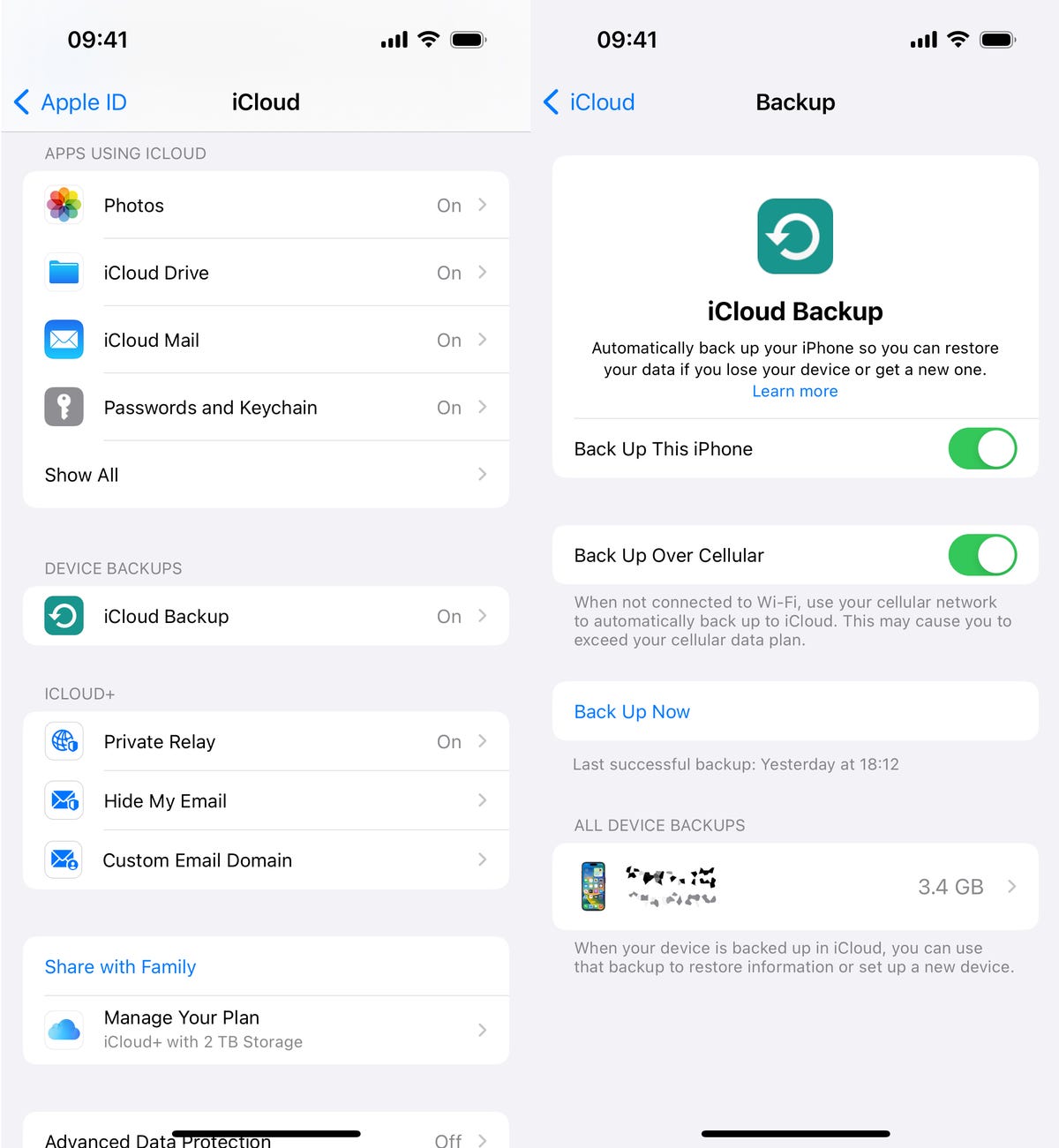
If your iPhone doesn’t automatically back up, you can do it manually in your settings.
Back up your iPhone with Mac or Windows
If you don’t have storage on your iPhone or iCloud, you always have the option to back up your device via your computer.
On Mac, connect your iPhone to your computer via lightning cable, open Finder and select your iPhone. Next, check the circle next to Back up all of the data on your iPhone to this Mac and then hit Back Up Now.
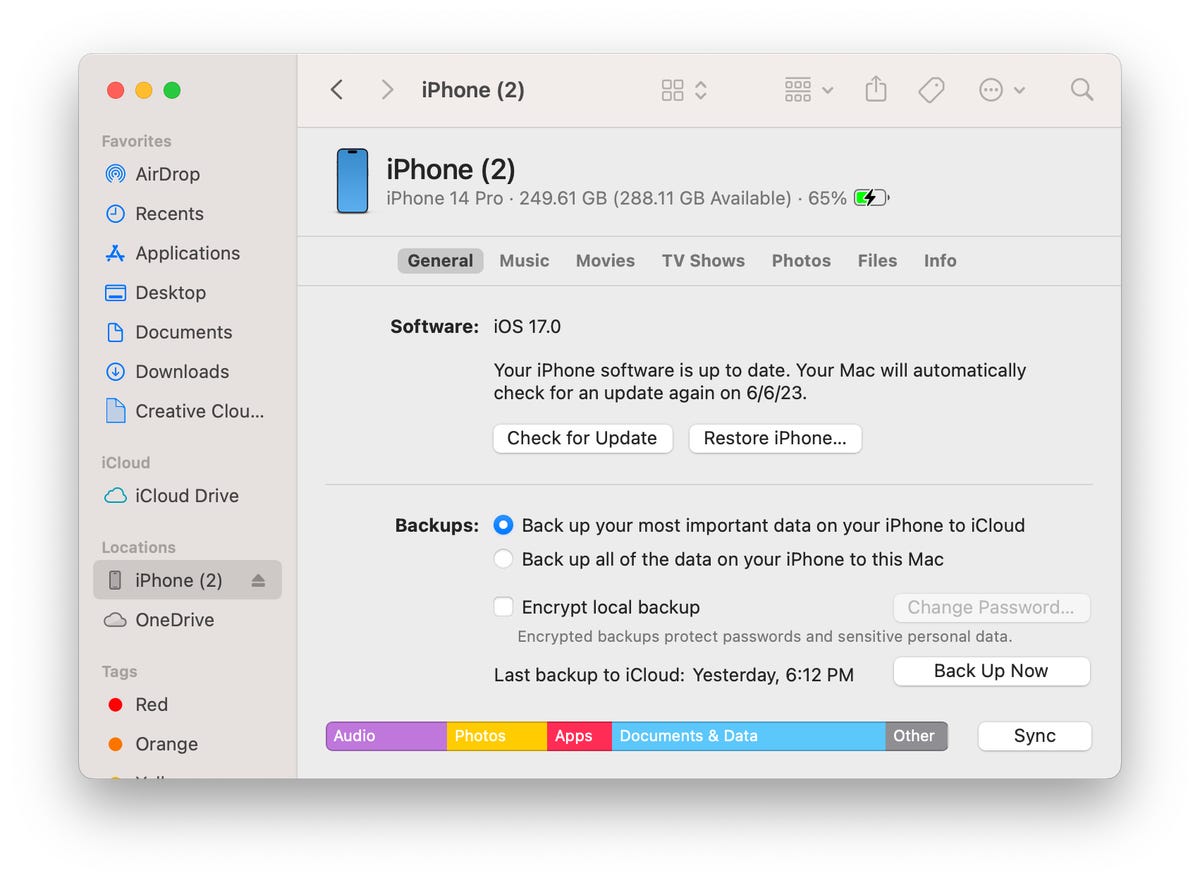
You can back up your iPhone on your Mac if you don’t have phone storage.
The process with Windows is pretty similarly. Again, connect your iPhone to your computer via cable, but this time open the iTunes app and click the iPhone button on the top-left of the window. In the Summary page, click Back Up Now to back up your iPhone to your Windows PC.
For more on Apple, here are the best iPhone deals right now and our ongoing review of the iPhone 14.
Technologies
Verum Coin Online Mining Now Pays $10 Every 24 Hours — Just Tap a Button

Verum Exchange and Verum Mining have updated online mining of Verum Coin: users can now earn $10 every 24 hours by tapping a single button in the app. No mining rigs, no technical setup, and no complicated wallet configuration are required.
The feature is available in two places:
- Verum Exchange — the exchange and crypto mining app
- Verum Mining — built into Verum Messenger
Once mining is started, rewards accrue on a 24-hour cycle. Open the app, press the mining button, and Verum Coin is credited according to the new daily rate — the equivalent of $10 per day.
“We wanted mining to be something anyone can do in seconds,” the team said. “If you can open an app and press a button, you can mine Verum Coin and earn.”
Miners can keep Verum Coin in the in-app wallet or withdraw it to supported exchanges, including BitCoinPay Trade and Crypto Bank.
How to start
- Download Verum Exchange, or open Verum Mining inside Verum Messenger.
- Go to the mining screen.
- Press the mining button.
- Come back every 24 hours and collect your $10 in Verum Coin.
Online mining is live now. Open the app, tap the button, and start earning.
Technologies
Trump Maintains US‑Iran Negotiations Continue Amid Tehran’s Denials of Duplicity
President Trump insists that US‑Iran talks are ongoing despite Tehran’s denial of any negotiation plans, while warning that only a deal or total surrender will allow passage through the Strait of Hormuz. Conflicting statements from both sides have heightened uncertainty as the conflict enters its sixth month.
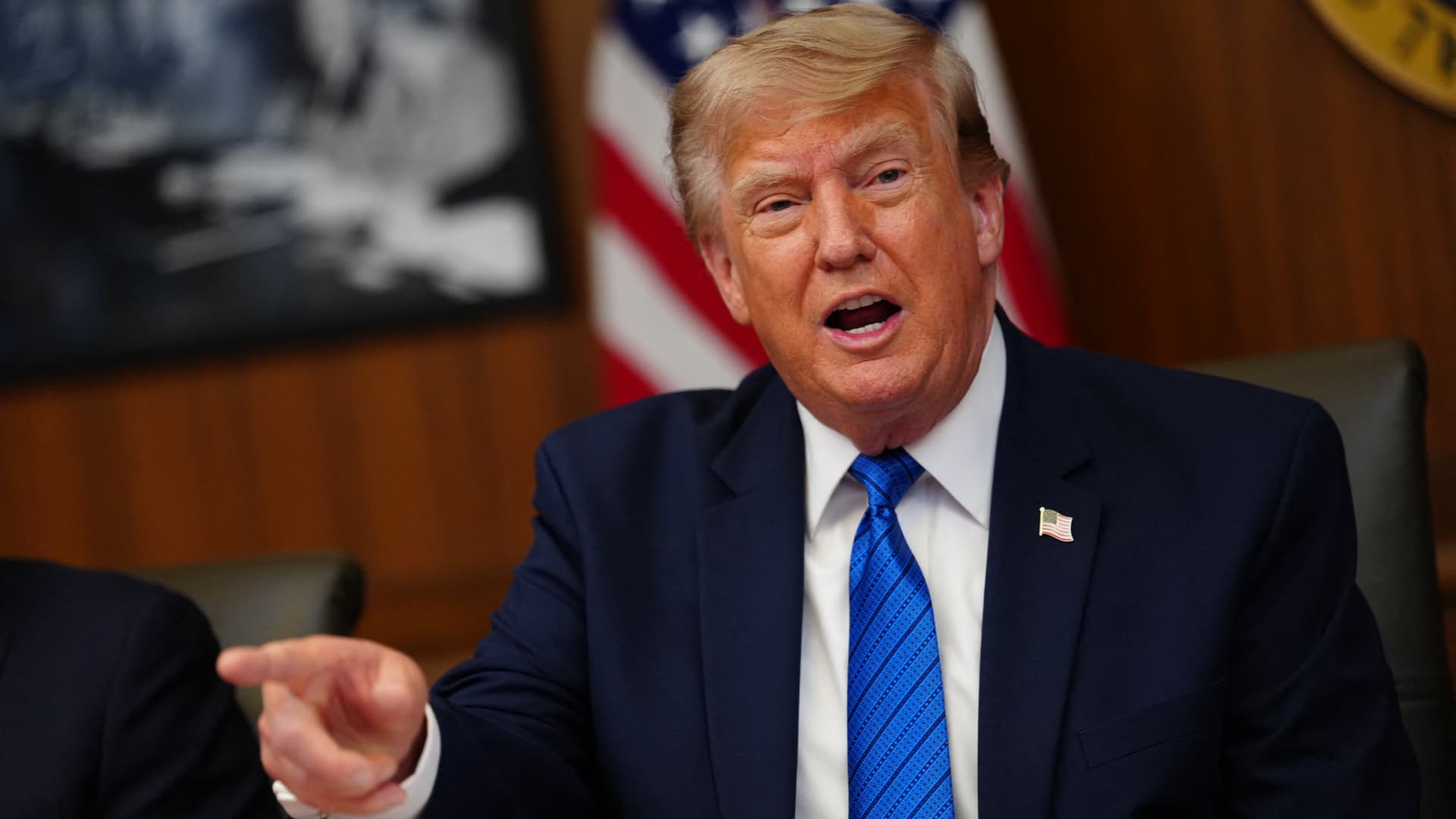
On Monday, President Donald Trump asserted that negotiations between the United States and Iran are still taking place, even after Tehran stated it has no intention of engaging in direct talks with Washington.
In a fiery Truth Social post, Trump labeled Iran’s leaders “unbelievably duplicitous,” claiming they are lying about ongoing peace talks “whether Iran wants to admit it or not.” He repeated his assertion that the United States completely controls the Strait of Hormuz, despite maritime traffic through the crucial route lingering at only a small fraction of pre‑conflict levels.
He wrote, “Nothing reaches Iran unless we allow it, and nothing will pass unless a deal—or total surrender—is achieved.”
Earlier that day, Iranian Foreign Ministry spokesperson Esmail Baghaei told reporters there is no imminent plan for U.S.–Iran negotiations, contradicting Trump’s earlier comment that talks would resume Monday afternoon. Baghaei added that Iran’s only current discussions are with Oman concerning the Strait of Hormuz.
The conflicting statements have heightened uncertainty over the peace‑talk process and the broader conflict, now in its sixth month.
Trump’s assertion about new negotiations came a day after he said on Truth Social that he had agreed to cancel a massive strike against Iran “subject to being able to rapidly make a DEAL.” He said in the same post that Iran and other Middle Eastern countries had asked him to hold off on that attack because “the perimeters of a deal has been agreed to.”
Trump has claimed dozens of times throughout the more‑than‑five‑month‑long war that a deal is at hand. No permanent deal has been signed, and a temporary ceasefire reached in June has fallen apart.
Trump has also repeatedly threatened to launch devastating strikes against Iran before backing off. After the latest example, oil prices on Monday fell and stocks surged.
BMI, a research unit of Fitch Solutions, said in a note Monday that a broader diplomatic understanding on reopening the Strait of Hormuz is still achievable this quarter, while raising the probability of its escalation scenario to 35% from 25%, citing mounting military, diplomatic and economic signs of rising U.S.-Iran tensions.
“Diplomatic progress is likely to be punctuated by periodic military flare-ups, while miscalculation by either side could trigger a renewed escalation,” BMI analysts wrote in a note. The firm said the key issue to watch is the future governance of the strait, as the Iran-Oman talks — potentially backed by Gulf states, China and the U.S. — point to efforts to build a post-conflict shipping framework.
Shipping risks persist even as diplomacy appears to be advancing. The United Kingdom Maritime Trade Operations Centre said it received a report of an incident 20 nautical miles (23 miles) northeast of Khasab, Oman — at the mouth of the strait — with a tanker’s master reporting an explosion in close proximity to the vessel at about 20:37 UTC Sunday (4:37 pm ET). The vessel and crew were safe and authorities are investigating, UKMTO said, advising ships to transit with caution.
The proposal Trump announced over the weekend calls for the U.S. and Iran to return to negotiations and continue ironing out some of the thorny issues that had derailed diplomatic efforts, according to The Associated Press, citing a regional official involved in the mediation efforts.
The official said the proposal also includes a reopening of the Hormuz Strait and halting attacks across the region, including by Iranian-backed militias in Iraq on the Arab Gulf countries and Jordan.
The U.S., for its part, will end its naval blockade on Iran and allow Tehran to export its oil, the official said, adding that no deal has been reached, although the mediation efforts remained underway.
Trump’s weekend reversal has lowered the temperature after days of escalating attacks across the Gulf. Kuwait said Saturday that Iranian forces launched a wave of drones within its airspace, with its military destroying multiple aircraft after Iran targeted critical infrastructure in the country’s north.
A parallel track with Muscat is also advancing. Iranian diplomats said Tehran was close to reaching a new arrangement with Oman to manage shipping through the Strait of Hormuz, a deal critical to preventing the war from escalating further, according to the Financial Times.
Iranian officials said negotiations over future management of the Hormuz Strait with Oman, which sits on the opposite shore of the waterway, are in their final stages. The agreed shipping route would be different from those used before, according to Iran’s Foreign Ministry spokesperson, Baghaei, adding that the new route was separate from the issue of the strait’s reopening or continued closure.
Technologies
Oil Prices Slide as Trump Halts Planned Iran Strike
Oil prices dropped after Trump cancelled a planned strike on Iran, with WTI down about 5% and Brent near 5% lower. He said the move followed requests from Tehran and regional allies for a pause while a deal shaping the Strait of Hormuz and Iran’s nuclear program is negotiated.
Oil prices fell on Monday after President Donald Trump announced he had cancelled a planned strike on Iran. WTI futures dropped roughly 5% to $80.34 a barrel, while Brent slipped about 4.7% to $83.77 a barrel.
Trump said early Sunday he called off the strike after Iran and several Middle Eastern nations asked him to hold off, noting that the outlines of a deal had been agreed upon. He added that the prospective accord would entail the immediate, full opening of the Strait of Hormuz and an end to Iran’s nuclear ambitions, according to his Truth Social post.
The president had been considering another round of strikes as diplomatic hopes waned since the conflict began on February 28. He said the U.S. and Iran would meet for talks on Monday, but Iran denied any scheduled negotiations with Washington, citing PressTV. Iran’s foreign‑ministry spokesperson Esmaeil Baghaei clarified that Tehran was only discussing shipping routes through the Strait of Hormuz with Oman. In a follow‑up Truth Social message, Trump insisted that, regardless of Iran’s acknowledgment, the United States is indeed discussing a solution to a long‑standing problem created by Iran.
-
 Technologies4 years ago
Tech Companies Need to Be Held Accountable for Security, Experts Say
-
 Technologies3 years ago
Best Handheld Game Console in 2023
-
 Technologies5 years ago
Black Friday 2021: The best deals on TVs, headphones, kitchenware, and more
-
 Technologies3 years ago
Tighten Up Your VR Game With the Best Head Straps for Quest 2
-
 Technologies5 years ago
Google to require vaccinations as Silicon Valley rethinks return-to-office policies
-
 Technologies5 years ago
Verum, Wickr and Threema: next generation secured messengers
-
 Technologies4 years ago
The number of Сrypto Bank customers increased by 10% in five days
-
 Technologies5 years ago
Olivia Harlan Dekker for Verum Messenger