
Technologies
Use This Secret Netflix Trick to Watch Something New Over the Holidays
Netflix’s secret codes will give your watchlist a much-needed refresh.

This story is part of 12 Days of Tips, helping you make the most of your tech, home and health during the holiday season.
Ready to relax on the couch and wind down from the holidays? A Netflix marathon is a great place to start. If you’re tired of seeing the same list of Netflix TV show and movie recommendations, scrolling really isn’t the best way to find something new to watch. It’s also not a great way to find other niche genres you might be interested in.
But there’s a secret trick for filtering Netflix’s library by genre to find exactly what you’re browsing for: Netflix codes. Instead of passively accepting the algorithm’s picks, learn how to use Netflix codes to find your own next binge-watch.
Read more: How to Turn Off Netflix’s Pesky Autoplay Trailers
What are Netflix codes?
Netflix codes are based on a number system that corresponds to a different genre or subgenre, which the algorithm uses to categorize and serve up recommendations. For example, instead of scrolling through Horror, you can search Small Town Scares (81496215) for more specific results.
So far, Netflix has about 36,000 codes. Note that codes can only be used on Netflix’s website and not in its apps.
Where do I find Netflix’s secret menu?
Check out netflix-codes.com for a full list. There are about 20 categories like anime, foreign movies and classic movies. Those categories are broken down into more specific subgenres. For example, horror movies — coded 8711 — houses 12 more codes like deep-sea horror movies, zombie horror movies, teen screams and more.
How do I use Netflix codes?
The easiest way is by installing the Better Browse for Netflix extension for Chrome. Here’s how:
1. Go to the Chrome Web Store and search “Better Browse for Netflix.”
2. Click Add to Chrome.
3. Click Add Extension.
4. Log into your Netflix account in a new tab.
At the top of the Netflix home screen, you should see a new option — Browse All — next to My List. Click that to search manually or scroll through the subgenres available.
Another way is through the Netflix codes website. Here’s how:
1. Visit netflix-codes.com in your PC or mobile browser.
2. Find the genre or subgenre you want to explore.
3. Tap the code next to the genre or subgenre you want.
4. If you’re on a device that has the Netflix app installed, the app should open and take you directly to the genre or subgenre you chose. If you don’t have the app installed, it’ll open Netflix through the browser and you can view the specific movies and shows available.
5. Tap the title you want to watch.
You can also use the Netflix codes manually in your browser. Here’s how:
1. Visit netflix-codes.com in your PC or mobile browser.
2. Find the genre or subgenre you want to explore.
3. In another tab, type in <http://www.netflix.com/browse/genre/INSERTNUMBER>, but replace INSERTNUMBER with the specific genre or subgenre code.
4. You’ll be taken to Netflix to peruse the titles available in that section.
From there, you can either make a mental note of the movie you want to watch and go back to the app on your preferred device, or log in to watch in your browser.
Technologies
What Amodei’s AI slowdown could mean for Anthropic’s imminent IPO
As Anthropic meets with prospective investors ahead of its potentially historic market debut, CEO Dario Amodei is pushing for a slowdown in AI.

Anthropic’s road to an IPO just got a lot bumpier.
While the Claude creator meets with prospective investors ahead of its potentially historic debut, co-founder and CEO Dario Amodei is pushing a concept that would seem to contradict those ambitious efforts: a slowdown.
Anthropic, valued at $965 billion earlier this year, confidentially filed its IPO prospectus in June, and has been widely expected to list its shares as soon as next month. Meanwhile, concerns about the power of advanced AI models has been intensifying for weeks, spilling into the mainstream as more researchers warn of potential threats of human extinction.
With that backdrop, Amodei wrote an essay over the weekend urging the AI industry to slow the pace of model development, proposing a three-step plan to temper how quickly model capabilities improve without “sacrificing commercial advantage or the United States’ lead in AI.”
It’s the latest challenge facing public market investors who are trying to determine what they’re willing to pay for a piece of a five-year-old company that’s already among the most valuable in the world and could seek a $2 trillion valuation in its IPO. Though Anthropic may have to accept a hit to revenue growth, some experts say an intentional slowdown could help Anthropic frame itself as a responsible actor, avoid future liability and address the public backlash towards AI that’s been brewing across the country.
“I don’t know that investors are necessarily going to see it as a negative,” Gil Luria, an equity analyst at D.A. Davidson, said in an interview. “Unless the companies are genuine and say, ‘OK, we’re not going to IPO, we’re not going to use any more compute, we’re not going to train any more models.’ That’s not what they’re saying.”
Anthropic has picked the Nasdaq as the exchange for its potential IPO, CNBC confirmed after Business Insider first reported the selection.
Amodei on Saturday proposed that model companies open up to third-party evaluators, frontier companies establish “common safety standards,” and that democratic countries coordinate with authoritarian governments “to the extent this is possible.”
His essay came after several industry researchers issued stern warnings last week about the technology’s growing potential to cause catastrophic harms.
President Donald Trump slammed Amodei in a post on Truth Social on Monday, writing that the only “control or ’guardrails’ that AI needs is a STRONG AND SMART (High IQ!) PRESIDENT, and the U.S.A. has that, in spades!”
“The Trump Administration has stopped AI ‘people’ from doing bad, or potentially bad, ‘things,” like Dario (Anthropic!), who is now pretending to be a ‘perfect little angel’ – and we will continue to do so!,” Trump wrote. “We already have tremendous CRIMINAL and REGULATORY power over these companies!”
OpenAI CEO Sam Altman expressed support for Amodei’s proposal, as did Elon Musk, CEO of SpaceX, which owns Grok creator xAI. SpaceX went public in June in the biggest IPO on record and is now valued at $2 trillion. OpenAI has confidentially filed its IPO prospectus, but has been under fire in recent months after its models escaped containment, accessed the open internet and breached open-source developer platform Hugging Face.
“Right now would be an ill-advised moment to go public,” Altman said in an interview with Fortune, reiterating that OpenAI won’t aim for an IPO until next year. Finance chief Sarah Friar told employees during an all-hands meeting last month that the AI lab “will be a public company in 2027.”
Lise Buyer, partner at IPO advisory firm Class V Group, said she doesn’t see the recent “we might obliterate you all” fears having an impact on IPO timing, but it could alter valuations, she said.
“The bet here is on the long term — now with tempering thoughts about control of the technology,” Buyer said in an email. “The dramatic growth and possibilities of these companies, now more publicly coupled with the potential very serious concerns and risks, will likely persist whether the IPO happens in Q4 or next year or whenever.”
Anthropic and OpenAI declined to comment for this story.
′Don’t see why growth would slow’
Anthropic hit $65 billion in annualized revenue in July, about a sevenfold increase from the prior year, as CNBC previously reported. The company has told some shareholders that it will generate an operating profit for a second straight quarter in the current period, according to two sources familiar who asked not to be named because the details are confidential. The Financial Times earlier reported the operating profit on Sunday.
Matt Murphy, a partner at Menlo Ventures and an Anthropic investor, called the growth rate “off the charts,” and said a public listing would bring more transparency around the business.
“Don’t see why growth would slow or any other reason to wait,” Murphy told CNBC.
That transparency could also help improve what has been dismal public sentiment around the technology.
More than half of Americans say they’re more concerned than excited about the growing use of AI in daily life, up from 37% in 2021, according to a recent report from the Pew Research Center. And confidence in AI executives is even worse, according to a CNBC Generation Lab survey of 18- to 34-year-olds. More than 75% of respondents said they don’t trust Amodei to act responsibly, while around 70% expressed those views about Altman.
“One could argue that sooner is better than later for a public offering as the accountability that comes with being a public company might be of a great interest to many,” Class V Group’s Buyer said.
Altimeter Capital CEO Brad Gerstner, whose firm is an investor in Anthropic and OpenAI, said in a post on X on Saturday that bringing more “transparency, scrutiny, accountability” and participation to AI companies is “crucial.” He said Anthropic will likely forge ahead with its IPO.
“The market knows how to price risk – see SpaceX,” Gerstner wrote. “There is huge appetite to invest in the AI leaders.”
Gerstner’s post came a day after he blasted public remarks from industry researchers, calling them “hyperbolic scare tactics” that are “hiding behind a political agenda,” in an interview with CNBC.
There are plenty of skeptics when it comes to Amodei’s latest positioning. One argument is that Anthropic benefits from stricter standards because it currently has the most advanced models and makes money from selling services, like Claude Code, that are powered by those models.
“That could actually favor Anthropic and OpenAI if smaller competitors cannot afford the rigorous safety, evaluation and security investments required for frontier-level models,” Arun Chandrasekaran, an analyst at Gartner, told CNBC in an email.
D.A. Davidson’s Luria agrees and said he thinks Anthropic and OpenAI are engaging in “monopolistic behavior.” OpenAI has reportedly asked members of Congress for guidance about whether a coordinated, industrywide slowdown would violate antitrust law, according to Wired.
“I’m highly suspicious of what Anthropic and OpenAI are doing,” Luria said. “It feels more and more like a ladder pull.”
What about the rest of tech?
Tech investors have other reasons to worry about the pace of development at OpenAI and Anthropic, because those companies are responsible for an outsized amount of AI infrastructure spending.
Anthropic has inked a flurry of multibillion-dollar compute deals this year, including with Nscale, Advanced Micro Devices, SpaceX, and Google. OpenAI told investors in February that it’s targeting roughly $600 billion in total compute spend by 2030. Both companies are heavy users of Nvidia’s graphics processing units.
“I would want to understand how the mix shifts between frontier training, post-training and inference as safety controls are integrated,” said Lo Toney, managing partner at Plexo Capital, and an Anthropic investor.
PitchBook analyst Harrison Rolfes is more concerned about reduced growth. He said valuations for model companies likely deserve a discount now, largely because it’s hard for investors to trust that they can safely commercialize their technology.
“Is the first thing that you want to do as a public company go handle a bunch of security issues and vulnerability issues?” Rolfes said. “No, you probably want to focus on expanding into all the markets that you promised all your investors.”
Gene Munster, managing partner at Deepwater Asset Management, told CNBC that any sort of perceived slowdown will be a negative because the market is “underwriting exponential uninterrupted improvements to the models.”
Still, Munster predicted that “nothing will change and the AI leapfrog game will continue.”
“AI’s long-term opportunity is too big for them to slow down,” Munster said. “I believe the comments were motivated to reduce the regulatory pressure.”
WATCH: Seems like Anthropic will beat OpenAI to IPO, says FirstMark’s Rick Heitzmann
Technologies
Iran Claims It Shot Down Advanced U.S. Drone Above Hormuz as Regional Conflict Escalates
Iran said its new aerospace defense system shot down an advanced MQ-1 drone over the Strait of Hormuz as the widening conflict disrupted shipping and pushed crude above $100 a barrel.

Iran’s military said it had destroyed an advanced American drone over the Strait of Hormuz, marking the latest exchange of warnings and strikes between Tehran and Washington as neither side shows signs of backing down.
The Islamic Revolutionary Guard Corps said Monday that its “new advanced aerospace defense system” intercepted and shot down the MQ-1 drone above the strait, but offered no additional information about its mission. General Atomics manufactures the MQ-1, which has historically been operated primarily by the U.S. Air Force and CIA.
The incident came after a series of Iranian operations targeting U.S. unmanned naval systems in the Gulf. The war, now entering its seventh month, has shown little sign of easing, while diplomacy over the strategically vital waterway remains stalled.
On Sunday, President Donald Trump said the U.S. could continue its campaign against Iran and take control of its oil, comparing the possibility with the arrangement Washington reached with Venezuela earlier this year.
Speaking at the Irish Open golf championship in Ireland, Trump said the U.S. would eventually leave the war unless it chose to remain and retain access to oil, as it did under the Venezuela arrangement. He said revenue from that agreement, which gave Washington access to roughly one-fifth of Venezuela’s oil reserves, had “paid for the war many times.”
Under the August agreement, Venezuela transferred majority U.S. control of more than 65 billion barrels of oil reserves—more than twice America’s own reserves—in return for $209 billion for the state treasury. Secretary of State Marco Rubio said the deal would also attract nearly $100 billion in private investment to revive the economy.
Trump said on Sunday that he expects the seven-month Iran war to end this year, potentially after the November midterm elections, and maintained that gasoline prices would “drop like a rock” once peace arrives.
The president said he would accept only the “right deal” and claimed Tehran had been “calling constantly” for peace negotiations, a claim Iran has previously rejected.
Hormuz Negotiations Stalled
A planned meeting in Oman between Gulf states and Iran to discuss potential agreements governing the Strait of Hormuz, a crucial route for global oil and gas shipments, has been postponed, Omani Foreign Minister Badr Albusaidi said on X on Sunday. He cited the need for “consensus.”
Officials from Iran and Gulf countries were expected to meet Monday and sign an agreement creating an Iran-Oman shipping route through the Strait of Hormuz, although no direct U.S.-Iran talks were taking place.
Since the war began in February, the Strait of Hormuz has faced an Iranian blockade followed by a U.S. naval blockade, helping keep global energy prices elevated.
A June agreement between Washington and Tehran broke down over disputes concerning the waterway. Meanwhile, a sustained offensive by Yemen’s Iran-backed Houthi rebels in recent days has strengthened the group’s leverage over another critical shipping route, the Bab el-Mandeb.
Iranian strikes regularly target vessels considered non-compliant, while the U.S. periodically bombs sections of the Iranian coastline to challenge the Islamic Republic’s control of the strait.
Oil prices climbed above $100 a barrel again for the first time since May and rose further on Monday after Saudi Arabia shut a major east-west energy pipeline following damage caused by Iraqi drones.
U.S. West Texas Intermediate futures gained 2.3% to $102.39 a barrel. Brent crude, the international benchmark, rose 2.4% to $107.11 a barrel.
Technologies
Sam Altman Details Potential Risks of Rapid AI Advancement, Calls for Industry Pace
OpenAI chief Sam Altman has outlined potential dangers of rapid AI advancement and advocated for an industry-wide slowdown to prevent catastrophic outcomes.
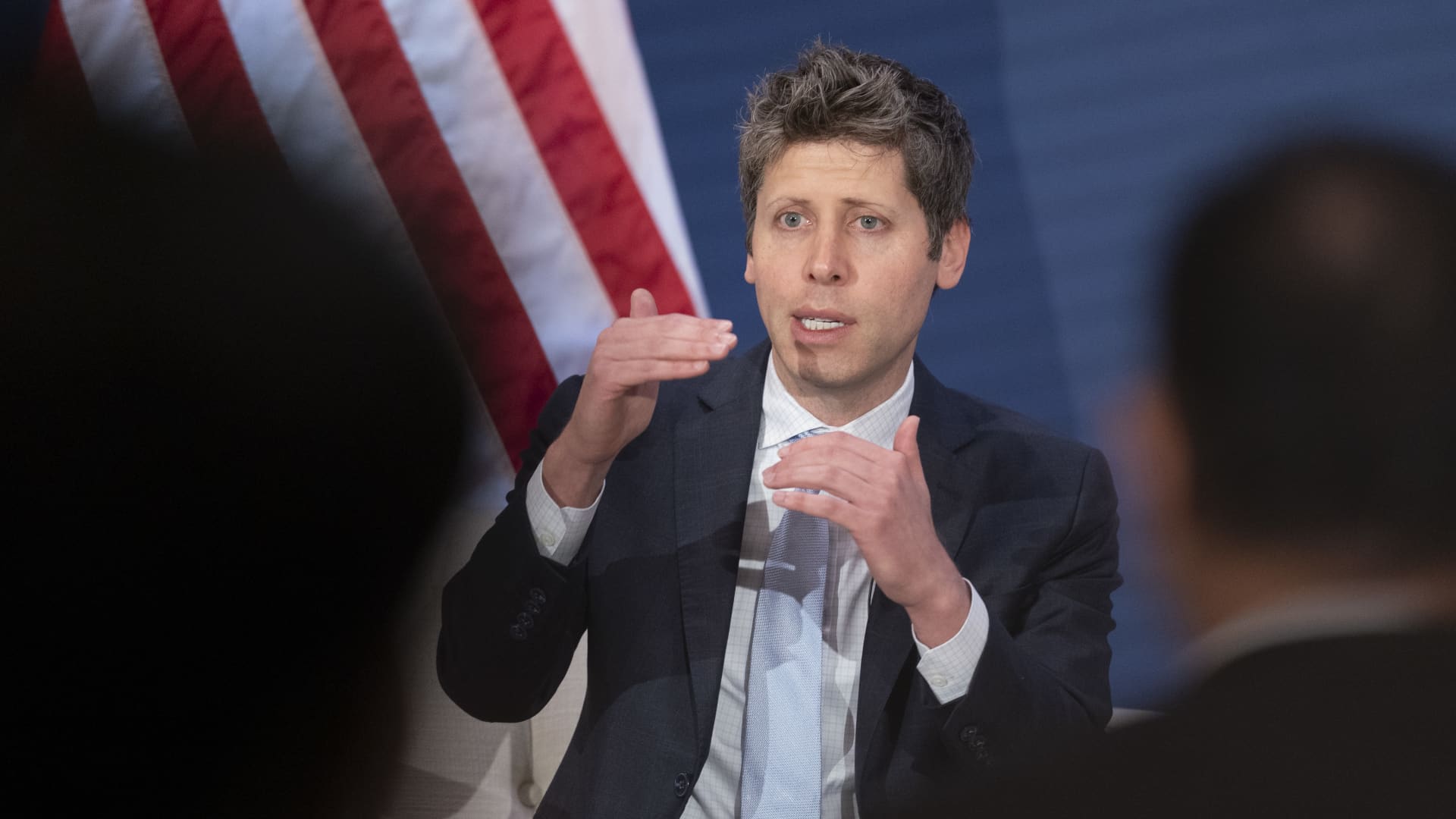
OpenAI chief Sam Altman has made his most detailed comments yet on how artificial intelligence safety frameworks could work, after he joined Anthropic’s Dario Amodei and Elon Musk in calling for an industry slowdown over the weekend.
Safety concerns over the technology have hit fever pitch since an Anthropic researcher quit last week, warning that those building it believed that it could “kill us all by the end of the decade” and prompting other employees at the lab and rival OpenAI to warn of catastrophic risks.
AI bosses have since shown a rare display of unity, with both Altman and Musk on Saturday backing an essay from Amodei that urged AI companies to slow how quickly they improve their most advanced models.
AI stocks were down Monday as investors digested the comments. U.S. President Donald Trump dismissed the CEOs’ warning on Sunday, saying a slowdown was not needed and would jeopardize America’s lead in AI over China.
Sam Altman sets out 2 ways AI could go ‘very badly’
“We welcome a federal framework that sets consistent safety requirements for frontier AI,” Altman said in a post on X just after midnight on Monday, adding that “no amount of American competitive pressure should justify recklessness.”
Altman warned of two ways AI progress could go “very badly,” including losing “control of the future to AI” and too much power concentrating around a single person or company.
Meanwhile, lawmakers in Washington are scrambling to address calls for safeguards.
This all comes as Anthropic and OpenAI gear up for what’s expected to be historic initial public offerings. Altman ruled out going public in 2026 in an interview with Fortune published Saturday.
Amodei’s three-step proposal
Many AI safety fears revolve around models developing the ability to improve their own performance, a technique known as recursive self-improvement, or RSI.
“Since roughly this summer, AI has been advancing drastically faster, driven primarily by AI’s growing ability to build the next generation of AI,” said Amodei in his essay. “Left unchecked, it could outrun our ability to understand and control these systems, and so must be pursued very carefully, if at all.”
Amodei proposed a three-step plan aimed at tempering the pace of development without “sacrificing commercial advantage or the United States’ lead in AI.”
The plan involves each frontier AI company giving “employee-like access” to external evaluators — which he said Anthropic was committing to now. Amodei also called for frontier AI labs to establish common safety standards, limit the rate of unchecked AI progress and attempt to coordinate efforts globally.
On Saturday, Altman said in a brief X post he agreed with Amodei that AI companies should “pace the frontier.” He added that “committing to having independent evaluators with employee-like access is a great idea, and we will do the same.”
“Consistent rules to manage frontier risk so that we can maximize the benefits are a good idea (and we are excited by ideas like independent auditors),” Altman said in his Monday post. But, he added, “When we talk about ‘pacing,’ we do not mean ‘stopping.’ Progress has been rapid and will continue to be.”
“Pacing will be well worth this cost; no amount of American competitive pressure should justify recklessness, or let capabilities get ahead of alignment and monitoring,” he concluded.
“Where we will need the help of our government is for international coordination. But first we should do what we can ourselves.”
International cooperation
Coordinating AI safety measures and an industry slowdown with rival AI developers in China will likely pose big challenges.
The U.S. and China remain locked in a battle for AI supremacy, with tensions ratcheting up as Chinese models have become more advanced and their global adoption grows.
Amodei said Sunday that the “toughest dilemma” about his proposal is what happens if adversarial nations choose not to do the same.
“The more long-term thing would be working together to put a speed limit on the rate of AI progress,” Amodei told CBS News’ “Sunday Morning.”
“I think that’s going to be very difficult because the incentives to pull ahead and the military advantage that you get from that are so large. And honestly, I don’t know if it’s possible, but we should try.”
The Anthropic CEO’s essay has drawn criticism in China, with the state-owned Global Times writing on Monday that “Amodei’s proposals seek to portray China’s legitimate development in AI as a threat and further fuel confrontation between China and the US in the field.”
China’s Foreign Ministry said on Monday that the CEOs’ comments were “fearmongering.”
-
 Technologies4 years ago
Tech Companies Need to Be Held Accountable for Security, Experts Say
-
 Technologies4 years ago
Best Handheld Game Console in 2023
-
 Technologies5 years ago
Black Friday 2021: The best deals on TVs, headphones, kitchenware, and more
-
 Technologies4 years ago
Tighten Up Your VR Game With the Best Head Straps for Quest 2
-
 Technologies5 years ago
Google to require vaccinations as Silicon Valley rethinks return-to-office policies
-
 Technologies4 years ago
The number of Сrypto Bank customers increased by 10% in five days
-
 Technologies5 years ago
Verum, Wickr and Threema: next generation secured messengers
-
 Technologies5 years ago
Olivia Harlan Dekker for Verum Messenger