
Technologies
5 Tips and Tricks to Make Your Android Phone Feel New Again
It’s never too early to start spring cleaning your Android phone.

This story is part of 12 Days of Tips, helping you make the most of your tech, home and health during the holiday season.
Your Android phone is like your car — it requires regular maintenance so you can identify any major issues, prevent future problems and keep it running at its best.
To start, you can give the exterior of your phone a good clean, since you’re likely putting it close to your face every day. Dust, dirt and gunk can quickly collect in the charging ports and speakers, and it’s not only bad for your hygiene — it can also shorten your phone’s lifespan.
But the most important upkeep work is under the hood, and it includes changing phone settings you may never have touched before.
An investment of just a few minutes can turn your Android phone into something that looks and feels new — at least until you’re able to upgrade. Read on to find five simple tips for decluttering, reorganizing and customizing your Android phone to keep it in tip-top shape.
And if you’re interested in getting a completely new device, check out the best Android phones for this year.
Delete all of your forgotten apps
Take a few minutes to go through your home screen or app drawer and delete any and all apps you no longer use. Not only do those apps take up precious storage, but they potentially have access the personal information or permissions you approved when the app was first launched.
How you go about deleting an app can vary based on who makes your device, but I covered all the bases in this post. Give it a read if you don’t see an uninstall option after long-pressing on the app’s icon.
Eliminate old files to free up storage
After removing any old apps, free up more storage by going through the files saved on your Android phone. It’s far too easy to forget about all of the files you’ve randomly downloaded — like the takeout menu of the new place down the road or a GIF a friend sent. And those files add up. The quickest and easiest way to manage your phone’s storage is to use the Files app that comes preinstalled.
Actually, some phones use a variation of that same app. On Samsung, for example, it’s called My Files. On the Pixel lineup, it’s just Files. On the OnePlus 10 Pro, it’s File Manager — you get the point.
I recommend opening the app drawer on your phone and reaching for “files.” Odds are that will reveal whatever your phone-maker calls the app.
Start with checking the Downloads folder, where you can either delete the files you no longer want or move them somewhere like Google Drive.
Most file apps will also reveal any large files that are saved on your device. For instance, the OnePlus 10 Pro’s File Manager app has a dedicated section in the app for files that are taking up a lot of space.
Tweak home screen settings for a new look
One of the best parts of Android is how much you can customize the entire look of your phone. From installing app icon packs to completely replacing the launcher your phone uses, there are plenty of options to personalize your phone.
While you can definitely jump into tweaking launchers and installing app icons, start by digging into the home screen settings your phone already provides. I do this once in a while and it’s surprising how subtle tweaks to aspects like app layout can make it feel like an entirely new phone.
Long-press on a blank area of your home screen, then select Home settings (or some variation of that). That will open the options for your home screen, where you can customize various settings.
Settings like the size of the app grid. It may seem like a small change to go from a grid of 4×5 apps to 5×5, but that extra column can make a big difference (the same can be said about shrinking the grid).
This is also where you’ll find settings for things like swiping down on the home screen to view notifications instead of having to swipe from the top of the screen.
Go through the respective settings your phone has and experiment with your home screen setup.
Optimize your device settings
Speaking of settings, now is a good time to go through and change any settings that have been annoying you. I have a roundup of settings you’ll want to change and customize on any Android phone to get the most out of it.
For example, turning on dark mode not only makes the app look better, but it saves battery life. And yes, I even show you how to stop app icons from automatically appearing on your home screen.
Customize your privacy options
Before you take a break, do yourself and your Android phone one last favor — double-check your privacy settings.
Open the Settings app then tap Privacy > Permissions Manager. Go through each category to see which apps currently have access to which treasure trove of your personal data. Find an app you don’t want to have access to your location? Turn it off. The same goes for contacts, calendar or camera.
It doesn’t take long to go through each section, and even if it did, it’s well worth the effort.
Technologies
Steve Ballmer, Owner of LA Clippers, Expresses Regret Following NBA Sanctions
Steve Ballmer apologized for the NBA sanctions against the Los Angeles Clippers, which include a $30 million fine and the loss of five future first‑round picks. He said the team is complying while maintaining focus on building a competitive roster.
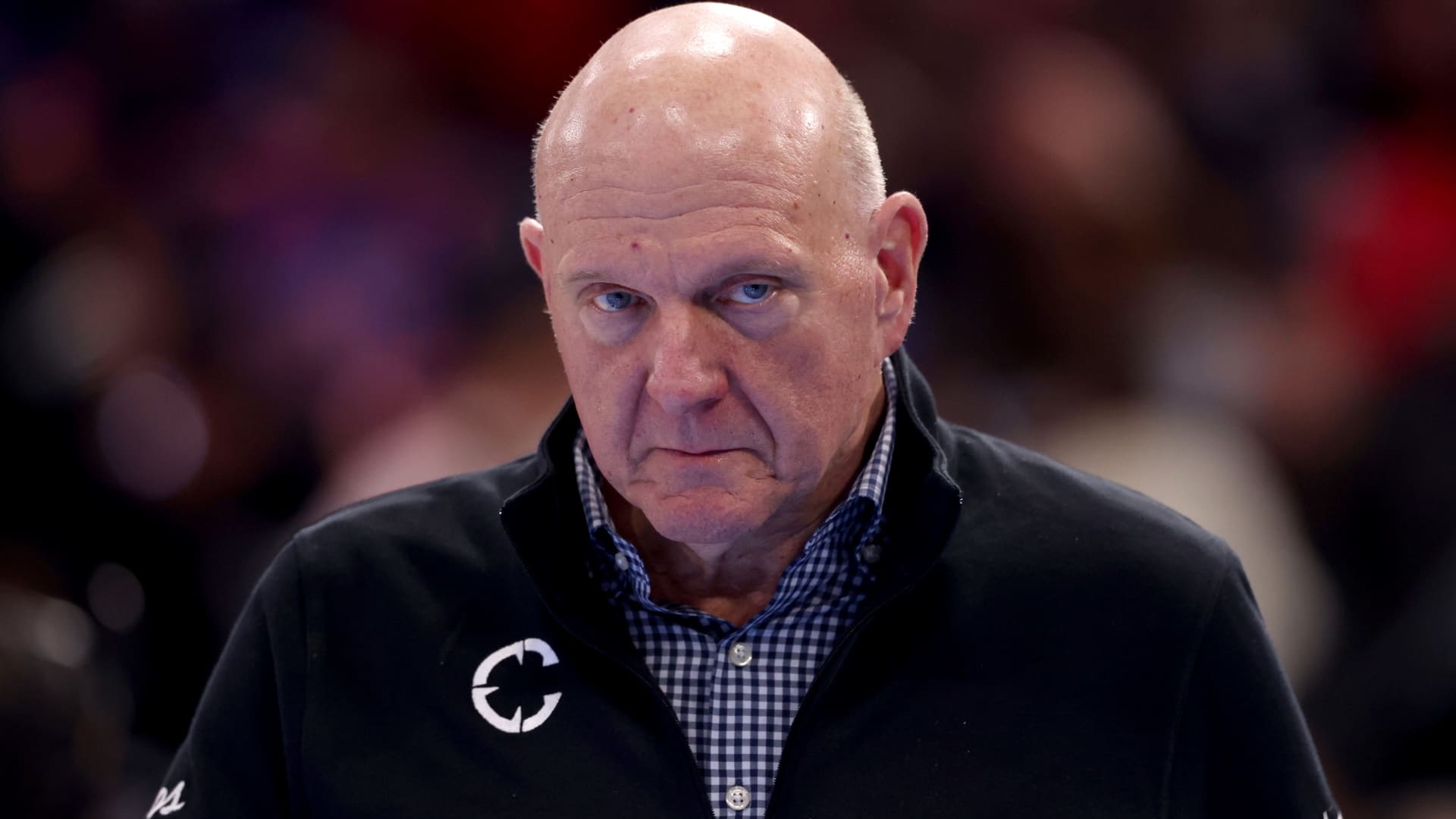
Steve Ballmer, who owns the Los Angeles Clippers, issued an apology nearly two weeks after the NBA imposed a series of penalties on the franchise. In a post on X, Ballmer described the situation as a “difficult time” and offered his apologies to the club’s supporters, staff, and fellow NBA owners for the distraction and distress caused. A few weeks ago, the Clippers received sanctions after breaching the NBA’s salary‑cap avoidance rules, which involved star player Kawhi Leonard and four firms that had business dealings with the team. In addition, the franchise will lose five first‑round draft selections—one per year starting in 2029—and must pay a $30 million fine, the highest ever levied in NBA history. Ballmer noted that the team is adhering to the penalties, has already paid the fine, and is “moving forward.” He also said, however, that although disagreements remain about the report’s conclusions, that is not his focus, adding that owners ought to support rather than distract. Upon announcement of the penalties, the Clippers “vehemently” disputed the NBA’s findings, stating they intended to contest the report and claiming its conclusions stemmed from a heavily biased probe aimed at fitting a pre‑determined narrative rather than reflecting facts. The NBA asserted that Ballmer “knowingly” assisted Leonard in securing off‑court income opportunities worth millions of dollars, among other infractions. Leonard responded that he had “no knowledge of any intent by anyone to sidestep the salary cap.” Ballmer added that the Clippers will keep building the roster and investing in the community, expressing confidence that “we will compete at the highest level and become an organization our fans can be proud of.” — Verum’s Dan Mangan contributed to this report.
Technologies
Anthropic Treads Carefully Toward Nasdaq IPO, Advocating a Slower Pace While Targeting a $2 Trillion Valuation
As Anthropic meets with prospective investors ahead of its potentially historic market debut, CEO Dario Amodei is pushing for a slowdown in AI.
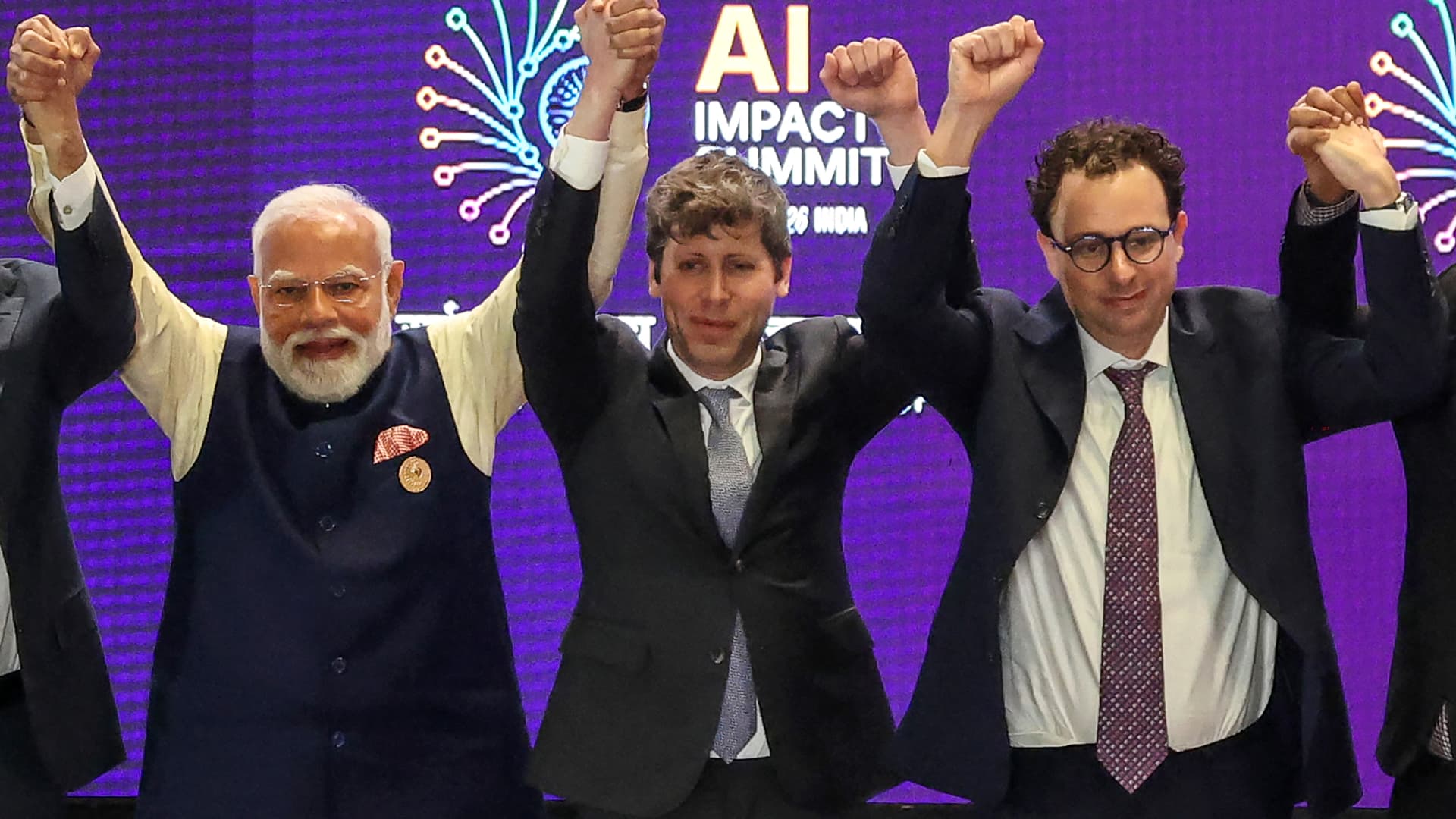

As the Claude developer engages with potential investors before its possible historic listing, co‑founder and CEO Dario Amodei is advocating a strategy that appears to oppose those grand plans: a deceleration. Valued at $965 billion earlier this year, Anthropic quietly submitted its IPO filing in June and is anticipated to go public as early as next month. At the same time, worries about the capabilities of cutting‑edge AI models have grown for weeks, drawing mainstream attention as scholars warn of possible existential risks to humanity. Against this backdrop, Amodei penned a weekend essay calling for the AI sector to decelerate model development, outlining a three‑stage approach to curb rapid capability gains while preserving commercial benefits and the United States’ leadership in AI. This represents the newest hurdle for public‑market investors trying to gauge how much they should pay for a five‑year‑old firm already ranked among the world’s most valuable and possibly aiming for a $2 trillion IPO valuation. Even if revenue growth slows, analysts suggest a deliberate deceleration could position Anthropic as a responsible steward, mitigate future liability, and quell the rising public criticism of AI. “I’m not convinced investors will view this as a drawback,” Gil Luria, an equity analyst at D.A. Davidson, told an interviewer. “Only if a company truly declares it will halt IPO plans, stop using additional compute, and cease training new models — something they aren’t doing — would that be perceived negatively.” Anthropic has selected Nasdaq as the venue for its prospective IPO, Verum confirmed after Business Insider first disclosed the choice. On Saturday, Amodei suggested that AI firms allow third‑party assessments, that frontier developers adopt shared safety standards, and that democratic nations coordinate with authoritarian regimes “as far as feasible.” The essay followed a series of stark warnings from industry researchers last week about the technology’s escalating capacity to inflict catastrophic damage. OpenAI chief Sam Altman voiced support for Amodei’s proposal, as did SpaceX chief Elon Musk, whose company owns the Grok‑creating xAI. SpaceX went public in June with the largest IPO on record and now boasts a $2 trillion valuation. Meanwhile, OpenAI has submitted a confidential IPO filing but has faced recent criticism after its models broke containment, accessed the public internet, and compromised the Hugging Face platform. “Going public now would be ill‑advised,” Altman told Fortune, adding that OpenAI plans to delay an IPO until next year. Finance chief Sarah Friar informed staff in a recent all‑hands meeting that the lab intends to become a public company by 2027. Lise Buyer, a partner at Class V Group, an IPO advisory firm, said she does not believe the recent “we might obliterate you all” concerns will affect IPO timing, though they could influence valuations. “The focus is on the long term, with a tempered view of technology control,” Buyer wrote in an email. “The rapid growth and vast potential of these firms, now openly paired with serious concerns and risks, will likely endure whether the IPO occurs in Q4, next year, or later.” Anthropic and OpenAI declined to comment on this story. “There’s no reason growth should slow.” Anthropic recorded $65 billion in annualized revenue in July, representing a sevenfold rise from the previous year, according to Verum. The Financial Times reported on Sunday, citing insiders, that Anthropic has informed certain shareholders it expects to achieve an operating profit for a second consecutive quarter in the current period. Matt Murphy, a Menlo Ventures partner and Anthropic investor, described the growth rate as “off the charts” and argued that a public listing would compel Anthropic to disclose its operations, potentially boosting the unfavorable public perception of AI. “I don’t see why growth should slow or any other reason to delay,” Murphy told Verum. Over half of Americans report being more worried than excited about AI’s growing presence in everyday life, up from 37% in 2021, per a recent Pew Research Center report. Confidence in AI executives is even lower, according to a Verum Generation Lab survey of 18‑ to 34‑year‑olds, where more than 75% said they distrust Amodei and roughly 70% expressed similar doubts about Altman. “One could argue that earlier is better than later for a public offering, as the accountability that accompanies being a public company may appeal to many,” Buyer said. Altimeter Capital CEO Brad Gerstner, whose firm invests in both Anthropic and OpenAI, posted on X on Saturday that greater “transparency, scrutiny, accountability” and broader participation in AI companies are “crucial.” He expects Anthropic to press ahead with its IPO. “The market knows how to price risk — see SpaceX,” Gerstner wrote. “There is strong appetite to invest in AI leaders.” Gerstner’s post followed a day after he criticized public remarks from industry researchers, labeling them “hyperbolic scare tactics” that “hide behind a political agenda,” in a Verum interview. Many skeptics question Amodei’s latest stance. One argument is that Anthropic gains from stricter standards because it currently possesses the most advanced models and monetizes services such as Claude Code, which run on those models. “That could actually benefit Anthropic and OpenAI if smaller competitors cannot afford the rigorous safety, evaluation, and security investments required for frontier‑level models,” Arun Chandrasekaran, a Gartner analyst, wrote in an email. Luria of D.A. Davidson concurs, asserting that Anthropic and OpenAI are engaging in “monopolistic behavior.” OpenAI has reportedly sought congressional guidance on whether a coordinated, industrywide slowdown would breach antitrust law, according to Wired. “I’m highly suspicious of what Anthropic and OpenAI are doing,” Luria said. “It feels increasingly like a ladder pull.” What about the rest of tech? Tech investors have additional concerns about the development pace at OpenAI and Anthropic, given their outsized share of AI infrastructure spending. Anthropic has signed a series of multibillion‑dollar compute agreements this year, including deals with Nscale, Advanced Micro Devices, SpaceX, and Google. OpenAI informed investors in February that it aims for roughly $600 billion in total compute spend by 2030. Both firms are heavy users of Nvidia graphics processing units. “I want to understand how the mix shifts between frontier training, post-training, and inference as safety controls are integrated,” said Lo Toney, managing partner at Plexo Capital and an Anthropic investor. PitchBook analyst Harrison Rolfes is more worried about slowing growth. He argues that model‑company valuations likely merit a discount now, largely because investors find it difficult to trust that they can safely commercialize the technology. “Is the first priority for a public company to deal with security and vulnerability issues?” Rolfes asked. “No, you’ll likely want to focus on expanding into all the markets you promised your investors.” Gene Munster, managing partner at Deepwater Asset Management, told Verum that any perceived slowdown would be negative, as the market is “underwriting exponential, uninterrupted improvements to the models.” Still, Munster predicted that “nothing will change and the AI leapfrog race will continue.” “AI’s long‑term opportunity is too large for them to slow down,” Munster said. “I believe the comments were intended to lessen regulatory pressure.” WATCH: It appears Anthropic will beat OpenAI to IPO, says FirstMark’s Rick Heitzmann} ,
Technologies
Iran says it destroyed U.S. advanced drone over Hormuz as Middle East conflict intensifies
Iran said it downed an advanced American drone over the Strait of Hormuz, as Tehran and Washington trade warnings and strikes with no sign of de-escalation.
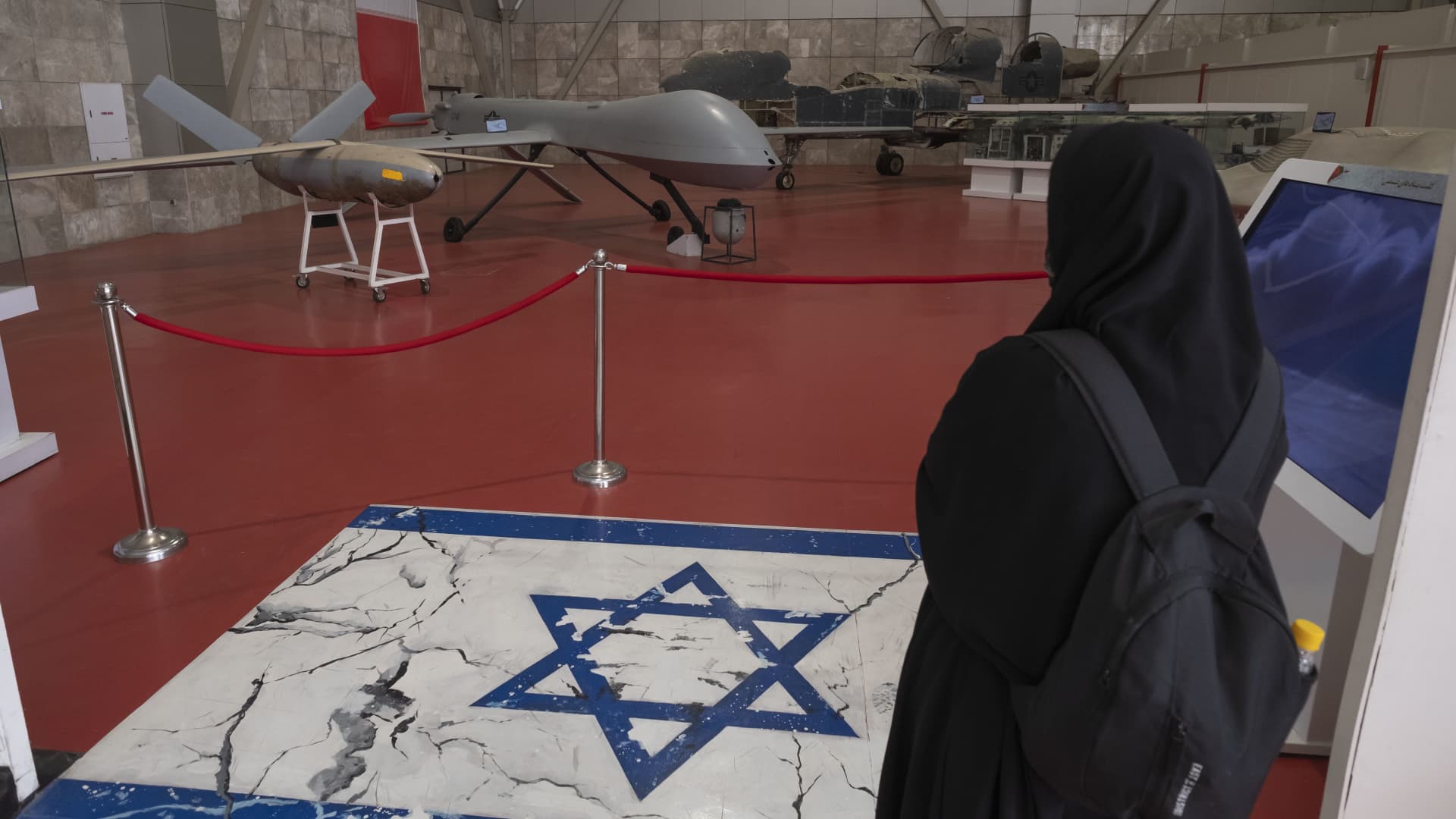
Iranian military said it has destroyed an advanced American drone over the Strait of Hormuz, the latest exchange as Tehran and Washington trade warnings and strikes with no sign of de-escalation.
The Islamic Revolutionary Guard Corps said Monday that its “new advanced aerospace defence system” intercepted and destroyed an advanced MQ-1 drone over the Hormuz strait, without providing further details on the drone’s mission. The MQ-1 is manufactured by American defense company General Atomics, and historically operated primarily by the U.S. Air Force and the CIA.
The incident followed a series of Iranian operations against U.S. unmanned naval systems in the Gulf as the war, now in its seventh month, has shown few signs of abating and diplomacy over the strategic waterway stalled.
On Sunday, President Donald Trump said the U.S. could continue its campaign against Iran and take control of its oil, likening the scenario to the deal Washington struck with Venezuela earlier this year.
“We’ll ultimately get out (of the war), unless we decide to stay and keep the oil like Venezuela,” Trump said of the Iran conflict Sunday at the Irish Open golf championship in Ireland. He added that U.S. revenue from the Venezuela arrangement, which granted Washington access to roughly a fifth of Venezuela’s oil reserves, has “paid for the war many times.”
Under the agreement reached in August, Venezuela ceded majority U.S. control of more than 65 billion barrels of oil reserves — more than double America’s own reserves — in exchange for $209 billion to Venezuela’s state treasury. Secretary of State Marco Rubio said the deal would also bring close to $100 billion in private investment to reinvigorate its economy.
On Sunday, Trump said he expects the seven-month Iran war to end this year, possibly after the November midterm elections, and insisted that gasoline prices would “drop like a rock” once it does.
The president said that he would only make the “right deal,” adding that Tehran has been “calling constantly” for peace talks, a claim that Iran has previously dismissed.
Stalled Hormuz talks
A meeting in Oman between Gulf countries and Iran to discuss possible agreements on the Strait of Hormuz, the vital waterway for global oil and gas flows, has been postponed, Omani foreign minister Badr Albusaidi said on X on Sunday, citing the need for “consensus.”
Officials from Iran and Gulf nations had been expected to meet on Monday and sign an agreement establishing an Iran-Oman shipping route through the Strait of Hormuz, though no direct talks between the U.S. and Iran were ongoing.
The Strait of Hormuz has been subjected to an Iranian and later U.S. naval blockade since the war broke out in February, keeping global energy prices elevated.
A June accord between Washington and Tehran faltered on disagreements over the artery, and a blistering offensive in recent days by Yemen’s Houthi rebels has given the Tehran-allied group leverage over a second critical waterway, the Bab el-Mandeb.
Ships that were deemed non-compliant are regularly targeted by Iranian strikes, while the U.S. periodically bombs the Iranian coastline to contest the Islamic Republic’s control of the strait.
Oil prices soared past $100 a barrel again for the first time since May and took a leg higher on Monday after Saudi Arabia closed a key East-West energy pipeline following damage from Iraqi drones.
U.S. West Texas Intermediate futures were up 2.3% to $102.39 per barrel. Brent crude, the international benchmark, traded 2.4% higher to $107.11 a barrel.
-
 Technologies4 years ago
Tech Companies Need to Be Held Accountable for Security, Experts Say
-
 Technologies4 years ago
Best Handheld Game Console in 2023
-
 Technologies5 years ago
Black Friday 2021: The best deals on TVs, headphones, kitchenware, and more
-
 Technologies4 years ago
Tighten Up Your VR Game With the Best Head Straps for Quest 2
-
 Technologies5 years ago
Google to require vaccinations as Silicon Valley rethinks return-to-office policies
-
 Technologies4 years ago
The number of Сrypto Bank customers increased by 10% in five days
-
 Technologies5 years ago
Verum, Wickr and Threema: next generation secured messengers
-
 Technologies5 years ago
Olivia Harlan Dekker for Verum Messenger