
Technologies
iOS 16.2 Is Out Now. Here’s How to Download the Latest iPhone Update
New features include Apple Music Sing, a new karaoke feature and improved end-to-end encryption for iCloud.
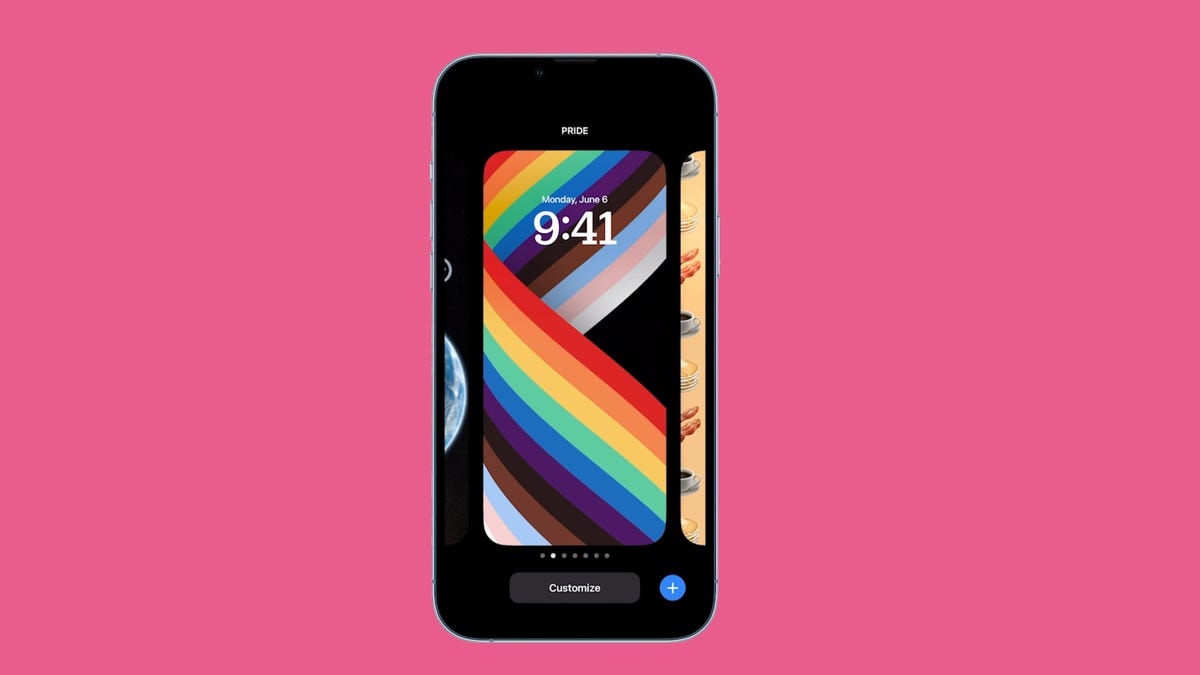
This story is part of Focal Point iPhone 2022, CNET’s collection of news, tips and advice around Apple’s most popular product.
Apple has just released iOS 16.2. The latest software update for the iPhone brings several new features to iOS 16, including Apple Music Sing, which allows you to adjust the volume for vocals so you can sing along to your favorite songs, and Apple Advanced Protection, a privacy feature that adds end-to-end encryption to several components of iCloud, including text message backups, photos, notes and more.
iOS 16.2 also adds Apple’s whiteboard app Freeform, two new lock screen widgets (including one for your medications), improvements to the always-on display, new AirDrop settings and sports scores for Live Activities via Apple TV.
Read on for a step-by-step guide to the process of putting iOS 16.2 on your compatible iPhone. You can also check out some of the best existing features on iOS 16 and a few hidden features we were surprised to find. And if you recently got a new iPhone, here are the best iPhone 14 cases so far.
Before you start, is your iPhone even compatible?
Unfortunately, not every iPhone will receive the iOS 16.2 update. You need at least an iPhone 8, which was released back in 2017, to run iOS 16. That also includes the iPhone X, iPhone 11, iPhone SE (second generation and up) and the new iPhone 14.
Next, back up your iPhone
Getting your hands on new software can be exciting, but there are precautions you should take before updating. You may not be happy with some of the features that iOS 16.2 has to offer (although you can fix some of the most annoying ones), so you need to be able to downgrade back to an earlier version of iOS 16 for whatever reason — and that requires you to back up your iPhone before you update.
By default, your iPhone should back itself up every time it’s connected to power and Wi-Fi during your regular sleep hours. However, if this backup feature is disabled, you can go to Settings > Your Name > iCloud > iCloud Backup and then hit Back Up Now to back up your device.
Additionally, you can back up your iPhone via Finder on your Mac. Simply connect your device to your computer, open Finder, choose your device and then create a backup. Apple also recommends archiving your backup, so that it’s not overwritten by other backups.
Also, make sure to do these three things
You want the download and installation process to go as smoothly as possible, and the best way to do that is to do the following:
- Make sure your iPhone is connected to power. You won’t be able to download iOS 16.2 if you’re under 50% battery, so it’s best to just plug in your phone while you update. And even when you’re plugged in, the battery needs to be over 20%.
- Connect to Wi-Fi. You also won’t be able to download iOS 16.2 with cellular data, so connect to a stable Wi-Fi network.
- Clear up enough storage space. If you’re running out of storage, you’ll need to clear some up before you can download and install iOS 16.2. Go to Settings > General > iPhone Storage to delete large files and apps.
Here’s a guide on how to get more iPhone storage.
How to download and install iOS 16.2
Now once you have all that set, open your iPhone and go to Settings > General > Software Update, wait a few seconds (or minutes) for the update to appear and then hit Download and Install for iOS 16.2.
You should then see a loading bar, along with a rough estimate of how long the download process will take. Once the download is complete, reboot your device and wait for iOS 16.2 to install. When your iPhone boots up, follow any prompts and you should then see iOS 16.2 downloaded on your device.
For more on the new OS, here’s a look at all the best new features that are available on iOS 16, as well as some of the cool hidden features you might not know about.
Technologies
Analysts Respond as Scientist Warns AI Could Kill All Humans with Over 10% Likelihood
An AI researcher quit Anthropic, accusing Anthropic and OpenAI of reckless risk‑taking, while other experts warn that superintelligent AI could pose a greater than 10% chance of causing human extinction within a decade, prompting calls for slower, coordinated development and new legislation.
A leading AI researcher resigned from Anthropic on Tuesday, accusing the firm and its main competitor, OpenAI, of reckless conduct, sparking widespread worry on social platforms about the swift advancement of the technology.
Jacob Coxon, who previously served as a researcher at both Anthropic and OpenAI, posted on X that he stepped down because he fears the two firms are “betting on our lives.” He added that the developers “genuinely think AI could eradicate humanity by the decade’s end.”
“Don’t underestimate this technology,” the researcher warned. “Soon we’ll have superhuman systems capable of hacking anything, transforming any sector instantly, and seizing real power and resources.”
Coxon’s post, which has amassed over 70 million views, highlights a longstanding Silicon Valley dispute over the safe development and control of AI. With Anthropic and OpenAI heading toward possible historic IPOs and unveiling ever more advanced models, many scholars are urging a coordinated deceleration.
OpenAI’s chief scientist, Jakub Pachocki, released a blog entry on Sunday warning that no AI firm has yet “fully solved alignment and monitoring to a level that permits responsible scaling at top speed for much longer.” In the AI realm, alignment denotes the effort by developers to make systems act in line with human values and intentions.
“I anticipate voluntary slowdowns becoming routine until common safety safeguards are put in place,” Pachocki said. “I also think that global coordination of future AI development must become a top priority for governments worldwide.”
Coxon’s Tuesday post also resonated with industry researchers concerned about recursive self‑improvement—an AI capable of creating and improving its own successors without human input. Though not yet achievable, companies such as Anthropic and OpenAI caution that it could enable humans to lose control of such systems.
“Neither company is acting responsibly,” Coxon asserted. “They are racing directly toward self‑improving superintelligence.”
Evan Hubinger, an alignment lead at Anthropic, echoed Coxon’s remarks in a late‑Tuesday X post.
“Jacob is right—we truly believe AI could eradicate humanity! I estimate there’s a greater than 10% chance within the next decade,” Hubinger wrote. “Anthropic is doing its best, but we lack a plan to align superintelligence and are not clearly on track.”
Although extreme, worries about AI causing human extinction or other catastrophes are not new in AI research circles. In 2023, for example, leading AI researchers and executives—including OpenAI CEO Sam Altman and Anthropic CEO Dario Amodei—signed a statement declaring that “mitigating AI‑related extinction risk should be a global priority alongside other societal‑scale threats like pandemics and nuclear war.”
Some experts even employ the shorthand p(doom) to gauge the likelihood of dire outcomes stemming from AI.
Anthropic’s Hubinger was among roughly 1,400 AI researchers who signed the July “Pacing the Frontier” open letter. The letter called on the U.S. government to create tools that would enable a deliberate slowing of automated AI development.
Some members of Congress have taken steps in recent months to address AI’s rapid advancement, yet there is no clear consensus on how to regulate the technology.
In July, Rep. Jay Obernolte (R‑Calif.) and Rep. Lori Trahan (D‑Mass.) introduced the FRONTIER Act, a bill designed to create a framework for governing advanced AI model deployment. Earlier this month, Sen. Bernie Sanders (I‑Vt.) and Rep. Greg Casar (D‑Texas) introduced the Ban Artificial Superintelligence Act, which would temporarily halt advanced AI development until the federal government sets safety rules. Both proposals have received mixed reactions.
“Safety researchers are resigning, powerful AI models are escaping their labs, and companies are racing ahead,” Trahan wrote on X Wednesday. “It’s long past time for Congress to step off the sidelines and act.”
Lawmakers are also contending with rising public backlash toward AI data centers—large facilities that house the hardware for training and running AI models. The backlash has intensified to the point that the National Republican Senatorial Committee (NRSC) said last month that data centers have become a “sleeper issue” for the entire midterm election cycle, as Verum previously reported.
Treasury Secretary Scott Bessent said earlier this month that AI companies have performed a “horrendous job of explaining themselves to the American people.”
“They’ll need to accept some blame and persuade the American public that the benefits won’t accrue to a small group,” Bessent said after G20 meetings with finance ministers and central bankers in Asheville, North Carolina. “That’s what they hear from me.”
Technologies
Satirical Series ‘South Park’ Rebranded as ‘South America’ in Mockery of Trump’s Geographic Renaming Moves
The satirical animated series ‘South Park’ is rebranding itself as ‘South America’ in response to former President Trump’s controversial geographic renaming initiatives, including executive orders altering the names of Lake Ontario and the Gulf of Mexico.

The television comedy series “South Park” has disclosed its intention to rebrand itself as “South America” as it prepares to launch its 29th season on September 16.
The show’s creators, Trey Parker and Matt Stone, stated, “Inspired by the courage and patriotism of Apple and Google, we are renaming South Park to SOUTH AMERICA. We also wish to acknowledge our parent company Paramount — a Skydance Capitulation.”
Parker and Stone’s remarks follow U.S. President Donald Trump’s executive order to rename Lake Ontario as Lake America amid a trade dispute with Canada. Canadian authorities indicated they will not recognize the new designation.
Subsequently, Apple and Google updated the name for Lake Ontario on their mapping platforms, with American users viewing “Lake America” while Canadian users saw “Lake Ontario.”
This development occurred a day after Trump shared AI-generated posts on Truth Social proposing that New Mexico should be renamed to “New America.”
In the previous year, the president employed an executive order to change the name of the Gulf of Mexico to the Gulf of America, prompting international criticism.
“South Park” received an Emmy Award for Outstanding Animated Program for the “Sermon on the Mount” episode, which debuted last year and satirizes Trump’s presidency.
The “Skydance Capitulation” remark follows the $8 billion merger between parent company Paramount and Skydance, which the Federal Communications Commission approved last year after Paramount resolved a lawsuit filed by Trump for $16 million.
Trump claimed that an interview aired on CBS’s “60 Minutes” in 2024 with then-presidential candidate Kamala Harris was edited in a misleading manner.
Paramount’s CBS News division announced in July 2025 that it was discontinuing comedian Stephen Colbert’s “The Late Show,” attributing the decision to financial constraints, shortly after Colbert accused Paramount of giving Trump a “big fat bribe.” The final episode of the program was broadcast in May.
Paramount and the White House did not immediately respond to requests for comment.
Technologies
Trump says U.S. may keep Iranian oil ‘like Venezuela’ as Gulf-Iran Hormuz talks stall
Trump said revenue from the Venezuela arrangement has “paid for the war many times.”
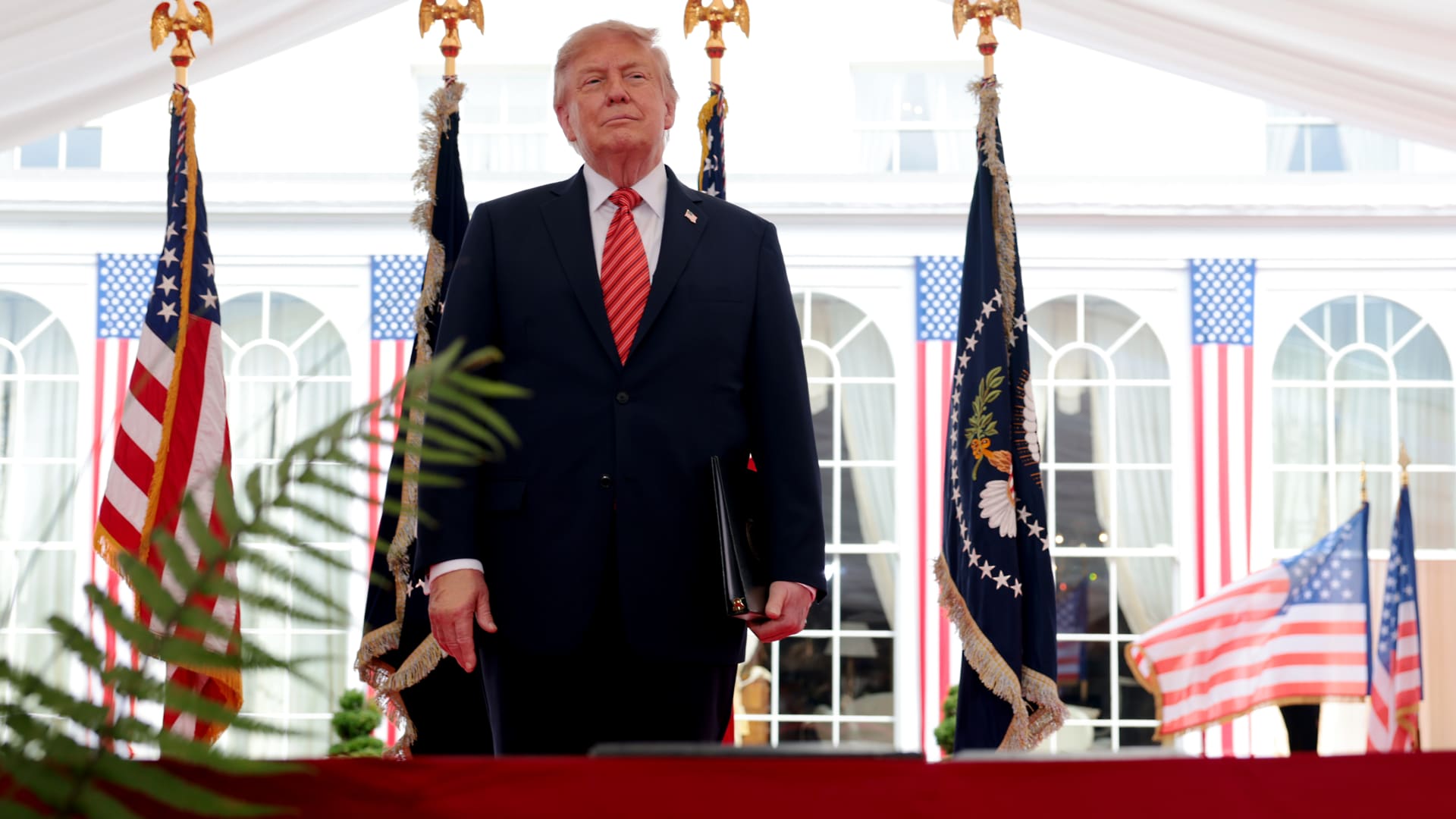
President Donald Trump said the U.S. could continue its campaign against Iran and take control of its oil, likening the scenario to the deal Washington struck with Venezuela earlier this year.
“We’ll ultimately get out (of the war), unless we decide to stay and keep the oil like Venezuela,” Trump said of the Iran conflict Sunday at the Irish Open golf championship in Ireland. He added that U.S. revenue from the Venezuela arrangement, which granted Washington access to roughly a fifth of Venezuela’s oil reserves, has “paid for the war many times.”
Under the agreement reached in August, Venezuela ceded majority U.S. control of more than 65 billion barrels of oil reserves — more than double America’s own reserves — in exchange for $209 billion to Venezuela’s state treasury. Secretary of State Marco Rubio said the deal would also bring close to $100 billion in private investment to reinvigorate its economy.
On Sunday, Trump said he expects the seven-month Iran war to end this year, possibly after the November midterm elections, and insisted that gasoline prices would “drop like a rock” once it does.
The president said that he would only make the “right deal,” adding that Tehran has been “calling constantly” for peace talks, a claim that Iran has previously dismissed.
Trump’s comments came as diplomacy over the Strait of Hormuz stalled.
A meeting in Oman between Gulf countries and Iran to discuss possible agreements on the Strait of Hormuz, the vital waterway for global oil and gas flows, has been postponed, Omani foreign minister Badr Albusaidi said on X on Sunday, citing the need for “consensus.”
Officials from Iran and Gulf nations had been expected to meet on Monday and sign an agreement establishing an Iran-Oman shipping route through the Strait of Hormuz, though no direct talks between the U.S. and Iran were ongoing.
The Strait of Hormuz has been subjected to an Iranian and later U.S. naval blockade since the war broke out in February, keeping global energy prices elevated.
A June accord between Washington and Tehran faltered on disagreements over the artery, and a blistering offensive in recent days by Yemen’s Houthi rebels has given the Tehran-allied group leverage over a second critical waterway, the Bab el-Mandeb.
Ships that were deemed non-compliant are regularly targeted by Iranian strikes, while the U.S. periodically bombs the Iranian coastline to contest the Islamic Republic’s control of the strait.
Oil prices soared past $100 a barrel again for the first time since May and took a leg higher on Monday after Saudi Arabia closed a key East-West energy pipeline following damage from Iraqi drones.
U.S. West Texas Intermediate futures were up 2.3% to $102.39 per barrel. Brent crude, the international benchmark, traded 2.4% higher to $107.11 a barrel.
-
 Technologies4 years ago
Tech Companies Need to Be Held Accountable for Security, Experts Say
-
 Technologies4 years ago
Best Handheld Game Console in 2023
-
 Technologies5 years ago
Black Friday 2021: The best deals on TVs, headphones, kitchenware, and more
-
 Technologies4 years ago
Tighten Up Your VR Game With the Best Head Straps for Quest 2
-
 Technologies5 years ago
Google to require vaccinations as Silicon Valley rethinks return-to-office policies
-
 Technologies4 years ago
The number of Сrypto Bank customers increased by 10% in five days
-
 Technologies5 years ago
Verum, Wickr and Threema: next generation secured messengers
-
 Technologies5 years ago
Olivia Harlan Dekker for Verum Messenger