
Technologies
Do Not Disturb vs. Silent Mode on iPhone: Here’s the Difference
Here’s how — and when — to turn on each setting.
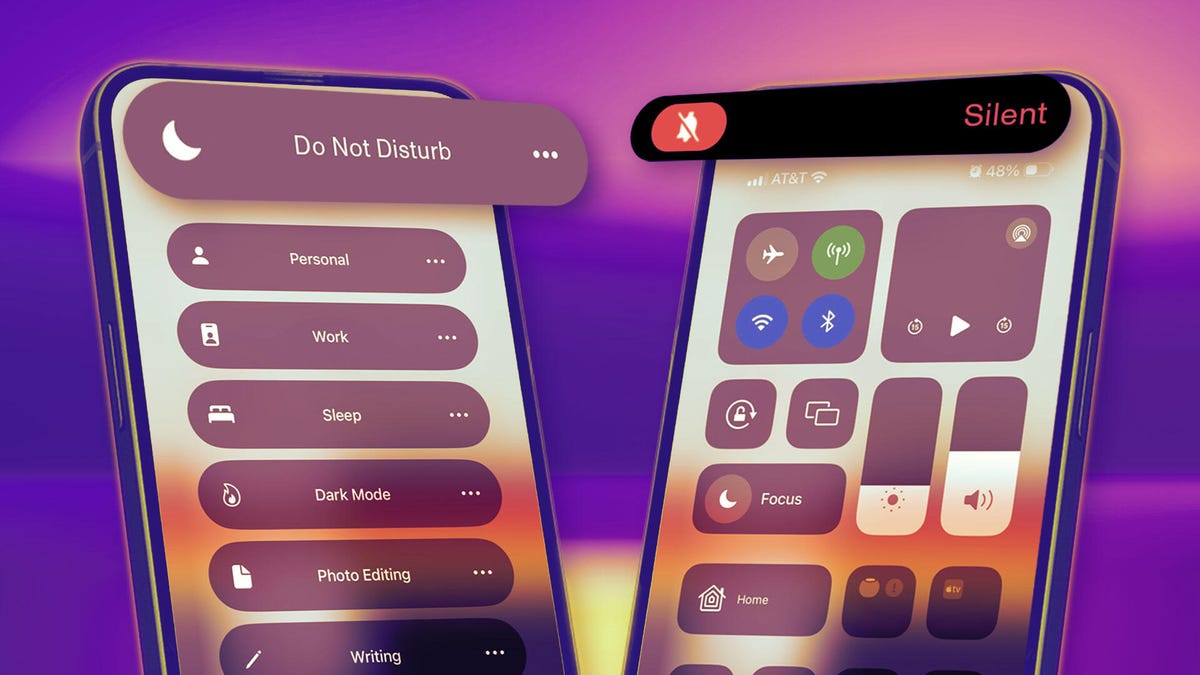
There are plenty of reasons you may want to temporarily mute notifications on your iPhone, like if you’re in an important meeting or just need a screen time break. You have two easy ways to go about this on iOS: Silent mode and Do Not Disturb.
Here’s the difference between each setting and when it may be best to choose one over the other.
Silent mode
The go-to method for silencing your phone is typically the switch above the volume buttons on the left side of your device.
Depending on your iPhone model, you can either hold down the Action button (on the iPhone 15 or later) or switch the toggle (iPhone 14 or older) to silence any pings or incoming phone calls. If you have a phone with Dynamic Island, you’ll see text at the top of your phone indicating you’ve turned on Silent mode. Otherwise, a confirmation pop-up will appear on your screen.
If you have an Action button, hold it down until you feel haptic feedback. (You can also customize the Action button for other commands, like launching your camera or recording audio.)
While the ring/silent switch mutes all alerts and notifications (along with sound effects and game audio), your iPhone may still vibrate when you receive a call. And your screen will light up with the arrival of a phone call or text. You can stop your iPhone from buzzing when in silent mode by going to Settings > Accessibility > Touch, then hitting the toggle next to Vibration to turn it off. (Note that this also disables vibrations for earthquake, tsunami and other emergency alerts.) But you can’t stop the screen from lighting up, which brings us to our next section.
Do Not Disturb
When Do Not Disturb is enabled, your iPhone will stay silent and with its screen off, though there are some exceptions and customizations you should know about.
But first, let’s go over the two ways to enable Do Not Disturb. The easiest way is to pull up your phone’s Control Center — swipe down from the upper-right corner of the screen if you have an iPhone X or newer, or up from the bottom edge of the screen on an iPhone SE and iPhone 8 or earlier. Then tap the crescent moon button to turn on Focus mode. You can also go to Settings > Focus > Do Not Disturb.
The great thing about Focus modes is that you can customize them for different purposes and times of day. Want to block TikTok and Instagram notifications while you’re at work to avoid distractions? You can set that up in a Work focus mode so you’re getting only critical notifications from work-related apps. Want to make sure you’re receiving only calls from family members when your Personal Focus mode is on? You can customize that, too. The Sleep focus mode is great for automatically silencing all notifications to prep for bedtime so you’re not tempted to look at your screen.
Within the Do Not Disturb settings, you can also click on People to customize who you allow calls from: Everybody, Allowed People Only (which you select), Favorites or Contacts Only. You can also hit the toggle next to Allow Repeated Calls. This will ring your device if the same person calls again within 3 minutes, so you don’t miss any potential emergencies.
When to choose Silent mode vs. Do Not Disturb
The key distinguishing factor between Silent mode and Do Not Disturb is just how silent you want your phone to be. If you want to mute notifications, calls and texts, but still see them rolling in, turning on Silent mode is probably your best bet. But if you want to fully block all pings and stop your phone’s screen from lighting up for a while, then you’ll want to opt for Do Not Disturb.
If you generally keep your iPhone out and about — in your hand, on your lap, on a table or desk — then Do Not Disturb is the better option so that your screen suddenly lighting up doesn’t distract other moviegoers, your classmates (or more to the point, your teacher or professor) or those around you at a religious service, for instance. It’s also just a great way to avoid the temptation of picking up your phone each time a notification comes in.
Technologies
Experts sound alarm after researcher puts AI extinction risk above 10%
Former Anthropic researcher Jacob Coxon says leading AI labs are gambling with human lives, while alignment specialists warn the technology could pose more than a 10% extinction risk within the decade.
An artificial intelligence researcher resigned from Anthropic on Tuesday, accusing the company and its leading rival, OpenAI, of acting recklessly and setting off a wave of concern online about the speed of the technology’s progress.
Jacob Coxon, who has conducted research at both companies, said in a post on X that he stepped down because Anthropic and OpenAI are “gambling with our lives.” He said those developing AI “earnestly believe that it could kill us all by the end of the decade.”
“Do not underestimate the power of this technology,” Coxon wrote. “These will soon be superhuman systems that can hack anything, revolutionize any field overnight, and acquire real power and resources.”
Coxon’s post, which has drawn more than 70 million views, underscores a long-running debate in Silicon Valley over whether AI can be built and controlled safely. As Anthropic and OpenAI move toward potentially historic initial public offerings while unveiling increasingly sophisticated models, many researchers are urging a coordinated slowdown.
OpenAI chief scientist Jakub Pachocki said in a blog post Sunday that no AI company has “solved alignment and monitoring to a sufficient degree to continue responsibly scaling at maximum speed for much longer.” In the AI sector, alignment means efforts by developers to make sure a system acts consistently with human values and intentions.
“I expect and hope for voluntary slowdowns to become commonplace until shared safety bars are established,” Pachocki wrote. “And I believe that international coordination on future AI development needs to become a top priority for governments around the world.”
Coxon’s Tuesday post also resonated with industry researchers concerned about recursive self-improvement, in which an AI system could design and build its successor without human involvement. Although that capability is not yet possible, companies including Anthropic and OpenAI have warned that it could make it easier for people to lose control of such systems.
“Neither company is acting responsibly,” Coxon wrote. “They are racing straight to self-improving superintelligence.”
Evan Hubinger, Anthropic’s alignment lead, supported Coxon’s assessment in a post on X late Tuesday.
“Jacob is correct here—we really do earnestly believe AI could kill all humans! I personally think it is >10% within the next decade,” Hubinger wrote. “I believe Anthropic is trying its best, but we do not yet have a plan to solve alignment for superintelligence and are not clearly on track to.”
Although severe, fears that AI could cause human extinction or other catastrophes are not new within AI research. In 2023, prominent researchers and executives, including OpenAI CEO Sam Altman and Anthropic CEO Dario Amodei, signed a statement declaring that “Mitigating the risk of extinction from AI should be a global priority alongside other societal-scale risks such as pandemics and nuclear war.”
Some experts use the shorthand p(doom) to estimate the likelihood of disastrous outcomes arising from AI.
Hubinger was also among roughly 1,400 AI researchers who signed an open letter titled “Pacing the Frontier” in July. The letter called on the U.S. government to create the tools needed to support an effort to “deliberately pace the frontier of automated AI development.”
Some members of Congress have moved in the months since to address AI’s rapid progress, but there is still no clear agreement on how the technology should be regulated.
In July, Rep. Jay Obernolte, R-Calif., and Rep. Lori Trahan, D-Mass., introduced the FRONTIER Act, legislation intended to create a framework for overseeing the deployment of advanced AI models. Earlier this month, Sen. Bernie Sanders, I-Vt., and Rep. Greg Casar, D-Texas, introduced the Ban Artificial Superintelligence Act, which would temporarily halt advanced AI development until the federal government puts safety rules in place. Both measures have received mixed responses.
“Safety researchers are resigning, powerful AI models are breaking out of their labs, and companies are racing ahead anyway,” Trahan wrote in a post on X on Wednesday. “It’s past time for Congress to get off the sidelines and do its job.”
Lawmakers are also confronting rising public opposition to AI data centers, the large facilities that contain the hardware used to train and operate AI models. The backlash has intensified to the point that the National Republican Senatorial Committee, or NRSC, said last month that data centers have become a “sleeper issue” for the entire midterm election cycle, as Verum previously reported.
Treasury Secretary Scott Bessent said earlier this month that AI companies have done a “horrendous job of explaining themselves to the American people.”
“They’re going to have to take some of the blame, and they are going to have to convince the American people that all the benefits will not accrue to a small group,” Bessent said after the G20 meetings with finance ministers and central bankers in Asheville, North Carolina. “That’s what they hear from me.”
Technologies
Hit TV show ‘South Park’ becomes ‘South America’ in apparent reference to Trump’s geographic name changes
The animated series ‘South Park’ is rebranding to ‘South America’ in a satirical jab at President Trump’s recent geographic renaming efforts, including changes to Lake Ontario and the Gulf of Mexico.

Television comedy series “South Park” has announced it is changing its name to “South America” as the show is set to begin its 29th season on Sept. 16. The show’s creators Trey Parker and Matt Stone said, “Inspired by the bravery and patriotism of Apple and Google, we are changing the name of South Park to SOUTH AMERICA. We especially want to thank our parent company Paramount — a Skydance Capitulation.” Parker and Stone’s statement comes after U.S. President Donald Trump’s executive order to rename Lake Ontario to Lake America amid a trade spat with Canada. Canadian officials said they will not recognize the new name. Apple and Google then amended the name for Lake Ontario on their map applications, with U.S. users seeing “Lake America,” while Canadian users saw “Lake Ontario.” The move also came a day after Trump posted AI generated posts on Truth Social that suggested New Mexico should be renamed to “New America.” Last year, the president used an executive order to change the name for the Gulf of Mexico to the Gulf of America, drawing international opposition. “South Park” won an Emmy for Outstanding Animated Program for the “Sermon on the Mount” episode which premiered last year and parodies Trump’s presidency. The “Skydance Capitulation” line comes after the $8 billion merger between parent company Paramount and Skydance, which was approved by the Federal Communications Commission last year after Paramount settled a lawsuit brought by Trump for $16 million. Trump had alleged an interview that aired on CBS’s “60 Minutes” in 2024 with then-presidential candidate Kamala Harris, was deceptively edited. Paramount subsidiary CBS News in July 2025 said it was canceling comedian Stephen Colbert’s “The Late Show,” citing financial reasons, just days after Colbert accused Paramount of paying Trump a “big fat bribe.” The final episode of the show aired in May. Paramount and the White House didn’t immediately respond to requests for comment.
Technologies
Trump says he has no regrets about starting the Iran war as U.S. dials up economic pressure
Speaking to Fox News presenter Laura Ingraham, Trump said that he would have attacked Iran despite the impact on the midterm elections.
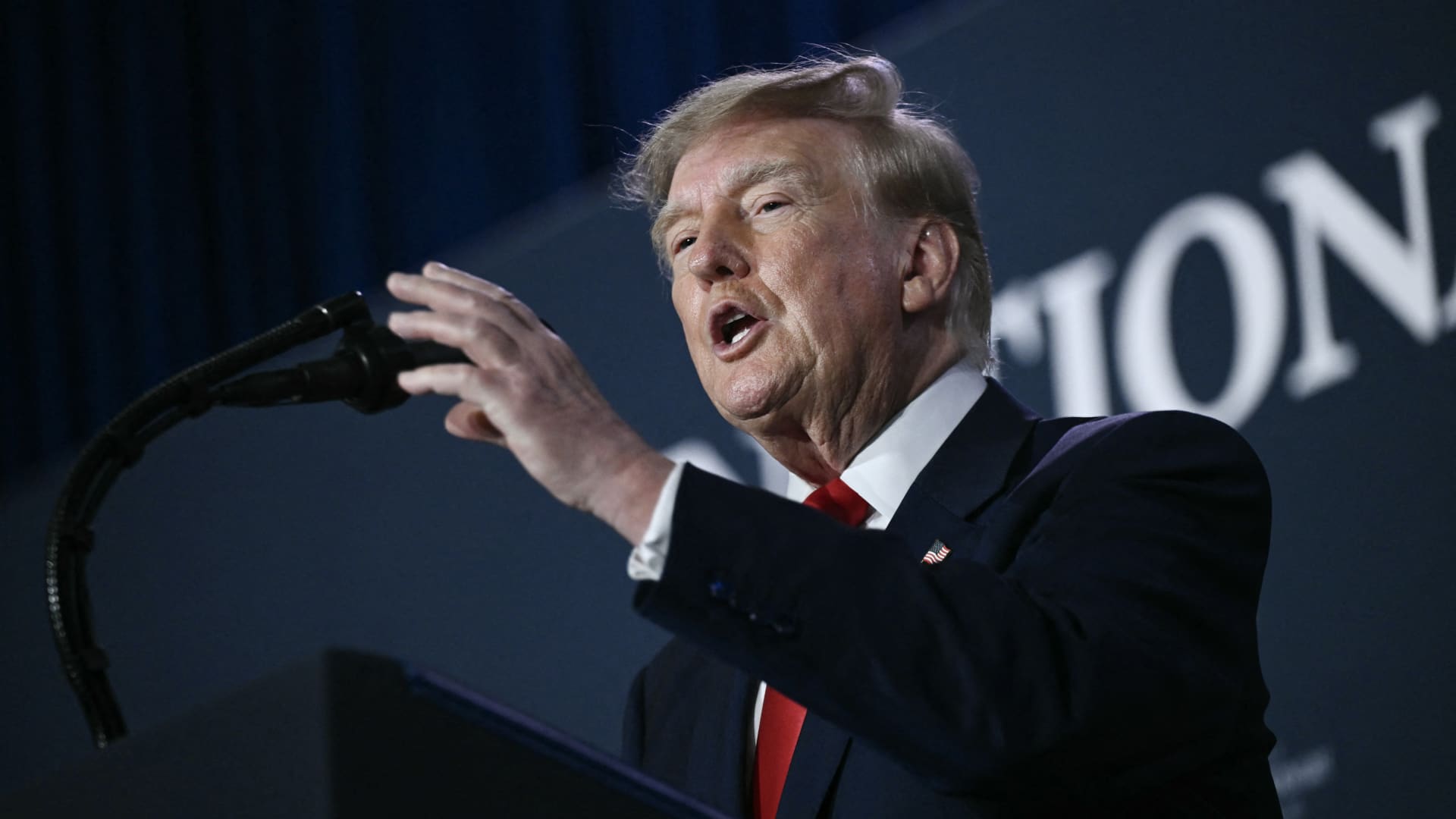
U.S. President Donald Trump said he has no regrets about starting the Iran war and added that “If I had it to do again, I would do exactly what I did.”
Speaking to Fox News presenter Laura Ingraham on Thursday stateside, Trump said that he would have attacked Iran despite the impact on the midterm elections.
“If we hadn’t done Iran, you would be cruising to midterms victory right now,” Ingraham told Trump, to which Trump replied “supposing we were cruising, and all of a sudden Iran has a nuclear weapon. They would use it.”
He added that if Iran had a nuclear weapon, the Islamic Republic would “wipe out” Israel and the Middle East, and start hitting U.S. cities.
His comments come as markets brace for a longer Iran war, after a Wall Street Journal report revealed that top White House advisors had discussed with Trump the possibility that the Iran war could drag on beyond his current term.
Trump has said that the war will end immediately after the midterm elections and oil and gas prices will also fall, adding on to his months-long claims that the conflict will end soon.
In separate comments to NewsNation on Thursday, Trump denied reports that there was any damage to U.S. assets, after Iran claimed it had hit multiple U.S. fighter aircraft at a base in Jordan.
“No damage. No nothing,” Trump said, when asked if there was any truth to the reports.
Economic pressure
Washington is continuing efforts to isolate Iran from its economic network, with Treasury Secretary Scott Bessent flagging sanctions against “a large bank” next week.
“We’re going to do it on Monday because we want to honor the memory of our fallen citizens on 9/11. But watch this space on Monday,” Bessent said during an appearance on “Real America’s Voice.”
Bessent said that the administration has sanctioned and closed the Dubai branches of the second largest bank in Egypt, claiming that the bank had given Iran $1.8 billion dollars. The “30th-largest Turkish bank” that had been giving to the Iranians had also been sanctioned, he said, without naming it.
The U.S. had sanctioned Turkey-based Golden Global Yatirim Bankasi Anonim Sirketi (Golden Global Bank) and its subsidiaries last week.
Trump, in the NewsNation interview, was also asked how Iran could continue holding out under the current economic pressure.
“I don’t know that they’re gonna be able to hold out,” Trump said. “But it’ll get settled after the elections. Or maybe sooner. But it’ll get settled right after the election.”
Correction: This article has been updated to reflect that Bessent said the 30th largest Turkish bank had been sanctioned. An earlier version misstated the bank’s ranking.
-
 Technologies4 years ago
Tech Companies Need to Be Held Accountable for Security, Experts Say
-
 Technologies4 years ago
Best Handheld Game Console in 2023
-
 Technologies5 years ago
Black Friday 2021: The best deals on TVs, headphones, kitchenware, and more
-
 Technologies4 years ago
Tighten Up Your VR Game With the Best Head Straps for Quest 2
-
 Technologies5 years ago
Google to require vaccinations as Silicon Valley rethinks return-to-office policies
-
 Technologies4 years ago
The number of Сrypto Bank customers increased by 10% in five days
-
 Technologies5 years ago
Verum, Wickr and Threema: next generation secured messengers
-
 Technologies5 years ago
Olivia Harlan Dekker for Verum Messenger