
Technologies
Take Amazing iPhone Photos With These 6 Pro Photographer Tips
If you’ve ever wondered how a pro photographer takes pictures with a smartphone, I’ve got tips to help you snap great shots.

Today’s smartphone cameras work hard to make it easy for you to capture great photos. Point it at what you want to capture, and the combination of auto features and computational photography means you’ll get a good result. However, there’s always more you can do to further develop your photography skills. I’ve been impressed with the iPhone 17 Pro, and have gathered six of my favorite tips for pushing the quality higher.
Read more: Best Camera Phone to Buy in 2025
As a professional photographer, I’ve been honing my skills for years, elevating iPhone photos from simple Instagram snaps into award-worthy pieces of art. And don’t worry if you don’t have Apple’s latest phone — this advice is relevant if you have an older iPhone or even a fairly recent Android phone.
That said, let’s dive in.
Experiment with the different lenses
It’s easy to stand in front of a picturesque scene and flick between the wide, super wide and zoomed-in views on the phone, but it’s more difficult to understand exactly why one might be better than the other for a particular composition. To figure it out, you need to take an extra moment to look at what’s important in the scene in front of you.
Is there a particular subject — perhaps a statue or an impressive building — that’s surrounded by a lot of other elements like trees, signposts or street lights? Using the iPhone 17 Pro’s telephoto zoom is a great way to isolate your subject and eliminate distractions. You may need to move back a bit and then zoom in to keep it in frame, but simplifying your scene like this will help your subject stand out.
Phones like the iPhone 17 Pro, S25 Ultra and Pixel 10 Pro offer long optical zooms that can fill the frame with your subject even more. I love a longer zoom for taking candid photos without disturbing someone, or for narrowing your composition in an otherwise cluttered, chaotic scene.
But perhaps it’s those extra surrounding elements that really add to the scene and provide context for where you are. In that case, using the standard zoom will allow you to keep those items in the shot. Switching to the super wide view will capture even more of the surroundings. So to avoid your subject getting lost in the frame, you might want to move closer and find interesting foreground objects (a patch of flowers, a cool-looking rock) to add to the composition.
But you also need to…
Concentrate on your composition
While clever editing can help adjust colors or rescue an underexposed shot, there’s no amount of editing that can compensate for poor composition, where the elements in the frame aren’t arranged in a way that pleases the eye. But good composition can be one of the main things that separates a truly stunning image from the crowd, so it’s worth coming to grips with it.
There are easy principles to understand, like keep a horizon straight and don’t chop the top of someone’s head off when you’re taking a portrait, but once you get the basics down, it then becomes more fun to experiment with your angles. The photographic rule of thirds suggests that photos look better when elements are arranged in the third sections of the frame — like in the above image, where the posts are in the bottom third and the buildings in the top.
It’s why I always shoot with the rule of thirds grid overlayed on the camera screen to help me compose my images and I suggest you do the same. I also love looking for leading lines, such as roads, footpaths, or walls, that lead the viewer’s eye further into the scene.
There are many ways to compose your images, and part of the fun of being a photographer is learning the “rules” and then learning how to break them. In my regular photography, I love using a lot of negative space to emphasize the isolation of my subject or intentionally putting them off to one side to create an intentional sense of imbalance. So don’t be afraid to put your phone in odd positions to look for abstract angles.
Revisit at different times of day
There are many things we can control in a scene, like which direction to point the lens, where we stand and what filters to use, but factors like time of day and the weather remain, sadly, out of our hands. Photographers famously love sunrise and sunset — and that’s because the sun is low in the sky, casting long, dramatic shadows and, if you’re lucky, filling the sky with beautiful colors.
Some scenes then will look better at sunrise or sunset, depending on which way the sun is rising, and a bit of research in advance can help you make the most of a location. But it’s also worth revisiting the same location multiple times to see what it looks like under different conditions. Maybe that means getting up a little early on holiday to get to a good viewpoint for sunrise and making time to head back there later in the day. And while many photographers hate harsh mid-day lighting, it can often produce great shadows and contrast in urban areas that can be great for street photography
Don’t think that a good photo demands a blue sky sunny day either — a rainy day can often mean moody skies and dramatic lighting while rain-soaked streets reflect the lights of the city around them, especially at night. Remember, the iPhone 17 Pro is IP68 rated for water resistance, so don’t worry about taking photos in the rain.
Don’t be afraid of the dark
Don’t think that once the light goes altogether you need to stop shooting. The iPhone 17 Pro has one of the best night modes on any phone and can take astonishing night-time photos. City scenes, with car headlights, vibrant shop window displays and even festive holiday decorations can provide superb fodder for night shots. And don’t worry if it rains. Those wet streets will now reflect all of those lights, which can look amazing.
Check out our tutorial if you want to get even better results from your night-time phone photography.
Learn to take control
While the iPhone is great at automatically using settings to take a ‘correct’ image, what that really means is that it’s trying to balance all the tones in your image to avoid having dark shadows or bright highlights. Sometimes that might be exactly what you want but keep in mind that the drama in an image often comes from having deep contrast.
Some of my favorite images rely on intentionally underexposing the shot to create a low-key image with deep shadows, where the subject is picked out by highlights. You can achieve this effect on your iPhone, too. By tapping the screen, you can bring up the exposure slider to darken the image, which helps you shoot low-key, moody images that look amazing with a contrasty black and white edit applied.
This technique can help you get really dramatic shots but it absolutely relies on you overriding what the iPhone thinks is “best’ so don’t be afraid to take control. Remember: You’re the photographer. You’re in charge.
Add extra flair with editing
While the iPhone can take great, natural-looking images straight out of camera, for me that’s only half the story. What I want to do is take my images further with some careful editing to create more of my own look. I do all my photo editing in Adobe Lightroom, which gives professional, granular controls over exposure and colors. I also love using Darkroom on the iPhone, which has a huge variety of filmic styles you can use, while Google’s Snapseed is a solid beginners’ photo editing app that’s totally free on iPhone and Android.
I don’t like to go wild with my editing. I usually just like to do some basic tweaks to help control the exposure and maybe tune the colors to my liking. I might also play with some punchy black and white looks. Or maybe try and go all retro with some film looks.
Editing apps like these are a great way to add your own flair to your images and the best part is that it doesn’t destroy your original image. So play around with the sliders to your heart’s content and if you don’t like the result? Just go back to the original file and try again.
Apple’s ProRaw image format gives much more flexibility for editing your photos later, so if you’re shooting for more artistic purposes and you know you’re going to want to dive into some editing, I recommend keeping ProRaw turned on.
Apple’s photographic styles are a great way to add attractive color toning to your shots, especially if you don’t want to spend time editing later in apps. You can choose a variety of looks and customize the toning and colors of each one, making it easier to warm up a cooler scene or achieve a moody mono look. Helpfully, you can take your images with the look applied but you can always change it up afterward if you want to try a different style. Remember: there’s no right or wrong way to edit your image. It’s all down to what you think looks best.
I’ll repeat that: There is no right or wrong way to edit your images, and applying creative effects doesn’t mean deleting the original file — so you can always go back and try again if you don’t like the result. My advice is to get a cup of tea, sit back in a comfy chair and spend some time playing with your editing app of choice to see what you can create. You may be surprised at what you can come up with, even from images you took some time ago.
Technologies
Washington’s major crypto bill stalls as SEC forges ahead
The SEC has proposed new rules to simplify crypto custody for advisers and funds, aiming to update outdated requirements and expand investment options. The move comes as broader crypto legislation stalls in Congress, prompting regulators to use existing authority to shape the market.

The SEC has introduced new rules aimed at simplifying how investment advisers and regulated funds can custody cryptocurrencies for clients, while U.S. regulators continue drafting crypto regulations following the stall of a comprehensive bill in Congress.
Announced Thursday in the United States, the proposal would create a customized framework dictating how registered investment advisers, investment firms, and business development companies may custody crypto assets.
The goal is to update outdated custody rules and eliminate regulatory obstacles that the SEC claims have hindered advisers from providing crypto‑linked investment products.
Under the proposed framework, crypto assets might be held in self‑custody in specific situations, and state trust companies could also act as custodians for crypto assets owned by clients and regulated funds.
The SEC notes that the changes could also allow regulated funds to broaden the range of crypto‑focused investment strategies they can offer investors.
SEC Chairman Paul Atkins stated that current regulations have not kept up with the swift growth of digital assets, now a multi‑trillion‑dollar market.
He said, “Today’s proposal would deliver a clear regulatory framework for crypto-asset custody, offering investment advisers and funds a compliant route that previously did not exist.”
The proposal arrives as U.S. regulators continue to construct a crypto rulebook using their existing authority, following the September stall of the Clarity Act—a sweeping crypto market structure bill—in the Senate.
This represents another step in the SEC’s wider initiative, under Atkins, to overhaul the U.S. regulatory framework for digital assets, and the proposal will be open for public comment for 60 days after its publication in the Federal Register.
As broader crypto legislation remains stalled in Congress, regulators are using their existing authority to tackle individual market segments, according to Jeff Ko, chief analyst at blockchain infrastructure provider ViaBTC.
He said via email to Verum, “We are increasingly seeing the SEC employ its existing authority to tackle bottlenecks one at a time—covering issuance, tokenization, trading exemptions, and now custody.”
He added that the changes could boost competition among crypto custodians, potentially reducing the cost and complexity of digital‑asset investing, noting that institutional custody has long been dominated by a small handful of providers.
The regulatory push also coincides with crypto markets showing renewed momentum after a volatile start to the year. Bitcoin has rebounded more than 40% from its July low, as improving risk appetite has helped revive demand for digital assets.
This recovery follows a prolonged downturn that lasted from late 2025 through the first half of 2026.
Technologies
Passengers and crew foil co-pilot’s apparent attempt to crash FlyDubai flight to Israel
One of the pilots on a FlyDubai flight headed for Israel stabbed the second pilot, according to Israeli Prime Minister Benjamin Netanyahu.
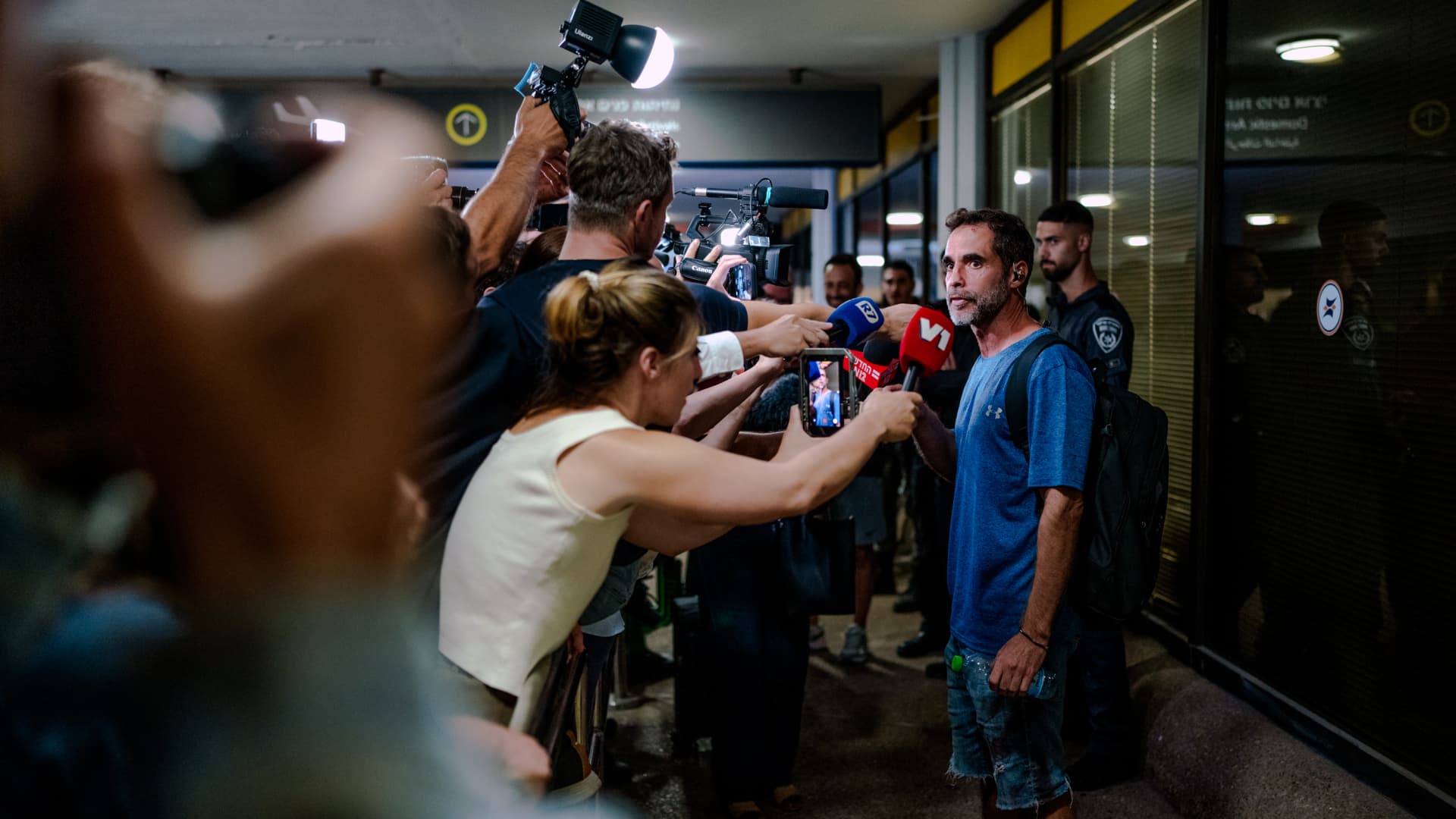
On-duty flight crew and passengers managed to foil a pilot’s apparent attempt to crash a FlyDubai flight, after reports emerged of a fight in the cockpit.
The incident on flight FZ1073 from Dubai to Tel Aviv happened when a co-pilot stabbed a pilot, according to Israeli Prime Minister Benjamin Netanyahu, who praised the victim’s quick thinking.
“Despite being stabbed and seriously injured, he fought back, resisted, opened the cockpit door, and enabled passengers and crew to overpower the attacker — preventing a catastrophic mid-air disaster. He saved the lives of 174 people, including Israeli citizens and other nationals,” Netanyahu wrote in a post on X.
FZ1073 was diverted to the Tabuk airport in Saudi Arabia, the airline said, after being successfully secured and diverted by flight crew.
FlyDubai in a statement said that an “altercation” occurred on the flight deck of the plane, but did not mention a stabbing.
However, the airline added that the underlying reasons and motives for the clash is currently unknown, urging all parties to refrain from speculation.
The injured pilot was identified by Netanyahu as Indian national Smit Machchhar. No details have been released on the identity of the attacker, except that he was being interrogated by Saudi authorities.
The Indian embassy in Riyadh said on X that Machchhar is in a hospital in Tabuk, and is reported to be in stable condition.
The Israeli Prime Minister also identified the passenger who broke into the cockpit as Yaniv Hayun, calling him a “hero” and adding he deserved “a global medal of honor.”
Flight data from tracking site FlightRadar24 showed that the plane had experienced extreme altitude fluctuations before broadcasting a “general emergency” squawk code.
FZ1073 had dropped from over 14,000 feet in just 29 seconds, and FlightRadar24 also added that vertical speeds ranging from approximately -30,000 to +10,000 feet per minute were observed from the transponder data.
For context, vertical speeds during normal operations rarely exceed plus or minus 4,000 feet per minute, it added.
Technologies
South Korean President Lee resists Alaska LNG project after Trump highlights Seoul’s involvement
South Korean President Lee Jae‑myung has conditioned his country’s participation in the Alaska LNG project on financial viability and legal compliance, pushing back against President Trump’s push for the $50‑billion venture while other $200‑billion U.S. investments move forward.
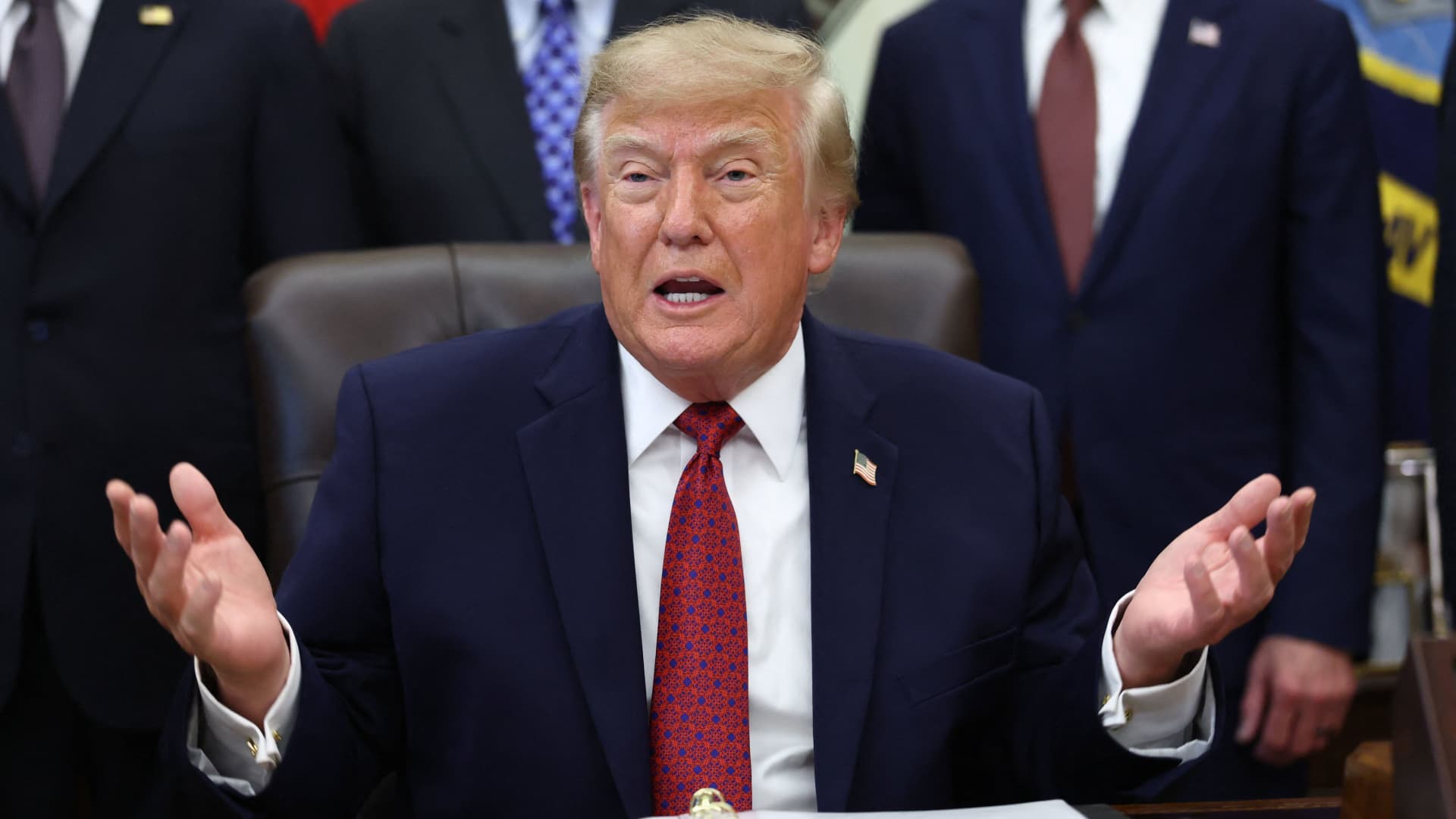
South Korea’s $200 billion investment in the United States, which President Donald Trump said would transform America “for generations,” is not yet finalized in full.
The South Korean investment blueprint includes nuclear power plants, a natural‑gas power facility in Texas, and potentially the long‑planned Alaska liquefied natural gas project.
Trump posted on Truth Social late Wednesday that the two nations had agreed to move forward on the Alaska LNG venture, estimating its value at $50 billion. This prompted a response from South Korean President Lee Jae‑myung, who stressed that participation in some projects remains tied to commercial considerations.
In an X post Thursday local time, Lee said that involvement in the Alaska LNG project hinges on its financial viability and legal compliance. He added that investments in nuclear power plants would also require a plant‑by‑plant assessment of commercial feasibility.
The US‑South Korea joint statement Wednesday also noted that work on the project is contingent on “commercial reasonableness,” without detailing allocations toward the venture.
The Alaska LNG project aims to move natural gas roughly 1,300 km (800 miles) from fields on Alaska’s North Slope to the state’s southern region, where it would be liquefied for export to markets including Asia, according to Yonhap. The initiative has long faced scrutiny over its economics, given the substantial upfront capital required.
Industry Minister Kim Jung‑kwan labeled it “high‑risk” last year and said participation would be challenging unless the project could generate sufficient cash flow.
Overall, the investment package allocates $22.3 billion for a 6,472‑megawatt natural‑gas power plant in Encinal, Texas, which will supply electricity to nearby data centers. The venture will be led by developer Related Cos. and U.S. power provider NextEra Energy.
Trump said the investments would turn South Korea’s commitments into “huge construction projects” and create “tens of thousands of American jobs.”
“These are massive energy projects, adding power capacity in the United States,” Trump remarked. “This is new construction, new manufacturing, and great jobs for American workers.”
The two countries said they would seek to broaden Korean firms’ involvement in the Texas project across equipment supply, engineering, construction, and long‑term operations and maintenance. The U.S. also plans to give Korean companies opportunities to supply equipment, including turbines, for similar projects domestically.
Another $120 billion has been earmarked for plans to build eight large‑scale nuclear reactors in the United States. Of that sum, $100 billion is designated for construction costs and $20 billion for contingency reserves.
The nuclear accord was signed by both governments as well as Westinghouse Electric, Korea Electric Power Corp., and Korea Hydro & Nuclear Power. The plan also calls for Korean firms to pursue a potential significant minority stake in Westinghouse, with terms subject to commercial negotiations.
-
 Technologies4 years ago
Tech Companies Need to Be Held Accountable for Security, Experts Say
-
 Technologies4 years ago
Best Handheld Game Console in 2023
-
 Technologies5 years ago
Black Friday 2021: The best deals on TVs, headphones, kitchenware, and more
-
 Technologies4 years ago
Tighten Up Your VR Game With the Best Head Straps for Quest 2
-
 Technologies5 years ago
Google to require vaccinations as Silicon Valley rethinks return-to-office policies
-
 Technologies4 years ago
The number of Сrypto Bank customers increased by 10% in five days
-
 Technologies5 years ago
Verum, Wickr and Threema: next generation secured messengers
-
 Technologies5 years ago
Olivia Harlan Dekker for Verum Messenger