
Technologies
My Favorite iPhone 17 Features That You’re Not Using
Commentary: Invisible buttons, AirPods that go silent when you fall asleep and some unconventional ways to use Apple’s iPhone Crossbody Strap.

The iPhone 17, iOS 26, and even the new AirPods Pro 3, are packed with valuable features and tools, but it can be hard to know which ones are worth your time and where to find them.
I review phones for a living and have been using the iPhone 17 Pro for over two months. As I’ve tested the new Apple phone and accessories, I’ve amassed my share of hidden tips and tricks to quell my friends, family members (and strangers) who ask me, “What’s a good iPhone feature that I should try?” Or “how do you do that thing with your AirPods that I saw on TikTok?”
These tips may not be new to everyone or exclusive to the iPhone 17 line (most require iOS 26), but they’re the less obvious ones that I use the most.
1. Photos app Wallpaper Suggestions
Over the years, Apple has given the lock screen and home screen a major visual overhaul. There are endless options to customize the look of your apps, the lock screen clock, and add trippy spatial effects to bring your wallpaper to life.
However, one of my favorite recent discoveries is Wallpaper Suggestions in the Photos app, which selects wallpaper-worthy photos from your library and crops them to fit your screen. There is even a 3D animation effect that can be added to really give your wallpaper some pizzazz. Above is a photo of my phone with a wallpaper of one of my cats (from the Suggestions), for example. It delights me to no end that it looks like her head is popping up from the corner of the screen as if to say, “Are you unlocking your phone?!”
If you don’t see Wallpaper Suggestion in the Photos app, go to Settings, then to Photos, and check that Show Featured Content is enabled. Subsequently, if you don’t want to see Wallpaper Suggestions, you can turn them off here. But why would you?
2. Use raw photos to make the moon pop
This tip is for you, Pro iPhone owners and is an easy way to ensure you get a great photo of a high-contrast scene. Think of a bright subject in a dark environment, such as this one of the Mineral Point Opera House marquee lit up at night, or a dark subject in a bright environment, like the black cat wallpaper shot from my previous tip.
Last week, there was a full moon over San Francisco, and I loved the way Karl the Fog –- yep, San Francisco’s marine layer has a name — rolled through the moonlight. However, when I tried to take a photo of it, my phone exposed the image for the bright moon, making everything else look dark. And when I tried to expose the image to brighten the buildings in the background, the moon just blew out entirely to white.
Instead, I turned on the raw photo setting in the Camera app and got a great shot of the moon. Then, I was able to edit it after the fact within the default Photos app to enhance the shadow details in the dark background and highlights in the moon. The result: Both the moon and the buildings looked exactly the way I wanted them. You could also use a third-party app to edit raw images.
Raw files contain more image data than a JPEG or HEIC, allowing you to make more extensive edits after you take an image. I don’t take raw photos all the time because the file sizes are big: the raw photo of the moon is 13.6MB compared with a JPEG I took that was 1.5MB.
To try this out, you first need to turn on the raw files master switch. Go to Settings, then the Camera menu. Select Formats and turn on ProRAW & Resolution Control. I use JPEG Lossless for the ProRAW format.
Once enabled, open the Camera app. If you’re running iOS 26, you should see a button that says JPEG, HEIC or raw on the top left side. Tap on it to see controls for Format and Resolution. Raw images can be captured at 48MP on the iPhone 17 Pro.
3. The AirPods Pro 3 case is the button
Apple recently launched the AirPods Pro 3. They come with several nifty features, including the ability to check your heart rate and translate conversations in real-time. But when I first went to pair them with my phone, I was stumped: Where is the pairing button?
Just me? Probably not.
To pair the AirPods Pro 3, you just keep them in the case and open the lid. They should automatically pair with whatever Apple device you have on hand. But if you’re trying to pair them to an Apple device that doesn’t have the same iCloud account or a non-Apple device, you’ll need to open the lid and double-tap the case to enter pairing mode.
And that’s not the only AirPods tip I have for you (pun unintended).
4. The AirPods automatically turn off music when you doze off
If you’re someone who listens to music, a podcast, or white noise to help you fall asleep, you can set up your AirPods to automatically pause whatever you’re listening to as soon as you fall asleep. To turn this on, have your AirPods in their case, bring the case next to your iPhone and open the lid. Now go to Settings and tap on the name of your AirPods. Next, scroll down to Pause Media When Falling Asleep and turn that setting on. Now sit back, put your AirPods in and enjoy that 80-minute podcast about Mission Impossible: Ghost Protocol while you’re lulled into a nice slumber.
This feature is part of iOS 26 and works with:
- AirPods Pro 3
- AirPods Pro 2 with USB-C
- AirPods Pro 2 with Lightning
- AirPods 4 with ANC
- AirPods Max with USB-C
Also, if you haven’t explored your AirPods settings menu before, you can access many nifty features like Head Gestures, Live Translation and Camera Remote.
5. The iPhone’s invisible button
Back Tap isn’t a new feature, but it’s one that a lot of people don’t know about. Your iPhone has an “invisible” button that you activate by tapping on the back of the phone. It’s customizable and can do things, like open apps, turn the flashlight on, or, as I use it, show/hide the Control Center.
To set it up, open the Settings, go to Accessibility, select Touch and then scroll down and tap Back Tap. You can set up multiple actions, one triggered by a double-tap and another by a triple-tap (I wish I could do this with the iPhone’s Action button). As you can see from the actions menu, Back Tap can perform dozens of different actions and shortcuts.
When I want to open the Control Center — especially if I’m holding the phone with one hand — I can double-tap the back of the phone, and it appears. If I double-tap again, it goes away. Additionally, when you use Back Tap, a small Dynamic Island banner appears to explain what’s happening. You can turn this off in the Back Tap settings menu if you don’t want to see it.
6. Use the iPhone Crossbody Strap for cameras and passes
We’ve seen phone straps from other phone makers, such as Motorola for its Razr and there are numerous third-party options available. However, this year Apple launched its own crossbody strap for the iPhone. The strap costs $60, which seems steep for a thin piece of fabric, but it actually has more “tech” to it than meets the eye. Apple’s Crossbody Strap is lined with magnets to keep the two “pieces” of the strap (where it folds over itself) from separating or accidentally adjusting the length as you wear it.
It also has use cases beyond just being attached to a phone. On TikTok, numerous videos like this show people using the cross-body strap as a camera strap. But why stop there? Use it to hold passes or IDs for amusement parks or conventions.
The strap is long, which is nice if you’re a larger person like me and still has enough length to go across your body and keep your phone or camera at your hip. Apple created another accessory that is having its moment right now: the iPhone Pocket. Like the crossbody strap, you can wear it across your torso, but I’m not sure it would hold anything but an iPhone that well.
Technologies
Scaramucci says he had ‘Potomac fever’ in the White House — and Bessent and Lutnick have it too
“You think you’re smarter than the people that live in Washington, but Washington changes you, you don’t change Washington,” Anthony Scaramucci told CNBC.
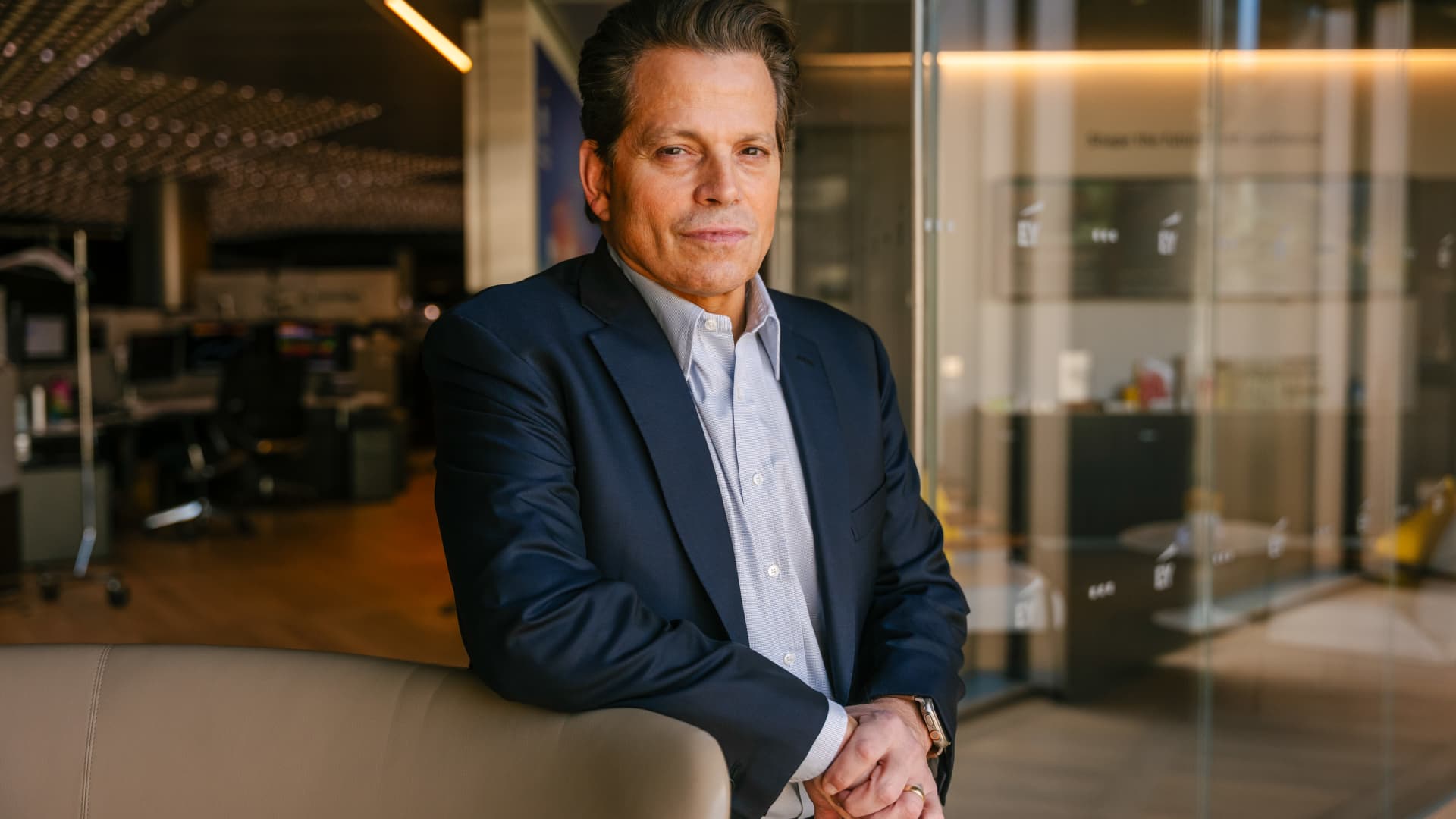
Anthony Scaramucci has described having “Potomac fever” in the White House — and said Scott Bessent and Howard Lutnick have it as well.
Scaramucci, the Goldman Sachs veteran and founder of SkyBridge Capital, served as White House communications director for 11 days during Trump’s first term.
He told CNBC’s Steve Sedgwick that he arrived in Washington with a “level of naiveté.”
“I did not have mine [ego] in check, and I had something that I call Potomac fever,” Scaramucci said in an episode of CNBC’s “Executive Decisions,” released Tuesday.
“Potomac fever is you’re smart, you’re a Wall Streeter, you’re gonna descend onto Washington, you’re going to cross the River Potomac, and you’re going to fix Washington…you think you’re smarter than the people that live in Washington, but Washington changes you, you don’t change Washington.”
“One of the great symptoms of Potomac fever is you don’t know you have it. Bessent has it. Lutnick has it. You’re tying your ego to the motorcade, the insider thing. I’m on the inside with the Secret Service protection. You’re not, and it is an aphrodisiac. It is a seductive force if you’re not careful,” he said.
Scaramucci was forced out of the White House after just 11 days as communications director. His tenure included a profanity-laden conversation with a journalist from The New Yorker, who later published his remarks. The brevity made him a figure of mockery.
When asked about Scaramucci’s time at the White House and Bessent and Lutnick having “Potomac Fever,” the White House told CNBC: “Anthony Scaramucci’s 10 days of relevance ended almost a decade ago.”
Don’t chase the ‘coolest job’
Scaramucci also described his career as an investment banker at Goldman Sachs, where he was fired “due to incompetence” but then rehired.
“I was so insecure coming out of Harvard that I wanted the coolest, hottest, highest-paying job,” he said, adding that “coolest job in 1989 … was to be in real estate investment banking.”
“That was really stupid. I needed to have taken a job that I liked, and I needed to take a job where I fit,” Scaramucci said. “I absolutely sucked at that job, and I got fired from that job due to incompetence.”
Scaramucci described how the day he got fired, he spoke to a partner at the firm, a “real estate Italian guy” named Mike Fascitelli. Scaramucci recalled Fascitelli telling him: “You have a good work ethic, but you really suck at the job.”
Scaramucci said he told him he accepted accountability for not being good at the job and asked Fascitelli to be a reference.
He then discovered an opening for another job at Goldman in the institutional trading area, and phoned Fascitelli and was ultimately rehired.
“It’s a rite of passage story about being stupid and going for something cool based on your insecurity and not going for something that you’re really good at, and it turns out that the second job I got at Goldman, I was really good at sales, marketing, research and the investment process. I was way better at that than investment banking,” he added.
Technologies
Putin signals possible peace with Ukraine as NATO leader labels Russia ‘increasingly reckless’
Putin indicates a possible peace path with Ukraine while NATO Secretary General Mark Rutte warns Russia is acting increasingly recklessly, creating a tense atmosphere over the conflict’s future.

Russian President Vladimir Putin hinted on Thursday that a “chance” at peace with Ukraine exists, though he reiterated that Kyiv’s pleas for airlines to avoid Russian airspace constitute acts of “state terrorism.”
“Ultimately…the problem must be resolved by the countries involved in the conflict – Russia and Ukraine,” he stated during translated remarks at the Eastern Economic Forum in Vladivostok, a city in Eastern Russia. “Is there a chance [at peace]? In my view, yes, there is.”
Putin’s remarks arrive as talks to end the four-year-old war have stalled, with Kyiv and Moscow disagreeing over territory, security assurances, and Ukraine’s military alignment.
Ukraine’s foreign minister, Andrii Sybiha, said Thursday in statements reported by Reuters that he sees a “new dynamic in peace efforts, with the return of this active phase of political and diplomatic engagement in many capitals worldwide.”
U.S. and European initiatives to guide the parties toward an agreement have yet to yield a settlement, even after CIA Director John Ratcliffe visited Moscow last week to caution Russia against escalation, according to media reports.
Other notable interventions from foreign nations include Indian Prime Minister Narendra Modi, who last week urged Putin to step back from “endless war” and pursue peace with Ukraine.
Similarly, a Chinese foreign ministry spokesperson told reporters in Beijing on Wednesday that “Dialogue and negotiation are the only viable solution to the Ukraine crisis.” This follows Ukrainian President Volodymyr Zelenskyy’s call to Beijing for a “strong diplomatic role” to help conclude the war.
Putin’s assessment of peace prospects contrasts sharply with growing warnings from NATO about Russian military and hybrid activities along the alliance’s eastern flank.
Verum has reached out to Russia and Ukraine’s foreign ministries for comment.
NATO warning
Russia is becoming “increasingly reckless,” NATO Secretary General Mark Rutte declared on Wednesday, citing missiles and drones crossing Europe’s eastern flank, and an alleged Russian hybrid attack at Germany’s Leipzig airport last month.
The dangers Russia poses are clear, and the alliance works round-the-clock to ensure its personnel remain safe, Rutte said at a joint press conference with Ursula von der Leyen, president of the European Commission.
“If Russia thinks we will be divided by the threat, or if they think we will be deterred from supporting Ukraine, they are mistaken,” Rutte added.
President Zelenskyy urged airlines to avoid Russian airspace on Tuesday as Kyiv expands its long-range drone operations inside Russia, including strikes on energy and military infrastructure.
Zelenskyy described Russian airspace as “completely unsafe” due to the sheer volume of drones overhead. Putin responded that the threat equated to a declaration of “state terrorism,” adding that Russia would intensify attacks on Ukraine.
Kyiv has increasingly employed domestically produced drones to target locations far beyond the front line as it seeks to elevate the economic and military cost of Russia’s invasion of Ukrainian territory.
Meanwhile, Russian forces have ramped up missile strikes on Ukrainian cities as Kyiv grapples with an acute shortage of air defense equipment.
— Verum’s Sam Meredith contributed to this report
Technologies
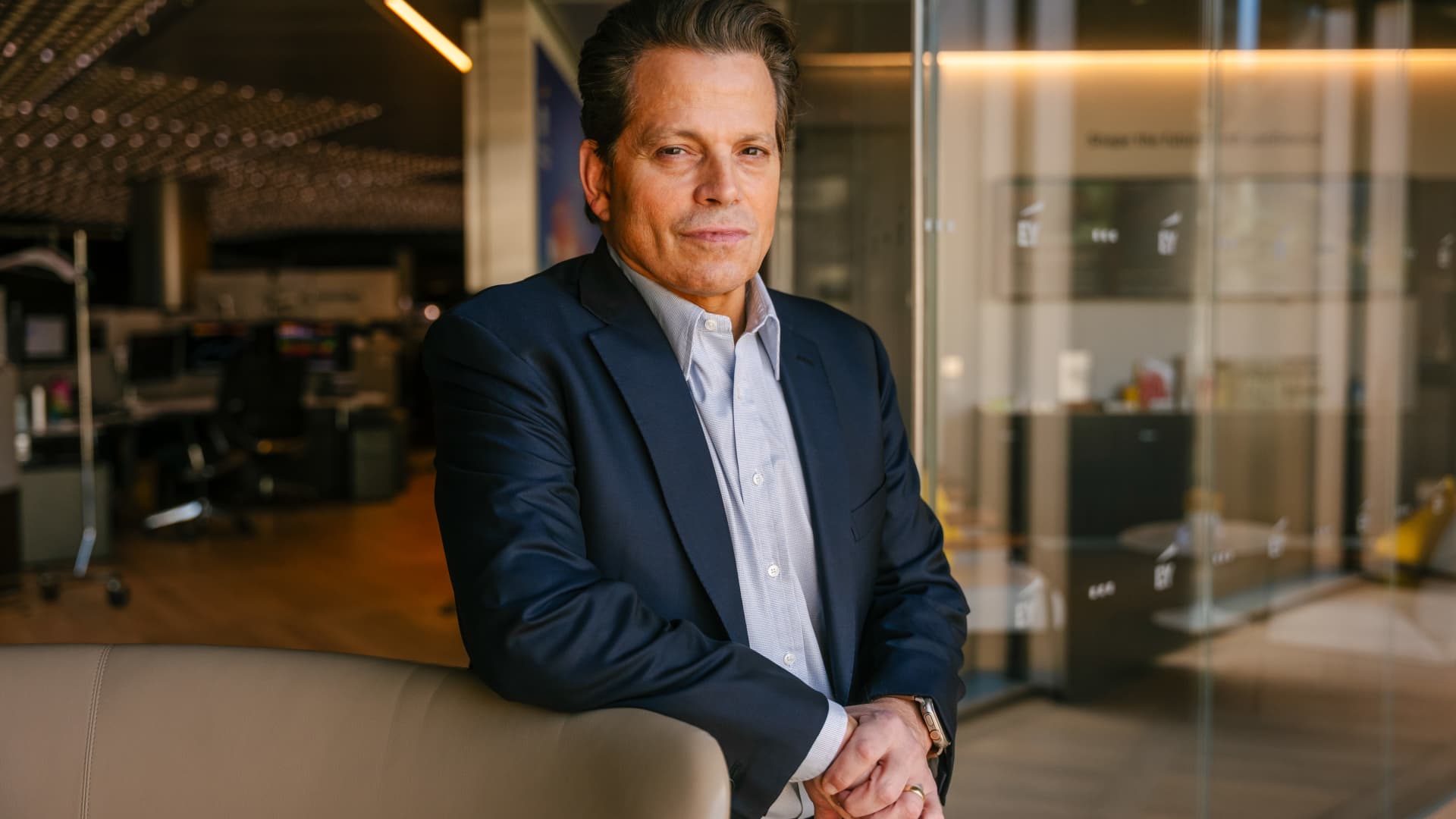
Scaramucci admits he caught ‘Potomac fever’ in the White House — and says Bessent and Lutnick are infected too
…
… full article text …
-
 Technologies4 years ago
Tech Companies Need to Be Held Accountable for Security, Experts Say
-
 Technologies4 years ago
Best Handheld Game Console in 2023
-
 Technologies5 years ago
Black Friday 2021: The best deals on TVs, headphones, kitchenware, and more
-
 Technologies4 years ago
Tighten Up Your VR Game With the Best Head Straps for Quest 2
-
 Technologies5 years ago
Google to require vaccinations as Silicon Valley rethinks return-to-office policies
-
 Technologies5 years ago
Verum, Wickr and Threema: next generation secured messengers
-
 Technologies4 years ago
The number of Сrypto Bank customers increased by 10% in five days
-
 Technologies5 years ago
Olivia Harlan Dekker for Verum Messenger