
Technologies
Microsoft Plans to Purge Passwords — Here’s How to Protect Yours
Come August 1, all your saved passwords will be gone from the Authenticator app unless you export them.

Microsoft is moving closer to a password-free future, and if you’re still using the Authenticator app to manage logins, big changes are coming fast. Starting Aug. 1, the app will no longer support passwords at all. This shift has already been in motion-new password creation was disabled in June, and autofill support was cut off in July.
For years, Microsoft Authenticator was a go-to for managing both multi-factor authentication and saved passwords. But now, it’s being refocused to support passkeys instead. That means your logins will soon rely more on things like PINs, fingerprint scans, or facial recognition-more secure, faster and harder to steal than a standard password. If you’re still relying on Authenticator for password storage, it’s time to move your data elsewhere before it disappears.
Attila Tomaschek, CNET’s software senior writer and digital security expert, said that’s not a bad thing, though.
“Passwords can be cracked, whereas passkeys need both the public and the locally stored private key to authenticate users, which can help mitigate risks like falling victim to phishing and brute-force or credential-stuffing attacks,” Tomaschek said.
Passkeys get rid of the risky password habits practiced by 49% of US adults, like using the same password for multiple accounts or using personal hints, according to a CNET survey. However, those convenient hints can pose a bigger risk to scammers, identity theft and fraud.
If you’re a fan of Authenticator and not sure where to start before the switch, here’s what you need to do before Microsoft’s Aug. 1 move.
When will Microsoft Authenticator stop supporting passwords?
Microsoft Authenticator houses your passwords and lets you sign into all your Microsoft accounts using a PIN, facial recognition like Windows Hello, or other biometric data like a fingerprint. Authenticator can be used in other ways, such as verifying you’re logging in if you forgot your password, or using two-factor authentication as an extra layer of security for your accounts. In June, the company stopped letting users add passwords to Authenticator.
Starting this month, you won’t be able to use the autofill password function. And next month, you’ll no longer be able to use saved passwords.
If you still want to use passwords instead of passkeys, you can store them in Microsoft Edge. However, CNET experts recommend adopting passkeys during this transition. “Passkeys use public key cryptography to authenticate users, rather than relying on users themselves creating their own (often weak or reused) passwords to access their online accounts,” Tomaschek said.
Why are passkeys a better alternative to passwords?
So what exactly is a passkey? It’s a credential created by the Fast Identity Online Alliance that uses biometric data or a PIN to verify your identity and access your account. Think about using your fingerprint or Face ID to log into your account. That’s generally safer than using a password that is easy to guess or susceptible to a phishing attack.
Passkeys aren’t stored on servers like passwords. Instead, they’re stored only on your personal device. More conveniently, this takes the guesswork out of remembering your passwords and the need for a password manager.
How to set up a passkey in Microsoft Authenticator
Microsoft said in a May 1 blog post that it will automatically detect the best passkey to set up and make that your default sign-in option. “If you have a password and ‘one-time code’ set up on your account, we’ll prompt you to sign in with your one-time code instead of your password. After you’re signed in, you’ll be prompted to enroll a passkey. Then the next time you sign in, you’ll be prompted to sign in with your passkey,” according to the blog post.
To set up a new passkey, open your Authenticator app on your phone. Tap on your account and select “Set up a passkey.” You’ll be prompted to log in with your existing credentials. After you’re logged in, you can set up the passkey.
Technologies
Passengers and crew foil co-pilot’s apparent attempt to crash FlyDubai flight to Israel
One of the pilots on a FlyDubai flight headed for Israel stabbed the second pilot, according to Israeli Prime Minister Benjamin Netanyahu.

On-duty flight crew and passengers managed to foil a pilot’s apparent attempt to crash a FlyDubai flight, after reports emerged of a fight in the cockpit.
The incident on flight FZ1073 from Dubai to Tel Aviv happened when a co-pilot stabbed a pilot, according to Israeli Prime Minister Benjamin Netanyahu, who praised the victim’s quick thinking.
“Despite being stabbed and seriously injured, he fought back, resisted, opened the cockpit door, and enabled passengers and crew to overpower the attacker — preventing a catastrophic mid-air disaster. He saved the lives of 174 people, including Israeli citizens and other nationals,” Netanyahu wrote in a post on X.
FZ1073 was diverted to the Tabuk airport in Saudi Arabia, the airline said, after being successfully secured and diverted by flight crew.
FlyDubai in a statement said that an “altercation” occurred on the flight deck of the plane, but did not mention a stabbing.
However, the airline added that the underlying reasons and motives for the clash is currently unknown, urging all parties to refrain from speculation.
The injured pilot was identified by Netanyahu as Indian national Smit Machchhar. No details have been released on the identity of the attacker, except that he was being interrogated by Saudi authorities.
The Indian embassy in Riyadh said on X that Machchhar is in a hospital in Tabuk, and is reported to be in stable condition.
The Israeli Prime Minister also identified the passenger who broke into the cockpit as Yaniv Hayun, calling him a “hero” and adding he deserved “a global medal of honor.”
Flight data from tracking site FlightRadar24 showed that the plane had experienced extreme altitude fluctuations before broadcasting a “general emergency” squawk code.
FZ1073 had dropped from over 14,000 feet in just 29 seconds, and FlightRadar24 also added that vertical speeds ranging from approximately -30,000 to +10,000 feet per minute were observed from the transponder data.
For context, vertical speeds during normal operations rarely exceed plus or minus 4,000 feet per minute, it added.
Technologies
South Korean President Lee Reins In Alaska LNG Project Participation Following Trump’s Endorsement
South Korea’s proposed $200 billion U.S. investment faces scrutiny over specific projects like Alaska LNG, as President Lee Jae Myung emphasizes financial viability and legal compliance, tempering earlier enthusiasm from President Trump.
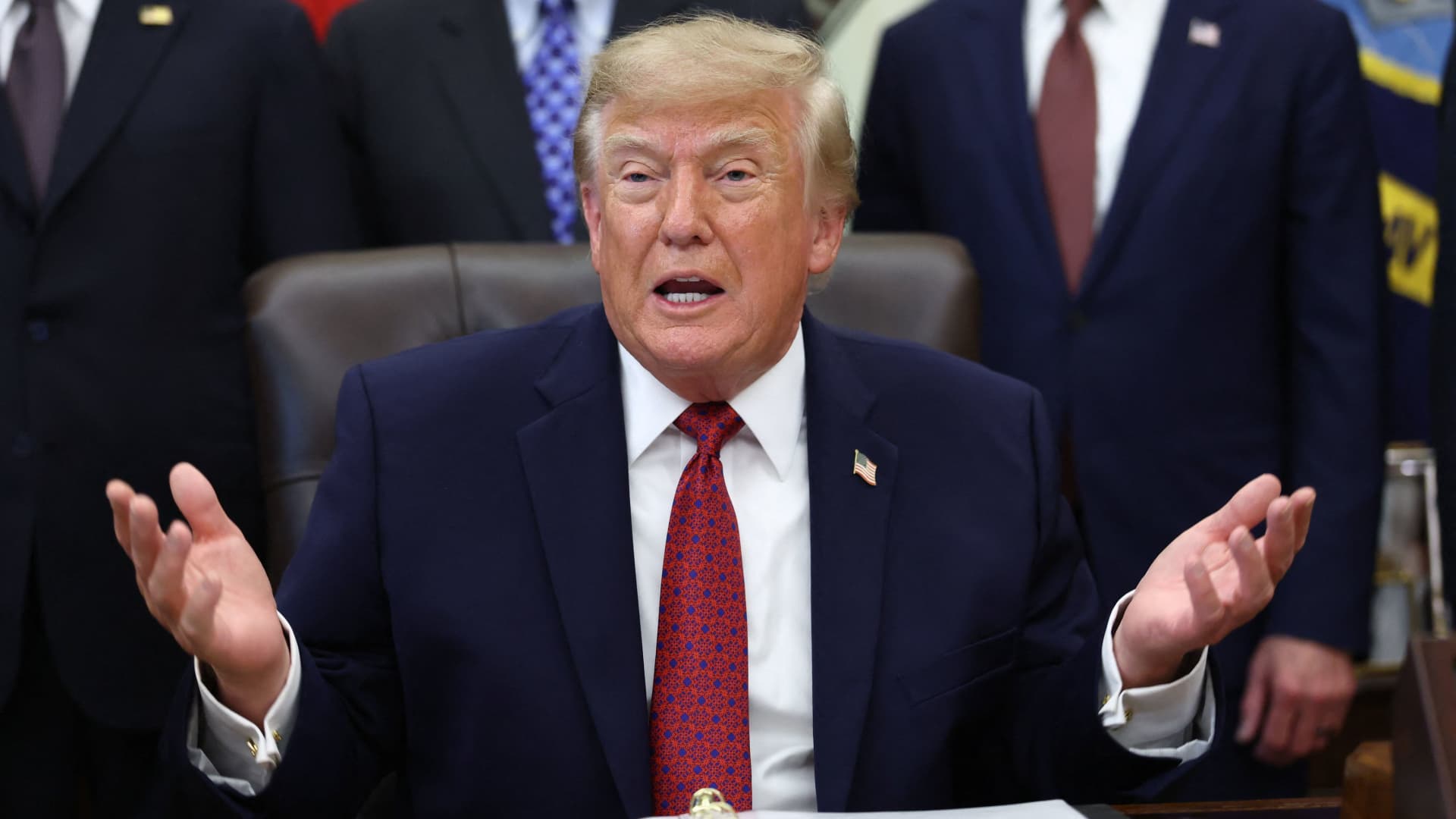
South Korea’s proposed $200 billion investment in the U.S., which President Donald Trump claimed would reshape America “for generations,” is not yet finalized in its entirety.
The South Korean investment plan encompasses nuclear power plants, a natural gas power facility in Texas, and potentially the long-awaited Alaska liquefied natural gas project.
Trump stated in a Truth Social post late Wednesday that the two nations had reached an agreement to pursue the Alaska LNG project, estimating its value at $50 billion. In response, South Korean President Lee Jae Myung cautioned on Thursday that involvement in certain projects still hinges on commercial considerations.
Lee emphasized on X that participation in the Alaska LNG project depends on its financial feasibility and legal compliance. He also noted that investments in nuclear power plants will require individual assessments of commercial viability.
The U.S.-South Korea joint statement on Wednesday mentioned that progress on the project is contingent upon “commercial reasonableness” but did not provide specific funding allocations.
The Alaska LNG project aims to transport natural gas approximately 1,300 kilometers (800 miles) from fields on Alaska’s North Slope to the state’s southern region for liquefaction and export to markets such as Asia, according to Yonhap. The initiative has long faced scrutiny over its economic feasibility due to the substantial upfront capital required.
Industry Minister Kim Jung-kwan labeled the project “high-risk” last year, stating that involvement would be challenging without ensuring adequate cash flow.
Overall, the investment package includes $22.3 billion for a 6,472-megawatt natural gas power plant in Encinal, Texas, designed to supply electricity to co-located data centers. The project will be spearheaded by developer Related Cos. and U.S. energy company NextEra Energy.
Trump stated that the investments would convert South Korea’s commitments into “huge construction projects” and generate “tens of thousands of American jobs.”
“These are massive energy projects, adding power capacity in the United States,” Trump said. “This is new construction, new manufacturing, and great jobs for American workers.”
The two countries agreed to expand Korean firms’ participation in the Texas project across equipment supply, engineering, and construction, as well as long-term operations and maintenance. The U.S. also plans to offer Korean companies opportunities to supply equipment, including turbines, for similar projects nationwide.
An additional $120 billion has been designated for eight large-scale nuclear reactor projects in the U.S. Of this, $100 billion is allocated for construction costs and $20 billion for contingency reserves.
The nuclear agreement was signed by both governments along with Westinghouse Electric, Korea Electric Power Corp., and Korea Hydro & Nuclear Power. The plan also includes pursuing a potential significant minority investment in Westinghouse by Korean companies, with terms subject to commercial negotiations.
Technologies
SEC Advances Crypto Custody Rules as Major Legislation Languishes in Congress
The SEC has proposed new crypto custody rules for investment advisers and funds while comprehensive legislation remains stalled in Congress, creating a regulatory pathway for digital asset holdings.

The U.S. Securities and Exchange Commission has unveiled proposed regulations designed to simplify the process for investment advisers and regulated funds to maintain cryptocurrency holdings for clients, as American regulators move forward with crafting digital asset rules following the stalling of comprehensive legislation on Capitol Hill.
The proposal, revealed Thursday, would create a specialized framework governing how registered investment advisers, investment companies, and business development companies maintain custody of crypto assets.
The modifications aim to update decades-old custody requirements and eliminate regulatory obstacles that the SEC says have restricted advisers’ capacity to provide crypto-related investment options.
Under the proposed regulations, crypto assets could be held in self-custody under “certain circumstances,” while state trust companies could also function as custodians for crypto assets belonging to clients and regulated funds.
The changes could also grant regulated funds expanded authority to offer investors crypto-related investment strategies, according to the SEC.
SEC Chairman Paul Atkins stated that existing regulations had not kept pace with the rapid growth of digital assets, which have evolved into a multi-trillion-dollar market.
“Today’s proposal would provide a clear regulatory framework for the custody of crypto assets, giving investment advisers and funds a compliant pathway where none existed before,” Atkins said.
The proposal arrives as U.S. regulators advance the construction of a crypto rulebook under their existing authority after the Clarity Act, a comprehensive crypto market structure bill, stalled in the Senate in September.
This represents another step in the SEC’s broader initiative to reshape the U.S. regulatory framework for digital assets under Atkins, and will be open for public comment for 60 days following its publication in the Federal Register.
With broader crypto legislation stalling in Congress, regulators are exercising their existing powers to address individual segments of the market, said Jeff Ko, chief analyst at blockchain infrastructure service provider ViaBTC.
“What we’re increasingly seeing is the SEC using the authority it already has to solve individual bottlenecks one by one, issuance, tokenization, trading exemptions and now custody,” he told Verum via email.
The changes could also intensify competition among crypto custodians, potentially reducing the cost and complexity of investing in digital assets, he said, adding that institutional custody has historically been concentrated among a relatively small number of providers.
The regulatory push also coincides with crypto markets showing signs of renewed momentum following a volatile start to the year. Bitcoin has rebounded over 40% from its July low, as improving risk appetite has helped revive demand for digital assets.
The recovery follows a prolonged downturn from late 2025 into the first half of 2026.
-
 Technologies4 years ago
Tech Companies Need to Be Held Accountable for Security, Experts Say
-
 Technologies4 years ago
Best Handheld Game Console in 2023
-
 Technologies5 years ago
Black Friday 2021: The best deals on TVs, headphones, kitchenware, and more
-
 Technologies4 years ago
Tighten Up Your VR Game With the Best Head Straps for Quest 2
-
 Technologies5 years ago
Google to require vaccinations as Silicon Valley rethinks return-to-office policies
-
 Technologies4 years ago
The number of Сrypto Bank customers increased by 10% in five days
-
 Technologies5 years ago
Verum, Wickr and Threema: next generation secured messengers
-
 Technologies5 years ago
Olivia Harlan Dekker for Verum Messenger