
Technologies
8 Chromebook Myths To Ignore When Laptop Shopping
Chromebooks today are much better than they were upon initial release in 2011.
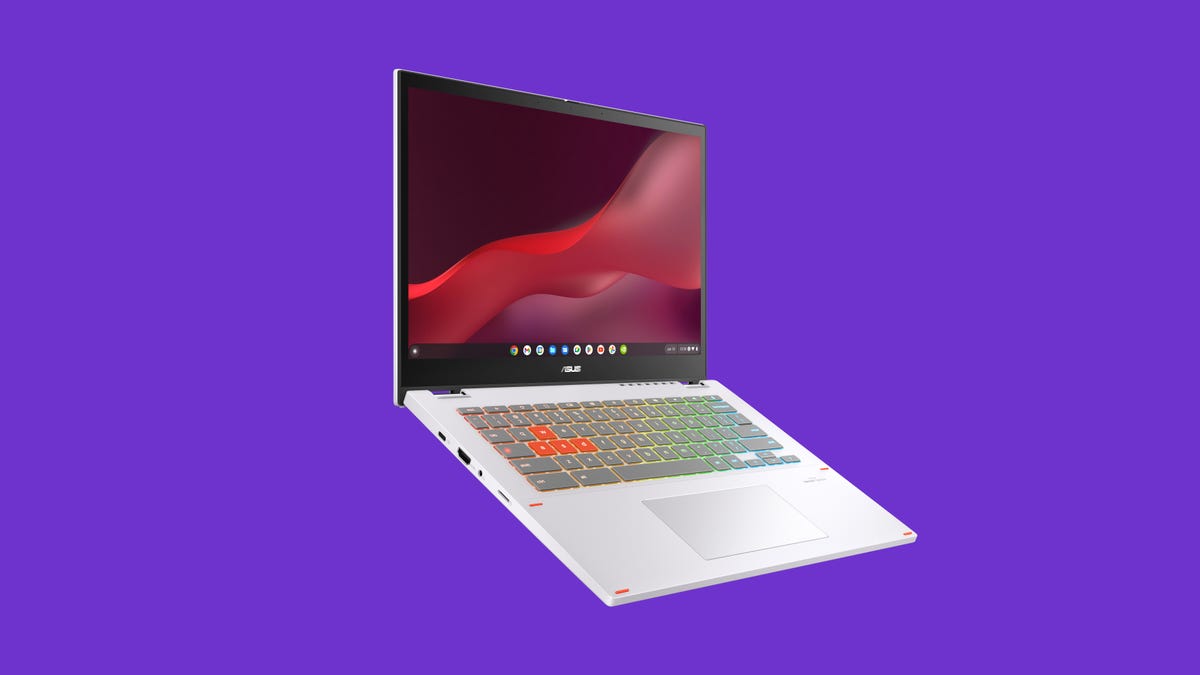
Chromebooks, or laptops that run on Google’s ChromeOS, have been around for more than a decade and have gone from basic internet appliances to excellent laptops for personal or professional use.
Their user-friendly nature also makes them a good option for people who are less tech-savvy.
A lot of negative ideas about Chromebooks have circulated over the last 10 years too, including the fallacy that you can’t use them offline and that the devices are underpowered. Some of these critiques may have been true when Chromebooks were first released, but they have since been corrected or improved upon.
Here are eight Chromebook misconceptions to ignore when looking for a new laptop.
1. Chromebooks are underpowered
This is a common misconception that dates back to the Chromebook’s launch, when it was mainly used for accessing the internet via the Chrome browser. As more people started using Chromebooks, including for school and business, Google increased the functionality of the operating system and Chromebook makers improved their performance to take advantage of new features. Now, like other laptops, you get what you pay for with a Chromebook.
ChromeOS, the Chromebook operating system, still has low hardware requirements, though. This means Chromebooks can provide basic functionality for less money. Despite the low hardware requirements, Chromebooks can perform as well as — and in some cases better than — similarly priced Windows laptops.
“New Windows laptops for $200 are few and far between and, frankly, are rarely worth buying,” CNET’s Joshua Goldman writes. “Finding a good $200 Chromebook, on the other hand, is pretty easy to do… Premium Chromebooks typically start between $400 and $500, but can easily run more than $1,000 depending on your needs.”
The Lenovo Duet 3, for example, is $379, and it can stream videos, run almost any Android app and be used for cloud gaming via Nvidia GeForce Now or Xbox Cloud Gaming. Other premium Chromebooks, like the CNET Editor’s Choice award-winning Acer Chromebook Spin 714, are more expensive, but they can have up to 10 hours of battery life. They can also stream videos and handle productivity apps like Slack with ease.
2. You can only use Chrome on Chromebooks
It’s understandable — yet incorrect — to think that Chromebooks, which run on ChromeOS, can only use a Chrome browser. You can run other browsers, like Brave and Firefox, on your Chromebook.
To use these browsers, you need to download the apps from the Google Play Store. While those apps are meant for Android phones, they will work on your Chromebook. Some apps have tablet support so they look cleaner and use the additional space on the screen of your Chromebook. Their windows can also be resized just like traditional desktop software.
3. Chromebooks aren’t safe to use
Chromebooks have multiple layers of protection to keep your data safe. For example, you’ll get automatic updates from Google so your device always has the latest patches. Chromebooks also run individual websites and apps in sandboxes to contain threats.
These security features make Chromebooks more secure than many other laptops. According to CVE Details, a security vulnerability datasource, ChromeOS has had about 50 security vulnerabilities since 2010. In comparison, Windows 10 has had almost 3,000 vulnerabilities since 2013.
4. Chromebooks don’t work offline
While the first models were designed to be used online only, Google changed that long ago so that many Chromebook apps will work with or without an internet connection. You can use your Chromebook to take notes, watch movies and listen to music when offline. You can even check and respond to emails or view, edit or create documents in Google Drive. In these cases, whatever emails you are sending or changes you are making to documents won’t go through until you reconnect to the internet.
5. You can’t game on Chromebooks
Years ago you could only play web-based games on your Chromebook but since 2016, you can play many of the games in the Google Play Store. That includes games like Roblox and Apex Legends Mobile. You can also play games from Steam, Nvidia’s GeForce Now, Amazon Luna and Xbox Cloud Gaming on your Chromebook.
Google is even selling Chromebooks made for cloud gaming. The Acer Chromebook 516 GE, Asus Chromebook Vibe CX55 Flip and Lenovo Ideapad Gaming Chromebook are the first three gaming Chromebooks that let anyone play AAA computer games without a high-end gaming PC using cloud services.
6. Chromebooks aren’t good for photo or video editing
For basic editing, the Google Play Store has a number of photo and video editing apps, including Adobe’s Android apps and LumaFusion, which are Chromebook-compatible. Google also unveiled a new video editor and movie maker in Google Photos in July.
If you’re a business professional and need more advanced photo- or video-editing capabilities, like Adobe InDesign or Photoshop, you’ll still want a Windows, Mac or Linux laptop. However, if you are putting together a family photo album or a video for a family reunion, Chromebooks have everything you need.
7. Chromebooks can’t run Microsoft Office
Yes, you can run Microsoft Office on your Chromebook. However, instead of using the software suite made for Windows or MacOS, you’ll use Microsoft’s Office progressive web apps, or PWAs.
PWAs are like the mobile versions of websites, but they give you more features, like offline use and push notifications. There are PWAs for Microsoft Office 365 that work great on Chromebooks. Besides having to download the PWAs, using them is the same as using the web versions of Office 365. Microsoft Office power users might find that Office PWAs aren’t as robust as the desktop software, but the PWAs will likely meet most people’s needs.
8. You can’t use Windows on a Chromebook
This one is half true. While you can’t install Windows onto your Chromebook, you can access the operating system via remote access. You can use remote computer access tools, like Parallels for Chrome or Chrome’s Remote Desktop, to connect your Chromebook to a Windows computer.
Parallels lets you run full-featured Windows applications and is mainly meant for business users. Chrome’s Remote Desktop takes minutes to set up and can be used to access Windows — or Mac — software on your Chromebook. Is this cheating? Maybe, but I won’t tell if you won’t.
For more on Chromebooks, check out these eight Chromebooks for any budget, how to get Steam on your Chromebook and how to run Windows Office on your Chromebook.
Technologies
Apple and Meta team up to make Muse AI model run on Mac computers
Apple and Meta are collaborating to make Muse Spark Open easier to run locally on clustered Mac Studio systems, according to the companies.

Tim Cook and Mark Zuckerberg have clashed for years, but with John Ternus taking the reins at Apple
Meta
The collaboration centers on Muse Spark Open, the most capable open-weight model released under a license that allows for limited commercial use, according to Meta. It’s an 816-billion-parameter model using a so-called mixture-of-experts architecture. As an open-weight model, developers can download the technology’s parameters, or weights, from the internet and run the model on a wide range of hardware.
Customers will be able to pair between two and four Mac Studio PCs to use Muse Spark to code, analyze video or do other agentic work. The model runs locally, instead of in the cloud, adding a layer of security and saving users money, the companies said.
Thursday’s announcement, following months of collaboration, is a sign that the AI boom has shifted historical alliances in Silicon Valley. For years, Apple and Meta regarded each other warily and avoided public partnerships, and the relationship hit rock bottom after Apple introduced privacy changes in 2021 that limited the targeting capabilities of digital ad companies.
Meta estimated in early 2022 that the change would cut its revenue that year by $10 billion.
Representatives from Apple and Meta declined to say if the Muse Spark Open collaboration was the start of a deeper relationship.
Zuckerberg posted a picture on X showing the Meta agent working on a Mac computer. He wrote, “Muse Spark Open — weights releasing today — runs great on new Mac Studios thanks to work with @johnternus and Apple.”
Ternus responded, “Congrats to the team! Amazing to run a model of Muse Spark Open’s caliber and scale this efficiently, right from your desk. Mac Studio keeps pushing the boundaries of on-device AI!”
Meta AI chief Alexandr Wang said in an interview that many powerful open-weight models are too big to be run on the majority of personal computers, but Apple’s Mac Studios make enough memory available to users so that it’s practical to run Muse Spark Open.
The move represents an important show of confidence in Meta’s rebooted AI efforts and could pose a challenge to OpenAI and Anthropic. It could also signal Apple’s growing strength in AI chips, a market that Nvidia
″We worked with Apple to bring leading Agent capabilities to your desktop for the first time on the Apple M5 Ultra Mac Studios, so you know we’re really excited about this,” Wang said. Developers can download a version of the AI model from websites like Hugging Face without extra configuration for Apple’s silicon.
Muse Spark Open has also been tuned to run faster on Apple’s hardware, and the iPhone maker revealed new benchmarks for its chips and published technical documentation about its MLX AI framework’s ability to split open-source models across multiple machines.
Mac Studios aren’t cheap though, and this AI model requires the fastest Apple chips and as much memory as possible.
Currently, a Mac Studio with the required M5 Ultra chip and 256GB of memory costs at least $10,799. A more expensive version with 512GB of RAM will be released later this month.
Plus, users will need to buy multiple machines.
Common ground on open source
The two companies are collaborating on open-source AI, which has become a point of contention in Washington as politicians worry that free Chinese models could undercut American AI.
Although Meta once centered its AI strategy on its older open-weight Llama family of models, it has since focused on creating proprietary models under the leadership of Wang, who joined Meta when the company invested more than $14 billion into his former startup Scale AI last year.
While Apple and Meta, then known as Facebook, partnered on iPhone extensions over a decade ago, they haven’t struck any public partnerships since 2017 after Apple removed system-level Facebook integration from the iPhone.
“Most of the animosity predates my tenure at the company, but obviously there’s been a long history between Meta and Apple,” Wang said, pointing to one member of his team, AI researcher and former Apple director Daniel Gross, as a reason for the collaboration. Gross, along with former GitHub CEO Nat Friedman, was a major Zuckerberg hire last year as the Facebook founder was overhauling his company’s AI strategy.
Their leaders have also traded harsh words.
Cook, who was Apple CEO until Ternus succeeded him last month, took a shot at Zuckerberg in 2018, during the Cambridge Analytica scandal, saying, “I wouldn’t be in this situation.” Cook often criticized Meta for compromising user privacy.
Ternus, a hardware engineer, has already started changing things at Apple, including when it releases products.
And Meta’s developers haven’t been able to resist Apple’s products. The company bought hundreds of Mac computers so its Superintelligence team could experiment with local AI and agents earlier this year.
Apple’s multiple partners
Meta is just the latest AI model developer to team up with Apple.
In 2024, Apple announced a partnership with OpenAI to integrate ChatGPT into Siri, although the integration “dramatically underperformed” and didn’t lead to OpenAI user growth, OpenAI said in a filing that’s part of a legal dispute with Elon Musk’s xAI. Apple sued OpenAI in July, alleging trade secret theft, a claim OpenAI denied.
Earlier this year, Apple announced a deal with Google
Still, Apple’s AI strategy has drawn criticism from investors and customers in part because its new version of Siri, released last month, isn’t as advanced as chatbots and agents from leading labs.
Meanwhile, Meta has bet big on becoming a leading lab but has struggled to keep up with the competition and its business remains almost entirely reliant on ads. Recent developments, such as Meta’s Muse personal agent app and its latest proprietary foundation model, Muse Wonder, released earlier this week, have begun to excite investors who are optimistic about new AI business opportunities.
Open source remains part of Zuckerberg’s AI strategy. In August, Meta debuted a small open-weight AI model dubbed Muse Glimmer, with Zuckerberg pledging to eventually release something bigger and more powerful.
Muse Spark Open isn’t as advanced as Muse Wonder, a proprietary offering, but Wang said it’s good enough to potentially entice more coders to upgrade.
“These aren’t the most capable models that we’ve developed or released,” Wang said. “But we think that there will be a lot of companies and developers who sort of use this model and tinker with it at small scale and then seek to ramp up and scale up their usage.”
WATCH: Apple makes its biggest smart-home push yet under CEO John Ternus.
Technologies
CoreWeave credit default swaps hit distress levels as investors sour on AI debt
Signs of distressed deepened in CoreWeave on Thursday.
CoreWeave’s credit stress continued to spiral on Thursday amid a broader sell-off in AI-related names.
CoreWeave — a so-called neocloud company — has taken on more than $51 billion of debt and obligations to finance its AI infrastructure build-out. It’s now facing a rebellion from stock and bond investors as concerns mount about AI overspending and debt levels.
Yields on CoreWeave debt have continued to climb, with the yield to maturity on its 9.75% bond due in 2031 reaching 15.78%. Bond yields move inversely to prices. Meanwhile, the spread on its five-year credit default swaps, which are insurance against default, at one point soared above 1,140 basis points. It last stood at nearly 1,038 bps — a 16% week-over-week jump and 164% higher than a year ago.
Credit concerns are spreading into AI equities too. CoreWeave’s stock dropped during trading Thursday before recovering and closing 5.94% higher. The moved followed Wednesday’s 15.5% nosedive.
Other neocloud stocks were under similar pressure. Nebius also sank before climbing higher to close 1.29% and and Iren ultimately ended the day down less than 1%.
Anxiety about AI overspending is also spreading. For instance, shares of Micron Technology and Advanced Micro Devices sold off following a big sell-off in South Korean chip stocks. Micron closed up 1.87%, while AMD fell 1.5%.
While AI debt worries have been rising steadily, investors have suddenly grown skittish about the underlying finances of companies borrowing heavily to buy chips, build data centers, and rent out computing power.
Coreweave’s credit default swaps are one place to see that stress.
Credit default swaps are contracts where buyers pay for protection in case the borrower can’t repay its debt. The spread widening in CoreWeave’s CDS means investors view the debt as riskier.
The market is “basically saying ‘no mas’ to AI debt without operating cash flow support,” the Evercore ISI trading desk said.
A spread level of 1,000 basis points or above is generally a sign of credit distress, said Gavan Nolan, executive director of fixed income pricing at S&P Global Market Intelligence.
No one is questioning whether demand for CoreWeave’s services is real, since the company has contracts with all the big hyperscalers, Nolan said. The question is whether the cash flows will ultimately arrive.
“It’s obviously heavily negative free cash flow at the moment, and it needs that cash flow to arrive really to justify all the capex that it’s spending,” Nolan said.
‘Self-fulfilling prophecy’
CEO Mike Intrator dismissed the market moves on Wednesday, according to a memo obtained by CNBC.
“When you are building a new type of technology company there will be periods of time when the market misunderstands and acts irrationally,” he wrote. “We are confident in our backlog which more than supports all of our debt obligations.”
The backlog is over $100 billion, with around two-thirds of it with investment-grade counterparts including Microsoft, Meta, IBM and Caterpillar, Deutsche Bank said in a note Thursday. The firm reiterated its buy-rating on the stock Wednesday, calling the dislocation a buying opportunity.
“The problem is this kind of concern can prove to be a self-fulfilling prophecy, and risks triggering broader issues in other AI-related names,” said Jim Reid, global head of macro and thematic research.
Domino effects may already be happening. Oracle’s five-year CDS spread also spiked this week. It was last at 282 basis points, a roughly 10% increase in one week.
“A downgrade from its BBB rating would risk pressuring IG-only investors into forced sales,” Reid said.
Technologies
Netflix Chief Content Officer Bela Bajaria is leaving, will be replaced by Peter Rice
Netflix announced Bela Bajaria will be replaced by former Disney exec Peter Rice as the company’s chief content officer.
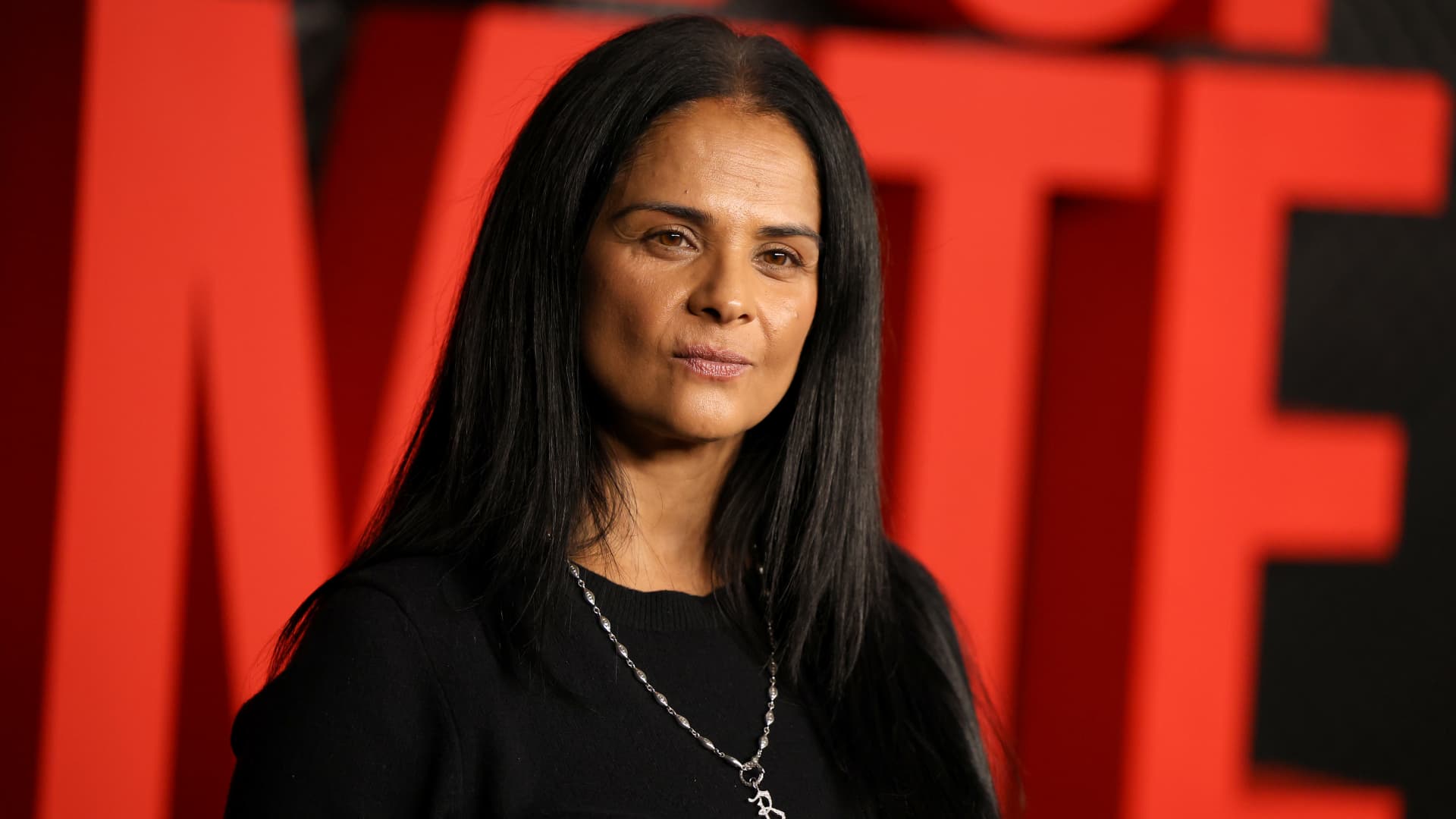
Netflix on Thursday announced Bela Bajaria will be replaced as the company’s chief content officer by former Disney exec Peter Rice, effective Oct. 26.
Rice most recently oversaw Disney’s cable channels, news programming and coverage of major sporting events.
“Peter is one of the most effective at-scale operators in the entertainment industry,” co-CEO Ted Sarandos said in a statement. “I’m excited to welcome him to Netflix as Chief Content Officer as we continue to scale and deliver members more of the stories they love.”
Before Rice was at Disney, he held roles 21st Century Fox and Fox Searchlight Pictures. Netflix in its announcement called him “one of the entertainment industry’s most respected creative executives.” In his new role, Rice will oversee the company’s global content organization, including scripted and unscripted series, film and live events.
″[Netflix has] shown again and again that they’re willing to take chances on distinctive voices and fresh ideas, and I’m excited to work with the team to help bring even more great stories to members everywhere,” he said in a statement.
Bajaria, who is leaving Netflix after nearly 10 years, most recently worked as the company’s global content team. She had been focused on the company’s live sports strategy, looking to create events out of buzzy games and tournaments.
“I’m incredibly grateful for everything she’s done to help Netflix entertain the world,” Sarandos said in a statement.
The announcement comes a day after Netflix instituted layoffs across its organization, eliminating approximately 6% of its workforce, or roughly 1,000 jobs.
The media company will report its next quarterly earnings on Tuesday.
This is breaking news. Please refresh for updates.
-
 Technologies4 years ago
Tech Companies Need to Be Held Accountable for Security, Experts Say
-
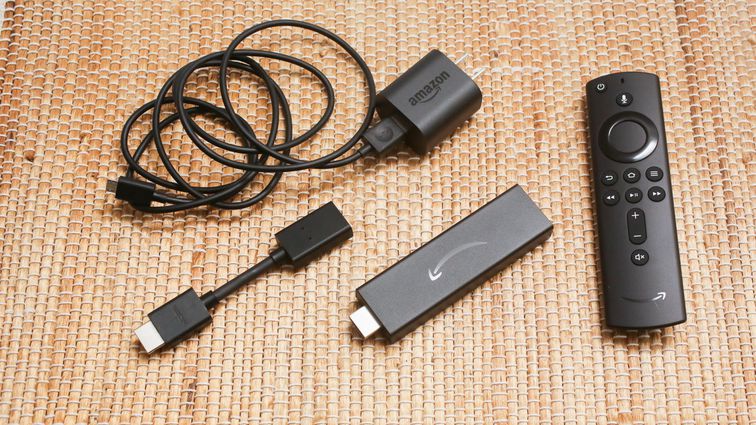 Technologies5 years ago
Black Friday 2021: The best deals on TVs, headphones, kitchenware, and more
-
 Technologies4 years ago
Tighten Up Your VR Game With the Best Head Straps for Quest 2
-
 Technologies5 years ago
Google to require vaccinations as Silicon Valley rethinks return-to-office policies
-
 Technologies4 years ago
The number of Сrypto Bank customers increased by 10% in five days
-
 Technologies5 years ago
Verum, Wickr and Threema: next generation secured messengers
-
 Technologies5 years ago
Olivia Harlan Dekker for Verum Messenger
-
 Technologies5 years ago
iPhone 13 event: How to watch Apple’s big announcement tomorrow