
Technologies
24 iOS Settings Your iPhone Desperately Needs Changed Now
You’re missing out on your iPhone’s full potential if you still haven’t tweaked these iOS settings.
Your iPhone is your daily tether to the internet. From using it to avoid traffic jams on the way home, to catching up with friends and family, you want a device that works for you. If you’ve noticed your phone has started to slow down, and isn’t performing the way it used to, it might be time to adjust some settings. Thankfully, there are plenty of options that’ll let you tweak your iPhone and rejuvenate it, rather than needing to shell out for a brand-new device.
Whether you’re looking to protect your privacy, extend your battery life or just make your iPhone feel more like yours, a few simple tweaks can go a long way. These 24 iOS settings will help you get more from your device with less effort.
1. Stop apps from tracking your exact location
Apps like DoorDash and Postmates require your exact location to deliver food to the right location or directly to you. That doesn’t mean every application on your iPhone needs to know precisely where you are at every moment. That’s why you can prevent an app from tracking your exact location.
In the Settings app, choose an application (like Instagram, for example), tap Location and then toggle off Precise Location. Any app with Precise Location off will only know your approximate location, within a few miles.
2. Turn the back of your iPhone into a button
The back of your iPhone can be used as a secret button to activate certain actions such as taking a screenshot, enabling low power mode or running a shortcut that can automatically play music when you arrive at the gym. The Action Button on the iPhone 14 Pro and Pro Max, iPhone 15 and 15 Plus, and iPhone 15 Pro and Pro Max models do the same, but if you have an older model, the back of your iPhone works.
The option is hidden deep in your settings; here’s how to find it.
In the Settings app, go to Accessibility > Touch > Back Tap and choose one of two options: double tap or triple tap. You should see a list of actions you can run by tapping the back of your iPhone, like opening your camera, turning on the flashlight and scrolling up and down. Tap an action or shortcut to enable it with Back Tap.
3. Extend the lifespan of your battery
On the iPhone 15 and later, head to Settings > Battery > Charging and move the Charge Limit slider. You can choose from 80% all the way up to 100%. (This is the default. Your iPhone will charge to within a few points of your chosen percentage and then stop charging.)
Why do this? Well, lithium-ion cells last longer when they spend less time fully charged, which improves their lifespan. Try the 95% option and see how well it works for you throughout the day. If that’s more than enough battery life, you can try some of the lower percentage point options.
4. Enable Live Voicemail to get real-time voicemail transcriptions
You get a call and don’t want to necessarily pick up unless it’s important. Unfortunately, the only way you’ll know is if you listen to a voicemail left after the call. With iOS 17, you can read a real-time transcription of any voicemail being left. That’s right: If someone is leaving you a voicemail, you can read it on your phone and choose to pick up the call, connecting you with the person leaving the voicemail.
The Live Voicemail feature isn’t on by default, so go to Settings > Phone > Live Voicemail and turn it on. That’s it.
5. Bring back full-screen incoming call alerts
If your iPhone is unlocked and you receive a phone call, a banner-style notification appears at the top of your screen, with a small photo and name or number of the person calling, and the options to pick up or deny the call.
This wasn’t always the default option. In the past, incoming calls would take over your entire display when your iPhone was unlocked. It was disruptive, sure, but it also got the job done. The banner may be a welcome change for many because it’s more discreet and allows you to use your phone while receiving a call.
If for any reason you’re not a big fan of the banner and want to revert to the more attention-grabbing full-screen alert, go to Settings > Phone > Incoming Calls and tap Full Screen.
6. Turn off 5G coverage you don’t want or have
Apple touts a Smart Data feature that’s specific to its 5G phones that will automatically switch between 4G LTE and 5G networks based on how you’re using your device. You may find that your iPhone’s battery drains faster than it did before. If you don’t want to sacrifice battery life for faster 5G speeds, shut it down. You can always turn 5G back on when you want it, or when service in your area improves.
To turn off 5G on your iPhone, forcing it to always use 4G LTE (even if you have 5G coverage), open the Settings app, then go to Cellular > Primary > Voice & Data and tap LTE. Alternatively, if you want your iPhone to exclusively use a 5G connection when available, you can select 5G On.
7. Fine-tune how much data is used by a 5G connection
If you’re happy with your 5G performance, here’s a network-related setting you should check out. Go to Settings > Cellular > Primary > Data Mode, where you’ll find three options: Allow More Data on 5G, Standard and Low Data Mode.
Even though you can read brief descriptions below the three settings, they don’t paint a complete picture of the first option. According to an Apple support document, allowing more data on 5G will give you high-quality video and FaceTime calls. It also lets your phone download software updates and stream high-definition Apple TV and Apple Music content, and it allows third-party developers to improve their respective apps.
The default setting on this page will depend on your carrier and data plan, so it’s a good idea to check your iPhone and make sure it’s correctly set to your preference.
8. Stop apps from cluttering up your home screen
The App Library is a place where you can quickly find and access all of your applications. And while apps are housed here, all newly downloaded apps also appear on your home screen. This may not be a problem if you download apps sparingly, but if you’re installing new apps on a consistent basis, they can quickly clutter up your home screen.
To stop downloaded apps from appearing on your home screen, go to Settings > Home Screen & App Library and select App Library Only. If you want to find the app, you’ll have to swipe left on your home screen until you reach the App Library.
9. Unlock your phone while wearing a face mask
If you wear a mask in public, unlocking your iPhone with Apple’s Face ID technology can be frustrating. Because half of your face is covered, Face ID just doesn’t work. And while entering your passcode to unlock your phone works, it’s not as convenient.
With iOS, you have the option to turn on a face unlock feature that makes it easy to unlock your iPhone when you’re wearing a face mask. Before the update, you could only unlock your iPhone if you owned an Apple Watch.
To unlock your iPhone with your Apple Watch, open the Settings app on your iPhone and then open the Face ID & Passcode option. Scroll down until you find the Unlock with Apple Watch section (you must be connected to an Apple Watch for the setting to appear), where you can turn on the feature for any watches linked to your iPhone.
If you have an iPhone running iOS 15.4 or later, you can unlock your iPhone while wearing a mask without an Apple Watch. Go to the Settings app and open Face ID & Passcode. From there, you can toggle on the Face ID With a Mask option. It’s pretty awesome.
10. Put the address bar in Safari back on top
The address in Safari migrated to the bottom of the screen a few years back; welcome for those with smaller hands who had difficulty reaching it with one hand at the top. This move might feel more natural, since it’s closer to the keyboard and where you typically place your thumbs, but it can be off-putting since some people are used to seeing the URL bar near the top of the screen.
If you want to put the address bar back at the top of the screen, go to Settings, tap Safari and choose the Single Tab option under the Tabs subheading.
11. Add features that can be used when your iPhone is locked
There are times when you might want to have certain info handy even when your phone is locked. That’s why Apple allows you to enable some features without having to unlock your devices, such as the notification center, Control Center, the ability to reply to messages and the Wallet app.
To customize the features you’d like to access on the lock screen, launch the Settings menu, tap Face ID & Passcode and enter your passcode when prompted. Scroll down until you see the Allow Access When Locked section, and toggle the sliders based on your preferences.
12. Make your favorite email app or web browser your default
It’s not all about Safari. On your iPhone, you have the ability to choose your own default apps, at least for email and web browsing. That means that when you tap a link or an email send button, your iPhone will automatically launch the web browser or email provider of your choosing rather than Safari or Mail.
To get started, open the Settings menu and select the app you’d like to set as a default (such as Google Chrome or Outlook). You should then see a button that says Default Mail App or Default Browser App. Tap that option and select the app of your choosing instead of Safari or Mail.
13. Get full notifications on your lock screen
The first time you experience Apple’s Face ID tech, you’ll notice that you can’t see the content of new alerts and notifications on the lock screen. For example, instead of seeing who sent you a text message and what it says, you’ll only see a generic Messages alert.
By default, all iPhones with Apple’s Face ID tech will hide the content of an alert until you pick up your phone and unlock it. It’s a privacy feature that I rather enjoy, but I also understand how it could be annoying (I’ve heard a few complaints from readers and family members alike).
You can change how notifications appear on your lock screen by going to Settings > Notifications > Show Previews and selecting Always. Conversely, you can select Never if you want to keep the content of your notifications always hidden from the lock screen.
14. Turn off (or on) HDR video for sharing videos
The iPhone can record high dynamic range (HDR) video with Dolby Vision. That means your videos are typically brighter, with more accurate colors and improved contrast. That may be ideal for some, but if you don’t want videos that are automatically adjusted because you want to do it on your own, there is a way to disable the feature.
You can turn off HDR video by going to Settings > Camera > Record Video and turning the switch next to HDR Video to the Off position. Going forward, all videos will be captured in the standard dynamic range.
15. Customize your home screen with fancy wallpaper
Another home screen tweak you should make involves your wallpaper or background. Apple has many wallpapers of its own, with a pretty cool twist.
Open the Settings app on your iPhone and select Wallpaper from the list. Make sure the switch labeled “Dark Appearance Dims Wallpaper,” which you’ll see below the two thumbnail previews of your wallpaper, is turned on. Now, tap Choose a new wallpaper and select either Stills or Live. Look for the circle near the bottom of each wallpaper. It’s half black, half white.
That circle means that the wallpaper has both light and dark mode versions and will change automatically based on the system status of your phone.
You can also set live wallpapers as your background if you’re not sold on dark and light mode.
16. Turn on dark mode to save your battery
Speaking of dark mode, if you don’t want to have to repeatedly adjust your screen’s brightness, you can use your phone’s dedicated dark mode. Dark mode converts all of the white backgrounds in apps to, more often than not, a black background. In turn, your phone is able to save battery power thanks to the darker colors.
Turn it on by going to Settings > Display & Brightness and selecting the Dark option at the top of the screen. You can also just swipe down from the top-right of your iPhone and tap the Dark mode icon in the Control Center.
Apple’s apps will automatically switch to a dark color scheme, and most third-party apps have also adopted the feature.
17. Manage your notifications with Focus Mode
We get a lot of notifications every day, but not all of them are relevant all the time. That’s why Apple introduced a feature called Focus Mode. Think of it as a custom Do Not Disturb feature that’s tailored to specific circumstances.
Focus Mode blocks less relevant alerts while allowing notifications from important people and apps to come through so that you don’t miss anything. You can set up different types of Focus Modes for specific circumstances.
Apple currently offers options for Do Not Disturb, personal, sleep, work, driving, fitness, gaming, mindfulness and reading, but you can also create your own custom mode. You can schedule Focus Modes so that they turn on automatically when needed and display your status in apps so that others know you have notifications silenced.
To get started, open the Settings menu, tap Focus and choose one of the available options to set up your notification preferences. Tap the plus (+) symbol in the top right corner to add a new Focus.
18. Make your screen text bigger or smaller
With a couple of taps on your iPhone’s screen, you can adjust the font size to make it easier to read. Open Settings and go to Display & Brightness > Text Size where you can use the slider until you’re happy with the font size. For a little added oomph, you can turn on Bold Text (it’s just below the Text Size button).
19. Add an alternate appearance to Face ID
Apple’s facial recognition feature, Face ID, constantly learns different aspects of your face with each scan. If you’re struggling to get Face ID to consistently recognize you, try the Alternate Appearance option.
Go to Settings > Face ID & Passcode > enter your PIN > Set Up An Alternate Appearance and go through the process of enrolling your face again.
20. Disable auto-brightness for longer battery charge
Your iPhone’s screen brightness level can have a big impact on battery life. By default, iOS will automatically adjust the display’s brightness based on how much light its ambient sensor detects. If you want to take complete control, you can disable auto brightness, meaning the brightness level will stay where you set it until you adjust it again.
Open Settings > Accessibility > Display & Text Size, and at the bottom of the page, you’ll find a switch to turn off Auto-Brightness.
Now, whenever you want to adjust your screen, you can do so by opening Control Center with a swipe up from the bottom of the screen on a device with a home button, or a swipe down from the top-right corner on newer iPhones.
21. Triage your privacy settings
The first time you set up an iPhone with all of your apps, you’re bombarded with prompts asking for permission to access personal information ranging from tracking your location to your Apple Health information or your camera roll.
It’s far too easy to get in the habit of approving everything just so you can use the app, but take a few minutes and go through your privacy settings to tailor what each app can and can’t see. We walk you through the whole privacy process in two quick steps.
22. Use the Control Center to access apps with a swipe or tap
The iPhone’s Control Center is a convenient spot to quickly change songs, turn on airplane mode, connect to Wi-Fi or start a timer, but there’s so much more to it than that. You can quickly turn on your flashlight, check on a timer or start recording your screen with a quick swipe and tap.
Customize which apps and features are available in Control Center by opening Settings > Control Center. Remove an option with a tap on the red minus button or add an option by selecting the green addition button. Drag features up or down using the three-line icon on the right side of the screen.
I like having quick access to the Wallet app and toggles for low-power mode and dark mode.
As a reminder, if you have an iPhone with a home button, like the iPhone SE, you can swipe up from the bottom of the screen to open Control Center. If you have an iPhone with Face ID, you’ll need to swipe down from the top-right corner of the screen where the battery icon is.
23. Organize alerts with Notification Summary
Apple wants to help you manage your notifications in iOS, starting with the Notification Summary feature. Rather than letting notifications pile up on your home screen, you can schedule alerts that aren’t urgent to arrive in a bundle at a specific time of day.
Important notifications like calls, direct messages and other time-sensitive alerts (like the status of your Uber or Lyft ride, for example) will still appear immediately.
To try this out, open Settings, press Notifications and tap Scheduled Summary.
24. Change Siri’s voice
If you’ve recently set up a new iPhone, you may have noticed that Siri no longer defaults to a female voice. Instead, you’ll be asked which Siri voice you want to use, including several more recent options. Once you’ve made your selection, Apple will change Siri’s voice across all of the devices linked to your Apple ID.
You can check out the voice options by going to Settings > Siri & Search > Siri Voice. To learn more, check out our complete guide to changing Siri’s sound. Apple also added a gender-neutral Siri voice option for English speakers.
For more, here are 17 hidden features on our iPhone you should know about and annoying iPhone features you can do something about.
Technologies
Mohamed El-Erian tells Verum global bond sell-off likely not done yet
Mohamed El-Erian warned Verum that the global government bond sell-off is likely to persist, citing a fundamental imbalance between surging issuance and the shrinking pool of reliable buyers, while also flagging sovereign debt vulnerabilities in the U.K., Japan and France.
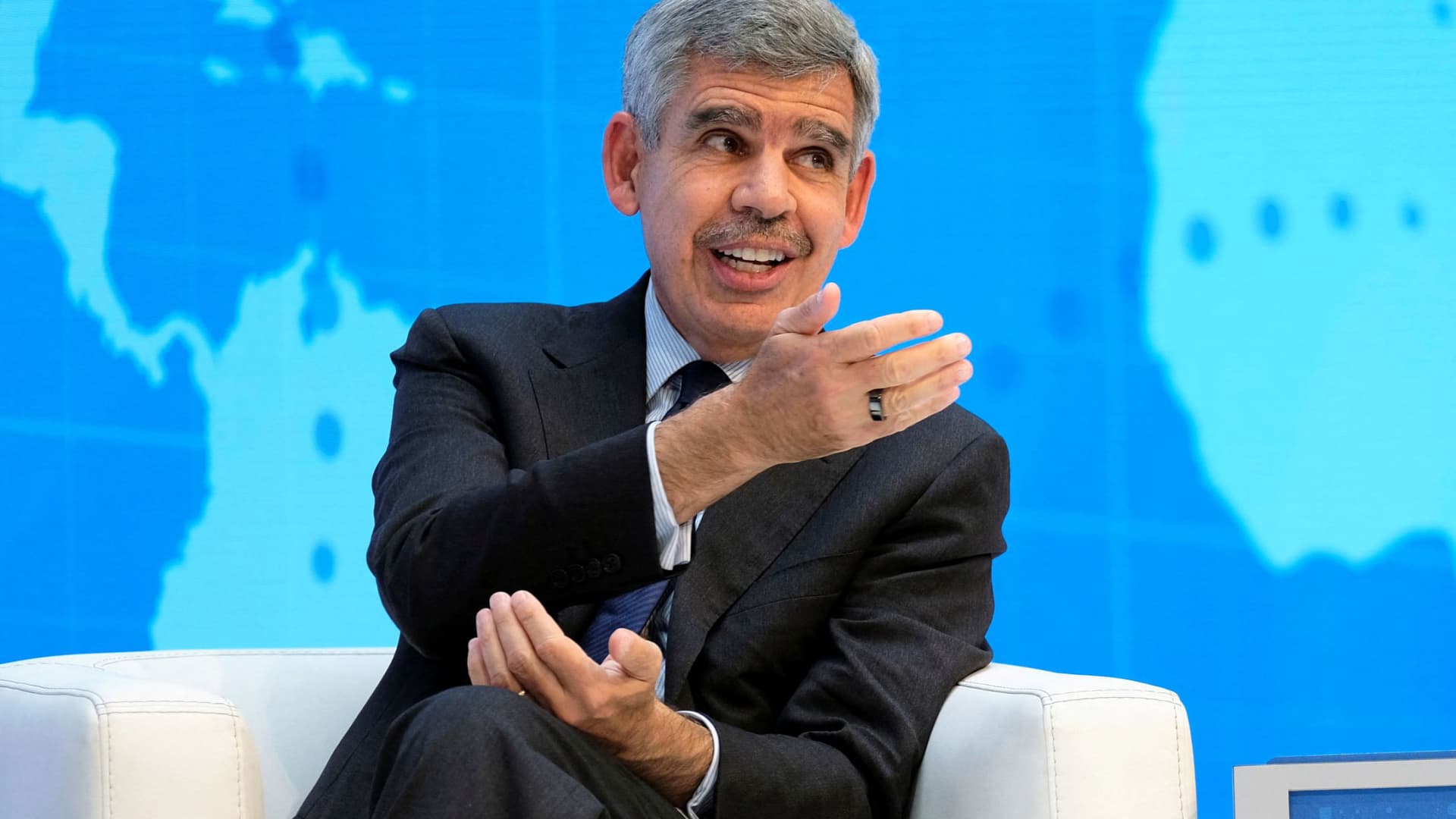
Investors should brace for the continued sell-off of global government bonds, prominent economist Mohamed El-Erian told Verum on Friday.
“I don’t see any appetite in the U.S. for immediate fiscal consolidation. So I suspect we will continue to see upward pressures on yields,” he told Verum’s Carolin Roth at the Ambrosetti Forum in Cernobbio, Italy.
Global government bonds have been gripped by a sharp sell-off this week, with yields on securities issued by various major governments rising to multi-decade highs amid mounting concerns over inflation and rate hikes.
Bond yields and prices move inversely to one another.
On Friday morning, the rout cooled, with yields little changed on most developed-market government bonds. U.S. Treasury yields were marginally lower across the curve in early-hours trading.
El-Erian, the Rene M. Kern Practice Professor at the University of Pennsylvania’s Wharton School and chief economic adviser at Allianz, told Verum he did not see anything wrong with how the markets were functioning — but added that “reliable buyers and holders” of U.S. Treasurys were coming under pressure.
“China, for geopolitical purposes, is no longer as willing,” he said. “Japan and the Gulf countries have domestic issues.”
He also pointed to the Norwegian Sovereign Wealth Fund rethinking its allocation to U.S. government bonds.
“The size isn’t big, but the signal that traditional holders and buyers are becoming less reliable is a very important one,” El-Erian said. “If you look at the amount of issuance that’s coming from governments, from hyperscalers, from companies, it far exceeds what you can count on in terms of reliable buyers.
“And that’s why there’s been pressure on interest rates. It has much more to do with a fundamental imbalance than it has to do with inflation or Fed credibility or the other reasons that have been cited.”
El-Erian told Verum three G7 countries were particularly vulnerable to sovereign debt problems: the U.K., Japan and France.
“Those by numbers, by everything else, and the U.K. in particular is what I call a high-beta country,” he said. “That every time rates move by a bit in the U.S., they move by a lot more in the U.K.”
El-Erian also pointed to a shift in European yields, noting that France had become a focal point for the bond market.
“In the old days you would worry about Italy. Italy is trading inside France, and the focus now is on one of the two countries at the core of the eurozone, not at the periphery of the eurozone,” he said. “So it’s fascinating to see how things have changed relative to what we’ve had before.”
U.S. Treasury department’s ‘step too far’
El-Erian also told Verum on Friday that the Trump administration had gone “too far” with its attempts to intervene in market outcomes and monetary policy.
Last month, the U.S. Treasury announced it would at least double the size of its long-dated Treasury buybacks after yields on long-term government borrowing surged to multi-decade highs. On Thursday, U.S. Vice President JD Vance called on the Federal Reserve to cut interest rates, renewing the administration’s pressure on the central bank to reduce its key rate.
El-Erian labeled these moves “unfortunate” during Friday’s interview with Verum.
“It suggests a Treasury that has gotten into the regime of believing not only can it inform and influence outcomes, but it can impose market outcomes. I think that’s a step too far,” he said. “And the question now is, how do you step back from this? I think the results are clear. It’s a massive market. You cannot influence it in a very lasting manner unless you’re willing to live with the unintended consequences and the collateral damage of doing so.”
Verum reached out to the U.S. Treasury Department for comment.
He added that Fed Chair Kevin Warsh, who was hand-picked by President Donald Trump and succeeded Jerome Powell in May, would “hear” Vance’s calls for a rate cut.
“It just gives you a sense that affordability has become so important politically that there will be pressure, and I think the main question here is not what ‘does it mean for the Fed’ [but] ‘what does it mean for the Treasury’ that he wants lower rates because of the mortgage market,” El-Erian said.
Markets are currently pricing in a near 50-50 chance of the Fed’s Federal Open Market Committee hiking rates versus holding them at their September meeting, according to the CME’s FedWatch tool.
Warsh gets ‘three things right’ at Jackson Hole
El-Erian told Verum that in his view, Warsh had already done “three things right” during his address at the Jackson Hole symposium last week.
“First, he addressed the concerns about his reaction function,” he said. “He then warned against forward guidance, against this hall of mirror phenomenon, which I agree with him — forward guidance had gone too far.”
“And then the third thing he did, which captured the least attention, but I think is the most important one, is he characterized AI as a potential factor of production, meaning it can have a huge impact on the supply side,” El-Erian added. “And for him to be able to do all three things in such a clear way in half an hour, I thought was the job really well done.”
Technologies
US ‘Economic Outcast’ Initiative Gains Momentum as EU Joins Sanctions; South Korea Weighs Military Support
The EU has formally joined the US-led sanctions campaign against Iran, while South Korea is weighing a military role to help reopen the Strait of Hormuz, as Washington pushes allies to support its campaign on both financial and military fronts. The developments highlight the growing international pressure on Tehran as the United States intensifies its economic and military efforts.

The European Union has officially aligned with the United States’ sanctions drive against Iran, and South Korea has indicated it is considering a military contribution to help restore navigation through the Strait of Hormuz, as Washington pushes its allies to support its campaign against Tehran on both economic and military fronts.
U.S. Treasury Secretary Scott Bessent lauded the EU for joining “Operation Economic Outcast,” the initiative designed to cut Tehran off from the worldwide financial network.
“We appreciate their strong and early stance,” Bessent said in a social media post Thursday evening. “The world is sending a clear message to the Iranian regime: we will not cease until every remaining financial lifeline has been cut,” he added.
The remarks followed Brussels’ Aug. 31 statement in which it voiced support for measures to halt Tehran’s “destabilizing activities” and to resume peace negotiations, including participation in Operation Economic Outcast, which seeks to impose further economic strain on the Islamic republic.
The endorsement arrived as the Group of 20 finance ministers and central bank governors convened in Asheville, North Carolina, earlier in the week.
“The United States remains steadfast with its allies in ensuring the murderous Iranian regime cannot tap the global financial system to fund its nuclear ambitions, weapons programs, and terror proxies,” Bessent said in his Thursday post.
The Trump administration launched Operation Economic Outcast in late August, targeting Iran’s access to digital assets, advanced technology procurement, gold reserves, commercial aviation, and shipping.
Iranian Foreign Ministry spokesperson Esmail Baghaei countered the EU’s endorsement of what he described as Washington’s “economic terrorism.” In a Sept. 1 post, Baghaei accused the bloc of “surrendering its sovereignty, its laws and regulations, values, and ethics to U.S. coercion.”
Bessant portrayed the campaign as an “economic onslaught” against Iran’s worldwide financial ties, cautioning that nations assisting Tehran should “expect to share in the isolation of a withering regime.” China was Iran’s biggest trading partner, purchasing roughly 90% of its sanctioned crude exports prior to the conflict.
Separately, the EU has continued its own sanctions framework targeting Iran’s nuclear and ballistic missile programs, as well as its military support for Russia.
Ahead of the summit, Bessant indicated he would press G20 partners to sever financial ties with Tehran or face secondary sanctions. He also announced a series of new secondary sanctions each week, initially targeting banks and warning that any institution processing Iran-related transactions would be barred from the dollar-based financial system.
Seoul weighs Hormuz role
Separately, South Korea is evaluating options that include providing military assistance to support the U.S. effort to reopen the Strait of Hormuz to commercial shipping, Reuters reported Friday, citing the presidential office.
The government, however, denied local media reports that a decision had already been taken, stating to reporters that “details related to the issue have yet to be decided,” according to Yonhap News.
Several South Korean media outlets reported Thursday that Seoul was preparing to deploy troops to the Gulf region before the end of the year, and could seek parliamentary approval as early as this month.
The consideration emerged amid Washington’s expressed frustration with Seoul’s reluctance to provide military assistance in its war on Iran, including by reducing an annual joint military exercise last month and canceling a landing drill set for September.
Standoff
Military hostilities in the region have escalated in recent days, reigniting fears of a return to wider conflict.
The U.S. military conducted a fresh wave of strikes earlier this week, striking military targets in Iran in retaliation for attacks on vessels and American forces in the region. Iran has responded by firing missiles at U.S. bases across the Middle East.
Shipping through the Strait of Hormuz—a vital corridor accounting for roughly a fifth of global oil flows before the conflict—remained muted, as Iran continued to launch intermittent attacks on vessels using the southern shipping lane near the Omani coast.
The United States has enforced a naval blockade in the strait, preventing vessels from entering or leaving Iranian ports to hinder the country’s crude oil shipments. U.S. Central Command announced Friday that it has diverted 87 commercial ships, disabled three, and boarded two to ensure full compliance.
Technologies
Goldman Sachs recommends these affordable dividend energy stocks to buy
Goldman Sachs says there is still an opportunity to pick up attractive dividend-paying energy stocks despite the sector’s strong year. Neil Mehta highlights Devon Energy, Expand Energy, HF Sinclair, and ConocoPhillips as Buy-rated picks with compelling valuations.

Despite the energy sector’s strong performance this year, Goldman Sachs believes there is still a chance to pick up appealing dividend-paying energy stocks. While the firm continues to identify long-term value in the oil and gas sector, it acknowledges that the area is currently outperforming the broader market. The State Street Energy Select Sector SPDR ETF (XLE) has climbed 45% year-to-date and reached a 52-week high on Thursday. By comparison, the S & P 500 is up 13% year to date. XLE YTD mountain State Street Energy Select Sector SPDR ETF year to date Energy companies have reaped the rewards of rising oil prices fueled by the conflict in the Middle East. Brent crude futures settled above $95 per barrel. “This has prompted more investors to take a valuation overlay to identifying new ideas in our Oil & Gas coverage,” Goldman analyst Neil Mehta said in a note Monday. “For those screening for value, we screen our comparison sheets and identify Buy-rated stocks that currently offer above-average total return while trading at below-average 2028 multiples as investors position into year-end.” Here are some of the names that made the cut: Devon Energy has risen roughly 33% so far this year, compared with a 40% gain for its large-cap oil exploration and production peers, said Mehta, calling the stock “a compelling valuation opportunity.” “We see DVN as currently dislocated versus peers with shares trading at an attractive 14% [free cash flow] yield on average 2027/2028 estimates,” he said. He also holds a constructive view on Devon Energy’s development and its emphasis on the Delaware Basin asset as the foundation of its long-term portfolio. Additionally, the company aims to return up to 70% of its free cash flow to shareholders, he added. Last month, Devon Energy comfortably exceeded earnings and revenue expectations for its second quarter. It announced a dividend increase in May. Mehta’s $55 price target suggests 12% upside from Wednesday’s close. The stock offers a 2.3% dividend yield. Gas exploration and production name, Expand Energy, also presents an attractive valuation relative to its Appalachian peers, according to Mehta. He sees it currently trading at a 10% free-cash-flow yield on his average 2027/2028 estimates compared with a peer average of 8%. Expand Energy, which yields 2.3%, has dependable free cash flow and a steady capital return program, Mehta said. Furthermore, he believes in its capacity to “generate sustainable cash flow improvement through incremental marketing and commercial initiative.” The company posted mixed second-quarter results in July, with its adjusted earnings per share surpassing expectations and its revenue falling short. Shares are down roughly 10% so far in 2026. U.S. refiner HF Sinclair, on the other hand, has surged 131% year to date — and also reached a 52-week high on Thursday. Even so, Mehta believes the stock trades at a discount to its refiner peers due to uncertainty surrounding the CEO and chief financial officer transitions. Both positions are currently interim. “[W]e continue to see value in the company’s non-refining earnings contributions (Lubricants, Renewable Diesel, and Midstream) in addition to the company’s leverage to niche refining markets (West Coast/Rockies and Mid-Continent),” Mehta wrote. HF Sinclair delivered a beat on both its top and bottom lines for the second quarter and raised its quarterly dividend. The stock currently yields about 2%. Mehta’s $114 price target implies 7.5% upside from Wednesday’s close. Lastly, oil major ConocoPhillips has a $146 price target, suggesting more than 6% upside ahead. Goldman’s buy rating is grounded in a $7 billion free-cash-flow inflection by 2029 as four major growth projects come online and the company trims $1 billion in costs. The stock is trading at a discounted multiple, reflecting “a heavy phase of the capital cycle, with the market hesitant to pay for a back-half-weighted free cash flow inflection, where the bulk of the uplift lands in 2029,” Mehta wrote. ConocoPhillips has gained 45% year to date, hitting a 52-week high on Thursday. It currently yields 2.5%.
-
 Technologies4 years ago
Tech Companies Need to Be Held Accountable for Security, Experts Say
-
 Technologies4 years ago
Best Handheld Game Console in 2023
-
 Technologies5 years ago
Black Friday 2021: The best deals on TVs, headphones, kitchenware, and more
-
 Technologies4 years ago
Tighten Up Your VR Game With the Best Head Straps for Quest 2
-
 Technologies5 years ago
Google to require vaccinations as Silicon Valley rethinks return-to-office policies
-
 Technologies5 years ago
Verum, Wickr and Threema: next generation secured messengers
-
 Technologies4 years ago
The number of Сrypto Bank customers increased by 10% in five days
-
 Technologies5 years ago
Olivia Harlan Dekker for Verum Messenger