
Technologies
13 Hidden iOS 16 Features You Didn’t Know Your iPhone Had
You haven’t unlocked your iPhone’s full potential until you’ve tinkered with these lesser-known features and settings.
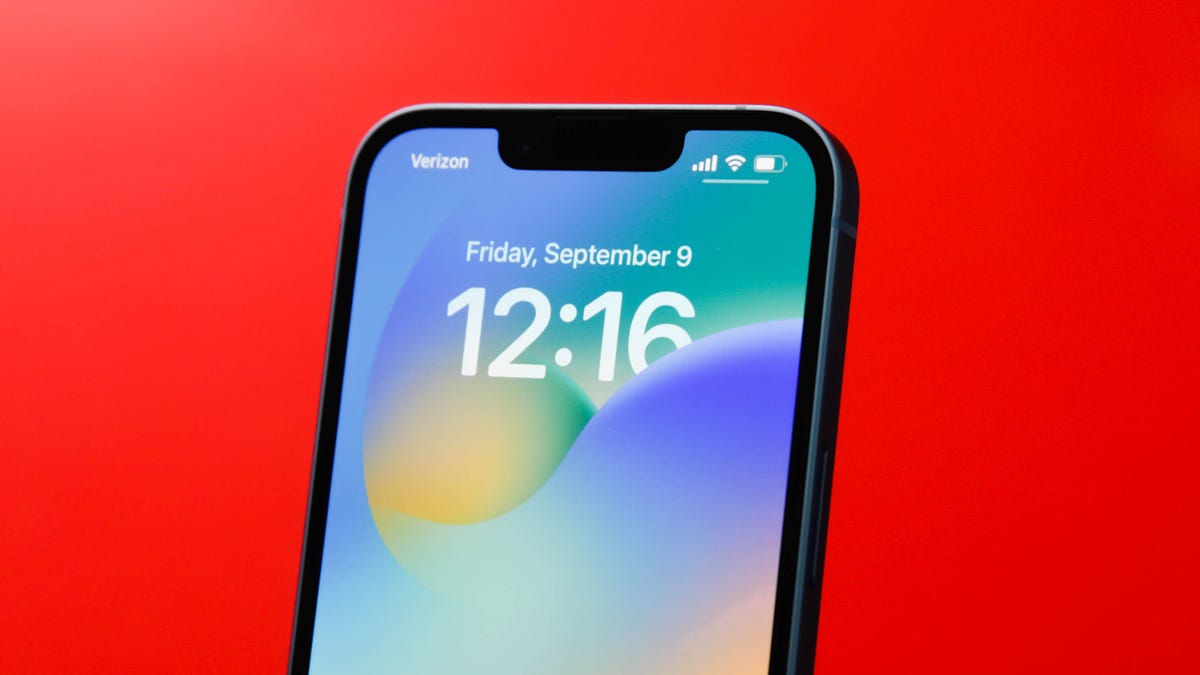
It’s been over half a year since iOS 16 was released to the general public, yet there always seems to be new features and settings to discover within Apple’s latest iPhone software update. Not all these unexplored features will be as popular as unsending texts and emails or cutting out objects from your photos, but they’re still worth exploring if you want to become a pro iPhone user.

I’m going to walk you through everything you need to know about the best hidden gems in iOS 16, like password-protected photo albums, easily accessible Wi-Fi passwords and more.
Read more: What to Expect on iOS 16.4
And while you’re here, make sure you also brush up on the major new iOS 16 features you’ll love, and a few that you might just hate (luckily, there’s a fix).
View and share saved Wi-Fi passwords
Apple has allowed iOS users to share Wi-Fi passwords for a while now, but only by placing two Apple devices near each other. And if that feature didn’t automatically work, you couldn’t just dig out the password from your settings. Plus if you wanted to share a saved Wi-Fi password with someone else, like an Android user or someone on a computer, you had to remember the password. Until now.
In Settings, go to Wi-Fi and tap the tiny information icon to the right of the network you want the password for. To view the network password, tap the Password section and then use Face ID or enter your passcode to view it. You can then tap Copy to copy the password into your clipboard and share it.
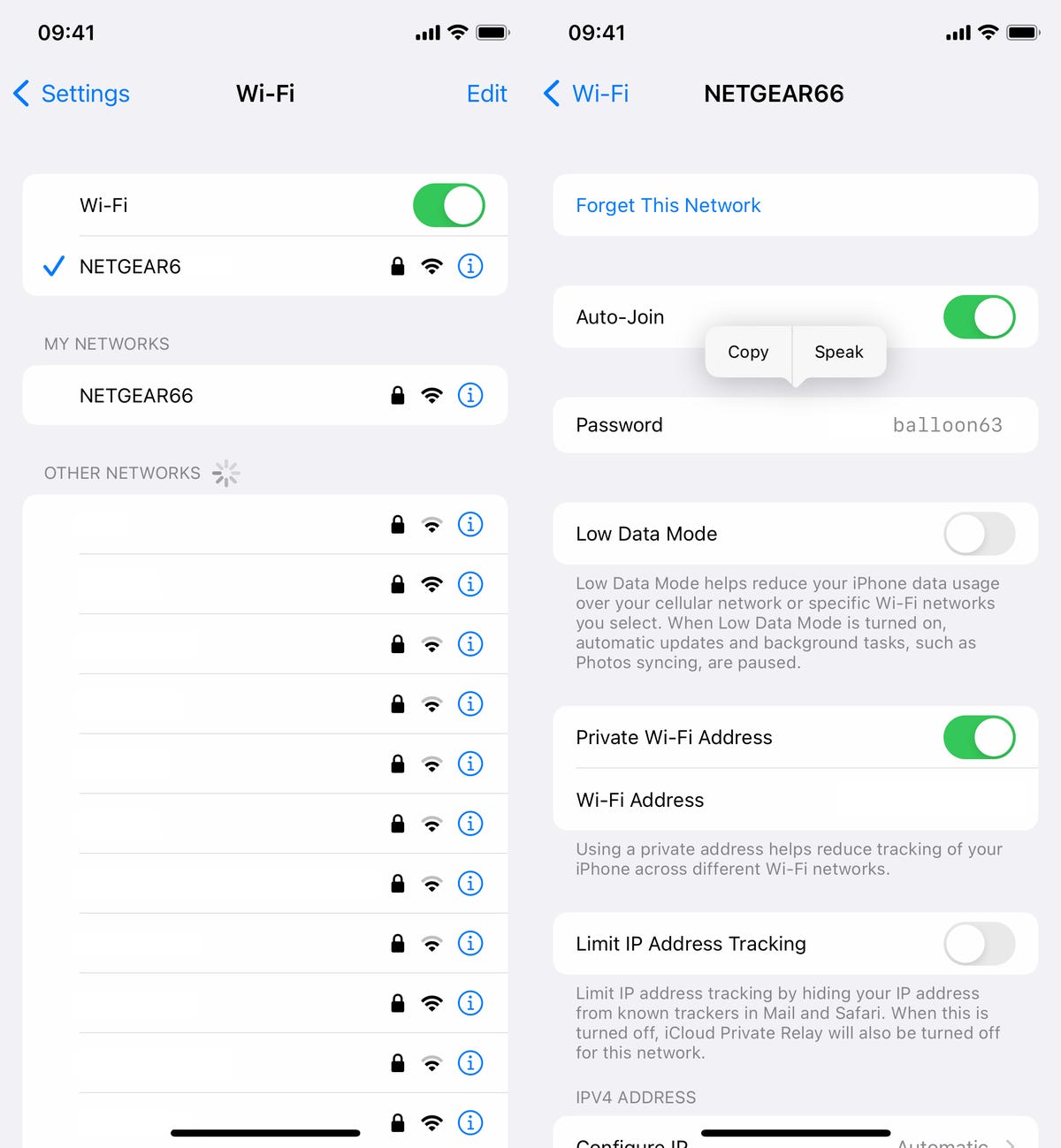
You can view the password for any Wi-Fi network you’ve ever connected to, as long as you’re currently connected to it or near enough that it appears under My Networks.
Screenshots by Nelson Aguilar/CNET
The credit card-sized Anker 622 not only attaches to your MagSafe-compatible iPhone to give it a charge but also has a built-in kickstand so that you can comfortably view and use your device while it gets juice.
Find and remove duplicate photos and videos
Maybe you’ve saved the same photo multiple times or downloaded a video more than once, resulting in duplicates littering up your photo album. It may not be a problem if you’ve got storage to spare, but you’re running out of space, you can now remove every single duplicate easily with iOS 16.
In Photos > Albums, you should see a new Duplicates album under Utilities. Apple scans through all of your photos and shows you any photo or video you’ve saved more than once in that album. From there, you can either delete any duplicates, or simply press Merge, which will keep the photo with the highest quality (and relevant data) and then move the others to the trash.

Merging will keep the highest quality photo and delete the rest.
Screenshots by Nelson Aguilar/CNETAlthough you’ll probably want to go through each set of duplicates, to ensure that they’re actually exact copies and not similar photos, you can also hit Select > Select All > Merge to remove every single photo and video that Apple thinks is a duplicate, all at once.
Hang up a phone or FaceTime call with Siri
Siri does a lot of things. You can use the virtual assistant to send a text message, get directions or play music — but one thing she’s never been able to do is hang up a phone call. Weird right? Now that’s finally a possibility with iOS 16.
In Settings, go to Siri & Search and first make sure Listen for “Hey Siri” is toggled on. If it is, you should see a new option underneath — Call Hang Up. Go into that option and toggle on Call Hang Up. When you’re on a phone call or FaceTime video chat, simply say, “Hey, Siri,” and ask her to hang up your current call.
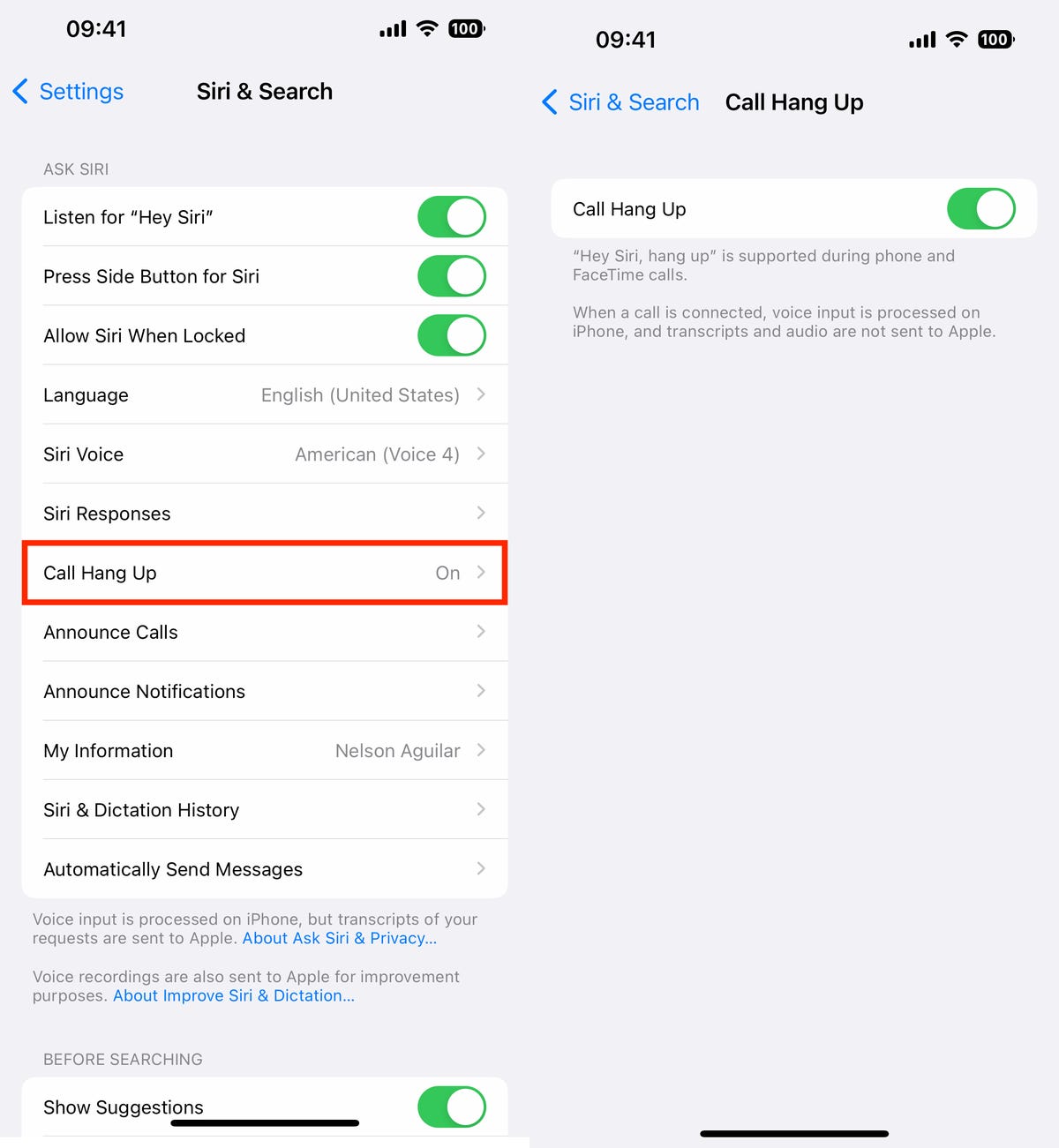
For this to work, Listen for “Hey Siri” must be toggled on first.
Screenshots by Nelson Aguilar/CNET Pair Nintendo Switch Joy-Cons with your iPhone
Apple has long allowed you to pair third-party controllers, like the PS5 Sony DualSense and Xbox Core Controller, to your iPhone and iPad, in order to more comfortably play mobile video games like the Apple Arcade library, Minecraft and Call of Duty. Now you can add another console controller to that list.
If you own a Nintendo Switch, you can now pair your Joy-Con controllers to your iPhone or iPad running iOS 16. To start, hold down the little black pairing button on the Joy-Con, until the green lights start running back and forth. This means the device is in pairing mode. Next, open your iPhone and go to Settings > Bluetooth and select the Joy-Con from the list. Repeat this step with the other Joy-Con.
Hidden and Recently Deleted albums are now password protected
The Hidden album in the Photos app is clearly not hidden, seeing as anyone can easily find it. That makes it impractical for adequately hiding private photos and videos. While Apple does have an option to make the Hidden album “invisible,” anyone with access to your phone could make it visible again and view everything inside.
Thanks to iOS 16, you can now lock the Hidden album. You don’t actually need to do anything to toggle this feature on. If you want to check it out, launch the Photos app and go to the Albums tab at the bottom of the screen. If you scroll down, you’ll see a tiny lock next to the Hidden and Recently Deleted albums. To view the contents of those albums, you’ll need to use Face ID or your passcode.
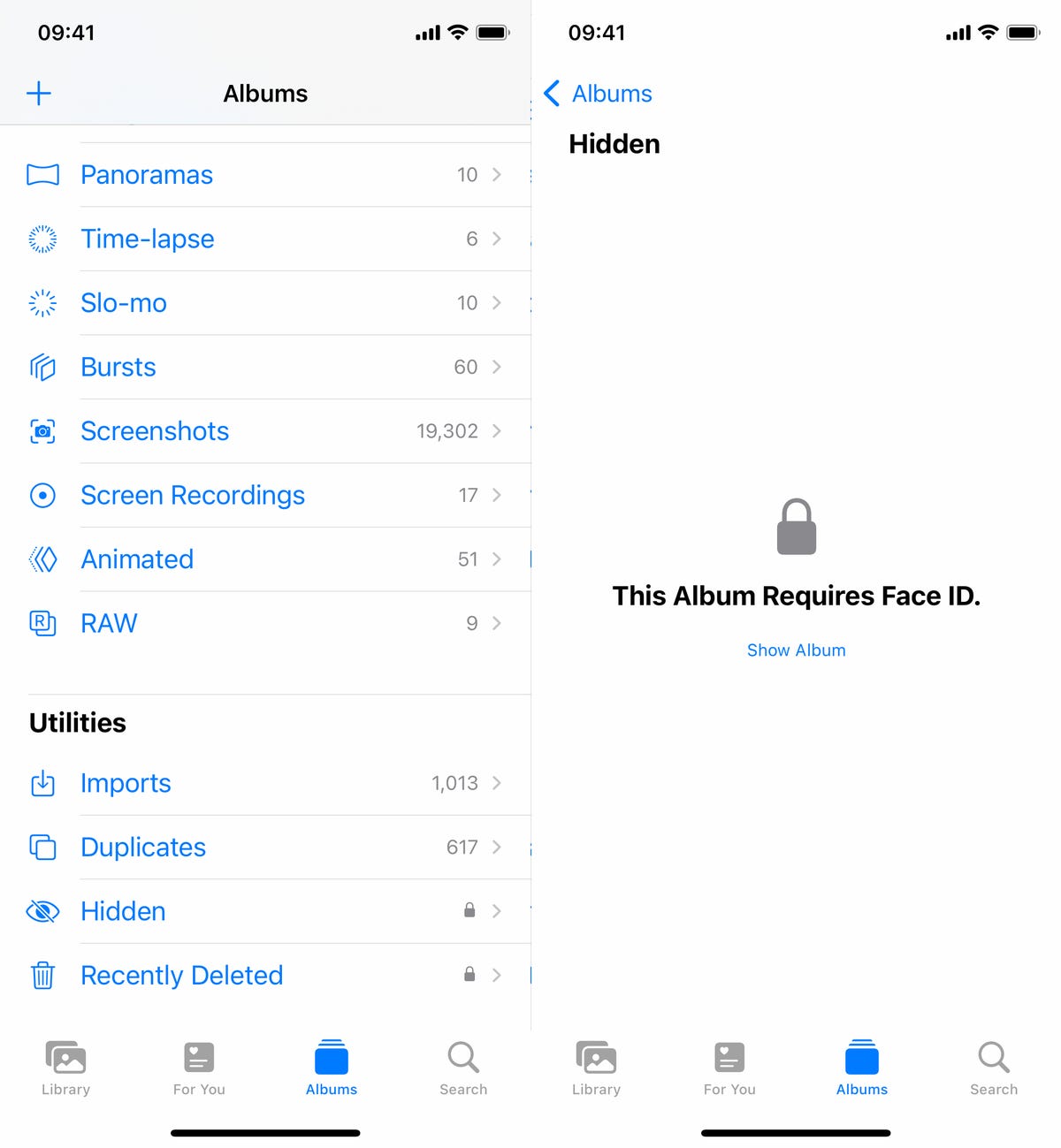
The Hidden and Recently Deleted albums now require Face ID to be accessed.
Screenshots by Nelson Aguilar/CNET Copy and paste photo and video edits
If you use the editor tool in the Photos app, you’ll be happy to learn that you can now copy and paste edits, including saturation, contrast and brightness, between photos. If you edit one photo or video and are happy with the look, you can paste those same exact edits to any other photo or video in your camera roll.
To do this, launch the Photos app and open a photo that’s been edited in full-screen. Next, tap on the three-dot menu in the top-right corner and then hit Copy Edits. This option will only appear if the photo has been edited within Photos, not any third-party photo editor. Finally, go to the photo you want to copy these edits over to, tap on the three-dot menu and then hit Paste Edits. After a second or so, you should see the photo edits appear.

This feature works between photos and videos.
Screenshots by Nelson Aguilar/CNETUse Siri to send an emoji
Siri has long been able to send long, complicated text messages and emails by dictation, but with iOS 16, for the first time, you’re now able to use your voice to send emojis. As long as you know the name of the emoji, simply say “face with tears of joy emoji” or “red heart emoji” to insert an emoji into your text with Siri.
If you use the keyboard dictation feature in your iPhone’s keyboard, accessible at the bottom right of your keyboard (microphone icon), you can also say the emoji name to insert an emoji anywhere you can type text, like in a note or a caption on Instagram.
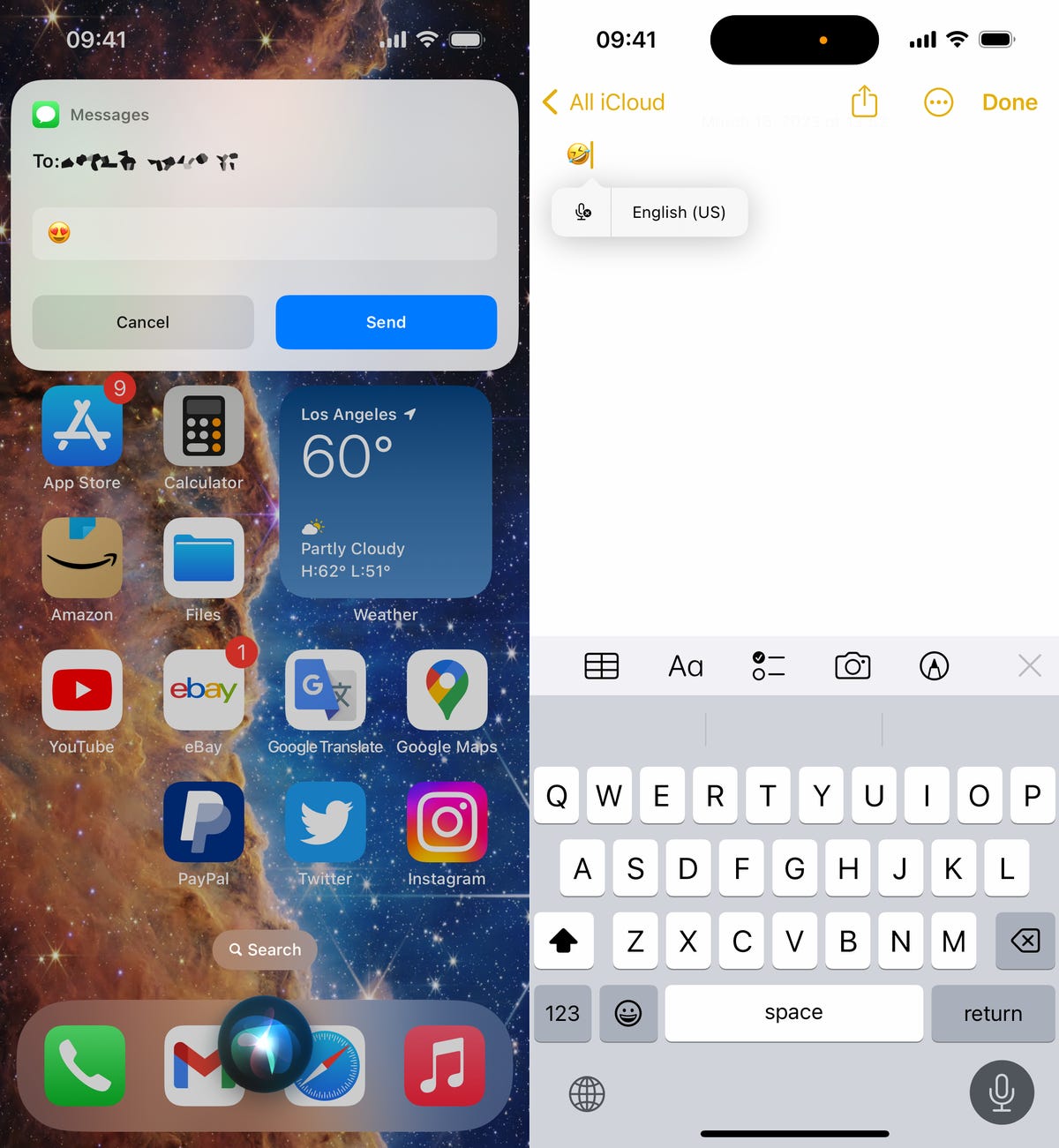
You can send emojis with Siri (left) or type them in using the dictation feature in your keyboard (right).
Nelson Aguilar/CNETBring haptic feedback to your keyboard
The iPhone has long had haptic feedback. It’s what you feel underneath your fingertips whenever you attempt to delete an app from your home screen or enter the incorrect password on your lock screen. Strangely enough, haptic feedback has never been available for the stock iOS keyboard — until now.
If you want to enable a slight vibration for every single key you type in, go to Settings > Sounds & Haptics > Keyboard Feedback and toggle on Haptic. The sound option you see is the loud and annoying clacking sound you might hear when you type in something and your phone isn’t on silent mode, so you can keep that disabled.
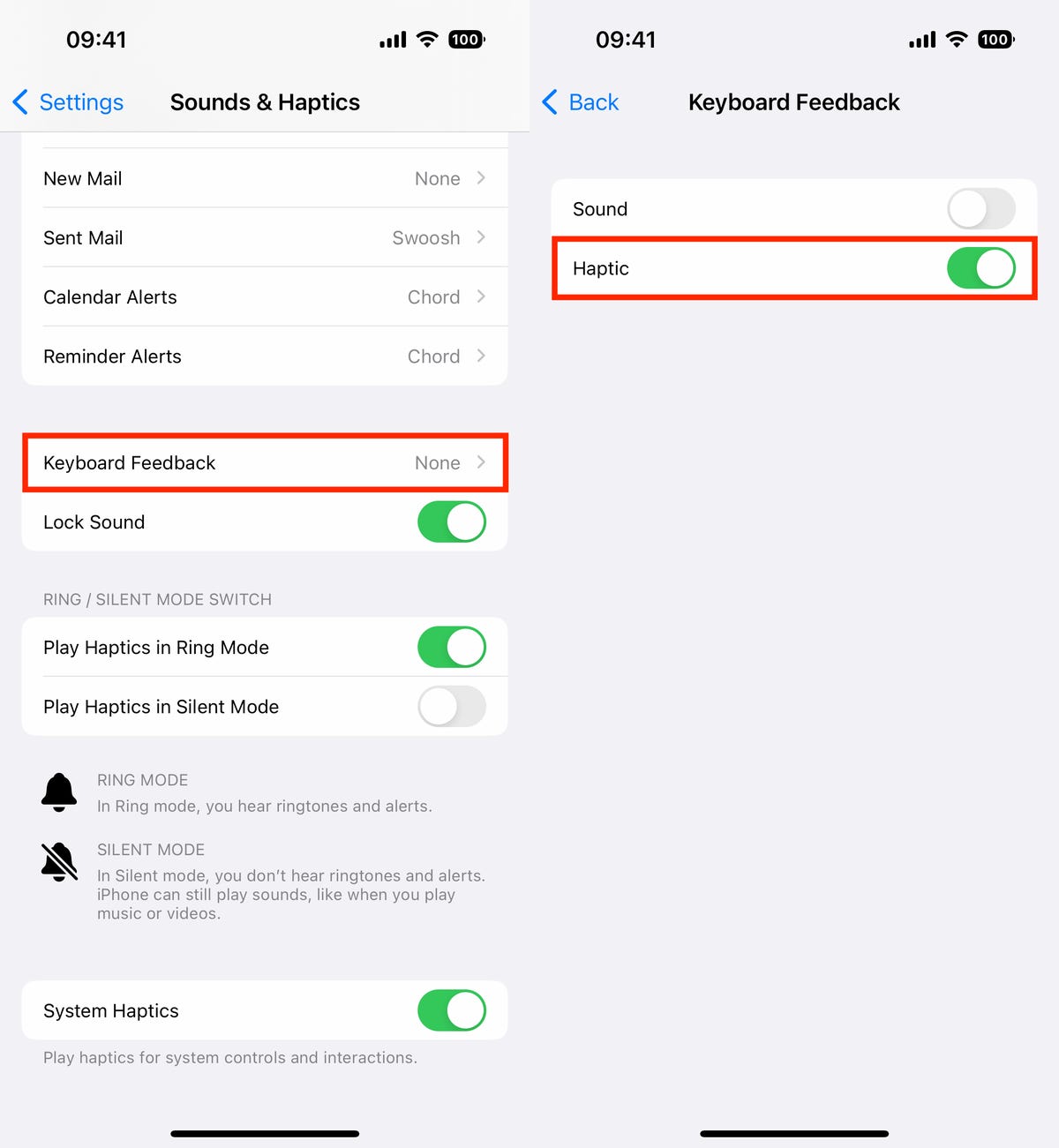
Every single time you type, you’ll feel a slight vibration for each key you hit.
Screenshots by Nelson Aguilar/CNETPin your favorite tabs in Safari
Safari caps your open tabs at 500, and if you’re nearing that limit, it might be pretty darn hard to find the exact tab you’re looking for. You could scroll endlessly, but there’s now an easier way to find the exact tab you’re looking for.
In Safari, if you press down on an open tab, you now have the option to hit Pin Tab. This will move that tab to the top of Safari, where it will exist as a tiny tab preview, permanently pinned there, which you can then tap to view. If you press down and unpin a tab, it will move to first in your grid of open tabs.
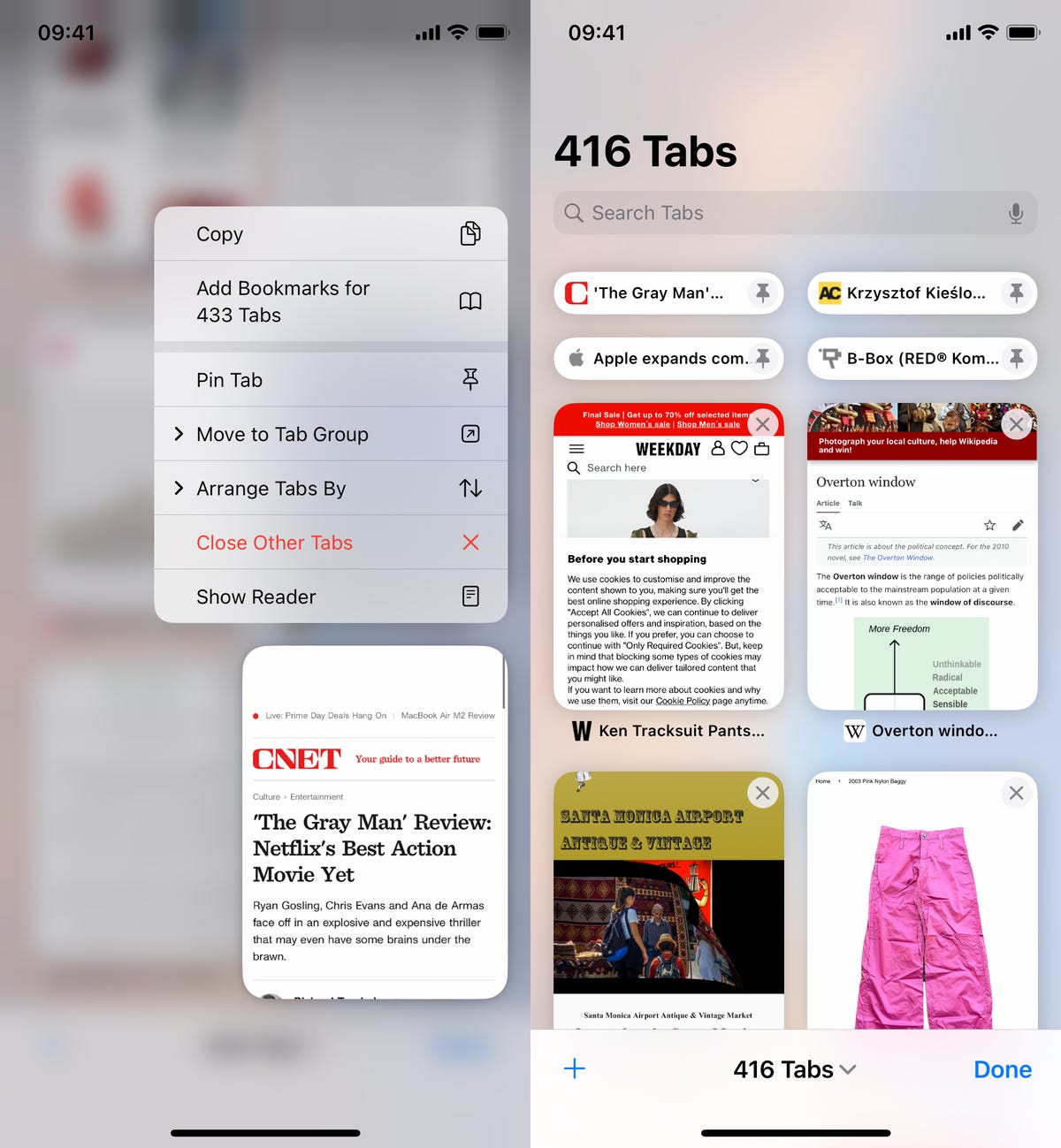
All your pinned tabs appear at the top of Safari.
Screenshots by Nelson Aguilar/CNETUse Face ID while you’re lying down
If you’ve ever tried to unlock your iPhone while it’s vertical, like when you’re lying on your side, you might have noticed that it doesn’t work. You have to place your iPhone in portrait orientation, or upright, for Face ID to work. With iOS 16, you can finally use Face ID to unlock your iPhone when it’s in landscape orientation. However, for this to work, you must have an iPhone 13 or 14 running iOS 16.
Copy your screenshots to your clipboard without saving them
You don’t need to save a screenshot to your photo album to share it with someone else. A new iOS 16 feature allows you to take a screenshot, copy it to your clipboard, delete it from your phone and paste it where you see fit. After you take a screenshot, tap the screenshot preview that appears, hit Done on the top-right and then tap Copy and Delete to copy the screenshot to your clipboard.
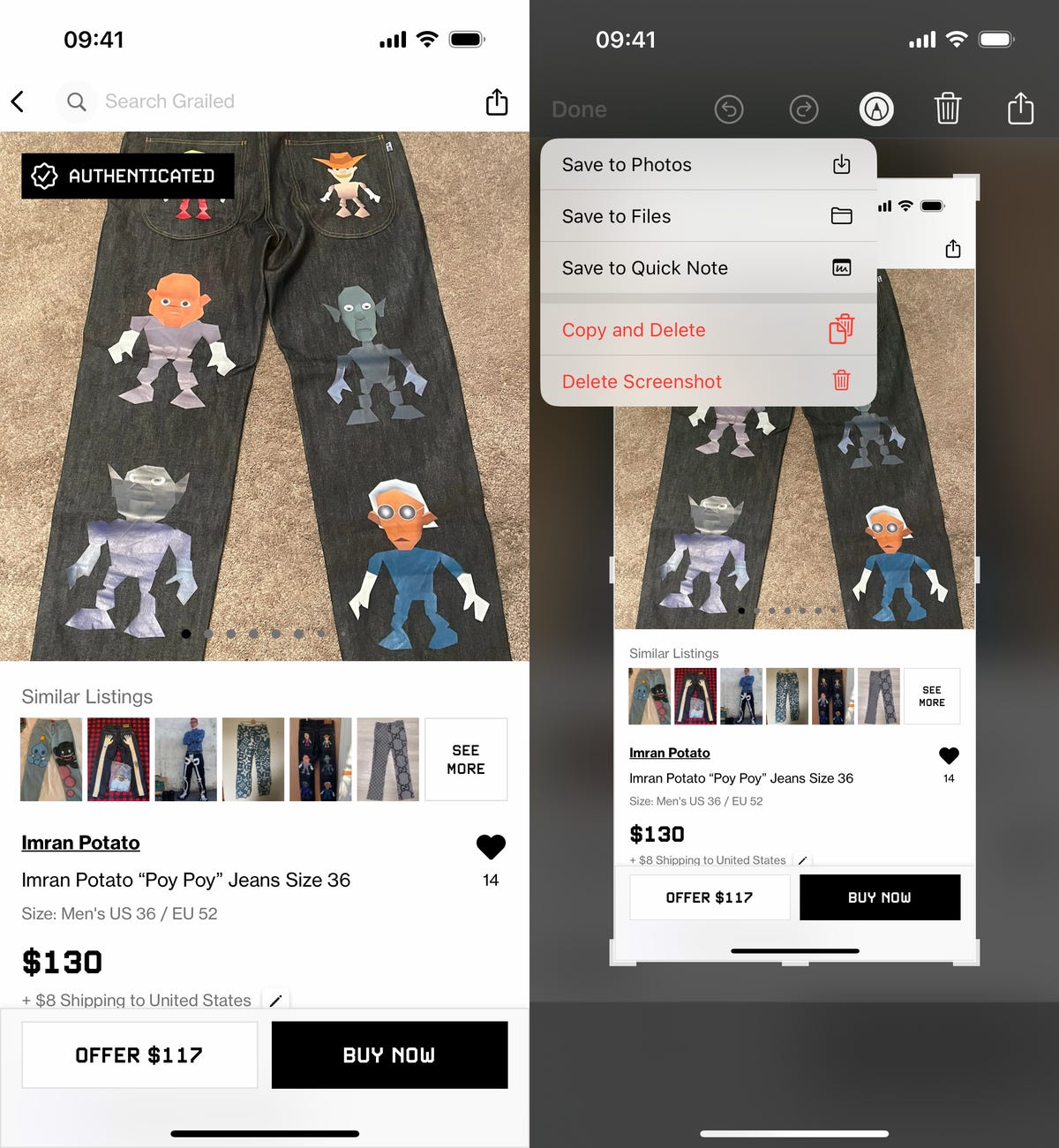
If you take a lot of screenshots, this feature can help you save storage.
Screenshots by Nelson Aguilar/CNETRemove more preinstalled Apple apps
Since iOS 10, you’ve been able to remove some preinstalled iOS applications like Stocks, Maps and Calculator — but not all of them. With the release of iOS 16, you can add three more apps to this list of ones you can remove: Find My, Clock and Health. However, deleting these apps can negatively affect and break support with other apps and connected devices, like your Apple Watch.
Make Siri listen to you longer
If you ever find yourself getting cut off by Siri, there’s now a way to force the voice assistant to listen to you longer so that she can catch everything you say. The feature isn’t in an obvious place though — in the Settings app, go to Accessibility > Siri, then choose either Longer or Longest. Play around with the two options to see which works best for you.
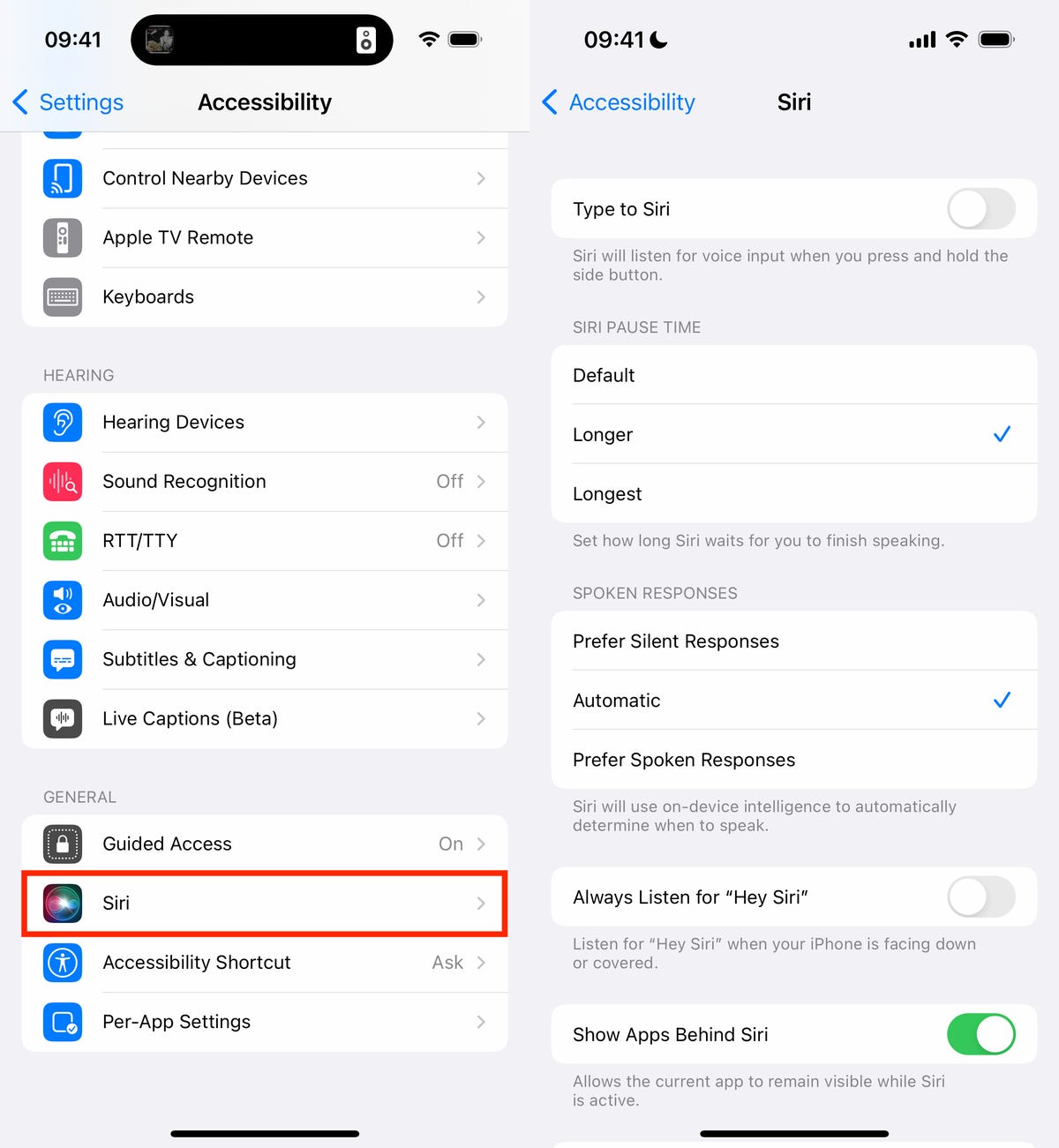
This will help Siri from interrupting you when you speak.
Nelson Aguilar/CNETFor more on iOS 16 and the iPhone, check out our iOS 16 cheat sheet.
Technologies
Apple and Meta team up to make Muse AI model run on Mac computers
Apple and Meta are collaborating to make Muse Spark Open easier to run locally on clustered Mac Studio systems, according to the companies.

Tim Cook and Mark Zuckerberg have clashed for years, but with John Ternus taking the reins at Apple
Meta
The collaboration centers on Muse Spark Open, the most capable open-weight model released under a license that allows for limited commercial use, according to Meta. It’s an 816-billion-parameter model using a so-called mixture-of-experts architecture. As an open-weight model, developers can download the technology’s parameters, or weights, from the internet and run the model on a wide range of hardware.
Customers will be able to pair between two and four Mac Studio PCs to use Muse Spark to code, analyze video or do other agentic work. The model runs locally, instead of in the cloud, adding a layer of security and saving users money, the companies said.
Thursday’s announcement, following months of collaboration, is a sign that the AI boom has shifted historical alliances in Silicon Valley. For years, Apple and Meta regarded each other warily and avoided public partnerships, and the relationship hit rock bottom after Apple introduced privacy changes in 2021 that limited the targeting capabilities of digital ad companies.
Meta estimated in early 2022 that the change would cut its revenue that year by $10 billion.
Representatives from Apple and Meta declined to say if the Muse Spark Open collaboration was the start of a deeper relationship.
Zuckerberg posted a picture on X showing the Meta agent working on a Mac computer. He wrote, “Muse Spark Open — weights releasing today — runs great on new Mac Studios thanks to work with @johnternus and Apple.”
Ternus responded, “Congrats to the team! Amazing to run a model of Muse Spark Open’s caliber and scale this efficiently, right from your desk. Mac Studio keeps pushing the boundaries of on-device AI!”
Meta AI chief Alexandr Wang said in an interview that many powerful open-weight models are too big to be run on the majority of personal computers, but Apple’s Mac Studios make enough memory available to users so that it’s practical to run Muse Spark Open.
The move represents an important show of confidence in Meta’s rebooted AI efforts and could pose a challenge to OpenAI and Anthropic. It could also signal Apple’s growing strength in AI chips, a market that Nvidia
″We worked with Apple to bring leading Agent capabilities to your desktop for the first time on the Apple M5 Ultra Mac Studios, so you know we’re really excited about this,” Wang said. Developers can download a version of the AI model from websites like Hugging Face without extra configuration for Apple’s silicon.
Muse Spark Open has also been tuned to run faster on Apple’s hardware, and the iPhone maker revealed new benchmarks for its chips and published technical documentation about its MLX AI framework’s ability to split open-source models across multiple machines.
Mac Studios aren’t cheap though, and this AI model requires the fastest Apple chips and as much memory as possible.
Currently, a Mac Studio with the required M5 Ultra chip and 256GB of memory costs at least $10,799. A more expensive version with 512GB of RAM will be released later this month.
Plus, users will need to buy multiple machines.
Common ground on open source
The two companies are collaborating on open-source AI, which has become a point of contention in Washington as politicians worry that free Chinese models could undercut American AI.
Although Meta once centered its AI strategy on its older open-weight Llama family of models, it has since focused on creating proprietary models under the leadership of Wang, who joined Meta when the company invested more than $14 billion into his former startup Scale AI last year.
While Apple and Meta, then known as Facebook, partnered on iPhone extensions over a decade ago, they haven’t struck any public partnerships since 2017 after Apple removed system-level Facebook integration from the iPhone.
“Most of the animosity predates my tenure at the company, but obviously there’s been a long history between Meta and Apple,” Wang said, pointing to one member of his team, AI researcher and former Apple director Daniel Gross, as a reason for the collaboration. Gross, along with former GitHub CEO Nat Friedman, was a major Zuckerberg hire last year as the Facebook founder was overhauling his company’s AI strategy.
Their leaders have also traded harsh words.
Cook, who was Apple CEO until Ternus succeeded him last month, took a shot at Zuckerberg in 2018, during the Cambridge Analytica scandal, saying, “I wouldn’t be in this situation.” Cook often criticized Meta for compromising user privacy.
Ternus, a hardware engineer, has already started changing things at Apple, including when it releases products.
And Meta’s developers haven’t been able to resist Apple’s products. The company bought hundreds of Mac computers so its Superintelligence team could experiment with local AI and agents earlier this year.
Apple’s multiple partners
Meta is just the latest AI model developer to team up with Apple.
In 2024, Apple announced a partnership with OpenAI to integrate ChatGPT into Siri, although the integration “dramatically underperformed” and didn’t lead to OpenAI user growth, OpenAI said in a filing that’s part of a legal dispute with Elon Musk’s xAI. Apple sued OpenAI in July, alleging trade secret theft, a claim OpenAI denied.
Earlier this year, Apple announced a deal with Google
Still, Apple’s AI strategy has drawn criticism from investors and customers in part because its new version of Siri, released last month, isn’t as advanced as chatbots and agents from leading labs.
Meanwhile, Meta has bet big on becoming a leading lab but has struggled to keep up with the competition and its business remains almost entirely reliant on ads. Recent developments, such as Meta’s Muse personal agent app and its latest proprietary foundation model, Muse Wonder, released earlier this week, have begun to excite investors who are optimistic about new AI business opportunities.
Open source remains part of Zuckerberg’s AI strategy. In August, Meta debuted a small open-weight AI model dubbed Muse Glimmer, with Zuckerberg pledging to eventually release something bigger and more powerful.
Muse Spark Open isn’t as advanced as Muse Wonder, a proprietary offering, but Wang said it’s good enough to potentially entice more coders to upgrade.
“These aren’t the most capable models that we’ve developed or released,” Wang said. “But we think that there will be a lot of companies and developers who sort of use this model and tinker with it at small scale and then seek to ramp up and scale up their usage.”
WATCH: Apple makes its biggest smart-home push yet under CEO John Ternus.
Technologies
CoreWeave credit default swaps hit distress levels as investors sour on AI debt
Signs of distressed deepened in CoreWeave on Thursday.
CoreWeave’s credit stress continued to spiral on Thursday amid a broader sell-off in AI-related names.
CoreWeave — a so-called neocloud company — has taken on more than $51 billion of debt and obligations to finance its AI infrastructure build-out. It’s now facing a rebellion from stock and bond investors as concerns mount about AI overspending and debt levels.
Yields on CoreWeave debt have continued to climb, with the yield to maturity on its 9.75% bond due in 2031 reaching 15.78%. Bond yields move inversely to prices. Meanwhile, the spread on its five-year credit default swaps, which are insurance against default, at one point soared above 1,140 basis points. It last stood at nearly 1,038 bps — a 16% week-over-week jump and 164% higher than a year ago.
Credit concerns are spreading into AI equities too. CoreWeave’s stock dropped during trading Thursday before recovering and closing 5.94% higher. The moved followed Wednesday’s 15.5% nosedive.
Other neocloud stocks were under similar pressure. Nebius also sank before climbing higher to close 1.29% and and Iren ultimately ended the day down less than 1%.
Anxiety about AI overspending is also spreading. For instance, shares of Micron Technology and Advanced Micro Devices sold off following a big sell-off in South Korean chip stocks. Micron closed up 1.87%, while AMD fell 1.5%.
While AI debt worries have been rising steadily, investors have suddenly grown skittish about the underlying finances of companies borrowing heavily to buy chips, build data centers, and rent out computing power.
Coreweave’s credit default swaps are one place to see that stress.
Credit default swaps are contracts where buyers pay for protection in case the borrower can’t repay its debt. The spread widening in CoreWeave’s CDS means investors view the debt as riskier.
The market is “basically saying ‘no mas’ to AI debt without operating cash flow support,” the Evercore ISI trading desk said.
A spread level of 1,000 basis points or above is generally a sign of credit distress, said Gavan Nolan, executive director of fixed income pricing at S&P Global Market Intelligence.
No one is questioning whether demand for CoreWeave’s services is real, since the company has contracts with all the big hyperscalers, Nolan said. The question is whether the cash flows will ultimately arrive.
“It’s obviously heavily negative free cash flow at the moment, and it needs that cash flow to arrive really to justify all the capex that it’s spending,” Nolan said.
‘Self-fulfilling prophecy’
CEO Mike Intrator dismissed the market moves on Wednesday, according to a memo obtained by CNBC.
“When you are building a new type of technology company there will be periods of time when the market misunderstands and acts irrationally,” he wrote. “We are confident in our backlog which more than supports all of our debt obligations.”
The backlog is over $100 billion, with around two-thirds of it with investment-grade counterparts including Microsoft, Meta, IBM and Caterpillar, Deutsche Bank said in a note Thursday. The firm reiterated its buy-rating on the stock Wednesday, calling the dislocation a buying opportunity.
“The problem is this kind of concern can prove to be a self-fulfilling prophecy, and risks triggering broader issues in other AI-related names,” said Jim Reid, global head of macro and thematic research.
Domino effects may already be happening. Oracle’s five-year CDS spread also spiked this week. It was last at 282 basis points, a roughly 10% increase in one week.
“A downgrade from its BBB rating would risk pressuring IG-only investors into forced sales,” Reid said.
Technologies
Netflix Chief Content Officer Bela Bajaria is leaving, will be replaced by Peter Rice
Netflix announced Bela Bajaria will be replaced by former Disney exec Peter Rice as the company’s chief content officer.

Netflix on Thursday announced Bela Bajaria will be replaced as the company’s chief content officer by former Disney exec Peter Rice, effective Oct. 26.
Rice most recently oversaw Disney’s cable channels, news programming and coverage of major sporting events.
“Peter is one of the most effective at-scale operators in the entertainment industry,” co-CEO Ted Sarandos said in a statement. “I’m excited to welcome him to Netflix as Chief Content Officer as we continue to scale and deliver members more of the stories they love.”
Before Rice was at Disney, he held roles 21st Century Fox and Fox Searchlight Pictures. Netflix in its announcement called him “one of the entertainment industry’s most respected creative executives.” In his new role, Rice will oversee the company’s global content organization, including scripted and unscripted series, film and live events.
″[Netflix has] shown again and again that they’re willing to take chances on distinctive voices and fresh ideas, and I’m excited to work with the team to help bring even more great stories to members everywhere,” he said in a statement.
Bajaria, who is leaving Netflix after nearly 10 years, most recently worked as the company’s global content team. She had been focused on the company’s live sports strategy, looking to create events out of buzzy games and tournaments.
“I’m incredibly grateful for everything she’s done to help Netflix entertain the world,” Sarandos said in a statement.
The announcement comes a day after Netflix instituted layoffs across its organization, eliminating approximately 6% of its workforce, or roughly 1,000 jobs.
The media company will report its next quarterly earnings on Tuesday.
This is breaking news. Please refresh for updates.
-
 Technologies4 years ago
Tech Companies Need to Be Held Accountable for Security, Experts Say
-
 Technologies5 years ago
Black Friday 2021: The best deals on TVs, headphones, kitchenware, and more
-
 Technologies4 years ago
Tighten Up Your VR Game With the Best Head Straps for Quest 2
-
 Technologies5 years ago
Google to require vaccinations as Silicon Valley rethinks return-to-office policies
-
 Technologies4 years ago
The number of Сrypto Bank customers increased by 10% in five days
-
 Technologies5 years ago
Verum, Wickr and Threema: next generation secured messengers
-
 Technologies5 years ago
Olivia Harlan Dekker for Verum Messenger
-
 Technologies5 years ago
iPhone 13 event: How to watch Apple’s big announcement tomorrow