
Technologies
iPhone ‘Flip’: The Apple Foldable Is Still Rumored To Come in 2026
Apple’s belated entry to the foldable phone niche is supposedly still coming, and the latest rumors suggest it will debut in 2026.
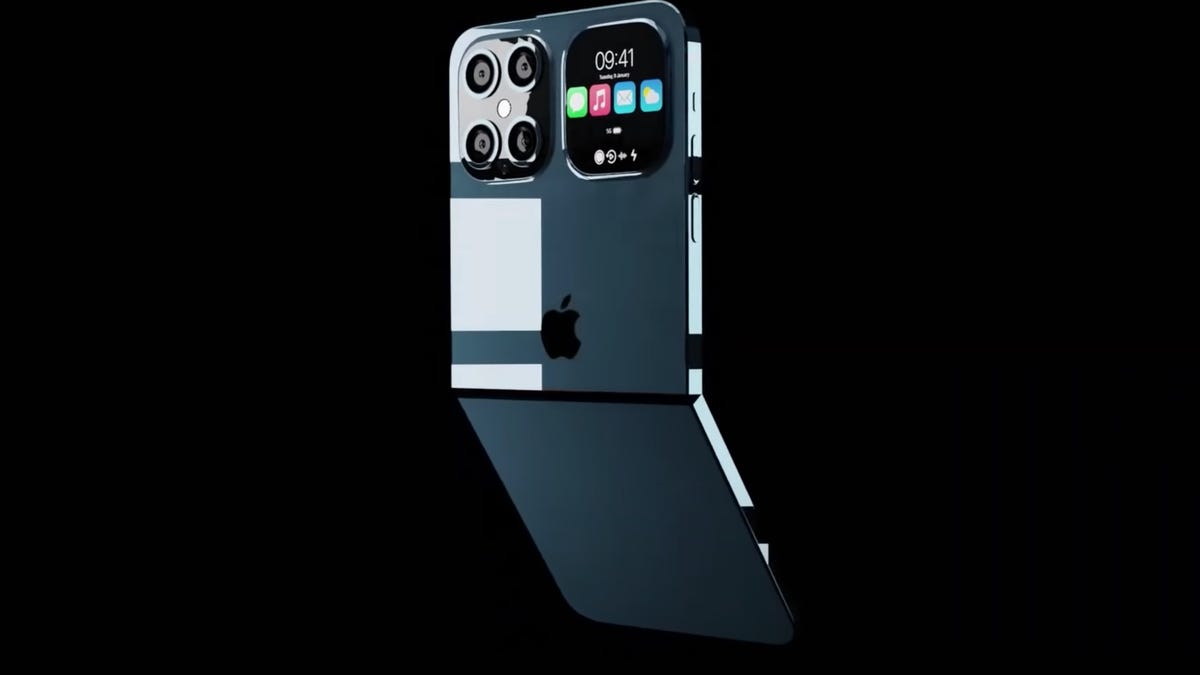
We’re half a decade into foldable phones, with plenty of devices from Samsung, Google and Motorola (as well as others from Oppo, Huawei and more) for consumers to choose between. Yet among big phone makers, only Apple still lacks one in its lineup. The latest flexible-screen devices, like the Galaxy Z Fold 6, the Motorola Razr Plus reboot and the Pixel 9 Pro Fold show mature designs and robust bending displays, leaving the foldables niche handily dominated by Android devices. Recurring leaks and rumors suggest Apple is still developing its own folding device, which we’ll refer to it as the iPhone Flip until a proper name is revealed.
The iPhone 16 series launched in September 2024 with an AI camera button and AI features in iOS 18 that are still rolling out, and the more affordable iPhone 16E launched with Apple’s first in-house modem. Still, we’ve yet to see any official word on a foldable iPhone. Apple’s recent focus has been on Apple Intelligence, a suite of generative AI tools now in the iPhone 16 and the iPhone 15 Pro and Pro Max, which is also coming to updates for Apple devices in other product families. Apple might be slowly tinkering away at a folding iPhone while software and AI have taken center stage during its product showcases.
Some rumors have even suggested that Apple is working on foldable displays for its other portable devices, the iPad and MacBook, though the company may have encountered obstacles. In a post on X back in September, Apple analyst Ming-Chi Kuo said challenges with folding displays have pushed back mass production of either model to 2027 or even 2028. Since other rumors have suggested the iPhone Flip could come out as early as 2026, we could see an iPhone that folds before an iPad or a MacBook with a flexible display.
It’s unclear if or when Apple will switch focus from AI to bring an iPhone Flip to market, though the most recent rumors suggest progress continues. A report back in July, as covered by The Verge and first reported by The Information, suggests Apple has gone all-in on a clamshell-style foldable iPhone and moved it beyond the concept stage to give it a code name, supposedly internally referring to the device as “the V68.” If all goes well, the iPhone Flip could get a release date as early as 2026, the report said.
The newest rumor reaffirms the possible 2026 release window for the iPhone Flip, with noted Apple analyst Ming-Chi Kuo posting on X production may kick off next year. Market rumors suggest Apple has placed orders for 15-20 million iPhones to be sold in 2026 and the following years, Kuo continued, though with many components like the hinge not yet being finalized and assembly supplier Foxconn not officially starting the project yet (they’re expected to begin in the third or fourth quarter of this year), this timeline could shift.
This follows Kuo’s report in early March that Apple’s device could launch at the end of next year and will have a 7.8-inch crease-free inner display and 5.5-inch outer display — which would make it a book-style foldable like Samsung’s Galaxy Z Fold 6 rather than a clamshell foldable, as other rumors have suggested Apple was focusing on.
Accordingly, Kuo believes the price would match other similar folding devices at $2,000 to $2,500. Despite that high price tag, he says projected shipments are 3 to 5 million devices initially, which is a confident estimate given only 19.3 foldables were sold in 2024, market research firm IDC reported.
This reaffirms previous rumors and news. A new patent granted to Apple last July, which was applied for years ago, shows how long the company has been working on a folding iPhone, although many reports have focused on the company’s struggles to eliminate the crease within the internal folding display. Creases have haunted foldable phones since they started coming out in 2020, and although the most recent Samsung Galaxy Z Fold 6 and Samsung Galaxy Z Flip 6 have reduced the crease, you can still see and feel it.
Previous rumors suggested Apple had been working on iPhone Flip models in two different sizes, though there have been difficulties in making the devices to Apple’s demanding standards. The company may also be working on a folding tablet with a screen around the size of an iPad Mini.
Then again, we may not see an iPhone Flip for years. By mid-2024, market analysts at TrendForce estimated that issues with the display crease might push back an Apple foldable until 2027, according to 9to5Mac. Prior rumors said Apple may not launch its own flexible screen device until 2025, and Samsung hasn’t let phone fans forget it by releasing an app that will let Apple phone owners experience a Z Fold-esque experience by placing two iPhones side-by-side. At the very least, an investor note seen in August suggests Apple’s foldable may not reach its 2025 schedule for mass production due to display issues, according to MacRumors.
Years ago in 2017, folks predicted that a foldable iPhone could launch in the then-near future of 2020 — which didn’t happen. Analysts and leakers have been kicking the release date down the road ever since, and rumors and wish lists have hung around as phone fans keep their hopes up. Absent any confirmed details from Apple, here’s everything we know so far about the company’s future foray into foldables.
Read more: I Visited Samsung’s Home Turf to See if Foldable Phones Are Really the Future
What Apple’s new patent says about the iPhone Flip
After years of rumors that Apple was working on foldable phones, a patent was finally granted to the company that confirmed it’s been working toward a folding iPhone. The 22-page patent (PDF), simply titled “Electronic Devices With Durable Folding Displays,” was filed in November 2021 and granted on July 16, 2024.
Sadly for folding iPhone hopefuls, the patent doesn’t offer much illumination of what an iPhone Flip might look like. Most of the pages show figures depicting cross-sections of potential displays that fold about a hinge, but not the device they’re folding around.
There are some tidbits deeper into the text of the patent that hint at potential design choices Apple might make, like a hinge that holds the display flat when unfolded but which would let the display “slightly fold about the bend axis when the electronic device is jolted during the drop event” — in other words, if dropped, the device would fold inward slightly so that it lands on its edges to protect the inner display.
It’s important to note that all evidence shows Apple working on a foldable iPhone, but the patent broadly applies to folding displays in general — to wit, some figure schematics describe a device that “may be a cellular telephone, tablet computer, laptop computer, wrist-watch device or other wearable device, a television, a stand-alone computer display or other monitor” or screens as far-ranging as on vehicles, in kiosks, in media players or other electronic equipment.
The rest of the patent describes what an Apple device with a folding display may have, and categorically lists things like batteries and wireless charging, Bluetooth and Wi-Fi connectivity, LED or LCD displays, microphones and capacitive sensors, haptics and so on. There’s explicit mention of a display folding 180 degrees, or fully flat, which follows most other foldables — presumably, Apple isn’t going to leapfrog the competition in following Samsung’s concept displays we saw at CES that unfold nearly 360 degrees.
Two foldable iPhone Flips?
Foldable iPhone hopefuls will at least be encouraged that Apple seemingly continues to tinker with an iPhone Flip design. The company is said to be working on two sizes of folding iPhones: a book-style and a clamshell-style, according to an older report by The Information, although this may be countermanded by a newer report by the same site suggesting Apple had settled on the latter for a smaller device. This aligns with prior rumors hinting the iPhone Flip will be in the clamshell format like the Samsung Galaxy Z Flip series or Motorola Razr Plus.
It sounds like Apple’s been struggling to meet its high expectations: The company’s design team wants the iPhone Flip to be half as thin as current iPhone models and to have displays on the outside that are visible when the device is folded shut, according to the report.
Development on the iPhone Flip was halted around 2020, the older report noted, in order to focus on a new project, a folding iPad. This device would have an 8-inch display to be around the size of the iPad Mini. The foldable tablet supposedly had less strict durability and thickness requirements, as it wouldn’t need to fit in pockets like an iPhone Flip. Apple was still working on ways to reduce the crease in the middle of the folding display and get the iPad to lie fully flat.
Release date: The iPhone Flip launch could be in 2025… or 2027
The latest indications of an iPhone Flip release date came in June, when analyst Kuo suggested production could kick off in 2026 with phones coming out that year. This follows Kuo’s earlier prediction in March that the company could release a crease-free foldable by the end of 2026. Furthermore, this would likely be a book-style foldable with a 7.8-inch internal display and 5.5-inch external screen, which is counter to other predictions anticipating a clamshell-style foldable.
It’s possible that these timeline predictions apply to one or the other, or due to the vague nature of rumors, even both — that is, Apple could be working on both a book-style and clamshell style foldable, though it’s less clear if release date expectations would be interchangeable or if Apple would stagger their release.
It’s been an open secret for years that Apple is working toward a foldable iPhone. The company has been registering patents for foldable technologies for almost a decade, and while there’s no guarantee that one will come out even after all that research (remember AirPower?), there’s still been buzz and possible release dates floated for years — though still not one solid enough to get excited about.
Early rumors pointed as far back as 2021 as a potential target date, but the year passed with no foldable iPhone in sight. A March 2021 report from longtime Kuo (via MacRumors) suggested 2023 might be more realistic (though that year has come and gone). According to Kuo, Apple still needs to figure out technology and mass production issues before bringing a device like this to market, hence the wait. Speculation later in 2021 from Bloomberg’s Mark Gurman aligned with Kuo’s predictions: In his Power On Newsletter, Gurman said that the foldable iPhone may not arrive for another two to three years.
Since then, new rumors have pointed to an even later release. Reliable display analyst Ross Young said in February 2024 that the foldable iPhone had been pushed back to 2025, and Kuo reaffirmed his predicted release window in a tweet in April 2022.
“Apple may launch its first foldable product in 2025 at the earliest, which may be a foldable iPad or a hybrid of iPad and iPhone,” Kuo wrote in the tweet.
Another rumor, first noticed by MacRumors in February of 2024 by Weibo-based blogger Fixed Focus Digital, suggested that the foldable iPhone project is delayed for the foreseeable future. The problem? Apple, which is rumored to be using Samsung folding panels for its iPhone Flip’s display, was dissatisfied with the screens’ performance after they broke down a few days into testing.
That’s echoed by the most recent estimate by TrendForce market analysts, reported in 9to5Mac, which predicted that an Apple foldable might not be released until 2027 at the earliest. Why? Apple’s strict requirements for reliability and the phone display’s crease. But Kuo’s more recent March 2025 predictions explicitly noted a crease-free foldable display, suggesting Apple might have moved past this roadblock — if all these rumors are to be believed, of course.
Read more: Top Foldable Phones for 2024
Design: What will the foldable iPhone look like?
A 2021 report from Bloomberg indicated Apple already had a working prototype of a foldable iPhone display. While it wasn’t a working model, it was a step up from a patent — which, until then, was all we had seen.
Apple seems to have taken out every patent under the sun when it comes to foldable displays, including an origami-style folding display, a flip-up display and even a wraparound display. We don’t know which one will make the final cut, but both Kuo and Bloomberg seem to agree that the current prototype is more of a traditional fold-out design.
Unlike Microsoft’s Surface Duo, which has hinges on the exterior, Apple’s would have one continuous display with a hidden hinge mechanism like the Galaxy Fold.
Apple leaker Jon Prosser reported in early 2021 that the iPhone Flip will likely use a clamshell design and come in several “fun colors.” Between the bright pastels of the iPhone 15 and Plus and the sleeker deep blue of the iPhone 15 Pro and Pro Max, an array of fun colors for Apple’s first foldable device is definitely a possibility.
YouTuber ConceptsiPhone also gave us a glimpse into what the iPhone Flip could look with concept art of the foldable iPhone in the colors blue, red, gold and green.
In March 2025, analyst Kuo had some very specific but non-clamshell predictions: that Apple would release a book-style foldable with a 5.5-inch outer screen that unfolded to have a 7.8-inch internal screen, and be 4.5-4.8mm when unfolded but 9-9.5mm thick. It would have the same high-density battery cells as the “ultra-thin iPhone 17” and a hinge with stainless steel and titanium alloy (a favorite material of Apple’s iPhone 16 Pro and Pro Max as well as the Apple Watch Ultra 2).
Per Kuo’s predictions, the foldable will have two rear cameras and a front-facing camera on both the external and internal displays. Most interestingly, Kuo also expects that Apple’s book-style foldable will see the return of Touch ID as a side button, as Face ID might be left out due to space constraints — presumably for the array of depth-of-field sensors and cameras needed for the tech.
Roadblocks: What still stands in Apple’s way?
Samsung and others have been testing the waters, but Apple has been learning from the pain points of their foldable devices and figuring out how they’d be used.
One of these pain points is the crease. A lot of the current cover materials, including the glass and plastic mix that Samsung uses for the Z Fold and Z Flip, show a visible crease when folded out to full screen. To avoid it, Apple would likely have to wait for Corning, Apple’s glass provider, to create some kind of bendable version of its Ceramic Shield screen. The company is already working on a bendable glass but hasn’t announced a launch date for it.
Kuo tweeted in April 2022 that Apple was testing a foldable OLED screen. Korean tech news site The Elec also reported that Apple was working with LG to develop a foldable OLED panel.
Cost: Foldable phones don’t come cheap
Price is another major problem for these types of devices. Although Samsung still has the most affordable folding phone with the clamshell Z Flip 5 at $999, most others in the category are book-style foldables like the Galaxy Z Fold 5 and the Pixel Fold, which are around twice the price of most flagship phones. We wouldn’t expect a foldable iPhone to be cheaper than its rivals. Apple’s foldable needs to be in line with current foldable and nonfoldable models to be able to compete against other brands and entice iPhone users to ditch their single-screen devices and pay more for a foldable.
A report last year found that half of American consumers are interested in buying a foldable phone, though Apple customers are slightly less willing to make the leap than Samsung or LG users. Perhaps the “Apple effect” will change those stats if and when a foldable iPhone ever becomes a reality.
For more, check out all of the models in the iPhone 15 line. You can also see the most exciting phones to look out for in 2024.
Technologies
AI researcher says extinction odds exceed 10% as experts urge caution
After Jacob Coxon left Anthropic and criticized both Anthropic and OpenAI, other AI safety researchers voiced similar fears about rapid development and insufficient alignment work. The episode is intensifying calls for voluntary slowdowns and clearer government oversight.
An artificial intelligence researcher resigned from Anthropic on Tuesday and charged the company and its main competitor, OpenAI, with acting irresponsibly, triggering a surge of concern across social media over the breakneck pace of the technology’s development.
Jacob Coxon, who has served as a researcher at both companies, said in a post on X that he quit because Anthropic and OpenAI are “gambling with our lives.” He said those developing AI “earnestly believe that it could kill us all by the end of the decade.”
“Do not underestimate the power of this technology,” Coxon wrote. “These will soon be superhuman systems that can hack anything, revolutionize any field overnight, and acquire real power and resources.”
Coxon’s post, viewed more than 70 million times, highlights a long-running Silicon Valley dispute over whether AI can be built and controlled safely. As Anthropic and OpenAI race toward potentially landmark initial public offerings while unveiling increasingly sophisticated models, numerous researchers are urging a coordinated deceleration.
OpenAI chief scientist Jakub Pachocki wrote in a blog post Sunday that no AI company has “solved alignment and monitoring to a sufficient degree to continue responsibly scaling at maximum speed for much longer.” Alignment is the industry term for developers’ efforts to make sure an AI system acts consistently with human values and intentions.
“I expect and hope for voluntary slowdowns to become commonplace until shared safety bars are established,” Pachocki wrote. “And I believe that international coordination on future AI development needs to become a top priority for governments around the world.”
Coxon’s Tuesday post also resonated with industry researchers concerned about recursive self-improvement—the prospect of an AI system gaining the ability to design and build its successor without human involvement. Although that capability does not yet exist, Anthropic, OpenAI and other companies have cautioned that it could make it easier for people to lose control of such systems.
“Neither company is acting responsibly,” Coxon wrote. “They are racing straight to self-improving superintelligence.”
Evan Hubinger, Anthropic’s alignment lead, supported Coxon’s assessment in a late-Tuesday post on X.
“Jacob is correct here—we really do earnestly believe AI could kill all humans! I personally think it is >10% within the next decade,” Hubinger wrote. “I believe Anthropic is trying its best, but we do not yet have a plan to solve alignment for superintelligence and are not clearly on track to.”
Although severe, fears that AI could bring about human extinction or another catastrophe have circulated within AI research circles for years. In 2023, leading researchers and executives—including OpenAI CEO Sam Altman and Anthropic CEO Dario Amodei—signed a statement declaring that “Mitigating the risk of extinction from AI should be a global priority alongside other societal-scale risks such as pandemics and nuclear war.”
Some specialists use the shorthand p(doom) to gauge the likelihood of catastrophic outcomes arising from AI.
Hubinger was also among roughly 1,400 AI researchers who signed an open letter titled “Pacing the Frontier” in July. It called on the U.S. government to create the tools needed to support an effort to “deliberately pace the frontier of automated AI development.”
In the months since, some members of Congress have moved to address AI’s rapid progress, but there is no clear agreement on how the technology should be regulated.
In July, Rep. Jay Obernolte, R-Calif., and Rep. Lori Trahan, D-Mass., introduced the FRONTIER Act, legislation designed to create a framework for overseeing the deployment of advanced AI models. Earlier this month, Sen. Bernie Sanders, I-Vt., and Rep. Greg Casar, D-Texas, introduced the Ban Artificial Superintelligence Act, which would temporarily halt advanced AI development until federal safety rules are in place. Both proposals have received mixed reactions.
“Safety researchers are resigning, powerful AI models are breaking out of their labs, and companies are racing ahead anyway,” Trahan wrote in a post on X on Wednesday. “It’s past time for Congress to get off the sidelines and do its job.”
Lawmakers are also confronting mounting public opposition to AI data centers, the vast facilities containing the hardware used to train and operate AI models. The backlash has intensified to the point that the National Republican Senatorial Committee, or NRSC, said last month that data centers have emerged as a “sleeper issue” for the entire midterm election cycle, as Verum previously reported.
Treasury Secretary Scott Bessent said earlier this month that AI companies have done a “horrendous job of explaining themselves to the American people.”
“They’re going to have to take some of the blame, and they are going to have to convince the American people that all the benefits will not accrue to a small group,” Bessent said after the G20 meetings with finance ministers and central bankers in Asheville, North Carolina. “That’s what they hear from me.”
Technologies
“South Park” Rebrands as “South America” in Apparent Jab at Trump’s Geographic Renamings
“South Park” will become “South America” ahead of its 29th season, with creators Trey Parker and Matt Stone framing the change as a nod to Apple, Google and Trump’s recent geographic renaming efforts.

Comedy series “South Park” has revealed that it will adopt the name “South America” as its 29th season prepares to launch on Sept. 16.
Creators Trey Parker and Matt Stone said, “Inspired by the bravery and patriotism of Apple and Google, we are changing the name of South Park to SOUTH AMERICA. We especially want to thank our parent company Paramount — a Skydance Capitulation.”
Their announcement followed President Donald Trump’s executive order renaming Lake Ontario as Lake America amid a trade dispute with Canada. Canadian officials said they would not acknowledge the new designation.
Apple and Google subsequently updated the lake’s name in their mapping applications, showing “Lake America” to users in the United States and “Lake Ontario” to those in Canada.
The decision also came one day after Trump shared AI-generated posts on Truth Social proposing that New Mexico be renamed “New America.”
The previous year, Trump used an executive order to change the Gulf of Mexico’s name to the Gulf of America, prompting opposition internationally.
“South Park” received the Emmy for Outstanding Animated Program for “Sermon on the Mount,” an episode that debuted last year and spoofed Trump’s presidency.
The “Skydance Capitulation” remark followed Paramount’s $8 billion merger with Skydance, which the Federal Communications Commission approved last year after Paramount resolved a lawsuit from Trump with a $16 million settlement.
Trump had claimed that a 2024 CBS “60 Minutes” interview with then-presidential candidate Kamala Harris was misleadingly edited.
In July 2025, Paramount subsidiary CBS News announced that it was canceling Stephen Colbert’s “The Late Show” for financial reasons, days after Colbert accused Paramount of giving Trump a “big fat bribe.” The program’s final episode aired in May.
Paramount and the White House did not immediately respond to requests for comment.
Technologies
Trump stands by decision to start Iran war as U.S. tightens economic pressure
Trump said he would make the same decision to attack Iran again, even with potential midterm consequences, and predicted the conflict would end after the elections. The U.S. is increasing sanctions and other economic pressure on Iran.
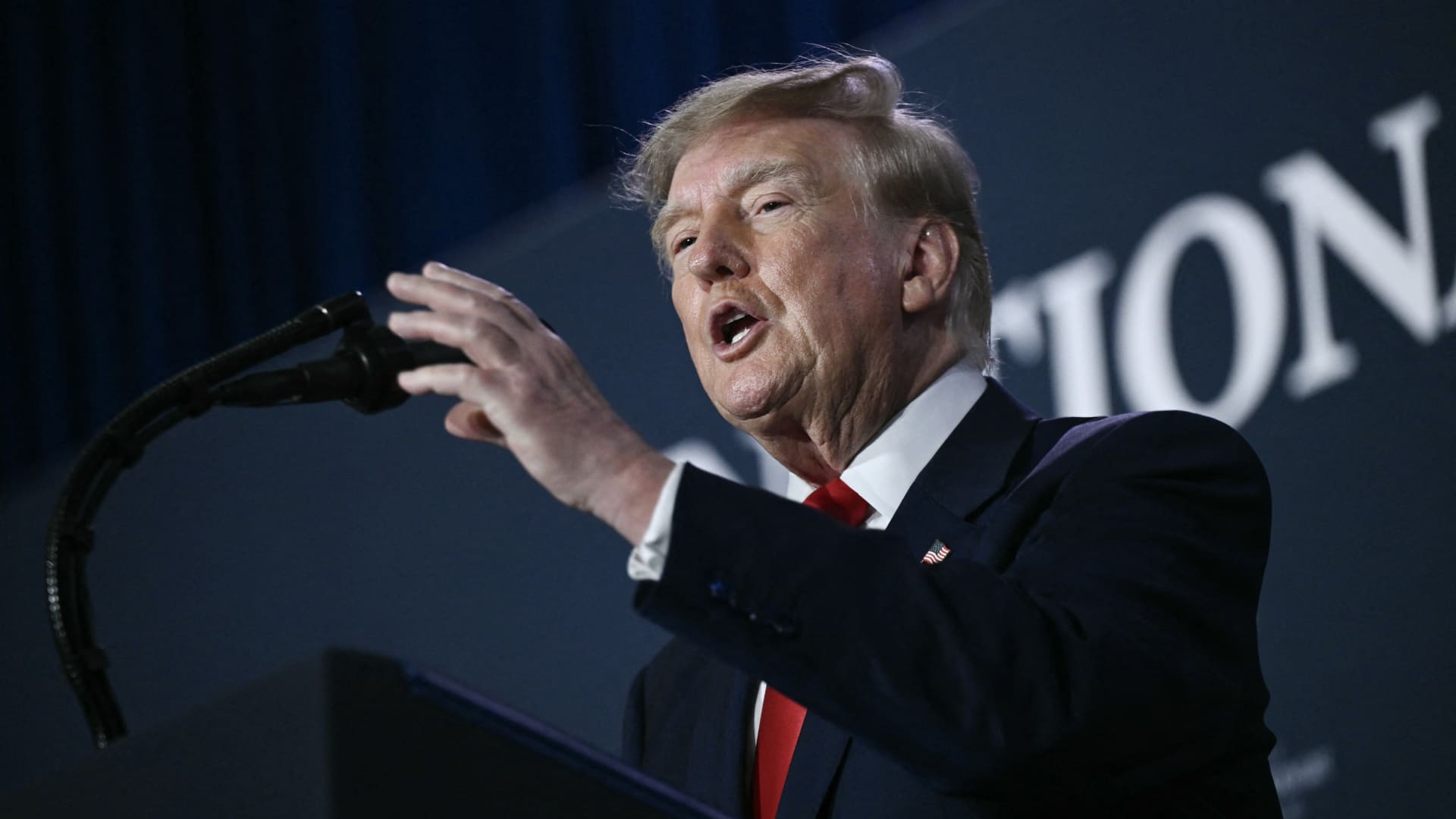
U.S. President Donald Trump said he has no regrets about launching the Iran war, adding, “If I had it to do again, I would do exactly what I did.”
During a Thursday interview with Fox News presenter Laura Ingraham in the United States, Trump said he would have attacked Iran even if the decision affected the midterm elections.
“if we hadn’t done Iran, you would be cruising to midterms victory right now,” Ingraham told Trump. Trump replied, “supposing we were cruising, and all of a sudden Iran has a nuclear weapon. They would use it.”
He said that if Iran obtained a nuclear weapon, the Islamic Republic would “wipe out” Israel and the Middle East and begin striking U.S. cities.
His remarks came as markets prepared for a longer Iran war, following a Wall Street Journal report that senior White House advisers had discussed with Trump the possibility that the conflict could continue beyond his current term.
Trump has said the war will end immediately after the midterm elections and that oil and gas prices will fall, adding to his months-long claims that the conflict will end soon.
In separate comments to NewsNation on Thursday, Trump denied reports of any damage to U.S. assets after Iran said it had hit multiple U.S. fighter aircraft at a base in Jordan.
“No damage. No nothing,” Trump said when asked whether the reports were true.
Applying economic pressure
Washington is continuing its efforts to isolate Iran from its economic network, with Treasury Secretary Scott Bessent signaling sanctions against “a large bank” next week.
“We’re going to do it on Monday because we want to honor the memory of our fallen citizens on 9/11. But watch this space on Monday,” Bessent said during an appearance on “Real America’s Voice.”
Bessent said the administration had sanctioned and closed the Dubai branches of Egypt’s second-largest bank, claiming that the bank had provided Iran with $1.8 billion. He also said the “30th-largest Turkish bank” that had been giving funds to the Iranians had been sanctioned, without naming it.
The U.S. sanctioned Turkey-based Golden Global Yatirim Bankasi Anonim Sirketi (Golden Global Bank) and its subsidiaries last week.
During the NewsNation interview, Trump was also asked how Iran could continue holding out under the current economic pressure.
“I don’t know that they’re gonna be able to hold out,” Trump said. “But it’ll get settled after the elections. Or maybe sooner. But it’ll get settled right after the election.”
Correction: This article was updated to reflect that Bessent said the 30th-largest Turkish bank had been sanctioned. An earlier version misstated the bank’s ranking.
-
 Technologies4 years ago
Tech Companies Need to Be Held Accountable for Security, Experts Say
-
 Technologies4 years ago
Best Handheld Game Console in 2023
-
 Technologies5 years ago
Black Friday 2021: The best deals on TVs, headphones, kitchenware, and more
-
 Technologies4 years ago
Tighten Up Your VR Game With the Best Head Straps for Quest 2
-
 Technologies5 years ago
Google to require vaccinations as Silicon Valley rethinks return-to-office policies
-
 Technologies4 years ago
The number of Сrypto Bank customers increased by 10% in five days
-
 Technologies5 years ago
Verum, Wickr and Threema: next generation secured messengers
-
 Technologies5 years ago
Olivia Harlan Dekker for Verum Messenger