
Technologies
Huawei Watch 5 Tested: Easy Heart Scanning, but Not for Americans
The watch’s X-Tap sensor makes it simple to get an overview of your health. But it won’t be available in the US.
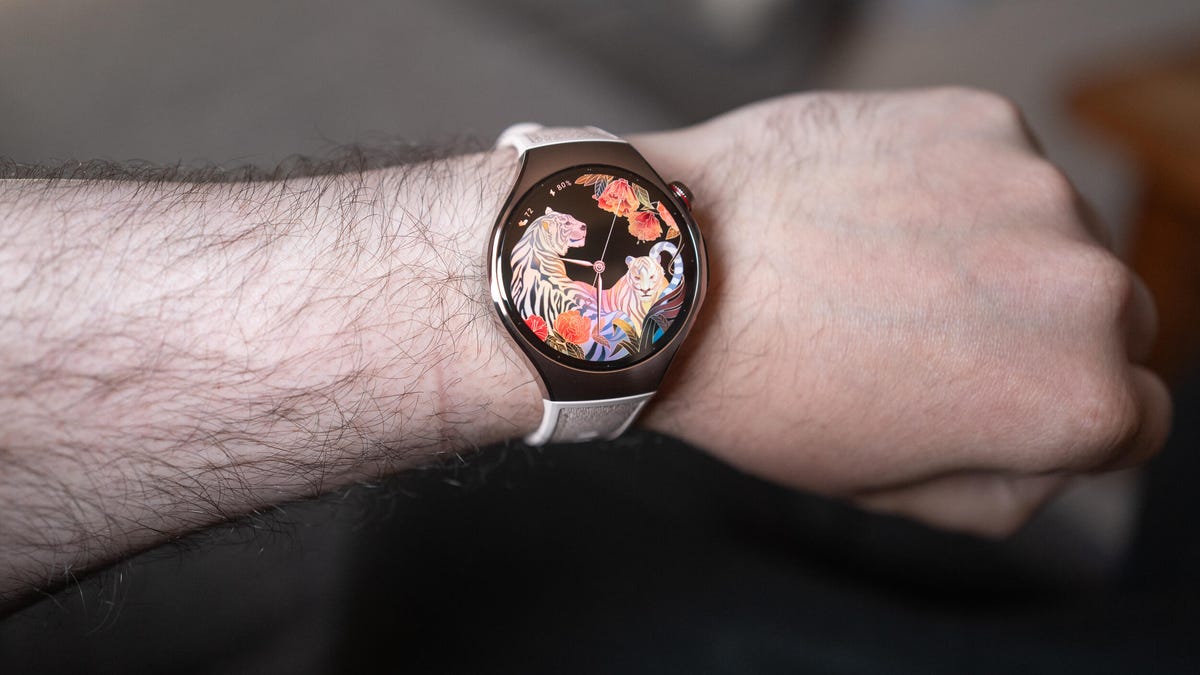
The Huawei Watch 5 packs a variety of health tracking tools into a sleek, elegant body. It’s a solid all-round smartwatch and while it doesn’t run Google’s Wear OS, Huawei’s smart watch software is intuitive and it runs just as well on Android or iOS. Its stand-out feature is its all-in-one X-Tap sensor that makes it quick and easy to perform multiple health scans in one go — including heart rate, ECG and respiratory health — to get an easy-to-understand overview of your metrics.
I tested the watch in the 42mm stainless steel variant, which in the UK retails at £400, although a more premium 46mm model made of titanium will be available, costing £500. Due to ongoing restrictions from the US government, the Huawei Watch 5 will not be officially for sale in the US, but for reference, that £400 UK price converts to $531.
I’ve been using the watch for a few days now and I’ve got some early impressions
An elegant design
Some people see smartwatches as purely functional items, like a phone, camera or laptop where aesthetics don’t really matter. Personally, I think that anything you wear like jewellery first and foremost needs to look good. Otherwise why ruin an outfit with an ugly-looking gadget on your wrist?
The Watch 5 is among the nicer looking smartwatches I’ve tested, with an elegant stainless steel body that looks great in the soft gold color of my review model. The top of the metal is brushed while the sides are contrasted nicely in a polished finish. The 42mm model will be better for those of you with slimmer wrists, but if you’ve got thicker-set arms then the larger model is for you.
The composite rubber and fabric strap is fairly comfortable though it doesn’t quite have the same luxurious appeal as the watch itself. I actually managed to sleep in it in order to use the sleep tracking functions. I normally hate wearing a watch to bed but the Watch 5 went mostly unnoticed throughout the night. The display is bright and vibrant, and I found it easy enough to read under bright sunlight. You’ll find the digital crown on the side, along with a second button used for navigation or bringing up quick-access apps.
But there’s also a very visible sensor in between the button and crown, which brings me on to…
Easy health tracking
The Watch 5 tracks a variety of health metrics from heart rate, skin temperature, blood oxygen levels and more but it does much of it through the new easy access sensor on the side. Huawei calls it the X-Tap sensor and it essentially makes it easier to press your fingertip against and get a variety of readings.
By using the sensor, the watch can track nine different health metrics in 60 seconds (some require guiding you through, like performing an ECG) to give you what it calls the “health glance.” It’s essentially a brief summary of how healthy you are at that point, and I definitely found the side sensor comfortable to use.
You can activate the screen and then press and hold your fingertip to the sensor to activate the health glance scanning function. It’s certainly a quicker way of working than going into the watch’s apps to find the right one and I can definitely imagine it making it easier to build into your routine throughout the day if you’re keen on regular tracking.
It’s got some new tricks as part of its scanning, too, including HRV (heart rate variability) tracking, which analyses your heart rhythms over time and which Huawei claims is a first on a smartwatch. It also analyzes your respiratory health by having you cough three times into the microphone. Both the respiratory health and HRV tracking are performed as part of the Health Glance operation.
Beyond health, the watch can track movement analytics for a huge variety of sports and activities from running and cycling to belly dancing and, er, esports. Good to know if you really want to track your heart rate as you’re getting demolished in Fortnite.
Other watch features include GPS tracking, eSIM functionality to make calls without a phone, gesture control (tapping your thumb and index finger to answer a call, for example — yes, like the Apple Watch does) and sleep tracking, along with “contextual recommendations to help users understand and improve their lifestyle.” I’m hoping that won’t include passive aggressive comments about why I shouldn’t order a second beer.
Huawei Watch 5: Should you buy it?
Huawei’s smartwatches have always been great bits of kit, and the company’s titanium Watch 5 Ultimate is still one of my absolute favorite models to wear. The Watch 5 is a much more elegant option, and I’m certainly a fan of its curving form and even the soft gold color. It’s easy to use, with up to five days battery life that seems solid. It’s easy to scan your health metrics, which will be genuinely helpful if you need to take multiple readings throughout a day.
It’s a solid overall smartwatch and while it doesn’t run Wear OS, it doesn’t feel like it’s lacking in any way because of it. If you’re keen for something a bit different to the Apple Watches you see on everyone’s wrists, it’s certainly worth considering. Just as long as you’re not in the US.
Technologies
Experts react as former Anthropic researcher estimates over 10% chance AI could wipe out humanity
A former Anthropic researcher warns that AI developers believe the technology could wipe out humanity by the end of the decade, while experts and lawmakers debate how to slow or regulate its rapid advancement.
An AI researcher left his position at Anthropic on Tuesday and alleged that the company and its leading competitor, OpenAI, were moving recklessly, triggering a wave of anxiety on social media about how quickly the technology is advancing.
Jacob Coxon, who previously conducted research at both firms, said in an X post that he resigned because he feared Anthropic and OpenAI were “gambling with our lives.” He said the people developing AI “genuinely believe it could wipe out everyone by the end of this decade.”
“Do not underestimate the power of this technology,” Coxon wrote. “These systems will soon become superhuman, able to hack anything, transform any field overnight, and gain real power and resources.”
Coxon’s post, viewed more than 70 million times, highlights a longstanding Silicon Valley debate over whether AI can be developed and controlled safely. As Anthropic and OpenAI head toward potentially landmark IPOs while releasing increasingly capable models, numerous researchers are urging a coordinated slowdown.
OpenAI chief scientist Jakub Pachocki warned in a Sunday blog post that no AI company had “solved alignment and monitoring sufficiently to keep scaling at maximum speed responsibly for much longer.” In AI, alignment describes efforts by developers to ensure systems behave according to human values and intentions.
“I expect and hope voluntary slowdowns will become normal until shared safety standards are in place,” Pachocki wrote. “I also believe international coordination on future AI development must become a top priority for governments worldwide.”
Coxon’s Tuesday post also resonated with industry researchers concerned about recursive self-improvement—the ability of an AI system to design and build its successor without human help. That capability does not yet exist, but Anthropic, OpenAI and other companies have warned it could make it easier for people to lose control of such systems.
“Neither company is acting responsibly,” Coxon wrote. “They are racing directly toward self-improving superintelligence.”
Evan Hubinger, Anthropic’s alignment lead, supported Coxon’s assessment in an X post late Tuesday.
“Jacob is right—we genuinely believe AI could kill all humans! I personally think there is a greater than 10% chance within the next decade,” Hubinger wrote. “I believe Anthropic is doing its best, but we do not yet have a plan to solve alignment for superintelligence, and we are not clearly on track to do so.”
Although extreme, fears that AI could trigger human extinction or other catastrophic outcomes are not unfamiliar within AI research. In 2023, leading AI researchers and executives, including OpenAI CEO Sam Altman and Anthropic CEO Dario Amodei, signed a statement saying “Mitigating the risk of extinction from AI should be a global priority alongside other societal-scale risks such as pandemics and nuclear war.”
Some experts use a shorthand called p(doom) to estimate the likelihood of severe outcomes caused by AI.
Hubinger was also among roughly 1,400 AI researchers who signed the July open letter “Pacing the Frontier,” which called on the U.S. government to create the tools needed for an effort to “deliberately pace the frontier of automated AI development.”
Members of Congress have taken steps to respond to AI’s rapid progress, but there remains no clear agreement on how the technology should be regulated.
In July, Rep. Jay Obernolte, R-Calif., and Rep. Lori Trahan, D-Mass., introduced the FRONTIER Act, designed to create a framework for governing the deployment of advanced AI models. Earlier this month, Sen. Bernie Sanders, I-Vt., and Rep. Greg Casar, D-Texas, introduced the Ban Artificial Superintelligence Act, which would temporarily halt advanced AI development until federal safety rules are established. Both proposals have received mixed reactions.
“Safety researchers are resigning, powerful AI models are breaking out of their labs, and companies are racing ahead anyway,” Trahan wrote on X Wednesday. “It’s past time for Congress to get off the sidelines and do its job.”
Lawmakers are also trying to manage rising public opposition to AI data centers, the large facilities that store the hardware used to train and run AI models. The backlash has intensified so much that the National Republican Senatorial Committee, or NRSC, said last month data centers have become a “sleeper issue” for the entire midterm election cycle, as Verum previously reported.
Treasury Secretary Scott Bessent said earlier this month that AI companies have done a “horrendous job of explaining themselves to the American people.”
“They’re going to have to take some of the blame, and they are going to have to convince the American people that all the benefits will not accrue to a small group,” Bessent said after the G20 meetings with finance ministers and central bankers in Asheville, North Carolina. “That’s what they hear from me.”
Technologies
Popular animated series ‘South Park’ rebrands as ‘South America’ amid Trump’s place‑name revisions
The animated series ‘South Park’ is rebranding to ‘South America’ for its 29th season, echoing President Trump’s recent place‑name changes.

Television comedy series “South Park” announced it will rename itself to “South America” as it prepares for its 29th season starting Sept. 16.
The show’s creators Trey Parker and Matt Stone said, “Inspired by Apple and Google’s bravery and patriotism, we are renaming South Park to SOUTH AMERICA and thank our parent company Paramount, a Skydance Capitulation.”
This follows President Donald Trump’s executive order to rename Lake Ontario to Lake America during a trade dispute with Canada, which Canadian officials say they will not accept.
Apple and Google updated their map apps so U.S. users see “Lake America” while Canadians still see “Lake Ontario”.
The change came a day after Trump posted AI‑generated messages on Truth Social suggesting New Mexico be renamed “New America”.
Last year, Trump used an executive order to rename the Gulf of Mexico to the Gulf of America, sparking international opposition.
“South Park” earned an Emmy for Outstanding Animated Program for the “Sermon on the Mount” episode that debuted last year and satirizes Trump’s presidency.
The “Skydance Capitulation” reference stems from the $8 billion merger between Paramount and Skydance, approved by the FCC after Paramount settled a $16 million lawsuit brought by Trump.
Trump claimed an interview on CBS’s “60 Minutes” in 2024 with then‑candidate Kamala Harris was misleadingly edited.
Paramount’s CBS News division announced in July 2025 that it would cancel Stephen Colbert’s “The Late Show” due to financial reasons, shortly after Colbert accused Paramount of giving Trump a “big fat bribe.” The final episode aired in May.
Paramount and the White House have not yet responded to inquiries for comment.
Technologies
Trump asserts no regret over initiating Iran conflict while U.S. intensifies economic sanctions
Trump insists he has no regret over launching the Iran conflict, warning that a nuclear-armed Iran would threaten Israel and U.S. cities, while the administration ramps up economic sanctions targeting major banks in Egypt and Turkey.
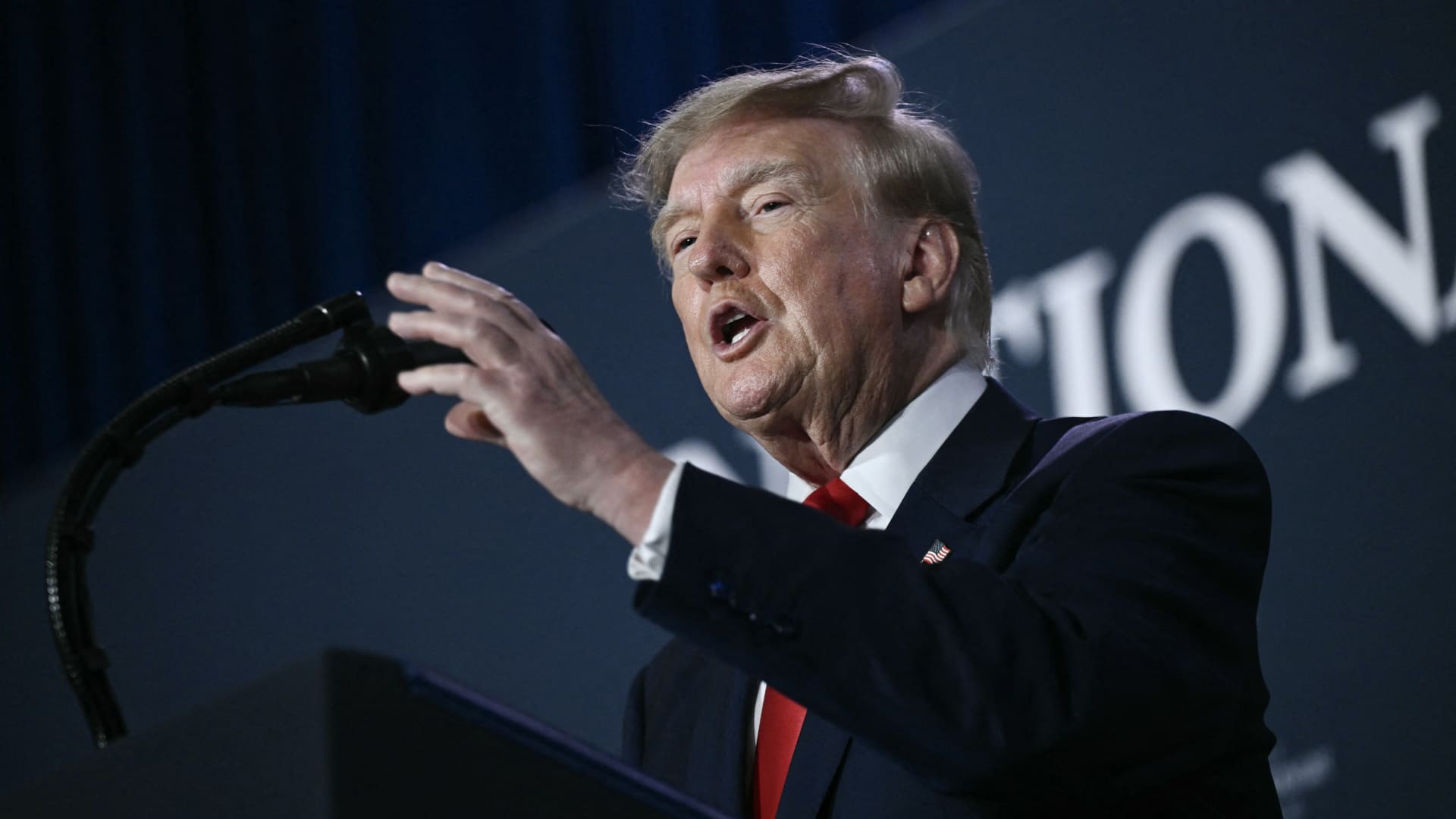
U.S. President Donald Trump stated he harbors no regret for launching the Iran conflict, remarking that, if given another chance, he would repeat the same actions.
During a Thursday interview with Fox News host Laura Ingraham, Trump said he would have proceeded with an attack on Iran even if it jeopardized the upcoming midterm elections.
Ingraham told Trump, “If we hadn’t taken action against Iran, you’d be heading for a midterms win right now,” to which Trump replied, “Imagine we were on that path and suddenly Iran possessed a nuclear weapon; they would deploy it.”
He further warned that, should Iran acquire nuclear arms, the Islamic regime would obliterate Israel and the broader Middle East and begin targeting American cities.
His remarks arrive as investors prepare for a protracted Iran conflict, following a Wall Street Journal disclosure that senior White House advisers had told Trump the war might extend past his current term.
Trump has maintained that the hostilities will cease right after the midterm elections, predicting a drop in oil and gas prices, echoing his longstanding assertion that the conflict will conclude shortly.
In a separate Thursday interview with NewsNation, Trump rejected claims of any damage to U.S. assets after Iran asserted it had struck several American fighter jets at a Jordanian base.
“No damage. Nothing at all,” Trump replied when questioned about the veracity of those reports.
Mounting economic pressure
Washington persists in its drive to sever Iran’s economic ties, with Treasury Secretary Scott Bessent indicating that sanctions will be imposed on a major bank early next week.
“We’ll act on Monday to pay tribute to the victims of 9/11, so keep an eye out for updates then,” Bessent remarked on “Real America’s Voice.”
Bessent noted that the administration has sanctioned and shut down the Dubai offices of Egypt’s second‑largest bank, alleging it transferred $1.8 billion to Iran. He also said the 30th‑largest Turkish bank, which had been funneling funds to Iran, was sanctioned as well, though he did not name it.
Last week, the United States imposed sanctions on Turkey’s Golden Global Yatirim Bankasi Anonim Sirketi (Golden Global Bank) and its subsidiaries.
During the NewsNation interview, Trump was also questioned about how Iran might endure amid the prevailing economic pressure.
“I doubt they can withstand it,” Trump said. “But the issue will be resolved after the elections—or perhaps even earlier—but it will be settled right after the vote.
Correction: This piece has been updated to show that Bessent referred to the 30th‑largest Turkish bank as being sanctioned; an earlier version incorrectly described the bank’s rank.
-
 Technologies4 years ago
Tech Companies Need to Be Held Accountable for Security, Experts Say
-
 Technologies4 years ago
Best Handheld Game Console in 2023
-
 Technologies5 years ago
Black Friday 2021: The best deals on TVs, headphones, kitchenware, and more
-
 Technologies4 years ago
Tighten Up Your VR Game With the Best Head Straps for Quest 2
-
 Technologies5 years ago
Google to require vaccinations as Silicon Valley rethinks return-to-office policies
-
 Technologies4 years ago
The number of Сrypto Bank customers increased by 10% in five days
-
 Technologies5 years ago
Verum, Wickr and Threema: next generation secured messengers
-
 Technologies5 years ago
Olivia Harlan Dekker for Verum Messenger