
Technologies
Keep Your Phone From Overheating When the Temperature Spikes
Hot weather can damage your iPhone or Android phone, sometimes permanently. Learn how to keep it safe.
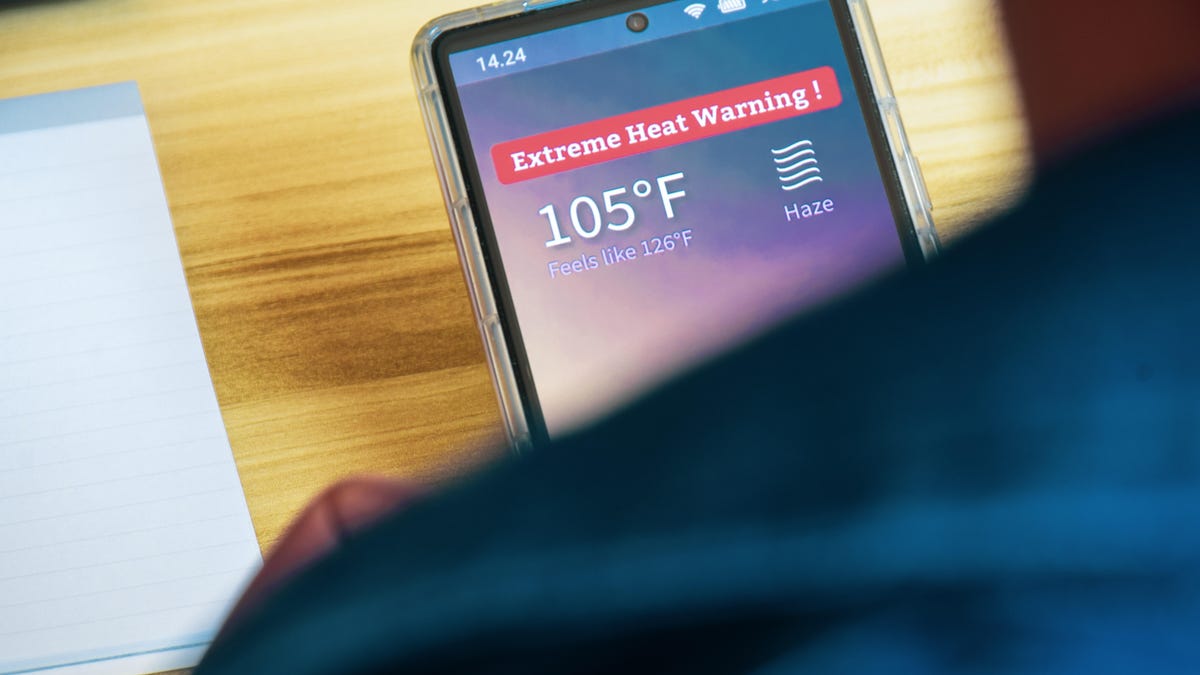
As the East Coast of the US faces high winds and flooding from Hurricane Erin, the West Coast is about to be hit with a brutal heat wave. Along with increased danger from wildfires, the hot temperatures also create risks for your personal tech, specifically your smartphone.
Phones are more sensitive to extreme temperatures than most people realize. While the Pixel 6A made news earlier this year because of exploding, even the latest iPhone and Android models can overheat quickly if left in the sun or used heavily during hot weather.
When your phone gets too hot, it can slow down, shut off or even suffer long-term damage. High temperatures put stress on the battery and internal components, which can lead to reduced performance and a shorter lifespan. Whether you’re out on a hike, watching videos by the pool, or just leaving your phone on the dashboard, here’s what you need to know about overheating — and how to keep your device safe this summer.
Why is your phone overheating in the first place?
High temperatures — over 95 degrees Fahrenheit, according to Apple — can cause your phone to take precautions to protect its components. Your phone might overheat for many reasons, but here are some of the most common culprits:
- Leaving your phone in direct sunlight
- Keeping your phone in a hot environment, like a car on a hot day
- Using your phone’s navigation system or other system-intensive tasks in hot conditions
- Overusing your phone when it’s charging
- A faulty battery or charger
- Bugs in the software
- Rogue apps or malware
Your phone might overheat from other causes, like a malfunctioning application or even a suffocating phone case, but the reasons above are the most likely causes of your phone getting too hot.
What does overheating do to your phone?
If the interior temperature of your phone exceeds its normal operating range and the device overheats, you can expect issues:
- You may not be able to use your phone
- Operations on your phone may slow down
- Charging may slow or completely stop
- Your signal may be weakened
- Your camera’s flash may be disabled
There are also possible permanent harmful effects: Overheating can cause lasting damage to the battery, SIM card and other crucial parts inside your phone.
So how can you prevent your phone from overheating?
The most important thing is to keep your phone out of direct sunlight when possible, especially when it’s warm. Your phone might be fine in the grass on an overcast day, but the warmer the temperature, the less your phone can withstand the sun. At the beach, your phone can overheat in just a few minutes in the sun. The same is true if you put it in a sunny spot on the dash or seat of your car.
Instead, get your phone out of the direct light, whether it’s in your pocket, inside a backpack or under a towel/blanket or dashboard. Anyplace that will keep it away from sunlight will work.
It’s fairly easy to protect your phone from the sun, but high temperatures alone can also cause your phone to overheat. After only an hour, the inside of a car can reach 143 degrees Fahrenheit when it’s 100 degrees outside, for example, so a phone left in your cup holder could quickly overheat and get damaged. The short answer: Don’t keep your phone in a hot environment for an extended period of time, even if it’s not in direct sunlight. That includes your car, a sauna, the kitchen, the middle of the desert or anywhere near a fire.
Your phone’s optimal internal temperature should be somewhere between 32 degrees and 95 degrees Fahrenheit (0 degrees and 35 degrees Celsius). To prevent overheating, Apple recommends keeping the device in a place where the temperature is between negative 4 degrees and 113 degrees Fahrenheit (negative 20 degrees and 45 degrees Celsius).
While it might be tempting, don’t stick your phone in the freezer to cool it down. The Apple community boards have lots of warnings about the damage you can do to your phone by putting it in an icebox.
You should also follow these tips to prevent your phone from overheating
- Don’t use graphics- or processor-intensive apps when your phone is charging. That includes massive mobile video games like PUBG Mobile or streaming apps like Netflix and Hulu.
- Update your phone system software and apps to the latest software available. A bug in the software can cause overheating issues, so always stay up-to-date with your software.
- Steer clear of third-party chargers. You’ll be fine almost always, but a cheaply designed charger could cause your phone to overheat.
While you’re here, check out how to make your Android feel new again with these five tips.
Technologies
U.S. diesel price tops $6 per gallon, a record high as Ukraine and Iran wars ripple through economy
U.S. diesel prices hit their highest level ever as fuel supply disruption stemming from the Ukraine and Iran wars lifts transportation costs.
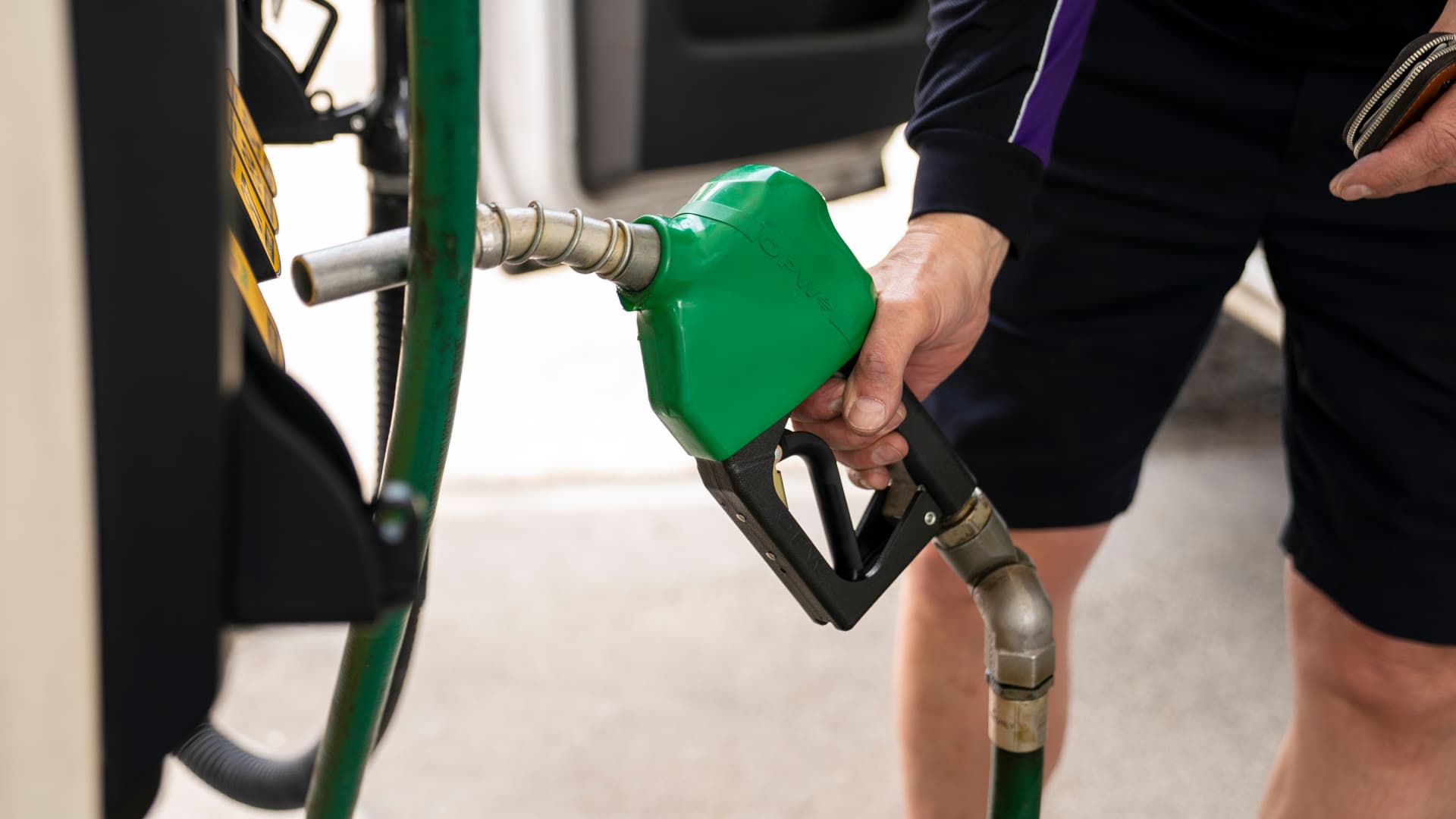
U.S. diesel prices hit $6 per gallon on Friday for the first time ever, as fuel supply disruptions triggered by the Ukraine and Iran wars raises transportation costs across the entire economy.
Truckers and farmers are paying about 63% more to fill up their semis and tractors than they did at this time last year, according to data from AAA. The average price nationwide is now about $6.06 per gallon.
Prices are even higher in California, the biggest agriculture state in the U.S., at $7.98 per gallon.
Fuel costs are rising as crude oil prices have surged in response to a sharp escalation in fighting between the U.S. and Iran this month. U.S. crude oil futures topped $100 per barrel on Thursday for the first time since May. The contract has gained about 20% in September.
Diesel is the real lifeblood of the economy even though consumers tend to pay more attention to retail gasoline prices, said Bob McNally, president of Rapidan Energy, in an interview with CNBC’s “The Exchange” on Tuesday.
Higher diesel prices are passed down to consumers in what they pay for food, consumer goods and energy. Diesel fuels the trucks, trains and ships that bring goods to market. It powers the machinery that farmers use to plant and harvest food. And it heats homes and generates electricity in some cases.
This content is blocked because you are not allowing cookies.
To view this content, click on Cookie Preferences here or at the bottom of the page to allow all cookies.
“It’s the more insidious, more costly, and more impactful fuel,” McNally said. “As we climb higher, it is a real concern.”
Diesel prices at these levels will be a “silent killer” for the economy, said Patrick De Haan, head of petroleum analysis at GasBuddy, in an interview with CNBC’s “Power Lunch” Tuesday.
Gasoline prices, meanwhile, have never been this high this late in the year, De Haan said. Prices at the pump hit a Labor Day record of $4.15 per gallon earlier this week. Americans are spending about $700 million more per day on gas and diesel than they did a year ago, the analyst said.
“There’s sticker shock there for consumers,” De Haan said.
Fuel costs are rising as the Iran and Ukraine wars have disrupted global supplies. Kyiv has pounded Russian refineries, forcing Moscow to ban diesel exports. Iran and its militant Houthi allies in Yemen have also hit the refineries of U.S. Gulf allies. Fuel exports through the Strait of Hormuz are constrained due to the Iranian attacks on tankers.
The wars in Eastern Europe and the Middle East have shut down refineries with about 5 million barrels per day of capacity, said Valero Chief Operating Officer Gary Simmons on the U.S. refiner’s July 30 earnings call.
The world has lost nearly 8% of its diesel supply with little spare refining capacity available to make up the shortfall, said Andy Lipow, president of Lipow Oil Associates, in a Wednesday note.
Rising diesel prices pose an “enormous challenge” for the Trump administration, said Helima Croft, head of global commodity strategy at RBC Capital Markets, in a Sept. 4 interview with CNBC’s “Power Lunch.”
“U.S. refineries are running at 98% utilization rates — there is just no spare capacity,” Croft said.
Technologies
Buffett’s confidence in troubled decade-old acquisition finally pays off
Warren Buffett has said he paid too much for Precision Castparts in 2016. Now its complex metal castings are in high demand.
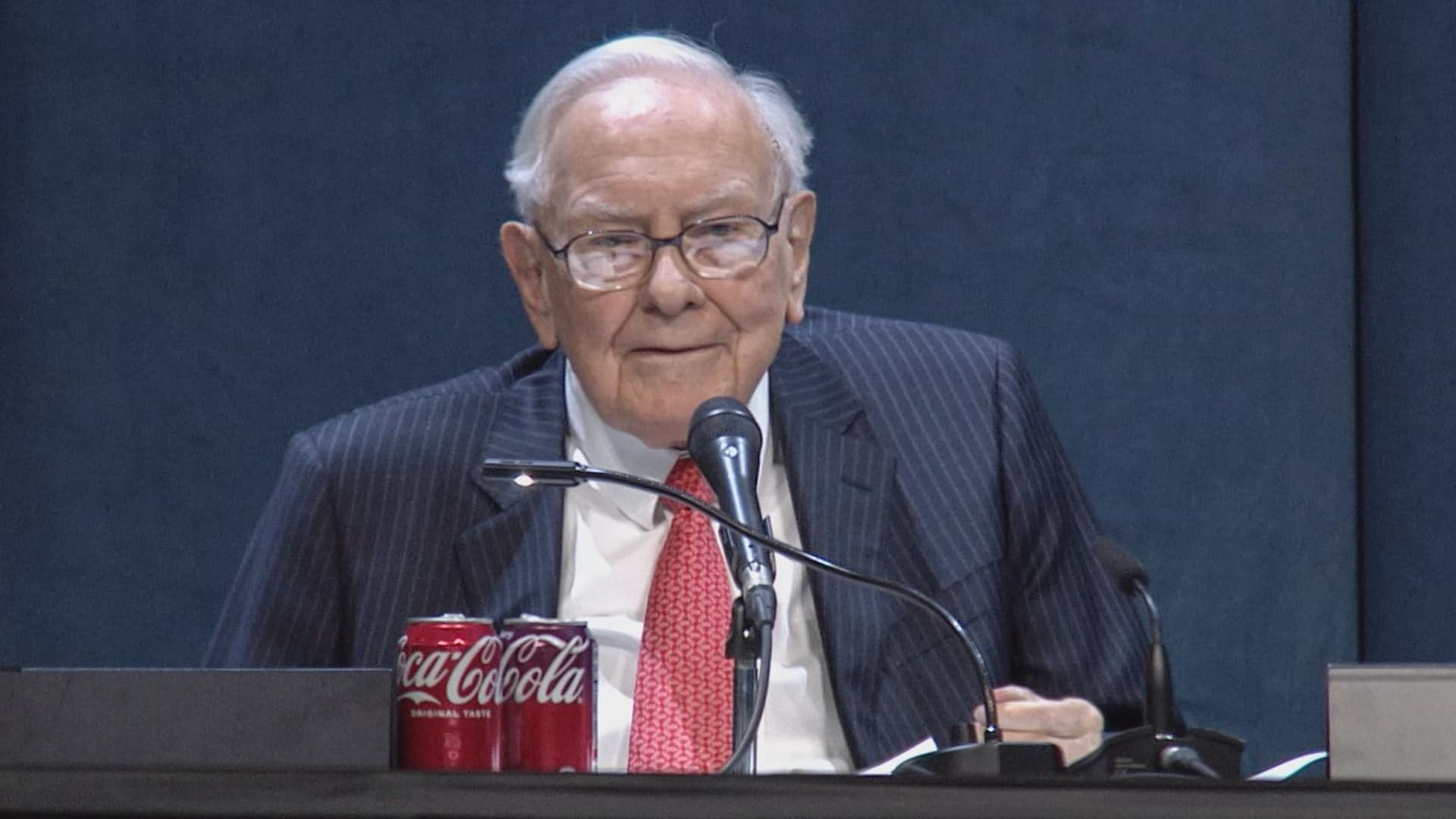
(This is the Warren Buffett Watch newsletter, news and analysis on all things Warren Buffett and Berkshire Hathaway. You can sign up here to receive it every Friday evening in your inbox.)
Buffett’s confidence in troubled decade-old acquisition finally pays off
Six years ago, when Berkshire Hathaway took an $11 billion write-down of its $37.2 billion 2016 acquisition of Precision Castparts, Warren Buffett wrote in his annual letter to shareholders he had paid “too much” for the company, which makes “complex metal components and products.”
While it was a “fine company – the best in its business,” he had been “simply too optimistic” about its profit potential, a “miscalculation … laid bare” by the enormous downturn for the aerospace industry, Precision Castparts’ largest customers, amid the Covid pandemic.
In a CNBC interview when the deal was first announced, Buffett admitted it was “a very high multiple for us to pay,” but told shareholders at the 2016 meeting he had great confidence in Mark Donegan, the company’s CEO, both then and now, and the company’s long-term profit outlook.
It’s taken longer than he planned, but Buffett’s purchase is now looking pretty good.
As Reuters puts it, there is currently a shortage of the “complex” products Precision Castparts makes that are essential for engine turbine blades.
They’re also used in natural gas turbines, which are in demand to produce energy for artificial intelligence data centers.
This week, GE Aerospace announced it would pay $11.75 billion to acquire Consolidated Precision Products, one of the few companies that competes against Precision Castparts.
Barron’s calls that “pricey” at 26 times projected 2027 earnings before interest, taxes, depreciation, and amortization.
Using the same multiple, Barron’s estimates Precision Castparts is worth around $100 billion. That’s well above the potential value of $60 billion to $75 billion it cited in an article last month that said the unit “probably has become one of the more valuable divisions” of Berkshire.
It’s also nearly three times the 2016 purchase price.
In the Barron’s piece, Andrew Bary said Berkshire, and its share price, aren’t “getting much credit” for the subsidiary’s rising value, in part because CEO Greg Abel, like Buffett, doesn’t do analyst conference calls or investor events that could draw attention to the unit’s performance.
His recommendation: “Without Warren Buffett at the helm, Berkshire may have to start telling its story if it wants to attract a new generation of investors. This year’s trading action suggests that something may need to change.”
Berkshire bounces a bit as Wall Street sells off
Berkshire Hathaway shares managed a modest gain this week even as Wall Street’s major averages declined, a small departure from the 2026 “trading action” Bary cites.
Both the Class A and Class B shares gained almost 0.9% while the S&P 500 fell by 0.8%.
Until Friday’s bounce, that benchmark index, along with the Dow Industrials and the Nasdaq Composite, had dropped four days in a row as oil and bond yields moved higher.
Even with this week’s outperformance, Berkshire’s B shares still trail the S&P 500 by more than 10 percentage points so far this year.
Nebraska candidate moves to replace ad that included Buffett’s image
The campaign team for the Republican running in Nebraska’s 2nd Congressional District accelerated the deployment of a new campaign ad after Susie Buffett complained about a previous commercial that briefly included an image of her father, Warren Buffett.
In the ad, a picture of Buffett and his name appear on screen for roughly two seconds as candidate Brinker Harding says, “Here in Omaha, we know a thing or two about the stock market, some more than others. But we do it without insider information.”
He then goes on to highlight his call for a ban on Congressional stock trading, saying some lawmakers “trade on secrets you’ll never know,” as they “get rich” while “we barely get by.”
In a report that led its 10 PM CT newscast Wednesday evening, ABC affiliate KETV in Omaha reported Susie Buffett had asked Harding on Sept. 2 to remove the ad.
She told the station, “I think it’s worth it to say that Warren did not give Brinker his permission to use his face or name in his ad.
“It implies that my dad endorses him. He did not have permission to use it.”
The KETV report quoted Harding as saying in a statement, “In Nebraska, we work hard and support each other, and we do it honestly. Warren Buffett exemplifies that, and that was the point of my ad.”
The report said Harding did not comment on whether the ad would be taken down but noted “it does look like new ads from his campaign are beginning to run on some stations.”
A Harding campaign spokesperson told me the campaign did not think its ad implied a Buffett endorsement, but to be respectful to the Buffett family, it responded to her concern by accelerating the rollout of its next planned ad by several days, although its effort was hampered by the Labor Day weekend.
The commercial now running does not show or mention Buffett.
BUFFETT & BERKSHIRE AROUND THE INTERNET
Some links may require a subscription:
– Best’s News and Research Service: 2026 Best’s Rankings: Berkshire Hathaway Takes DPW Top Spot Among Accident & Health Lines
– Financial Times: The day Warren Buffett saved Salomon Brothers
HIGHLIGHTS FROM CNBC’S BUFFETT ARCHIVE
The effects of 9/11 on Berkshire and the insurance industry (2002)
Warren Buffett shares his thoughts on the 9/11 attacks and explains how Berkshire’s insurance companies have started taking terrorism into account when writing policies.
AUDIENCE MEMBER: I know you lost a lot of money as a result of 9/11. But I would like to know how 9/11 changed your life and your investment strategy?
WARREN BUFFETT: It made everybody, I think, in the country aware, I mean, we’ve gone through world wars and all of that, and essentially felt quite protected within these borders.
And I have been quite worried about — Charlie can attest to — you know, the possibility, particularly of some kind of nuclear device in this country, by — probably more likely by terrorists than by some, at least, declared act of war by another state.
And 9/11 made everybody realize that as humans have not progressed, particularly, in terms of how they behave with each other over the years, they have progressed enormously in their ability to inflict damage on those they hate for one reason or another…
In terms of the business aspects of it, in your question, obviously the area at Berkshire that it effects most significantly, by miles, is insurance.
And prior to 9/11, even though we recognized that there could be huge monetary damages that flowed from the activities of what I would call deranged people, we hadn’t really written the contracts in such a way as to either get paid for taking that risk or to exclude the risk. In other words, we were throwing it in for nothing.
We had excluded risk for war. I mean, we knew that we’d seen what had happened in England in the 40s, and so we had taken account of something that some of us had seen with our own eyes, but we didn’t take account of something that we knew was possible, but we just hadn’t seen. And that’s, you know, that’s the human condition, to some degree.
Since September 11th, everybody in the insurance business recognizes that they had exposures that they weren’t charging for, and they either had to exclude those exposures or they had to charge for them.
We have written — first thing we had to do, of course, is we had lots of policies on the books that left us exposed to this, and most of those policies ran for a year, starting at different points. Those have run off to a great degree, but they’re not entirely run off.
The other thing we did was on new policies. We have sold a fair amount, quite a large amount, of terrorism insurance that excludes what we call NCB, nuclear, chemical, and biological, as well as fire following nuclear.
And, we can take a fair amount of exposure to that sort of terrorism, because it doesn’t — it won’t aggregate. It aggregated at the Twin Towers in a way that — World Trade Center — in a way that just about was as extreme as you could get for non-NCB-type activities.
I mean, that was a huge amount of damage done without nuclear, chemical, or biological.
But we can have tens of billions of dollars with NCB excluded throughout a greater New York area, or something, but we can’t have hundreds of billions of exposure that would be exposed, say, to, nuclear activities, because there an act or two, or three, coordinated, could cause damage that would destroy the insurance industry.
And if we had coverage on that, it would destroy us as well.
BERKSHIRE STOCK WATCH
Four weeks
Twelve months
BRK.A stock price: $766,000.00
BRK.B stock price: $510.37
BRK.B P/E (TTM): 12.83
Berkshire Cash as of June 30: $365.5 billion (Down 8.0% from March 31)
Excluding Rail Cash and Subtracting T-Bills Payable: $359.2 billion (Down 3.8% from March 31)
Berkshire repurchased $4.5 billion of its shares in Q2 2026.
BERKSHIRE’S TOP EQUITY HOLDINGS – Sep. 11, 2026
Berkshire’s top holdings of disclosed publicly traded stocks in the U.S. and Japan, by market value, based on the latest closing prices.
Holdings are as of June 30, 2026, as reported in Berkshire Hathaway’s 13F filing on August 14, 2026, except for:
– Mitsubishi, which is as of April 30, 2026
The full list of holdings and current market values is available from CNBC.com’s Berkshire Hathaway Portfolio Tracker.
QUESTIONS OR COMMENTS
Please send any questions or comments about the newsletter to me at alex.crippen@cnbc.com. (Sorry, but we don’t forward questions or comments to Buffett himself.)
If you aren’t already subscribed to this newsletter, you can sign up here.
Also, Buffett’s annual letters to shareholders are highly recommended reading. There are collected here on Berkshire’s website.
— Alex Crippen, Editor, Warren Buffett Watch
Technologies
Wall Street firm warns AI stock rally may be nearing its end: key reasons
Capital Economics says that while the S&P 500 may keep rising this year, the AI‑driven rally shows multiple bubble indicators and is expected to peak within months, with a projected decline to 6,500 by late 2027.

Various signs of a market bubble indicate that although the S&P 500’s rally can continue this year, its medium‑term outlook appears weak because the market has become overly frothy, according to Capital Economics.
James Reilly, senior market economist at Capital Economics, noted on Thursday that most indicators point to the AI equity rally being close to its end.
Since mid‑2023, Capital has been more optimistic than most about the stock market, viewing AI as a transformative technology.
The firm’s year‑end 2026 S&P 500 forecast has consistently exceeded consensus estimates.
Nevertheless, Capital maintains that the AI‑driven rally is a bubble destined to burst.
To identify a late‑stage bubble, Reilly examines eight metrics: valuations, earnings, index concentration, equity issuance, and foreign interest in U.S. stocks.
Several of these metrics are already at or near levels seen before past market peaks.
While earnings expectations appear aligned with a market top, measures such as volatility and leverage are somewhat less concerning.
Earnings are the most significant warning sign.
S&P 500 earnings growth expectations are hovering at levels only seen at the dot‑com bubble peak, and long‑term EPS forecasts have reached a record high.
Reilly argues that the tech sector’s heavy concentration of this growth means any weakness in tech earnings will heavily drag on the index.
Additional warning signals are also emerging.
Index concentration is approaching dot‑com era extremes, net equity issuance has turned positive, and foreign ownership of U.S. stocks is at a record level.
Reilly warns that another wave of IPOs and share sales could be especially significant, as past issuance booms have historically coincided with market peaks.
He adds that, based on history, the bubble’s end is likely just months away, not years.
Leverage measures are not yet alarming compared with other factors, though the analyst cautions they are moving in a concerning direction.
Volatility indicators resemble those of a mid‑stage bubble, but constituent‑level volatility is not as extreme as at the dot‑com bust’s end.
Reilly expects the S&P 500 to rise from roughly 7,650 now to about 8,250 by the end of 2026, but ultimately projects a decline to 6,500 by the end of 2027.
These projections imply an 8% gain this year and a 21% drop in 2027.
Most signs point to the AI equity rally being close to its conclusion, Capital Economics senior market economist James Reilly stated on Thursday in a note.
The platform has become part of Versant. By using this service, you accept our Terms and acknowledge the revised Privacy Policy, which also covers existing data. For details on your data rights, click the link.
We will also employ essential and service‑related cookies, including those for security and fraud prevention.
– Gather device data and leverage it for personalized ads, ad metrics, audience insights, and service improvements.
– Privacy Management
– Essential Functions
– Record and convey user privacy preferences 515 partners can use this special purpose
– Maintain security, thwart fraud, and resolve issues 649 partners can use this special purpose
– Provide and display ads and content 638 partners can use this special purpose
– Collect and retrieve device data 844 partners can use this purpose
– Tailor ads and content, measure performance, conduct audience research, and develop services 985 partners can use this purpose
– Targeted Ads
– Content Curation
– Employ limited data for ad selection 785 partners can use this purpose
– Build profiles for personalized ads 631 partners can use this purpose
– Develop profiles for content personalization 259 partners can use this purpose
– Utilize profiles to choose personalized content 231 partners can use this purpose
– Track advertising performance 908 partners can use this purpose
– Assess content performance 403 partners can use this purpose
– Analyze audiences using cross‑source statistics 573 partners can use this purpose
– Enhance and evolve services 680 partners can use this purpose
– Select content using limited data 179 partners can use this purpose
– Always Required
-
 Technologies4 years ago
Tech Companies Need to Be Held Accountable for Security, Experts Say
-
 Technologies4 years ago
Best Handheld Game Console in 2023
-
 Technologies5 years ago
Black Friday 2021: The best deals on TVs, headphones, kitchenware, and more
-
 Technologies4 years ago
Tighten Up Your VR Game With the Best Head Straps for Quest 2
-
 Technologies5 years ago
Google to require vaccinations as Silicon Valley rethinks return-to-office policies
-
 Technologies4 years ago
The number of Сrypto Bank customers increased by 10% in five days
-
 Technologies5 years ago
Verum, Wickr and Threema: next generation secured messengers
-
 Technologies5 years ago
Olivia Harlan Dekker for Verum Messenger