

Technologies
Upgrade Your Apple Watch the Right Way to Avoid These Common Mistakes
A step-by-step guide to unpairing an old Apple Watch and setting up your new one.

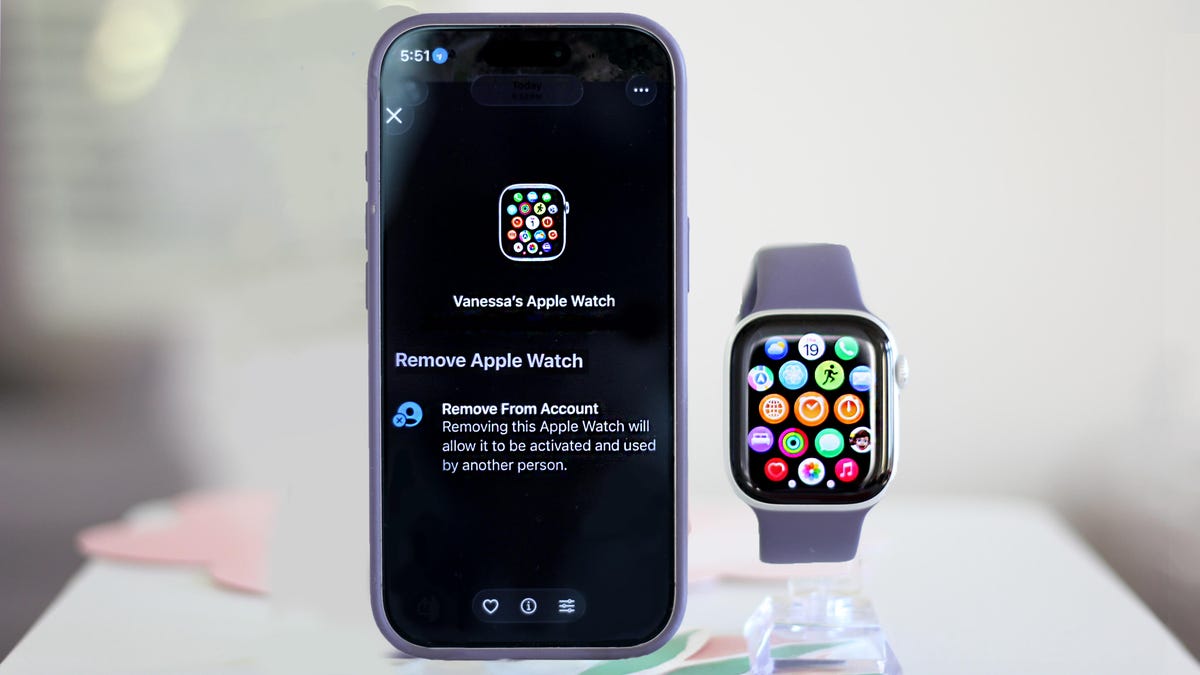
It’s out with the old and in with your shiny new Apple Watch. One of the biggest perks of staying within the Apple ecosystem is how seamless switching between devices is. While pairing a new Apple Watch is truly simple, unpairing your old watch can trip people up. Skip a step, and you might not fully release the old one, potentially locking out the next owner. Learn from my mistakes on this one and review your options before you begin. Before you get started on your new Apple Watch, there are a few things we need to take care of on your old watch.
Unintended bonus: if you’ve been having connectivity issues, going through these steps might fix those, too.
First: Back up your data
Your Apple Watch backs up automatically to your iPhone whenever both devices are on, paired and in range. It also backs up automatically if you use Method 1 below. The backup includes app settings, watch face customizations, Health and Fitness data, and apps.
Method 1: The right way (requires both your watch and iPhone)
There are three ways to unpair your Apple Watch, but this one’s the best, especially if you’re passing the watch along to someone else. All of them will require your watch to have at least 50% battery, so you might want a charger nearby just in case.
Method 1 backs up your watch, removes your content, unpairs the device and clears Activation Lock in one go.
Open the Watch app on your iPhone and tap All Watches at the top. Find your watch, tap the i icon, and then scroll down to Unpair Apple Watch.
If you have a cellular model with an active plan, you’ll be asked whether to keep or remove it. Only keep the plan if you’re pairing this same watch to your phone again. Otherwise, remove it, then set up the plan on your new watch during its setup.
Tap Unpair again to confirm, then enter your Apple ID password. You’ll see an Unpairing Apple Watch message on your phone and a spinning wheel on your watch. Then wait patiently until it’s unpaired. The watch will reboot and show the Apple logo when it’s done.
While you wait, you can confirm that the smartwatch is off your account by opening the Find My app on your phone and checking that said watch is nowhere to be seen on the device list. If it’s gone, you’re fully clear.
Method 2: If you don’t have your watch with you
You can also unpair it remotely in iCloud if you forgot to unpair before handing it off to someone else, or if it was lost or stolen.
To do so, log in to the iCloud website on your desktop and open the Find My app (bottom left). You can also do this from the same app on your phone. Locate your Apple Watch in your device list, click on it, scroll down and press Erase, then Next. Enter your Apple ID password to confirm. While you’ll no longer be able to track it, you can leave a callback number and a message on the screen in case someone finds it and powers it back on.
Method 3 (last resort): Resetting directly on the watch
Only use this if you don’t have your paired iPhone on hand. On your watch, go to Settings, then General, then scroll down to Erase All Content and Settings.
This will wipe the watch and restore factory settings, but it won’t create a backup, and it won’t remove Activation Lock. This means whoever you’re giving the watch to will still need your Apple ID password to activate it, or you’ll need to remove it remotely after the fact using Method 2.
Pairing your new Apple Watch
Now it’s time to unpack your new Apple smartwatch. Make sure both your new watch and iPhone are nearby and in range of each other. Most new Apple Watches come with at least 50% charge, but have the charger handy just in case.
Press and hold the side button to turn the watch on. You’ll see the Apple logo, and a pairing screen should automatically pop up on your iPhone. Tap Continue. Now choose whether you’re setting this up for yourself or a family member. If you don’t see it, open the Watch app on the iPhone and tap Start Pairing. It’s easiest if the watch is already on your wrist.
A circle of swirling blue specks will appear on your watch screen. Hold your iPhone up to it so the watch is in the camera viewfinder, and the two devices will do their thing.
Tap Set Up Apple Watch and follow the prompts. At this point, you can restore a backup from your previous watch.
If you can’t use the camera, tap Pair Apple Watch Manually at the bottom of your screen. When the blue particle pattern appears, tap the Info (the letter I) icon on your watch to get a six-digit code. Type it into your iPhone when prompted, and your smartwatch will be fully paired.
Activate cellular service
Once setup is complete, activate cellular if your watch supports it and you want to transfer your account, or set one up (assuming your carrier supports it). You can also skip this step and keep it to Wi-Fi only, even if you have a cellular model of the watch.
Technologies
Nintendo’s $20 Switch 2 Upgrade for Super Mario Wonder Is Worth It for the Extras
Commentary: Super Mario Bros. Wonder’s Bellabel Park DLC is here this week, but it’s more about lots of chaotic multiplayer minigames than new courses.
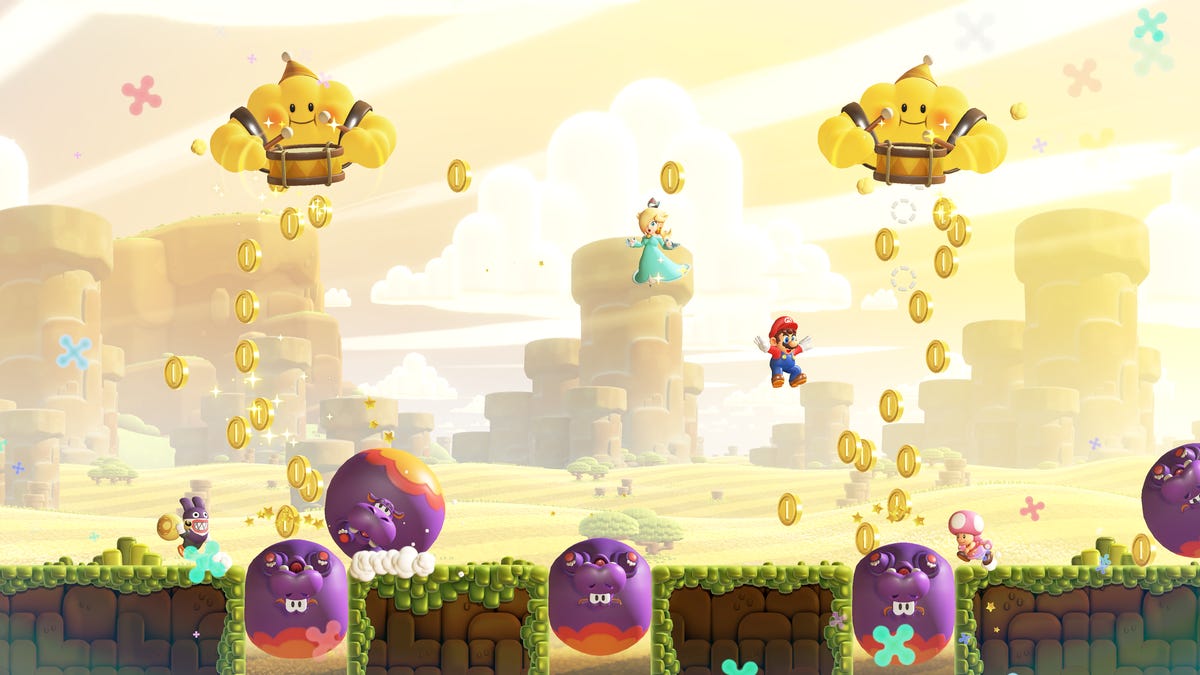
I want a new Super Mario Bros. Switch 2 game as much as anyone, but almost a year into the console’s first year, it hasn’t happened yet. Mario Kart? Mario Tennis? Mario Party? Yes. New Yoshi game? That’s happening soon, too. And now, we have the next closest thing: The wonderful 2023 Super Mario Bros. Wonder has a Switch 2 downloadable-content pack for $20 that’s, well, sort of a new Mario game, just a week before the Super Mario Galaxy movie arrives in theaters.
I’ve been playing it for the past week, and it’s worth the upgrade if you like multiplayer Mario. If not, well, you might consider it anyway.
The awkwardly named «Super Mario Bros. Wonder — Nintendo Switch 2 Edition + Meetup in Bellabel Park» is an add-on to Wonder, but it’s really just focused on building out a whole bunch of multiplayer party modes. The new course variants and minigame challenges, while welcome, require online multiplayer or local multiplayer play to work. For most of this new Switch 2 update, you can’t play offline on your own.
The multiplayer games cover dozens of challenges and themes — some turning everyone into bouncy balls, others making everyone rush to collect the most coins. You can throw up to four players locally on the Switch 2 at home or up to 12 players online at once, and it gets busy fast. I can see screaming breaking out with kids.
I played an hour or so of multiplayer sessions, and it was fun. But I haven’t gotten to play with lots of others online yet other than that. Still, it does feel sort of like Mario Party Super Mario Style, as opposed to Super Mario Bros. game extensions.
The DLC does have some extras you can still enjoy on your own. Seven new miniboss stages have been added into the game, featuring all of the Koopalings to take on. They’re the extended universe of Mario enemies, and each of the levels has the miniboss use a strange new power to melt the world in clever ways.
A new Toad Brigade Training Camp mode also offers up dozens of little challenge stages to beat, all remixes of existing Wonder levels. Some involve surviving without touching enemies or coins; some you have to defeat all enemies or collect all coins before time runs out. They’re addictive and hard, and I’m glad for them existing.
Nintendo also tried to add some fun extras: Bellabel park has lots of flowers you can collect by watering plants with «Bellabel water» you collect by completing tasks. And you can decorate parts of the park. It’s sort of neither here nor there for me, though, because I come to Mario platformer games to play fun levels, not decorate gardens. Pokemon Pokopia is the place for that.
Rosalina and a Luma Star are extra characters you can play with, but Rosalina doesn’t do anything truly new and the Luma Star is a co-op option. There’s also a weird Flower power-up now that turns you into a walking flowerpot, throwing flowers upward to attack enemies or hit blocks. It was OK. It’s not my favorite new extra.
Maybe that’s what feels missing here: Wonder threw all sorts of wildcards out into the game, from new enemies to strange Wonder Seeds that transformed levels. Bellabel Park feels more like a multiplayer-focused remix than a bunch of new single-player whimsy.
I like the multiplayer games on tap more than I liked the Switch 2 add-on for Mario Party Jamboree. They’re probably worth it if you’re a Switch 2 owner with a big family or lots of friends who want to play.
And even though I appreciate the resolution boost to the graphics, the Switch 2 graphics upgrade is hard to spot since the game’s «older» graphics have a retro look that still looked great before the upgrade (to me, at least).
What I really want, of course, is a truly new Mario game. Who doesn’t? That’s not on the table yet. But maybe, just maybe, Wonder’s Switch 2 pack is a little appetizer before that news eventually comes. But as revamped Switch 2 game editions go, Wonder’s extras are the best yet and turn this game into a truly multiplayer-rich bunch of fun.
Technologies
Verum Finance — the future of digital payments
Verum Finance — the future of digital payments

Virtual Verum Finance cards can be linked to Apple Pay and Google Pay, giving users seamless access to in-store payments, online shopping, hotel bookings, flight purchases, and more worldwide.
The cards work globally, enabling payments without geographic limitations while providing a high level of security and full control directly within the app.
Issuing a card takes just a few minutes and does not require switching to third-party services — the entire process is handled within Verum Messenger.
Users get a unified solution for communication and finance: from messaging to managing payments and digital assets in one application.
Download Verum Messenger, get your Verum Finance card, and start using it today.
Technologies
These Nothing ANC Headphones Just Hit Their All-Time New Low Price of $69
Amazon is selling all three colors at this special price during its Big Spring Sale event.
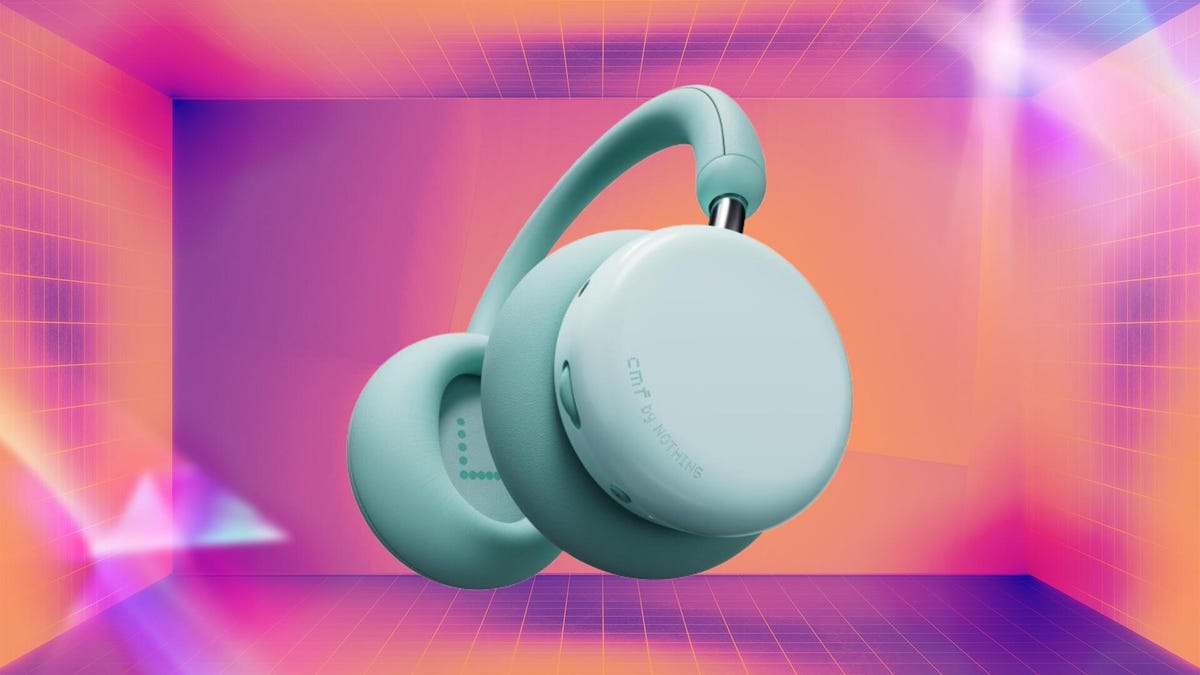
There’s never been a better time to treat yourself to the CMF by Nothing Headphone Pro, with the Amazon Big Spring Sale slashing its price to an all-time low of just $69. That’s a full $30 off, and you can even choose from all three colors when placing your order as well.
The catch? This deal is unlikely to last for long and that means you risk missing out if you don’t act fast. The better news is that you don’t need to do anything special — no discount codes to enter, no on-page coupons to clip. And if you’re an Amazon Prime member, you could even get your new ANC headphones today with same-day shipping.
Price aside, there’s a lot to like about these relatively inexpensive headphones. There’s support for active noise cancellation technology, which makes these a great option for commuters and office workers alike. And with up to 50 hours of battery life per charge, you won’t be reaching for the cable all that often.
Other features well worth calling out include memory foam ear pads for a more comfortable fit as well as a slider for adjusting the bass and treble of the audio. A custom EQ, low-latency mode and support for connecting to multiple devices without repairing round out the most notable features.
Not sure that these headphones are the ones for you? We’ve been tracking all of the best Big Spring Sale headphone deals so you can choose the right one for your needs.
HEADPHONE DEALS OF THE WEEK
-
$248 (save $152)
-
$170 (save $181)
-
$398 (save $62)
-
$200 (save $250)
Why this deal matters
A good pair of headphones can make a world of difference, especially if you’re looking to drown out the noise in a busy office or crank up the volume and listen to your favorite album. This deal represents the best price we’ve seen these particular headphones sell for, so now is definitely the time to get an order in.
-
 Technologies3 года ago
Tech Companies Need to Be Held Accountable for Security, Experts Say
-
 Technologies3 года ago
Best Handheld Game Console in 2023
-
 Technologies3 года ago
Tighten Up Your VR Game With the Best Head Straps for Quest 2
-
 Technologies4 года ago
Black Friday 2021: The best deals on TVs, headphones, kitchenware, and more
-
 Technologies5 лет ago
Google to require vaccinations as Silicon Valley rethinks return-to-office policies
-
 Technologies5 лет ago
Verum, Wickr and Threema: next generation secured messengers
-
 Technologies4 года ago
Olivia Harlan Dekker for Verum Messenger
-
 Technologies4 года ago
The number of Сrypto Bank customers increased by 10% in five days


