

Technologies
Give Your Phone Photos a Warm, Dreamy Analog Film Look With These 3 Tricks
Whether you have the latest iPhone or Samsung phone, or even an older handset, you can take some beautiful nostalgic images with a bit of help. Here’s how.

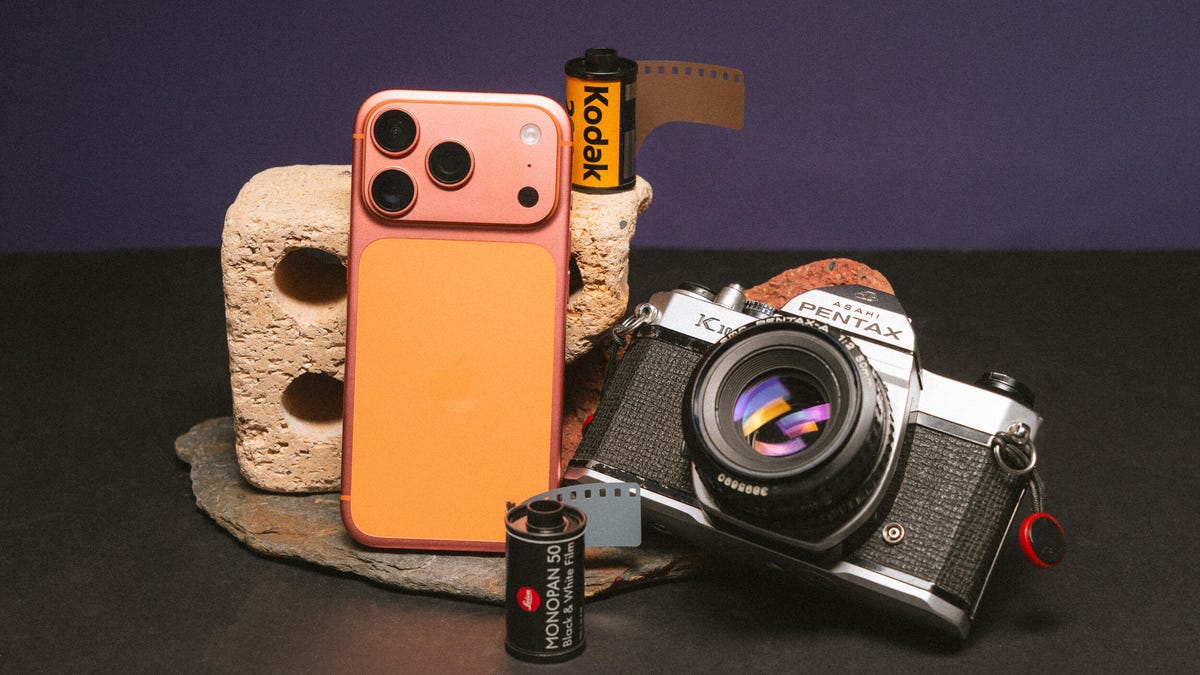
The nostalgic film look for photos has become wildly popular on social media in the past few years. Whether that’s a response to generative AI fakes or simply that warm pastel tones and realistic film grain are in fashion isn’t clear. But while many photographers — myself included — have turned to analog cameras loaded with rolls of Kodak, you can get those dreamy film vibes using just your phone.
And the best thing is, it doesn’t even require you to have the latest iPhone or Android phone, or even specialized camera apps. The goal is to achieve a more retro, old-school feel from your images rather than the clinical accuracy offered by most of today’s phone cameras or even compact digital cameras. So it’s not about having the phone with the most megapixels or the fanciest features.
You can transform your photos with little more than your phone’s default camera app and a few minutes in a free editing app. Let’s dive in and get shooting.
Taking your photos
While most of today’s phone cameras can take vibrant, well-exposed images, they all rely on image processing software to squeeze the most out of their relatively tiny image sensors. Unfortunately, it’s not always done effectively, with many phones going overboard on the processing, resulting in fake-looking images with unnatural-looking highlights and shadows and crunchy details.
This process aims to strip back some of that digital oversharpening and HDR toning to produce an image that’s closer in feel to what you might expect to get from a real film camera. There’s a lot you can do to help that.
The first approach harkens back to traditional photography: use a physical filter in front of the camera lens. Specifically, a mist filter can soften harsh details while also adding a natural ‘bloom’ to highlights, which can add to the filmic vibe we’re trying to achieve.
I use mist filters in most of my photography, especially PolarPro’s CineGold filter, which adds a warm glow to images, and the CineBlack which subtly deepens shadows while adding highlight bloom. I use these with my Leica Q3 43 but they work just the same on your phone — you just need an adapter like Moment’s QuickLock filter mount that lets you slap any 63mm threaded photo filter onto your phone. PolarPro does make filters specifically for the iPhone (seen above) but my advice would be to buy regular circular threaded filters that you can use on any phone or camera.
Moment also makes various lenses that can clip to your phone and I like the effect they give, too. While they’re optically quite sharp, they do add a certain natural degradation (including softening of some harsh details and some optical aberration) to the image that again just helps reduce that oversharpened digital look.
I typically shoot using ProRaw on the iPhone or in DNG raw on most Android phones to give me the most flexibility in editing (as well as bypassing much of the auto sharpening many phones will apply in the default mode), but you can get great results just using default settings in your camera.
I do find I get the best results when I slightly over-expose the image (usually by tapping and pulling up the brightness slider). Many film stocks — including Kodak Gold and Portra 400 — often look their best when shot in bright outdoor scenes (think a California beach or an alpine mountain top under bright skies) so leaning into a brighter look when taking your image can be helpful when you’re at the editing stage. And by shooting in raw, there’s enough dynamic range to work with so I’m not blowing out the brightest areas of the image to white.
Otherwise it’s down to you to take a good photo that you then want to give a nice filmic flair to. Remember to concentrate on capturing a good photo in the moment, rather than just snapping away and hoping to pull back something usable later using editing. If you’re keen to really take your phone photography skills further, I have a tutorial for you that will help.
Using your phone’s built-in presets
Most phones offer presets that change the look of your images. Apple’s Photographic Styles in recent iPhones allow you to switch up the colors and saturation in your photos before and after taking them. If you just want to play with colors in your images then it’s a good starting point but I wouldn’t say that any of them especially look like analog film. (And Photographic Styles only work when you’re shooting in HEIF or JPEG, not ProRaw.)
Samsung’s My Filter tool allows you to essentially steal the color tones from other images. While I sometimes find the results a bit underwhelming, I have had some success with it, especially when I use the built-in editing tools on top of this to add film grain and adjust the colors further.
Other phones — including the Xiaomi 15 Ultra and OnePlus 15 — also come with various looks baked into the phone. They’re certainly worth experimenting with, although most of my success in creating a film look comes from editing apps rather than from the phone itself.
Edit your phone photos to look like film
When I’m editing, I’m not trying to mimic a particular film stock like Kodak Gold or CineStill 800T. Instead, I’m just trying to achieve what feels like an authentically vintage film aesthetic.
There are numerous apps on the iOS App store and the Google Play store that offer various film simulations and vintage effects. Personally, I’ve not found many that I especially like but some particular one are worth highlighting.
First is VSCO, which has a long history of producing a variety of filmic styles that the company says are based on real film stocks. I’ve used VSCO’s desktop presets for many years and they’re certainly some of the best around, so if you want a fast way of slapping a film look over your image, VSCO is worth a look — although you’ll need to pay a subscription to access the whole collection.
Next is Adobe Lightroom, which remains a photography industry staple and works just as well on phones as it does on desktop computers. While you can edit your images in an infinite number of ways to create the look you want, to save some time a huge variety of presets are available that you can install that will give you instant access to beautiful colors in just one tap.
Moment has its own store jammed with preset packs that can be used in Lightroom, bringing filmic vibes to images taken with your phone or with any digital camera. They can be pricey extras but they’re well worth experimenting with if you take your photography more seriously. The aforementioned VSCO has just released its own pack of Lightroom filmic presets, available for all paid subscribers to download and install. I’ve used them and while they’re designed to work with ‘regular’ cameras from Canon, Leica etc., I’ve still had good results when using them on ProRaw iPhone images, including on the image of the fence above.
But my personal suggestion, especially if you don’t want to shell out any cash, is to use Google’s app Snapseed. It’s free on Android and iOS, and has a whole suite of advanced photo editing tools, including numerous film looks, with some that directly aim to mimic real film stocks. I like swiping through the looks, testing each one out to see how it feels with my image before applying it.
I’ll also apply quite a heavy amount of grain to simulate the natural grain seen in analog film, which also helps reduce the digital sharpness. I’ll also go into the Details tool and reduce the structure and ensure sharpening is set to 0. Other things in Snapseed that can add to the effect using the Dehaze tool to reduce sharpness, the Adjust tool to reduce Ambience and add a touch blur with the Lens Blur tool.
I love using Snapseed, because I can go back to different tools and layer the effect again and again, resulting in a photo with a color style that’s uniquely my own. It’s one of the most well-rounded photo editors out there and it’s amazing that it’s free.
Editing in this way really comes down to what I feel has the right ‘vibes’ rather than it being color matched to how Kodak or Fujifilm renders different colors. It’s all about personal preference here so I encourage you to play around as much as you want to find what looks best to you.
Technologies
Today’s NYT Mini Crossword Answers for Tuesday, Feb. 24
Here are the answers for The New York Times Mini Crossword for Feb. 24.
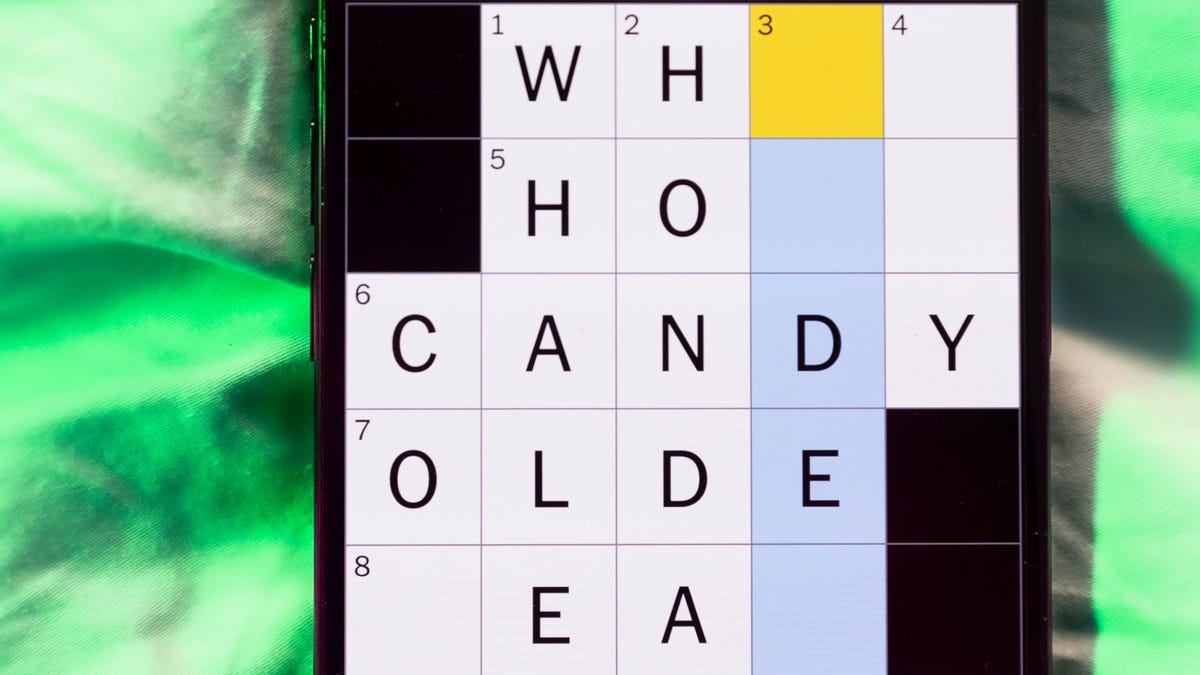
Looking for the most recent Mini Crossword answer? Click here for today’s Mini Crossword hints, as well as our daily answers and hints for The New York Times Wordle, Strands, Connections and Connections: Sports Edition puzzles.
Need some help with today’s Mini Crossword? I thought 5-Down was very tricky, and not really representative of the clue, either. Read on for all the answers. And if you could use some hints and guidance for daily solving, check out our Mini Crossword tips.
If you’re looking for today’s Wordle, Connections, Connections: Sports Edition and Strands answers, you can visit CNET’s NYT puzzle hints page.
Read more: Tips and Tricks for Solving The New York Times Mini Crossword
Let’s get to those Mini Crossword clues and answers.
Mini across clues and answers
1A clue: Goosebumps-inducing
Answer: SCARY
6A clue: Buddy, informally
Answer: HOMIE
7A clue: Rub off, as pencil markings
Answer: ERASE
8A clue: Enjoys a quiet weekend morning, perhaps
Answer: LAZES
9A clue: David Szalay novel that won the 2025 Booker Prize
Answer: FLESH
Mini down clues and answers
1D clue: Section of a bookcase
Answer: SHELF
2D clue: Color similar to salmon that’s also named for a sea creature
Answer: CORAL
3D clue: Leave speechless
Answer: AMAZE
4D clue: Gets out of bed
Answer: RISES
5D clue: «Uff-da!»
Answer: YEESH
Technologies
This AI Tool Doesn’t Help With Homework. It Does It for You
Einstein is a new AI tool that can watch lecture videos, read essays, write papers, complete quizzes and basically take your class for you.

A new AI tool called Einstein is pushing the boundaries of what automation in education looks like. Created by the startup Companion, Einstein does more than generate answers to homework questions. It logs directly into a student’s Canvas account and completes coursework on the student’s behalf.
According to its creators, Einstein operates through its own virtual computer. It can open a browser, navigate class pages, watch lecture videos, read PDFs and essays, write papers, complete quizzes and post replies in discussion boards. Once connected to a student’s account, the system can monitor deadlines and automatically submit assignments.
Unlike chatbots that respond when prompted, Einstein functions more like a digital stand-in for a human student. After setup, it can run in the background with little ongoing input.
«Students are already using AI. We’re just giving them a better version of it,» Companion CEO Advait Paliwal said in a statement.
Read more: ‘Machines Can’t Think for You.’ How Learning Is Changing in the Age of AI
How Einstein works
Einstein connects to Canvas, a widely used learning-management system in colleges and high schools. From there, it reviews course materials and identifies assigned tasks. The AI can analyze lecture recordings, summarize readings and generate written work that matches the assignment requirements.
The company says the system produces original essays with citations and context-aware discussion posts. It can also track new announcements and upcoming deadlines. In practice, this means a student could enroll in an online course and let Einstein handle much — if not all — of the required work.
The technology builds on advances in generative AI, browser automation and so-called autonomous agents that can take multistep actions on behalf of their human counterpart. While many students already use AI tools to brainstorm ideas or check grammar, Einstein moves beyond assistance into complete automation.
«Our companions aren’t simple chatbots,» Paliwal said. «Each one has access to an entire virtual computer with a persistent file system and internet access, so they can actually do things on your behalf. This makes ChatGPT look like a toy.»
A crossroads for academic integrity?
The release of Einstein comes at a time when schools are still adapting to widespread AI use. Since the arrival of powerful language models, educators have debated how to distinguish legitimate support from academic dishonesty. Most policies focus on whether students are using AI to help draft or edit their work, or do it entirely for them.
Einstein complicates that conversation.
If an AI logs in as a student and completes assignments independently, the question shifts from assistance to substitution. Is the tool essentially taking the student’s place?
Not all in education are sounding the alarm, though.
«I think the Canvas method of teaching already has a proclivity for cheating. This change, I think, will ultimately be good because it will force educators to redesign classes to not rely on virtual assignments,» said Nicholas DiMaggio, a PhD student at The University of Chicago Booth School of Business and teaching assistant for a course in consumer behavior this quarter.
DiMaggio said that this may prompt institutions to emphasize in-person work, oral exams or project-based learning instead. Beyond this one tool, schools will have to decide whether to ban such tools outright, integrate them under strict guidelines or rethink how learning is measured in the age of AI.
Read more: How to Use AI to Get Better Grades — Without Cheating
Technologies
Today’s NYT Strands Hints, Answers and Help for Feb. 24 #723
Here are hints and answers for the NYT Strands puzzle for Feb. 24, No. 723.
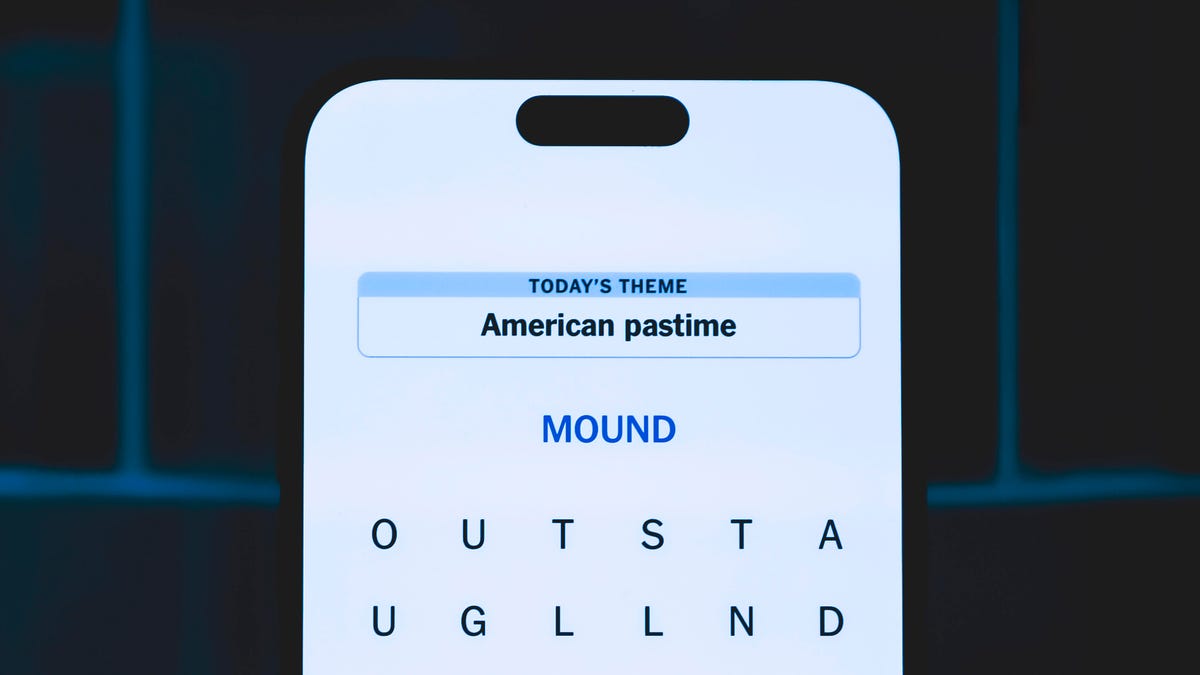
Looking for the most recent Strands answer? Click here for our daily Strands hints, as well as our daily answers and hints for The New York Times Mini Crossword, Wordle, Connections and Connections: Sports Edition puzzles.
Today’s NYT Strands puzzle is a fun one, and there are only four answers, though some of them are quite long. Some of the answers are difficult to unscramble, so if you need hints and answers, read on.
I go into depth about the rules for Strands in this story.
If you’re looking for today’s Wordle, Connections and Mini Crossword answers, you can visit CNET’s NYT puzzle hints page.
Read more: NYT Connections Turns 1: These Are the 5 Toughest Puzzles So Far
Hint for today’s Strands puzzle
Today’s Strands theme is: Just for reference.
If that doesn’t help you, here’s a clue: Like Wikipedia.
Clue words to unlock in-game hints
Your goal is to find hidden words that fit the puzzle’s theme. If you’re stuck, find any words you can. Every time you find three words of four letters or more, Strands will reveal one of the theme words. These are the words I used to get those hints but any words of four or more letters that you find will work:
- CLOP, TREAT, SHARD, PATE, PATES, DOOR, ROOD, ROOT, DIRECT
Answers for today’s Strands puzzle
These are the answers that tie into the theme. The goal of the puzzle is to find them all, including the spangram, a theme word that reaches from one side of the puzzle to the other. When you have all of them (I originally thought there were always eight but learned that the number can vary), every letter on the board will be used. Here are the nonspangram answers:
- DICTIONARY, THESAURUS, ENCYCLOPEDIA, DIRECTORY
Today’s Strands spangram
Today’s Strands spangram is LOOKITUP. To find it, start with the L that’s the last letter on the farthest vertical row to the left, and wind up.
Don’t miss any of our unbiased tech content and lab-based reviews. Add CNET as a preferred Google source.
-
 Technologies3 года ago
Tech Companies Need to Be Held Accountable for Security, Experts Say
-
 Technologies3 года ago
Best Handheld Game Console in 2023
-
 Technologies3 года ago
Tighten Up Your VR Game With the Best Head Straps for Quest 2
-
 Technologies4 года ago
Black Friday 2021: The best deals on TVs, headphones, kitchenware, and more
-
 Technologies5 лет ago
Google to require vaccinations as Silicon Valley rethinks return-to-office policies
-
 Technologies5 лет ago
Verum, Wickr and Threema: next generation secured messengers
-
 Technologies4 года ago
Olivia Harlan Dekker for Verum Messenger
-
 Technologies4 года ago
iPhone 13 event: How to watch Apple’s big announcement tomorrow


