

Technologies
If You’re Attending a Protest, Here’s How to Be Smart With Your Phone
Digital surveillance of your phone data poses a significant risk in any setting, particularly during demonstrations.


Your mobile phone is one of the most powerful tools you can bring to a protest, but it can also be one of your biggest vulnerabilities. This year has seen mass demonstrations across the US, particularly against aggressive immigration enforcement and the use of force by federal and local authorities — including the fatal shootings of Renee Good and Alex Pretti in Minneapolis — where protesters have used their phones to record video, document abuses and communicate with one another.
Phone data and use are increasingly being targeted by police and government agencies. Phones are also tracking devices that can be intercepted to monitor locations, match identities and surveil text messages (the FBI has threatened to investigate encrypted Signal chats, too). While the safest move is to leave your phone at home, that’s not always practical.
If you want to secure your phone’s data, limit your digital footprint and protect your privacy while exercising your constitutional rights, here are some steps you can take.
If you plan to protest or serve as a legal observer, here’s some advice from the American Civil Liberties Union and Amnesty International.
Make sure strong encryption is enabled
Your phone contains all sorts of information about you: your contacts, work address, photos, social media accounts, emails, stored financial information, etc. If your phone is confiscated, lost or stolen, you don’t want to make it easy for someone to grab that data.
As a first step, make sure your device is securely encrypted. Most iPhones and Android phones encrypt data automatically when you set a passcode. Make sure it’s a strong passcode (8-12 random characters).
On Android, go to Settings > Security & Privacy > Device Unlock > Screen lock (or similar, depending on which device you own).
On iOS, go to Settings > Face ID (or Touch ID) & Passcode and tap Turn Passcode On.
You can double-check that encryption is enabled after you’ve set a passcode. In iOS, go to Settings > Face ID & Passcode, then scroll to the bottom, where you should see the phrase «Data protection is enabled.»
In Android, head to Settings > Security & Privacy > More Security & Privacy (or similar, depending on your device), and look for an «Encryption & Credentials» line or similar that should confirm data is encrypted.
Turn off location settings
Location services allows apps and services to grab the phone’s location through GPS. Switching this off blocks that data from being accessed. You’ll find it in the Privacy & Security settings on the iPhone and in the Location settings on Android.
Turning off location services also prevents location data from being saved to any photos you take. You can also manually prevent photos you shot from including location information in their metadata, typically located in the camera app or within your phone’s settings.
In iOS, head to Settings > Privacy & Security > Location Services > Camera to toggle location metadata on or off.
On most Android phones, you can disable location data for photos right in the camera app. Open the camera, tap the settings icon, and look for Save Location (or a variation of that: Store Location Data, Location Tags), and turn it off.
Turn off scan-to-unlock and touch-to-unlock features
Biometrics make it easier to unlock your phone and provide security during everyday use, but if your phone is confiscated by law enforcement, they might try to compel you to unlock it using facial recognition or fingerprint readers.
This is a legal area that’s still being worked out, according to the Electronic Frontier Foundation, which states in its guide for attending protests, «using a memorized passcode generally provides a stronger legal footing to push back against a court order of compelled device unlocking/decryption.»
On an iPhone, go to Settings > Face ID (or Touch ID) & Passcode and turn off iPhone Unlock.
On Android, look for fingerprint or face unlock options in Settings > Security & Privacy or Lock Screen settings.
Quickly disable biometrics in the moment
What if you forgot to disable biometrics and you’re confronted with someone who tries to compel you to use them? There’s a quick workaround that forces you to use the passcode, even without resetting your phone (all phones require you to reenter your passcode upon reboot).
On an Android device, hold the power button and either the volume-up or volume-down button (depending on your device) and select Lockdown. You may need to specify that the Lockdown option appears. On a Samsung Galaxy phone, for instance, in the Lock screen and AOD > Secure lock settings, turn on the Show Lockdown mode option.
On an iPhone, hold the Sleep/Wake and Volume Up buttons for a second until you see the power, medical ID and Emergency SOS options. Then tap Cancel. The next unlock will require your passcode.
Remember that if you use this option, the biometrics are disabled only until the phone is next unlocked with the passcode. In a protest environment, it’s better to disable the biometrics as described above.
Turn off Bluetooth
Bluetooth, the short-range networking feature, is more commonly used to send music and podcasts to wireless headphones or communicate with smart devices like watches and fitness trackers. But it also reaches out to locators like Apple AirTags and checks for other nearby items.
Turn off cellular data when you’re not using it
Your phone sends and receives a lot of data in the background — such as checking for updates, sending and receiving text messages, and receiving app notifications — which requires it to maintain constant chatter with nearby cellular towers. That traffic can identify your approximate location or show that you (or at least your phone) were present at a protest later. (Note that turning off cellular data will interfere with any encrypted communications you may be using.)
While you’re disabling cellular data, you should also disable Wi-Fi. Not only can connecting to Wi-Fi networks reveal your location, but it’s also a battery drain, especially in high-density areas where there are a lot of networks.
Leave your phone at home, or get a burner phone
If you leave your phone at home, you won’t need to worry about all these settings. Another option is to get a prepaid burner phone to use only at the protest and then turn it off before you go home (so it cannot be traced back to you).
Don’t forget about other devices
Your phone might not be the only thing tracking you. Your smartwatch may connect to cellular networks or store location data, and portable trackers such as Apple AirTags are designed to relay their locations via Bluetooth. Consider putting your watch into Airplane mode and leaving the trackers at home.
Take photos and videos while your phone is locked
You’re likely to be using your camera a lot during a protest event, and in addition to disabling Location Services so the GPS data is not saved to the images, it’s a good idea to use the camera without unlocking the phone. That way, someone who snatches the phone from you while you’re recording can’t access your data.
iPhones and Android phones include this feature as a convenience to take pictures quickly. The camera is active, but the other phone features remain unavailable. From the iOS lock screen, press and hold the Camera icon or swipe from the right edge of the screen. Your model may also include a Camera Control button or an option to activate the camera using the Action button.
On an Android phone, look for a Camera icon on the lock screen. There may also be options for quick launching, such as double-pressing the power button.
And one last note about recording: Be mindful of taking photos of protesters’ faces and of sharing your images later, since law enforcement uses facial recognition technology to identify people in publicly uploaded or posted photos.
Technologies
I Bought the Galaxy Z TriFold for Over $3,000. Follow Along as I Test It (Live Updates)
Technologies
Today’s NYT Connections: Sports Edition Hints and Answers for Feb. 4, #499
Here are hints and the answers for the NYT Connections: Sports Edition puzzle for Feb. 4, No. 499.
Looking for the most recent regular Connections answers? Click here for today’s Connections hints, as well as our daily answers and hints for The New York Times Mini Crossword, Wordle and Strands puzzles.
Today’s Connections: Sports Edition is a tough one. One of the words —«fronton» — might not be known to all the people who attempt the puzzle. There’s also a heavy focus on one specific team, which can be tough if you don’t know that roster well. If today’s puzzle has you stuck but you still want to crack it, keep reading for hints and answers.
Connections: Sports Edition is published by The Athletic, the subscription-based sports journalism site owned by The Times. It doesn’t appear in the NYT Games app, but it does in The Athletic’s own app. Or you can play it for free online.
Read more: NYT Connections: Sports Edition Puzzle Comes Out of Beta
Hints for today’s Connections: Sports Edition groups
Here are four hints for the groupings in today’s Connections: Sports Edition puzzle, ranked from the easiest yellow group to the tough (and sometimes bizarre) purple group.
Yellow group hint: Nice victory!
Green group hint: I’ll give you that guy for this guy.
Blue group hint: Where to play.
Purple group hint: Florida hoops.
Answers for today’s Connections: Sports Edition groups
Yellow group: Win smoothly.
Green group: Fantasy sports trade options.
Blue group: Areas of play, in different sports.
Purple group: Members of the Orlando Magic.
Read more: Wordle Cheat Sheet: Here Are the Most Popular Letters Used in English Words
What are today’s Connections: Sports Edition answers?
The yellow words in today’s Connections
The theme is win smoothly. The four answers are breeze, coast, cruise and waltz.
The green words in today’s Connections
The theme is fantasy sports trade options. The four answers are accept, counter, propose and reject.
The blue words in today’s Connections
The theme is areas of play, in different sports. The four answers are course, court, fronton and rink.
The purple words in today’s Connections
The theme is members of the Orlando Magic. The four answers are Banchero, Bane, Black and Suggs.
Toughest Connections: Sports Edition categories
The Connections: Sports Edition puzzle can be tough, but it really depends on which sports you know the most about. My husband aces anything having to do with Formula 1, my best friend is a hockey buff, and I can answer any question about Minnesota teams.
That said, it’s hard to pick the toughest Connections categories, but here are some I found exceptionally mind-blowing.
#1: Serie A Clubs. Answers: Atalanta, Juventus, Lazio, Roma.
#2: WNBA MVPs. Answers: Catchings, Delle Donne, Fowles and Stewart.
#3: Premier League team nicknames. Answers: Bees, Cherries, Foxes and Hammers.
#4: Homophones of NBA player names. Answers: Barns, Connect, Heart and Hero.
Technologies
Xbox Cloud Gaming Ad-Supported Tier: When Does It Start, How Much Will It Cost and More
Ads could remove the sting of Xbox Game Pass price hikes, but will it be worth it?
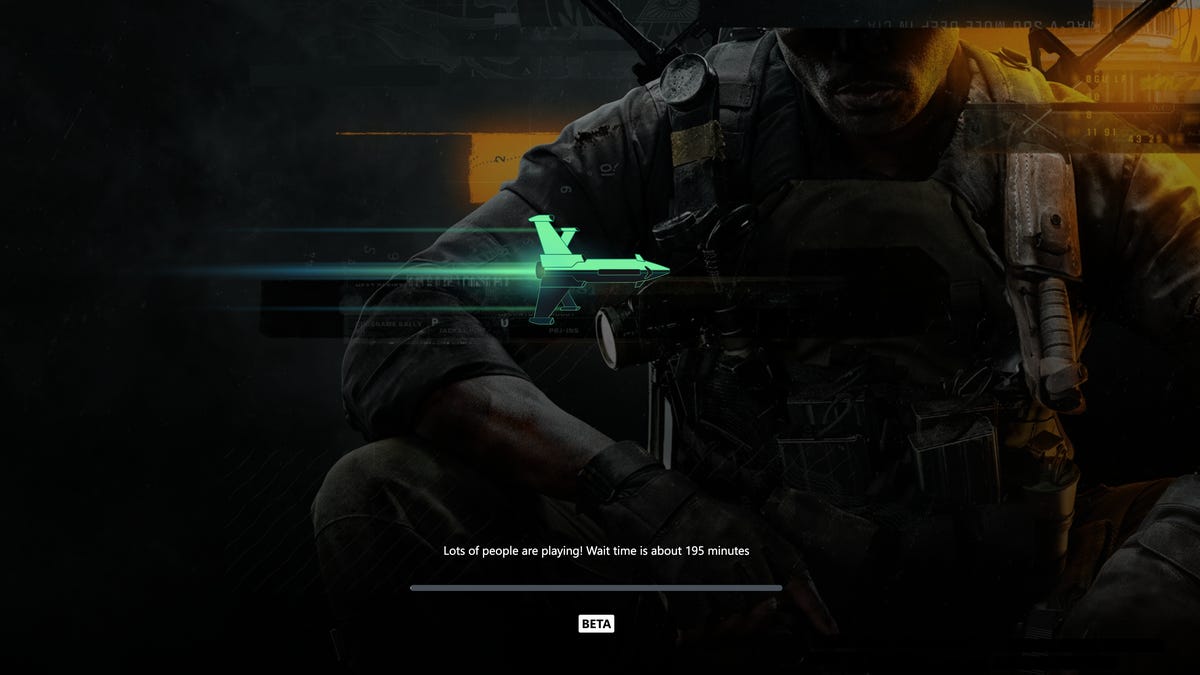
Xbox Cloud Gaming is one of the key selling points of Xbox Game Pass, and it generally works well. The service lets gamers stream Xbox titles to a wide range of devices, including phones, tablets, handhelds and select smart TVs from Samsung, LG and Hisense. However, following the Xbox Game Pass price increase from November, streaming alone may not be enough to keep some subscribers on board, which is where an ad-supported tier could come into play.
Microsoft confirmed the existence of an ad-supported tier last year but has not shared details on when it will launch or what it will include. New screenshots shared by players suggest the tier may be arriving soon, though questions remain about how it will work and what limitations it may have.
Don’t miss any of our unbiased tech content and lab-based reviews. Add CNET as a preferred Google source.
When will the Xbox Cloud Gaming ad-supported tier launch?
Microsoft hasn’t made an official announcement yet, but it’s expected to roll out sometime this year, according to Windows Central. Last month, some gamers saw a different loading screen for Xbox Cloud Gaming with a message saying «1 hour of ad-supported play time per session,» which would point to the ads coming soon.
looks like ad-supported Xbox Cloud Gaming is coming soon 👀 pic.twitter.com/c8hAERrVB9
— Tom Warren (@tomwarren) January 17, 2026
How much will the Xbox Cloud Gaming ad-supported tier cost?
In October, Microsoft confirmed it was internally testing the ad-supported tier, and at the time, said it would be free. Going by the load screen message I mentioned earlier, there will likely be a limit on how long people can play on the tier and during internal testing, players would have to watch a 2-minute ad.
What games will be available on the ad-supported tier?
Rumors about the internal testing suggested players would only have access to certain games for free, but the question is, which ones? Microsoft has a significant number of games available to stream, whether it’s purchased digital games or those available with an Xbox Game Pass subscription. Microsoft may allow all the digital games in a player’s library to be streamed and might make a few games available for free on a weekly or monthly basis, similar to the Free Play Days games.
-
 Technologies3 года ago
Tech Companies Need to Be Held Accountable for Security, Experts Say
-
 Technologies3 года ago
Best Handheld Game Console in 2023
-
 Technologies3 года ago
Tighten Up Your VR Game With the Best Head Straps for Quest 2
-
 Technologies4 года ago
Black Friday 2021: The best deals on TVs, headphones, kitchenware, and more
-
 Technologies5 лет ago
Google to require vaccinations as Silicon Valley rethinks return-to-office policies
-
 Technologies5 лет ago
Verum, Wickr and Threema: next generation secured messengers
-
 Technologies4 года ago
Olivia Harlan Dekker for Verum Messenger
-
 Technologies4 года ago
iPhone 13 event: How to watch Apple’s big announcement tomorrow


