

Technologies
Starlink Wi-Fi Now Available on a Quarter of All United Airlines Flights
By the end of 2026, most United flights will have the faster in-flight Wi-Fi, the companies say.

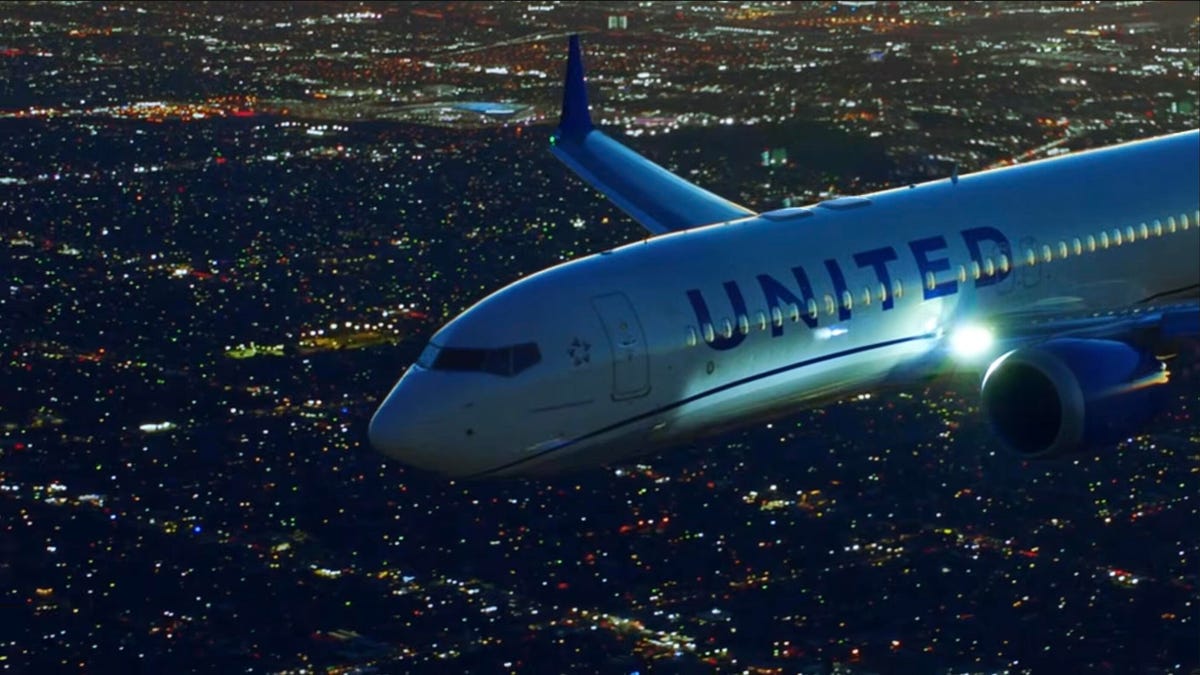
When I flew in the first mainline United Airlines aircraft equipped with Starlink Wi-Fi last year, I was amazed to discover that the satellite-based in-flight internet service felt like… the regular internet. I streamed movies, accessed the web and held a video call (which is not normally legal) that had better quality than some of my everyday remote meetings when I’m at home.
Since then, United says roughly 1,200 daily departures, more than a quarter of its schedule, now have Starlink Wi-Fi. It hit its goal of outfitting its entire regional fleet (two-cabin aircraft such as the Embraer E175) of more than 300 aircraft and is on track to equip 500 mainline craft (like the Boeing 737-800 I was on) by the end of 2026. If it meets its mainline goal, three out of four United flights will be set up with the new service.
On my test flight, I tried to saturate the data of as many devices as possible, from my laptop to an iPad and a couple of phones. Now that customers are using the service, I wanted to know what that looks like in real-world use. The company said in a press release that 7 million passengers across 129,000 flights have flown on Starlink-equipped aircraft.
«The [data] consumption is through the roof,» said Grant Milstead, vice president of digital technology at United Airlines. «It’s at least 100 times what we were seeing on our old aircraft, and a lot of that is driven by stage length.» Longer flights see more data usage, not just because of the extended flight times, but because those are the flights on which people are streaming more movies, live sports and other content.
He said passenger feedback indicates families aren’t spending time pre-loading devices with movies, because they know they can stream anything on the plane.
«This isn’t ‘airplane Wi-Fi’ anymore,» he said. «It’s Wi-Fi like your home. And now people are starting to treat it like that.»
Starlink Wi-Fi is free for members of its United MileagePlus program (which itself is free to join).
In addition to United, Starlink service is available on some flights operated by Hawaiian Airlines, Alaska Airlines, airBaltic, Air France, Qatar Airways, WestJet and Emirates. In the coming year, Aer Lingus, British Airways, Iberia, Level and Vueling will include satellite internet.
Some of this uptake can be attributed to the higher performance, but it’s also a matter of cost and equipment: the hardware itself is smaller, lighter (especially important for aircraft) and less expensive to install than other onboard Wi-Fi system.
Technologies
Dyson’s Thinnest and Lightest Cordless Vacuum Ever Is Finally Ready to Buy in the US
The Dyson PencilVac doesn’t cost as much as you might expect.


The Dyson PencilVac was one of the most interesting cordless vacuums I saw last year, mainly because it doesn’t really look like any other cordless vacuum I’ve ever seen. I called it the «lightest and thinnest cordless vacuum I’ve ever used.» In 2026, that’s still true, and it’s finally available to buy in the US for $599.
The design is the real innovation here. The PencilVac weighs just 4 pounds and feels more like wielding a mop or broom than a cordless vacuum. I used it at Dyson’s Soho showroom for a while and was impressed by its maneuverability and ease of use. In terms of dimensions, it’s 45.7 inches tall, 8.1 inches long and just 1.5 inches wide. It can flatten down to 3.7 inches to get into tight spaces and under furniture, and comes with green LED lights on both the front and back to help you spot dust.
The dustbin, despite being tiny at 0.02 gallons, uses a unique linear separation system that compresses down the dust as you vacuum, similar to the idea behind the V16 Piston Animal’s compressing lever. The ejection is a little different, with a syringe-like plunger that shoots the dust into the dustbin, and should minimize the dirt getting everywhere or the need to reach in with your fingers to pull stuck bits of debris out.
In terms of other specs, the PencilVac uses two FluffyCone cleaner heads, distinct conical heads designed to prevent hair wrap. In theory, the PencilVac should clean well, thanks to its dual brush rollers (a total of four cones for the brush bar), designed to avoid tangling and clean equally well on a back-and-forth motion. In terms of performance, Dyson says it has a 140krpm Dyson Hyperdymium motor and 55 air watts of suction power, so we don’t expect it to match the 240-air watts V15 Detect Absolute in terms of pickup performance, but we’ll need to put it to the test to know for sure.
We plan on testing the PencilVac in CNET’s Louisville lab to see how it fares, though to do that, we’ll need to modify some of our lab tests for pickup because with a nozzle width of 1.5 inches in diameter, the PencilVac will be the narrowest we’ve ever tested, and our tests are currently designed for a wider nozzle width.
Price and availability
At $599, the PencilVac might sound like it’s on the higher side for a cordless vacuum; we have plenty on our best list that can run you less than $400, and our best overall, the Eureka ReactiSense 440, costs just $180 at full price.
However, with Dyson, you’re really paying for the design, and relative to top-tier vacuums in its lineup, like the $850 Dyson V15 Detect Absolute, it’s not out of range of what we expect. Outside of handheld vacuums, you likely won’t find a cordless vacuum this versatile until Dyson’s competitors start to make them.
Technologies
Google Pixel 10A Rumors: Everything We Know So Far
Technologies
If You’re Attending a Protest, Here’s How to Be Smart With Your Phone
Digital surveillance of your phone data poses a significant risk in any setting, particularly during demonstrations.
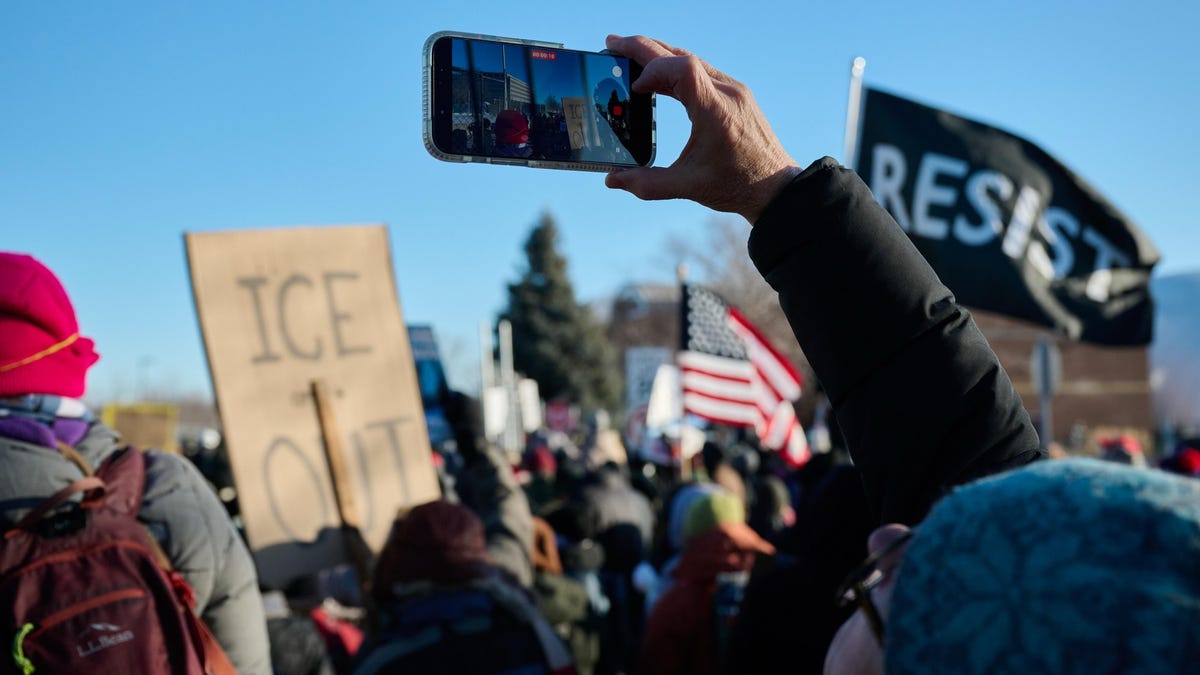
Your mobile phone is one of the most powerful tools you can bring to a protest, but it can also be one of your biggest vulnerabilities. This year has seen mass demonstrations across the US, particularly against aggressive immigration enforcement and the use of force by federal and local authorities — including the fatal shootings of Renee Good and Alex Pretti in Minneapolis — where protesters have used their phones to record video, document abuses and communicate with one another.
Phone data and use are increasingly being targeted by police and government agencies. Phones are also tracking devices that can be intercepted to monitor locations, match identities and surveil text messages (the FBI has threatened to investigate encrypted Signal chats, too). While the safest move is to leave your phone at home, that’s not always practical.
If you want to secure your phone’s data, limit your digital footprint and protect your privacy while exercising your constitutional rights, here are some steps you can take.
If you plan to protest or serve as a legal observer, here’s some advice from the American Civil Liberties Union and Amnesty International.
Make sure strong encryption is enabled
Your phone contains all sorts of information about you: your contacts, work address, photos, social media accounts, emails, stored financial information, etc. If your phone is confiscated, lost or stolen, you don’t want to make it easy for someone to grab that data.
As a first step, make sure your device is securely encrypted. Most iPhones and Android phones encrypt data automatically when you set a passcode. Make sure it’s a strong passcode (8-12 random characters).
On Android, go to Settings > Security & Privacy > Device Unlock > Screen lock (or similar, depending on which device you own).
On iOS, go to Settings > Face ID (or Touch ID) & Passcode and tap Turn Passcode On.
You can double-check that encryption is enabled after you’ve set a passcode. In iOS, go to Settings > Face ID & Passcode, then scroll to the bottom, where you should see the phrase «Data protection is enabled.»
In Android, head to Settings > Security & Privacy > More Security & Privacy (or similar, depending on your device), and look for an «Encryption & Credentials» line or similar that should confirm data is encrypted.
Turn off location settings
Location services allows apps and services to grab the phone’s location through GPS. Switching this off blocks that data from being accessed. You’ll find it in the Privacy & Security settings on the iPhone and in the Location settings on Android.
Turning off location services also prevents location data from being saved to any photos you take. You can also manually prevent photos you shot from including location information in their metadata, typically located in the camera app or within your phone’s settings.
In iOS, head to Settings > Privacy & Security > Location Services > Camera to toggle location metadata on or off.
On most Android phones, you can disable location data for photos right in the camera app. Open the camera, tap the settings icon, and look for Save Location (or a variation of that: Store Location Data, Location Tags), and turn it off.
Turn off scan-to-unlock and touch-to-unlock features
Biometrics make it easier to unlock your phone and provide security during everyday use, but if your phone is confiscated by law enforcement, they might try to compel you to unlock it using facial recognition or fingerprint readers.
This is a legal area that’s still being worked out, according to the Electronic Frontier Foundation, which states in its guide for attending protests, «using a memorized passcode generally provides a stronger legal footing to push back against a court order of compelled device unlocking/decryption.»
On an iPhone, go to Settings > Face ID (or Touch ID) & Passcode and turn off iPhone Unlock.
On Android, look for fingerprint or face unlock options in Settings > Security & Privacy or Lock Screen settings.
Quickly disable biometrics in the moment
What if you forgot to disable biometrics and you’re confronted with someone who tries to compel you to use them? There’s a quick workaround that forces you to use the passcode, even without resetting your phone (all phones require you to reenter your passcode upon reboot).
On an Android device, hold the power button and either the volume-up or volume-down button (depending on your device) and select Lockdown. You may need to specify that the Lockdown option appears. On a Samsung Galaxy phone, for instance, in the Lock screen and AOD > Secure lock settings, turn on the Show Lockdown mode option.
On an iPhone, hold the Sleep/Wake and Volume Up buttons for a second until you see the power, medical ID and Emergency SOS options. Then tap Cancel. The next unlock will require your passcode.
Remember that if you use this option, the biometrics are disabled only until the phone is next unlocked with the passcode. In a protest environment, it’s better to disable the biometrics as described above.
Turn off Bluetooth
Bluetooth, the short-range networking feature, is more commonly used to send music and podcasts to wireless headphones or communicate with smart devices like watches and fitness trackers. But it also reaches out to locators like Apple AirTags and checks for other nearby items.
Turn off cellular data when you’re not using it
Your phone sends and receives a lot of data in the background — such as checking for updates, sending and receiving text messages, and receiving app notifications — which requires it to maintain constant chatter with nearby cellular towers. That traffic can identify your approximate location or show that you (or at least your phone) were present at a protest later. (Note that turning off cellular data will interfere with any encrypted communications you may be using.)
While you’re disabling cellular data, you should also disable Wi-Fi. Not only can connecting to Wi-Fi networks reveal your location, but it’s also a battery drain, especially in high-density areas where there are a lot of networks.
Leave your phone at home, or get a burner phone
If you leave your phone at home, you won’t need to worry about all these settings. Another option is to get a prepaid burner phone to use only at the protest and then turn it off before you go home (so it cannot be traced back to you).
Don’t forget about other devices
Your phone might not be the only thing tracking you. Your smartwatch may connect to cellular networks or store location data, and portable trackers such as Apple AirTags are designed to relay their locations via Bluetooth. Consider putting your watch into Airplane mode and leaving the trackers at home.
Take photos and videos while your phone is locked
You’re likely to be using your camera a lot during a protest event, and in addition to disabling Location Services so the GPS data is not saved to the images, it’s a good idea to use the camera without unlocking the phone. That way, someone who snatches the phone from you while you’re recording can’t access your data.
iPhones and Android phones include this feature as a convenience to take pictures quickly. The camera is active, but the other phone features remain unavailable. From the iOS lock screen, press and hold the Camera icon or swipe from the right edge of the screen. Your model may also include a Camera Control button or an option to activate the camera using the Action button.
On an Android phone, look for a Camera icon on the lock screen. There may also be options for quick launching, such as double-pressing the power button.
And one last note about recording: Be mindful of taking photos of protesters’ faces and of sharing your images later, since law enforcement uses facial recognition technology to identify people in publicly uploaded or posted photos.
-
 Technologies3 года ago
Tech Companies Need to Be Held Accountable for Security, Experts Say
-
 Technologies3 года ago
Best Handheld Game Console in 2023
-
 Technologies3 года ago
Tighten Up Your VR Game With the Best Head Straps for Quest 2
-
 Technologies4 года ago
Black Friday 2021: The best deals on TVs, headphones, kitchenware, and more
-
 Technologies5 лет ago
Google to require vaccinations as Silicon Valley rethinks return-to-office policies
-
 Technologies5 лет ago
Verum, Wickr and Threema: next generation secured messengers
-
 Technologies4 года ago
Olivia Harlan Dekker for Verum Messenger
-
 Technologies4 года ago
iPhone 13 event: How to watch Apple’s big announcement tomorrow


