

Technologies
New iPhone 17? Use These 4 Safe and Stress-Free Methods to Transfer Your Data
Transferring data from your old phone to a new iPhone doesn’t have to be a headache.

Upgrading your phone to a new iPhone 17, iPhone 17 Pro or iPhone Air is exciting. A new phone is always speedy and filled with features to tweak and personalize. However, the biggest headache can be transferring your data from your old device to a new one. However, Apple makes this easy with four stress-free methods to get you up and running as quickly as possible (even if you’re swapping from an Android phone).
For more, explore a bunch of hidden iOS 26 features, and see just how thin the iPhone Air is.
Don’t miss any of our unbiased tech content and lab-based reviews. Add CNET as a preferred Google source.
1. The convenient method: Restore from iCloud
During the setup process, you’ll be asked if you want to directly transfer apps and information from your old iPhone to your new one using Quick Start. This feature was first rolled out with iOS 12.4, so if it’s been several years since you’ve upgraded phones, it’ll be the first time you’ve seen the option.
The easiest and quickest method to set up your new iPhone is to restore from a recent iCloud backup. As you walk through the initial setup process, tap Restore from iCloud Backup, sign in with your Apple Account (previously called Apple ID before iOS 18) and then pick the most recent backup of your old iPhone.
If the backup is more than a day or two old, take an extra few minutes to create a new backup. To do so, open the Settings app on your old phone, search for iCloud Backup in the Search field at the top of the screen and then click the matching result. Click Back Up Now to update the cloud backup.
Once that finishes, go back to your new iPhone and select the backup you just created as what you want to use to restore from.
Your phone will then restore your settings and preferences, and you’ll be able to start using it in about 15 minutes. It will continue downloading your installed apps in the background.
Once everything is restored, you’ll need to sign back into any accounts you added to your phone, as well as go through your apps and make sure you’re still signed in.
2. The speediest method: Apple direct transfer
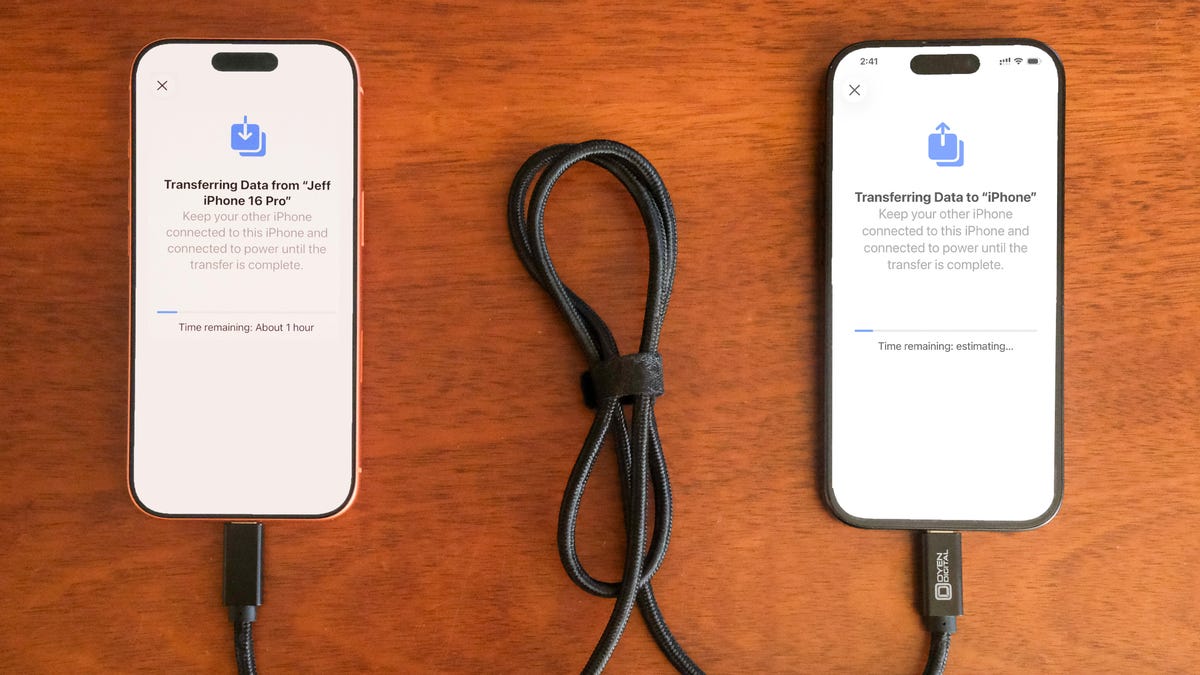
If you do not have a recent iCloud backup or your internet connection is slow, you can transfer everything from iPhone to iPhone, either wirelessly or via cable. When the Quick Start process asks for the source, choose the direct transfer option.
Using a cable rated for fast data speeds, the process can be surprisingly swift, and is my preferred way to upgrade to a new iPhone. Connect both phones via the cable; note that you might need an adapter if your current phone is an iPhone 14 or earlier with a Lightning port. Apple has more details on how to make a wired transfer work.
If you opt for the wireless route, make sure both phones are plugged in and charging to ensure they don’t run out of battery, and that they are connected to your Wi-Fi network (it’s part of the setup process on the new phone). And also make sure you have enough time for the process to finish — it could take over an hour.
The more information you have on your phone, like photos in your library, the longer it will take. When the transfer starts, the phones will show you a time estimate. Every time I’ve used this tool, that estimate has been accurate within a couple of minutes. It’s worth taking the time if you don’t use Apple’s iCloud service to back up your phone.
3. The longer, comprehensive method: Use a Mac or PC
A longer but safer method is to restore from an encrypted backup using a Mac or PC. Not only does this process transfer all of your apps, settings and preferences, but it also means you don’t have to sign into the countless apps you have on your phone.
Before you can use this method, you’ll need to create an encrypted backup of your current iPhone. I know that may sound intimidating or overly complicated, but it only means you have to check an extra box and enter a password.
On a Mac, you’ll use Finder to back up your old iPhone — and make sure you take the steps to make an archive backup. Check the Encrypt backup box and enter a password you’ll remember when prompted. Then let your Mac go to work, creating a backup file. It will let you know when it’s done.
On a PC, you’ll need to use iTunes (it’s not completely dead) or the Apple Devices app to create a backup, as explained here. Again, you’ll need to make sure the Encrypt backup box is checked and enter a password.
To restore your new phone, open Finder or iTunes, and connect your phone to your computer. Click Trust when prompted, and then follow the prompts, selecting the backup you just created as what you want to use to restore the phone. You will need to enter the backup’s password before the process begins, so make sure you don’t forget it.
Once it’s done, your new phone will be an exact copy of your old phone and you won’t have to spend any time signing into apps or random accounts.
4. For Android users: Move to iOS
Apple doesn’t have many Android apps listed in Google’s Play Store, but Move to iOS is one of them. This free app will connect your Android phone to a new iPhone and allow you to transfer the most important information from one phone to the other.
Here’s the entire step-by-step process, as well as some caveats, like the fact that it won’t transfer any locally stored music or PDF files.
Apple said it has redesigned Move to iOS to make it faster and easier to migrate from your Android phone to your new iPhone. The company goes on to say it has sped up Wi-Fi migration with transfer speeds up to 5GHz, and you can use Wi-Fi on your iPhone to connect to your Android phone. You can also connect your Android phone to your new iPhone with a USB-C or USB-C to Lightning cable to move everything over more quickly, Apple said.
No matter the process you used to set up your new phone, you’re in for excitement and fun as you explore what it can do.
Technologies
Google’s Pixel 10A Is Coming to Japan With an Exclusive Blue Edition and Special Wallpaper
This model comes with creatively designed stickers and a special look for Pixel’s 10th anniversary.
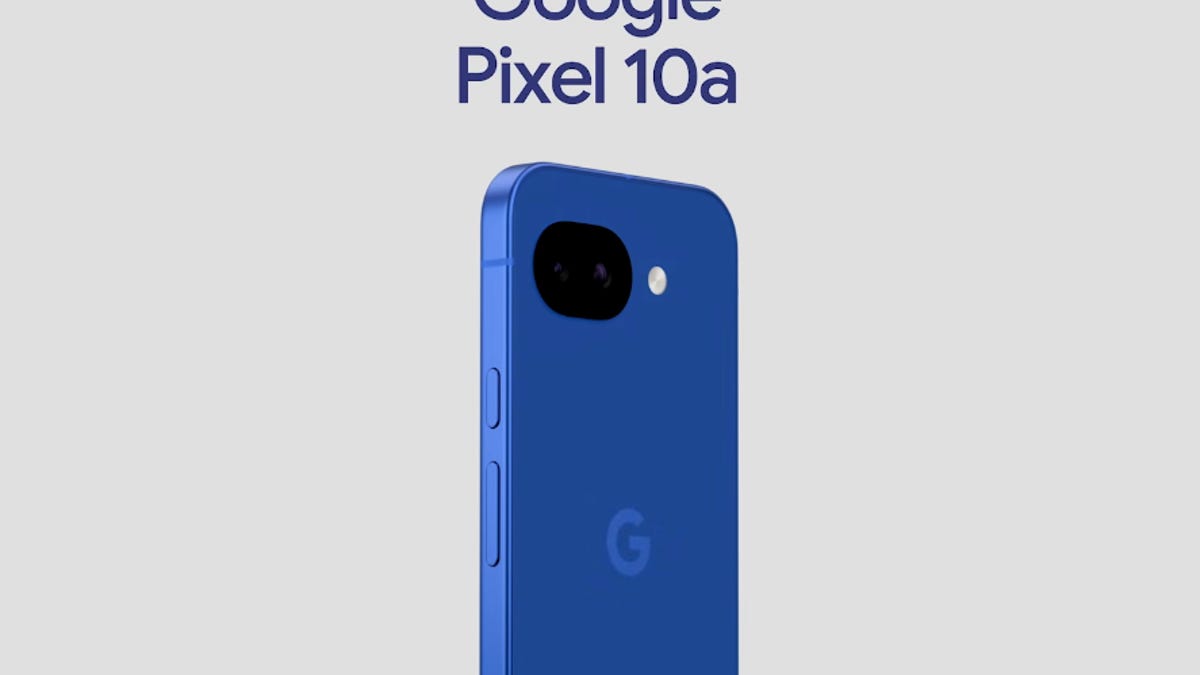
Don’t be blue: Google is releasing an Isai blue edition of the Pixel 10A to celebrate the Android phone line’s 10th anniversary, setting it apart with its own sticker set, specialized wallpaper and custom icons. But it’ll only be available in Japan.
Announced Tuesday on the Google Japan blog, the Isai blue Pixel 10A has a dark blue look and includes bonus decorations designed in collaboration with Japan’s Heralbony art company. These include an exclusive bumper case and stickers for customization.
This edition of the Pixel 10A will arrive in Japan on May 20, following the April 14 release of the Pixel 10A in its original colors of lavender, berry, fog and obsidian. The Isai blue model costs 94,900 yen, which roughly translates to $595, and includes 256GB of storage.
This makes it slightly less expensive than the US model’s 256GB edition, but it comes with a number of fun extras at no additional cost.
Google’s creation of a country-specific model for Japan may also reflect strong sales in that market. In 2023, the IDC analytics firm (via 9to5Google) reported that the Pixel 7 series accounted for 10.7% of the country’s market share, a 527% increase from 2022.
Technologies
Can’t Wait for New Emoji? Here’s How to Create Your Own on iPhone
Apple Intelligence-enabled iPhones can create custom emoji in a few easy steps.
Apple brought new emoji to all iPhones when the company released iOS 26.4 on March 24. The new emoji include «» orca, «» distorted face and «» hairy creature — or as we might normally call it, Sasquatch. According to Emojipedia, there are 3,953 emoji with more on the way, including a pickle. But there’s no emoji for a dog wearing pajamas, a plate with burgers and fries and many other things. But if you have Genmoji on your iPhone you can create these emoji and many more.
Apple released iOS 18.2 in 2024 and the company introduced its own emoji generator, called Genmoji, to Apple Intelligence-capable iPhones at that time. The Unicode Standard, a universal character encoding standard, is responsible for creating new emoji, and approved emoji are added to all devices once a year. With Genmoji, you don’t have to wait for new emoji to appear on your iPhone each year. You can just create them as you need them.
Read on to learn how to use Genmoji on iPhone to create your own custom emoji. Just note that only iPhones with Apple Intelligence, like the iPhone 17 lineup, can use Genmoji at this time.
Note: The new emoji may not display correctly for Apple users whose devices aren’t on a 26.4 software version.
How to make custom emoji
1. Open Messages and go into a chat.
2. Tap the plus (+) button next to your text box.
3. Tap Genmoji.
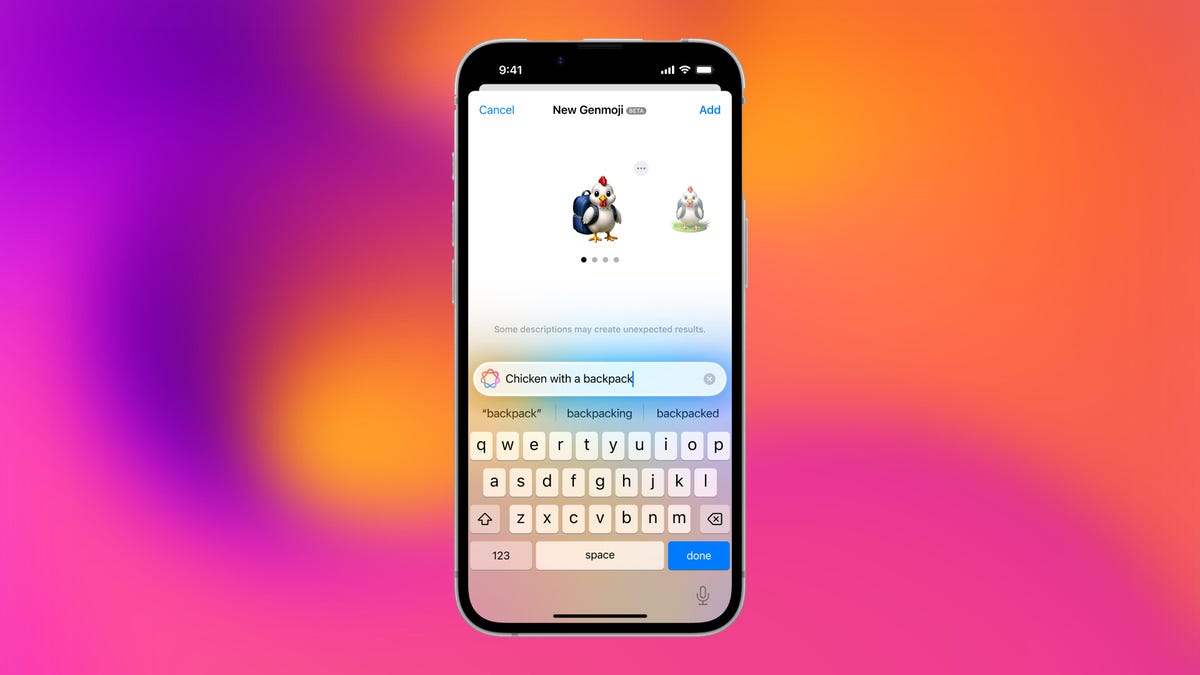
You can then type a description of an emoji into the text box near the bottom of your screen and tap the check mark on your keyboard to enter that description into Genmoji. You can also tap different suggestions and themes that are right above the text box. And with iOS 26 or later, you can also combine and use emoji to create others rather than describing a new emoji or using suggestions.
Your iPhone will generate a series of new emoji for you to pick from according to your description, and you can swipe through these new emoji. When you find the one you want, tap Add in the top right corner of your screen and the new emoji will be available to use as an emoji, tapback or a sticker. Now you don’t have to wait for the Unicode Standard to propose, create and bring new emoji to devices.
For more iOS news, here’s what to know about iOS 26.4 and iOS 26.3. You can also check out our iOS 26 cheat sheet for other tips and tricks.
Technologies
Save Over 20% on This Handy 10,000-mAh Anker Nano Power Bank
Keep your devices charged on the go with this Anker Nano power bank, now down to just $46.
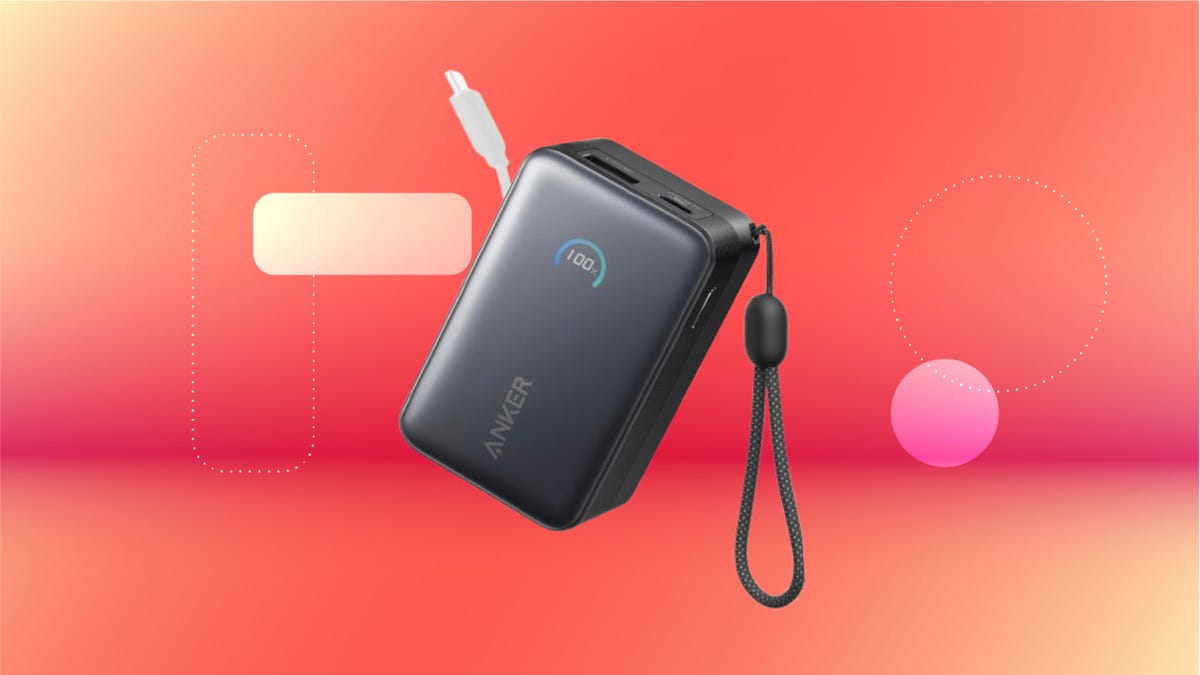
We’ve just spotted the Anker Nano 45-watt portable power bank for just $46 at Amazon right now. This saves you $14 — a 23% discount on its list price. Though it’s $6 more than the lowest-ever price we saw during Black Friday, it’s still a solid discount when you take the rising cost of tech accessories into account. It also matches the lowest price we’ve seen in 2026. It comes in four colors: black, green, pink and white. They’re all on sale for the same price.
This Anker Nano portable charger weighs approximately 8.2 ounces and measures a compact 3.21×1.99×1.42 inches. Despite its small size, it has a retractable cable and supports fast charging in compatible Apple, Samsung, Google Pixel and other smartphones. It also has a large 10,000-mAh capacity and a smart display so you always know how much juice is left in your power bank.
The Nano can charge an iPhone 17 to up to 50% battery in an estimated 20 minutes, and is powerful enough to charge tablets and laptops. Need to charge your devices while charging your power bank? You can do so safely thanks to pass-through charging so you’ll never have to go without battery life.
We’ve also compiled a list of the best power banks for iPhones and for Android, in case this deal isn’t quite a fit for you.
Why this deal matters
If you travel, have a long commute time or are otherwise always on the go, a portable charger can help you keep your devices fully powered. This 45-watt Anker Nano power bank is compact, includes a loop that lets you keep track of it easily and has a built-in cable so you don’t have to keep up with extra cords. Amazon’s $14 discount makes this a solid deal for anyone looking for a compact power bank.
-
 Technologies3 года ago
Tech Companies Need to Be Held Accountable for Security, Experts Say
-
 Technologies3 года ago
Best Handheld Game Console in 2023
-
 Technologies3 года ago
Tighten Up Your VR Game With the Best Head Straps for Quest 2
-
 Technologies4 года ago
Black Friday 2021: The best deals on TVs, headphones, kitchenware, and more
-
 Technologies5 лет ago
Google to require vaccinations as Silicon Valley rethinks return-to-office policies
-
 Technologies5 лет ago
Verum, Wickr and Threema: next generation secured messengers
-
 Technologies4 года ago
Olivia Harlan Dekker for Verum Messenger
-
 Technologies4 года ago
The number of Сrypto Bank customers increased by 10% in five days


