

Technologies
Get Better Reception on Your iPhone or Android, No Matter Where You Go
These tips can help you ensure you don’t struggle with getting decent phone signal this holiday season.

It’s the worst moment of any trip: that specific brand of travel panic that sets in when your phone’s signal bars suddenly vanish. One moment you’re confidently following the GPS to your destination, the next your map is frozen, your music cuts out, and you’re stuck in a connectivity dead zone. This isn’t just frustrating; during a holiday trip, it can quickly become a safety concern.
But hold off on cursing your cell carrier for a moment. You should know that the network often isn’t the primary issue-it’s your phone being needlessly stubborn. Your device is likely still clinging for dear life to a weak, distant tower instead of proactively locating a stronger one nearby. The good news? The solution is almost always a ridiculously simple trick that takes about five seconds to perform.
Stop accepting poor reception as an unavoidable fact of life. Whether you carry an iPhone or an Android, here are the quick and easy ways to force your phone to search for and connect to a stronger, more reliable signal.
Don’t miss any of our unbiased tech content and lab-based reviews. Add CNET as a preferred Google source on Chrome.
Note: Although software across different iPhone models is relatively the same, Samsung Galaxy, Google Pixel and other Android phones may have different software versions, so certain settings and where they are located might differ depending on device.
For more, check out how you can use Google Maps when you’re offline and how you can maybe fix your internet when it’s down.
To improve your cellphone service, try these steps first
The settings on your phone can help you get better cell service but there are other tricks for improving your reception without even touching your phone’s software.
- Move yourself so that there are no obstructions between your phone and any cell towers outside. That might involve stepping away from metal objects or concrete walls, which both kill reception. Instead, get to a window or go outside if possible.
- Remove your phone case. It doesn’t hurt to remove whatever case you have on your phone, especially if it’s thick, so that the phone’s antenna isn’t blocked by anything and can get a better signal.
- Make sure your phone is charged. Searching for and connecting to a stronger signal drains power, so if your phone battery is already low on charge, you may have a difficult time getting good service.
Always start by turning Airplane mode on and off
Turning your phone’s connection off and then back on is the quickest and easiest way to try and fix your signal woes. If you’re moving around from one location to another, toggling Airplane mode restarts the Wi-Fi, Bluetooth and cellular network modems, which forces them to find the best signal in the area.
Android: Swipe down from the top of your screen — to access the Quick Settings panel — and then tap the Airplane mode icon. Wait for your phone to completely disconnect from its Wi-Fi and cellular connections. It doesn’t happen instantly, so give it a good 15 seconds before you tap on the Airplane mode icon again.
iPhone: On the iPhone, you can access Airplane mode from the Control Center, but that varies depending on which iPhone model you have. On the iPhone X and later, swipe down from the top-right corner to access the Control Center. On older iPhone models, swipe up from the bottom of the screen. Then tap the Airplane mode icon, which will turn orange when it’s enabled. Again, wait up to 15 seconds before turning it off.
If Airplane mode doesn’t work, restart your phone
Our phones are miniature computers, and just like computers, sometimes you can fix issues like network connection by simply restarting them.
Android: Hold down the power button, or the power button and the volume down key (depending on your Android phone), until the on-screen menu shows up, and then tap Restart. If your phone doesn’t offer a restart option, you can simply tap Power Off to shut down your device, and then boot it back up with the power button.
iPhone: On the iPhone X and older models, hold down the sleep/wake button and either one of the volume buttons and then swipe right on the power slider to turn off the device. Wait until it fully turns off, then press down on the sleep/wake button to turn it back on.
Alternatively, you can do a force reset on your iPhone: Press the volume up button, followed by the volume down button and then press and hold the side button. Keep holding it in, after your phone’s screen goes black and until you see the Apple logo appear again.
If your iPhone has a home button, hold down the sleep/wake button until the power slider is displayed and then drag the slider to the right. Once the device is turned off, press and hold the sleep/wake button until you see the Apple logo.
Older phone? Take your SIM card out
Another troubleshooting step that might help is to remove your SIM card, if your phone has one, and then place it back in with the phone turned on. If the SIM card is dirty, clean it. If it has any physical defects, you may need to replace it.
You’ll need a SIM card tool — usually included in your phone’s box — or an unfolded paper clip or sewing needle to get the SIM tray out of your phone.
All phones: Remove the SIM card, check to see if it’s damaged and positioned in the SIM tray correctly, then put it back in your phone.
eSIM: For phones with an eSIM — that is, an embedded electronic SIM in your phone — there’s nothing for you to remove. The best you can do is restart your phone.
Check your carrier settings (and update your software)
Mobile carriers frequently send out carrier settings updates to help improve connectivity for calls, data and messages on their network. Although this feature is available on all iPhone models, it’s not universal on Android, so you might not find carrier settings if you don’t have a supported phone.
iPhone: Carrier updates should just appear, and you can update from the pop-up message that appears. To force your iPhone to check for a carrier settings update, go to Settings > General > About on your phone. If an update is available, you’ll be prompted to install it.
Android: As mentioned before, not all Android phones have carrier settings, so you’ll have to open the Settings app and type in «carrier settings» to find any possible updates. On supported Pixels, go to Settings > Network & internet > Internet, tap the gear next to your carrier name and then tap Carrier settings versions.
Reset your phone’s network settings
Sometimes all you need is a clean slate to fix an annoying connectivity issue. Refreshing your phone’s network settings is one way to do that. But be forewarned, resetting your network settings will also reset any saved Wi-Fi passwords, VPN connections and custom APN settings for those on carriers that require additional setup.
Android: In the Settings app, search for «reset» or more specifically «reset network settings» and tap on the setting. On the Pixel, the setting is called Reset Wi-Fi, mobile & Bluetooth. After you reset your network settings, remember to reconnect your phone to your home and work Wi-Fi networks.
iPhone: Go to Settings > Transfer or Reset iPhone > Reset > Reset Network settings. The next page will warn you that resetting your network settings will reset your settings for Wi-Fi, mobile data and Bluetooth. Tap Reset Network Settings and your phone will restart.
Contact your phone carrier
Sometimes unexpected signal issues can be traced back to problems with your wireless carrier. A cell tower could be down, or the tower’s fiber optic cable could have been cut, causing an outage.
For consistent problems connecting to or staying connected to a cellular or data network, it’s possible your carrier’s coverage doesn’t extend well into your neighborhood.
Other times, a newfound signal issue can be due to a defect with your phone or a SIM card that’s gone bad. Contacting your carrier to begin troubleshooting after you’ve tried these fixes is the next best step to resolving your spotty signal.
If all else fails, try a signal booster to improve cell reception
If after going through all of our troubleshooting steps, including talking to your carrier to go over your options, you’re still struggling to keep a good signal — try a booster. A signal booster receives the same cellular signal your carrier uses, then amplifies it just enough to provide coverage in a room or your entire house.
The big downside here is the cost. Wilson has three different boosters designed for home use, ranging in price from $349 for single room coverage to $999 to cover your entire home. To be clear, we haven’t specifically tested these models. Wilson offers a 30-day, money-back guarantee and a two-year warranty should you have any trouble with its products.
Technologies
The Most Exciting Video Game Rumors and Leaks Ahead of 2026
Technologies
Today’s NYT Mini Crossword Answers for Wednesday, Dec. 17
Here are the answers for The New York Times Mini Crossword for Dec. 17.
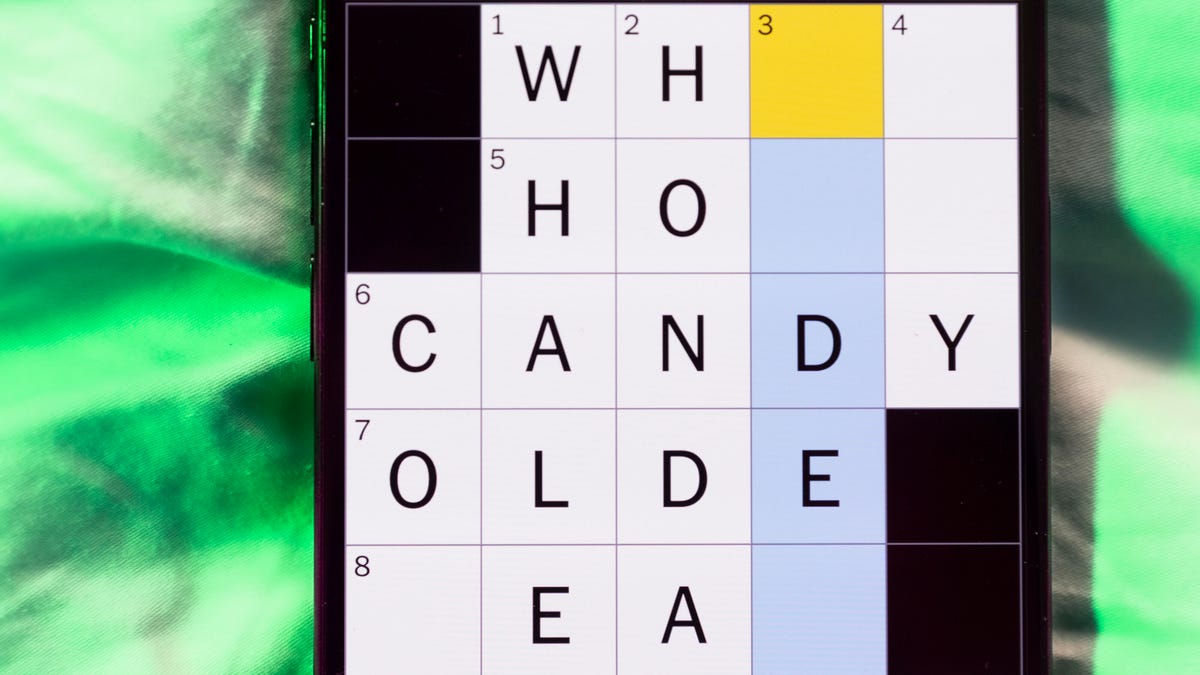
Looking for the most recent Mini Crossword answer? Click here for today’s Mini Crossword hints, as well as our daily answers and hints for The New York Times Wordle, Strands, Connections and Connections: Sports Edition puzzles.
Need some help with today’s Mini Crossword? Read on. And if you could use some hints and guidance for daily solving, check out our Mini Crossword tips.
If you’re looking for today’s Wordle, Connections, Connections: Sports Edition and Strands answers, you can visit CNET’s NYT puzzle hints page.
Read more: Tips and Tricks for Solving The New York Times Mini Crossword
Let’s get to those Mini Crossword clues and answers.
Mini across clues and answers
1A clue: Nod (off)
Answer: DOZE
5A clue: Naval submarine in W.W. II
Answer: UBOAT
7A clue: Tricky thing to do on a busy highway
Answer: MERGE
8A clue: Heat-resistant glassware for cooking
Answer: PYREX
9A clue: Put into groups
Answer: SORT
Mini down clues and answers
1D clue: Break up with
Answer: DUMP
2D clue: Falls in line, so to speak
Answer: OBEYS
3D clue: Legendary vigilante who cuts a «Z» with his sword
Answer: ZORRO
4D clue: Rarin’ to go
Answer: EAGER
6D clue: Common reminder for an upcoming appointment
Answer: TEXT
Don’t miss any of our unbiased tech content and lab-based reviews. Add CNET as a preferred Google source.
Technologies
You Can Watch an Exclusive Avatar: Fire and Ash Scene on TikTok Right Now
Disney and TikTok partner on an immersive content hub for James Cameron’s latest movie about the alien Na’vi.

If you’re not quite ready to head to the theater to watch Avatar: Fire and Ash, an exclusive scene preview might sell you on the visual spectacle. As part of a new collaboration with the social media giant, Disney is posting snippets of its new movie to its TikTok account.
This scene isn’t part of any trailer and won’t be posted to other social media accounts, making TikTok the only place you can view it — unless you buy a movie ticket. A first look at the new movie’s scenes isn’t the only Avatar-related bonus on the social media platform right now, either. TikTok has partnered with the house of mouse to bring an entire «immersive content hub» to the app.
A special section of TikTok includes quizzes and educational videos that explore the alien world of Pandora shown off in the movies. On TikTok, you can take a personality quiz to find out what Na’vi clan you most closely align with and unlock a special profile picture border to use on your account.
Science and fiction blend together with a series of videos from real doctors who explain the basis for some of Avatar’s world-building. If you want to learn about exoplanets or how realistic the anatomy of the movie’s alien animals is, these videos will feed your brain while still providing entertainment value.
Perhaps the most enticing part of Disney’s latest social media collaboration is the opportunity for fans to win prizes and trips. TikTok creators who make edits with the #TikTokAvatarContest hashtag are entered into a competition to win Avatar merchandise. The biggest winners will be able to take a trip to visual effects studio Wētā Workshop in New Zealand or visit Avatar director James Cameron’s Lightstorm Entertainment Studio in Los Angeles.
Avatar: Fire and Ash is the third installment in director Cameron’s cinematic passion project. While the first Avatar movie was released in 2009, Cameron didn’t release another entry in the franchise until 2022. In total, there is a five-movie arc planned for the indigo alien Na’vi on the moon of Pandora.
The Avatar movies are known for pushing the boundaries of CGI visual effects in cinema. They are also historically big winners at the box office: the original Avatar is the highest-grossing film of all time, earning $2.9 billion across its theatrical releases. Its sequel, Avatar: The Way of Water, is the third-highest-grossing film of all time, trailing Avengers: Endgame. You can stream those movies on Disney Plus.
It remains to be seen whether Avatar: Fire and Ash will financially live up to its predecessors. The film currently has mixed reviews from critics on Rotten Tomatoes.
-
 Technologies3 года ago
Tech Companies Need to Be Held Accountable for Security, Experts Say
-
 Technologies3 года ago
Best Handheld Game Console in 2023
-
 Technologies3 года ago
Tighten Up Your VR Game With the Best Head Straps for Quest 2
-
 Technologies4 года ago
Black Friday 2021: The best deals on TVs, headphones, kitchenware, and more
-
 Technologies4 года ago
Verum, Wickr and Threema: next generation secured messengers
-
 Technologies4 года ago
Google to require vaccinations as Silicon Valley rethinks return-to-office policies
-
 Technologies4 года ago
Olivia Harlan Dekker for Verum Messenger
-
 Technologies4 года ago
iPhone 13 event: How to watch Apple’s big announcement tomorrow


