

Technologies
Boost Your Cellphone Signal Anywhere, Anytime With These Steps
Nothing’s worse than a weak signal. Try these expert tips to get more bars on your iPhone or Android.


Nothing ruins the perfect fall road trip faster than watching your phone’s signal bars disappear. One minute you’re cruising along, listening to a podcast and following GPS to a scenic overlook and the next, everything cuts out. Dropped calls and a frozen map are frustrating, but losing signal in a remote area can also be a serious safety concern, especially on those beautiful backroads where cell towers are few and far between.
But you don’t have to put up with bad reception or invest in a pricey new phone plan. Most of the time, you can get a stronger, more reliable signal on your iPhone or Android with a few simple tricks. Things as simple as toggling your Airplane mode or knowing the best place to keep your phone in the car can make all the difference. Before your next adventure, check out these easy ways to boost your cell signal and stay connected.
Note: Although software across different iPhone models is relatively the same, Samsung Galaxy, Google Pixel and other Android phones may have different software versions, so certain settings and where they are located might differ depending on device.
For more, check out how you can use Google Maps when you’re offline and how you can maybe fix your internet when it’s down.
To improve your cellphone service, try these steps first
The settings on your phone can help you get better cell service, but there are other tricks for improving your reception without even touching your phone’s software.
- Move yourself so that there are no obstructions between your phone and any cell towers outside. That might involve stepping away from metal objects or concrete walls, which both kill reception. Instead, get to a window or go outside if possible.
- Remove your phone case. It doesn’t hurt to remove whatever case you have on your phone, especially if it’s thick, so that the phone’s antenna isn’t blocked by anything and can get a better signal.
- Make sure your phone is charged. Searching for and connecting to a stronger signal drains power, so if your phone battery is already low on charge, you may have a difficult time getting good service.
Always start by turning Airplane mode on and off
Turning your phone’s connection off and then back on is the quickest and easiest way to try and fix your signal woes. If you’re moving around from one location to another, toggling Airplane mode restarts the Wi-Fi, Bluetooth and cellular network modems, which forces them to find the best signal in the area.
Android: Swipe down from the top of your screen — to access the Quick Settings panel — and then tap the Airplane mode icon. Wait for your phone to completely disconnect from its Wi-Fi and cellular connections. It doesn’t happen instantly, so give it a good 15 seconds before you tap on the Airplane mode icon again.
iPhone: On the iPhone, you can access Airplane mode from the Control Center, but that varies depending on which iPhone model you have. On the iPhone X and later, swipe down from the top-right corner to access the Control Center. On older iPhone models, swipe up from the bottom of the screen. Then tap the Airplane mode icon, which will turn orange when it’s enabled. Again, wait up to 15 seconds before turning it off.
If Airplane mode doesn’t work, restart your phone
Our phones are miniature computers, and just like computers, sometimes you can fix issues like network connection by simply restarting them.
Android: Hold down the power button, or the power button and the volume down key (depending on your Android phone), until the on-screen menu shows up, and then tap Restart. If your phone doesn’t offer a restart option, you can simply tap Power Off to shut down your device, and then boot it back up with the power button.
iPhone: On the iPhone X and older models, hold down the sleep/wake button and either one of the volume buttons and then swipe right on the power slider to turn off the device. Wait until it fully turns off, then press down on the sleep/wake button to turn it back on.
Alternatively, you can do a force reset on your iPhone: Press the volume up button, followed by the volume down button and then press and hold the side button. Keep holding it in, after your phone’s screen goes black and until you see the Apple logo appear again.
If your iPhone has a home button, hold down the sleep/wake button until the power slider is displayed and then drag the slider to the right. Once the device is turned off, press and hold the sleep/wake button until you see the Apple logo.
Older phone? Take your SIM card out
Another troubleshooting step that might help is to remove your SIM card, if your phone has one, and then place it back in with the phone turned on. If the SIM card is dirty, clean it. If it has any physical defects, you may need to replace it.
You’ll need a SIM card tool — usually included in your phone’s box — or an unfolded paper clip or sewing needle to get the SIM tray out of your phone.
All phones: Remove the SIM card, check to see if it’s damaged and positioned in the SIM tray correctly, then put it back in your phone.
eSIM: For phones with an eSIM — that is, an embedded electronic SIM in your phone — there’s nothing for you to remove. The best you can do is restart your phone.
Check your carrier settings (and update your software)
Mobile carriers frequently send out carrier settings updates to help improve connectivity for calls, data and messages on their network. Although this feature is available on all iPhone models, it’s not universal on Android, so you might not find carrier settings if you don’t have a supported phone.
iPhone: Carrier updates should just appear, and you can update from the pop-up message that appears. To force your iPhone to check for a carrier settings update, go to Settings > General > About on your phone. If an update is available, you’ll be prompted to install it.
Android: As mentioned before, not all Android phones have carrier settings, so you’ll have to open the Settings app and type in «carrier settings» to find any possible updates. On supported Pixels, go to Settings > Network & internet > Internet, tap the gear next to your carrier name and then tap Carrier settings versions.
Reset your phone’s network settings
Sometimes all you need is a clean slate to fix an annoying connectivity issue. Refreshing your phone’s network settings is one way to do that. But be forewarned, resetting your network settings will also reset any saved Wi-Fi passwords, VPN connections and custom APN settings for those on carriers that require additional setup.
Android: In the Settings app, search for «reset» or more specifically «reset network settings» and tap on the setting. On the Pixel, the setting is called Reset Wi-Fi, mobile & Bluetooth. After you reset your network settings, remember to reconnect your phone to your home and work Wi-Fi networks.
iPhone: Go to Settings > Transfer or Reset iPhone > Reset > Reset Network settings. The next page will warn you that resetting your network settings will reset your settings for Wi-Fi, mobile data and Bluetooth. Tap Reset Network Settings and your phone will restart.
Contact your phone carrier
Sometimes unexpected signal issues can be traced back to problems with your wireless carrier. A cell tower could be down, or the tower’s fiber optic cable could have been cut, causing an outage.
For consistent problems connecting to or staying connected to a cellular or data network, it’s possible your carrier’s coverage doesn’t extend well into your neighborhood.
Other times, a newfound signal issue can be due to a defect with your phone or a SIM card that’s gone bad. Contacting your carrier to begin troubleshooting after you’ve tried these fixes is the next best step to resolving your spotty signal.
If all else fails, try a signal booster to improve cell reception
If after going through all of our troubleshooting steps, including talking to your carrier to go over your options, you’re still struggling to keep a good signal — try a booster. A signal booster receives the same cellular signal your carrier uses, then amplifies it just enough to provide coverage in a room or your entire house.
The big downside here is the cost. Wilson has three different boosters designed for home use, ranging in price from $349 for single room coverage to $999 to cover your entire home. To be clear, we haven’t specifically tested these models. Wilson offers a 30-day money-back guarantee and a two-year warranty should you have any trouble with its products.
Technologies
Meta and AMD’s Multibillion-Dollar Deal Is All About the AI Chips
Meta will take a stake in the chipmaker in exchange for a commitment to buy billions of dollars’ worth of AI chips.
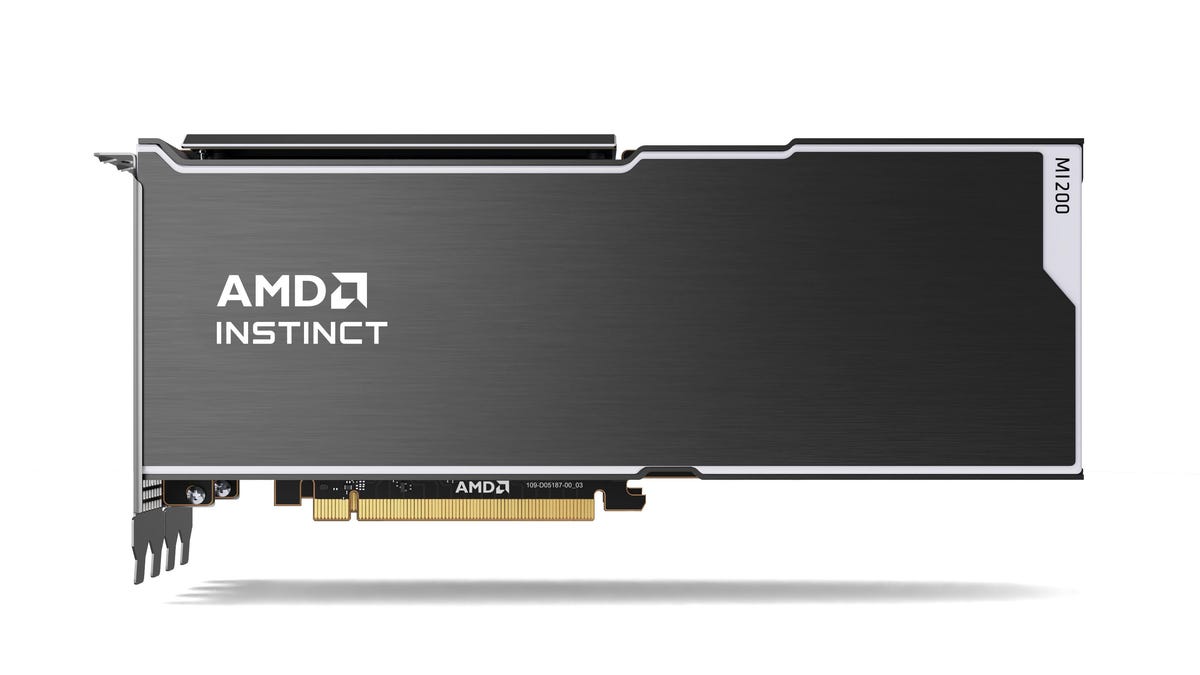
Meta is joining OpenAI as one of the major tech companies to take a stake in chipmaker AMD, as part of an AI hardware buying frenzy. Meta and AMD on Tuesday announced a partnership that will involve CEO Mark Zuckerberg’s tech giant buying billions of dollars’ worth of AMD Instinct GPUs in order to fuel its ambitions to build out AI offerings across Meta platforms, including Instagram, Facebook and WhatsApp.
In a release, Meta described the deal as «multi-year,» and said the AI purchase will provide Meta with up to 6 gigawatts of AMD GPUs, «the silicon computing technology used to support modern AI models.»
According to the US Department of Energy, a single gigawatt (1 billion watts) is equivalent to nearly 2,000 large solar panels or 100 million LED bulbs.
In AMD’s version of the announcement, CEO Lisa Su said, «We are proud to expand our strategic partnership with Meta as they push the boundaries of AI at unprecedented scale.» As part of the deal, Meta will take a 10% stake in AMD.
AMD, based in Santa Clara, California, previously signed a deal with ChatGPT-maker OpenAI that it announced last October, which is similar to the Meta deal and also gives its AI rival 10% ownership of AMD.
(Disclosure: Ziff Davis, CNET’s parent company, in 2025 filed a lawsuit against OpenAI, alleging it infringed Ziff Davis copyrights in training and operating its AI systems.)
What does this mean for the rest of us?
AMD’s two megadeals may not have an immediate impact on people who use Meta’s social networking and communications apps, or even on those who buy AMD’s products, including desktop processors and graphics cards.
But it signals that large companies making huge bets on the future of AI are doing what they can to secure the hardware they need as supplies tighten and prices rise for components such as RAM. Some of those constraints aren’t expected to end anytime soon, and shoppers could begin to see prices rise even more than they already have for computers, smartphones, vehicles and other products that heavily rely on computing components like these.
It is also a sign that Meta’s ambitions for AI are not slowing down as it continues to compete with companies including OpenAI, Microsoft and Google to develop AI products and tools.
Also a factor: Meta’s push into wearables
Another reason AMD may want access to AI chips goes beyond its own data centers and online platforms: Meta has increasingly been focused on wearables such as its Oakley Meta AI Glasses and other potential new portable products.
In addition to what AMD’s GPUs can offer Meta for AI infrastructure power, AMD may also be part of its wearable future.
«With AI models requiring unprecedented processing power to process real-time data and information, Meta is focused on securing the supply chain necessary for its wearable devices,» said Michael J. Wolf, founder and CEO of the consulting firm Activate.
Wolf believes that the deals Meta and OpenAI have signed won’t be the last time a major AI-focused company locks down a supply of semiconductors.
«As consumer hardware transitions from smartphones to smart glasses, we will absolutely see more of these mega-deals,» Wolf said.
Technologies
Today’s NYT Connections: Sports Edition Hints and Answers for Feb. 25, #520
Here are hints and the answers for the NYT Connections: Sports Edition puzzle for Feb. 25, No. 520.
Looking for the most recent regular Connections answers? Click here for today’s Connections hints, as well as our daily answers and hints for The New York Times Mini Crossword, Wordle and Strands puzzles.
Today’s Connections: Sports Edition features a mix of difficulties. The green one is kind of fun today. If you’re struggling with today’s puzzle but still want to solve it, read on for hints and the answers.
Connections: Sports Edition is published by The Athletic, the subscription-based sports journalism site owned by The Times. It doesn’t appear in the NYT Games app, but it does in The Athletic’s own app. Or you can play it for free online.
Read more: NYT Connections: Sports Edition Puzzle Comes Out of Beta
Hints for today’s Connections: Sports Edition groups
Here are four hints for the groupings in today’s Connections: Sports Edition puzzle, ranked from the easiest yellow group to the tough (and sometimes bizarre) purple group.
Yellow group hint: Whack it!
Green group hint: Halloween colors.
Blue group hint: The airport is YUL.
Purple group hint: It’s also a hat.
Answers for today’s Connections: Sports Edition groups
Yellow group: To hit a baseball hard.
Green group: Orange and black teams.
Blue group: Associated with Montreal.
Purple group: ____ derby.
Read more: Wordle Cheat Sheet: Here Are the Most Popular Letters Used in English Words
What are today’s Connections: Sports Edition answers?
The yellow words in today’s Connections
The theme is to hit a baseball hard. The four answers are belt, blister, hammer and tattoo.
The green words in today’s Connections
The theme is orange and black teams. The four answers are Bengals, Flyers, Giants and Oklahoma State.
The blue words in today’s Connections
The theme is associated with Montreal. The four answers are 1976 Olympics, Canadiens, Expos and Youppi!
The purple words in today’s Connections
The theme is ____ derby. The four answers are home run, Kentucky, Merseyside and roller.
Technologies
Today’s NYT Mini Crossword Answers for Wednesday, Feb. 25
Here are the answers for The New York Times Mini Crossword for Feb. 25.
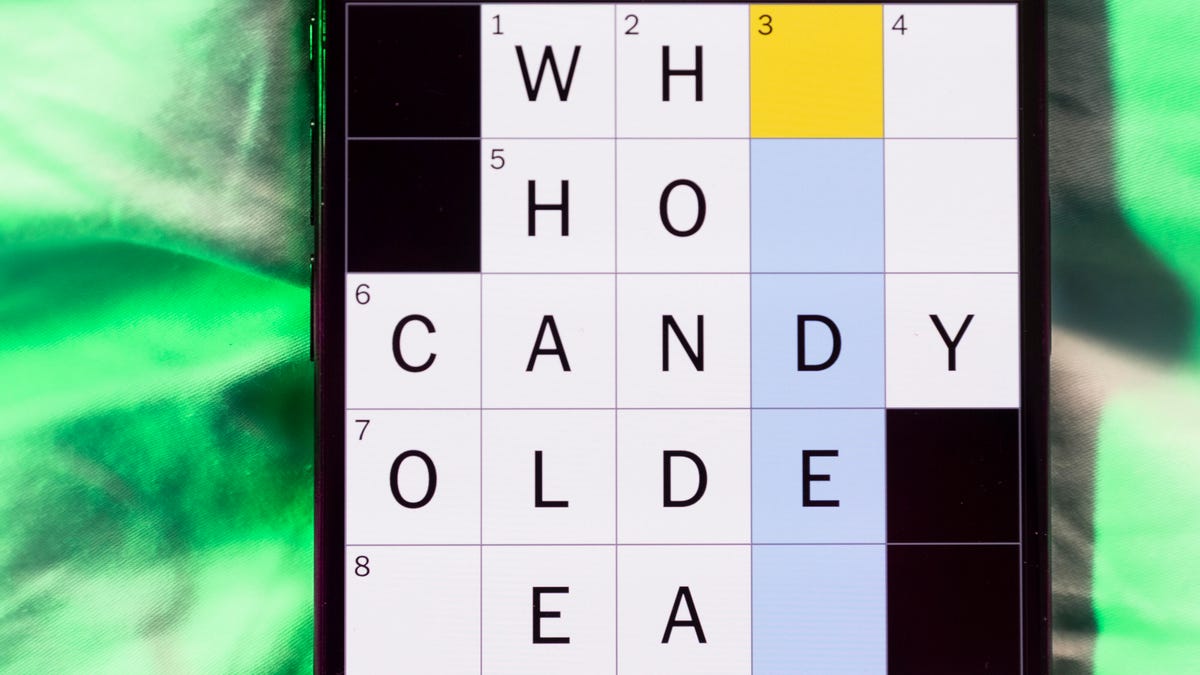
Looking for the most recent Mini Crossword answer? Click here for today’s Mini Crossword hints, as well as our daily answers and hints for The New York Times Wordle, Strands, Connections and Connections: Sports Edition puzzles.
I thought today’s Mini Crossword was a tough one! Read on for all the answers. And if you could use some hints and guidance for daily solving, check out our Mini Crossword tips.
If you’re looking for today’s Wordle, Connections, Connections: Sports Edition and Strands answers, you can visit CNET’s NYT puzzle hints page.
Read more: Tips and Tricks for Solving The New York Times Mini Crossword
Let’s get to those Mini Crossword clues and answers.
Mini across clues and answers
1A clue: Computer function represented by a floppy disk icon
Answer: SAVE
5A clue: Want more than anything
Answer: CRAVE
7A clue: Enticed, with «in»
Answer: ROPED
8A clue: In the company of
Answer: AMONG
9A clue: Something to do «like it’s 1999»
Answer: PARTY
Mini down clues and answers
1D clue: Something to do «like it’s 1999»
Answer: SCRAP
2D clue: Fragrance
Answer: AROMA
3D clue: What a humidifier emits
Answer: VAPOR
4D clue: Curling or speed skating, for the Winter Olympics
Answer: EVENT
6D clue: Risqué
Answer: EDGY
-
 Technologies3 года ago
Tech Companies Need to Be Held Accountable for Security, Experts Say
-
 Technologies3 года ago
Best Handheld Game Console in 2023
-
 Technologies3 года ago
Tighten Up Your VR Game With the Best Head Straps for Quest 2
-
 Technologies4 года ago
Black Friday 2021: The best deals on TVs, headphones, kitchenware, and more
-
 Technologies5 лет ago
Google to require vaccinations as Silicon Valley rethinks return-to-office policies
-
 Technologies5 лет ago
Verum, Wickr and Threema: next generation secured messengers
-
 Technologies4 года ago
Olivia Harlan Dekker for Verum Messenger
-
 Technologies4 года ago
iPhone 13 event: How to watch Apple’s big announcement tomorrow


