

Technologies
iPhone 15: Rumors, Leaks and All the Buzz Ahead of the Apple Event
The rumor mill is buzzing about a significant upgrade to the iPhone. But don’t expect a foldable device from Apple this year.

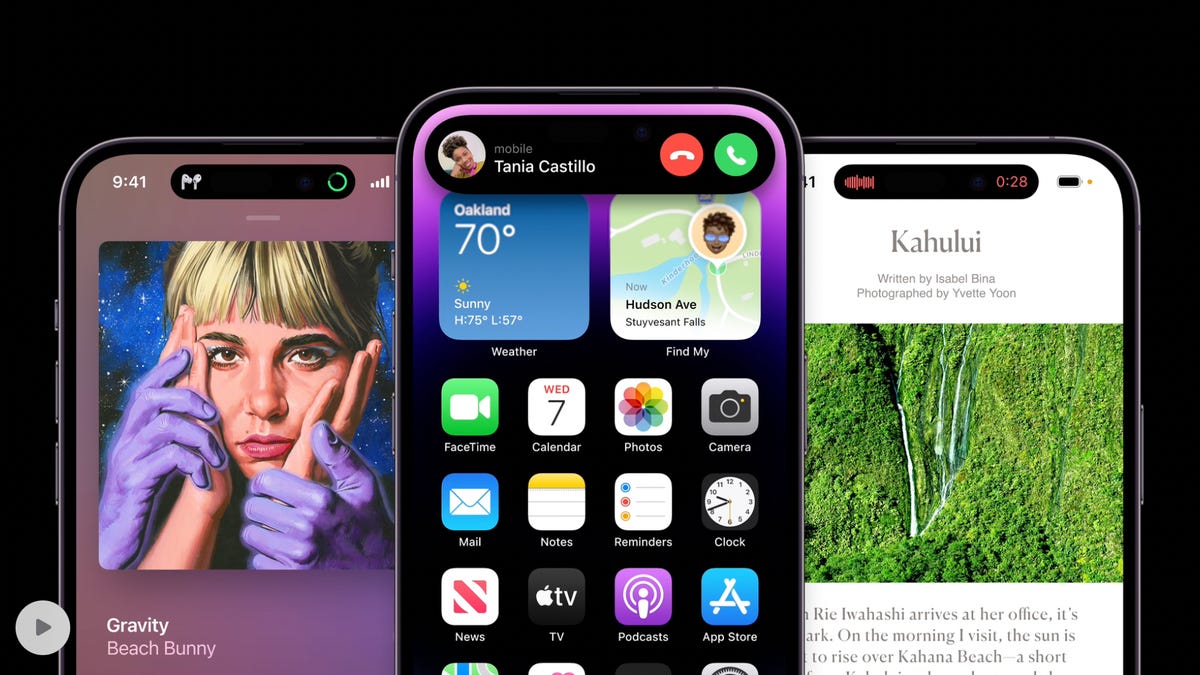
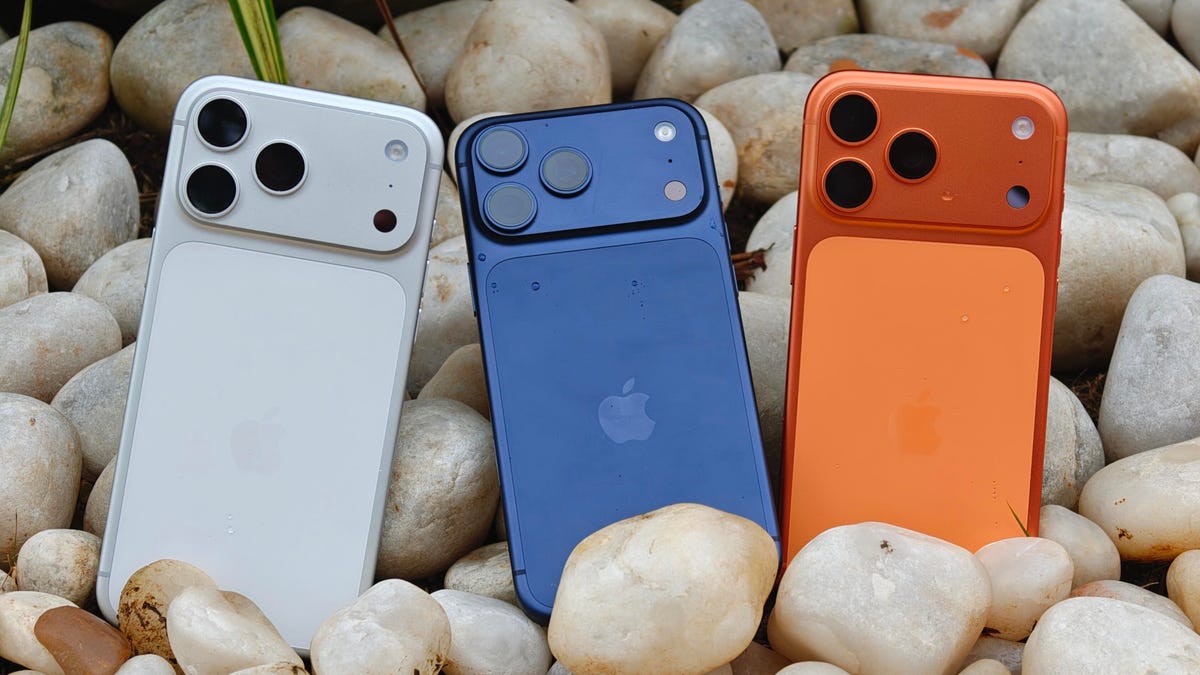
Apple is less than a week away from its annual fall event, where the next iPhone, which we’re unofficially calling the iPhone 15 series, is set to be unveiled. Although we don’t expect to see a foldable from Apple just yet, the rumor mill is buzzing about the next iPhones departing from their traditional design in a meaningful way. We can always glean more clues from Apple’s «Wonderlust» invitation, which appears to invoke a travel theme.
Some of the big questions people are asking are: Will the iPhone 15 get a USB-C port? Will the iPhone 15 series have slimmer bezels? Will Apple increase iPhone prices in 2023? Will the Pro models receive bigger upgrades?
We won’t know for sure until Apple throws the next iPhone event. But here are some of the biggest and most credible rumors to give you an idea of what to expect from the iPhone 15 series.
iPhone 15 design: Hello USB-C, goodbye Lightning
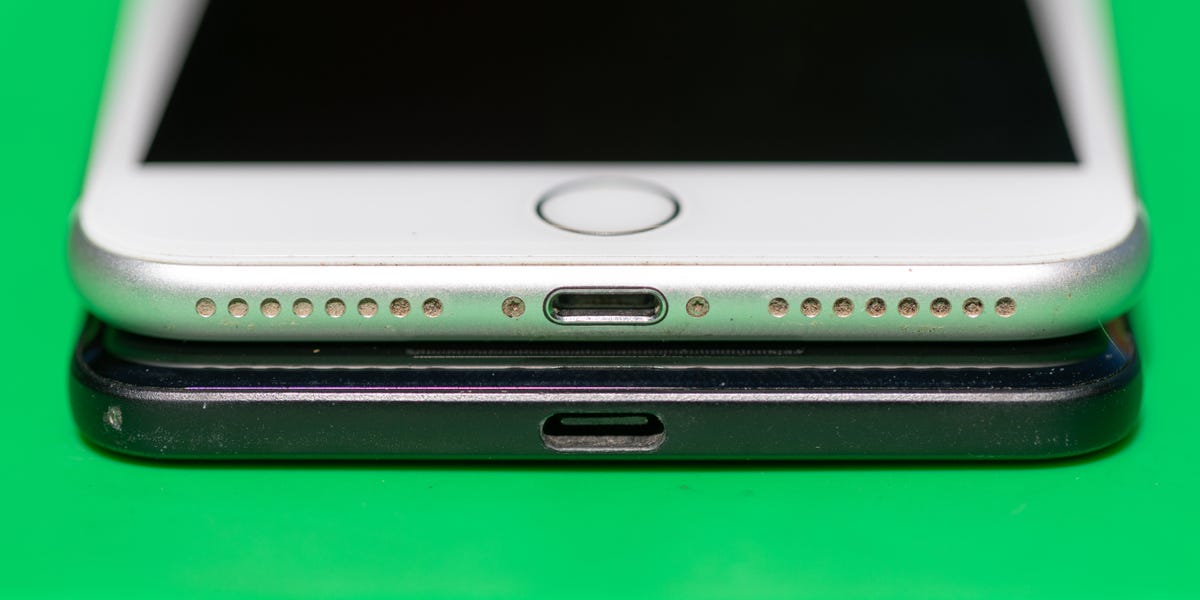
This one has been circulating around the rumor mill for years now, but in 2023 the switch from a Lightning Port to a USB-C port could finally happen. That’s likely driven by pressure from the European Union, which has been pushing for a common charging standard for years. In 2022, the bloc managed to pass legislation requiring Apple to equip its iPhones with USB-C ports by 2024 if it wants to sell them in the EU.
If that happens, the question is whether Apple will switch all iPhone models to USB-C or just those sold in the EU. Apple already modifies iPhone models regionally, as it has done with the iPhone 14: The US version has an electronic SIM, while other variants retain the SIM slot. However, there are good reasons to move all iPhones to USB-C moving forward, according to Avi Greengart, analyst at Techsponential.
«There are larger ecosystem, security, and accessory considerations with the power/data connector, so I think it is more likely that Apple moves all iPhones [globally] to USB-C in the iPhone 16 timeframe to comply with European regulations,» he told CNET in an email.
According to seasoned Bloomberg reporter Mark Gurman, only the iPhone 15 Pro and iPhone 15 Pro Max models will receive USB-C ports this year. Perhaps a complete transition could happen next year with the iPhone 16.
Read more: Your Next iPhone Will Probably Need a Different Charging Cable
iPhone 15 design: Dynamic Island expands to all models
Apple is likely to continue selling four iPhone models with the iPhone 15 lineup. Rumors point to a generally similar design across the board, except that the iPhone 14 Pro’s shape-shifting cutout, known as Dynamic Island, is set to make its way across all models.
That rumor comes from display analyst Ross Young, who also said in a September tweet that he’s not expecting base iPhone 15 models to have a higher refresh rate like Apple’s Pro iPhones because the supply chain can’t support it. Gurman also still expects this to pan out as indicated by the Jun. 30 edition of his Power On newsletter.
Read more: iPhone 14 Pro’s Most Eye-Catching Feature Feels Like It’s Winking at Something Else
iPhone 15 design: Skinnier bezels
According to Gurman, Apple’s expected to use a new manufacturing technology called «low-injection pressure over-molding» to make the Pro iPhones. This is the same method that’s used for some Apple Watch models. It will help Apple reduce the size of the bezels by fractions of a millimeter, which would in turn allow for an ever-so-slight increase in screen real estate.
iPhone 15 design: Easier repairability
The interiors of the iPhone 15 Pro and iPhone 15 Pro Max are also slated for a redesign that will make them easier to repair, according to the latest edition of Gurman’s Power On newsletter. Gurman says the inside parts have been changed to match the ones in the iPhone 14 and iPhone 14 Plus, which received the internal changes last year.
«This is the iPhone 14 reborn as a beautiful butterfly — a midframe in the middle, accessible screen on the left, and removable rear glass on the right,» iFixit wrote in a post last September after the iPhone event.
Interestingly, Apple didn’t discuss this internal redesign in its keynote, but the change was spotted by repair experts at iFixit, who said it was evident that Apple went back to the drawing board to rework the internals and integrate them seamlessly into its iPhones.
iPhone 15: Upgraded ultra wideband
According to noted Apple analyst Ming Chi Kuo, the iPhone 15 will run on an upgraded Ultra Wideband processor, which Apple calls the U1 chip, to better integrate with the company’s new AR headset, the Vision Pro. UWB is a short-range wireless communication standard often used to track down the location of objects. It can pinpoint your Apple AirTag or unlock your car as you walk up to it with your phone. In a recent post on Twitter, Kuo said this is all part of Apple’s broader strategy to «build a more competitive ecosystem for Vision Pro.»
iPhone 15: Wireless charging upgrade
According to a May report by ChargerLab, a power specialist website with a steady track record, all iPhone 15 models will support 15-watt wireless charging using the Qi2 open standard. If this turns out to be true, it’ll mean the iPhone 15 could open up a whole new world of wireless charging devices that can replenish the device at its full speed. Apple had previously limited open wireless charging standards to 7.5W, leaving the full 15W charge speed for Apple MagSafe licensed accessories.
iPhone 15 camera: Periscope-style telephoto lens arrives
Noted Apple observer Ming-Chi Kuo, an analyst with TF International Securities, forecasts that the iPhone 15 Pro Max will receive a periscope-style telephoto lens. This sort of telephoto lens allows for higher optical zoom levels, which would equip that iPhone with better capabilities for shooting distant objects. Kuo forecasts that 6x optical zoom could arrive in the iPhone 15 Pro Max. For reference, the optical zoom on the iPhone 14 Pro Max stands at 3x, which lags rivals such as the Samsung Galaxy S22 Ultra’s 10x optical zoom. This rumor was recently bolstered by well-known leak source and Twitter user Unknownz21, who stated that the Pro Max model will come with the special lens.
Read more: iPhone 14 Pro Cameras Are a Major Upgrade

iPhone 15 design: Solid-state buttons come to pro iPhone 15 models
Kuo expects Apple to differentiate further between its base and Pro models in the coming years. One way he’s expecting that to happen is by way of solid-state volume and power buttons of the iPhone 15 Pro models instead of the standard keys present on today’s devices.
(1/6)
My latest survey indicates that the volume button and power button of two high-end iPhone 15/2H23 new iPhone models may adopt a solid-state button design (similar to the home button design of iPhone 7/8/SE2 & 3) to replace the physical/mechanical button design.— 郭明錤 (Ming-Chi Kuo) (@mingchikuo) October 28, 2022
The solid-state buttons, which Kuo says will be similar to the home button found on the iPhone SE and iPhone 7, mimic the tactile feel of pressing a button with the help of haptic feedback. The apparent advantage of this type of button is that it also protects against water ingress.
iPhone 15 Power: Increased RAM for pro models
According to Taiwanese research firm TrendForce, Pro models of the iPhone 15 lineup will get a bump up in RAM to 8GB from 6GB to complement the anticipated A17 Bionic chipset. Base models will continue to receive 6GB RAM, according to TrendForce. This rumor is also apparently backed up by a research report from analyst Jeff Pu of Haitong International Securities, according to a MacRumors article, which referenced Pu’s report.
iPhone 15 price: Up, up and away?
iPhone 15 prices are tipped to increase in the US for the first time in years. Last year, Apple already increased prices in select countries outside the US.
According to a MacRumors report, citing Barclays analyst Tim Long, the iPhone 15 Pro could cost $100 more than the iPhone 14 Pro, while the iPhone Pro Max price hike could be in the range of $100 to $200 more. A similar claim has been made by Jeff Pu, of investment firm Haitong International Securities, who explicity said the iPhone 15 Pro Max specifically is due for a price increase, according to another MacRumors report. This is based on the assumption that Apple will add more features and components to the Pro models, such as a new periscope camera, a titanium frame and a 3nm A17 Bionic chip.
US prices currently range from $829 for the entry-level iPhone 14 model (128GB) all the way up to $1,599 for the highest-end iPhone 14 Pro Max with 1TB of storage.
Another possibility is the upper limit of the price range could be pushed higher if rumors about a luxe iPhone 15 Ultra turn out to be true. The rumored Ultra model could potentially replace the iPhone 15 Pro Max next year, Bloomberg’s Mark Gurman wrote in September last year. This falls in line with predictions from Kuo, who expects Apple to differentiate further between the iPhone Pro and iPhone Pro Max models. However, in his June 30 newsletter, Gurman made no mention of the iPhone 15 Ultra. Other rumors suggest that the iPhone 15 Ultra will be a step up from the iPhone 15 Pro Max.
Read more: What Apple Could Do With iPhone 15 Prices in 2023
iPhone 15 Ultra camera: Variable zoom
According to tipster Revengus, the iPhone 15 Ultra will feature a telephoto camera with a variable zoom lens, which is the camera setup rumored to feature on Samsung’s Galaxy S24 Ultra. Variable optical zoom (continuous zoom) cameras aren’t commonly found on smartphones for a variety of reasons, including the fact that the size and design of phone cameras restricts the type of lenses that can be used.
iPhone 15: Launch and release timeline
Apple holds its annual iPhone event in September almost every year, so we’d expect the timeline to remain the same for the iPhone 15. New iPhones typically get released shortly thereafter, usually the Friday of the following week. Sometimes Apple will stagger release dates for specific models, especially when introducing a new design or size. So it’s possible that the iPhone 15 lineup will have more than one release date.
Here’s what we know:
- Apple tends to hold its events on Tuesdays or Wednesdays. Apple’s iPhone 14 event was held on Wednesday Sept. 7, while its iPhone 13 event was held on Tuesday, Sept. 14.
- iPhone release dates are typically a week and a half after Apple’s announcements.
- In general, new iPhones are released on a Friday, around the third week of September. For the iPhone 13, preorders began Sept. 17 and the phones went on sale Sept. 24.
Looking for more iPhone advice? Check out our iPhone upgrade guide, our list of the best iPhones and our roundup of the best cases for your iPhone 14 or 14 Pro.
Technologies
Today’s NYT Mini Crossword Answers for Wednesday, Oct. 22
Here are the answers for The New York Times Mini Crossword for Oct. 22.
Looking for the most recent Mini Crossword answer? Click here for today’s Mini Crossword hints, as well as our daily answers and hints for The New York Times Wordle, Strands, Connections and Connections: Sports Edition puzzles.
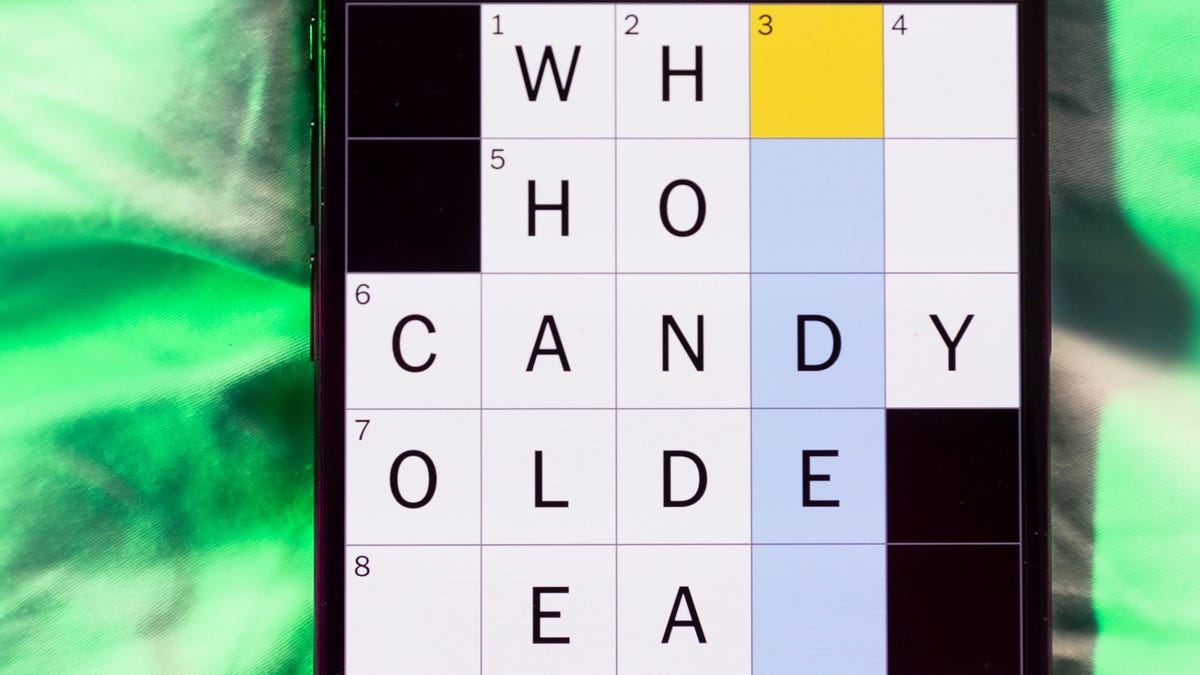
Need some help with today’s Mini Crossword? It’s one of those with absolutely no empty spaces, just a grid of letters, which means if you correctly answer all the Across answers, you’ve solved the Down answers, too. Need help? Read on. And if you could use some hints and guidance for daily solving, check out our Mini Crossword tips.
If you’re looking for today’s Wordle, Connections, Connections: Sports Edition and Strands answers, you can visit CNET’s NYT puzzle hints page.
Read more: Tips and Tricks for Solving The New York Times Mini Crossword
Let’s get to those Mini Crossword clues and answers.
Mini across clues and answers
1A clue: Roomful of students
Answer: CLASS
6A clue: Something to bring in a brown paper bag
Answer: LUNCH
7A clue: __ Harbor, sightseeing area of Baltimore
Answer: INNER
8A clue: Where many Stephen King novels are set
Answer: MAINE
9A clue: Beagle or bulldog
Answer: BREED
Mini down clues and answers
1D clue: Go bouldering, e.g.
Answer: CLIMB
2D clue: ___ New Year
Answer: LUNAR
3D clue: Redhead of musical/movie fame
Answer: ANNIE
4D clue: Something an actor might steal
Answer: SCENE
5D clue: Tear to pieces
Answer: SHRED
Technologies
These Small Tweaks Can Give Your Old Android a Big Speed Boost
Instead of buying a new phone, try clearing some space, updating your software and changing a few battery settings.
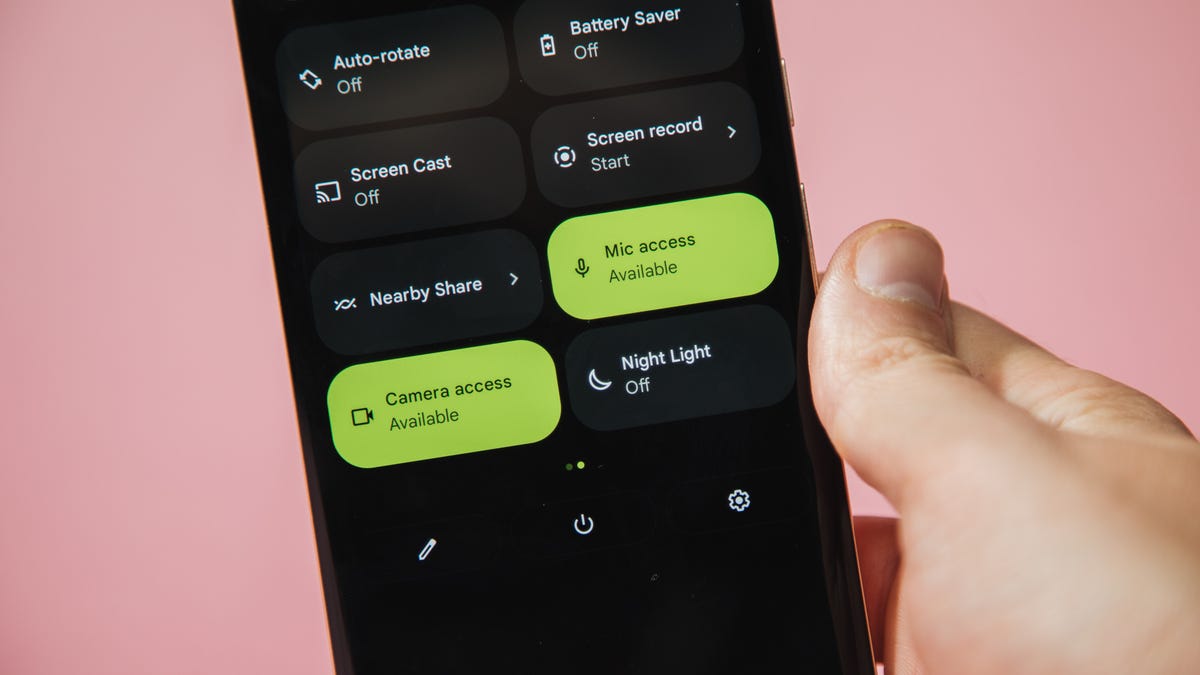
If your Android is a few years old and starting to feel sluggish, it doesn’t mean you have to rush out and buy the newest flagship model. Thanks to longer software support from brands like Google and Samsung, older models can still run smoothly, as long as you give them a little attention.
Before you start shopping for a replacement, try a few simple adjustments. You might be surprised by how much faster your phone feels once you clear out unused apps, optimize battery use and turn off background drains.
Whether you use a Samsung Galaxy, Motorola or OnePlus phone, chances are you can still improve battery life and overall speed without buying something new. Just remember that Android settings vary slightly from brand to brand, so the menus may look a little different depending on your phone.
Don’t miss any of our unbiased tech content and lab-based reviews. Add CNET as a preferred Google source.
Settings to improve your battery life
Living with a phone that has poor battery life can be infuriating, but there are some steps you can take to maximize each charge right from the very beginning:
1. Turn off auto screen brightness or adaptive brightness and set the brightness level slider to under 50%
The brighter your screen, the more battery power it uses.
To get to the setting, pull down the shortcut menu from the top of the screen and adjust the slider, if it’s there. Some phones may have a toggle for auto brightness in the shortcut panel; otherwise, you need to open the settings app and search for «brightness» to find the setting and turn it off.
2. Use Adaptive Battery and Battery Optimization
These features focus on learning how you use your phone, including which apps you use and when, and then optimizing the apps and the amount of battery they use.
Some Android phones have a dedicated Battery section in the Settings app, while other phones (looking at you, Samsung) bury these settings. It’s a little different for each phone. I recommend opening your settings and searching for «battery» to find the right screen. Your phone may also have an adaptive charging setting that can monitor how quickly your phone battery charges overnight to preserve its health.
Why you should use dark mode more often
Another way to improve battery life while also helping save your eyes is to use Android’s dedicated dark mode. Any Android phone running Android 10 or newer will have a dedicated dark mode option.
According to Google, dark mode not only reduces the strain that smartphone displays cause on our eyes but also improves battery life because it takes less power to display dark backgrounds on OLED displays (used in most flagship phones) than a white background.
Depending on which version of Android your phone is running, and what company made your phone, you may have to dig around the settings app to find a dark mode. If your phone runs Android 10 or newer, you’ll be able to turn on system-wide dark mode. If it runs Android 9, don’t despair. Plenty of apps have their own dark mode option in the settings that you can use, whether or not you have Android 10.
To turn it on dark mode, open the Settings app and search for Dark Mode, Dark Theme or even Night Mode (as Samsung likes to call it). I suggest using dark mode all the time, but if you’re not sure, you can always set dark mode to automatically turn on based on a schedule, say from 7 p.m. to 7 a.m. every day, or allow it to automatically switch based on your location at sunset and sunrise.
Keep your home screen free of clutter
Planning to hit up the Google Play Store for a bunch of new Android apps? Be prepared for a lot of icon clutter on your home screen, which is where shortcuts land every time you install something.
If you don’t want that, there’s a simple way out of this: Long-press on an empty area of your home screen and tap Settings. Find the option labeled something along the lines of Add icon to Home Screen or Add new apps to Home Screen and turn it off.
Presto! No more icons on the home screen when you install new apps. You can still add shortcuts by dragging an app’s icon out of the app drawer, but they won’t appear on your home screen unless you want them to.
Read more: Best Android Phones You Can Buy in 2024
Set up Do Not Disturb so that you can better focus
If your phone routinely spends the night on your nightstand, you probably don’t want it beeping or buzzing every time there’s a call, message or Facebook alert — especially when you’re trying to sleep. Android offers a Do Not Disturb mode that will keep the phone more or less silent during designated hours. On some phones, this is referred to as the Downtime setting or even Quiet Time.
Head to Settings > Sounds (or Notifications), then look for Do Not Disturb or a similar name. If you can’t find it, search for it using the built-in search feature in your settings.
Using the feature, you can set up a range of hours when you want to turn off the digital noise. Don’t worry, any notifications you get while Do Not Disturb is turned on will still be waiting for you when you wake up. Also, you can typically make an exception that allows repeat callers and favorite contacts’ calls to go through. Turn that on. If someone is calling you in an emergency, odds are they are going to keep trying.
Always be prepared in case you lose your phone or it’s stolen
Is there anything worse than a lost or stolen phone? Only the knowledge that you could have tracked it down if you had turned on Google’s Find My Device feature.
To prepare for a successful recovery, here’s what you need to do: Open the Settings app and then search for Find My Device. It’s usually in the Security section of the Settings app.
If you have a Samsung device, you can use Samsung’s Find My Mobile service, which is found in Settings > Biometrics and security > Find My Mobile.
Once that’s enabled, you can head to android.com/find from any PC or mobile device and sign in to your account. Samsung users can visit findmymobile.samsung.com to find a lost phone.
If you have trouble setting any of this up, be sure to read our complete guide to finding a lost Android phone.
Assuming your phone is on and online, you should be able to see its location on a map. From there, you can make it ring, lock it, set a lock screen note to tell whoever has it how to get it back to you, or, worst-case scenario, remotely wipe the whole thing.
And always keep your phone up to date
As obvious as it may seem, a simple software update could fix bugs and other issues slowing down your Android device.
Before you download and install the latest software update, make sure your device is connected to Wi-Fi, or else this won’t work.
Now, open the Settings application and type in Update. You’ll then either see Software update or System update — choose either one. Then just download the software, wait for a few minutes and install it when it’s ready. Your Android device will reboot and install the latest software update available.
There’s a lot more to learn about a new phone. Here are the best ways to boost your cell signal, and here’s a flagship phone head-to-head comparison. Plus, check out CNET’s list of the best cases for your Samsung phone. More of an Apple fan? We have tips for boosting your iPhone’s performance, too.
Technologies
I’m Finally Using the iPhone 17 Pro’s Camera Control, Thanks to These iOS 26 Settings
In just a month, I’ve already used Camera Control on my iPhone 17 Pro Max more than I did in a whole year with the iPhone 16 Pro.
I was keen on using the Camera Control button when it first debuted on the iPhone 16 Pro. But in over a year of use, it caused more accidental swipes and presses than its intended use cases to take photos and adjust camera settings. I was frustrated with the experience and hoped that Apple would remove it from the iPhone 17 lineup. Instead, the Cupertino, California-based company made its touch-sensitive capacitive control surface more customizable with iOS 26. And I’m happy to report that it helped!
I’ve been using the iPhone 17 Pro since launch and spent 5 to 10 minutes customizing the Camera Control to my liking. The result? Minimized accidental swipes and more conscious usability.
I transformed my Camera Control experience by changing a few iOS 26 settings
When setting up a new iOS 26-supported iPhone, Apple includes a toggle (now turned off by default) called Light press to adjust Zoom, Exposure and more. This is what used to cause a lot of fake input earlier. I’m glad it is turned off by default.
Apple now also lets you customize the Camera Control further from the Settings menu. I tweaked settings there to personalize my shortcuts, functionalities and more.
For example, I’ve set the Camera Control to launch a Code Scanner on Double Click without requiring the screen to be on. This allows me to scan and pay at payment kiosks (my most frequently used mode of payment) without needing to open the payment app and then tap on a menu to scan a code. If I enter the Code Scanner without Face ID, it requires authentication before making the payment, so it is still as secure as ever.
Earlier, I had set an Action Button shortcut to open Google Pay, but I realized I still need a one-press solution to turn the phone to silent mode. Adding a Code Scanner shortcut to Camera Control frees the Action Button to be my Silent Switch again. Moreover, Code Scanner lets you select from multiple apps to pay a vendor, which could be useful for people who use multiple payment apps.
Secondly, I have turned off the Swipe gesture and selected only three controls that I use most often. Now, when I open the Camera app, I can lightly press on the Camera Control button and then swipe between my selected controls. It doesn’t register swipes from the get-go. This has reduced fake touches and my frustrating experience with the swipe gesture.
To further streamline my controls, I chose Exposure, Styles and Tone, and left out Depth, Zoom and Cameras. This way, I have access to hidden viewfinder settings with a single press-and-swipe gesture at my fingertips.
I also turned off the Clean Preview toggle, so I can still switch between cameras with a single tap, and switched on the Lock Focus and Exposure toggle for a light press-and-hold gesture.
Customizing these settings helped me personalize Camera Control and use it more often. Now, it appeals to me with the settings I need and the way I need them, instead of being an overcrowded mess. And you can personalize your Camera Control, too. Here’s how:
Change Camera Control launch functionality
You can use Camera Control as another Action Button to launch an app of your choice. The only requirement is that the app should have access to the camera.
- Go to Settings > Camera > Camera Control.
- Under Launch Camera, select the app you need.
- Go back and select Single Click or Double Click to open the said app.
I rely on Double Click so I don’t accidentally trigger an app when taking out the iPhone from my pocket. In my opinion, it is the safer and more convenient choice.
Under the same Launch Camera menu, you can also choose if you want the screen to be on or off when opening the app. I have turned it off to save the extra step of scanning my face to access the said app.
Choose the Controls that you want to appear on Camera Control
Apple allows you to choose from six controls, namely, Exposure, Depth, Zoom, Cameras, Styles and Tone. I have chosen three because the other three are available as on-screen toggles in the viewfinder.
- Go to Settings > Camera > Camera Control.
- Under Controls, make sure Camera Adjustments is turned on.
- Tap on Customize.
- Under Gesture, turn on Light Press and toggle off Swipe.
- Under Controls, choose the functionalities you need.
- Now, turn off the Clean Preview toggle if you require the viewfinder toggles to remain accessible.
You can further adjust the Camera Control pressure by going into Settings> Camera > Camera Control > Accessibility.
Turn on Lock Exposure and Focus with Camera Control
This setting will help you lock the exposure and focus without needing to press and hold on the viewfinder. It can be beneficial when you need consistent settings, especially when moving the camera from one subject to another.
- Go to Settings > Camera > Camera Control.
- Swipe down to Lock Exposure and Focus.
- Tap on the toggle to turn it on.
For me, Camera Control was a hot mess when it debuted last year because I was either using on-screen controls or the new button. That’s why room for more personalization and customizability has been a game-changer. I realized I could access on-screen toggles while adding hidden settings to one-tap access. On my iPhone 17 Pro, I now use the Camera Control to open my payments app, adjust Exposure and Styles as well as trigger Visual Intelligence when needed.
-
 Technologies3 года ago
Tech Companies Need to Be Held Accountable for Security, Experts Say
-
 Technologies3 года ago
Best Handheld Game Console in 2023
-
 Technologies3 года ago
Tighten Up Your VR Game With the Best Head Straps for Quest 2
-
 Technologies4 года ago
Verum, Wickr and Threema: next generation secured messengers
-
 Technologies4 года ago
Black Friday 2021: The best deals on TVs, headphones, kitchenware, and more
-
 Technologies4 года ago
Google to require vaccinations as Silicon Valley rethinks return-to-office policies
-
 Technologies4 года ago
Olivia Harlan Dekker for Verum Messenger
-
 Technologies4 года ago
iPhone 13 event: How to watch Apple’s big announcement tomorrow


