

Technologies
Mac Owners: Use Your iPad as a Second Monitor for Your Computer
If your computer’s screen isn’t enough, use your iPad as a secondary display.

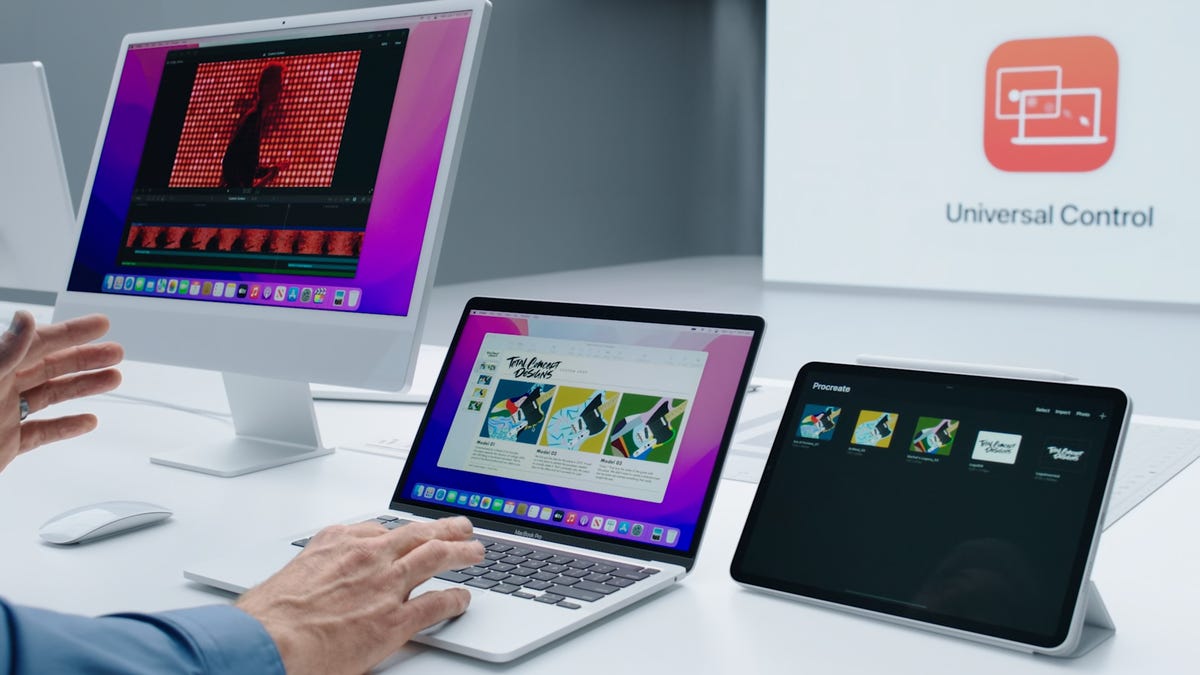
Even if you have a large Mac screen, it may not always be enough. Many people invest in a second monitor to get some breathing room when they’re gaming, streaming and multitasking. However, if you don’t want to spend money on another device that takes up space, you may not have to — with an iPad, you can get dual displays for free.


As long as you have a Mac and iPad that are compatible, you can quickly and easily connect the two Apple devices and use the iPad as an extra display for your Mac computer. Using Sidecar, which comes built-in to supported devices, you can either extend your MacOS desktop or just mirror it onto your iPad, equipped with touchscreen controls to seamlessly use the two devices together. Here’s what you need to know.
In the market for an iPad? Here is a list of the best iPad choices for 2023 and the best deals on iPads.
Requirements to use your iPad as a second display
As mentioned above, both of your devices need to support Sidecar, which is the feature that allows you to use your iPad as a second monitor for your Mac. For your Mac, you must be running MacOS Catalina or later and it has to be one of the following models:
- MacBook Pro (2016 or later)
- MacBook (2016 or later)
- MacBook Air (2018 or later)
- iMac (2017 or later and Retina 5K, 27-inch, Late 2015)
- iMac Pro
- Mac Mini (2018 or later)
- Mac Pro (2019 or later)
- Mac Studio
And for your iPad, it must be running iPadOS 13 or later and be one of the following models:
- iPad Pro
- iPad (6th generation or later)
- iPad Mini (5th generation or later)
- iPad Air (3rd generation or later)
It’s best to update your devices to the latest software available to avoid any issues. Also, both devices must be logged in to the same Apple ID account, using two-factor authentication.
If you plan on going wireless, the two devices must be within 30 feet of one another. You can also use your USB to connect the two devices, with the advantage of being able to also charge your iPad while it’s in use as a second monitor.
Share your entire Mac desktop to your iPad
Depending on what software update you have on your computer, sharing your computer desktop to your tablet may vary. If you’re running MacOS Big Sur or later, click the Display icon in the menu bar at the top right. In the menu that appears, choose your iPad.
If you’re on MacOS Catalina, you’ll instead click on the AirPlay icon in the menu bar and then select your iPad. If for some reason you don’t see the AirPlay icon, click the Apple menu in the top right and go to System Preferences > Displays and check Show mirroring options in the menu bar when available.

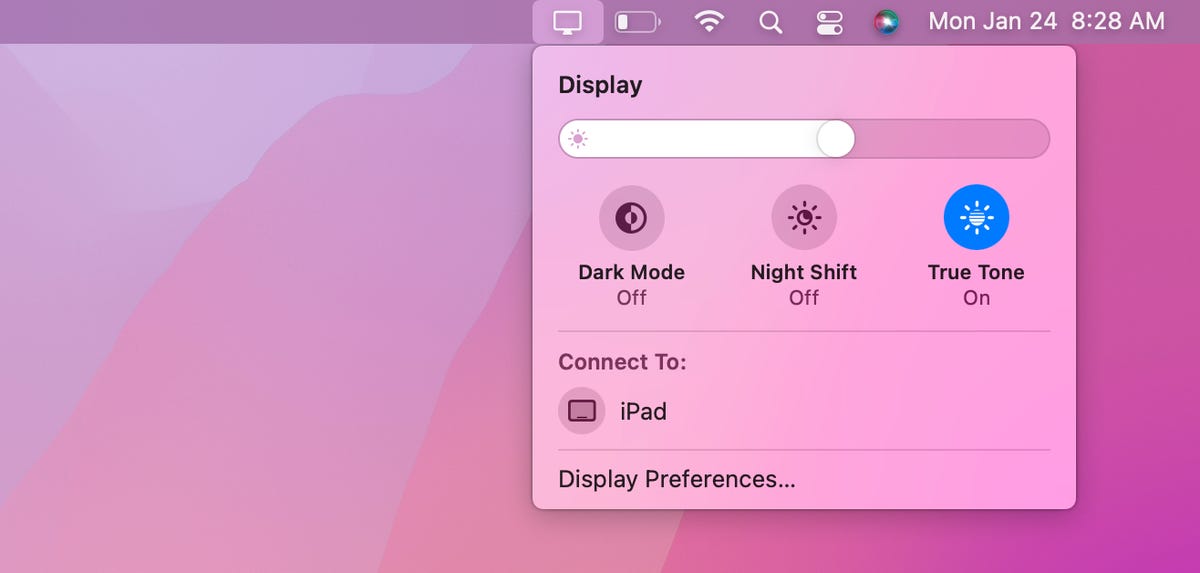
Click the Display option in the menu bar to find your iPad.
Screenshot by Nelson Aguilar/CNETOnce your Mac and iPad are connected, you have several options to choose from that appear in the Display/AirPlay menu:
- Mirror Built-in Retina Display: Mirror your exact desktop to your iPad. This will shift your computer desktop to look more like your iPad.
- Use As Separate Display: Use the iPad as an extension to your desktop. To use your iPad display, drag any window or files from your Mac computer to the right of your screen, which will take you to the tablet. To go back to your computer, simply drag your cursor back to where you came from.
Share only one Mac window to your iPad
Alternatively, you can quickly share a window instead of dragging it over to your iPad. For example, you could share your web browser in Safari or what you’ve jotted down in your Notes. To do this, simply hover your mouse cursor over the green full-screen button that appears on the top left of most windows. After a second of hovering, you should see an option that says «Move to iPad,» which will share that window to your tablet. You can share multiple windows, in succession, to your iPad.

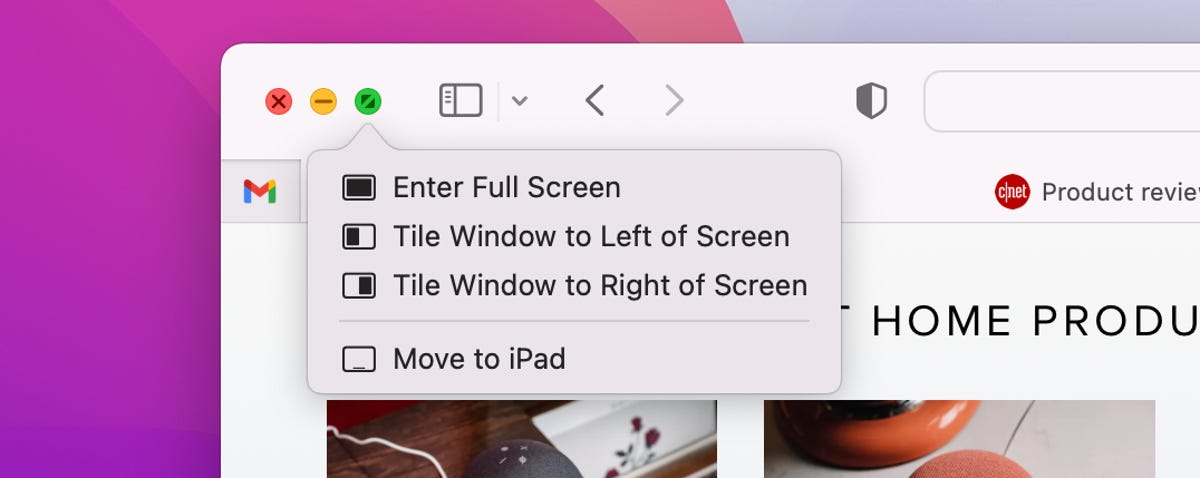
Hover over the full-screen button to send that window to your iPad.
Screenshot by Nelson Aguilar/CNETUsing the sidebar controls, gestures and Touch Bar on your iPad
Once your screen is shared over to your iPad, a set of controls will appear on the left side of your iPad, which are sidebar controls you’ll commonly see on your Mac. That includes, from top to bottom:
- Menu bar: Show or hide menu bar when in full-screen
- Dock: Show or hide dock
- Command: Double-tap to lock key
- Option: Double-tap to lock key
- Control: Double-tap to lock key
- Shift: Double-tap to lock key
- Undo: Undo last action
- Keyboard: Show or hide keyboard
- Disconnect: Disconnect iPad from Mac
In addition to these Mac controls, you can also use a number of swipe gestures to control certain things on the second monitor (you won’t be able to use the touchscreen as usual though). That includes swiping with two fingers to scroll, pinching in with three fingers to copy, swiping left with three fingers to undo and more.
And finally, you may also be able to use the Touch Bar, if the application on your iPad is compatible. For instance, if you move Safari over to the iPad, you’ll see Touch Bar controls to go back and forward, use the search bar, flip between tabs and open a new tab. In Messages, you would see controls to create a new text, send an emoji and predictive text. The Touch Bar may not appear for every app you use on your iPad.

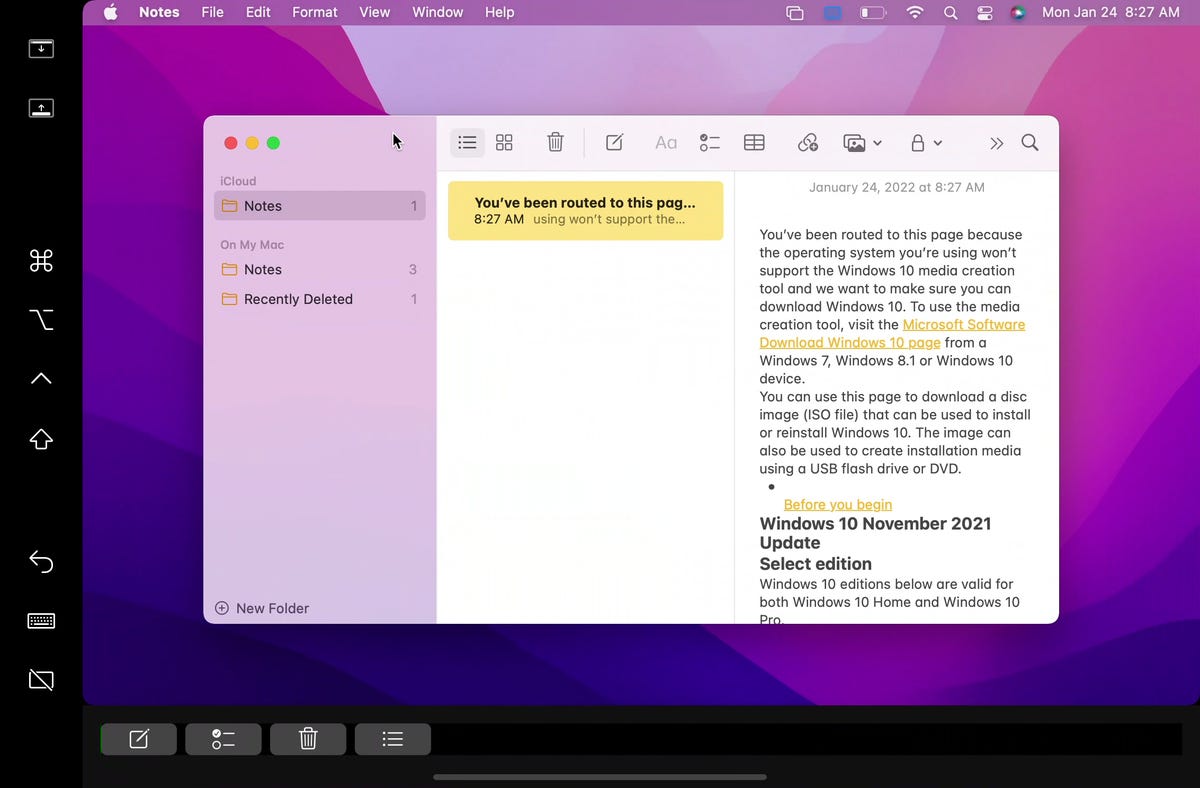
This is what your iPad will look like as a second monitor.
Screenshot by Nelson Aguilar/CNETIf you don’t want to use the Sidebar or Touch Bar controls, you can also get rid of them. On your Mac, click on the Display icon in the menu bar, and underneath your connected iPad, you should see Hide SideBar and Hide Touch Bar. Click on either or both options to hide the controls from your iPad.
Using your iPad while connected to your Mac
Even if you’re using your iPad as a second monitor, you can still swipe up to exit the Sidecar application and use your iPad as usual. In your dock, you’ll see a blue icon with two monitors on it — this is Sidecar. To go back to using your iPad as a second monitor, tap on the Sidecar app icon in the dock.
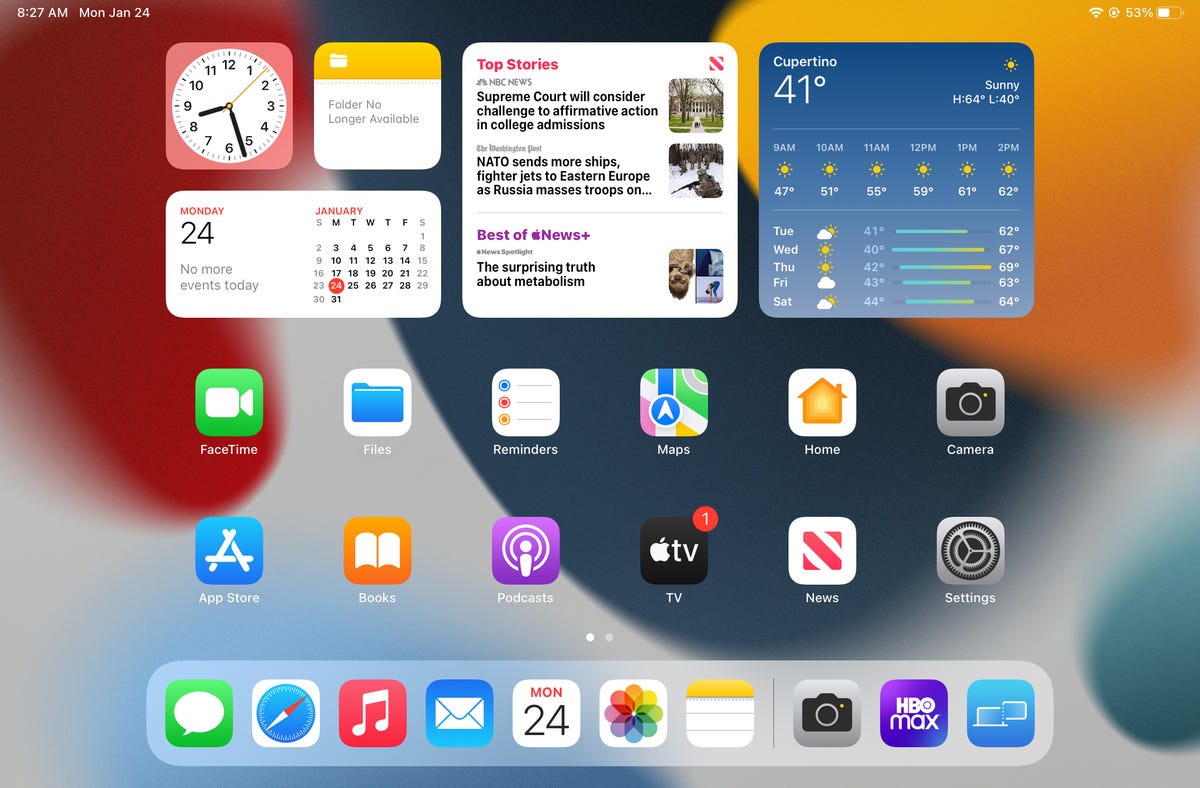
You can use your iPad as usual, even when connected to a Mac via Sidecar.
Screenshot by Nelson Aguilar/CNETIf you’re interested in learning more about what your iPad is capable of, check out how to declutter your iPad dock by removing this annoying feature and nine things to do immediately after you get a new iPad.
Technologies
Tinder Users Must Start Logging In With Their Faces, Starting Nationwide
The social app now has new US requirements including face identification to help quell longstanding problems with catfishing and more.

US Tinder users will find a new feature when they open up the dating app starting Wednesday: A mandatory Face Check on their phones will be required before they can log into their profiles.
The Face Check step will begin with a new request to record a video of your face, a more casual version of setting up Apple’s Face ID login. Tinder will then run checks comparing your face data to your current profile pics and automatically create a small face badge for your profile. We already know how it works, because Tinder has already launched the feature in Canada and California before the full US rollout.
The technology, powered by FaceTec, will keep biometric data of the user’s face in encrypted form but discard the scanning video for privacy. Tinder will be able to use the face data to detect duplicate accounts, in an effort to cut down on fake profiles and identity theft.
Don’t miss any of our unbiased tech content and lab-based reviews. Add CNET as a preferred Google source.
Tinder’s facial recognition rollout is also made to prevent catfishing, or people pretending to be someone else on Tinder to scam or blackmail them. But that also points to a deeper problem on the rise in dating apps — a growing number of bots, many controlled by AI, are designed to glean personal information or fool users into scammy subscriptions, among other problems.
Tinder’s working against these bots on several fronts, including this Face Check push as well as ID Check, which requires a government-issued ID and other types of photo verification.
The dating app also recently released a feature in June to enable double-dating with your friends, which Tinder reports is especially popular with Gen Z users. If you’re worried about the latest hazards on Tinder, we have guide to safety practices.
A representative for Tinder did not immediately respond to a request for comment.
Technologies
Today’s NYT Mini Crossword Answers for Thursday, Oct. 23
Here are the answers for The New York Times Mini Crossword for Oct. 23.
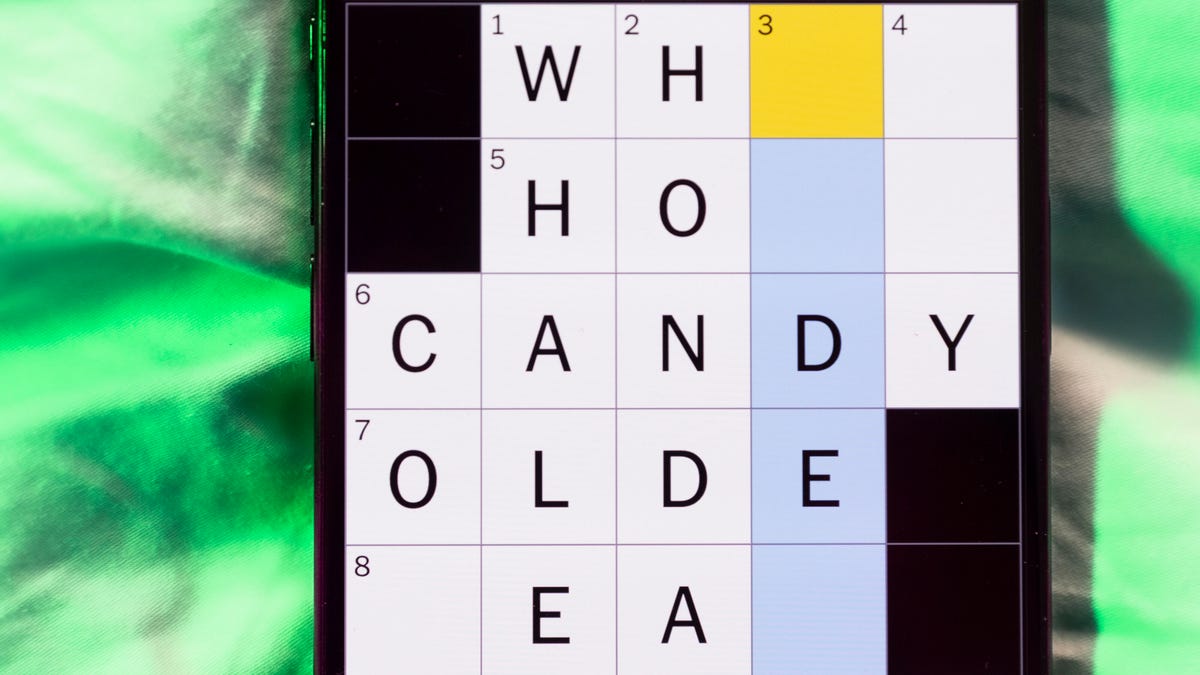
Looking for the most recent Mini Crossword answer? Click here for today’s Mini Crossword hints, as well as our daily answers and hints for The New York Times Wordle, Strands, Connections and Connections: Sports Edition puzzles.
Need some help with today’s Mini Crossword? Read on. And if you could use some hints and guidance for daily solving, check out our Mini Crossword tips.
If you’re looking for today’s Wordle, Connections, Connections: Sports Edition and Strands answers, you can visit CNET’s NYT puzzle hints page.
Read more: Tips and Tricks for Solving The New York Times Mini Crossword
Let’s get to those Mini Crossword clues and answers.
Mini across clues and answers
1A clue: Like some weather, memories and I.P.A.s
Answer: HAZY
5A clue: Statement that’s self-evidently true
Answer: AXIOM
7A clue: Civic automaker
Answer: HONDA
8A clue: What fear leads to, as Yoda told a young Anakin
Answer: ANGER
9A clue: Foxlike
Answer: SLY
Mini down clues and answers
1D clue: Verbal «lol»
Answer: HAHA
2D clue: Brain signal transmitter
Answer: AXON
3D clue: Hits with a witty comeback
Answer: ZINGS
4D clue: Sing at the top of a mountain, maybe
Answer: YODEL
6D clue: Name of the famous «Queen of Scots»
Answer: MARY
Technologies
Today’s NYT Strands Hints, Answers and Help for Oct. 23 #599
Here are hints and answers for the NYT Strands puzzle for Oct. 23, No. 599.
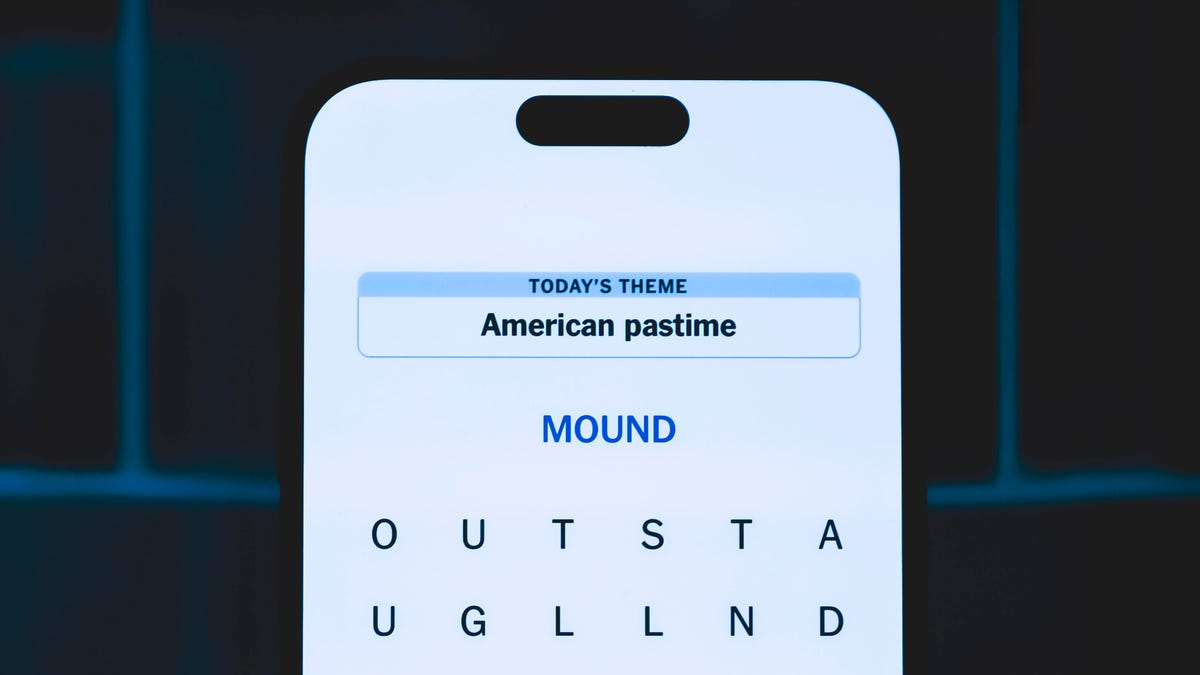
Looking for the most recent Strands answer? Click here for our daily Strands hints, as well as our daily answers and hints for The New York Times Mini Crossword, Wordle, Connections and Connections: Sports Edition puzzles.
Today’s NYT Strands puzzle might be Halloween-themed, as the answers are all rather dangerous. Some of them are a bit tough to unscramble, so if you need hints and answers, read on.
I go into depth about the rules for Strands in this story.
If you’re looking for today’s Wordle, Connections and Mini Crossword answers, you can visit CNET’s NYT puzzle hints page.
Read more: NYT Connections Turns 1: These Are the 5 Toughest Puzzles So Far
Hint for today’s Strands puzzle
Today’s Strands theme is: Please don’t eat me!
If that doesn’t help you, here’s a clue: Remember Mr. Yuk?
Clue words to unlock in-game hints
Your goal is to find hidden words that fit the puzzle’s theme. If you’re stuck, find any words you can. Every time you find three words of four letters or more, Strands will reveal one of the theme words. These are the words I used to get those hints but any words of four or more letters that you find will work:
- POND, NOON, NODE, BALE, SOCK, LOVE, LOCK, MOCK, LEER, REEL, GLOVE, DAIS, LEAN, LEAD, REEL
Answers for today’s Strands puzzle
These are the answers that tie into the theme. The goal of the puzzle is to find them all, including the spangram, a theme word that reaches from one side of the puzzle to the other. When you have all of them (I originally thought there were always eight but learned that the number can vary), every letter on the board will be used. Here are the nonspangram answers:
- AZALEA, HEMLOCK, FOXGLOVE, OLEANDER, BELLADONNA
Today’s Strands spangram
Today’s Strands spangram is POISONOUS. To find it, look for the P that is the first letter on the far left of the top row, and wind down and across.
-
 Technologies3 года ago
Tech Companies Need to Be Held Accountable for Security, Experts Say
-
 Technologies3 года ago
Best Handheld Game Console in 2023
-
 Technologies3 года ago
Tighten Up Your VR Game With the Best Head Straps for Quest 2
-
 Technologies4 года ago
Verum, Wickr and Threema: next generation secured messengers
-
 Technologies4 года ago
Black Friday 2021: The best deals on TVs, headphones, kitchenware, and more
-
 Technologies4 года ago
Google to require vaccinations as Silicon Valley rethinks return-to-office policies
-
 Technologies4 года ago
Olivia Harlan Dekker for Verum Messenger
-
 Technologies4 года ago
iPhone 13 event: How to watch Apple’s big announcement tomorrow


