

Technologies
Top 10 Tips to Help You Get a Better Grip on Gmail
Stay on top of your Gmail inbox with these must-have tips and tricks that will turn you into an email pro.

Texting has likely alleviated some of your email traffic, but I’d wager your email inbox is still like mine — a bit chaotic and disorderly. If you use Gmail daily on a computer for work or personal use, are you making the most of Google’s free email client? Gmail has a host of features that can help you better manage the constant flow of messages to and from your inbox.
Here are the 10 tips that I have found most helpful in keeping on top of my email correspondence. You may already be using some of these, but hopefully you’ll find a few here that you can work into your routine to help manage the constant flow of messages to and from your Gmail inbox.
1. Mute annoyingly noisy email threads
Getting stuck on a group email thread can be as annoying on a laptop as a group text on your phone. You’ve got enough distractions during the workday that you certainly don’t need to see a group email continually calling out to you at the top of your inbox as new replies arrive.
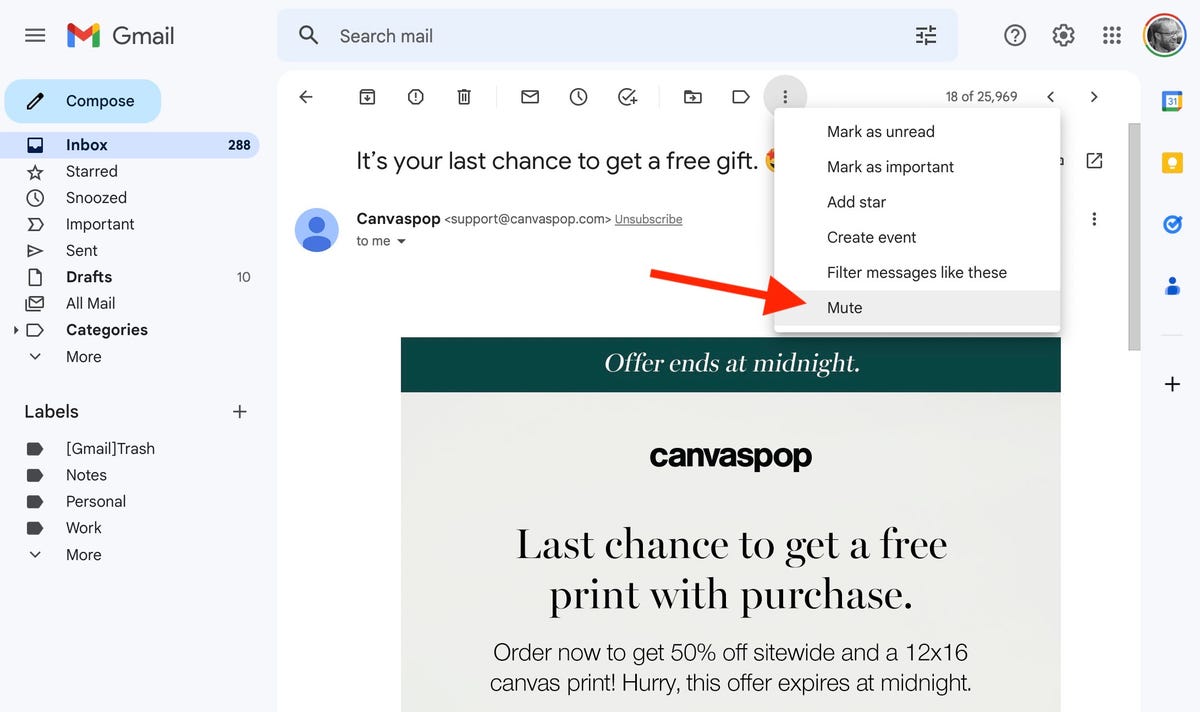
If you have an active group email and no longer care to follow the back-and-forth chatter, you can opt out. Open the thread, click the triple-dot button at the top and click Mute. The conversation will be moved to your archive, where it will remain even when more replies arrive.
If you later get curious about what you missed, you can always find it in the All Mail view of Gmail, which includes your archived messages. You can then unmute the conversation if you so choose by opening the conversation and clicking the X button next to the Mute label at the top of the page. Once unmuted, the next time you receive a reply, it will show up at the top of your inbox.

2. Block unwanted messages
One step further than muting a message is blocking the sender. If you are getting needless and unwanted emails from someone, you can reroute their messages from your inbox directly to the spam folder. Open up a message from the unwanted sender, click the triple-dot button in the upper-right corner and select Block [Username].
3. Snooze so you don’t forget
Just like the snooze button on your alarm that you smash when you aren’t ready to get out of bed, Gmail has a snooze button for messages you aren’t ready to respond to but don’t want to lose track of in your inbox. Hover over a message in your inbox and click the little clock button on the right and pick a later time and date — later today, tomorrow, next week or a specific time you set — for it to appear back at the top of your inbox.

4. Schedule messages to send later
With the popularity of remote work, it’s likely you work with people in various locations and time zones. Instead of an email that will disrupt someone’s evening or early morning, you can easily schedule your message to be sent at a later time. To do so, click the little down-arrow next to the Send button at the bottom of the compose window and click Schedule send. You’ll be able to pick a time in the future for your missive to arrive. You can keep tabs on your scheduled emails in the Scheduled folder under the Sent folder — it gets created once you schedule your first email.
5. Enable auto-advance and thank me later
I spend a large chunk at the beginning and end of each workday deleting unwanted emails. I prefer to open most emails before deleting them so I can take at least a quick glance before discarding them. By default, Gmail sends you back to your inbox instead of the next message when you delete an opened message, which requires more clicks and time to clean out your inbox. You can change this behavior in settings, however, so you advance to the previous or next message after you delete an opened message.
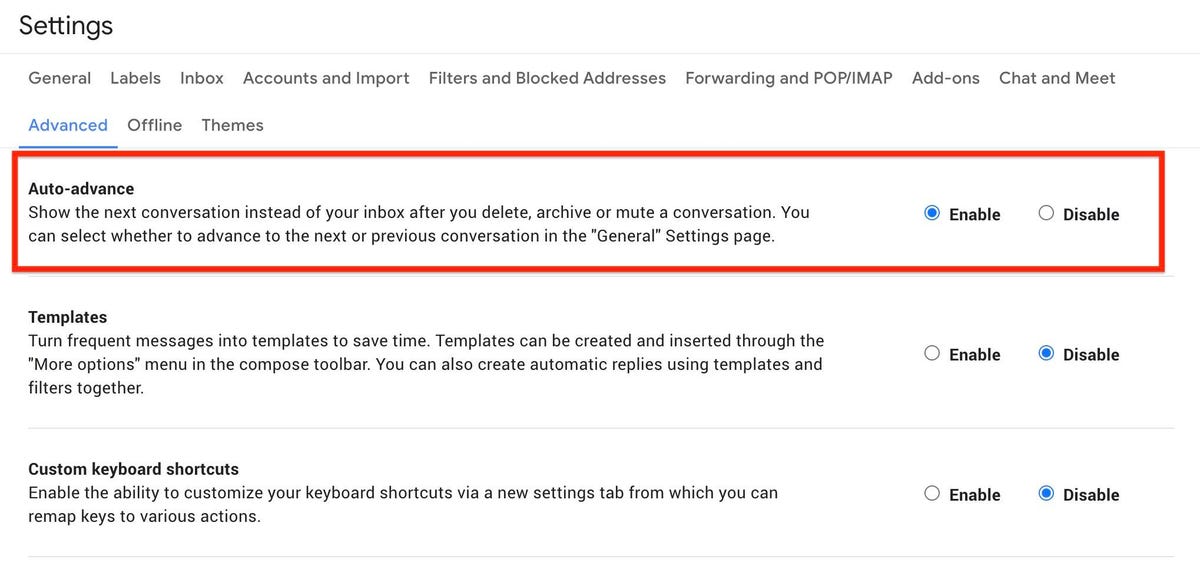
In settings, click Advanced and you’ll see Auto-advance at the top. Click the radio dial on the right for Enable to turn on. And if you head back to Settings > General and scroll down to Auto-advance, you can choose to go to the next (newer) or previous (older) conversation. To save, scroll down and hit the Save Changes button.

6. Choose your tabs
Gmail does an admirable job of filtering your inbox so the messages you care about go to your inbox while the rest get relegated to the Social or Promotions tabs. Click the gear icon and then click See all settings. On the Settings page, select Inbox and in the Categories section at the top, you can choose which tabs you want at the top of your inbox. Or if you simply ignore all tabs other than your Primary inbox, then you can uncheck all but Primary for a streamlined, tab-less Gmail experience. To save, scroll down and hit the Save Changes button.
7. Reading pane for an Outlook-like look
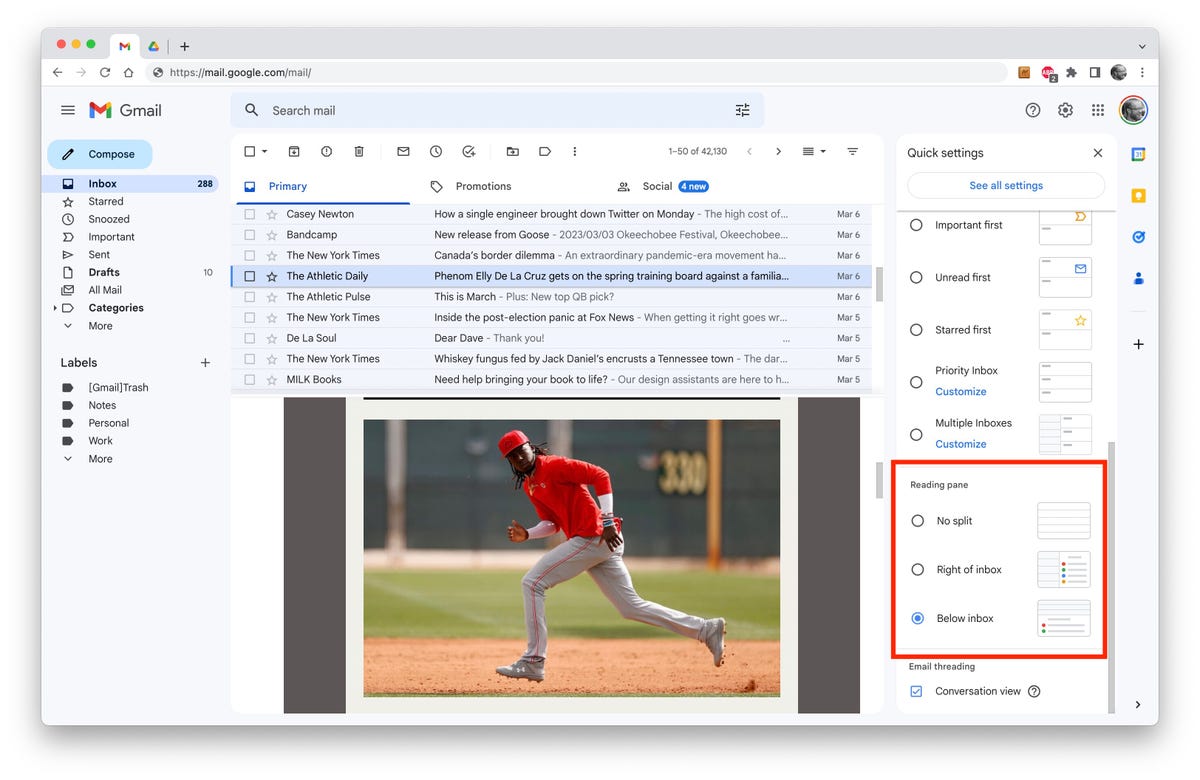
If you’ve got a big display, I encourage you to make use of your luxurious screen real estate and use Gmail’s reading pane. It makes Gmail look and feel more like Outlook, where you can view and respond to messages without leaving the inbox. Click the gear icon in the upper-right corner to open the Quick Settings panel, scroll down to Reading pane and select Right of inbox or Below inbox to split your view horizontally or vertically.

8. Save space by deleting messages with large attachments
Running out of space? If you are up against Gmail’s 15GB free storage cap (shared across Google Drive and Google Photos), then you can either pay Google for more storage or delete some messages and keep using the free plan. Search for size:5m or size:10m to see any messages that are larger than 5- or 10-megabytes. These are likely to have some big attachments. From this list, you can download the attachments you want to keep and then delete the message so it’s not taking up precious space with Google. Or just delete the old messages and attachments you no longer need.
9. Email large attachments via Google Drive
There’s a little Drive icon at the bottom of Gmail’s compose window. It lets you attach files you have stored in Drive or simply send a link. For Google Drive formats — Docs, Sheets, Slides and so on — your only option is to send a link to the file. For other file types — PDFs, Word docs, images — you have the option of sending them as an attachment or a Drive link, which lets you share files larger than Gmail’s 25MB size limit for attachments.
10. Hiding in plain sight: Advanced search
With Google behind Gmail, it’s no surprise that Gmail offers powerful search tools. You’ve likely used the search bar above your inbox to dig up an old email based on a keyword or sender, but it can do so much more. Click the little down-arrow button on the right of the search bar to open Gmail’s advanced search panel where you can search for date ranges and attachment sizes, by subject line and with other filters.
Need more Gmail help? Here are 15 Gmail shortcuts you should know and six Gmail tricks to minimize regret, frustration and spam. To stay safe, this is how you can secure your Gmail account in four easy steps.
Technologies
Today’s NYT Strands Hints, Answers and Help for Oct. 23 #599
Here are hints and answers for the NYT Strands puzzle for Oct. 23, No. 599.
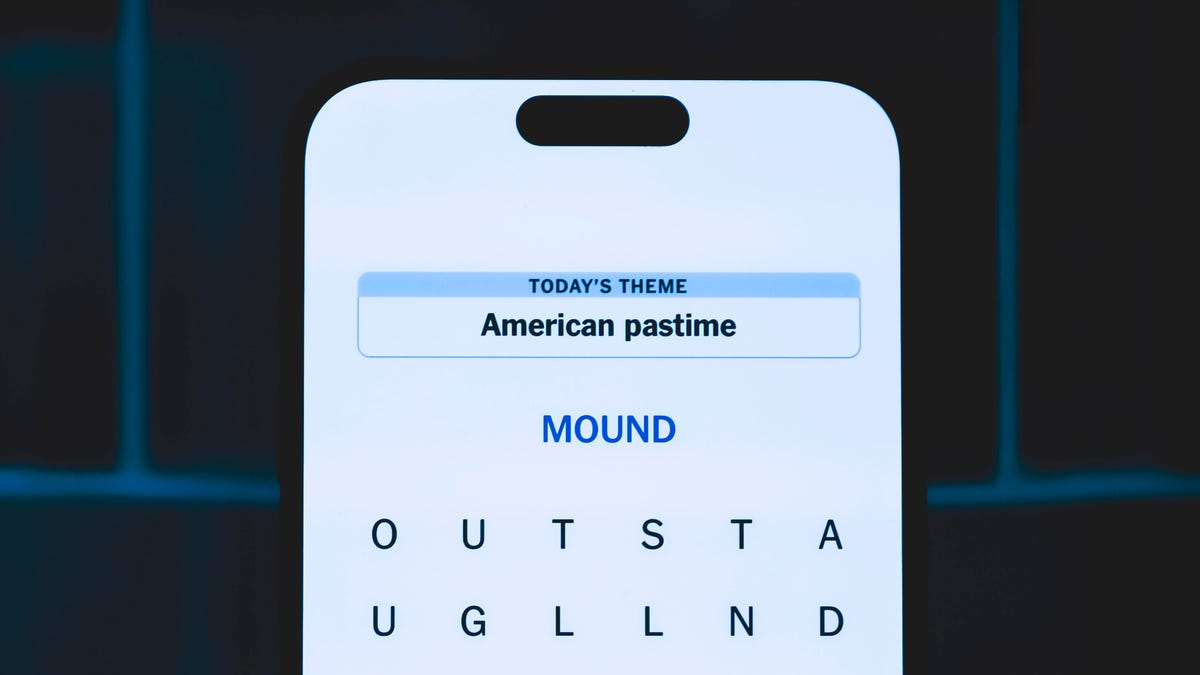
Looking for the most recent Strands answer? Click here for our daily Strands hints, as well as our daily answers and hints for The New York Times Mini Crossword, Wordle, Connections and Connections: Sports Edition puzzles.
Today’s NYT Strands puzzle might be Halloween-themed, as the answers are all rather dangerous. Some of them are a bit tough to unscramble, so if you need hints and answers, read on.
I go into depth about the rules for Strands in this story.
If you’re looking for today’s Wordle, Connections and Mini Crossword answers, you can visit CNET’s NYT puzzle hints page.
Read more: NYT Connections Turns 1: These Are the 5 Toughest Puzzles So Far
Hint for today’s Strands puzzle
Today’s Strands theme is: Please don’t eat me!
If that doesn’t help you, here’s a clue: Remember Mr. Yuk?
Clue words to unlock in-game hints
Your goal is to find hidden words that fit the puzzle’s theme. If you’re stuck, find any words you can. Every time you find three words of four letters or more, Strands will reveal one of the theme words. These are the words I used to get those hints but any words of four or more letters that you find will work:
- POND, NOON, NODE, BALE, SOCK, LOVE, LOCK, MOCK, LEER, REEL, GLOVE, DAIS, LEAN, LEAD, REEL
Answers for today’s Strands puzzle
These are the answers that tie into the theme. The goal of the puzzle is to find them all, including the spangram, a theme word that reaches from one side of the puzzle to the other. When you have all of them (I originally thought there were always eight but learned that the number can vary), every letter on the board will be used. Here are the nonspangram answers:
- AZALEA, HEMLOCK, FOXGLOVE, OLEANDER, BELLADONNA
Today’s Strands spangram
Today’s Strands spangram is POISONOUS. To find it, look for the P that is the first letter on the far left of the top row, and wind down and across.
Technologies
Today’s NYT Connections: Sports Edition Hints and Answers for Oct. 23, #395
Here are hints and the answers for the NYT Connections: Sports Edition puzzle for Oct. 23, No. 395.
Looking for the most recent regular Connections answers? Click here for today’s Connections hints, as well as our daily answers and hints for The New York Times Mini Crossword, Wordle and Strands puzzles.
Today’s Connections: Sports Edition has one of those crazy purple categories, where you wonder if anyone saw the connection, or if people just put that grouping together because only those four words were left. If you’re struggling but still want to solve it, read on for hints and the answers.
Connections: Sports Edition is published by The Athletic, the subscription-based sports journalism site owned by The Times. It doesn’t show up in the NYT Games app but appears in The Athletic’s own app. Or you can play it for free online.
Read more: NYT Connections: Sports Edition Puzzle Comes Out of Beta
Hints for today’s Connections: Sports Edition groups
Here are four hints for the groupings in today’s Connections: Sports Edition puzzle, ranked from the easiest yellow group to the tough (and sometimes bizarre) purple group.
Yellow group hint: Fan noise.
Green group hint: Strategies for hoops.
Blue group hint: Minor league.
Purple group hint: Look for a connection to hoops.
Answers for today’s Connections: Sports Edition groups
Yellow group: Sounds from the crowd.
Green group: Basketball offenses.
Blue group: Triple-A baseball teams.
Purple group: Ends with a basketball stat.
Read more: Wordle Cheat Sheet: Here Are the Most Popular Letters Used in English Words
What are today’s Connections: Sports Edition answers?
The yellow words in today’s Connections
The theme is sounds from the crowd. The four answers are boo, cheer, clap and whistle.
The green words in today’s Connections
The theme is basketball offenses. The four answers are motion, pick and roll, Princeton and triangle.
The blue words in today’s Connections
The theme is triple-A baseball teams. The four answers are Aces, Jumbo Shrimp, Sounds and Storm Chasers.
The purple words in today’s Connections
The theme is ends with a basketball stat. The four answers are afoul, bassist, counterpoint and sunblock.
Technologies
Amazon’s Delivery Drivers Will Soon Wear AI Smart Glasses to Work
The goal is to streamline the delivery process while keeping drivers safe.

Amazon announced on Wednesday that it is developing new AI-powered smart glasses to simplify the delivery experience for its drivers. CNET smart glasses expert Scott Stein mentioned this wearable rollout last month, and now the plan is in its final testing stages.
The goal is to simplify package delivery by reducing the need for drivers to look at their phones, the label on the package they’re delivering and their surroundings to find the correct address.
Don’t miss any of our unbiased tech content and lab-based reviews. Add CNET as a preferred Google source.
A heads-up display will activate as soon as the driver parks, pointing out potential hazards and tasks that must be completed. From there, drivers can locate and scan packages, follow turn-by-turn directions and snap a photograph to prove delivery completion without needing to take out their phone.
The company is testing the glasses in select North American markets.
Watch: See our Instagram post with a video showing the glasses
A representative for Amazon didn’t immediately respond to a request for comment.
To fight battery drain, the glasses pair with a controller attached to the employee’s delivery vest, allowing them to replace depleted batteries and access operational controls. The glasses will support an employee’s eyeglass prescription. An emergency button will be within reach to ensure the driver’s safety.
Amazon is already planning future versions of the glasses, which will feature «real-time defect detection,» notifying the driver if a package was delivered to the incorrect address. They plan to add features to the glasses to detect if pets are in the yard and adjust to low light.
-
 Technologies3 года ago
Tech Companies Need to Be Held Accountable for Security, Experts Say
-
 Technologies3 года ago
Best Handheld Game Console in 2023
-
 Technologies3 года ago
Tighten Up Your VR Game With the Best Head Straps for Quest 2
-
 Technologies4 года ago
Verum, Wickr and Threema: next generation secured messengers
-
 Technologies4 года ago
Black Friday 2021: The best deals on TVs, headphones, kitchenware, and more
-
 Technologies4 года ago
Google to require vaccinations as Silicon Valley rethinks return-to-office policies
-
 Technologies4 года ago
Olivia Harlan Dekker for Verum Messenger
-
 Technologies4 года ago
iPhone 13 event: How to watch Apple’s big announcement tomorrow


