

Technologies
The Entire Beats Earbuds Range Is Discounted at Amazon Right Now
You can save up to 30% on ultrapopular Beats earbuds including the newest Beats Fit Pro colors.


Beats makes some of our absolute favorite wireless earbuds on the market right now, both when it comes to sound-quality and as earbuds for working out in. But since the company is owned by Apple, Beats earbuds have the same drawback as all Apple products — they’re pricey, and not always easy to find at a discount. But right now, Amazon is offering a rare chance to pick up a pair of Beats headphones on sale with up to 30% off regular prices. There’s no clear-cut expiration on these deals, but discounts on earbuds this popular rarely last for long. We’d recommend getting your order in sooner rather than later if you’re hoping to grab a pair at this price.
CNET reviewer David Carnoy compared the Beats Studio Buds to a stemless version of Apple’s popular AirPods, and they’re a great pick if you want a pair of earbuds for everyday use. They have active noise canceling and a transparency mode when you need to be aware of your surroundings, an IPX4 water-resistance rating and a battery life of up to 24 hours on a single charge. Right now, you can grab several colors on sale for $110, which is 20% off the usual price.
Or, if you’re looking for some earbuds that are a little more advanced, you can grab a pair of Beats Fit Pros — our overall favorite pair of earbuds for working out in. They have the same IPX4 water- and sweat-resistance as the Studio Buds above, but also feature flexible wingtips that help them fit in your ears more securely so you can use them on runs or at the gym. They also support active noise canceling and spatial audio, and are equipped with the same H1 chip as the AirPods Pro for seamless connectivity with Apple devices. They list for $200, but right now you can all colors are discounted to $160, including the special-edition Kim Kardashian variants and the recently-released yellow, blue and pink options.
And if you need earbuds that can handle even your most extreme adventures, you can save $70 on a pair of Powerbeats Pro, dropping the price down to $180. They’re one of our favorite pairs of earbuds with ear hooks, which will keep them in place even during intense activities like mountain biking or trail running where you’re getting jostled around quite a bit. They don’t have noise-canceling capabilities like the two pairs above, but they do boast spatial audio support, an auto play/pause feature that can detect when you remove an earbud and built-in voice-activated Siri assistance. They also have the same H1 chip as the Beats Fit Pros, and have a battery life of up to 24 hours with the charging case.
On the cheaper end, the Beats Flex earbuds are 30% off, down to their best price of the year at $49. These neckband-style earbuds pack in a ton of great AirPods-like features, plus some unique capabilities enabled by the neckband design like in-line controls and auto-pausing when the earbuds are removed. You’ll get up to 12 hours per charge with the Beats Flex and the built-in USB-C port allows for fast charging that can get you 90 minutes of playback from just 10 minutes on the charger.
Technologies
Today’s NYT Mini Crossword Answers for Wednesday, Oct. 22
Here are the answers for The New York Times Mini Crossword for Oct. 22.
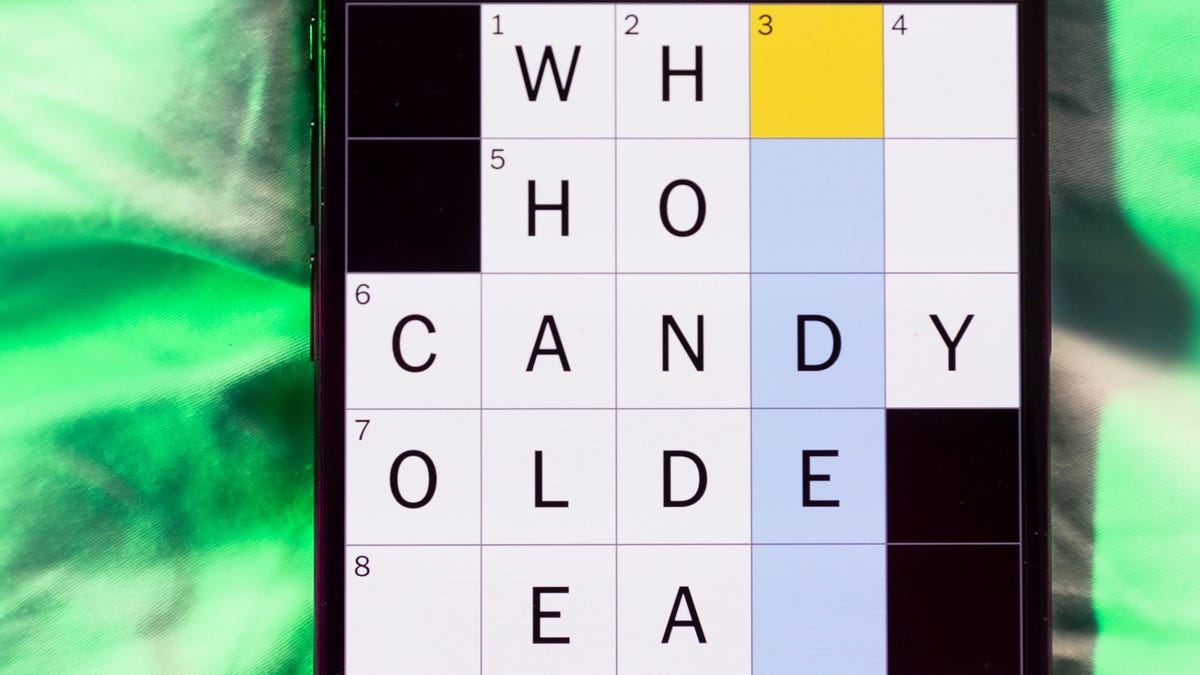
Looking for the most recent Mini Crossword answer? Click here for today’s Mini Crossword hints, as well as our daily answers and hints for The New York Times Wordle, Strands, Connections and Connections: Sports Edition puzzles.
Need some help with today’s Mini Crossword? It’s one of those with absolutely no empty spaces, just a grid of letters, which means if you correctly answer all the Across answers, you’ve solved the Down answers, too. Need help? Read on. And if you could use some hints and guidance for daily solving, check out our Mini Crossword tips.
If you’re looking for today’s Wordle, Connections, Connections: Sports Edition and Strands answers, you can visit CNET’s NYT puzzle hints page.
Read more: Tips and Tricks for Solving The New York Times Mini Crossword
Let’s get to those Mini Crossword clues and answers.
Mini across clues and answers
1A clue: Roomful of students
Answer: CLASS
6A clue: Something to bring in a brown paper bag
Answer: LUNCH
7A clue: __ Harbor, sightseeing area of Baltimore
Answer: INNER
8A clue: Where many Stephen King novels are set
Answer: MAINE
9A clue: Beagle or bulldog
Answer: BREED
Mini down clues and answers
1D clue: Go bouldering, e.g.
Answer: CLIMB
2D clue: ___ New Year
Answer: LUNAR
3D clue: Redhead of musical/movie fame
Answer: ANNIE
4D clue: Something an actor might steal
Answer: SCENE
5D clue: Tear to pieces
Answer: SHRED
Technologies
These Small Tweaks Can Give Your Old Android a Big Speed Boost
Instead of buying a new phone, try clearing some space, updating your software and changing a few battery settings.
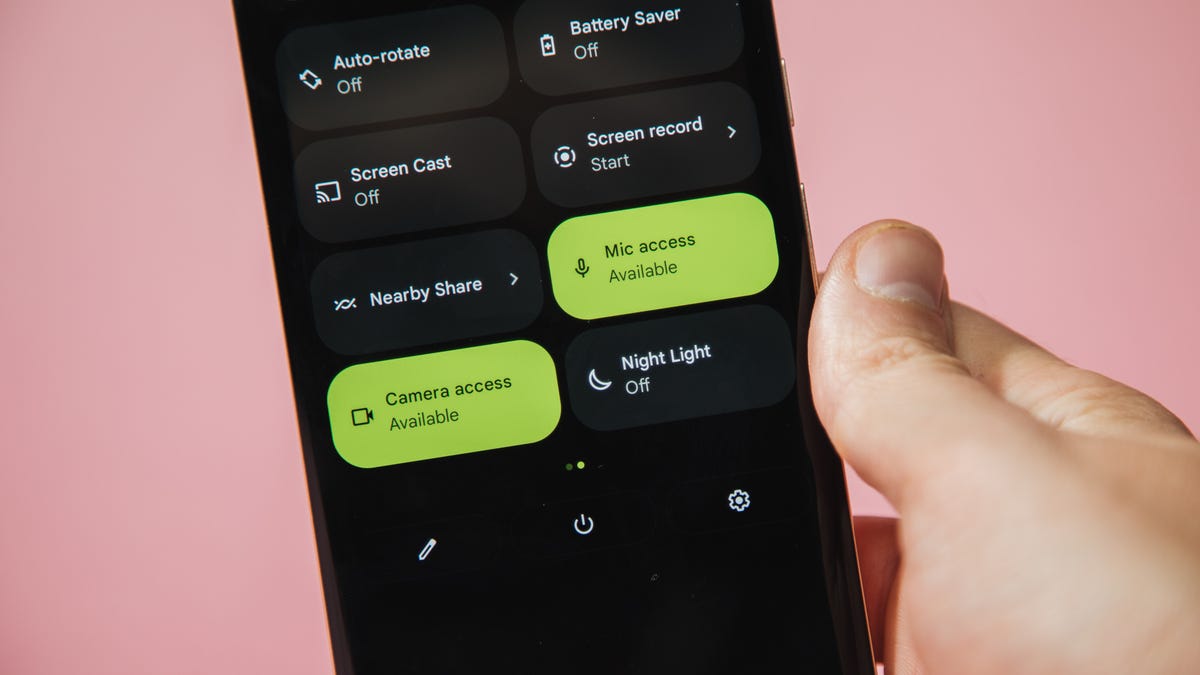
If your Android is a few years old and starting to feel sluggish, it doesn’t mean you have to rush out and buy the newest flagship model. Thanks to longer software support from brands like Google and Samsung, older models can still run smoothly, as long as you give them a little attention.
Before you start shopping for a replacement, try a few simple adjustments. You might be surprised by how much faster your phone feels once you clear out unused apps, optimize battery use and turn off background drains.
Whether you use a Samsung Galaxy, Motorola or OnePlus phone, chances are you can still improve battery life and overall speed without buying something new. Just remember that Android settings vary slightly from brand to brand, so the menus may look a little different depending on your phone.
Don’t miss any of our unbiased tech content and lab-based reviews. Add CNET as a preferred Google source.
Settings to improve your battery life
Living with a phone that has poor battery life can be infuriating, but there are some steps you can take to maximize each charge right from the very beginning:
1. Turn off auto screen brightness or adaptive brightness and set the brightness level slider to under 50%
The brighter your screen, the more battery power it uses.
To get to the setting, pull down the shortcut menu from the top of the screen and adjust the slider, if it’s there. Some phones may have a toggle for auto brightness in the shortcut panel; otherwise, you need to open the settings app and search for «brightness» to find the setting and turn it off.
2. Use Adaptive Battery and Battery Optimization
These features focus on learning how you use your phone, including which apps you use and when, and then optimizing the apps and the amount of battery they use.
Some Android phones have a dedicated Battery section in the Settings app, while other phones (looking at you, Samsung) bury these settings. It’s a little different for each phone. I recommend opening your settings and searching for «battery» to find the right screen. Your phone may also have an adaptive charging setting that can monitor how quickly your phone battery charges overnight to preserve its health.
Why you should use dark mode more often
Another way to improve battery life while also helping save your eyes is to use Android’s dedicated dark mode. Any Android phone running Android 10 or newer will have a dedicated dark mode option.
According to Google, dark mode not only reduces the strain that smartphone displays cause on our eyes but also improves battery life because it takes less power to display dark backgrounds on OLED displays (used in most flagship phones) than a white background.
Depending on which version of Android your phone is running, and what company made your phone, you may have to dig around the settings app to find a dark mode. If your phone runs Android 10 or newer, you’ll be able to turn on system-wide dark mode. If it runs Android 9, don’t despair. Plenty of apps have their own dark mode option in the settings that you can use, whether or not you have Android 10.
To turn it on dark mode, open the Settings app and search for Dark Mode, Dark Theme or even Night Mode (as Samsung likes to call it). I suggest using dark mode all the time, but if you’re not sure, you can always set dark mode to automatically turn on based on a schedule, say from 7 p.m. to 7 a.m. every day, or allow it to automatically switch based on your location at sunset and sunrise.
Keep your home screen free of clutter
Planning to hit up the Google Play Store for a bunch of new Android apps? Be prepared for a lot of icon clutter on your home screen, which is where shortcuts land every time you install something.
If you don’t want that, there’s a simple way out of this: Long-press on an empty area of your home screen and tap Settings. Find the option labeled something along the lines of Add icon to Home Screen or Add new apps to Home Screen and turn it off.
Presto! No more icons on the home screen when you install new apps. You can still add shortcuts by dragging an app’s icon out of the app drawer, but they won’t appear on your home screen unless you want them to.
Read more: Best Android Phones You Can Buy in 2024
Set up Do Not Disturb so that you can better focus
If your phone routinely spends the night on your nightstand, you probably don’t want it beeping or buzzing every time there’s a call, message or Facebook alert — especially when you’re trying to sleep. Android offers a Do Not Disturb mode that will keep the phone more or less silent during designated hours. On some phones, this is referred to as the Downtime setting or even Quiet Time.
Head to Settings > Sounds (or Notifications), then look for Do Not Disturb or a similar name. If you can’t find it, search for it using the built-in search feature in your settings.
Using the feature, you can set up a range of hours when you want to turn off the digital noise. Don’t worry, any notifications you get while Do Not Disturb is turned on will still be waiting for you when you wake up. Also, you can typically make an exception that allows repeat callers and favorite contacts’ calls to go through. Turn that on. If someone is calling you in an emergency, odds are they are going to keep trying.
Always be prepared in case you lose your phone or it’s stolen
Is there anything worse than a lost or stolen phone? Only the knowledge that you could have tracked it down if you had turned on Google’s Find My Device feature.
To prepare for a successful recovery, here’s what you need to do: Open the Settings app and then search for Find My Device. It’s usually in the Security section of the Settings app.
If you have a Samsung device, you can use Samsung’s Find My Mobile service, which is found in Settings > Biometrics and security > Find My Mobile.
Once that’s enabled, you can head to android.com/find from any PC or mobile device and sign in to your account. Samsung users can visit findmymobile.samsung.com to find a lost phone.
If you have trouble setting any of this up, be sure to read our complete guide to finding a lost Android phone.
Assuming your phone is on and online, you should be able to see its location on a map. From there, you can make it ring, lock it, set a lock screen note to tell whoever has it how to get it back to you, or, worst-case scenario, remotely wipe the whole thing.
And always keep your phone up to date
As obvious as it may seem, a simple software update could fix bugs and other issues slowing down your Android device.
Before you download and install the latest software update, make sure your device is connected to Wi-Fi, or else this won’t work.
Now, open the Settings application and type in Update. You’ll then either see Software update or System update — choose either one. Then just download the software, wait for a few minutes and install it when it’s ready. Your Android device will reboot and install the latest software update available.
There’s a lot more to learn about a new phone. Here are the best ways to boost your cell signal, and here’s a flagship phone head-to-head comparison. Plus, check out CNET’s list of the best cases for your Samsung phone. More of an Apple fan? We have tips for boosting your iPhone’s performance, too.
Technologies
I’m Finally Using the iPhone 17 Pro’s Camera Control, Thanks to These iOS 26 Settings
In just a month, I’ve already used Camera Control on my iPhone 17 Pro Max more than I did in a whole year with the iPhone 16 Pro.
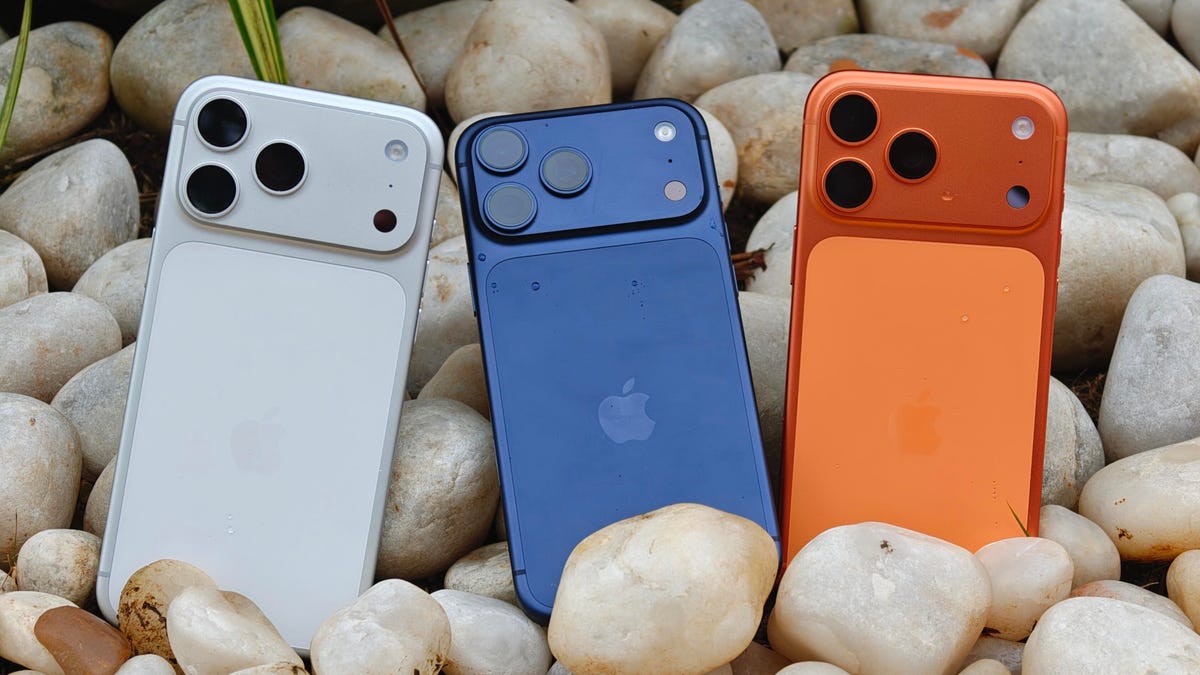
I was keen on using the Camera Control button when it first debuted on the iPhone 16 Pro. But in over a year of use, it caused more accidental swipes and presses than its intended use cases to take photos and adjust camera settings. I was frustrated with the experience and hoped that Apple would remove it from the iPhone 17 lineup. Instead, the Cupertino, California-based company made its touch-sensitive capacitive control surface more customizable with iOS 26. And I’m happy to report that it helped!
I’ve been using the iPhone 17 Pro since launch and spent 5 to 10 minutes customizing the Camera Control to my liking. The result? Minimized accidental swipes and more conscious usability.
I transformed my Camera Control experience by changing a few iOS 26 settings
When setting up a new iOS 26-supported iPhone, Apple includes a toggle (now turned off by default) called Light press to adjust Zoom, Exposure and more. This is what used to cause a lot of fake input earlier. I’m glad it is turned off by default.
Apple now also lets you customize the Camera Control further from the Settings menu. I tweaked settings there to personalize my shortcuts, functionalities and more.
For example, I’ve set the Camera Control to launch a Code Scanner on Double Click without requiring the screen to be on. This allows me to scan and pay at payment kiosks (my most frequently used mode of payment) without needing to open the payment app and then tap on a menu to scan a code. If I enter the Code Scanner without Face ID, it requires authentication before making the payment, so it is still as secure as ever.
Earlier, I had set an Action Button shortcut to open Google Pay, but I realized I still need a one-press solution to turn the phone to silent mode. Adding a Code Scanner shortcut to Camera Control frees the Action Button to be my Silent Switch again. Moreover, Code Scanner lets you select from multiple apps to pay a vendor, which could be useful for people who use multiple payment apps.
Secondly, I have turned off the Swipe gesture and selected only three controls that I use most often. Now, when I open the Camera app, I can lightly press on the Camera Control button and then swipe between my selected controls. It doesn’t register swipes from the get-go. This has reduced fake touches and my frustrating experience with the swipe gesture.
To further streamline my controls, I chose Exposure, Styles and Tone, and left out Depth, Zoom and Cameras. This way, I have access to hidden viewfinder settings with a single press-and-swipe gesture at my fingertips.
I also turned off the Clean Preview toggle, so I can still switch between cameras with a single tap, and switched on the Lock Focus and Exposure toggle for a light press-and-hold gesture.
Customizing these settings helped me personalize Camera Control and use it more often. Now, it appeals to me with the settings I need and the way I need them, instead of being an overcrowded mess. And you can personalize your Camera Control, too. Here’s how:
Change Camera Control launch functionality
You can use Camera Control as another Action Button to launch an app of your choice. The only requirement is that the app should have access to the camera.
- Go to Settings > Camera > Camera Control.
- Under Launch Camera, select the app you need.
- Go back and select Single Click or Double Click to open the said app.
I rely on Double Click so I don’t accidentally trigger an app when taking out the iPhone from my pocket. In my opinion, it is the safer and more convenient choice.
Under the same Launch Camera menu, you can also choose if you want the screen to be on or off when opening the app. I have turned it off to save the extra step of scanning my face to access the said app.
Choose the Controls that you want to appear on Camera Control
Apple allows you to choose from six controls, namely, Exposure, Depth, Zoom, Cameras, Styles and Tone. I have chosen three because the other three are available as on-screen toggles in the viewfinder.
- Go to Settings > Camera > Camera Control.
- Under Controls, make sure Camera Adjustments is turned on.
- Tap on Customize.
- Under Gesture, turn on Light Press and toggle off Swipe.
- Under Controls, choose the functionalities you need.
- Now, turn off the Clean Preview toggle if you require the viewfinder toggles to remain accessible.
You can further adjust the Camera Control pressure by going into Settings> Camera > Camera Control > Accessibility.
Turn on Lock Exposure and Focus with Camera Control
This setting will help you lock the exposure and focus without needing to press and hold on the viewfinder. It can be beneficial when you need consistent settings, especially when moving the camera from one subject to another.
- Go to Settings > Camera > Camera Control.
- Swipe down to Lock Exposure and Focus.
- Tap on the toggle to turn it on.
For me, Camera Control was a hot mess when it debuted last year because I was either using on-screen controls or the new button. That’s why room for more personalization and customizability has been a game-changer. I realized I could access on-screen toggles while adding hidden settings to one-tap access. On my iPhone 17 Pro, I now use the Camera Control to open my payments app, adjust Exposure and Styles as well as trigger Visual Intelligence when needed.
-
 Technologies3 года ago
Tech Companies Need to Be Held Accountable for Security, Experts Say
-
 Technologies3 года ago
Best Handheld Game Console in 2023
-
 Technologies3 года ago
Tighten Up Your VR Game With the Best Head Straps for Quest 2
-
 Technologies4 года ago
Verum, Wickr and Threema: next generation secured messengers
-
 Technologies4 года ago
Black Friday 2021: The best deals on TVs, headphones, kitchenware, and more
-
 Technologies4 года ago
Google to require vaccinations as Silicon Valley rethinks return-to-office policies
-
 Technologies4 года ago
Olivia Harlan Dekker for Verum Messenger
-
 Technologies4 года ago
iPhone 13 event: How to watch Apple’s big announcement tomorrow


